


My home lab used to be a row of boxes on a wood desk, each with its own spot and its own cable going somewhere. So it all went into a 10-inch rack, the DeskPi RackMate T2. Now every network cable runs to one patch panel and every plug to one power strip, and the desk is a desk again.
The short version
- The DeskPi RackMate T2 is a 12U, 10-inch rack with smoked acrylic sides, and it now holds my whole home lab except the main server and the UPS.
- The vented shelves, blank panels, patch panel and power strip were separate purchases.
- In our file transfers, the 2.5 Gigabit switch inside it moved data at about 2,350 Mbps between the machines with 2.5 Gigabit ports.
- I have had it for days, not weeks, and have not measured power draw, temperatures or noise yet.
Why my home lab moved into a rack
Before the rack, every device sat on the desk in a row against the slat wall. The Raspberry Pi in its silver finned case, a blue-grey switch, the white UniFi gateway, a Google Wifi puck sitting on top of a black mini PC, a black cage with a clear-topped board, and the tower PC with the Eaton UPS beside it. The UniFi access point lay flat on the desk.
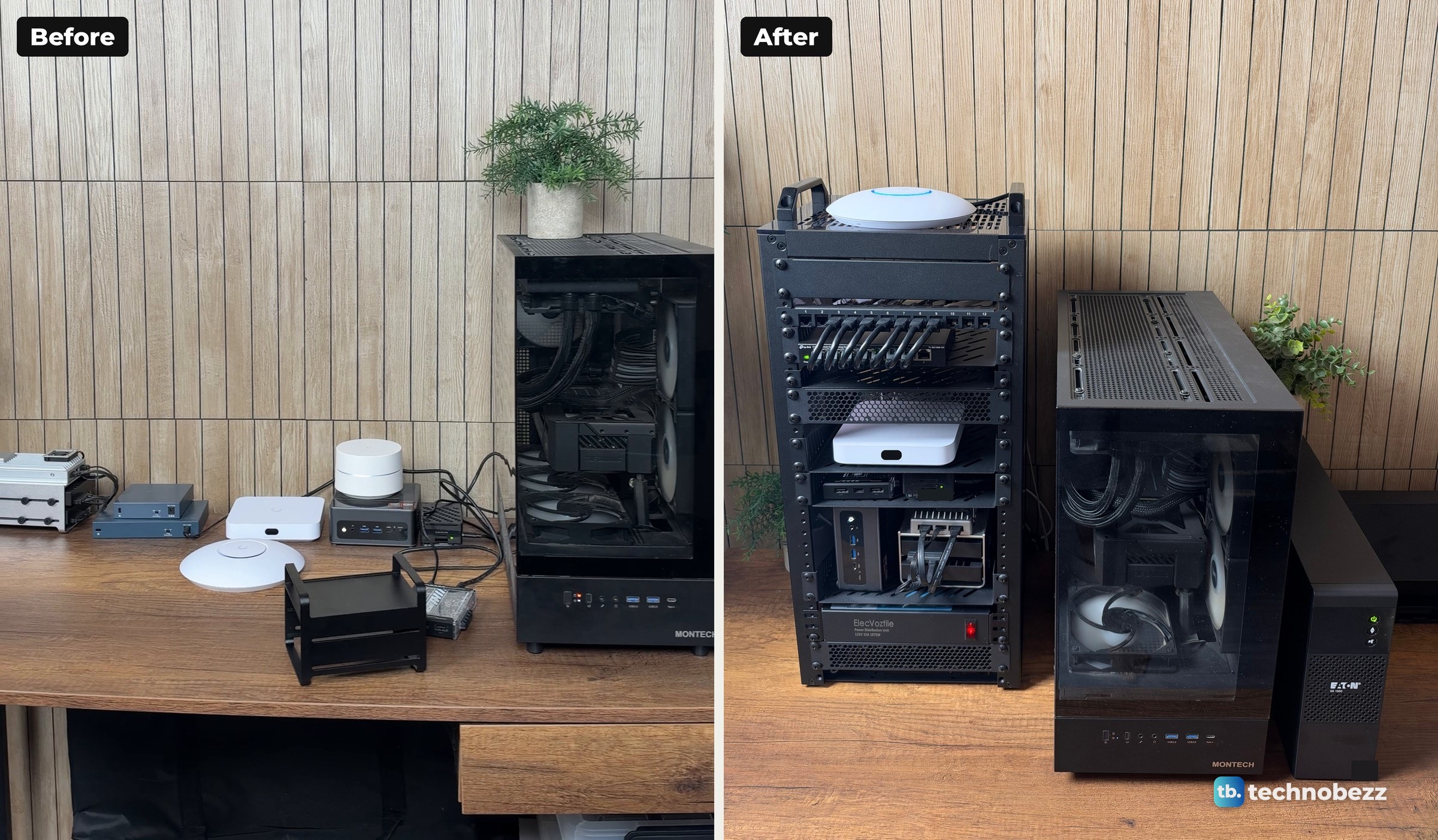
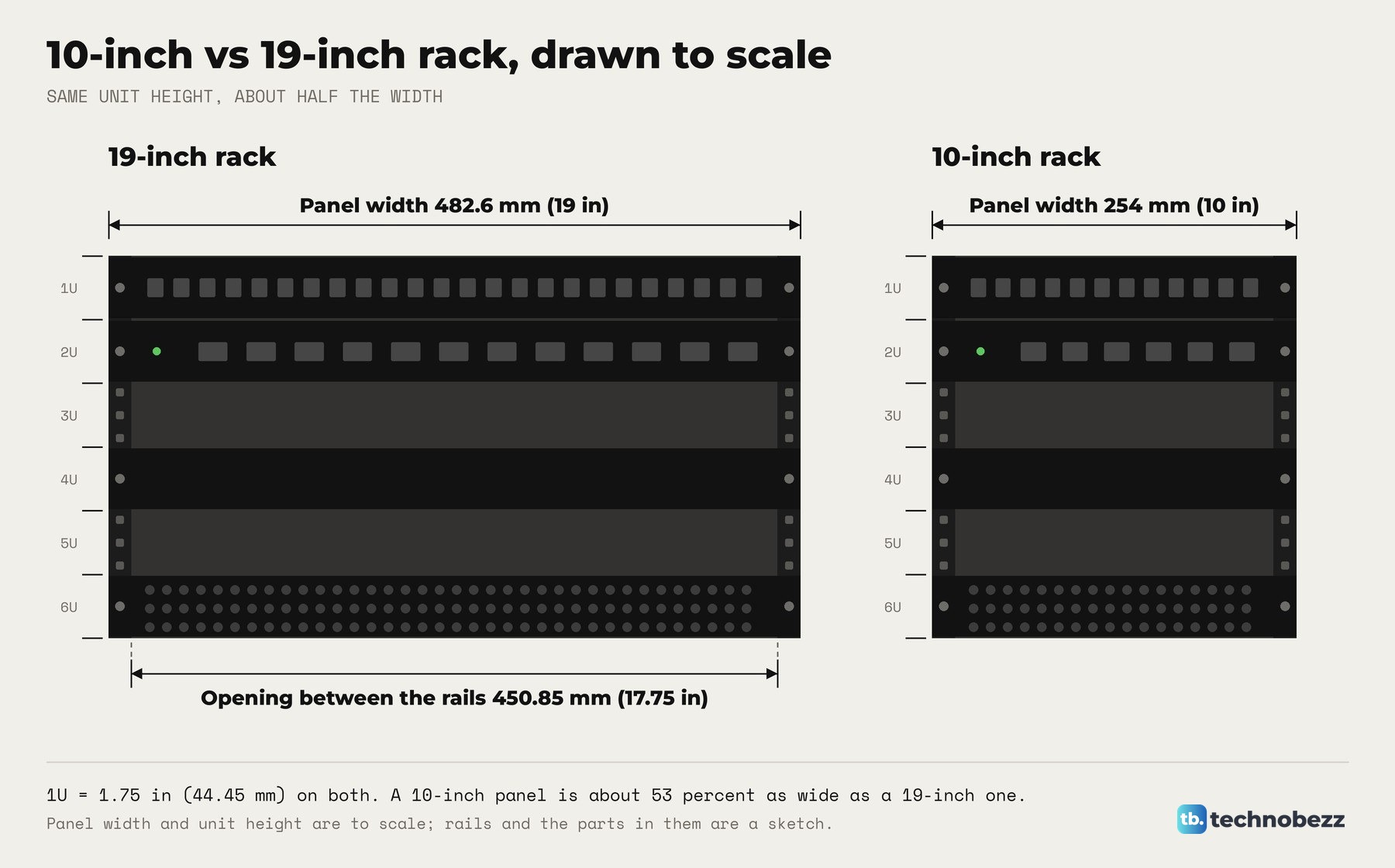
The rack I picked is the DeskPi RackMate T2 in black, sold on Amazon under the GeeekPi name. It is a 10-inch, 12U rack, 281 mm (11.06 in) wide and 260 mm (10.23 in) deep, with a 596 mm (23.46 in) chassis that stands 629 mm (24.76 in) tall with the handles. The T2 takes 10-inch rack accessories, and 19-inch rackmount gear will not mount to its rails. My small computers and network devices sit on shelves. If you are weighing the two sizes, our 10-inch vs 19-inch rack guide covers the trade.
Building the DeskPi RackMate T2
The build happened in one night, with breaks, and I did not time it. The unboxing covers what was in the box, and the full step list with a photo per step is in how to assemble the DeskPi RackMate T2. The rails screw into L corners, the corners become frames, the smoked side panels slide into those frames, and a vented metal plate joins everything at the bottom.
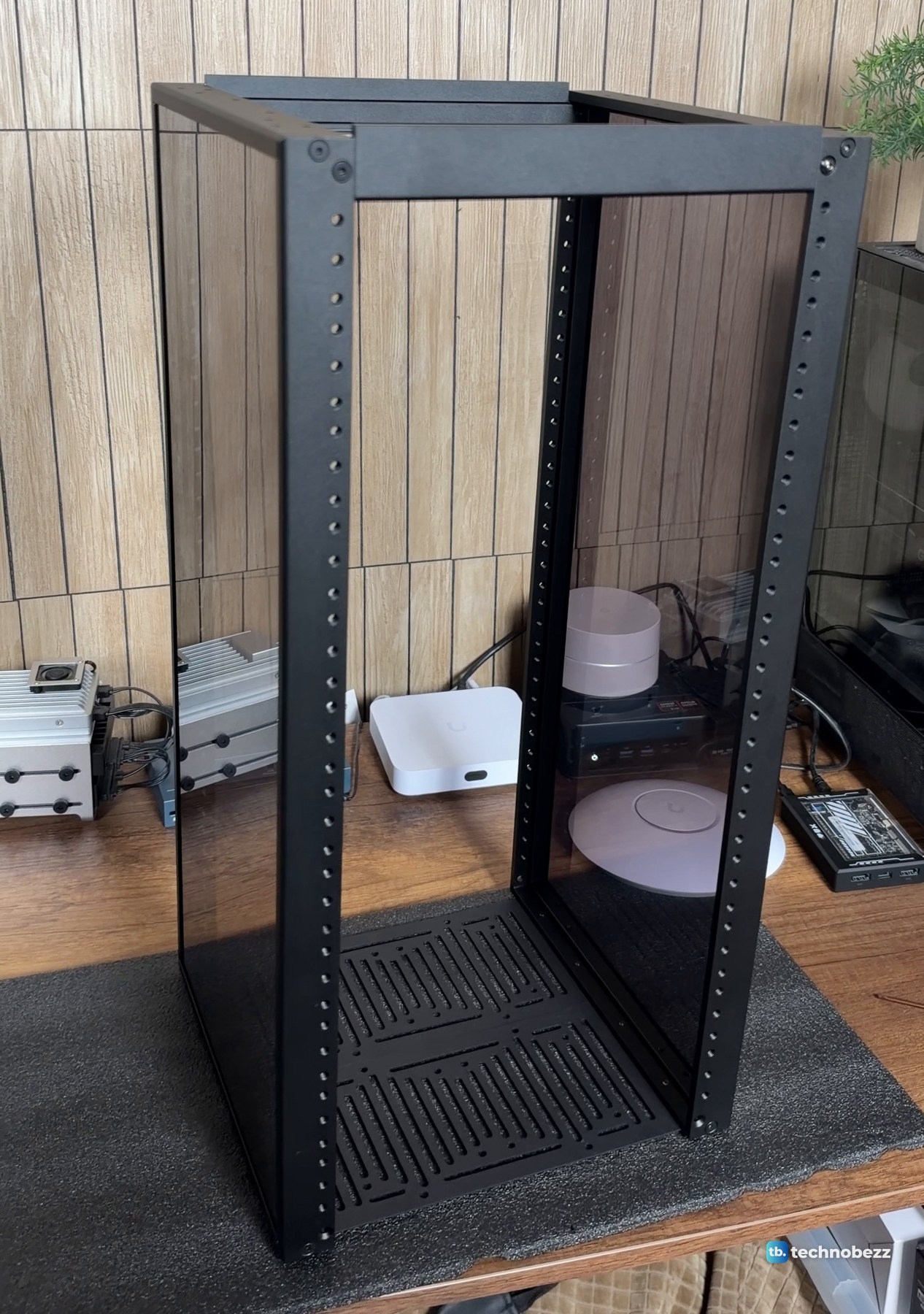
After that came the vented top plate, which has protective paper to peel first, and the two carry handles on top. The shelves and the power strip went onto the front rails with the rack lying on its back, and the patch panel was the last part in. The time lapse shows the whole build, from the box to the empty rack.
Empty, the rack looks like a small black cabinet. The smoked panels are dark enough to look tidy but clear enough to see the shelves through them.
Loading it up
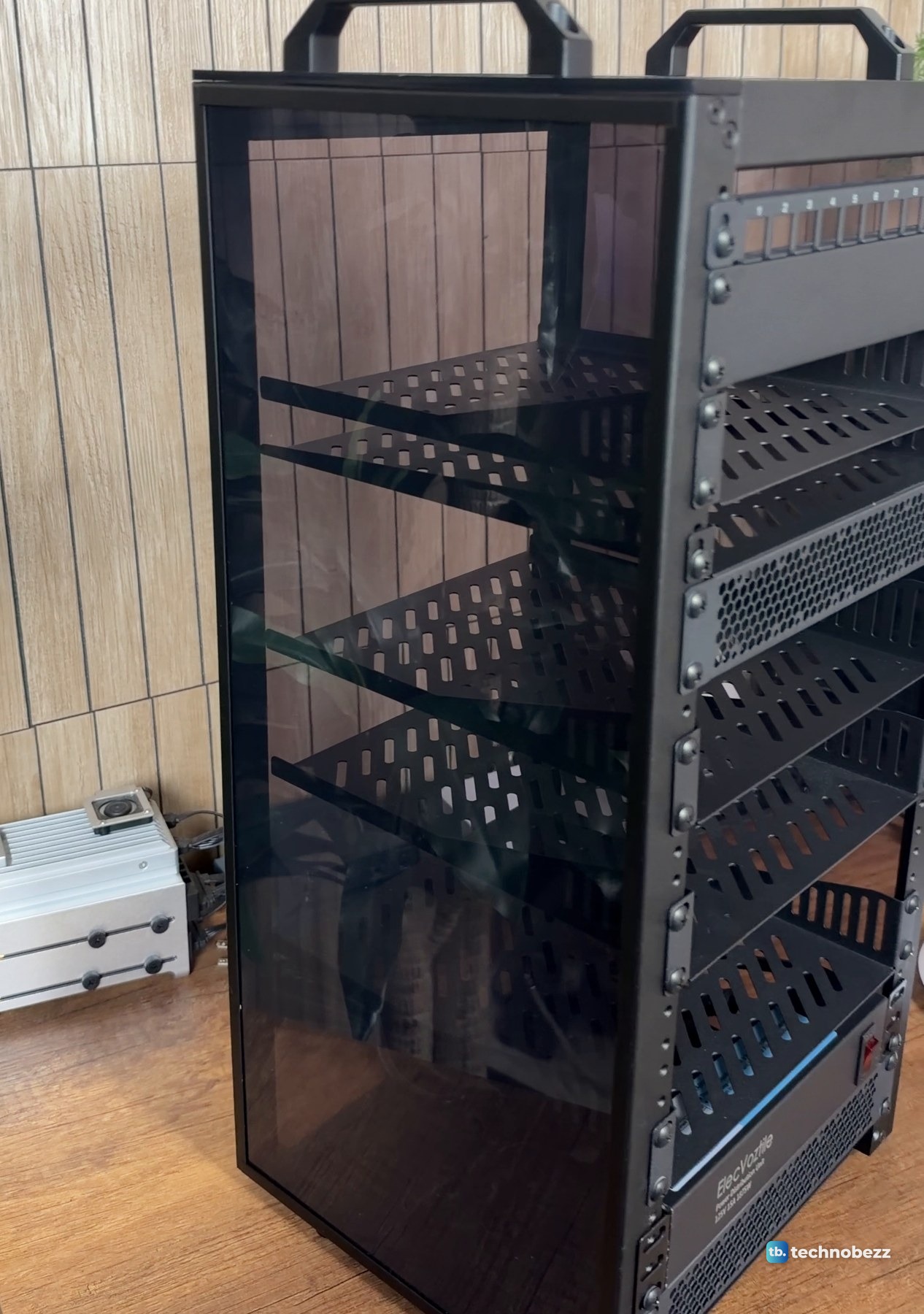
Before anything went in, I went over the empty rack shelf by shelf, working out where each box would sit.
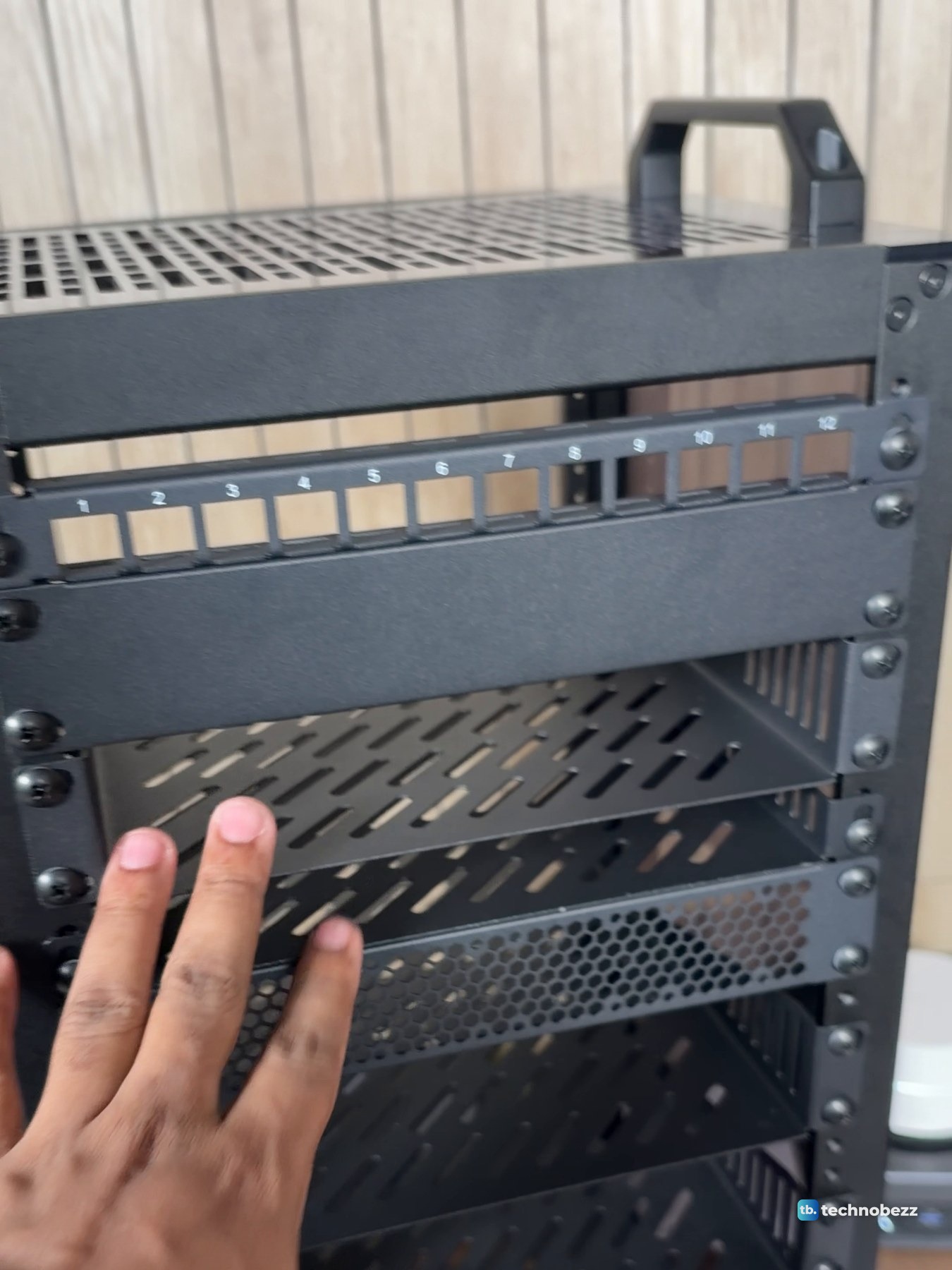
Loading the rack was a separate session, on another day. The switches, the gateway and the small computers went in one at a time. The ZimaBlade and the Raspberry Pi share a shelf, and the F5A and the ZimaBoard 2 share another. The little boards and the mini PC sit on vented shelves, and the power strip is mounted low with its switch at the front. The mounting details for the boards are in how to rack mount a Raspberry Pi and mini PC.
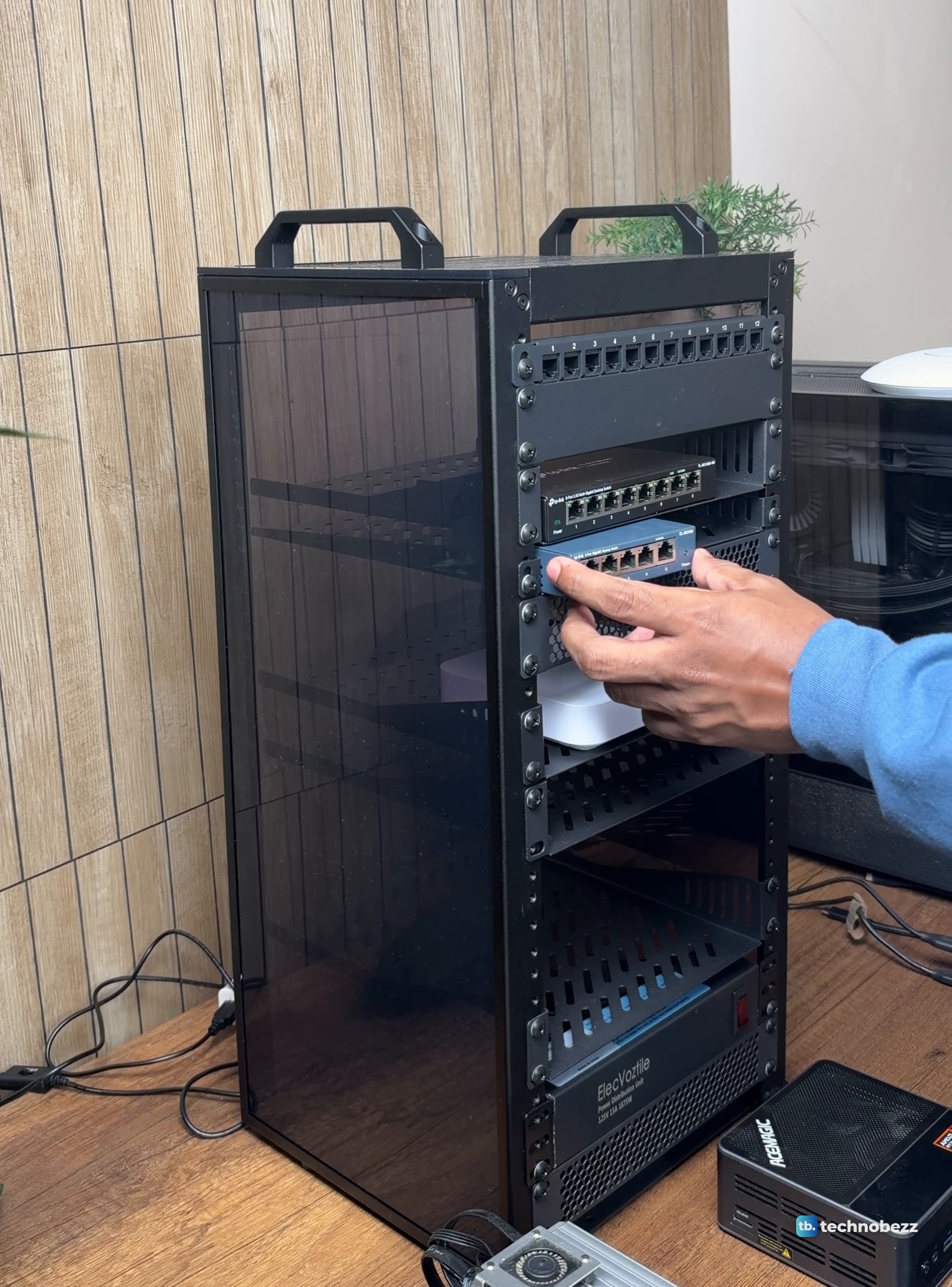
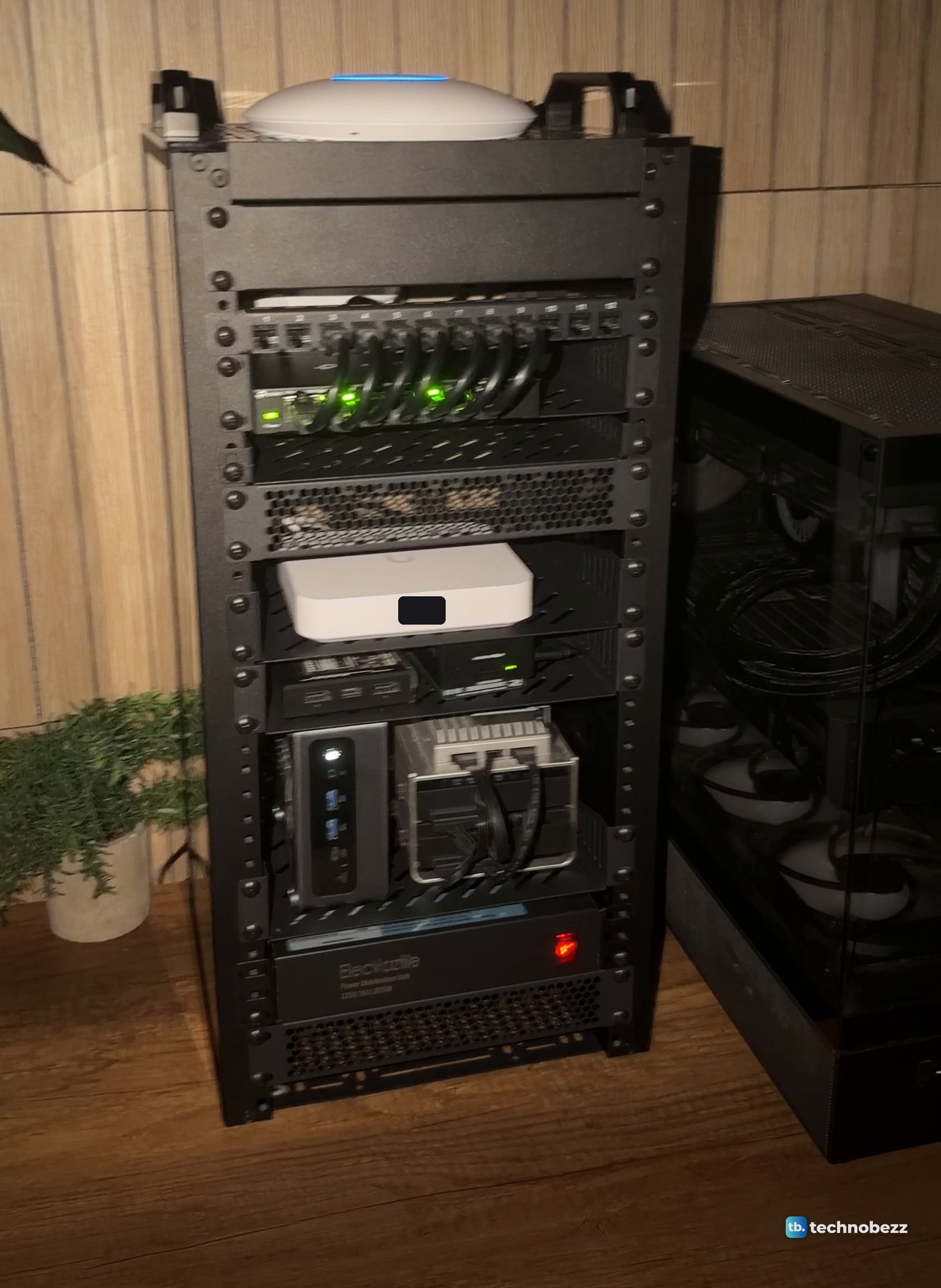
From the top down, the UniFi U7 Lite sits on the top plate. Under the top there is a blank panel, then the 12-port patch panel, then the TP-Link TL-SG108S-M2, an 8-port 2.5 Gigabit switch. Below the 2.5 Gigabit switch are a vented panel, the UniFi Cloud Gateway Ultra, a shelf with the ZimaBlade 7700 and the Raspberry Pi 5, and a shelf with the ACEMAGIC F5A and the ZimaBoard 2. The power strip and a 120 mm fan blowing air in sit at the bottom. The TP-Link TL-SG105 5-port switch is also in the rack, but it is out of view in the finished front photo. The ACEMAGIC F5A, ZimaBoard 2 and ZimaBlade were sent to us for review. Everything else here we bought. Our ZimaBoard 2 review and ACEMAGIC F5A review go deeper on those two.
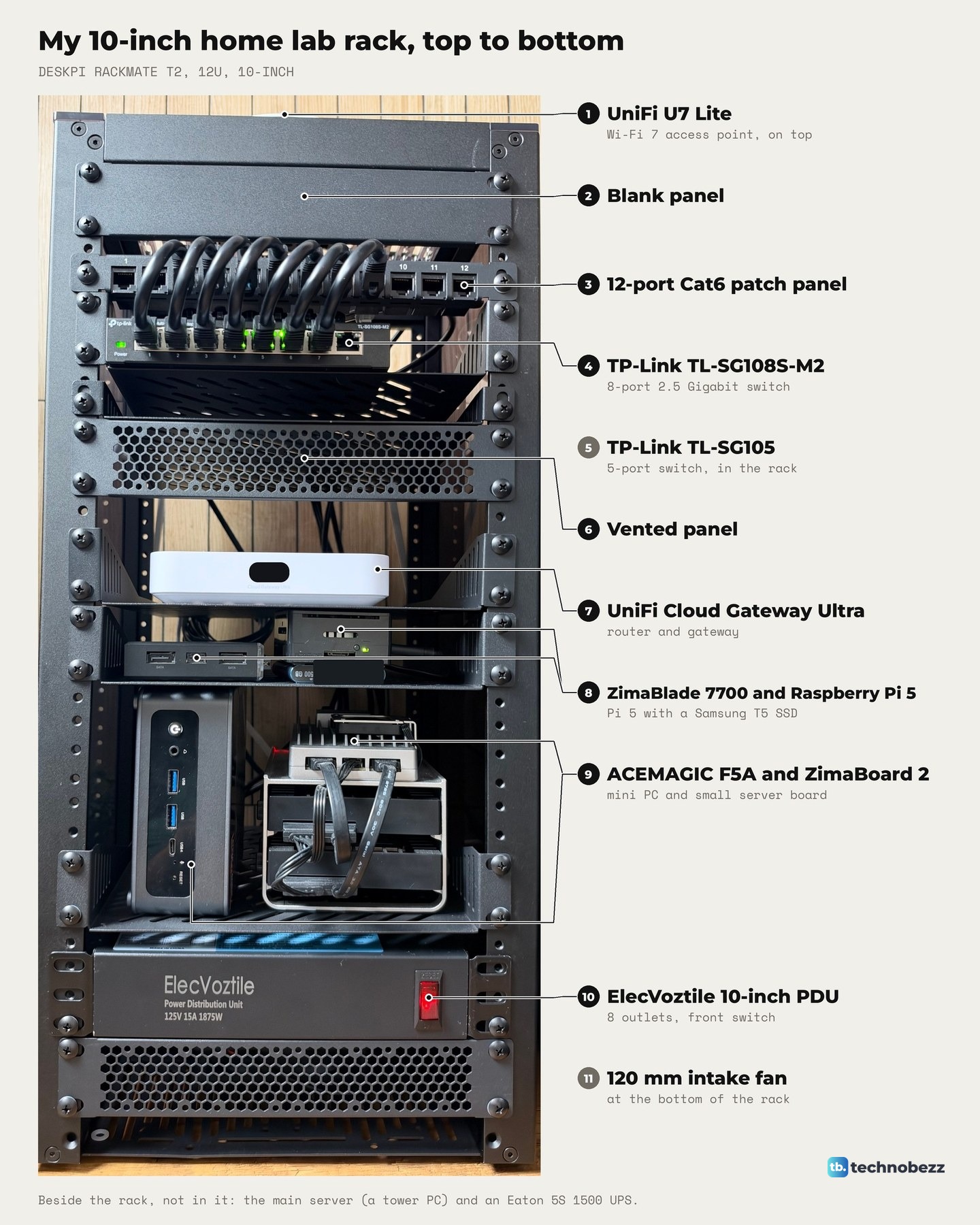
The what's inside my home lab rack tour goes shelf by shelf, and home lab rack layout explains the order.
Cabling and the 2.5 Gigabit switch
Every network cable now lands on the patch panel near the top. Seven short jumpers run from patch panel ports 3 to 9 into switch ports 1 to 7, and the cables to the machines plug into the back of the panel. The internet line comes into panel port 1 and goes to the gateway's internet port. The patch panel guide has the full port map.
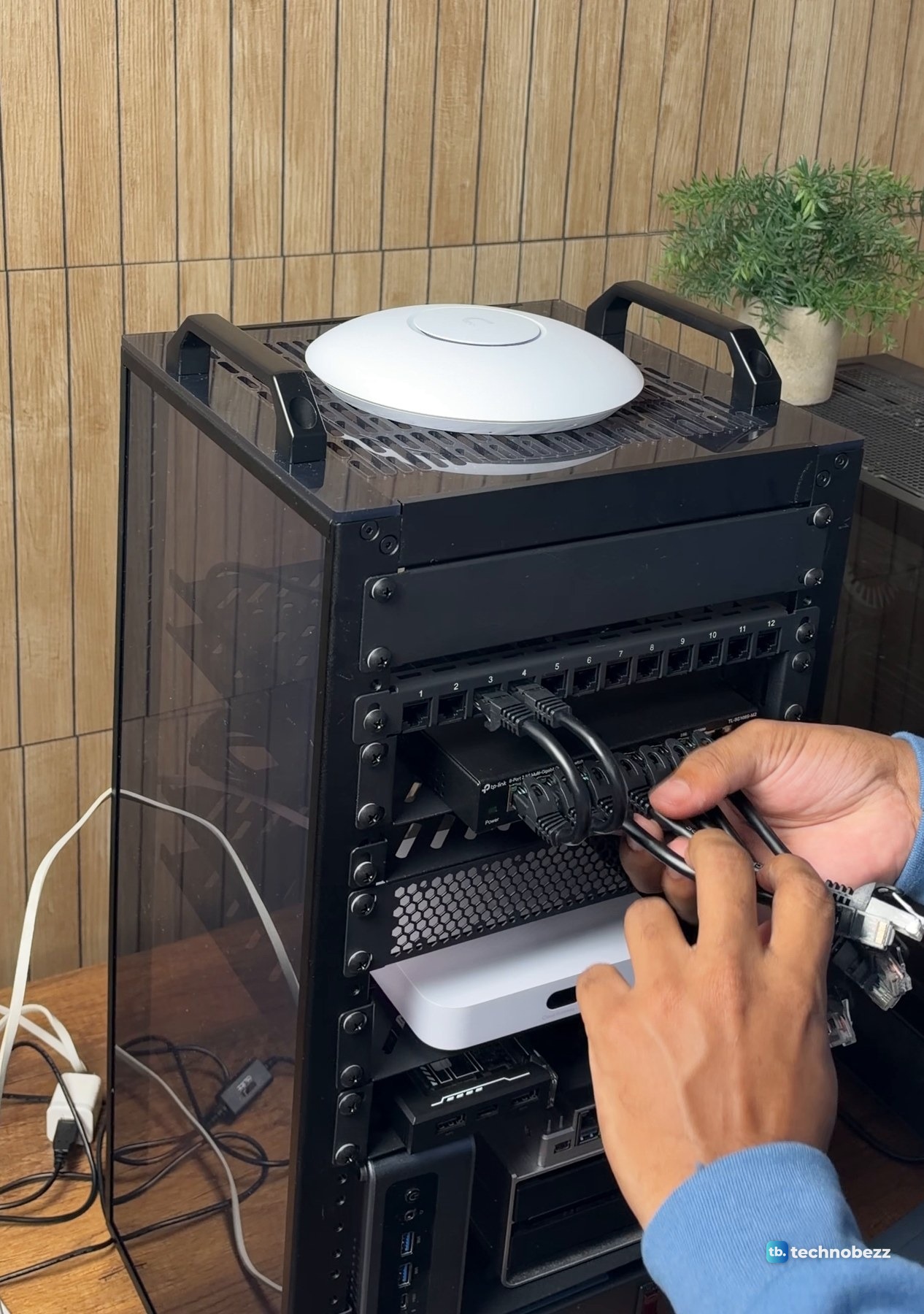
The UniFi Cloud Gateway Ultra's LAN ports are 1 Gigabit, and only its internet port is 2.5 Gigabit. So the TL-SG108S-M2, which replaced an older 1 Gigabit 8-port switch, carries the traffic between machines. After the move we ran a 1 GB file transfer over the network with each machine. The main server, the F5A and the ZimaBoard 2 each moved data at about 2,350 Mbps, which is 2.5 Gigabit line rate. The Raspberry Pi 5 and the ZimaBlade reached about 940 Mbps, which is the most their 1 Gigabit ports can do. Our best network switches list covers other options.
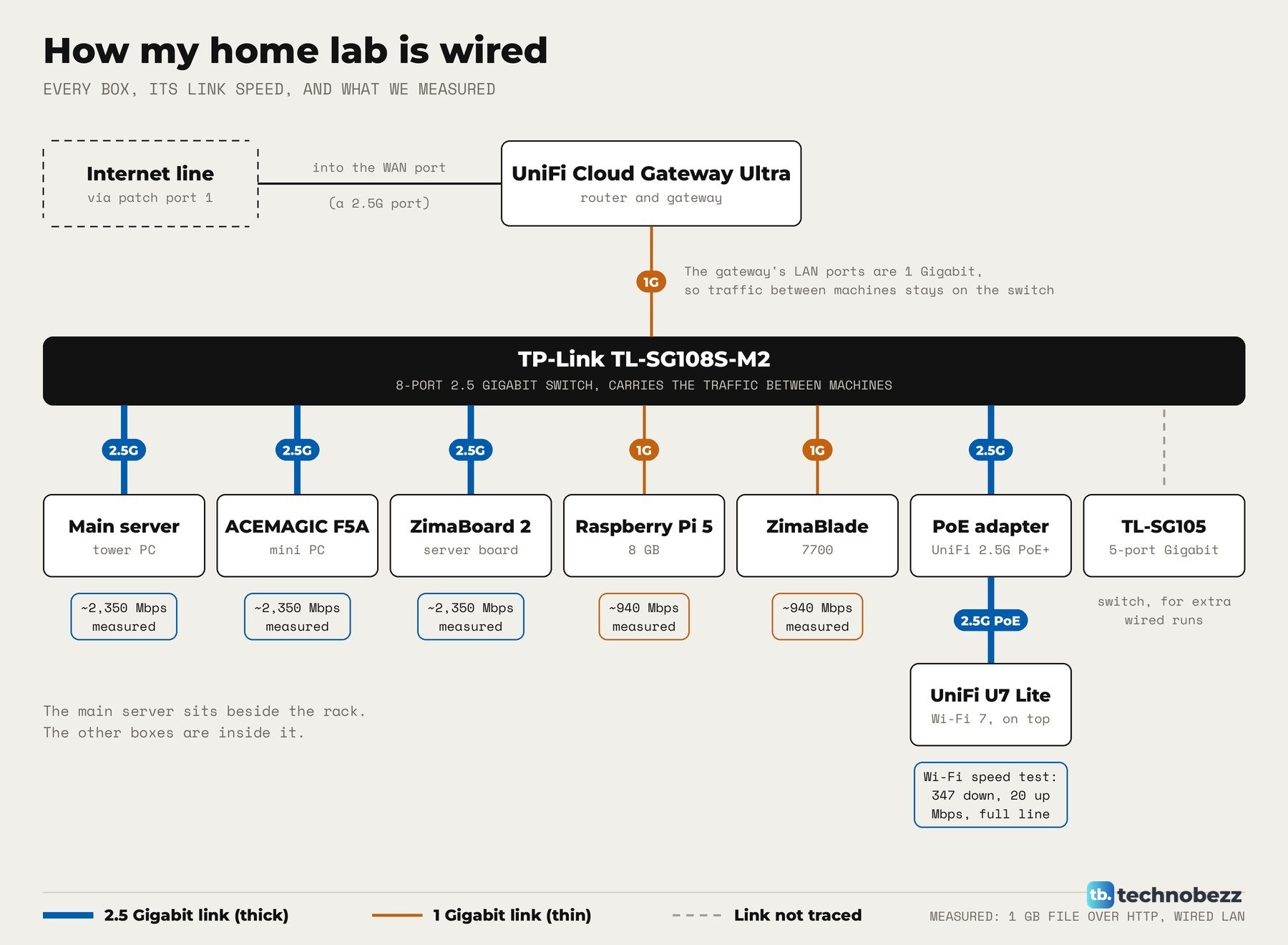
Wi-Fi comes from the U7 Lite on top, powered over Ethernet by a UniFi 2.5G PoE+ adapter. I adopted it in UniFi myself, and it took a firmware update during adoption. A speed test on my Mac over the U7 Lite showed 347 Mbps down and 20 Mbps up, which is the full speed of the internet line, so the access point was not the limit.
The finished rack, day and night
In daylight, from the front, it reads as one tidy unit. The main server sits beside it, not in it. That is a tower PC with a Ryzen 7 9800X3D, 64 GB of RAM and an RTX 5070 Ti, running Proxmox. An Eaton 5S 1500 UPS keeps all of it on when the power isn't, and how to connect a UPS to a home lab covers that part.
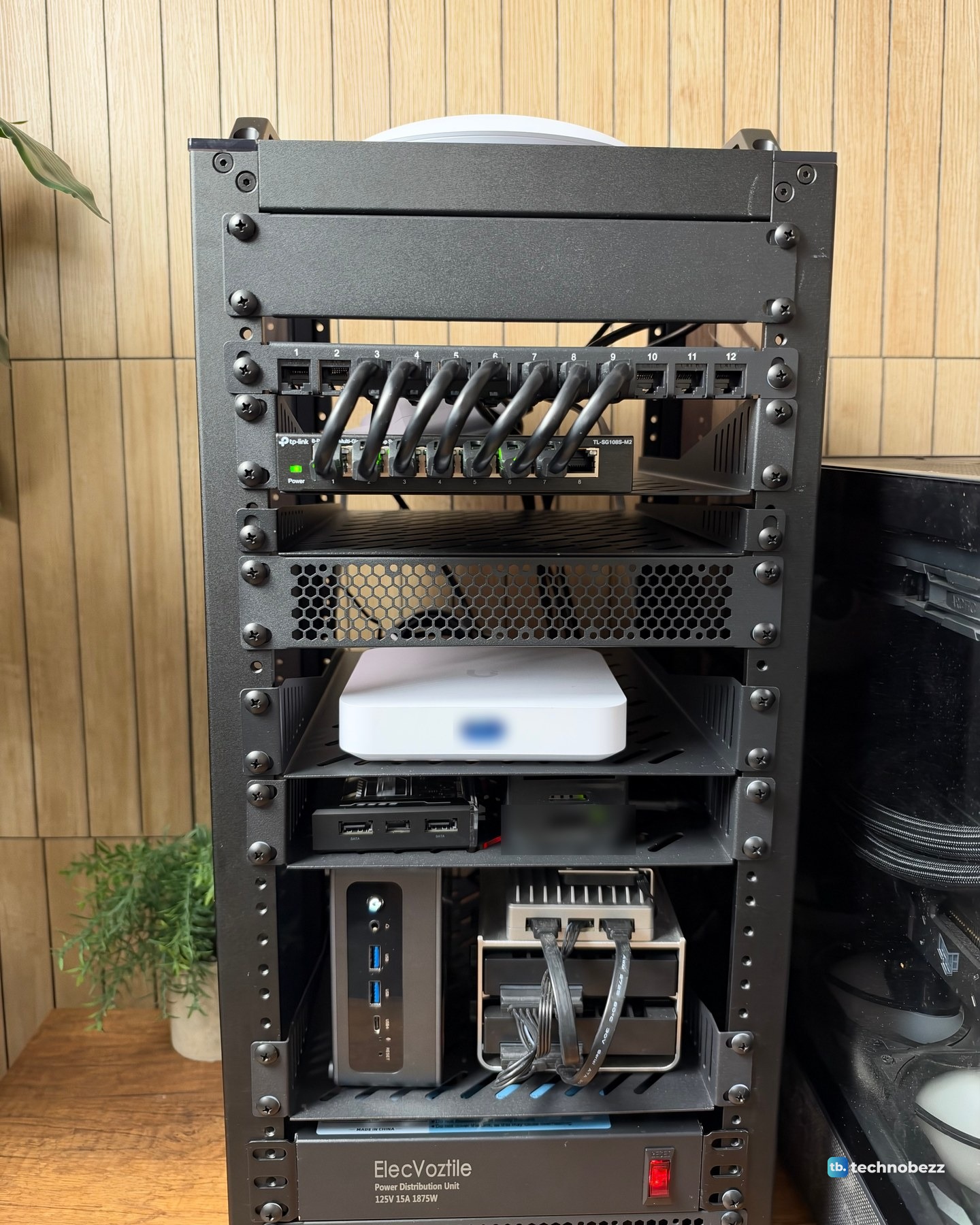
At night the switch lights, the gateway's light and the ring on the access point are what you see.
This clip shows the move from desk to rack in under a minute.
What I like about the DeskPi RackMate T2 so far
It does what I bought it for. All the small gear that was spread across the desk now sits in one footprint, with one patch panel for network cables and one power strip with one switch. The smoked sides let you see the gear and its lights, the two handles sit on top, and the front rails take standard 10-inch parts, so the shelves, panels and power strip I bought all fit. The empty spaces are spoken for too. A NAS and two more small computers are on the way.
What to know before you buy one
The rack is the frame. My shelves, blank panels, patch panel, fan and power strip were all separate purchases, so budget for them. What each part cost is in how much does a home lab cost. It takes 10-inch rack accessories, so check the mounting format and the shelf's compatibility and usable space before buying parts. The gateway I use has 1 Gigabit LAN ports, so faster transfers between machines depend on the switch.
I have had it for days, not weeks. I have no numbers yet for power draw, temperatures, noise or UPS runtime, and I have not weighed the loaded rack.
Where to buy the rack and its parts
| Product | What it does here | Where to buy |
|---|---|---|
| DeskPi RackMate T2 12U 10-inch rack, black | The rack itself | Check it on Amazon |
| GeeekPi 1U vented shelf, 10.23 in deep | I bought six individual shelves; the linked listing is a two-pack of the same depth | Check it on Amazon |
| GeeekPi 12-port 0.5U Cat6 patch panel | Where every network cable lands | Check it on Amazon |
| TP-Link TL-SG108S-M2 | 8-port 2.5 Gigabit switch between the machines | Check it on Amazon |
| ElecVoztile 10-inch PDU, 8 rear outlets | One strip and one switch for the rack | Check it on Amazon |
| GeeekPi RackMate 120 mm USB fan | Blows air in at the bottom | Check it on Amazon |
| GeeekPi 1U brush cable manager | Bought with the rack for cable entry | Check it on Amazon |
Technobezz may earn a commission when you buy through the Amazon links on this page.











