If your Samsung TV volume is not working, check how you press the button first: on a Samsung Smart Remote, tilt Volume up or down, because Samsung says pressing it in mutes the TV. Then open Settings > Sound > Sound Output to see what plays the sound. When a soundbar, receiver or Bluetooth speaker is selected there, the volume belongs to that device, and the TV remote only controls it when the connection allows.
Volume that will not change, volume that changes on its own and a remote that ignores only the volume button are three different problems, and each has a different first check. This guide puts the quick checks first and the resets last. If the picture plays with no sound at all, that is a separate problem, and our guide to fix a Samsung TV with no sound starts from there.
The short version
- Volume button: on a Smart Remote, tilt Volume up or down. Pressing it in mutes the TV.
- Remote: check for a stuck key, then charge a solar remote or fit new batteries. Hold Return + Play/Pause to pair a Smart Remote again.
- Soundbar or receiver: select it in Sound Output and keep Anynet+ (HDMI-CEC) on for HDMI ARC or eARC.
- Volume changes on its own: if it drifts while you watch, check the remote for a stuck button, then Adaptive Volume and Auto Volume. If it jumps between apps or inputs, Auto Volume is meant to even that out, so check that it is on.
- Still stuck: restart the TV, run the Sound Test, update it, then use Reset Sound.
Match what you see to the right fix
Start with the row that describes your TV. Each row gives the quickest check first and the next step if that check does not help.
| What you see | Check first | Then |
|---|---|---|
| Pressing the volume button mutes the TV | On a Smart Remote, tilt Volume up or down instead of pressing it in | Make sure the button moves freely and springs back |
| Other buttons work, but volume does nothing | Look for a stuck button, then charge a solar remote or put new batteries in a battery remote | Pair a Smart Remote again with Return + Play/Pause |
| The remote will not change the soundbar or receiver volume | Sound Output shows that device, and Anynet+ is on for HDMI | Use the device's own remote, especially on optical |
| Volume jumps when you change apps, channels or inputs | Auto Volume in Sound > Expert Settings, which Samsung built to even this out, should be on | Adaptive Volume in Intelligent Mode Settings, which also adjusts the level by itself |
| Volume rises or falls with nobody touching the remote | A stuck button, or the remote's batteries or charge | Adaptive Volume and Auto Volume, then unplug the TV and wipe its touch controls |
| A voice reading menus is too loud or too quiet | Voice Guide's own Volume setting | Turn Voice Guide off |
| No sound at all | Sound Output and the Sound Test | The no sound guide linked above |
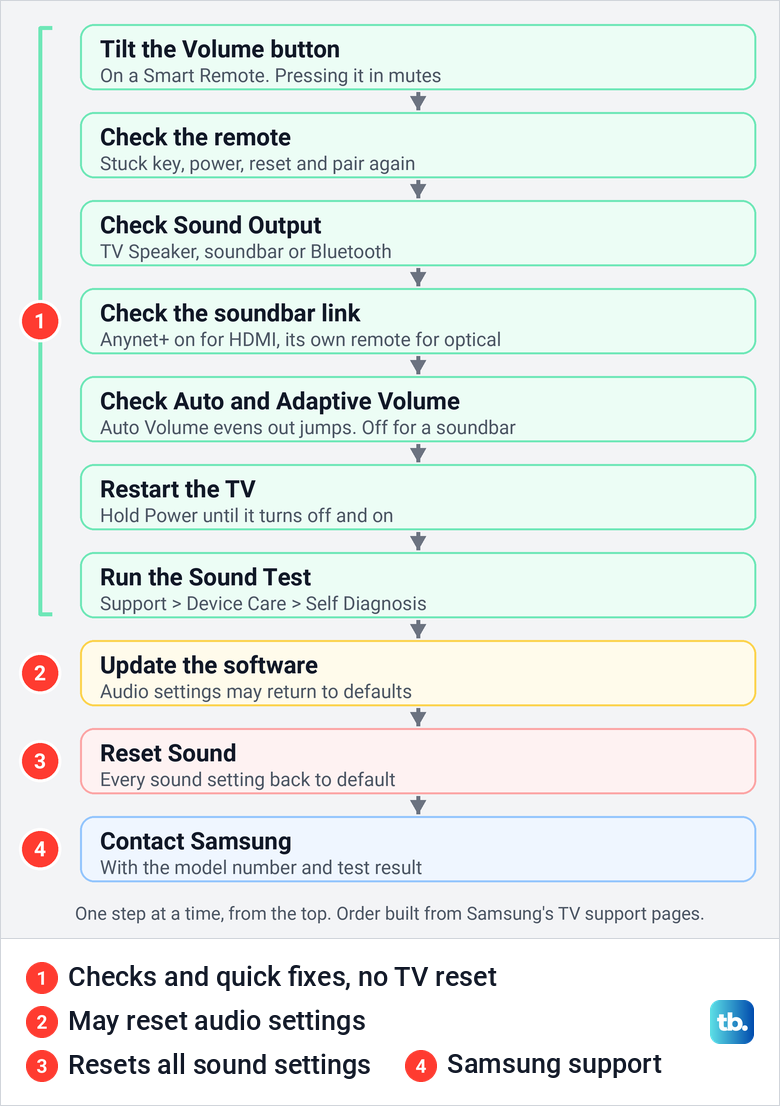
If nothing in the table fits, go down the diagram below one step at a time. It runs from checks and quick fixes with no TV reset, through a software update that may reset audio settings, to Reset Sound and, last, Samsung's support team, an order built from Samsung's own TV support pages.
Tilt the volume button instead of pressing it
On a Samsung Smart Remote, volume is a rocker. Samsung's instructions are to move the Volume button up or down to raise or lower the sound, and to press the Volume button to mute. A firm press in the middle, which feels like the natural way to use a button, mutes the TV instead of turning it up. If your remote runs on batteries and is not a Smart Remote, this rocker advice does not apply, so start with its batteries in the next section.
The photos here come from our Samsung Odyssey OLED G9, a smart monitor that runs the same Tizen software as Samsung's smart TVs, and its white Samsung remote. The volume rocker sits on the left under Return, with the channel rocker beside it on the right. The steps for Samsung TVs follow Samsung's own TV support pages.
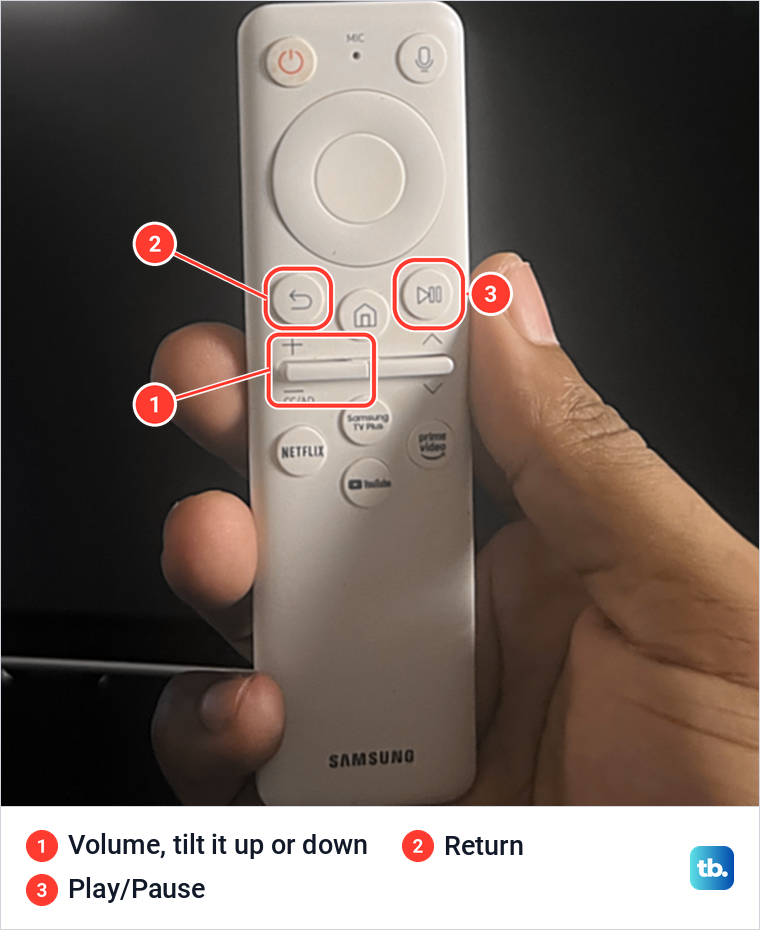
Holding the button in does something else. Samsung says pressing and holding Mute opens the accessibility shortcuts, and on a remote without a Mute button, the Volume button does it instead. Our remote has no separate Mute key, so by Samsung's description a long press on a remote like ours opens a menu rather than changing the level. If a list of accessibility options appears, press Return, then tilt the rocker up or down without pressing it in.
Check the remote before the TV
If the Home and arrow keys work but volume does not, the remote is still the first suspect. Samsung's remote troubleshooting page says to check whether any buttons are stuck or not working properly, and it lists that check first for a TV that changes volume by itself. Press the rocker both ways and make sure it springs back to the middle.
Then check the power. For a battery remote, Samsung's advice includes taking the batteries out and, if needed, putting in new ones, and for a solar remote, letting it charge for a little while. On our monitor, Settings > General & Privacy > Remote Control showed the paired remote at 39%, with a note to connect the charging cable at the bottom of the remote or lay it face down so its back catches indoor light.
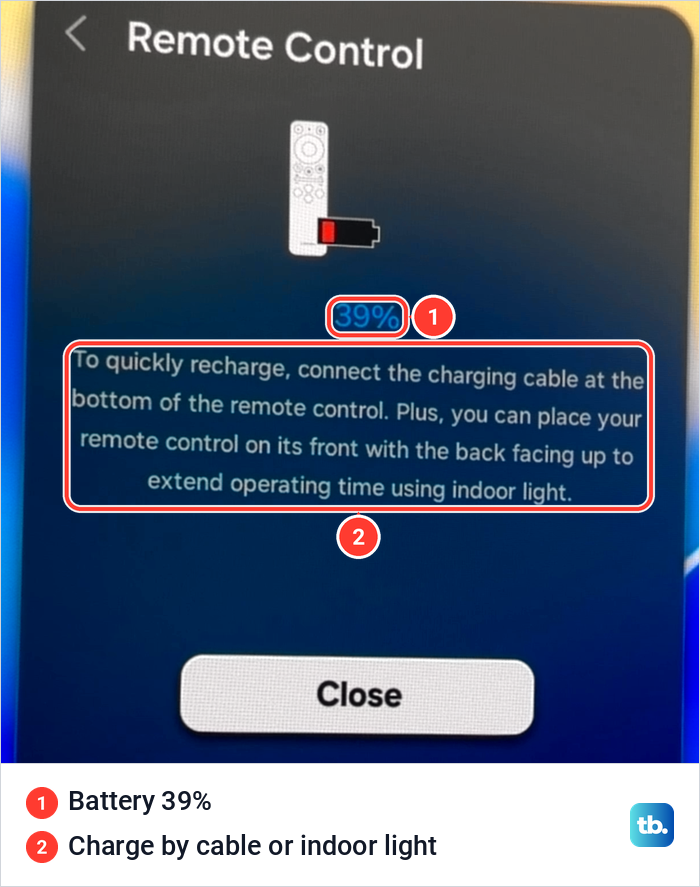
A battery remote has a reset of its own. Samsung says to remove the batteries, hold the Power button for eight seconds, then put the batteries back. On a 2021 or newer TV with a solar remote, Samsung's reset is to hold Return and Enter, the centre of the navigation pad, for 10 seconds, after which the remote has to be paired again.
To pair a Smart Remote, point it at the TV from close by and hold Return and Play/Pause together. Samsung's pairing page says at least 3 seconds, while its troubleshooting page says at least 5 seconds from within 1 foot of the TV, so hold both until a message says the remote is connected. If that message never appears, follow the full steps to pair a Samsung Smart Remote with the TV.
A second controller shows which side is at fault. Samsung's SmartThings app has a mobile remote whose VOL button raises, lowers and mutes the TV once the TV is registered in the app on the same Wi-Fi network. If the volume changes from the phone but not from the remote, check the remote itself and its pairing next, and when the Home and arrow keys fail too, troubleshoot a Samsung remote that has stopped responding instead.
Lag is a different problem from a dead button. If every key works but late, volume included, the steps to fix a Samsung TV that responds slowly cover memory, Device Care and the remote's own settings.
Find out what is playing the sound
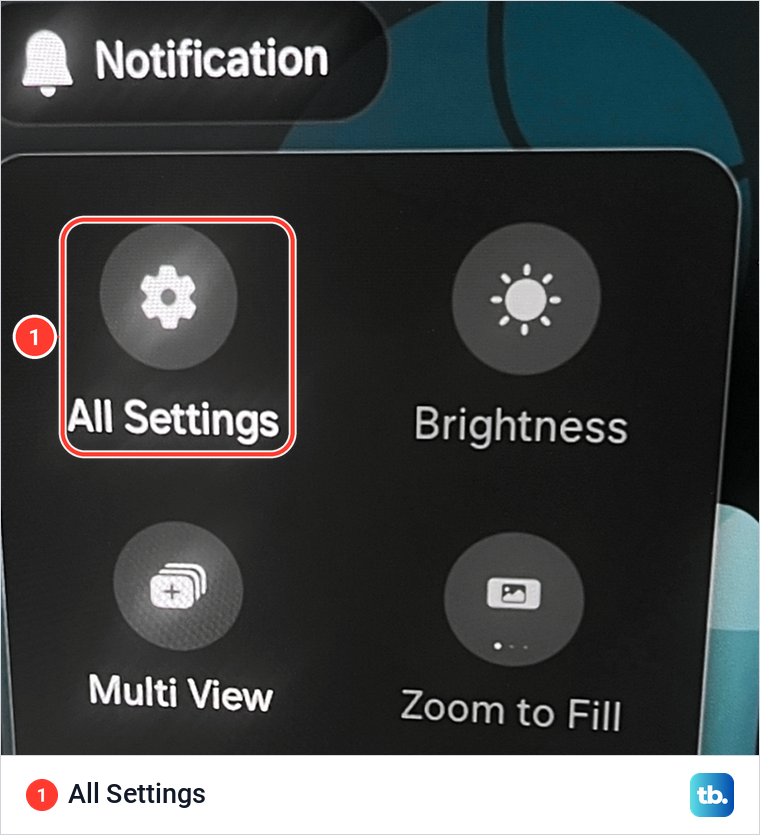
Sound Output decides which speakers play the TV's sound, and with them, who controls the volume. Press Home, open Settings, and select All Settings if a quick settings panel appears first. Then select Sound > Sound Output and pick the output you want to use.
Samsung calls the built-in option TV Speaker. Our monitor shows the same item as Smart Monitor Speaker, which was selected, with Bluetooth Speaker List directly under it and the line "Select an audio device from the list to play Smart Monitor sound." Samsung's soundbar instructions have you pick a connected soundbar from this same Sound Output list.
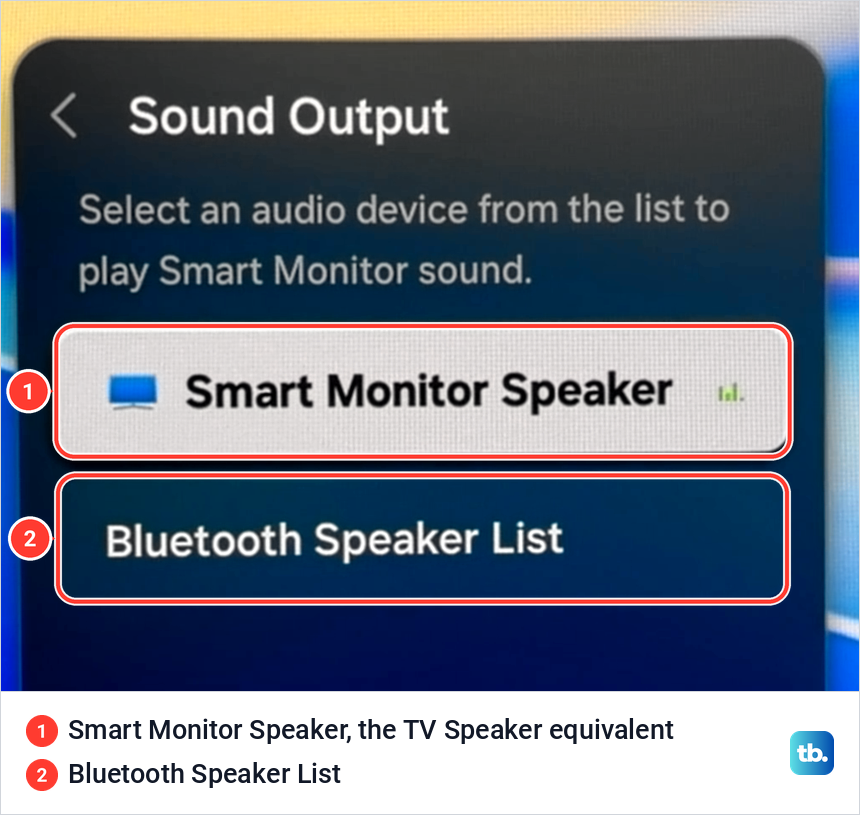
This setting is the first thing to check if you use external speakers. Samsung says that when Sound Output is set to external speakers only, the Volume and Mute buttons on the remote and some Sound functions are disabled. Select TV Speaker to test the TV's own speakers. If the remote changes the volume there, the rocker and the TV Speaker volume work, so check the external device, its connection and the TV's control settings, such as Anynet+, next.
Get the TV remote to control a soundbar or receiver
Samsung says its TV remote can control a compatible soundbar connected with an optical cable or with HDMI using ARC. Select the soundbar in Sound Output, and Samsung says the TV remote then adjusts the volume and mutes the soundbar. Samsung adds that its TV remotes should control Samsung soundbars by default.
If a Samsung soundbar ignores the TV remote, Samsung's fix is to switch the soundbar on, then press and hold the WOOFER button up on the soundbar's remote for about 5 seconds until ON - TV REMOTE appears on the soundbar's display. For another brand, check the connections and that soundbar's own manual for its TV remote or HDMI-CEC setting.
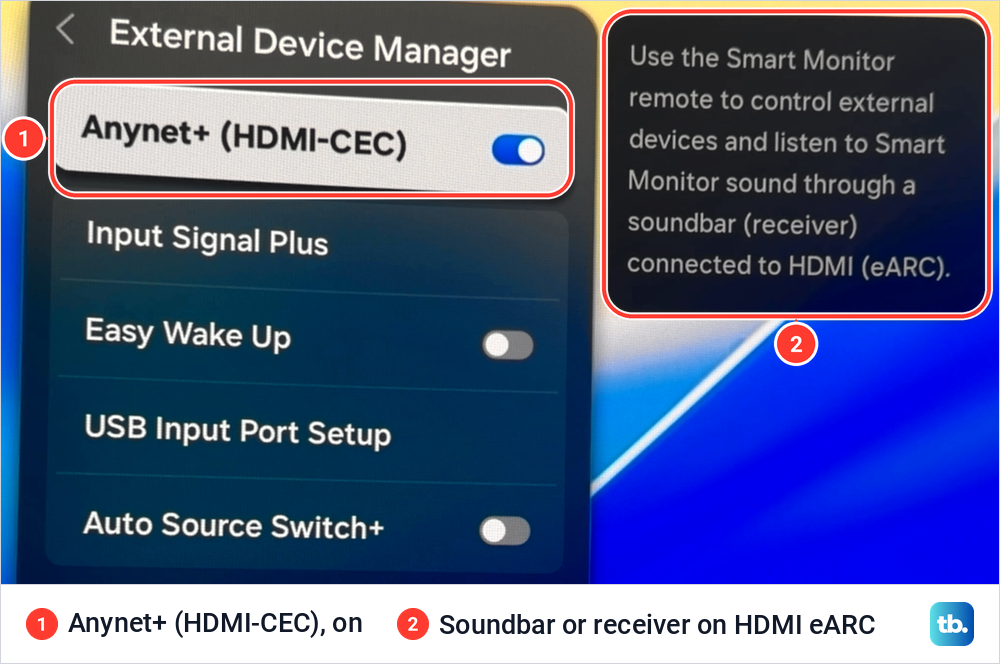
For HDMI, Samsung says the cable must be in the TV's HDMI port marked eARC or ARC, and Anynet+ (HDMI-CEC) must be on. Its eARC instructions say to activate Anynet+ before you turn on HDMI eARC Mode, which is off by default, under Sound > Expert Settings. So switching Anynet+ off, a fix you will often see suggested, takes away the link the TV remote needs.
Samsung's TV pages put Anynet+ under Settings > All Settings > Connection > External Device Manager on some models and under General > External Device Manager on others. Our monitor shows the same item under General & Privacy > External Device Manager, switched on, with Samsung's note that it lets the remote control external devices and play sound through a soundbar or receiver connected to HDMI eARC.
If an HDMI soundbar or receiver drops out of Sound Output, the connection itself needs attention. Work through how to fix an HDMI connection on a Samsung TV before you change any sound settings.
Optical is less certain. One Samsung page says the TV remote can control a soundbar over optical, while another warns that with an optical connection, volume control may not be possible depending on the device. Samsung's optical setup runs a digital optical cable from the soundbar's optical port to the TV's, with the plastic caps removed, and sets the soundbar to D.IN with its Source button. If an optical soundbar still ignores the TV remote, use its own remote.
One more setting matters with external speakers. Samsung's Australian help page says to turn Auto Volume off if you control the TV's volume through a soundbar or external speakers, because with it on, the speaker's volume control may not work properly. The section on volume that changes by itself shows where Auto Volume lives.
Bluetooth speakers and headphones
Bluetooth audio is chosen in the same place. Samsung says that if Bluetooth Speaker List appears under Sound Output, the TV supports Bluetooth audio, and that list is where you pick a paired speaker or headphones. If the volume seems stuck while a Bluetooth device is playing, switch Sound Output back to TV Speaker and try the rocker again.
Stop the volume changing by itself
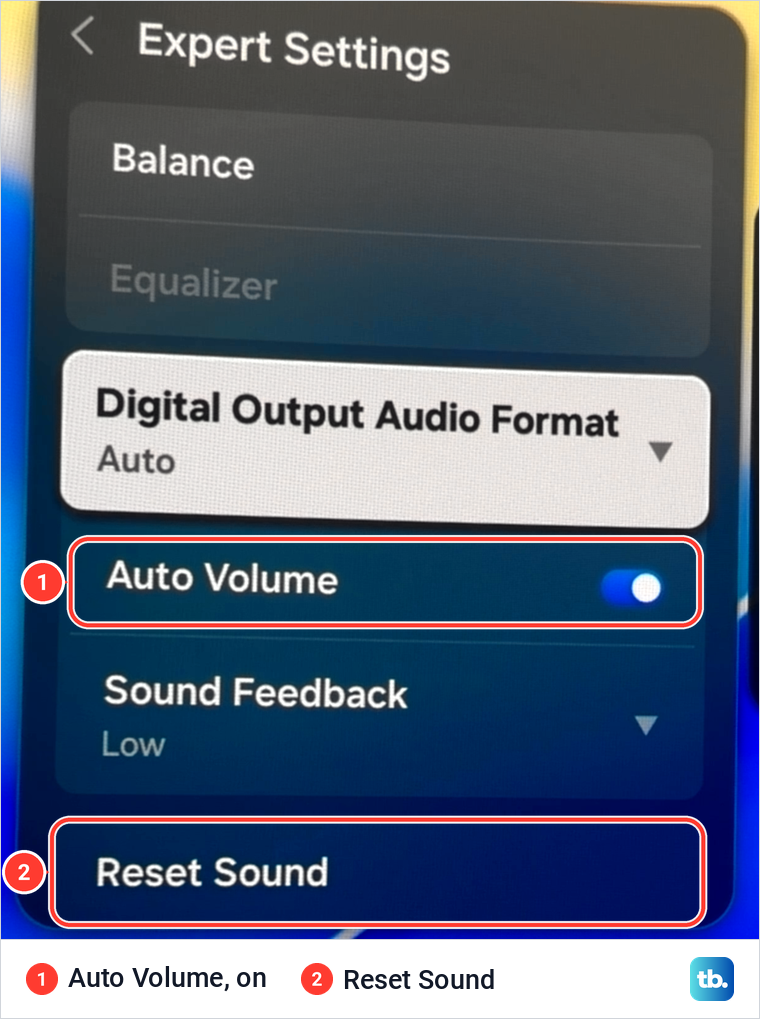
Two automatic features change the level on purpose. Auto Volume sits in Settings > All Settings > Sound > Expert Settings, and Samsung says it equalises sound automatically when you switch between channels or sources, by up to 12 dB. Samsung's page adds that 2017 models do not have it. On our monitor, Auto Volume was on, in the same Expert Settings list as Reset Sound.
Adaptive Volume is a separate control in Intelligent Mode. Samsung says it analyses your volume usage history and adjusts the volume automatically, and that some Intelligent Mode functions only work when Sound Output is set to TV Speaker. Samsung's TV pages put it under Settings > All Settings > General & Privacy > Intelligent Mode Settings. Our monitor shows the same item under Advanced Features > Intelligent Mode Settings > Adaptive Sound Settings, where Adaptive Volume was on.
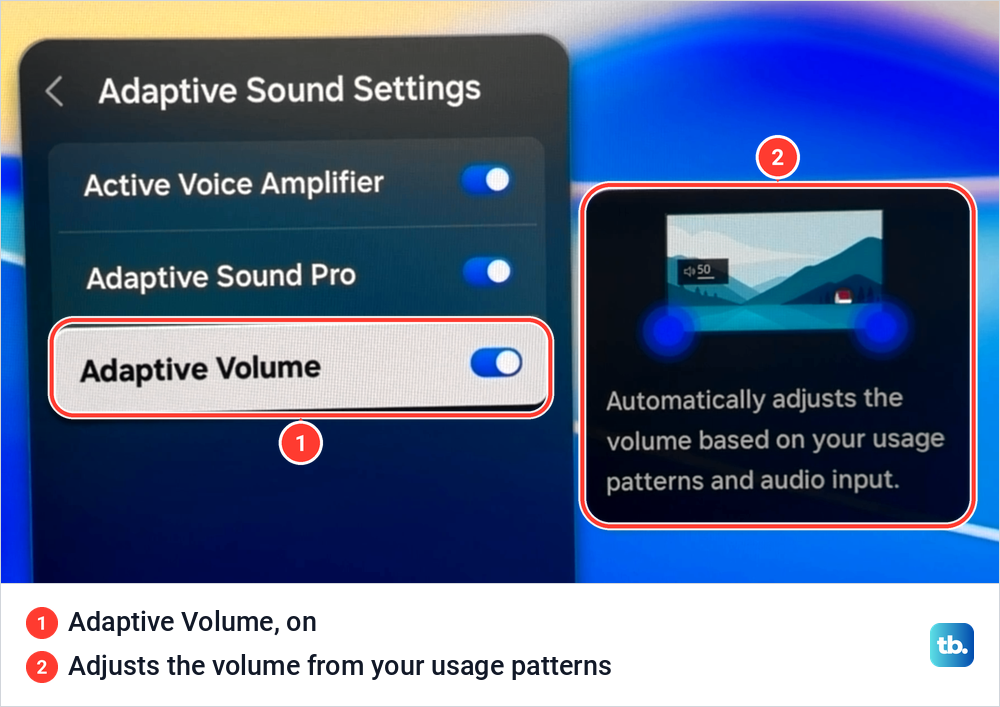
The two need different treatment: if the level jumps when you change apps, channels or inputs, Auto Volume is the feature Samsung built to even that out, so check that it is on. If the level drifts while you watch, check the remote for a stuck button first, then turn off Adaptive Volume, which Samsung describes as adjusting the volume while you are watching, and Auto Volume too if the drifting continues. With a soundbar or external speakers, turn Auto Volume off as Samsung advises.
Samsung's steps for a level that moves with nobody touching anything start with the remote. Check for a stuck button, take the batteries out of a battery remote, or let a solar remote charge.
Samsung's next step is to unplug the TV while it is on, along with its One Connect Box if it has one, and wipe the touch controls on the TV's bezel with a microfiber cloth before plugging it back in. If the problem continues, Samsung says to request service. If it stops, but starts again once fresh batteries go back into the remote, Samsung says the remote needs replacing.
Voice Guide has its own volume
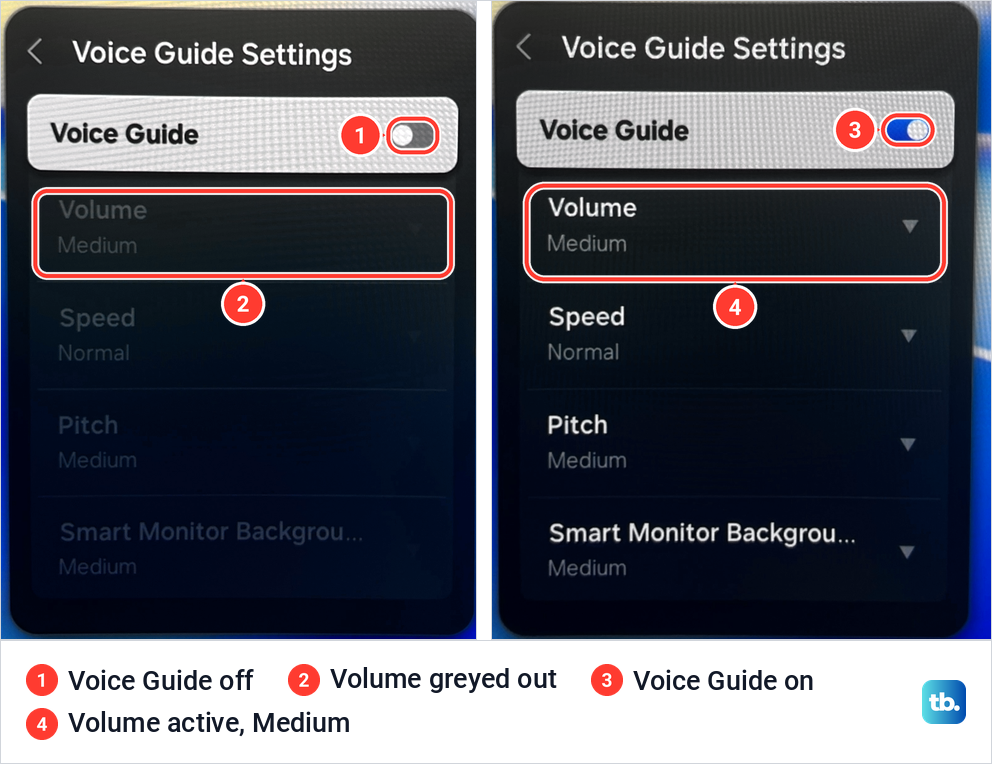
If a voice reading out menus is too loud or too quiet while the programme sounds fine, that voice is Voice Guide, and its level is separate from the TV's volume. Samsung says Voice Guide announces menu options, channel and volume changes, and that its adjustments include volume, speed and pitch. Samsung's path is Settings > General > Accessibility > Voice Guide Settings.
Our monitor shows the same item under General & Privacy > Accessibility. With Voice Guide off, its Volume, Speed, Pitch and Smart Monitor Background rows were greyed out, and when we switched Voice Guide on they became active. Volume offered Loud, Medium and Soft, and the background row had a list of its own that started at Very Loud.
Set the programme's level with the remote as usual and the narration's level here. If you would rather not hear the narration at all, the steps to turn off Voice Guide on a Samsung TV cover both the shortcut and the menu.
Restart the TV
A restart is the next step when the volume stops responding for no clear reason. Samsung says that turning the TV off only puts it in standby, while holding Power on the remote until the TV turns off and on again, about 5 seconds, actually restarts it. Our guide on how to restart a Samsung TV fully covers the remote method and unplugging.
Run Samsung's Sound Test
If a restart does not help, run the Sound Test, which checks whether the TV's own speakers work. Samsung's path is Settings > Support > Device Care > Self Diagnosis, then Start Sound Test, and on some models Self Diagnosis sits directly under Support. Samsung says the test plays a melody to help determine whether there is an issue with the TV speakers.
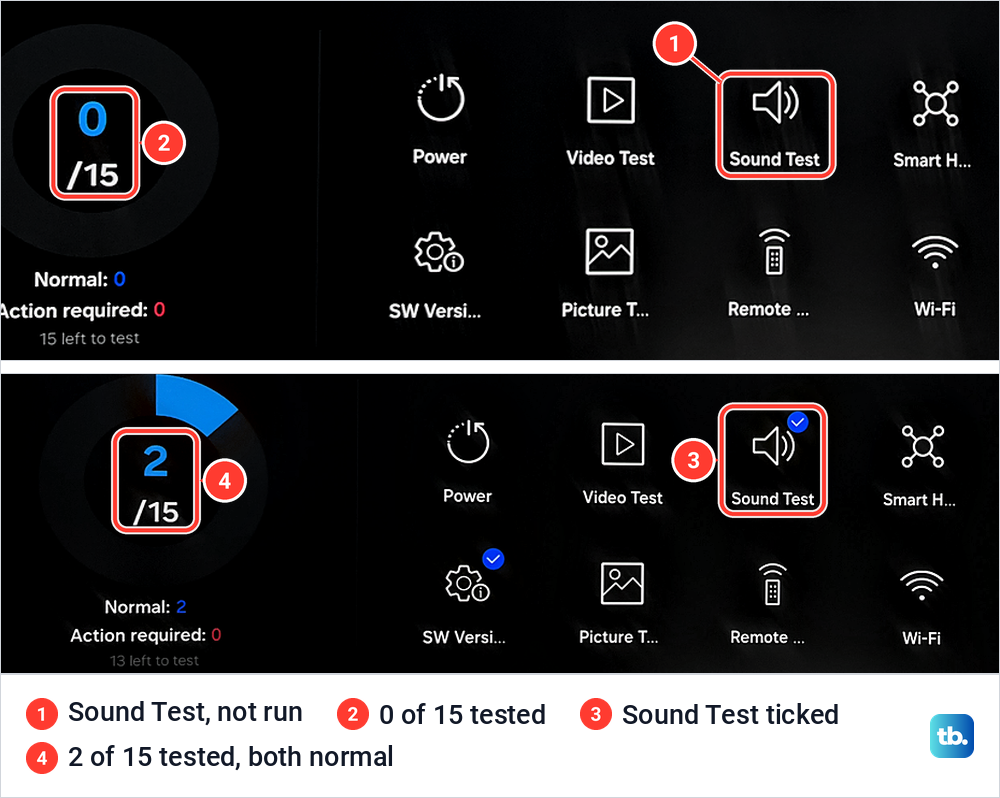
On our monitor, the Sound Test sits in the top row of Self Diagnosis among 15 tests. We ran it, and the result screen read: "The test results are normal. If the problem continues, check your external devices and connections." After we also ran the software version check, the counter went from 0 of 15 tested to 2 of 15, both normal.
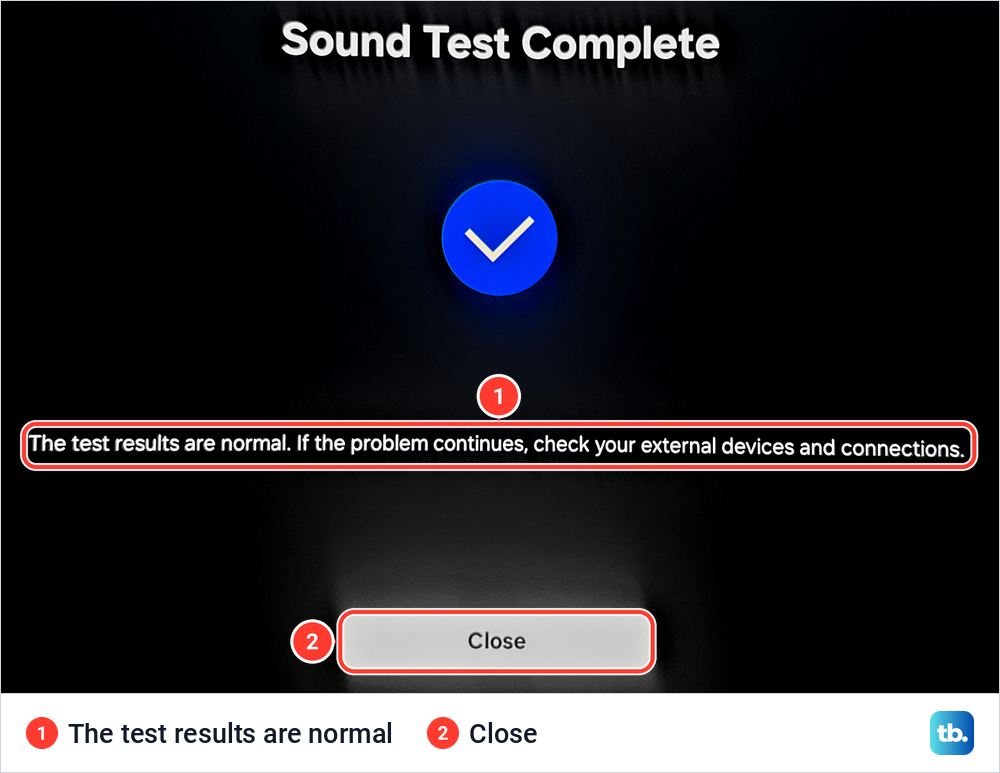
Samsung says that if you hear a problem during the test, you select Yes and are asked to contact Samsung Support with the on-screen information. If the melody plays without issue, Samsung points to a connected external device instead, so go back to Sound Output, the cable and the soundbar or receiver. If the test is silent as well, the problem is no sound rather than volume control, and the no sound guide linked at the top is the place to go.
One app can also be the odd one out. If every app and input sounds normal except Netflix, follow the steps to fix Netflix sound on a TV instead of changing the TV's settings.
Update the TV software
If the Sound Test is normal and the controls still misbehave, check for new software. Samsung's path is Settings > All Settings > Support > Software Update > Update Now, and it says updates usually take a few minutes, the TV restarts by itself when one finishes, and you should not turn it off before then. On our monitor, Software Update sits in the Support list three rows below Device Care.
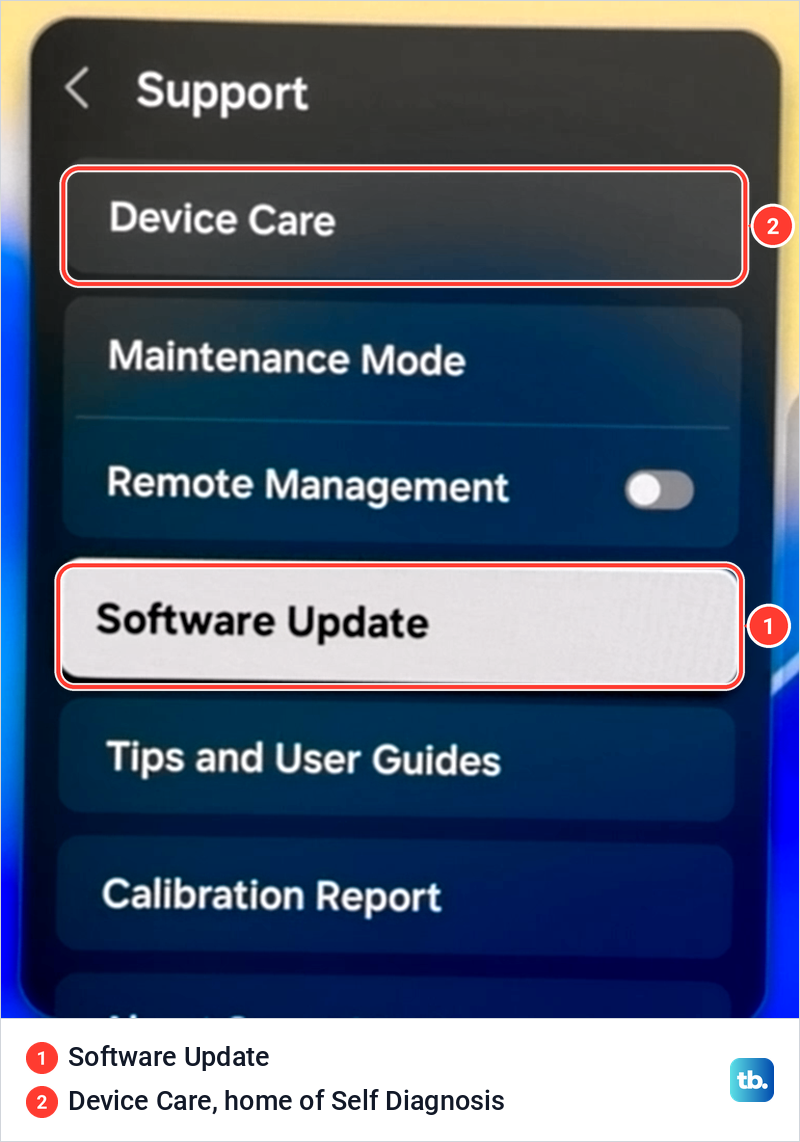
Samsung also warns that video and audio settings might be reset to defaults after an update. Once the TV is back, check Sound Output and Auto Volume again, because an update can change the very settings this guide is about.
Reset the sound settings
If the controls still misbehave, reset the sound settings. Samsung's path is Settings > Sound > Expert Settings > Reset Sound, then Yes to confirm, and its sound settings page says this resets current sound settings to defaults. It is a sound reset, not a reset of the whole TV.
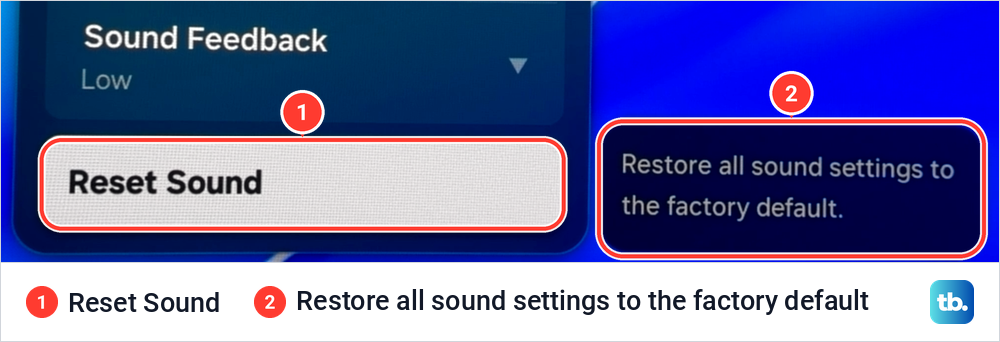
On our monitor, Reset Sound is the last item in Expert Settings, and its description says it restores all sound settings to the factory default. Afterwards, check Sound Output, Auto Volume and any sound changes you had made before, because those are part of what goes back to default.
When to contact Samsung
Samsung's own steps end with its support team. Contact Samsung if the Sound Test finds a problem, if the remote still will not pair after the steps above, or if the volume keeps changing by itself after you have unplugged the TV and cleaned its controls. Have the model number ready, and find your Samsung TV model number first if you do not know it.
Samsung's own reset page says a factory reset may not be necessary and points to the TV's built-in self diagnosis tools first. If Samsung support does suggest one, read what a factory reset of a Samsung TV involves first, because it returns every setting to its factory default, not just the sound.
How we tested this guide
Every photo here comes from our Samsung Odyssey OLED G9, a smart monitor that runs the same Tizen software as Samsung's smart TVs, with its white Samsung remote. On it we opened Sound Output, Sound Expert Settings, Adaptive Sound Settings, External Device Manager, Voice Guide Settings and the remote's battery screen, switched Voice Guide on, and ran the Sound Test, which came back normal.
The fixes themselves, from pairing and resetting a remote to soundbar control, updates and Reset Sound, follow Samsung's own TV support pages. Where Samsung's pages disagree, as they do on how long to hold the pairing buttons and on optical soundbars, this guide gives both versions.
Frequently Asked Questions
Why does pressing the volume button on my Samsung remote mute the TV?
On a Samsung Smart Remote, the Volume button is a rocker that you move up or down, and Samsung says pressing it mutes the TV. On remotes without a Mute button, holding it in opens the accessibility shortcuts instead.
Why do my Samsung remote's volume buttons not work with a soundbar?
Samsung says that when Sound Output is set to external speakers only, the remote's Volume and Mute buttons are disabled. A compatible soundbar selected by name in Sound Output can still take the TV remote's volume commands, over HDMI ARC or eARC with Anynet+ on, or over optical on devices that support it. Otherwise, use the soundbar's own remote.
How do I make my Samsung TV remote control a Samsung soundbar?
Samsung says its TV remotes should control Samsung soundbars by default once the soundbar is selected in Sound Output. If it does not respond, switch the soundbar on and hold the WOOFER button up on its remote for about 5 seconds, until ON - TV REMOTE appears.
Why does my Samsung TV volume change by itself?
If it drifts while you watch, check the remote for a stuck button, then Adaptive Volume, which Samsung says adjusts the volume from your usage history, and Auto Volume. If it jumps between apps or inputs, Auto Volume is Samsung's feature for evening that out, so check that it is on. If the drifting continues, Samsung's next steps are to take out the batteries or charge a solar remote, then unplug the TV and wipe its touch controls.
Why is the Voice Guide voice louder than the programme?
Voice Guide has its own Volume setting, separate from the TV's volume. Change it under Accessibility > Voice Guide Settings, or turn Voice Guide off if you do not need the narration.
Where is Reset Sound on a Samsung TV?
Samsung puts it under Settings > Sound > Expert Settings > Reset Sound, followed by Yes to confirm. Samsung describes it as resetting the current sound settings to their defaults, which is not a reset of the whole TV.