


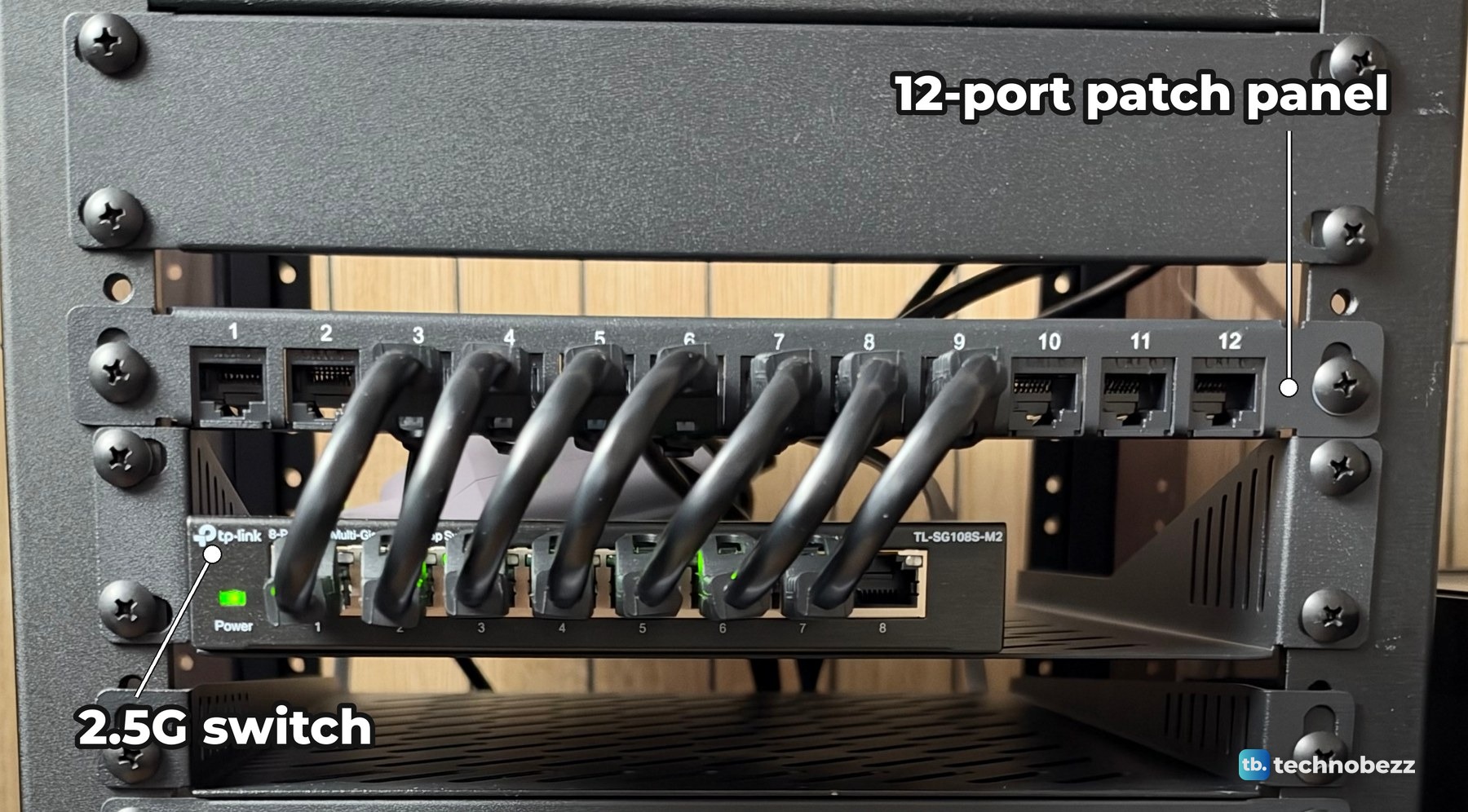
A patch panel is a row of numbered network jacks that gives every cable in your rack one fixed place to land. It does not switch, route or power anything. Each port simply passes the connection from a cable on the back to a short cable on the front. In my 10-inch home lab rack, device cables plug into the back of a 12-port Cat6 patch panel, and seven short jumpers on the front run straight down into the 2.5G switch below it.
The short version
- A patch panel organizes cables. A switch is what actually connects your devices to each other.
- Pass-through couplers take ready-made cables on both sides. Punch-down jacks take the bare wires of a cable. A keystone panel holds removable modules of either kind.
- Mount the panel directly above the switch so the front jumpers can be a few inches long.
- Write a port map first, then plug each device into the matching back port.
- Test each link with the switch lights. On my TP-Link, the left light means 2.5 Gbps.
What a patch panel is and what it is not
Mine is a GeeekPi 12-port Cat6 panel that is only 0.5U tall. It has 12 RJ45 Cat6 pass-through keystones, which are female-to-female couplers with a jack on each side. You plug a cable into the back of port 5 and whatever is on it comes out of the front of port 5. Nothing in between is powered or smart.
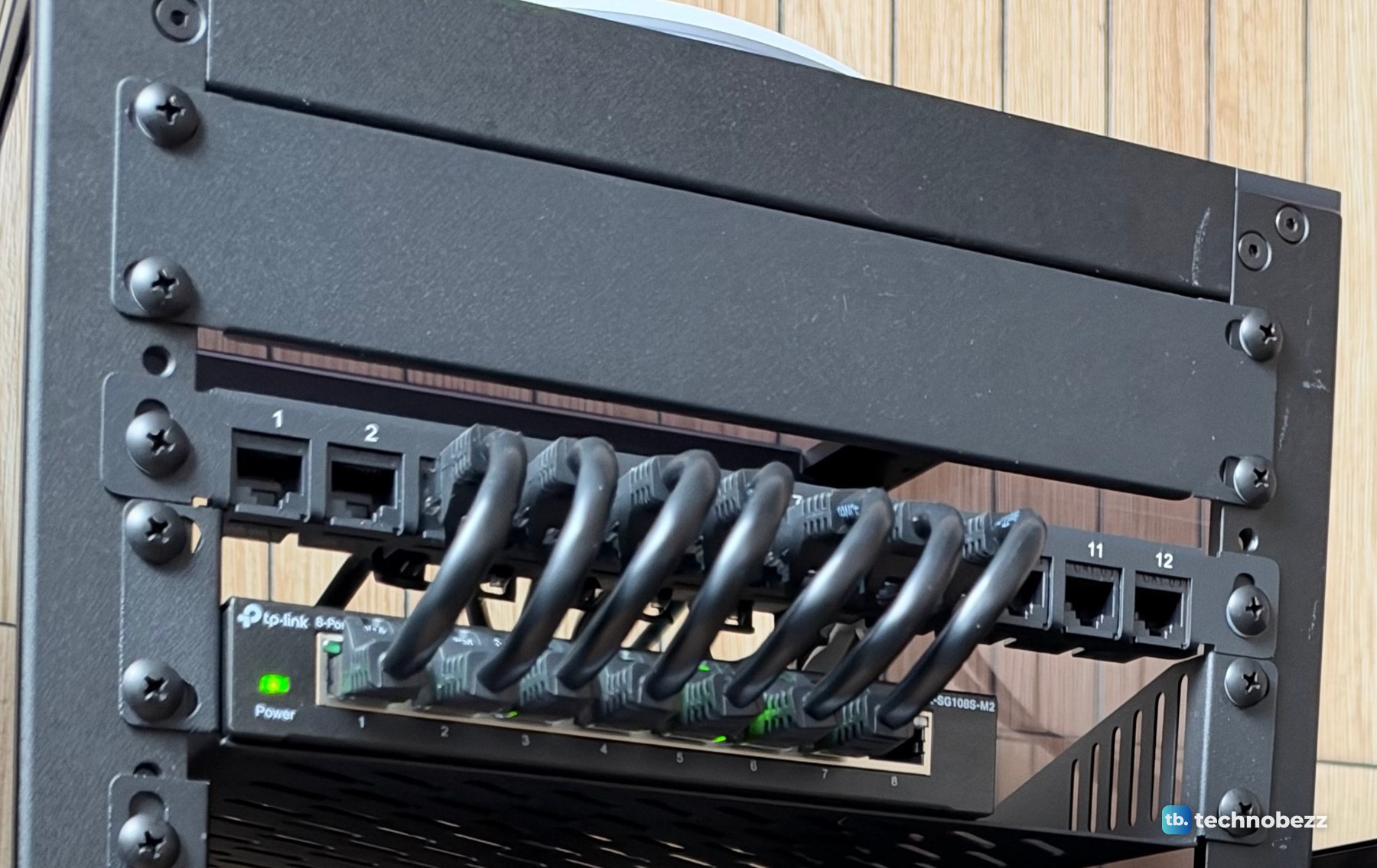
Its job is to turn a tangle of cables that each go "somewhere" into twelve numbered jacks. Every long cable from a device ends at the back of the panel and stays there. All the changes you make later happen on the front with short cables.
Patch panel vs switch
A network switch is the device that connects computers on a network and forwards data to the port where the destination device sits. A patch panel only extends cables, and in most home lab racks you want both.
| Feature | Patch panel | Switch |
|---|---|---|
| Needs power | No | Yes (my TL-SG108S-M2 uses a 12V adapter) |
| Moves data between devices | No, it passes one cable through to another | Yes, it forwards traffic to the right port |
| Lights | None | Power and link lights per port |
| Sets the speed | No, it only has to be rated for it | Yes, mine runs each port at 100 Mbps, 1 Gbps or 2.5 Gbps |
| Job in my rack | One place where every device cable ends | Connects every machine to the network |
A switch without a panel works fine, but every device cable has to plug directly into it, which is what a crowded desk looks like. If you are still picking the switch, our list of the best network switches is a good start.
Pass-through, keystone or punch-down
Pass-through and punch-down describe how a cable connects to a port. Keystone describes removable modules that a panel holds, and those modules can be either kind.
| Type | How the back works | Good fit |
|---|---|---|
| Pass-through coupler | A jack on both sides. You plug in a ready-made cable, no tools | A small rack where everything uses patch cables, like mine |
| Keystone panel | Numbered openings that take snap-in keystone modules, either pass-through couplers or jacks wired at the back | Mixing jack types, or swapping a single port later |
| Punch-down jack or block | Solid wires are pressed into slots with a punch-down tool, and the slot's blades cut through the insulation | Bulk cable you cut to length and terminate yourself |
DeskPi also sells a blank 12-port keystone panel for the same racks if you want to choose your own keystone jacks. For a desk rack full of short patch cables, pass-through is the simplest choice. There is nothing to strip or crimp.
How my patch panel is wired
My port map lists each port by number and device type.
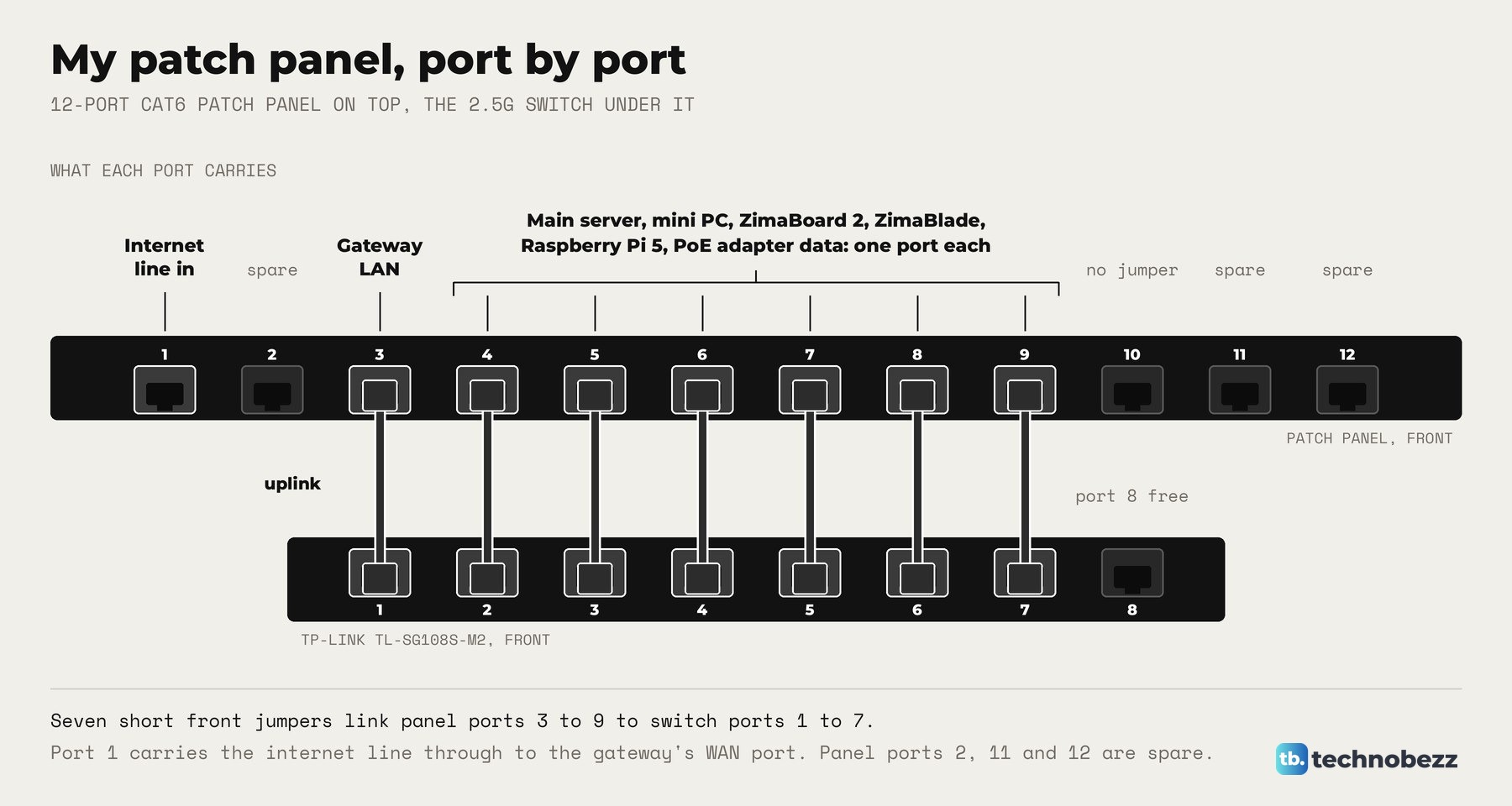
- Port 1 is kept for the internet line to the gateway's internet (WAN) port. Nothing is plugged into its front jack in my rack right now.
- Port 3 carries the gateway's LAN port to switch port 1, the uplink.
- Ports 4 to 9 carry the main server, each computer in the rack and the PoE adapter's data line, to switch ports 2 to 7.
- Panel ports 2, 10, 11 and 12 and switch port 8 have nothing plugged in at the front.
The PoE adapter's data line is what feeds the UniFi U7 Lite on top of the rack. Our guide on powering a UniFi access point with a PoE adapter covers that link.
How to wire a patch panel in a 10-inch rack
1. Mount the panel right above the switch
Put the patch panel near the top of the rack with the switch directly under it, so the jumpers between them can be very short. In my rack there is a blank panel under the top plate, then the patch panel, then the switch on its shelf. To fit it, line the panel's ears up with the rail holes and fasten it with the included screws and spacers. On build night the panel went in near the top of the empty rack.
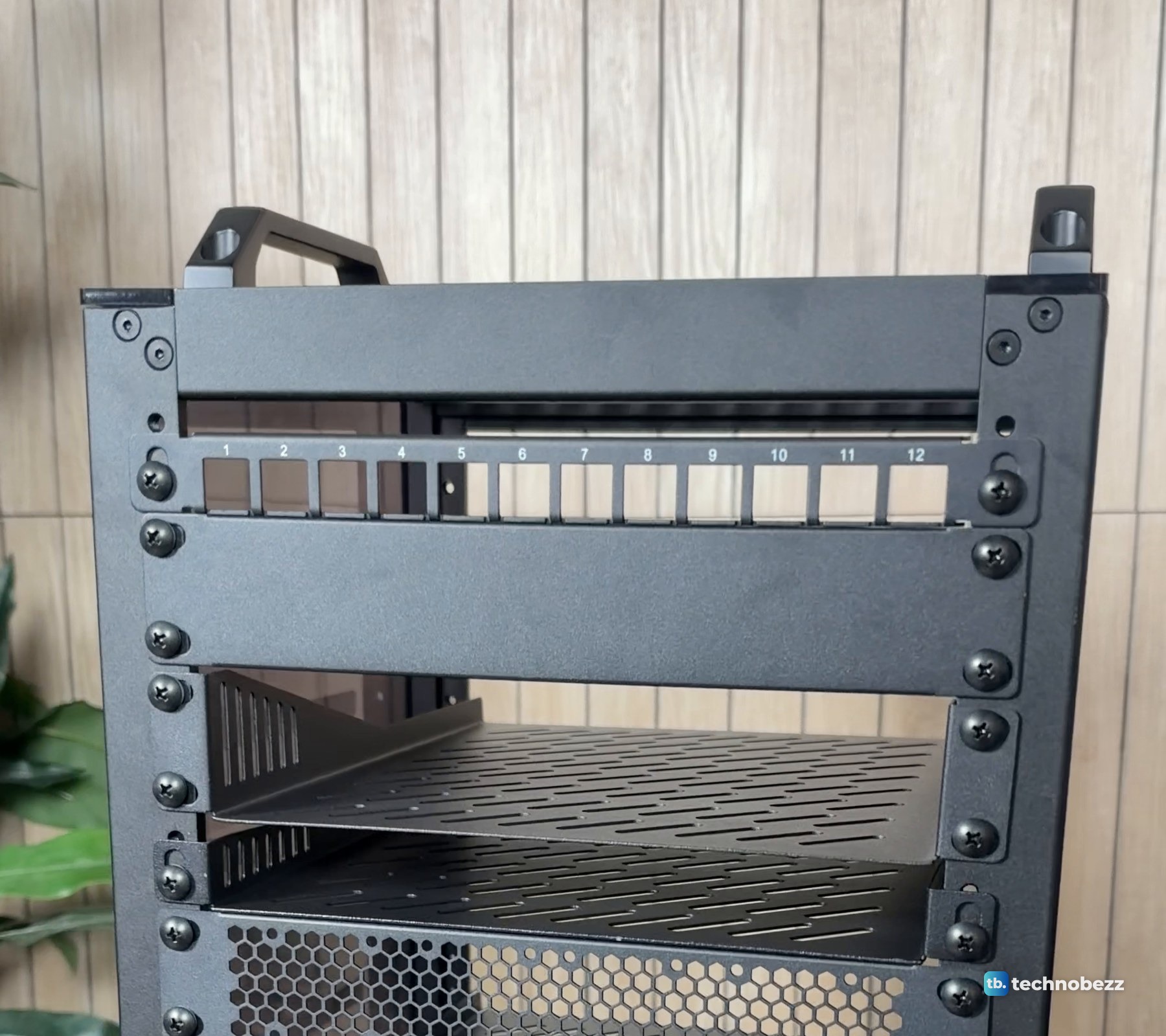
Our guide to assembling the DeskPi RackMate T2 covers the rails and screws, and our home lab rack layout guide covers what goes where.
2. Write the port map before you plug anything in
Decide which device gets which port number and write it down. The panel's ports are already numbered 1 to 12 on the front, so the map is just a list of numbers and device types. My map gives ports 1 and 3 to the gateway's WAN and LAN sides, with the computers grouped after them.
3. Plug each device cable into the back
Run each device's Ethernet cable to the back of its port on the panel. With a pass-through panel this is the same click as plugging into any network jack.
4. Jumper the front ports to the switch
Connect the LAN panel ports to the switch with short jumpers. In my rack, panel ports 3 to 9 connect to switch ports 1 to 7. Keep the incoming internet connection on the gateway's WAN side, not on the switch. I started with port 3, the gateway uplink.
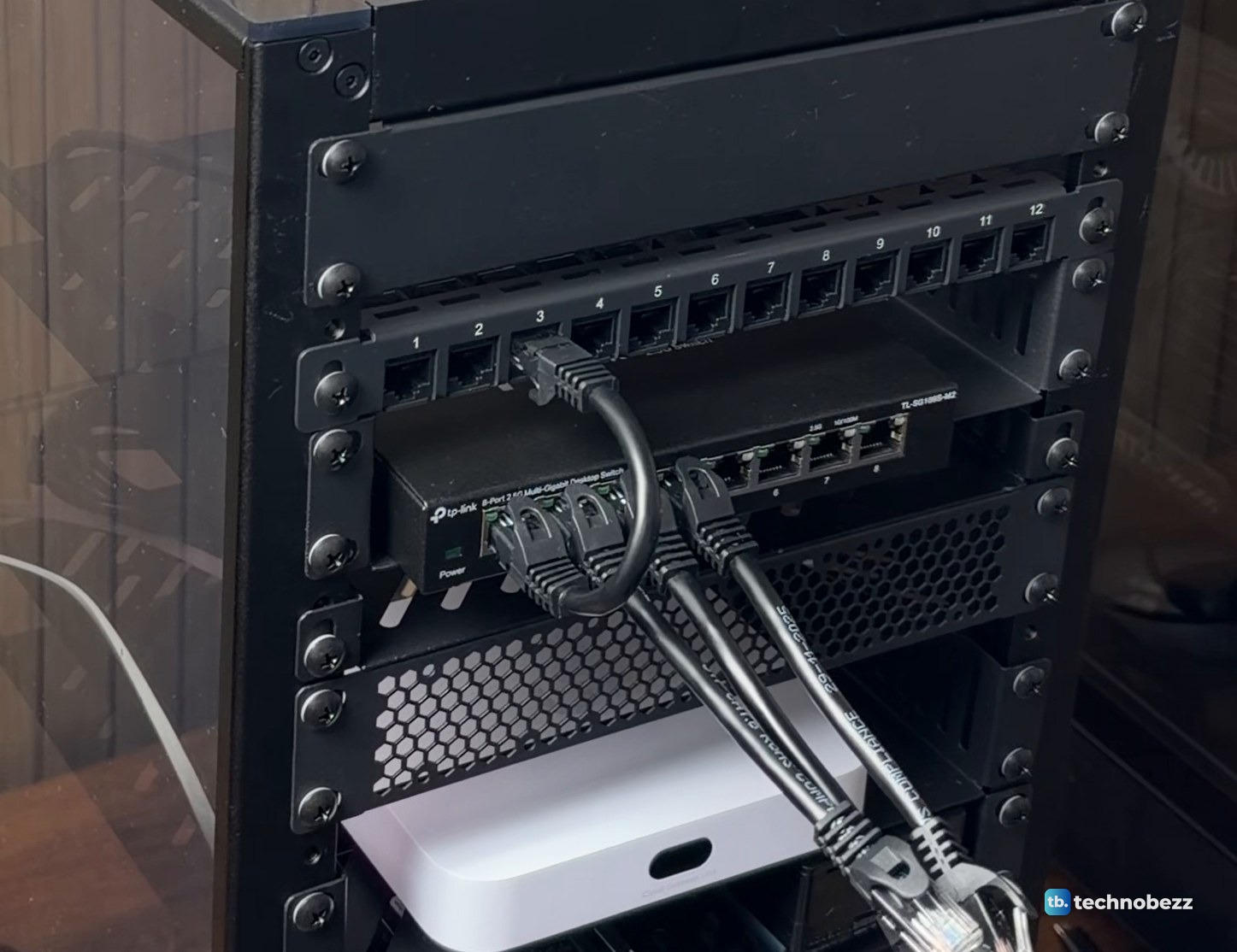
Each jumper then goes into the next switch port along.
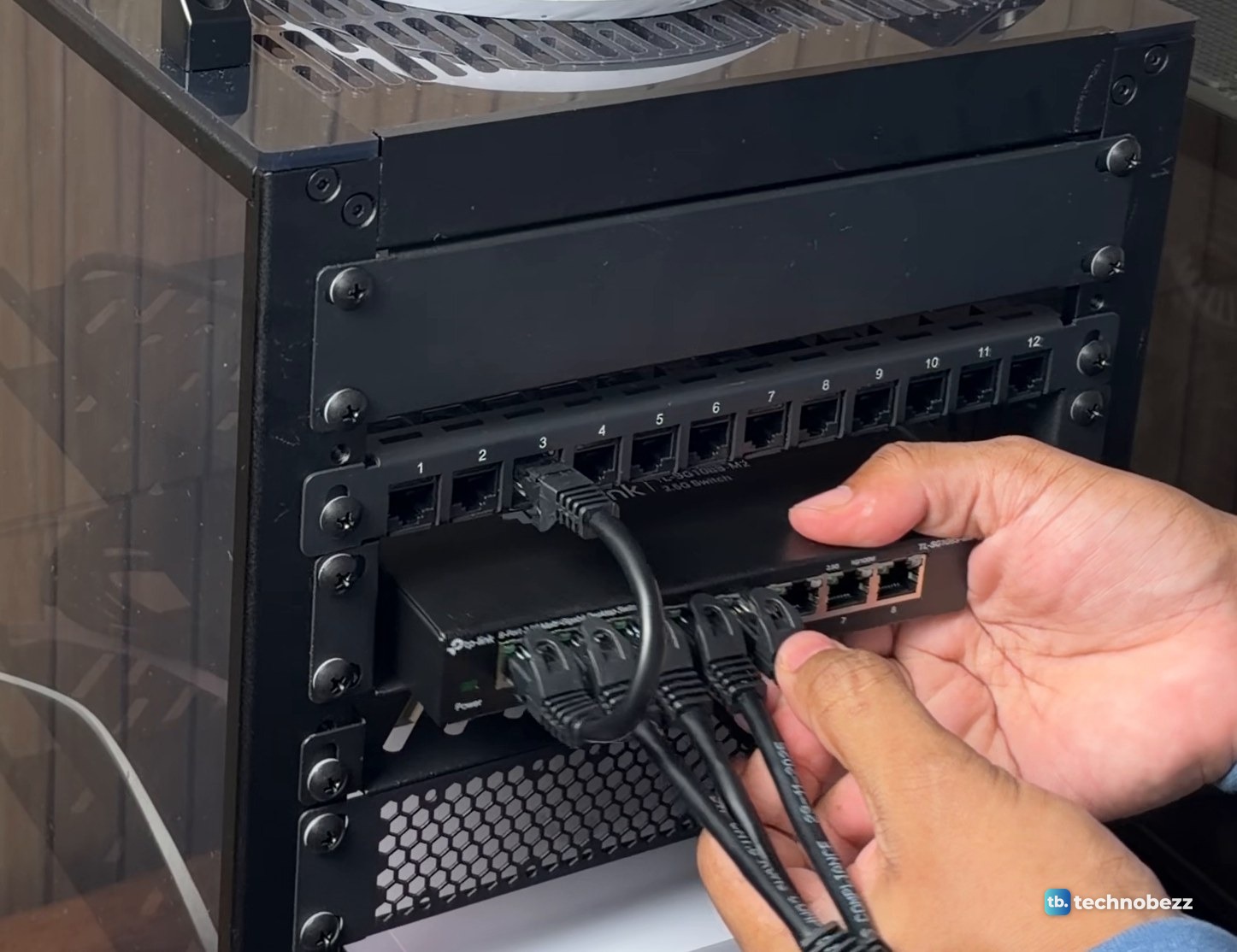
And the other end goes into the matching panel port.
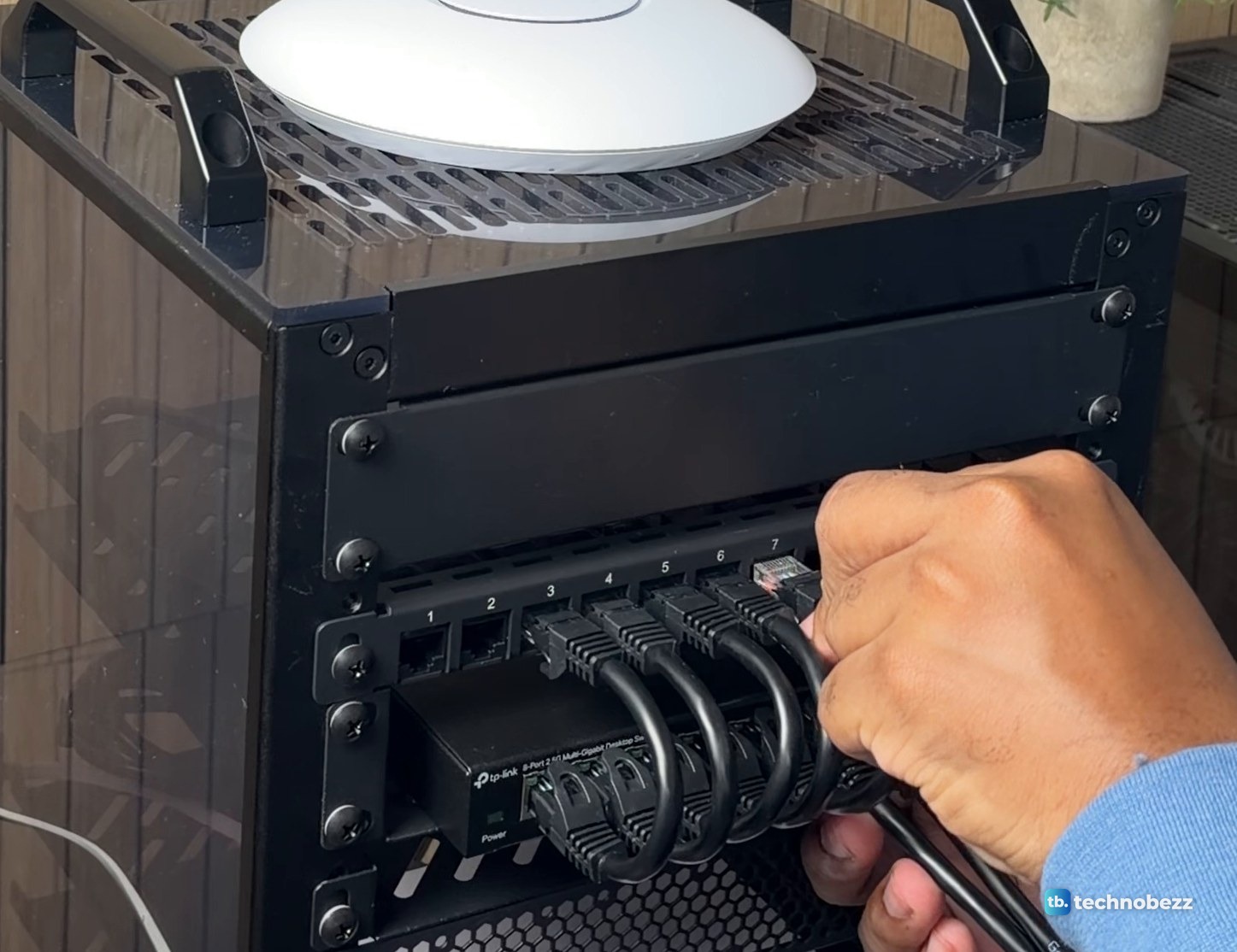
Patch leads of about 15 cm suit this gap, and I bought 0.5 ft and 1 ft packs among my short cables. Our guide on how to manage cables in a mini rack goes further into cable lengths and routing.
5. Leave the spares empty
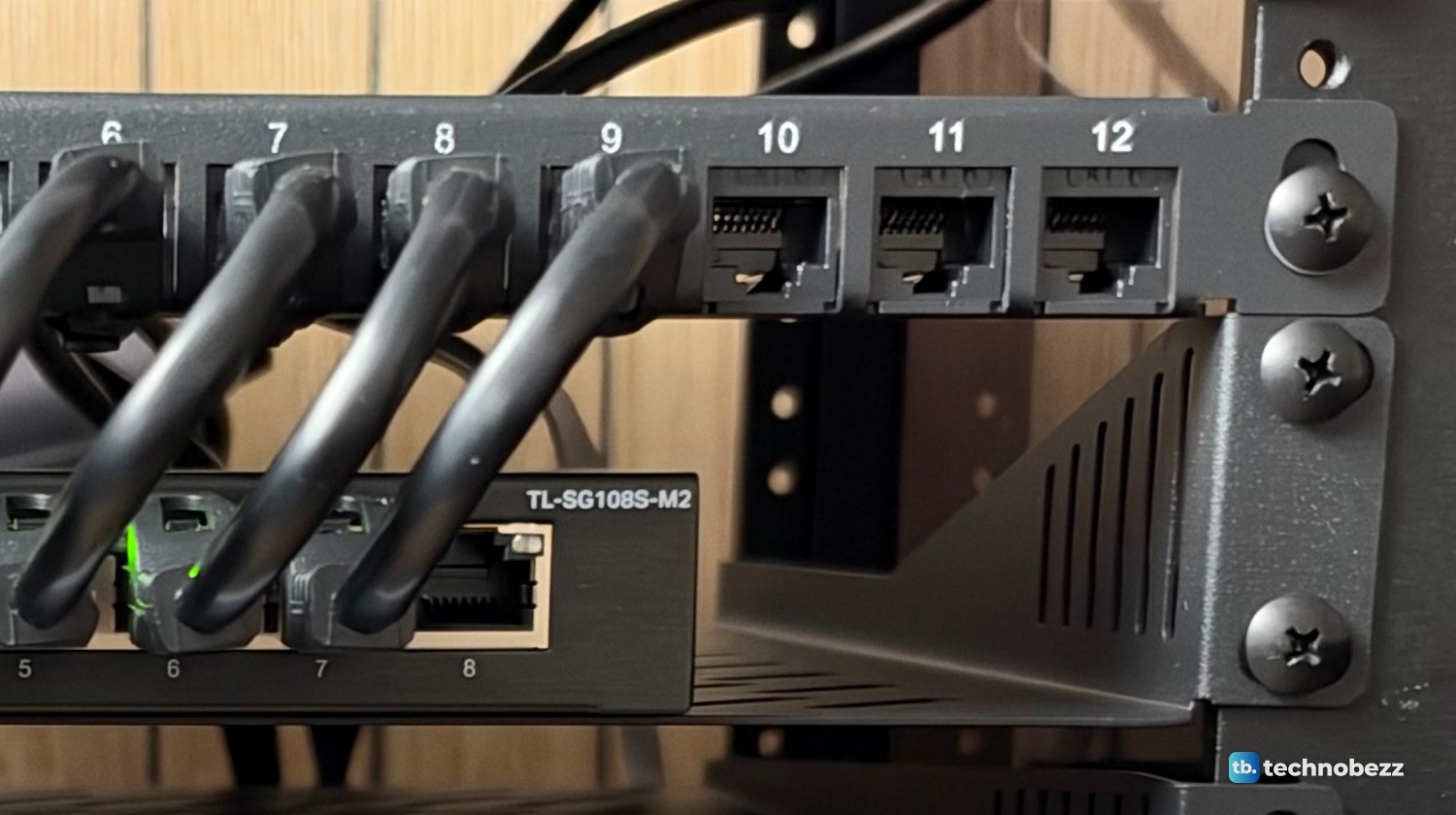
Spare ports are what make the next device easy. A new machine needs one cable to a free back port and one jumper on the front. In my rack, panel ports 2, 10, 11 and 12 are free at the front.
Test each link with the switch lights
Each port on the TL-SG108S-M2 has two lights. The left light is green when the port runs at 2.5 Gbps. The right light is green at 1 Gbps and yellow at 100 Mbps. A light that stays on means a device is connected, and fast flashing means data is moving.
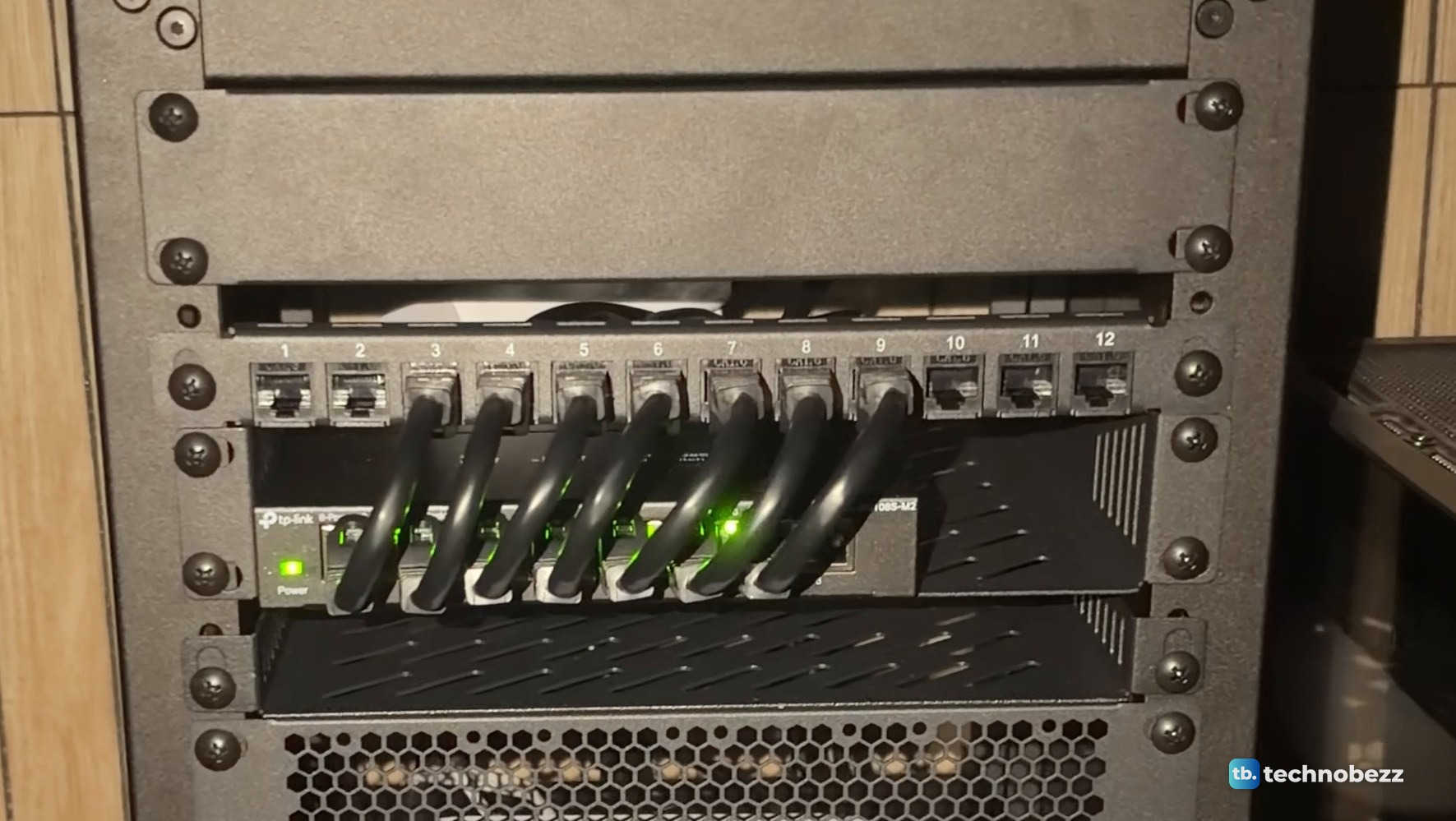
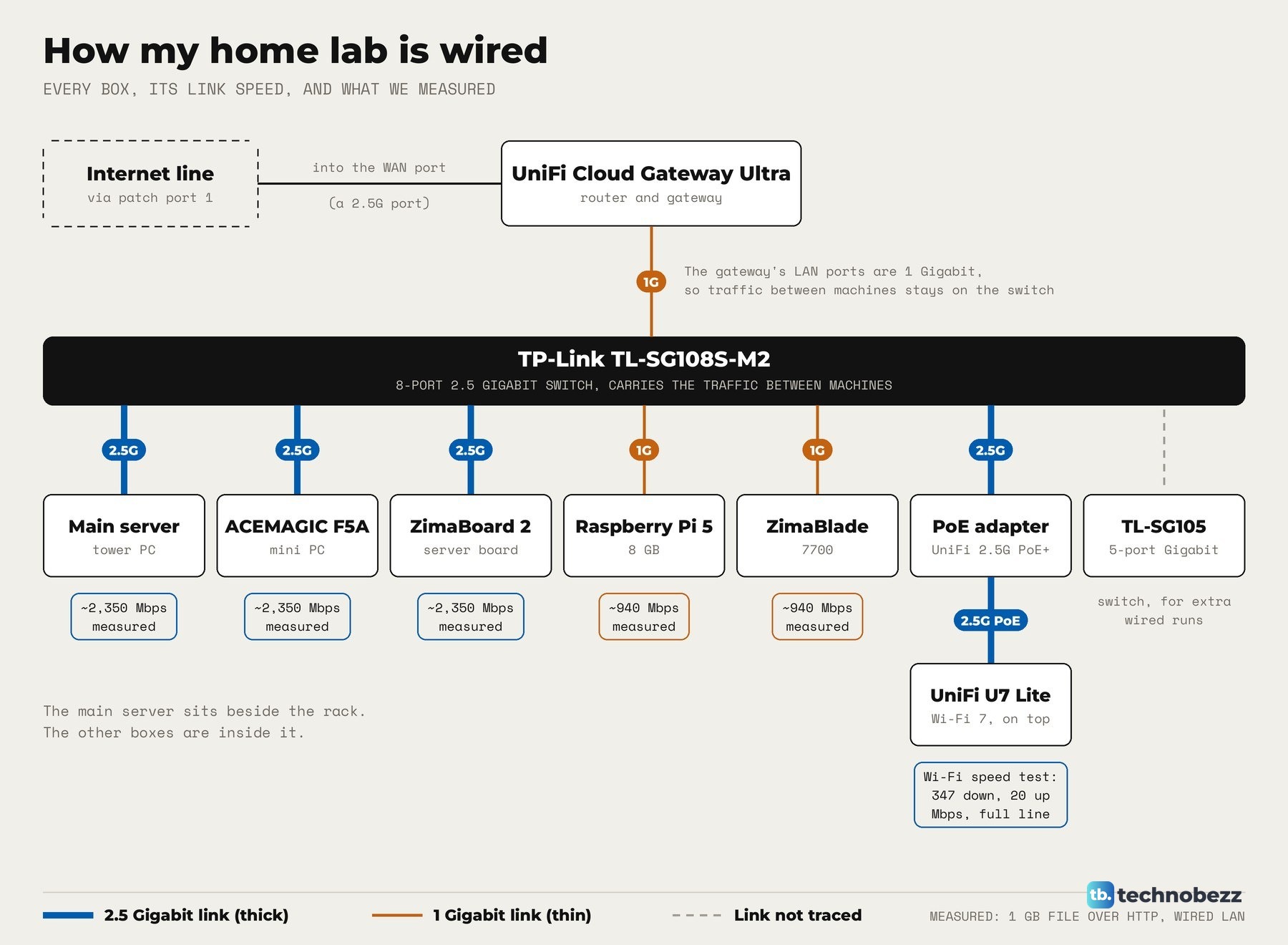
A patch panel should not slow anything down if it and the cables are rated for the speed. This panel supports 1GbE and 2.5GbE, and 2.5 Gbps runs over Cat5e cable or better. After the rack move, our wired LAN tests used a 1 GB transfer over HTTP. The machines with 2.5G ports moved about 2,350 Mbps through the panel and switch, and the Raspberry Pi 5 and ZimaBlade reached about 940 Mbps, the limit of their 1 Gigabit ports.
The clip goes through the rack shelf by shelf, and the patch panel comes right after the access point on top.
What to do when a port does not light
The checklist for a dark port is short. Make sure the connectors are firmly plugged in at both ends, make sure the device is on and working, and keep the cable under 100 meters. With a patch panel each link has three pieces, the device cable on the back, the panel port and the front jumper, so reseat the plugs at both ends of each piece.
For deeper fixes, our guides cover an Ethernet cable connection not working and an Ethernet port not working on a computer. If you extend the panel to wall jacks, see fixing in-wall Ethernet ports.
Patch panel, switch and cables I used
| Product | What it does here | Where to buy |
|---|---|---|
| GeeekPi 12-port 0.5U Cat6 patch panel | Where every device cable ends | Check it on Amazon |
| TP-Link TL-SG108S-M2 | The 2.5G switch under the panel | Check it on Amazon |
| Monoprice SlimRun Cat6A 0.5 ft, 10-pack | A short jumper option (not the brand I used) | Check it on Amazon |
| Cat6 3 ft patch cables, 10-pack | Short Cat6 runs inside the rack | Check it on Amazon |
| GeeekPi 1U brush cable manager | A panel with a brush strip that cables pass through | Check it on Amazon |
| DeskPi RackMate T2 12U rack | The 10-inch rack everything mounts in | Check it on Amazon |
I bought the patch panel, switch, cables and brush panel myself. The ACEMAGIC F5A, ZimaBoard 2 and ZimaBlade were sent to us for review. For the rest of the rack, see how to rack mount a Raspberry Pi and a mini PC. Technobezz may earn a commission when you buy through the Amazon links on this page.











