



If your Samsung TV won't turn on, check the red standby light first. A steady light means it has power, so press the Power button on the TV itself. No light means no power or a black screen, so press a TV button, and unplug it for 30 seconds only if nothing appears, then use an outlet you know works. If the light blinks, do the same outlet test without a surge protector, and if it still blinks, Samsung says the TV needs service.
Those three light states are Samsung's own way to sort a TV that is not powering on from one whose picture will not appear. The steps below follow that order, from the remote to the wall outlet, and stop where Samsung says to request service.
The short version
- Steady red light: press Power on the remote, then the Power button on the TV itself.
- No light: press a TV button other than Power to see whether a menu appears.
- No light or blinking: unplug the TV for 30 seconds and plug it into an outlet you know works, not a surge protector.
- Menu appears but the picture is black: press Home, then check the source and the connected device.
- Still dead after the outlet test: contact Samsung Support and request service.
What the standby light is telling you
Samsung calls the red standby light the key to a TV that will not switch on. It is a small red light at the edge of the TV, where you aim the remote. In normal use it is on while the TV is off, and off while the TV is in use or has no power. On Samsung monitors the same light is blue.
That second state is the one people misread. A TV with no light is not necessarily dead, because the light also goes out when the TV is on and only the screen is black. A blinking light is a third case, and Samsung's guide gives it no repair code and names no faulty part.
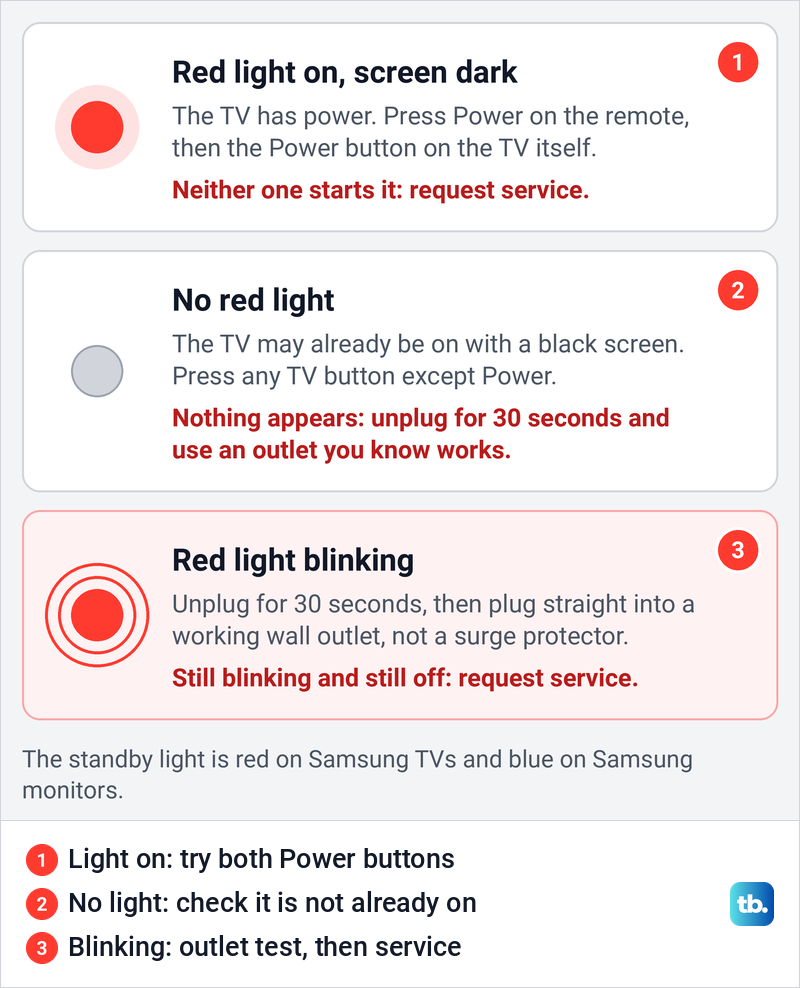
| What you see | First check | If that does not work |
|---|---|---|
| Steady red light, dark screen | Power on the remote, then the Power button on the TV | Request service from Samsung |
| No red light | Press a TV button other than Power | Unplug for 30 seconds and use an outlet you know works |
| Red light keeps blinking | Unplug for 30 seconds, then plug straight into a wall outlet | Request service if it still blinks and stays off |
| Sound or a menu, but a black picture | Home, then the source and the connected device | Follow the black screen steps |
| Screen dims or switches off later | Energy saving, Auto Power Off and the timers | Change the setting while the menus work |
The first three rows are Samsung's power checks for a TV. The last two describe a TV that does start, and they are covered further down.
If the red light is on, try both Power buttons
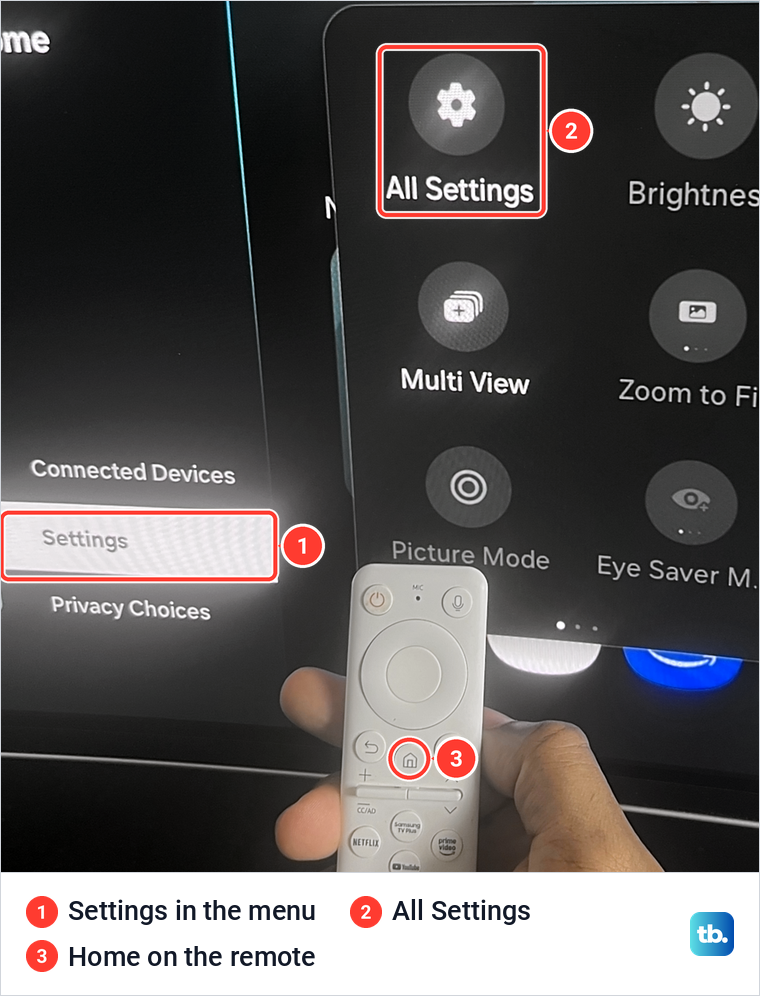
A lit red light tells you the TV is plugged in and getting power, so Samsung's first step is the remote. Press Power on the remote once. Our photos come from our Samsung Odyssey OLED G9, a smart monitor that runs the same Tizen software as Samsung's smart TVs. On its white Samsung remote, Power is the round button at the top left, and Home sits under the navigation ring.
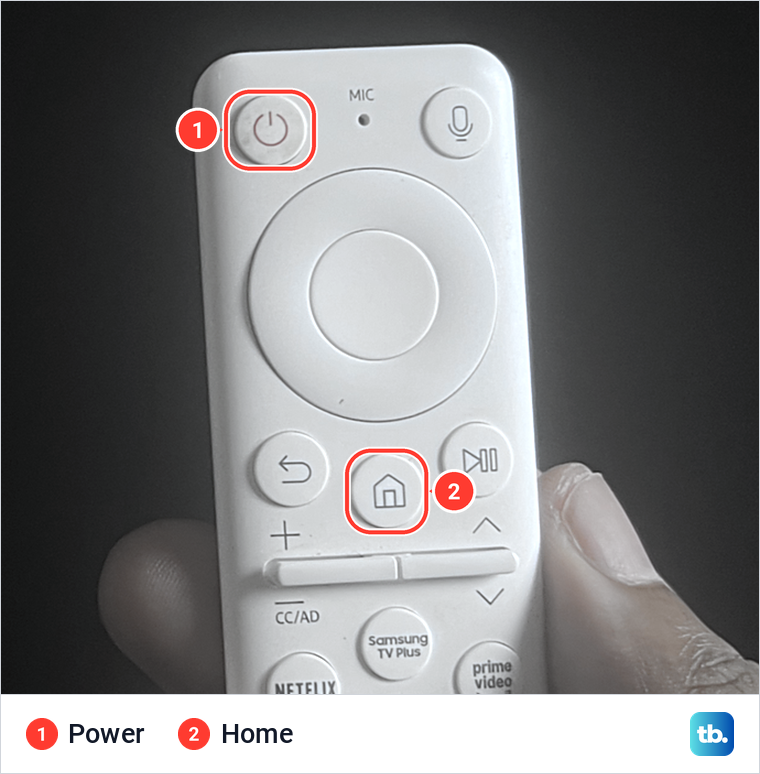
If nothing happens, press the Power button on the TV itself. Samsung says its location varies by model, that most newer TVs have their buttons on the back right side, and that some models have a single button control. Our guide shows where to find the power button on your Samsung TV.
The result tells you where the fault is. Samsung says that if the TV starts with its own button, the remote is the problem. If it starts with neither while the red light stays on, Samsung says service is needed, because the TV is getting power and still not responding.
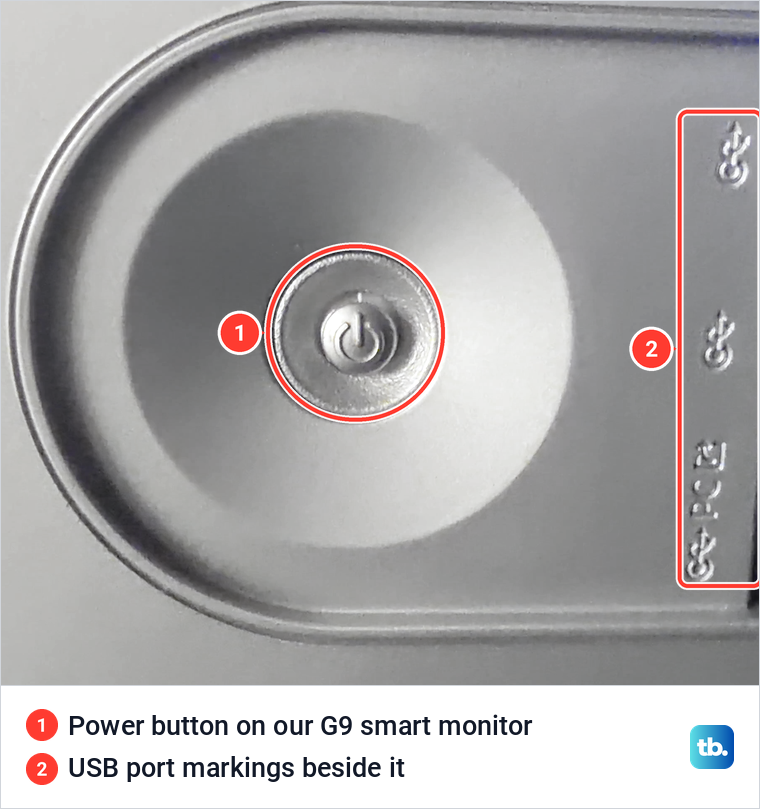
On our G9 the power button is a round metal button in a recess, next to the USB port markings, and the monitor's own on-screen help says you can power off using the button on the monitor. A TV's button sits elsewhere, so go by your model's manual.
Rule out the remote
If the TV starts with its own button, the remote needs attention. For a remote that takes batteries, Samsung's reset is to remove the batteries, hold Power for eight seconds and put the batteries back. If your 2021 or newer TV came with a solar remote, hold Return and Enter, the center of the navigation pad, for 10 seconds, then pair it again.
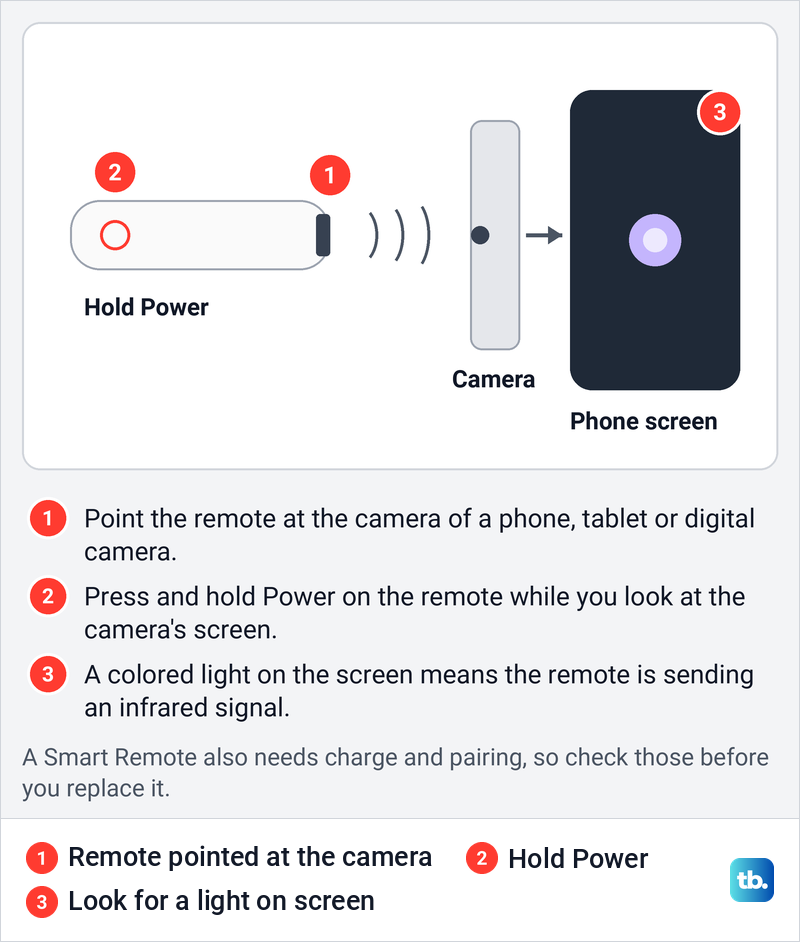
Samsung's quick test for the signal needs only a phone: point the remote at the phone's camera, hold Power and watch the camera's screen. A colored light means the remote is sending an infrared signal. If there is none and your remote takes batteries, Samsung says to fit fresh ones and try again, and to replace the remote if there is still no light. With a solar remote, check its charge and pairing below before you think about replacing it.
A Smart Remote has more to check than its infrared signal. Samsung's pairing step is to stand within a foot of the TV and hold Return and Play/Pause together for at least 5 seconds, or until the TV says the remote is connected. A solar remote also needs charge, and Samsung says it charges through its USB-C port, while light on its solar panel extends its use.
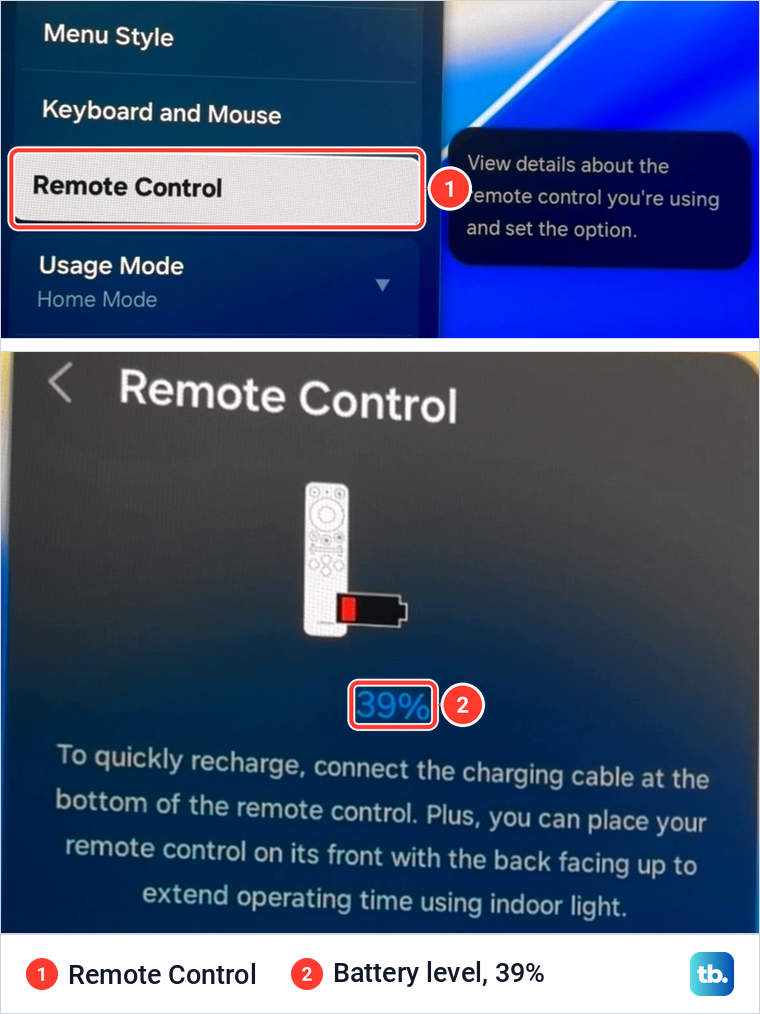
Once the TV is running, a paired solar remote's charge can be checked in its menus. Samsung's path is Settings > All Settings > General & Privacy > Remote Control, and the page appears only when the remote is paired. On our monitor it showed the remote at 39%, with a note to recharge it through the cable port at the bottom or to lay it face down with its back toward indoor light.
If the remote still fails after charging and pairing, work through our fixes for a Samsung remote that stops responding. A remote that has been reset has to be paired again, so pair a Samsung remote with your TV once the reset is done.
If there is no light, check whether the TV is already on
Samsung's note for a dark standby light is plain: "the TV either doesn't have power, or it's turned on and the screen is just black." So before you blame the power supply, find out which. Without the remote, press any button on the TV except Power. If your model has a single control button, Samsung points you to the user manual to find it.
If anything appears on the screen, the TV is on. Samsung then sends you to its no-picture steps, so troubleshoot a Samsung TV black screen instead of chasing a power fault. If the TV's own buttons bring up a menu but the remote does not, give the remote the checks above as well.
A screen that responds is hard to mistake. On our monitor, the Smart Hub menu lists Settings on the left, and the quick panel beside it offers All Settings and Brightness. Any menu like this means the TV has power and the fault lies elsewhere.
Unplug the TV and use an outlet you know works
If nothing appears, Samsung's next step checks the outlet and the surge protector. Unplug the TV and leave it unplugged for 30 seconds. While it is out, look along the power cord, because Samsung says a cord with visible damage should be replaced.
Then plug it into an outlet you know works. Samsung suggests testing the outlet first with another device, such as a lamp. If the TV was on a surge protector, plug it straight into the wall instead, because Samsung warns that surge protectors "may eventually wear out and stop providing the necessary voltage for your TV."
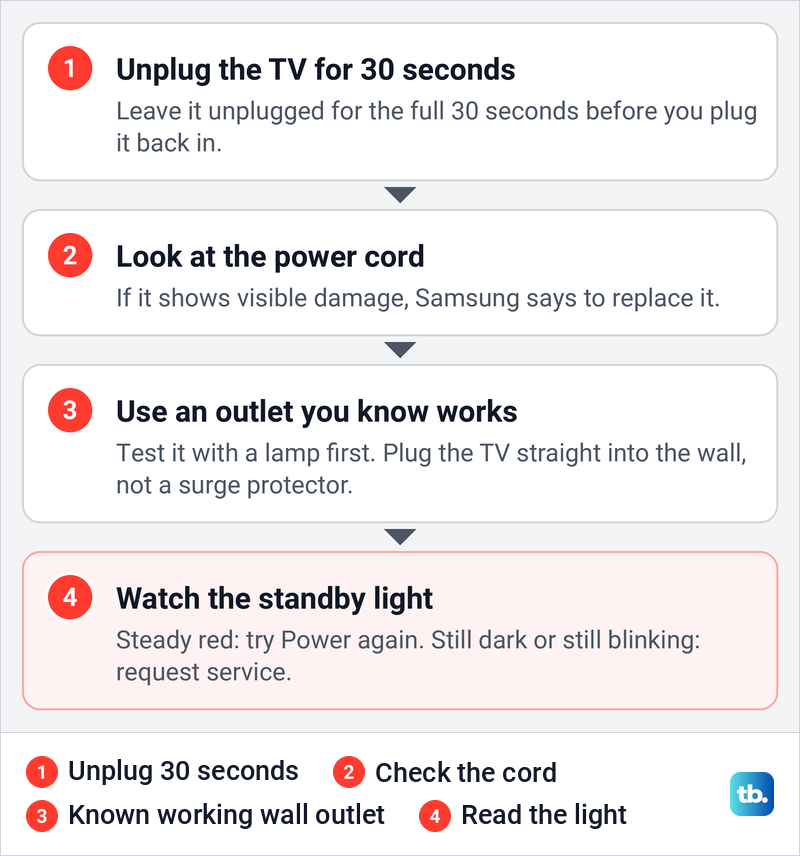
Now watch the light. Samsung says a steady red light that does not flash means the TV is receiving power and will probably turn on, and that the fault was the original outlet or the surge protector. If the light comes on but the TV still stays off, go back to the two Power buttons. If the light never comes on, even from a working outlet, Samsung says to contact Samsung Support and request service.
This is not the same as a cold boot. Samsung's cold boot, holding the remote's Power button until the TV switches off and back on, starts from a TV that is already running. Our guide on how to restart a Samsung TV covers it for the day the screen works again.
If the red light keeps blinking
A blinking light gets the same outlet test. Unplug the TV for 30 seconds and plug it straight into a working wall outlet, with no surge protector. If the light then glows steadily, the TV has power and you are back to the Power buttons.
If the TV still will not turn on and the light is still blinking, Samsung calls that "a sign that something is wrong with your TV" and sends you to its Support Center for service. Samsung's guide stops there. It does not match a number of blinks to a failed board, so treat any chart that does with caution, and leave the inside of the set to a technician.
If the TV is on but the screen stays dark
Sound without a picture, or a standby light that goes out when you press Power, suggests the TV is on. Samsung's test is to press Home on the remote. If the menu appears, the TV is powered on, and the problem is the source or the signal.
Samsung says a TV can show a black screen when it is set to a source whose device is switched off. If your cable box is on HDMI 1, set the TV to HDMI 1 and make sure the box is on. On our monitor, the selected source carries a tick in the source list.
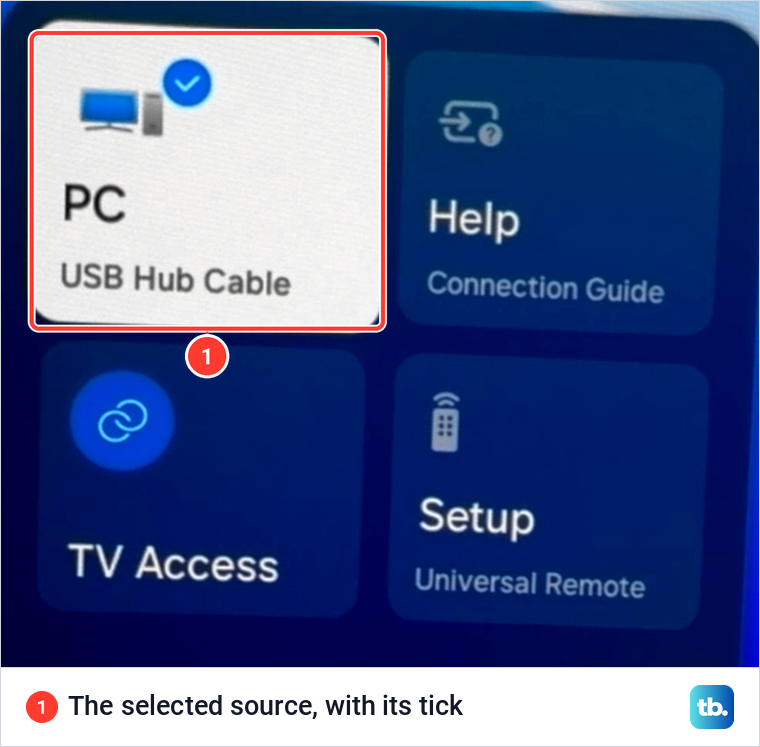
If your box is not the selected one, change the HDMI input on a Samsung TV to the port it uses. If the source is right and the picture is still blank, Samsung's next steps are to reconnect each cable at both ends and try another device, and our guide to Samsung TV HDMI connection problems goes through them.
A One Connect Box adds one more cable to check. Samsung says the box comes only with select models, and that its cable should be disconnected and firmly reconnected at both ends. A cable that is bent, kinked or pinched needs replacing.
Check the brightness and power saving settings
A screen that is on but very dim can pass for one that is off. Samsung says its energy saving features "adjust the screen based on how bright it is and how bright your room is." Samsung's 2025 TV e-Manual lists them under Settings > All Settings > General & Privacy > Power and Energy Saving, the same place as on our monitor, while 2021 TVs keep them under General > Eco Solution.
For a picture that dims, the e-Manual's advice is to disable Brightness Optimization, Energy Saving Solution and Motion Lighting. On older models, Samsung says to look for Energy Saving or Eco Solution and set it to Off. We switched Brightness Optimization on only to show what it controls: before, the switch was off and Minimum Brightness was greyed out, and after, Minimum Brightness became adjustable.
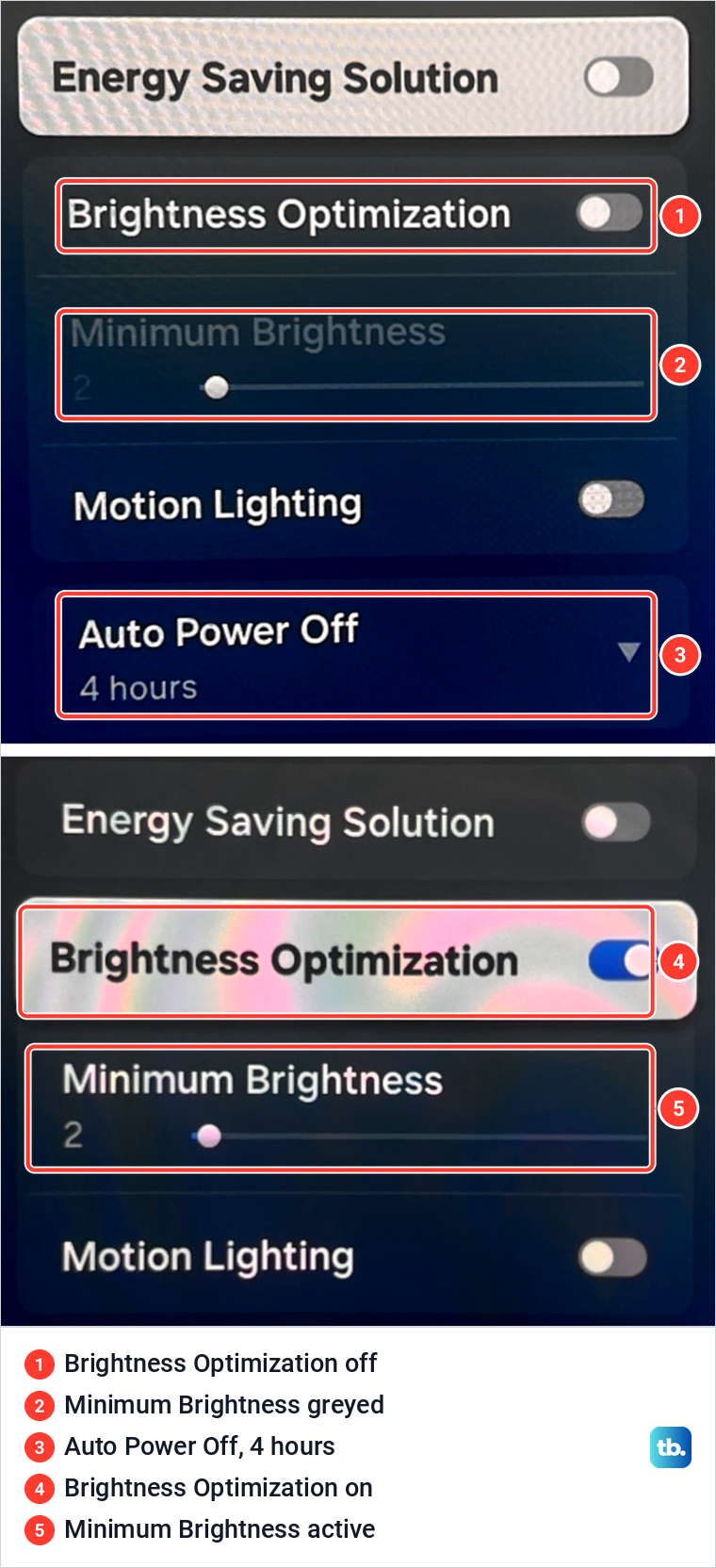
The same page holds Auto Power Off, set to 4 hours on our monitor, and the Sleep Timer, which Samsung says shuts the device off after a set time. Those settings switch off a TV that was working, which is a different problem from one that will not start. Our guide to a Samsung TV that turns itself off covers them.
Run Picture Test once the menus work
When the menus open but you doubt the panel itself, Samsung's Picture Test can help tell a TV fault from a source fault. On 2022 and later models the path is All Settings > Support > Device Care > Self Diagnosis > Picture Test. On older models Samsung puts Self Diagnosis straight under Support.
We ran it on our monitor. It showed Samsung's test photo after a note to look carefully at the screen for 5 seconds, then asked "Does the test picture look normal?" with Yes, No and Show Again. Afterwards Self Diagnosis showed Picture Test ticked, and its counter read 2 of 15 tests, both normal.
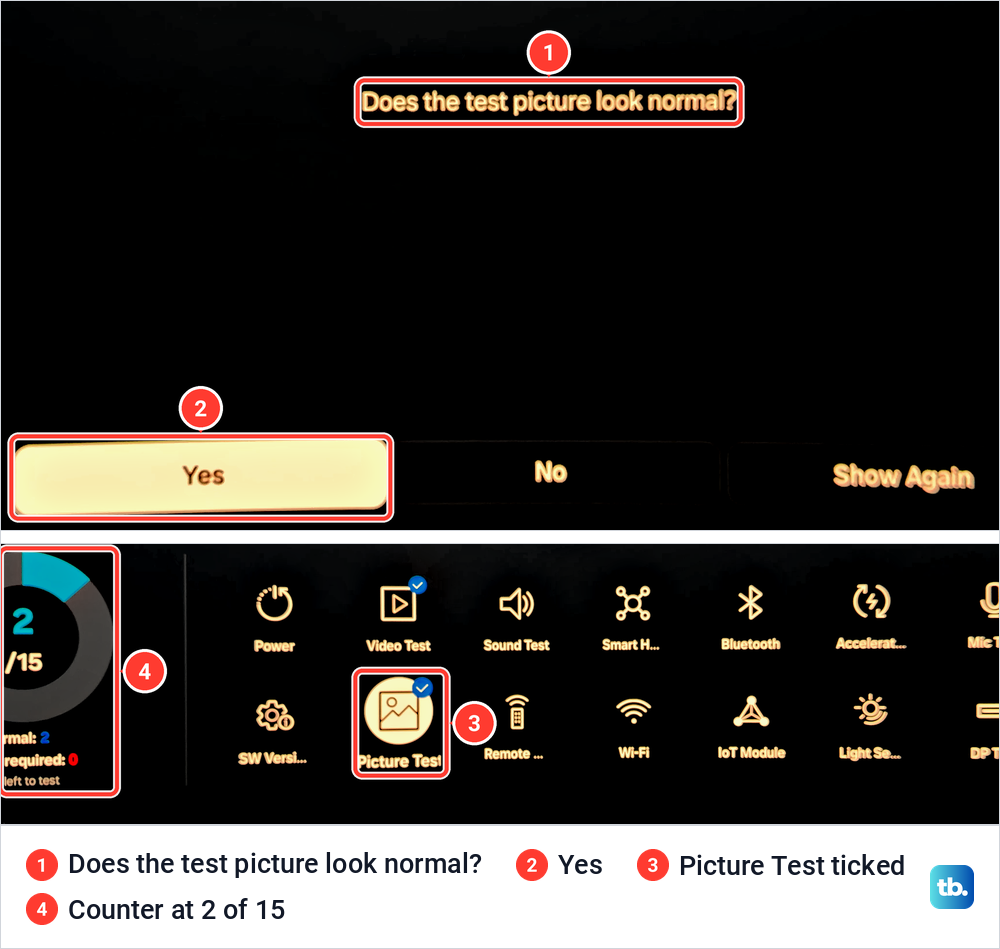
Samsung reads the result this way. If the test photo looks right, Samsung says the problem may be an external device, so check it and its connections. If the test does not appear or the photo has a problem, the TV may have a fault and Samsung asks you to contact Samsung Support.
Update the software after it starts
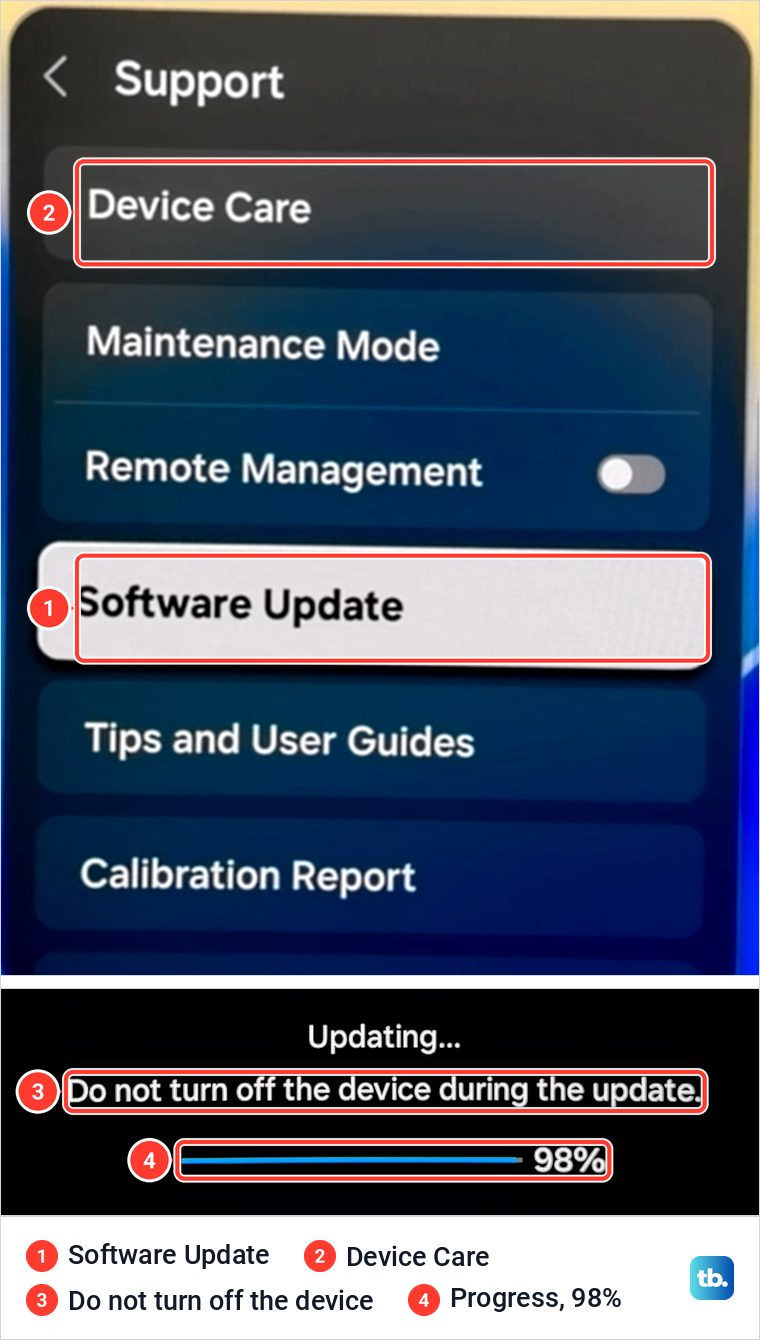
A software update cannot help a TV that will not switch on, because it needs working menus. Once the TV starts, Samsung's path is Settings > All Settings > Support > Software Update > Update Now. Samsung says updates usually take a few minutes, that you should not turn the TV off until the update is complete, and that it restarts by itself when it is done.
Our monitor shows that warning on screen. During an update it read "Do not turn off the device during the update" above a progress bar, here at 98%. If the TV is not online, Samsung's USB method needs an empty drive formatted as FAT32, with the update files at its top level rather than inside a folder.
Samsung also notes that picture and sound settings can return to their defaults after an update, so check them afterwards. A factory reset is a much bigger step that clears your settings and app sign-ins, and it too needs a TV that starts and opens its menus. If you get that far and still want a clean slate, follow our steps to factory reset a Samsung TV.
When to contact Samsung
Samsung's own troubleshooting ends at service in four situations. If yours matches one of them, the TV needs Samsung's service team rather than another setting.
- The red light is steady, but neither the remote nor the TV's Power button starts it.
- The light stays off even from an outlet you know works.
- The light keeps blinking after the 30-second unplug and the outlet test.
- Picture Test does not appear, or its photo shows a problem.
Before you call, have the TV's model code, software version and serial number ready, because Samsung asks for them. If the TV will not start, its menus are out of reach, and our guide to check the model of your Samsung TV shows where the model code and serial number are printed on the set itself.
How we tested this guide
We tested this on a Samsung Odyssey OLED G9 smart monitor, which runs the same Tizen software as Samsung TVs, checking the remote's battery page and running Picture Test.
Frequently Asked Questions
Why is the red light on but my Samsung TV won't turn on?
The light means the TV has power. Press Power on the remote, then the Power button on the TV itself. If neither starts it, Samsung says the TV needs service.
What does it mean when a Samsung TV has no red light?
Either the TV has no power or it is already on with a black screen. Press a TV button other than Power, and if nothing appears, unplug it for 30 seconds and plug it into an outlet you know works.
Does a blinking red light tell you what is broken?
Not in Samsung's guide. Samsung treats blinking that continues after a 30-second unplug and a working-outlet test as a sign the TV needs service, without naming a part.
Can I turn on a Samsung TV without the remote?
Yes, with the Power button on the TV. Samsung says most newer TVs have their buttons on the back right side, and the user manual shows the exact spot for your model.
How do I know if my Samsung remote is working?
Point it at a phone camera and hold Power. A colored light on the phone screen means it is sending an infrared signal, and a Smart Remote may also need charging and pairing.
Should I update or factory reset a Samsung TV that won't turn on?
Neither is possible until the TV starts, because both live in its menus. Work through the light, the Power buttons and the outlet first, and contact Samsung if it still stays off.
Why does my Samsung TV make sound but show a black screen?
The TV is on. Press Home, and if the menu appears, check the source and the connected device, then run Picture Test from Self Diagnosis.