


My home lab rack layout puts the network at the top, the computers in the middle and lower shelves, and power at the bottom. The Wi-Fi access point sits on the roof, every cable lands on a patch panel near the top, and short jumpers drop straight into the 2.5G switch under it. That follows the usual rack rules fairly closely, with three changes that make sense in a 10-inch rack on a desk.
The short version
- From the top: access point, blank panel, patch panel, 2.5G switch, vented panel, gateway, two shelves of small computers, PDU and a fan at the bottom. A 5-port TL-SG105 is also in the rack, out of view.
- Heavy gear goes low, network gear goes high, and a good layout leaves room to grow.
- A patch panel right above the switch keeps every jumper short.
- Plan for growth. Patch panel ports 2 and 10 to 12 and switch port 8 have no front jumper, and a NAS and two more small computers are on the way.
My home lab rack layout, top to bottom
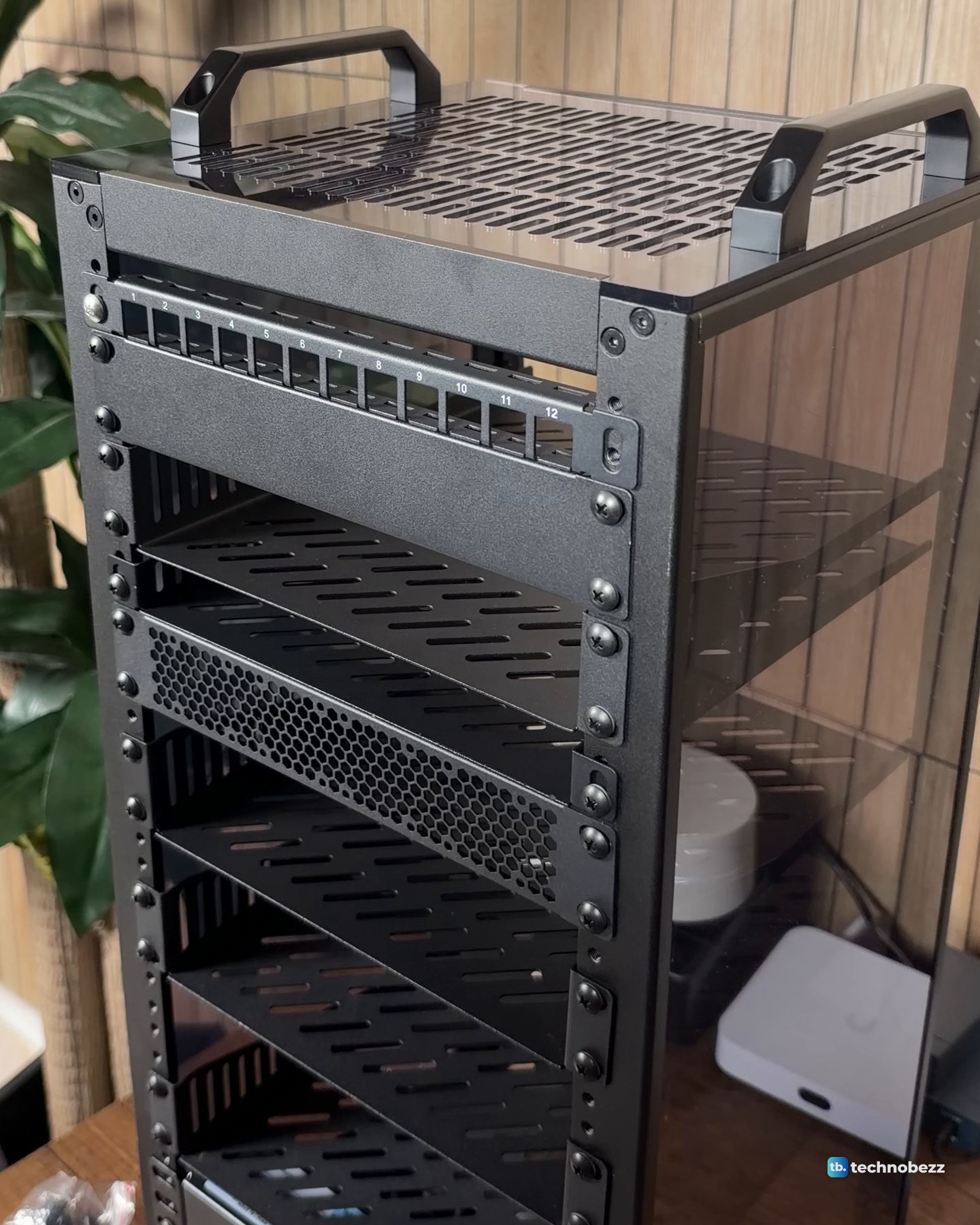
The rack is a DeskPi RackMate T2, a 12U rack for 10-inch equipment. Everything in it is numbered from the top down. The numbers label items on the map, not rack-unit positions. The main server, a tower PC, and an Eaton 5S 1500 UPS stand beside the rack, not in it. How the frame went together is in my DeskPi RackMate T2 build, and our guide to connecting a UPS to a home lab covers the UPS side.
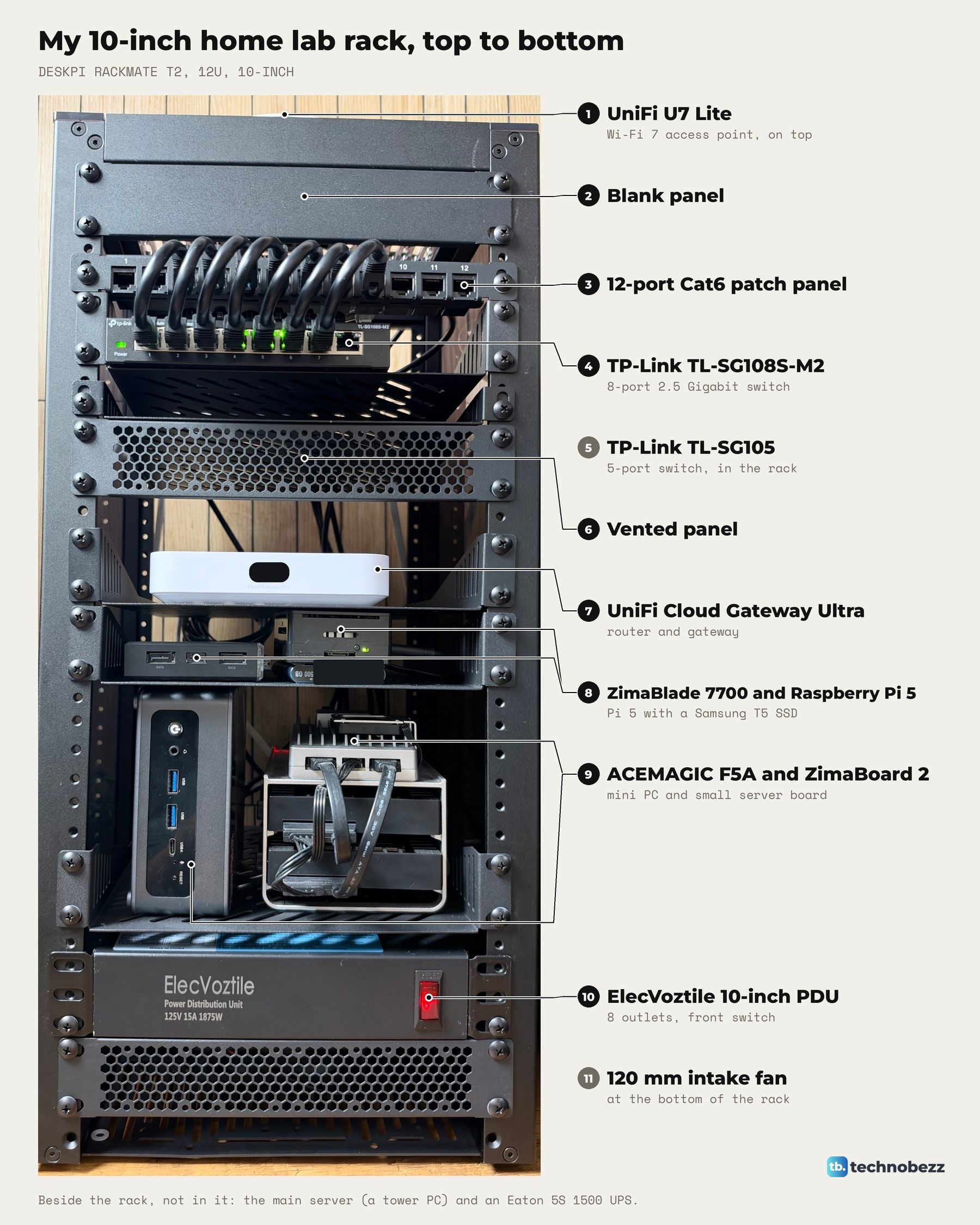
| Position | What sits there | Why it sits there |
|---|---|---|
| 1, on top | UniFi U7 Lite access point | Rests on the vented top plate |
| 2 | Blank panel | Fills the space under the top plate |
| 3 | GeeekPi 12-port Cat6 patch panel (0.5U) | Every cable lands in one place |
| 4 | TP-Link TL-SG108S-M2, 8 x 2.5G | Right under the patch panel, so jumpers stay short |
| 6 | Vented panel | Spacer between the 2.5G switch and the gateway |
| 7 | UniFi Cloud Gateway Ultra | Router and gateway, next to the network gear |
| 8 | ZimaBlade 7700 and Raspberry Pi 5 with a Samsung T5 SSD | Small boards share one shelf |
| 9 | ACEMAGIC F5A and ZimaBoard 2 | The two bigger boxes share the lower shelf |
| 10 | ElecVoztile 10-inch PDU | Power at the bottom, eight outlets at the back |
| 11 | 120 mm fan | At the bottom, blowing air in |
| 5, in the rack | TP-Link TL-SG105, 5-port Gigabit | In the rack for wall runs and extra devices |
What order should equipment go in a server rack?
The basic order is heavy gear at the bottom, network gear at the top and the patch panel right next to the switch.
Heavy gear goes low so the rack never becomes top-heavy. In a full-size rack that means the UPS, its battery packs and the PDU. My PDU sits at the bottom, and the tower server and the UPS stand on the desk beside the rack. I have not weighed the loaded rack.
Network gear goes high. Switches and patch panels are light, and a switch at the top keeps the cable runs from the machines short. A patch panel just above or below the switch does the same for the jumpers and keeps the front tidy.
Blank panels matter more in a closed enclosure than in a mini rack. In an enclosure with front-to-back airflow, solid blanking panels in the empty spaces force cool air through the equipment. An open mini rack like mine does not steer air that way.
Plan the whole layout before you install anything, including where the next devices will go, and leave at least a quarter of the rack free for later.
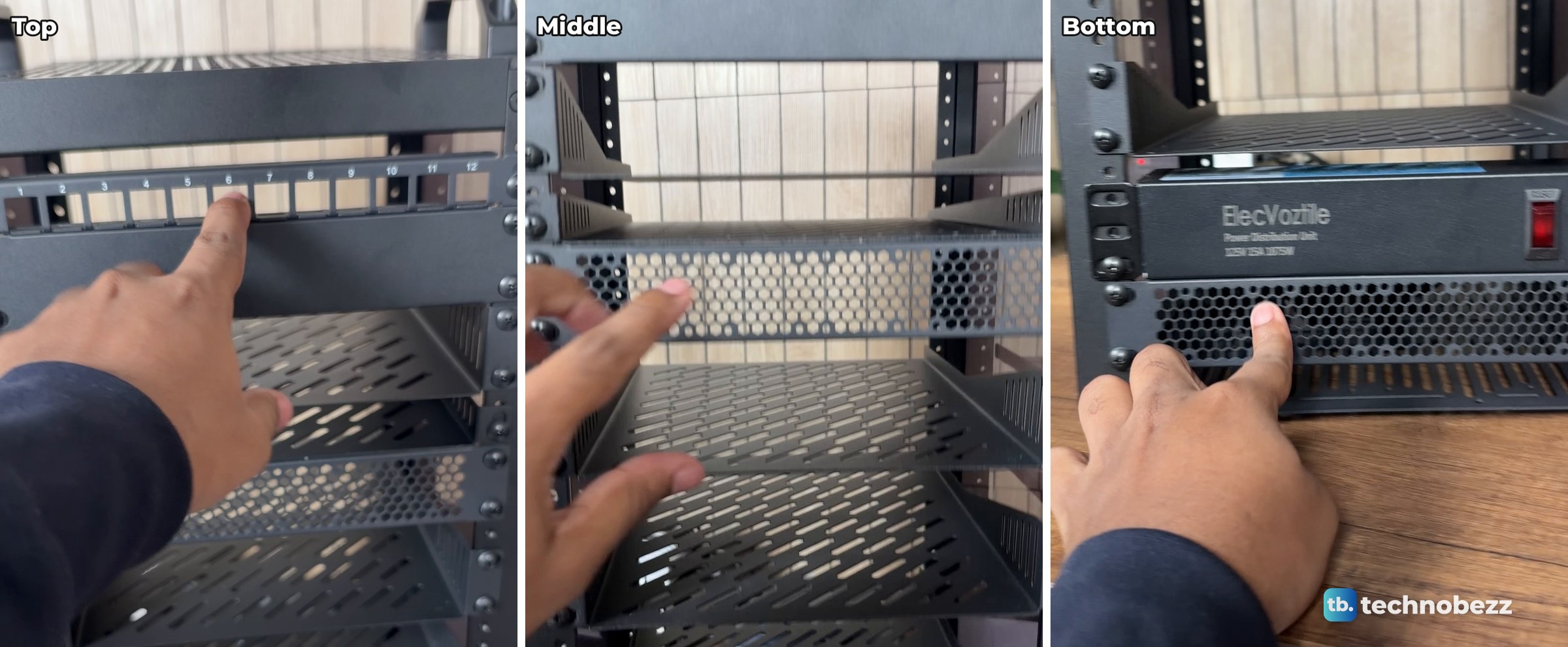
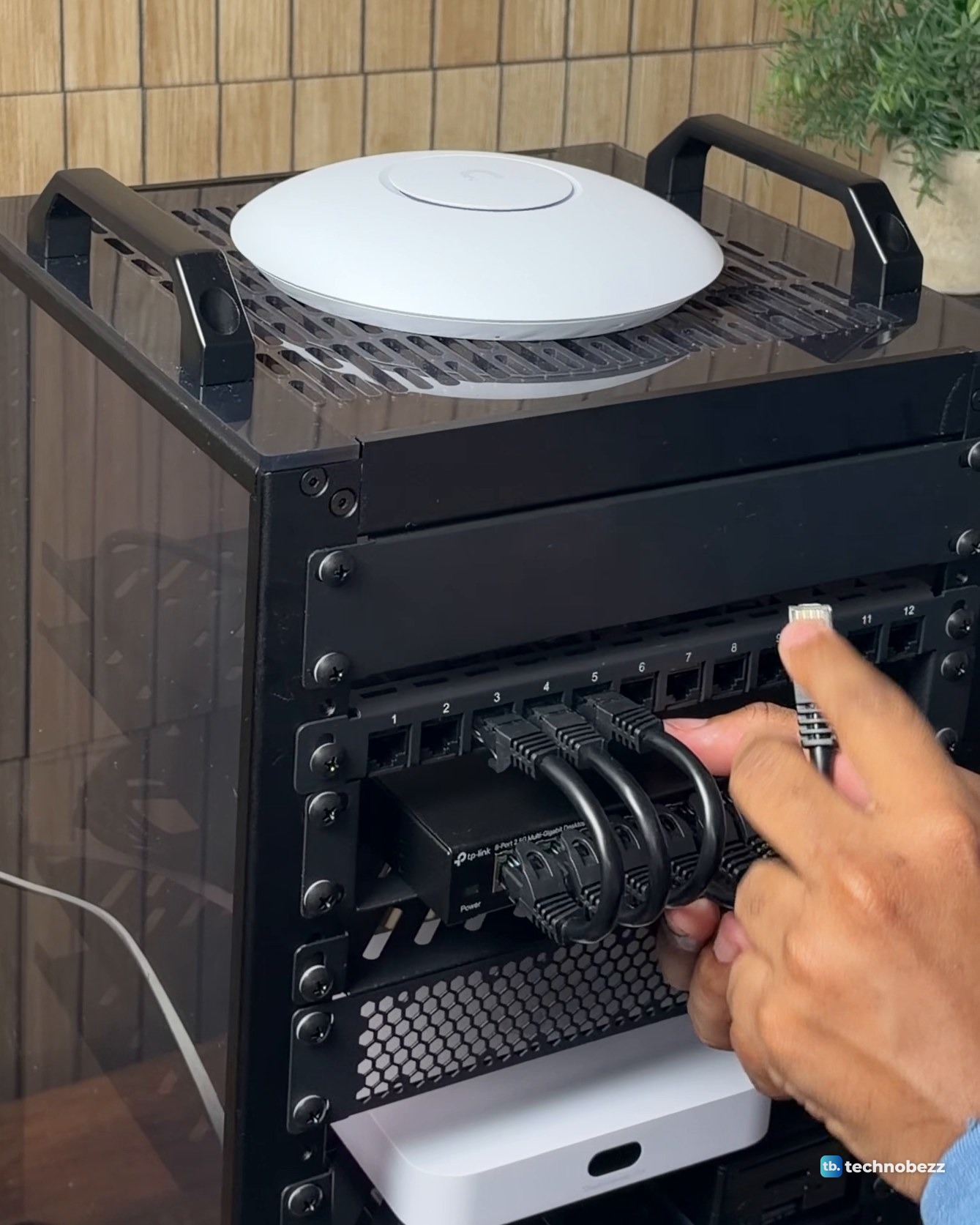
On build night, with the rack still empty, I went down the front pointing out where things would go, from the top shelves to the power strip at the bottom.
Top of the rack: the access point
The UniFi U7 Lite sits on the vented top plate, between the two handles. An access point works best mounted high, with few obstacles around it. The U7 Lite is made for a ceiling or wall with PoE power, and mine gets power and data through one cable from a UniFi 2.5G PoE+ adapter whose power plug is on the rack PDU.
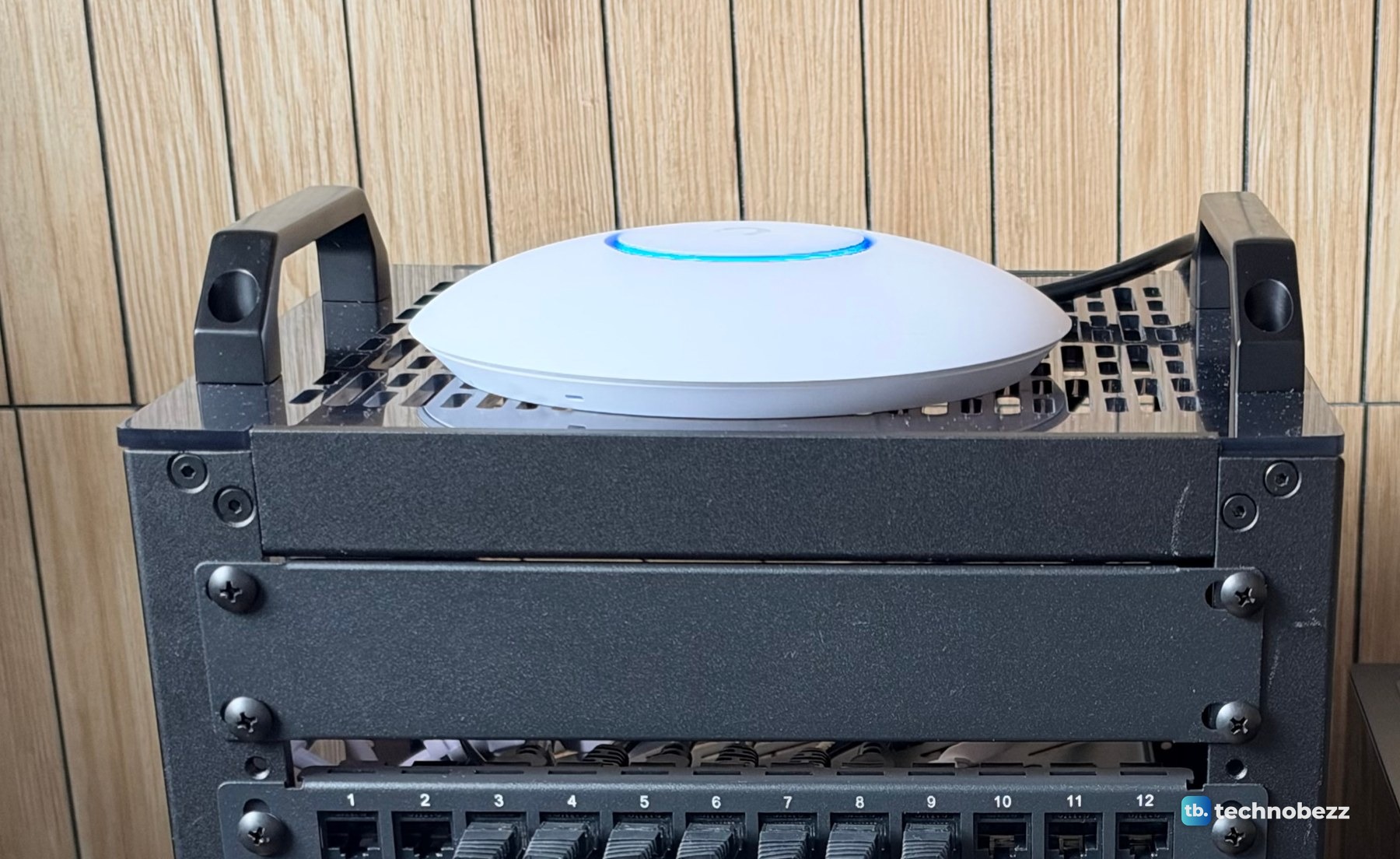
From that spot, a speed test on my Mac over the U7 Lite showed 347 Mbps down and 20 Mbps up, which is the full speed of the internet line, so the access point was not the limit. Our guide to powering a UniFi access point with a PoE adapter covers that cable.
The network section: blank panel, patch panel and switches
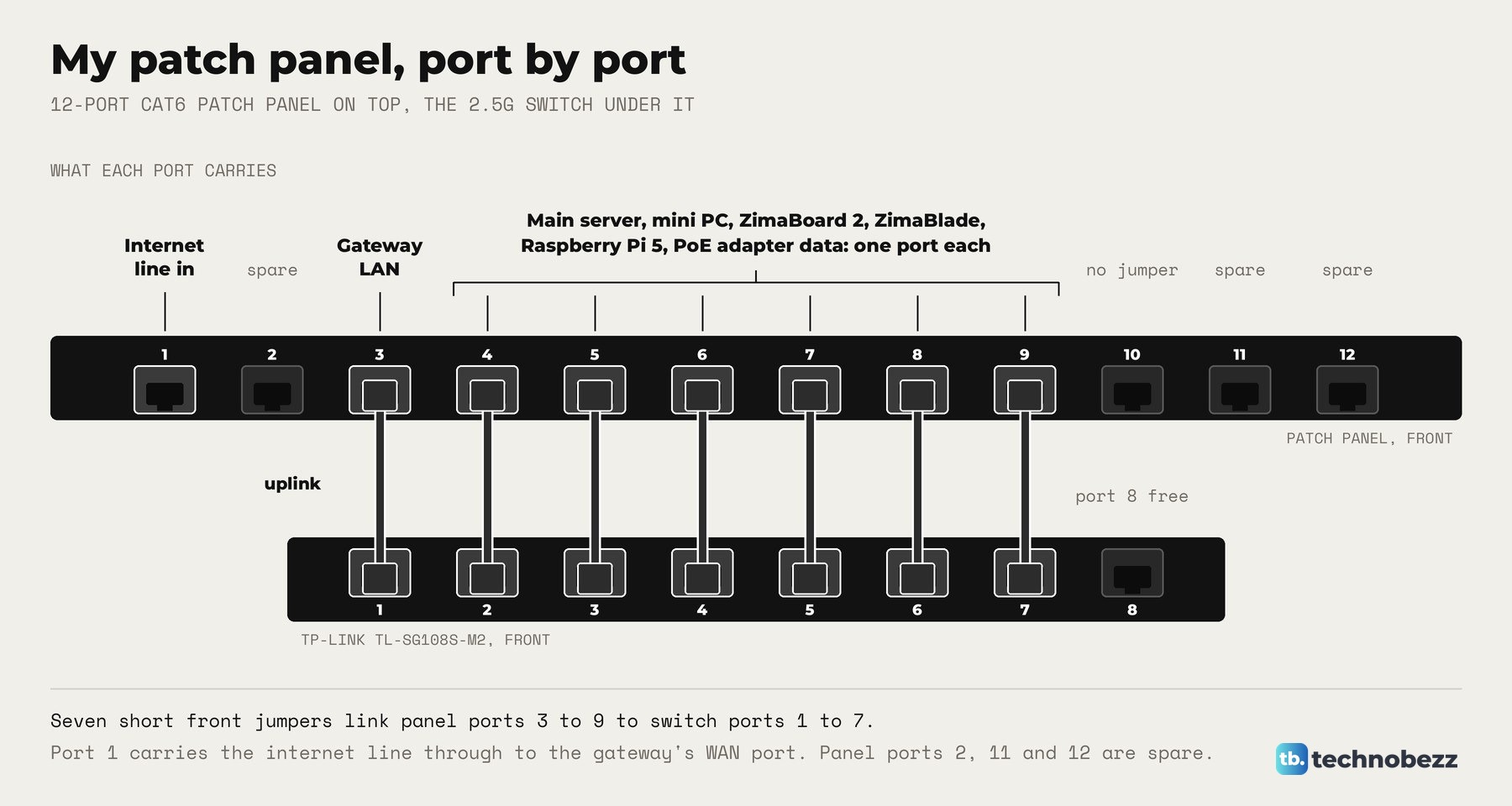
Under the top plate is a blank panel, then the 12-port patch panel, then the TP-Link TL-SG108S-M2 directly beneath it. Every network cable in the rack, plus the internet line, lands on the patch panel first. Short front jumpers then drop straight down into the switch. Seven jumpers link panel ports 3 to 9 to switch ports 1 to 7.
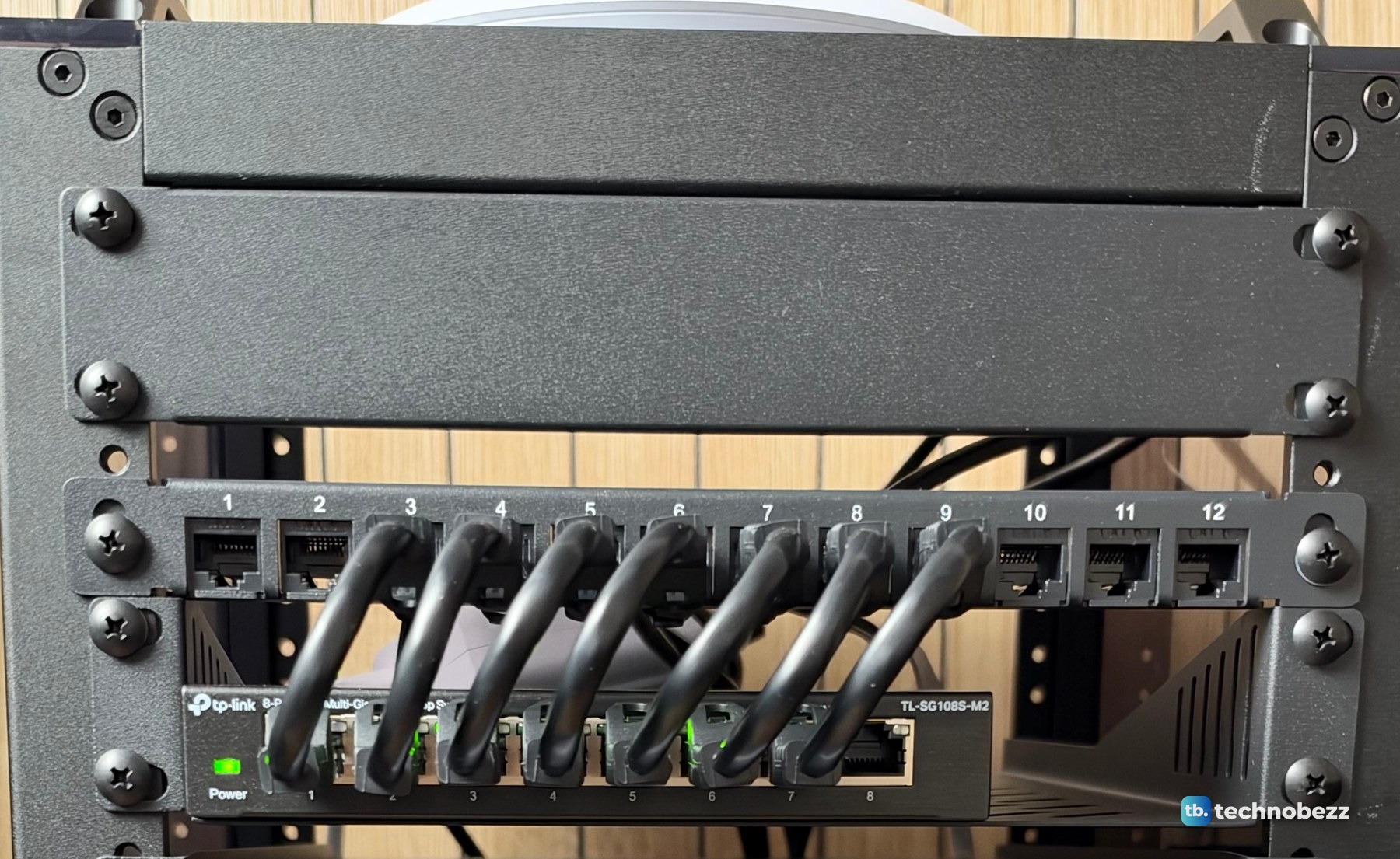
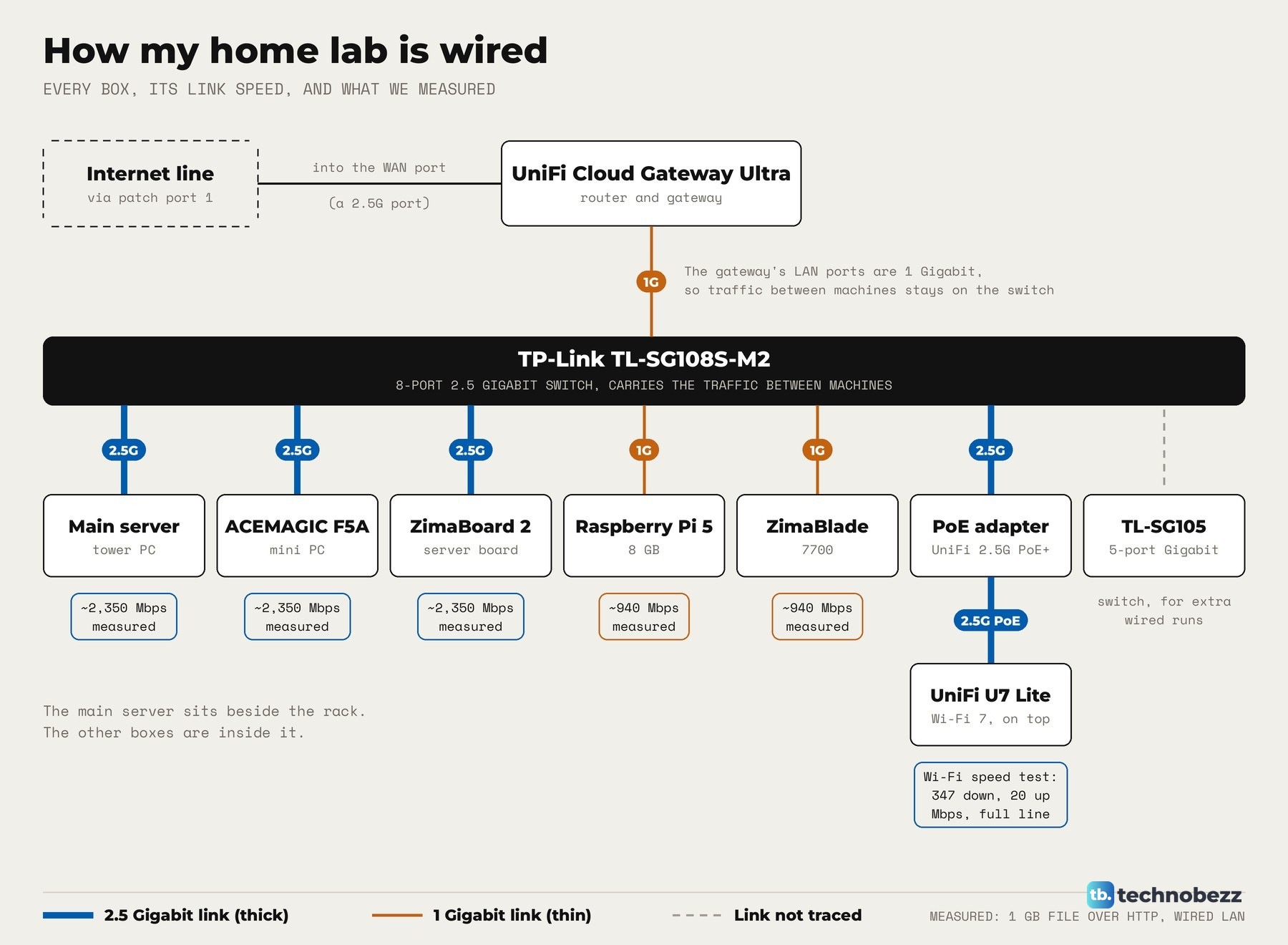
The switch carries the traffic between machines. The gateway's own LAN ports are 1 Gigabit, so the computers talk through the 2.5G switch instead. In our 1 GB file transfers after the move, the main server, the F5A and the ZimaBoard 2 each hit about 2,350 Mbps, and the Raspberry Pi 5 and ZimaBlade reached about 940 Mbps, their 1 Gigabit limit. The smaller TP-Link TL-SG105 is also in the rack for the wall runs and extra devices, but it is hidden from the front.
The patch panel port plan
Port 1 takes the internet line, port 3 the gateway's uplink, and ports 4 to 9 the computers and the access point's PoE adapter.
| Patch panel port | What it carries |
|---|---|
| 1 | The internet line, through to the gateway's internet port at the back |
| 2 | Spare |
| 3 | The gateway's LAN port, jumpered to switch port 1 (the uplink) |
| 4 to 9 | The main server, the mini PC, the ZimaBoard 2, the ZimaBlade, the Raspberry Pi 5 and the PoE adapter's data line, one port each, jumpered to switch ports 2 to 7 |
| 10 | No front jumper at the moment |
| 11 and 12 | Spare |
For more on why a patch panel helps, see how to use a patch panel in a home lab. If a run stops working later, our guide to fixing an Ethernet cable connection is a good first check.
The middle: a vented spacer and the gateway
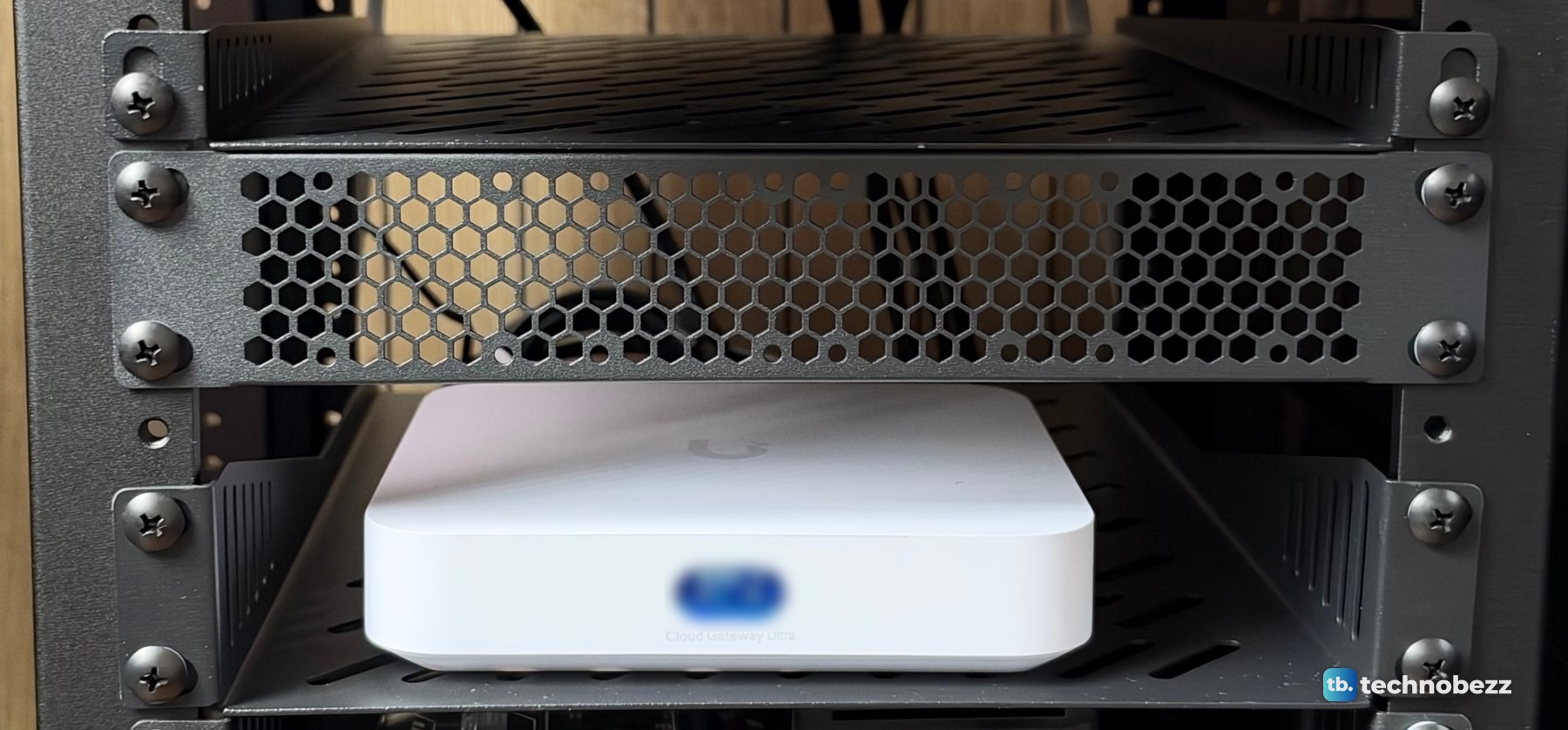
Below the 2.5G switch is a vented panel, then the UniFi Cloud Gateway Ultra on a shelf. The vented panel fills the gap between the two groups but still has holes for air. The gateway sits right under the network section, close to the patch panel it connects through.
The lower shelves: the small computers
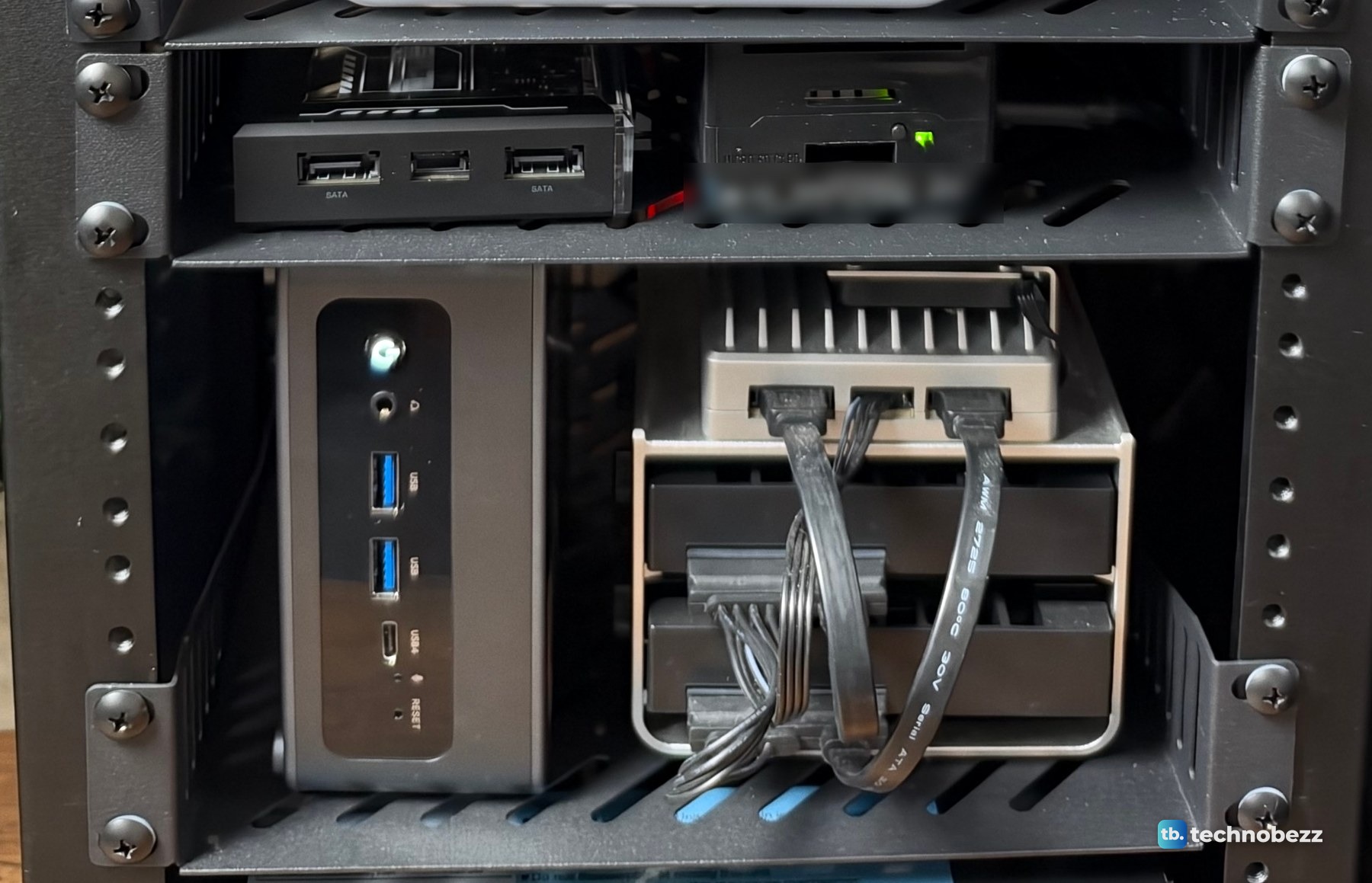
The computers fill the two shelves below the gateway. The top one holds the ZimaBlade and the Raspberry Pi 5 with its Samsung T5 SSD. The lower one holds the ACEMAGIC F5A and the ZimaBoard 2. The ACEMAGIC F5A, ZimaBoard 2 and ZimaBlade were sent to us for review. Our guide to rack mounting a Raspberry Pi and a mini PC shows how they sit on the shelves.
The bottom: power and airflow
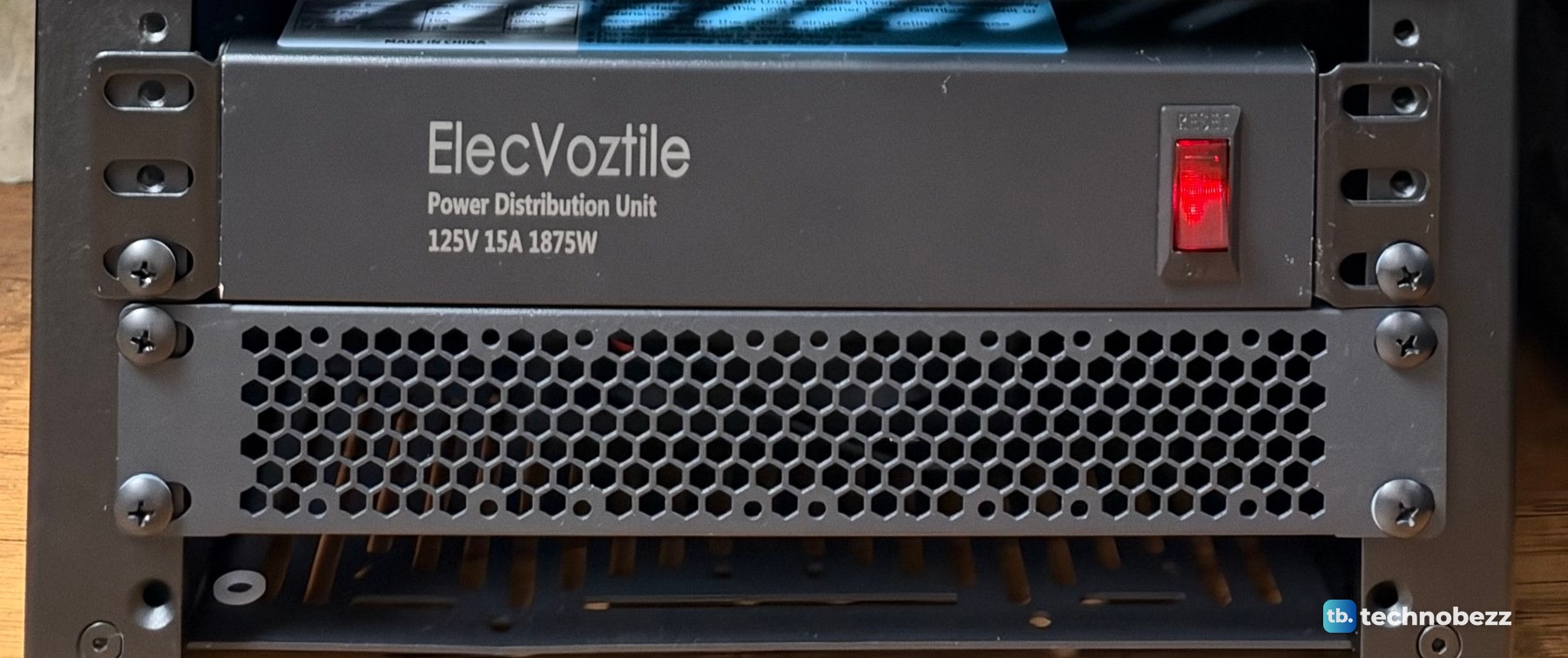
The ElecVoztile PDU sits near the bottom, with its switch on the front and its eight outlets at the back. Every plug in the rack runs down to that one strip. At the bottom is a 120 mm fan that blows air into the rack. It does not show clearly from the front.
There is no single airflow standard for racks. Rack servers usually pull air in at the front and push it out the back, and low-wattage devices may have no active cooling at all. I have not measured temperatures inside the rack yet.
This Short walks through the rack shelf by shelf, in the same order.
Where my layout departs from the rules
Three things differ from a typical 19-inch rack layout. The tower server and the UPS are outside the rack, on the desk. There is no horizontal cable manager between sections. Dense racks often get up to 1U of cable management for every 1U of patch panels or switches, but with seven short jumpers the front stays clear without one. I did buy a GeeekPi 1U brush cable manager, but it is not on the front of the rack. And the access point sits on the rack's roof instead of a ceiling or wall. For more on keeping the cables tidy, see how to manage cables in a mini rack.
What I would plan for
Leave room. Patch panel ports 2 and 10 to 12 have no front jumper, and switch port 8 is empty. The empty spaces in the rack are spoken for: a NAS and two more small computers are planned. For a sense of how a rack like this adds up, see how much my home lab cost, and for the hardware itself, what's inside my home lab rack. If you are still choosing a rack size, read 10-inch vs 19-inch racks first.
Rack parts in my layout
| Product | What it does here | Where to buy |
|---|---|---|
| GeeekPi 12-port 0.5U Cat6 patch panel | Where every cable lands | Check it on Amazon |
| GeeekPi 1U blank panel | Fills the space under the top plate | Check it on Amazon |
| GeeekPi vented 1U blank panel | Spacer with holes for air | Check it on Amazon |
| GeeekPi 1U vented shelf, 10.23 in deep | Holds the gateway and computers | Check it on Amazon |
| GeeekPi 1U SBC shelf (current version) | Shelf made for Raspberry Pi boards | Check it on Amazon |
| ElecVoztile 10-inch PDU | Eight rear outlets, front switch | Check it on Amazon |
| GeeekPi RackMate 120 mm USB fan | Blows air in at the bottom | Check it on Amazon |
| GeeekPi 1U brush cable manager | Brush strip for cable entry, bought for the rack | Check it on Amazon |
Technobezz may earn a commission when you buy through the Amazon links on this page.











