
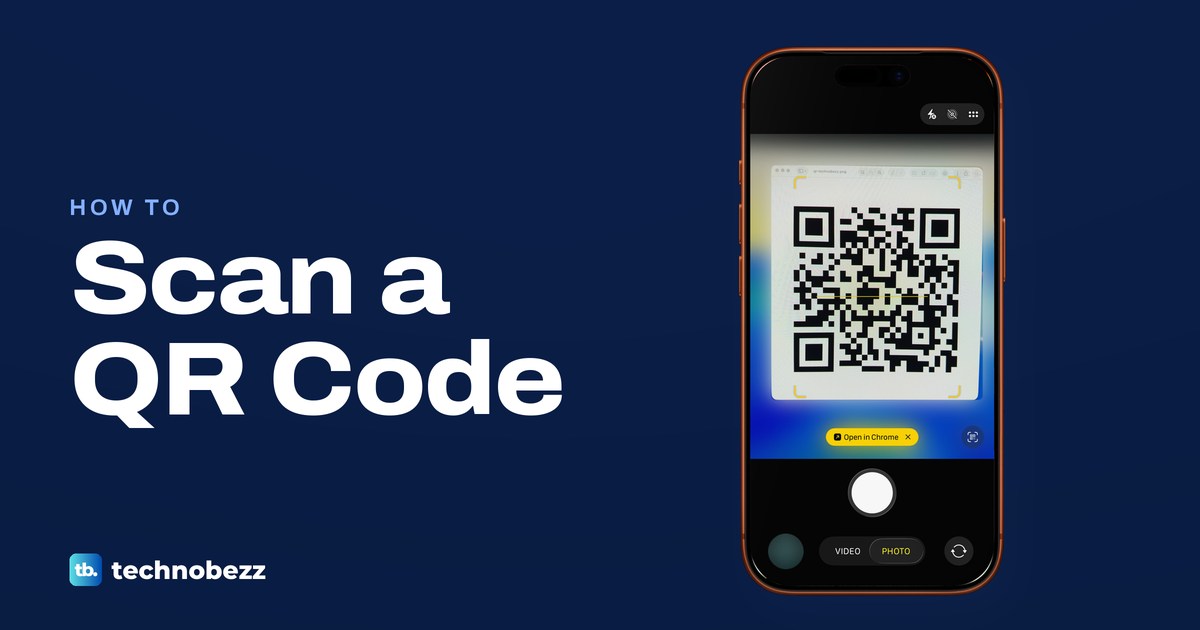
To scan a QR code, open the Camera app on your iPhone, Pixel or Samsung Galaxy, point it at the code so the whole square fits on the screen, and tap the link or prompt that appears. On iPhone and Galaxy, leave Camera in Photo mode. Check the site name before you sign in or pay on the page that opens. You do not need to press the shutter or install a scanner app.
A code that is already on your own screen needs a different route, because a camera cannot look at its own display. We scanned codes on our iPhone 17 Pro with iOS 26.6 and on Windows 11, version 25H2, and the Windows result surprised us. Snipping Tool, included with Windows 11, read the link straight out of a screenshot.
The short version
- iPhone, Pixel or Galaxy: open Camera, point it at the code and tap the link or prompt that appears.
- iPhone, without the Camera app: open Control Center and tap Code Scanner.
- A code on your Android screen: save it, then use Google Lens in Google Photos, or press and hold it in Samsung Gallery.
- A code on your Windows screen: press Windows + Shift + S, drag around the code, open the snip and select Scan text.
- Before you sign in or pay: check the site name in the address bar once the page opens.
Pick the right QR scanner
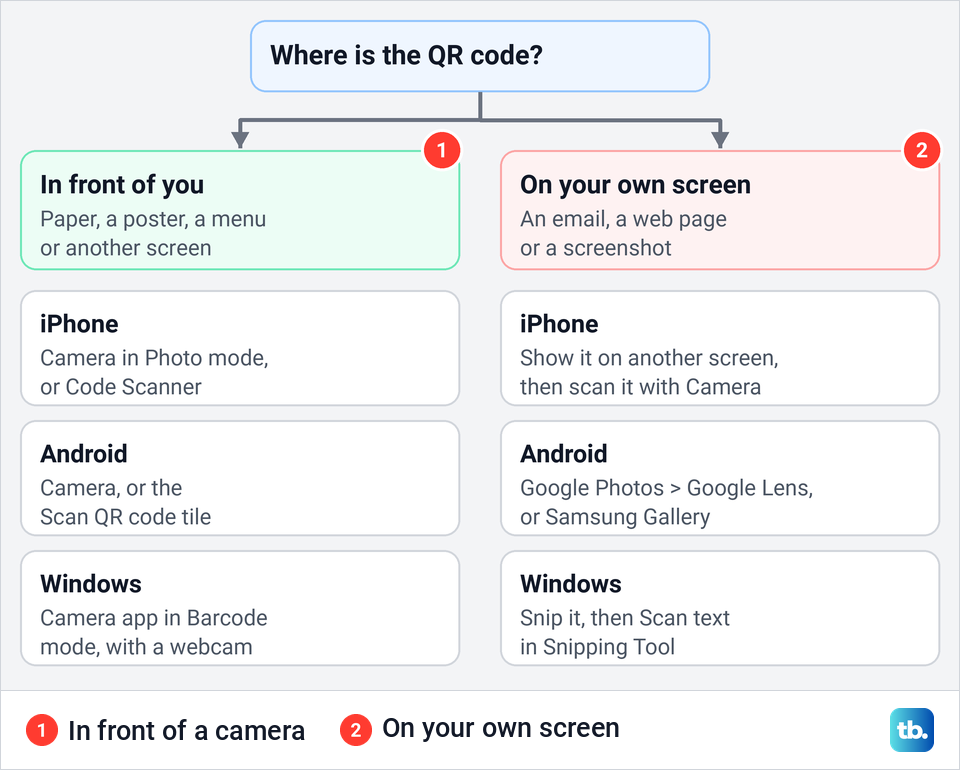
Two questions decide the route: where the code is, and which device is in your hand. A code on paper, a poster or another screen can go in front of any camera. A code in an email or on a web page you are reading needs a tool that reads pictures instead.
| Open this | When to use it | What to look for |
|---|---|---|
| iPhone Camera, Photo mode | A code in front of your iPhone | A yellow button below the code |
| Control Center, Code Scanner | Quick scans on iPhone without the Camera app | A link to tap |
| Pixel Camera, or Quick Settings > Scan QR code | A code in front of a Pixel | A bubble or link on the screen |
| Samsung Camera with PHOTO selected, or Quick settings > Scan QR code | A code in front of a Galaxy phone | A link or notification for the code |
| Google Photos > More > Google Lens, or Samsung Gallery | A code saved as a picture on Android | The link or action Lens or Gallery finds |
| Windows + Shift + S, then Scan text in Snipping Tool | A code on your Windows screen | A link button on top of the code |
| Windows Camera app, Barcode mode | A printed code held up to a webcam | A link at the bottom of Camera |
| Chromebook Camera, Scan > QR code | A code held up to a Chromebook camera | The address, text or Wi-Fi prompt |
The Pixel, Samsung, Chromebook and Windows webcam rows follow Google's, Samsung's and Microsoft's instructions. The chart below sorts the same routes by where the code is.
Scan a QR code with the iPhone Camera
Open Camera, make sure Photo is selected at the bottom, and hold the iPhone so the whole code sits on the screen. On our iPhone 17 Pro with iOS 26.6, yellow corner marks snapped around the code and a yellow button appeared below it. We never touched the shutter.
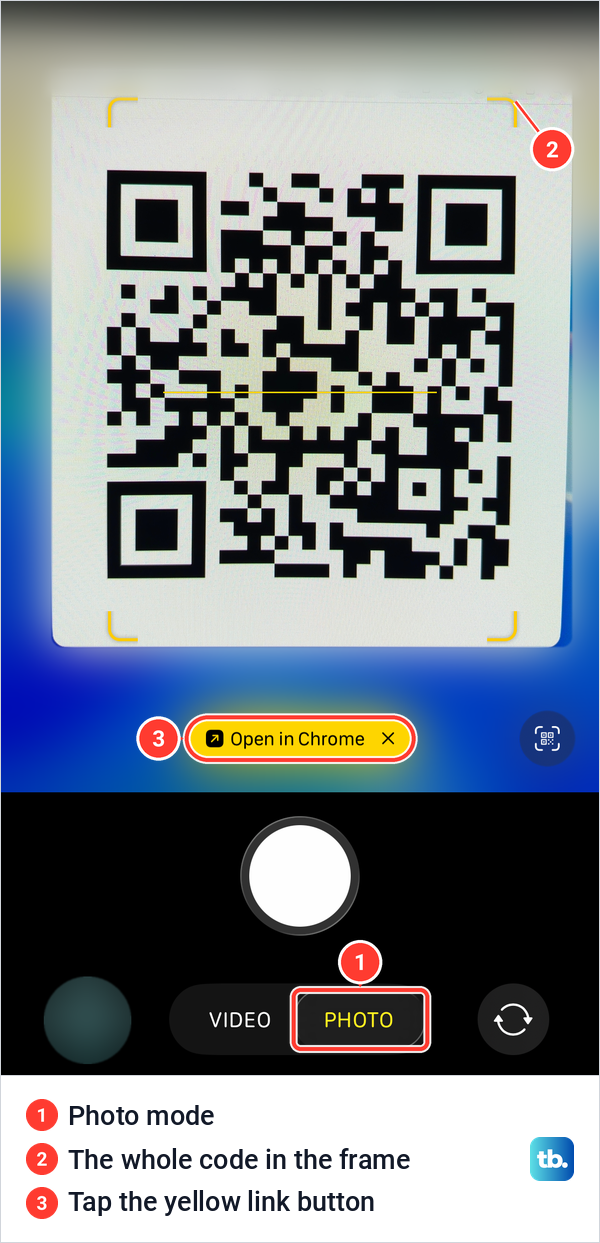
Our button read Open in Chrome instead of showing an address, because Chrome was that iPhone's default browser. With Safari as the default, the button shows the site's address, and Apple's instructions say to tap the link that appears at the bottom of the screen.
Tapping the button opened technobezz.com in Chrome. A Camera back link appeared at the top left, and it takes you back to the Camera app.
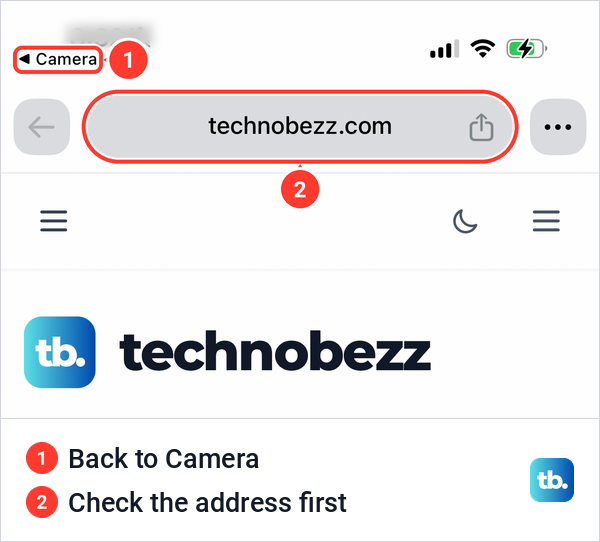
Because our button named the browser and not the site, the address bar was the first place we could read where the code really pointed. Check it there before you sign in, pay or download anything. On iPhone models with Camera Control, Apple says you can also use that button to scan QR codes, and points to its steps for setting the button to open another app.
A printed form is a different job. Use the steps to scan a document with iPhone when you need a PDF of the page rather than the link inside its code.
Use Code Scanner from Control Center
Code Scanner is a dedicated reader that skips the Camera app's modes. On an iPhone with Face ID, swipe down from the top right corner to open Control Center (on an iPhone with a Home button, swipe up from the bottom), then tap the button with a small QR code between square brackets. Apple calls this control Scan Code, but on our iPhone the button carried no text label at all, only the icon.
It opened a black, full-screen viewfinder with four white corners and a flashlight button at the bottom, and nothing else. There is no shutter and no mode to pick. Apple's steps are to fit the code on screen and tap the link that appears, and its tip is to tap the flashlight when the light is poor.
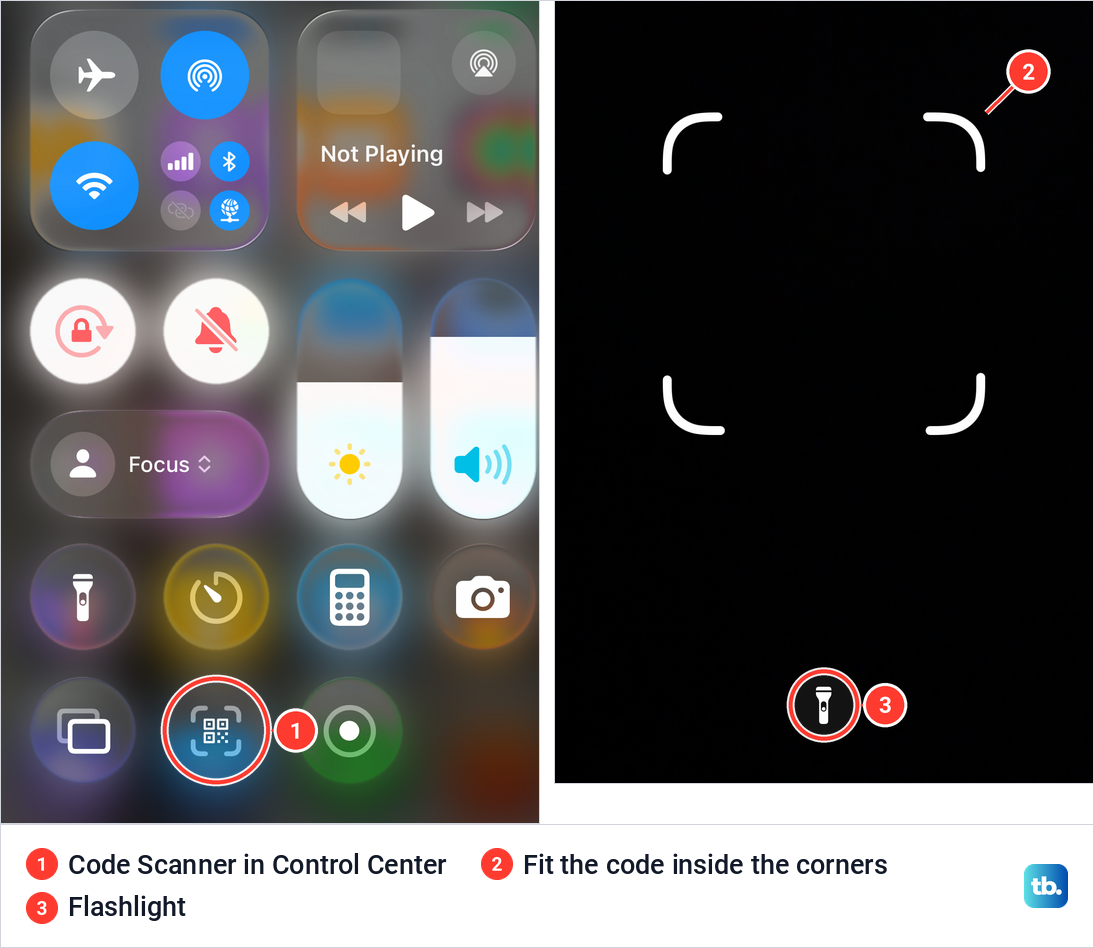
Code Scanner was already in Control Center on our iPhone. If yours is missing, Apple's steps are to touch and hold an empty part of Control Center, tap Add a Control, then tap Scan Code in the gallery. Our guide to record your iPhone screen walks through that same gallery with pictures.
Read a QR code saved in your iPhone Photos
A code someone sends you is harder on iPhone, because the camera cannot point at its own display. The dependable route is to open the image on another screen, such as a laptop or a second phone, and scan it with Camera. To keep a copy of the code first, take a screenshot on your phone.
Photos does notice codes in your pictures. On our iPhone 17 Pro with iOS 26.6, Collections > Utilities listed a QR Codes collection between Illustrations and Recently Saved, which gathers the images that contain a code.
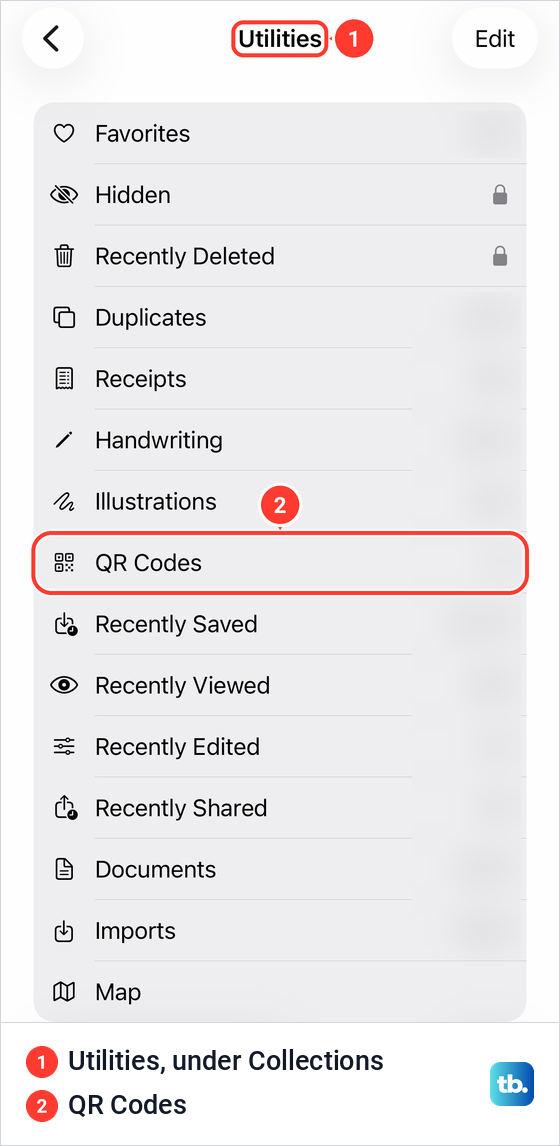
Apple documents finding those images. For one kind of code it also documents opening it straight from the photo: for a saved health record, its steps are to open the image in Photos, touch and hold the QR code, then tap the action Live Text offers. If a Live Text button appears in the corner of your photo, try the same touch and hold on the code.
Live Text has to be switched on for that, and Apple puts the switch in Settings > General > Language & Region. If the photo still does not react, show it on another screen and use Camera.
Scan a QR code on Android
Android phones read codes in the Camera app, but the menus differ from one maker to the next. Google's steps for a Pixel are to open Camera, point it at the code with the whole square on screen, and wait for a bubble or link. You do not take a picture.
If nothing appears, Google says to check Camera scan suggestions in the Camera app's settings, under More settings. A Pixel also has a Scan QR code button in Quick Settings. Swipe down from the top of the screen, and if the button is missing, swipe left or tap the pencil icon to add it.
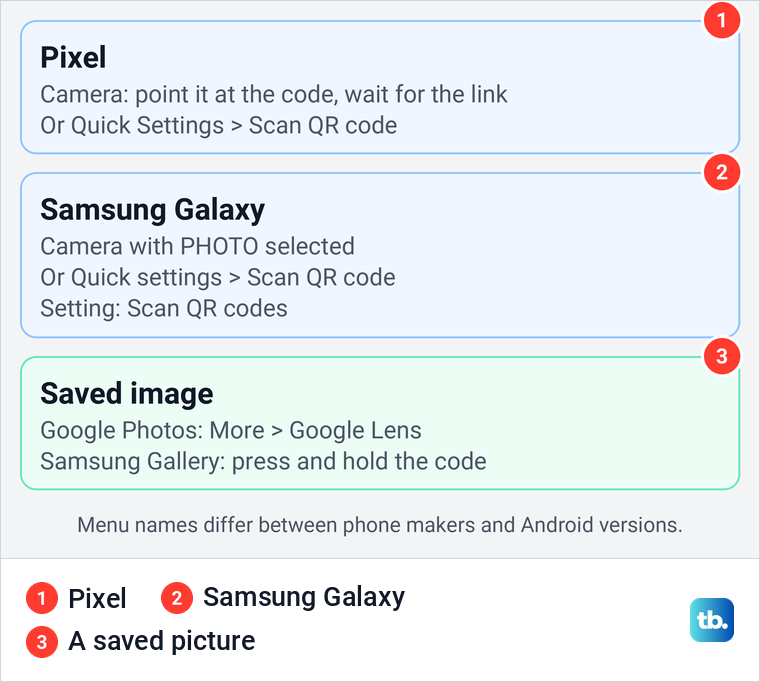
On a Samsung Galaxy, Samsung's instructions are to open Camera with PHOTO selected and frame the code. If it does not react, tap the Settings icon in Camera and turn on Scan QR codes. On One UI 7 and later, Samsung's own pages also show a Quick controls step before Settings.
Samsung calls the Scan QR code button in Quick settings its recommended method, because it adds a flashlight and more control over the code before anything opens. Its window also opens Gallery, so you can scan a saved image from the same place.
For a code that is already on your phone, save the image or screenshot on a Samsung or Pixel phone first. In Google Photos, open the picture, tap More and then Google Lens. In Samsung Gallery, Samsung says to press and hold the code until a notification appears, then pick what to do with it.
Read a QR code on your Windows screen
This is the route most QR guides leave out. Snipping Tool, which comes with Windows 11, can read the link out of a QR code you capture from your own screen. You need no webcam, no phone and no extra app.
Press Windows + Shift + S, check that the Snipping area button is set to Rectangle, and drag around the whole code. Then open the snip from the notification that appears, or from the Snipping Tool button on the taskbar.
On Windows 11, version 25H2, nothing happened on its own. Our snip sat in Snipping Tool for half a minute with no link in sight. Then we selected Scan text in the toolbar, and a link button reading www.technobezz.com/ appeared on top of the code.
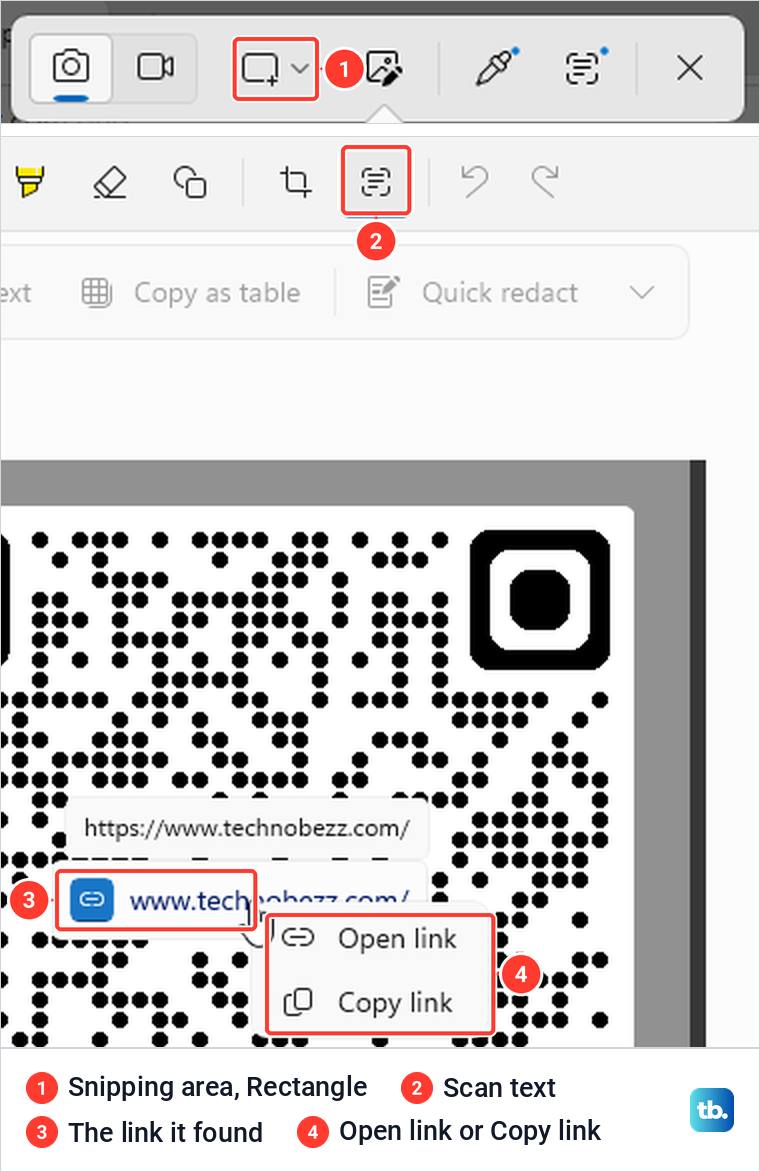
Hover over that button to see the full address, then right-click it for Open link or Copy link. Copy link put exactly https://www.technobezz.com/ on our clipboard, and Open link opened the page in a new Edge tab.
For more ways to grab the code, see how to take a screenshot on Windows. Snipping Tool also saved our snip in Pictures > Screenshots by default, so delete that file afterwards if the code was private.
Snipping Tool asked us for nothing. Browser image search is the other route, but it sends a screenshot of the page away first. When we chose Visual Search on a picture in Microsoft Edge, Edge asked us to agree that a screenshot of the page is sent to Microsoft. Chrome's Search with Google Lens sends a screenshot and page data to Google, Google says.
Scan a printed QR code with a Windows webcam
For a code on paper, Windows 11 has a scanner built into the Camera app. Microsoft's steps are to open Camera, make sure the Barcode button on the right-hand side is selected, and hold the code in front of the webcam until it is in focus. The link appears at the bottom of Camera, and you select it to open the site.
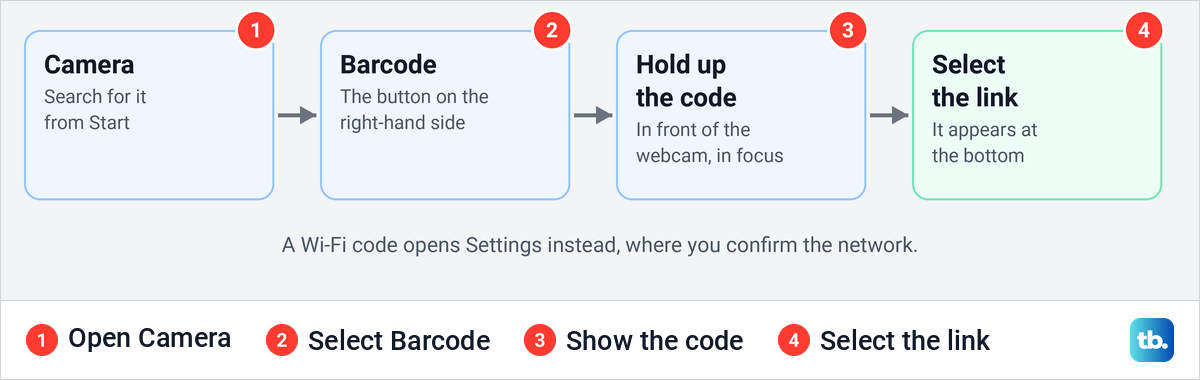
Wi-Fi codes behave differently. Microsoft says the link opens Settings, where you confirm that you want to add and connect to the network. Our guide to connect to Wi-Fi with a QR code on Windows covers that screen.
Camera needs a webcam that Windows can see. Without one, it opens on a message that reads We can't find your camera, followed by the error code 0xA00F4244 and the words NoCamerasAreAttached.
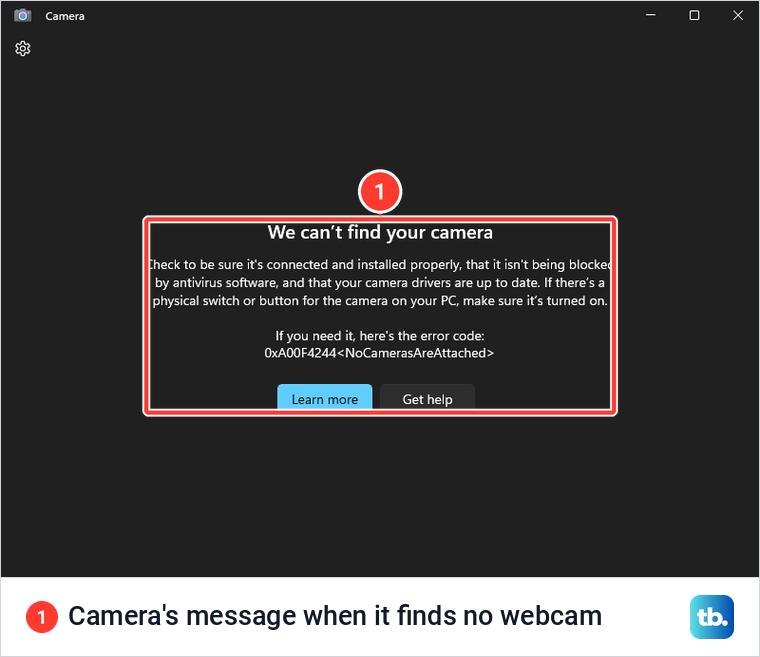
Go to Settings > Bluetooth & devices > Cameras to see what Windows has found. Its Connected cameras list reads No cameras found when there is none.
If your webcam is missing from that list, follow the Camera message's own advice: check that it is connected and installed properly, that antivirus software is not blocking it, that its drivers are up to date and that any camera switch on the PC is on. If it is listed but Camera still cannot use it, check Windows camera permissions.
Scan a QR code on a Mac or Chromebook
A printed code needs a second device if all you have is a Mac, because Apple's Mac help pages do not describe a QR scanner in a Mac camera app. Use a phone or tablet camera for it. The same trick opens a code shown on a Mac display: point your phone's Camera at the screen.
For a code on a web page, Google's steps for Chrome on a Mac are the same right-click and Search with Google Lens. To work from a saved picture, capture the code on your Mac, then go to google.com, click Search by image and Upload a file, and choose the picture. Google lists what it finds in the image, so if it shows the code's address, check the site name before you open it.
Apple also says Photos on a Mac sorts pictures such as receipts and QR codes into collections under Utilities in the sidebar. That helps you find a saved code again later.
A Chromebook is easier, because its Camera app has a scanner. Google's steps are to open Camera, select Scan at the bottom, then QR code, and hold the code in the viewfinder. The address, text or Wi-Fi prompt appears for you to select.
For a code already on the Chromebook's screen, use Chrome itself. Google's steps are to right-click the image and select Search with Google Lens, and Google says the results display in a side panel. If one shows the code's address, check the site name before you select it.
Send a page from your PC to your phone
QR codes also work the other way round. In Microsoft Edge, right-click an empty part of a web page and choose Create QR Code for this page. A panel titled Scan QR Code shows a code for the page, with its address in an editable box underneath.
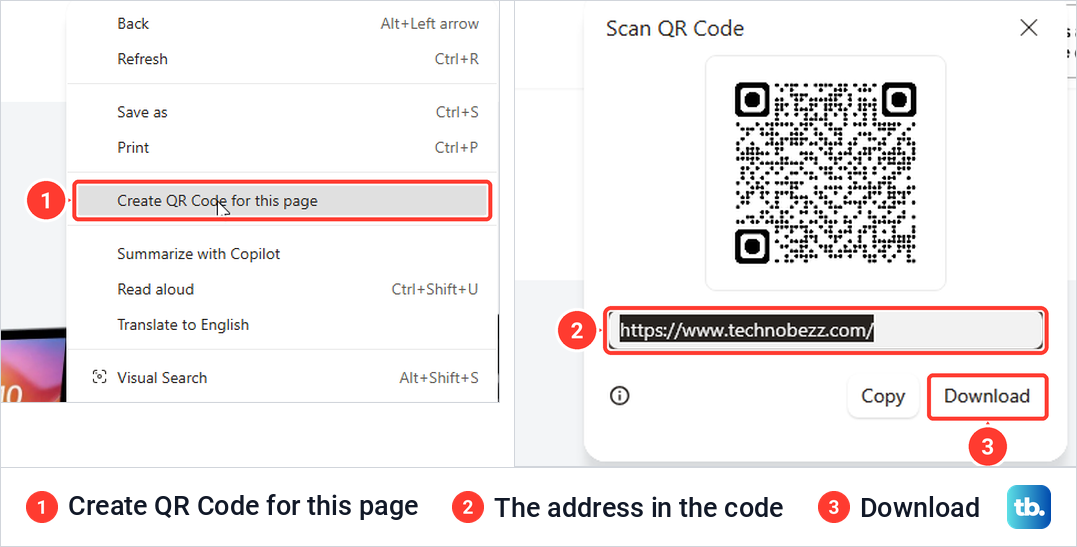
Scan the panel with your phone's Camera to open the same page there. Edge's own tip on the panel says you can use a QR scanner app on your phone or some camera apps. When we selected Download, Edge saved the code straight to our Downloads folder as a PNG file without asking where.
The Edge command starts from the web page you are on. To make a QR code to share for anything else, our separate guide covers the options.
Check the link before you open it
A QR code hides what it holds, often a web link and sometimes another action such as joining a Wi-Fi network, until a scanner decodes it. That makes the moment before you open it the moment to check. Samsung's advice is to scan codes only from sources you trust, because some lead to unsafe sites or unwanted downloads. There are reports of scammers covering the real codes on parking meters with codes of their own.
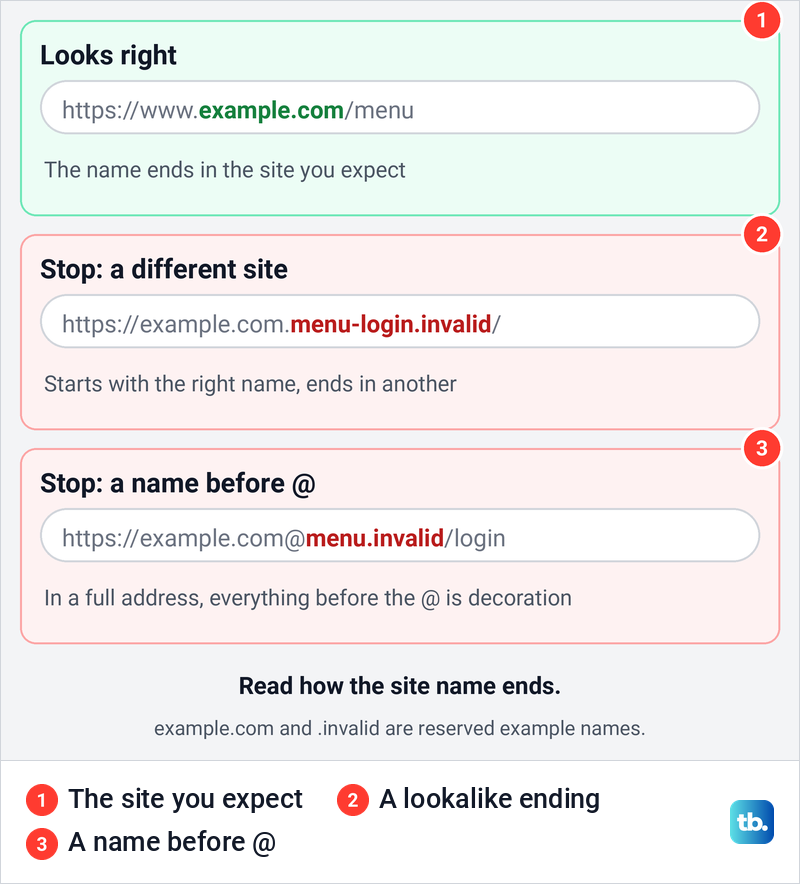
The address bar is the safest place to read the site, because browsers show the site name there once the page opens. Ours read technobezz.com. Check how that name ends: www.example.com belongs to example.com, but example.com.menu-login.invalid belongs to menu-login.invalid.
Look for misspellings or a switched letter too. If a scanner shows the full address before you open it, distrust any with an @ sign, because a familiar name in front of the @ is only decoration. If it shows no address at all, as our iPhone Camera did, skip codes you do not trust or check the address bar before you type anything, and be wary of any page that asks you to sign in or pay.
Some codes are not web links at all. When an app shows its own scanner, for example when you set up Google Authenticator, scan the code inside that app so the setup lands in the right place.
When a QR code will not scan
Start with the code itself. Get the whole square on the screen and move the phone slightly closer or farther away. Samsung also suggests tapping the code on screen to bring it into focus.
Light comes next. Code Scanner on iPhone and Samsung's Quick settings scanner both have a flashlight button, which helps with menus in dim rooms. On a screen, turn the brightness up instead.
Then check the setting that turns recognition off. On a Pixel that is Camera scan suggestions, and on a Samsung it is Scan QR codes in Camera's settings. In Windows Camera, make sure Barcode is selected rather than Photo.
If the camera preview is black for everything, the problem is the camera, not the code. On Android, first fix an Android rear camera, then try the code again.
Skip old scanner apps that some lists still recommend. Microsoft says Microsoft Lens stopped making new scans after March 9, 2026, so it is no help with a new code.
How we tested this guide
We tested this on an iPhone 17 Pro with iOS 26.6, scanning a QR code from a computer monitor with the Camera app.
Frequently Asked Questions
Do I need a QR scanner app?
Usually not. The Camera app on iPhone, Pixel and Samsung phones reads QR codes, Windows Camera has a Barcode mode for PCs with a webcam, and Snipping Tool's Scan text reads a code from your Windows screen.
How do I scan a QR code on my own phone screen?
Save the image or take a screenshot. On Android, open it in Google Photos and tap More, then Google Lens, or press and hold the code in Samsung Gallery. On iPhone, the dependable route is to show the image on another screen and scan it with Camera.
Can I scan a QR code from a screenshot on a PC?
Yes. Open the screenshot in Snipping Tool and select Scan text. In our test a link button appeared on the code, with Open link and Copy link on its right-click menu.
Where is the QR scanner on iPhone?
It is in Control Center, as a button with a QR code between square brackets. If it is missing, touch and hold an empty part of Control Center, tap Add a Control and choose Scan Code.
Why will my phone not scan a QR code?
Make sure the whole code is on screen, move a little closer or farther away, and add light. Then check Camera scan suggestions on a Pixel or Scan QR codes on a Samsung.
Can I scan a QR code with my laptop?
On a Windows laptop, yes, if it has a webcam. Open the Camera app, select Barcode and hold the code up to the camera, then select the link at the bottom. For a code on the laptop's own screen, use Snipping Tool's Scan text instead.
Is it safe to open a QR code link?
It is as safe as the link inside it. Check the site name in the address bar once the page opens, look at how it ends, and watch for misspellings, a switched letter or an @ sign in the address. Do all of that before you sign in or pay.











