
To take a screenshot on Android, press the Power and Volume Down buttons at the same time, then let go. A small preview or a toolbar appears on screen, usually at the bottom, and the picture is saved automatically, ready to edit, share or find later in your photos app. On a Samsung Galaxy the Power button is called the Side button, and the screen flashes when the capture works.
Samsung and Google each add their own ways to do it. On a Galaxy you can swipe the edge of your hand across the screen, grab a whole web page with scroll capture, and find every capture in Gallery > Albums > Screenshots. On a Pixel you can tap Screenshot under an app in Overview, or set Quick Tap to take one when you tap the back of the phone twice.
We went through the screenshot settings, quick settings and the power menu on a Galaxy S25 Ultra with One UI 7, and checked the Circle to Search tip on a Galaxy S26 Ultra with One UI 8.5. Samsung's manual puts the palm swipe switch inside Motions and gestures, not on the Advanced features page where some guides still send you. Our Galaxy was also set to save screenshots as JPG files in a DCIM folder.
The short version
- Press Power (the Side button on a Galaxy) and Volume Down together, then let go.
- On a Samsung Galaxy, swipe the edge of your hand across the screen, or tap the scroll capture arrows after a screenshot to get a whole page.
- On a Pixel, open Overview and tap Screenshot under the app, or set Quick Tap for two taps on the back.
- Galaxy screenshots are in Gallery > Albums > Screenshots. Pixel ones are in Photos > Collections > On this device > Screenshots.
- If the phone says it can't take a screenshot, an app or a protected screen is blocking it on purpose.
Android screenshot methods at a glance
| Method | Works on | What to do | Good for |
|---|---|---|---|
| Power and Volume Down | Almost every Android phone | Press Power (Side on a Galaxy) and Volume Down together, then let go | Any screen, no setup |
| Palm swipe | Most Samsung Galaxy phones | Swipe the edge of your hand to the left or right across the screen | No buttons at all |
| Tasks Edge panel | Galaxy phones with Edge panels | Swipe the Edge panel handle, open Tasks and tap Take screenshot | A tap instead of a button press |
| Overview | Google Pixel | Swipe up from the bottom and hold, or tap Overview, then tap Screenshot under the app | One app, without buttons |
| Quick Tap | Pixel 4a (5G) and later | Turn it on under Settings > System > Gestures > Quick tap, then tap the back twice | One-handed captures |
| Voice | Phones with Google Assistant, Gemini or Bixby | Say "Hey Google, take a screenshot" or "Hey Bixby, take a screenshot" | Hands-free captures |
| Accessibility Menu | Phones with Google's Accessibility Menu | Turn on the Accessibility Menu shortcut, then use its screenshot button | Buttons that are hard to press |
| Scroll capture or Capture more | Galaxy phones, and Pixels with Android 12 or later | Take a screenshot, then tap the two-arrow icon or Capture more | Long web pages and lists |
| AI select | Galaxy phones (Smart select on older ones) | Open it from the Edge panel, select what you want, tap Save | Part of the screen, or a GIF |
Each row follows Samsung's or Google's own instructions for that method. Start with the buttons, since they need no setup, and turn to the others when the buttons are hard to press or you need more than one screen.
Press the power and volume down buttons
This works on almost every Android phone and needs no setup. On a Samsung Galaxy, Samsung's instructions are to press the Side button and the Volume Down button simultaneously. On a Pixel, Google says the Power button is the top button on the right side. The volume buttons sit below it.
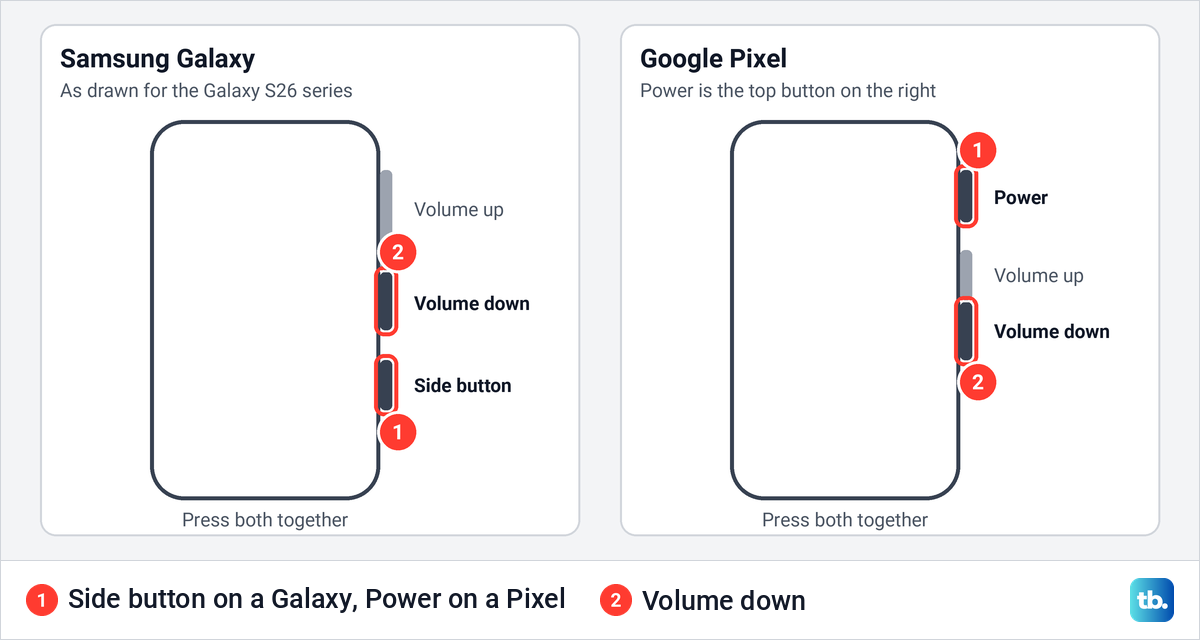
Press both buttons at the same moment and let go straight away. Samsung's UK instructions call it a brief push rather than a hold, because a long hold can open the power menu. On a Galaxy the screen flashes and the screenshot is saved to Gallery.
Older Galaxy phones with a physical Home button use a different pair. Samsung says to press the Power and Home buttons together on those models. It also notes that the volume button is occasionally on the left side, so check both edges if your phone does not match the drawing.
When the buttons do nothing, Google's fallback is to press and hold the Power button for a few seconds and tap Screenshot. That only works on phones whose power menu has the option. Google lists that route only for the Pixel 3a and earlier, so on a newer Pixel use the Overview button described below.
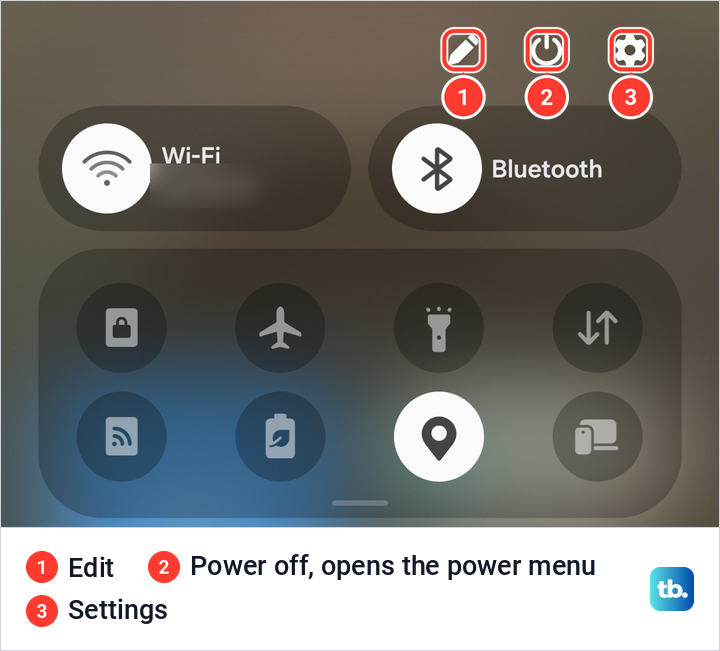
The power menu on our Galaxy S25 Ultra with One UI 7 had no Screenshot option either. We opened it from the power icon at the top of quick settings, which on One UI 7 and later opens with a swipe down from the top right corner of the screen.
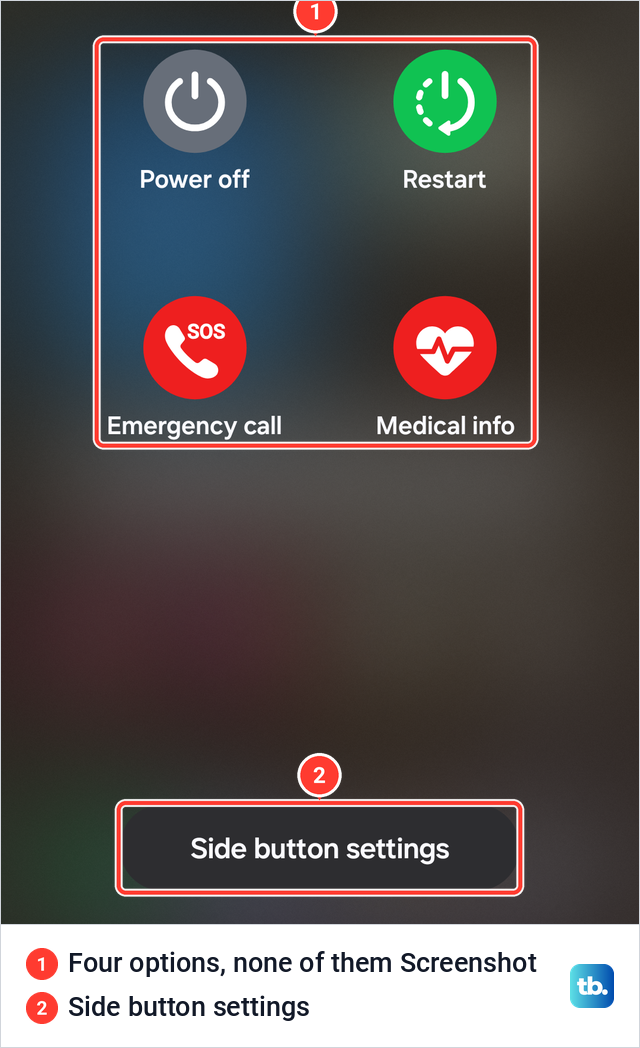
The menu listed Power off, Restart, Emergency call, Medical info and Side button settings. On a Galaxy, stick to the buttons or the gestures below.
Take a screenshot on a Samsung Galaxy with palm swipe
Palm swipe lets you take a screenshot on a Samsung without pressing anything. Samsung's manual says to swipe the edge of your hand to the left or right across the screen. Samsung's Australian instructions add a grip that helps: hold the phone in your left hand and swipe with the edge of your right.
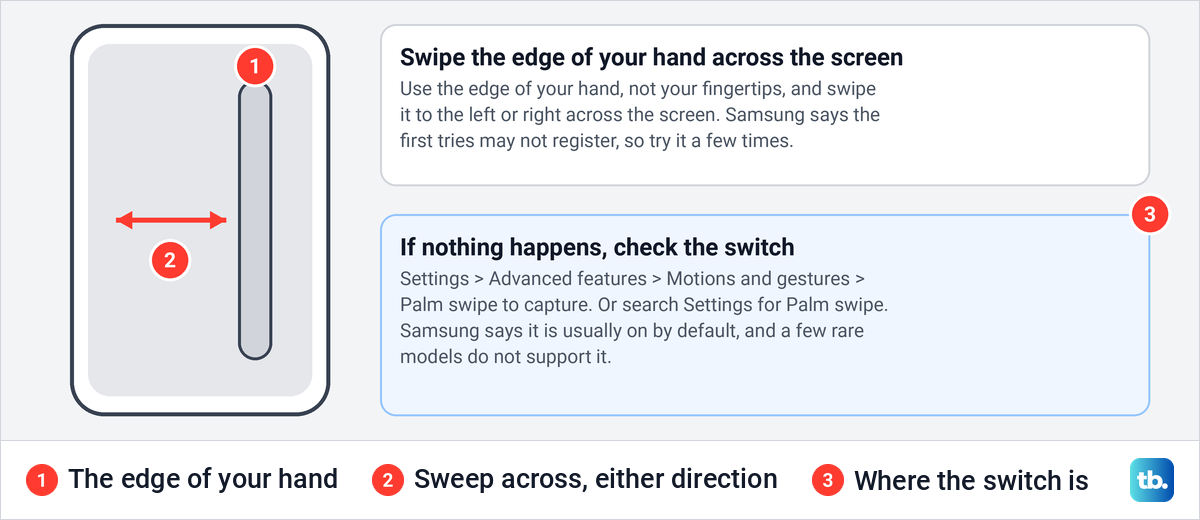
Samsung says the feature is typically on by default, and that a few rare Galaxy models do not support it because of hardware limitations. It also warns that the gesture may only work on the third or fourth try when you are new to it. If it still does nothing, check the switch.
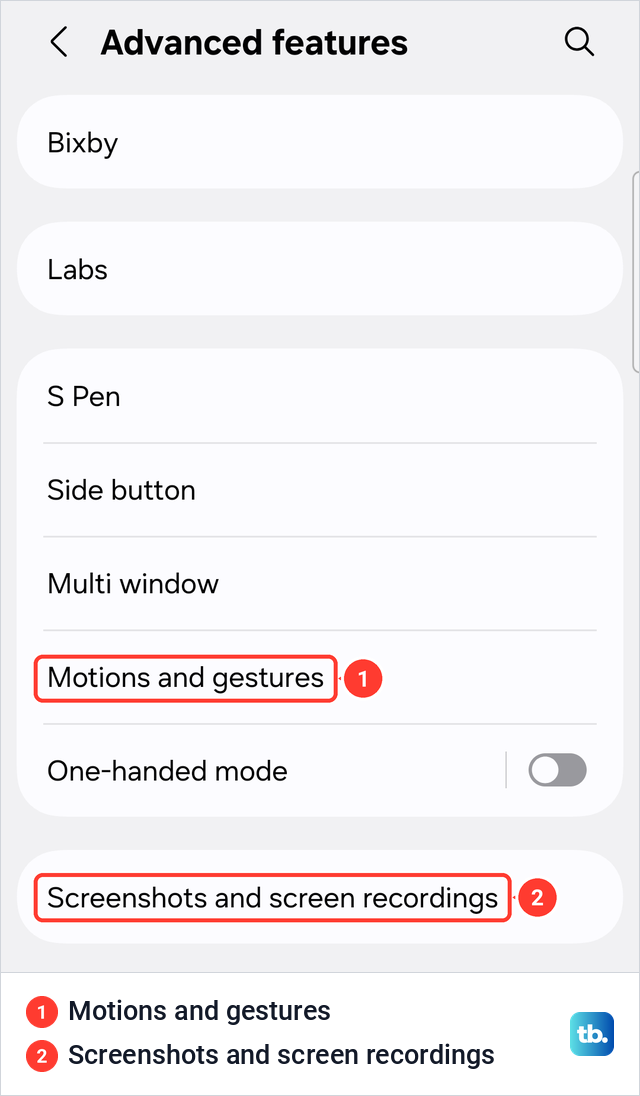
The switch is not where some guides, and Samsung's own US page, still put it. Samsung's current user manual has it under Settings > Advanced features > Motions and gestures > Palm swipe to capture. On our Galaxy S25 Ultra with One UI 7, the top of Advanced features showed Motions and gestures, with no Palm swipe row among those settings. Samsung also suggests searching Settings for Palm swipe to capture.
Use the Edge panel or S Pen on a Galaxy
The Tasks Edge panel gives you an on-screen Take screenshot button. Swipe left on the Edge panel handle on the right side of the screen, swipe again to reach the Tasks panel and tap Take screenshot. Samsung says the shortcut may already be there by default, and the panel holds up to 12 shortcuts.
If the Tasks panel is missing, tap the Settings icon at the bottom of the Edge panel, select the Tasks panel, then tap Edit and add Take screenshot. If you see no handle at all, search Settings for Edge panels.
Quick settings holds Samsung's screen recorder: open it, tap the expand icon, then Screen recorder. When a still picture is not enough, record your screen instead and share the video.
With an S Pen, Samsung's route is Air command, then Screen write. The phone takes a screenshot of the page you are on, you write or draw on it, and the Save icon stores it in Gallery.
Capture a whole page with scroll capture
A scrolling screenshot joins a long page into one tall image, which is handy for a web page, a long settings list or a set of directions. Take a normal screenshot first, while the top of the page is on screen. Then use the button your phone shows.
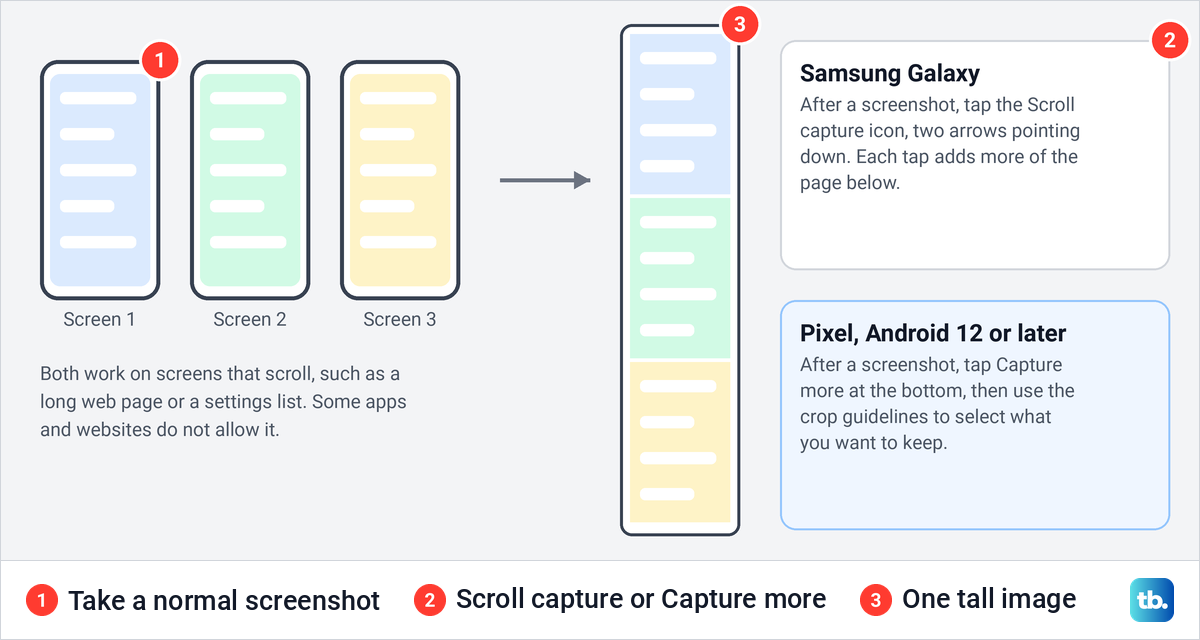
On a Galaxy, tap the Scroll capture icon in the toolbar, two arrows pointing down. Samsung's manual says the screen then scrolls down by itself and more content is captured, so keep tapping until you reach the end you want. The icon only appears on content longer than one screen, and some websites and apps do not offer it.
On a Pixel and other phones that use Google's screenshot preview on Android 12 or later, tap Capture more at the bottom after the screenshot. Google then shows crop guidelines that you use to select the content you want. Google says it works on most screens that allow you to scroll.
If neither appears on a Galaxy, the toolbar itself may be switched off. Samsung's fix is the Show toolbar after capturing switch, covered in the settings section below.
Edit, crop and share a screenshot
On a Galaxy, the toolbar that appears after a capture does more than scroll capture. Samsung's manual lists four other tools: draw on the screenshot or crop part of it, add tags, share it, and select an area to share or save just that part. The Draw option is the pencil at the bottom of the screen, and Samsung says you can draw on or crop the screenshot there before saving it.
To capture only part of the screen from the start, use AI select, which was called Smart select before One UI 6.1.1. Open it from the Edge panel, or from Air command with an S Pen, then select what you want. Its options include Save, which keeps an image of your selection, and Extract text, which copies the words to the clipboard.
AI select can also capture a short animation of the screen. Samsung says a capture can last up to 15 seconds, which makes it an easy way to make a GIF on your phone from something playing on screen.
On a Pixel or another phone with Google's preview, tap the preview at the bottom left to open the screenshot you just took. Google's instructions are to tap Share to send it, or Edit to change it.
Take a screenshot on a Google Pixel without the buttons
Pixel phones have a Screenshot button in Overview, the screen that shows your recent apps. With gesture navigation, swipe up from the bottom of the screen and hold, choose the app you want and tap Screenshot. With 3-button navigation, tap Overview, choose the app and tap Screenshot.
Quick Tap turns the back of the phone into a button. Google says it works on the Pixel 4a (5G) and later: open Settings > System > Gestures > Quick tap, turn on Use Quick tap and choose the screenshot action. After that, two taps on the back of the phone take a screenshot.
On the Pixel 9, Pixel 10 and Pixel 11 phones, including the Pro and Fold models but not the a-series, screenshots also feed the Pixel Screenshots app, where you can sort them into collections. Google limits that app to English, German and Japanese in a list of countries.
A Pixel 3 or later can also translate the text in a screenshot. Open it in Google Photos and tap Lens > Translate, which works for ten languages including Spanish, French, Hindi and Japanese. For a sign or a menu in front of you, skip the screenshot and use the Google Translate camera instead.
Use your voice or the Accessibility Menu
If your hands are busy, say "Hey Google, take a screenshot". Gemini takes the same request, and on a Galaxy you can say "Hey Bixby, take a screenshot" instead. Samsung says Bixby also handles chained commands, so you can capture and share in one go.
If the Assistant answers but takes no screenshot, open Settings > Apps > Default apps > Digital assistant app and turn on Use screenshot and Use text from screen. If Hey Google stops responding altogether, that is a separate problem with its own fixes.
Google's Accessibility Menu puts an on-screen menu one tap away, and taking screenshots is one of the things it does. Google's steps are to open Settings > Accessibility > Accessibility Menu and turn on Accessibility Menu shortcut, and Google notes that some of these steps work only on Android 12 and later. If your phone's Accessibility settings are laid out differently, search Settings for Accessibility Menu.
Where screenshots are saved on Android
Where a screenshot ends up depends on which photos app your phone uses. On a Pixel, and on other phones with Google Photos, Google's path is Photos > Collections > On this device > Screenshots. Google says a phone without the Photos app is likely running an older Android version, and there you open the Gallery app and tap Album view > Screenshots.
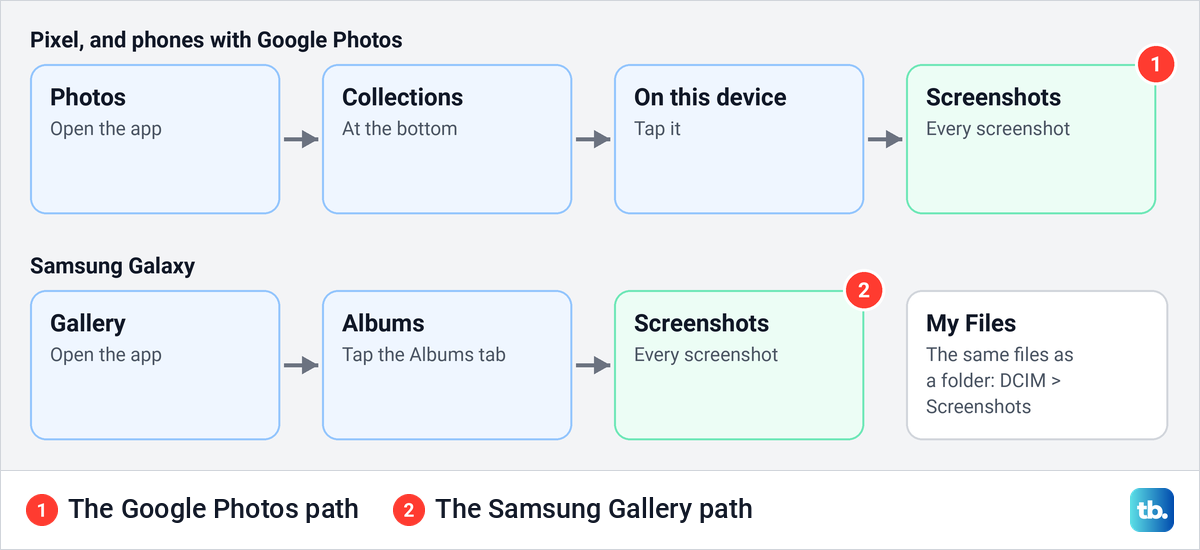
On a Samsung Galaxy, open Gallery, tap the Albums tab and then the Screenshots folder. To see the files themselves, open My Files and tap Images. On our Galaxy S25 Ultra with One UI 7, the screenshot settings named the folder as Internal storage/DCIM/Screenshots, which is the place to look when you copy screenshots to a computer.
The same settings page was set to save screenshots as JPG files. On a Galaxy the format is a setting you can change, so do not assume a Galaxy screenshot is a PNG.
Change your Samsung screenshot settings
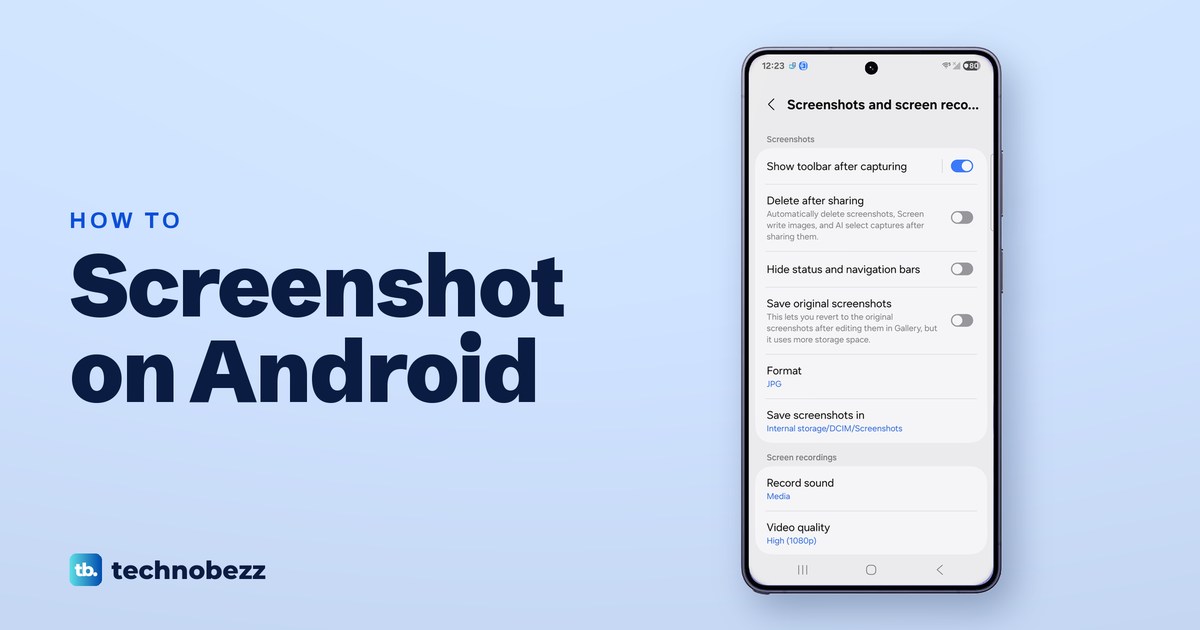
The main Galaxy screenshot settings are on one page, Settings > Advanced features > Screenshots and screen recordings. Samsung's manual describes it as the place to change the settings for screenshots and the screen recorder. These are the rows our Galaxy S25 Ultra with One UI 7 showed, and how each one was set.
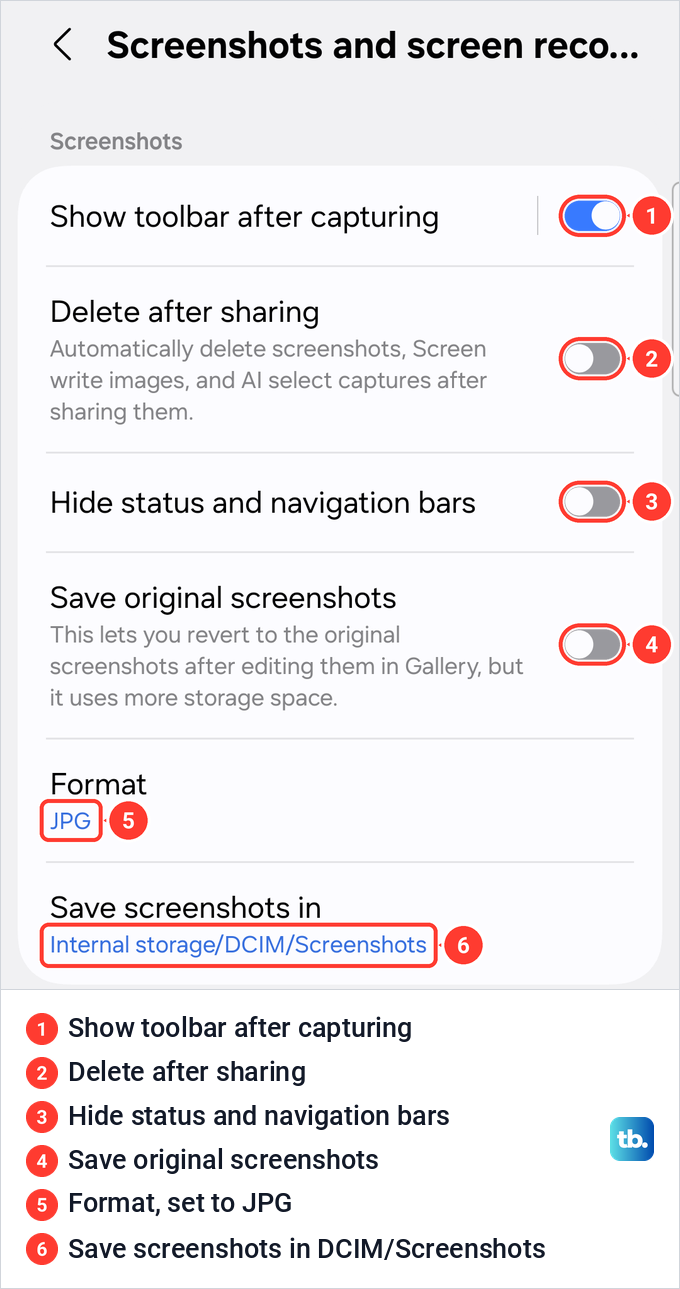
Show toolbar after capturing was on. It brings up the toolbar with scroll capture, editing, tags and sharing after each screenshot, and Samsung says to turn it on if those options are missing. Delete after sharing was off, and its description reads Automatically delete screenshots, Screen write images, and AI select captures after sharing them.
Hide status and navigation bars was off as well. As its name says, turning it on keeps the status bar and the navigation bar out of your screenshots. Save original screenshots was off too, and its description says it lets you revert to the original after editing in Gallery, but it uses more storage space.
The last two rows decide the file itself. Format read JPG, and Samsung says you can change the capture format there. Save screenshots in showed Internal storage/DCIM/Screenshots.
Circle to Search is not a screenshot
On many newer phones, touching and holding the Home button or the navigation handle starts Circle to Search. Google offers it on the Pixel 6 and later and other select Android phones, and Samsung on select Galaxy phones with Android 14 and One UI 6.1 or later.
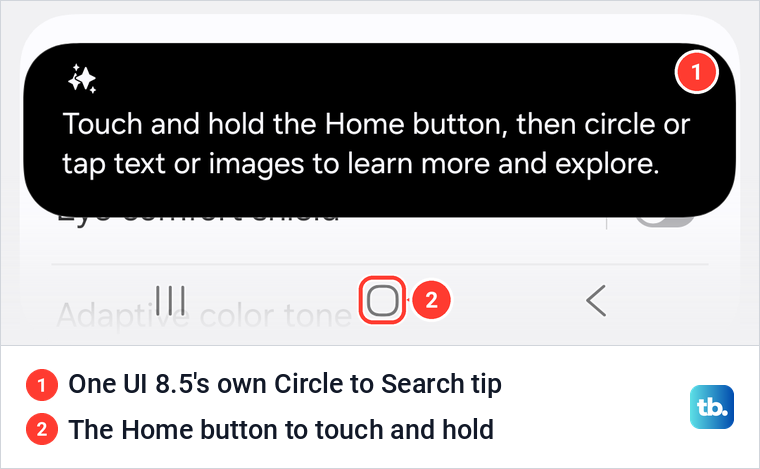
Our Galaxy S26 Ultra with One UI 8.5 showed its own tip for it on the Display settings page: Touch and hold the Home button, then circle or tap text or images to learn more and explore. It is a search, not a capture.
Circle or tap something and Google results appear on the lower half of the screen. A Translate button next to the search bar translates everything on screen, and Samsung says the feature needs an internet connection. To leave, swipe down, use the back gesture or tap the X at the top left.
Neither Google nor Samsung describes Circle to Search saving a picture, so take a screenshot when you want to keep a copy. To look something up in a picture you already saved, search a saved screenshot with Google Lens instead.
Samsung says Circle to Search is on by default. To turn it off on a Galaxy, open Settings > Display > Navigation bar and switch off Circle to Search, and on a Pixel, look under Settings > System.
Why your phone says it cannot take a screenshot
Some screens refuse screenshots on purpose. An Android app can mark its window as secure, which Google's developer documentation says tells Android not to allow screenshots or to show the window on a non-secure display, such as when casting. Samsung names banking apps as an example.
On a Galaxy, Samsung says a blocked capture shows a message such as Can't take screenshot due to security measure. Samsung also says screenshots may not work inside Secure Folder, and Google notes that certain browsers will not allow screenshots in incognito mode. If you need a capture from a private or incognito tab, open the page in a normal tab instead.
Circle to Search follows the same rule. Samsung says it is not supported in apps that prohibit screen capture, and Google says it may not work in banking, medical and other confidential apps.
Android 14 and later can also tell an app that you took a screenshot. Google's developer documentation says an app can register to be told, the phone shows you a notice when it happens, and the app never receives the image itself. On Android 14, it only detects screenshots taken with a combination of hardware buttons.
Screenshot still not working on Android
If you press the buttons but no new picture appears, check your storage. Google says a full phone can stop new screenshots from being added, so delete old screenshots or clear cached data on your phone, then try again.
If the power menu appears instead of a capture, the buttons were held too long, and Samsung says a long hold can open it. If the volume slider appears, press both buttons at exactly the same moment and let go at once.
If a Galaxy takes the screenshot but shows no toolbar, turn on Show toolbar after capturing in the screenshot settings. If a voice command answers without capturing, check the Use screenshot switch described in the voice section above.
When the phone has frozen and nothing responds, force restart an Android phone with its buttons and try again. If the phone keeps warning that storage is full, the storage steps in our guide to common Android phone problems free up room.
How we tested this guide
We checked the Galaxy screens below on a Galaxy S25 Ultra with One UI 7 and a Galaxy S26 Ultra with One UI 8.5. On One UI 7 we opened Advanced features, the Screenshots and screen recordings page, quick settings and the power menu. On One UI 8.5 we saw the Circle to Search tip on the Display settings page.
The rest of the guide follows Samsung's and Google's instructions. Labels can differ slightly on other phones and software versions.
Frequently Asked Questions
Where do screenshots go on Android?
On a Pixel, open Photos and tap Collections > On this device > Screenshots. On a Samsung Galaxy, open Gallery > Albums > Screenshots, and our Galaxy was set to save the files in Internal storage/DCIM/Screenshots.
How do I take a screenshot on Samsung without the buttons?
Swipe the edge of your hand across the screen, after turning on Palm swipe to capture under Settings > Advanced features > Motions and gestures. You can also tap Take screenshot in the Tasks Edge panel or say "Hey Bixby, take a screenshot".
How do I take a scrolling screenshot on Android?
Take a normal screenshot, then tap Capture more on a Pixel with Android 12 or later, or the Scroll capture icon on a Galaxy. Keep tapping the Galaxy icon to add more of the page, or use the crop guidelines on other phones.
Why does my phone say it can't take a screenshot?
The app or screen blocks screenshots on purpose, which Samsung describes as a security measure designed to protect your information. Samsung says a Galaxy then shows a message such as Can't take screenshot due to security measure.
Can an app tell when I take a screenshot?
On Android 14 and later, an app can ask to be told when you take a screenshot, and Android shows you a notice when it does. On Android 14 itself, only screenshots taken with the buttons are detected, and the app never receives the picture.
Can I change the screenshot format on a Samsung?
Yes. Samsung lets you change the capture format under Settings > Advanced features > Screenshots and screen recordings > Format, and our Galaxy S25 Ultra was set to JPG.
Is Circle to Search the same as a screenshot?
No. Touching and holding the Home button or handle searches what is on the screen, and neither Google nor Samsung describes it saving a picture, so take a screenshot to keep a copy.