Your webcam can be perfectly fine and still fail because Windows, an app, or a browser is blocking camera access. Start with the Windows 11 permission switches, then check the app or website that actually needs the camera.
Current Windows 11 camera controls are in Settings, browser site permissions, and the app that needs the camera, without outdated Control Panel or registry fixes.
1. Turn on the main Windows camera switch
Start here when the camera is blocked everywhere. This switch controls camera access for the Windows permission system.
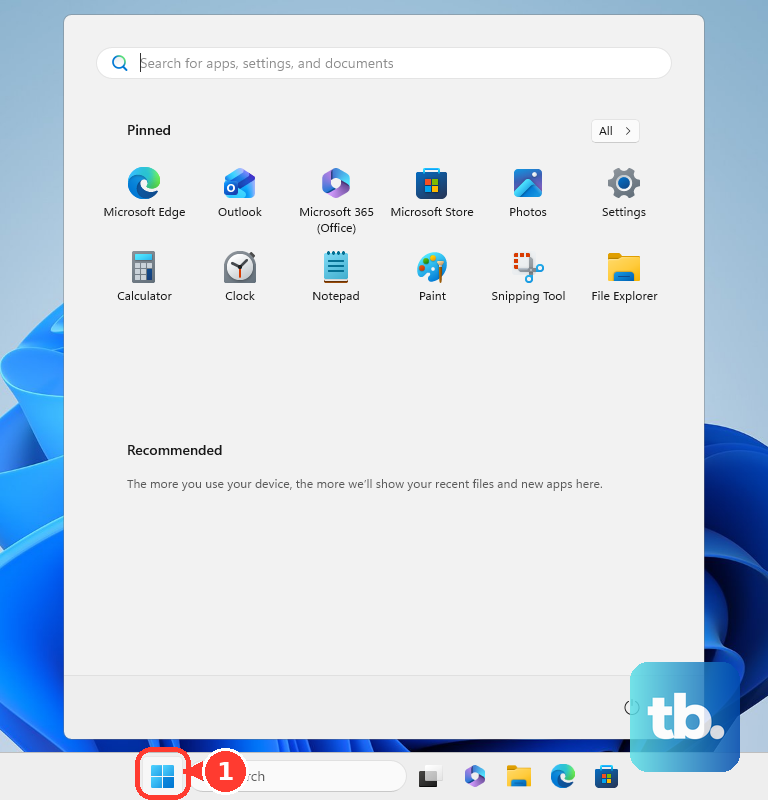
Open Start.
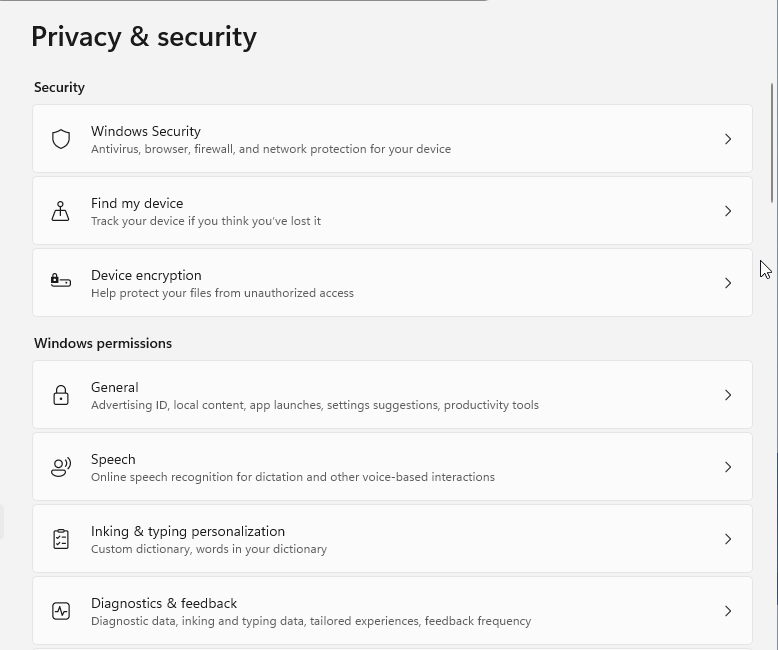
Select Settings. Then go to Privacy & security.
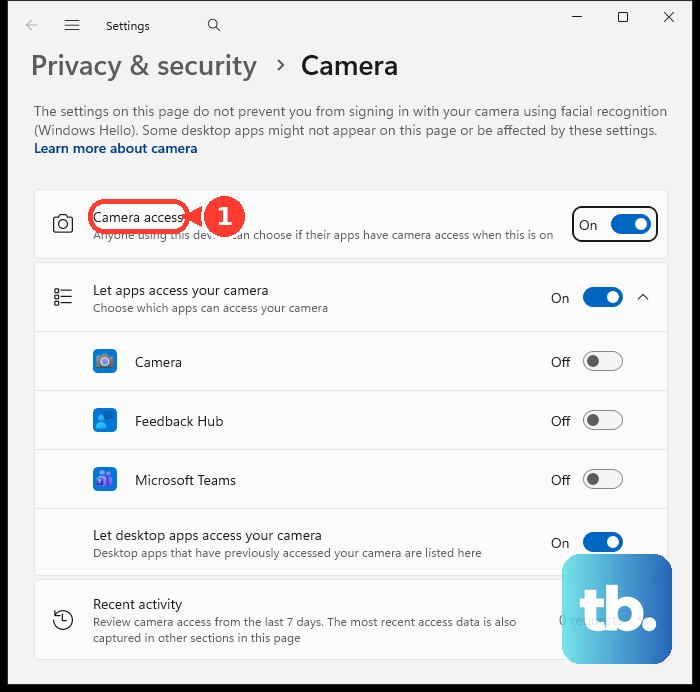
Select Camera. Turn Camera access on or off. If Camera access is off, apps cannot use the camera through normal Windows permissions. If the switch is locked, an administrator has to change it.
2. Choose the Store apps that get access
Open Start > Settings > Privacy & security > Camera. Turn on Let apps access your camera. Under Let apps access your camera, turn each listed app on or off.
Use this section after the main switch is on, when one Store app should keep camera access and another should lose it. Only apps listed on the Camera privacy page are controlled here.
3. Allow desktop apps in one place
Browsers and many video meeting apps are desktop apps in Windows 11, and Windows handles them as a group instead of as individual app toggles.
Open Start > Settings > Privacy & security > Camera, then turn Let desktop apps access your camera on or off. Windows does not provide separate privacy switches for individual desktop apps, so after this switch is on, use the app's own camera settings or the browser's website permissions.
4. Fix website camera access in Edge
If a website cannot see your camera in Microsoft Edge, first make sure Windows desktop app access is enabled.
When the site asks for the camera, choose Allow. To deny it, choose Block or close the permission dialog.
To change a saved choice, open Settings and more > Settings > Privacy, search, and services > Site permissions > All sites, select the site, then set Camera to Allow or Block.
5. Reset camera permissions in Chrome or Firefox
Chrome and Firefox each keep their own website permission list. If Windows is already allowing desktop apps, fix the saved site permission in the browser.
In Chrome: open More > Settings > Privacy and security > Site settings > Camera. Choose the default camera setting, review allowed and blocked sites, delete an exception, or select a blocked site and change Camera to Allow. For one site, open the site, select View site information > Site settings, then change Camera.
In Firefox: open the Firefox menu, then go to Settings > Privacy & Security. In Permissions, select Camera > Settings..., set the website to Allow or Block, then select Save Changes.
If Firefox needs to ask again, open the site, select the permissions icon in the address bar, then select X next to the saved camera permission.
6. Disable the camera device completely
Use this when you want Windows to disable the camera device, not just block app permissions. Administrator access is required.
- 1.Open Start > Settings.
- 2.Go to Bluetooth & devices > Cameras.
- 3.Under Connected cameras, select the camera.
- 4.Select Disable.
- 5.Select Yes.
To turn it back on, go to Bluetooth & devices > Cameras, select the camera under Disabled cameras, then select Enable. If Windows asks for a restart, restart the PC. Windows does not list every camera type on this page, including IR Windows Hello cameras, DirectShow cameras, proprietary cameras, and some networked or industrial cameras.
7. Stop Windows Hello and hardware camera access
Camera access does not control every camera use. Turning it off does not stop Windows Hello face sign-in, and Microsoft says Windows Hello can still use the camera when that switch is off, so turn off Windows Hello sign-in to stop camera use for that feature.
For a physical block, use the shutter, slider, privacy button, or hardware camera switch built into your PC or webcam. On supported Lenovo models, open Lenovo Vantage > Device > My Device Settings > Display & Camera > Camera, then turn Camera Privacy Mode on or off. Some Lenovo models also use Fn + F8 or F8.
8. Remove apps and check managed settings
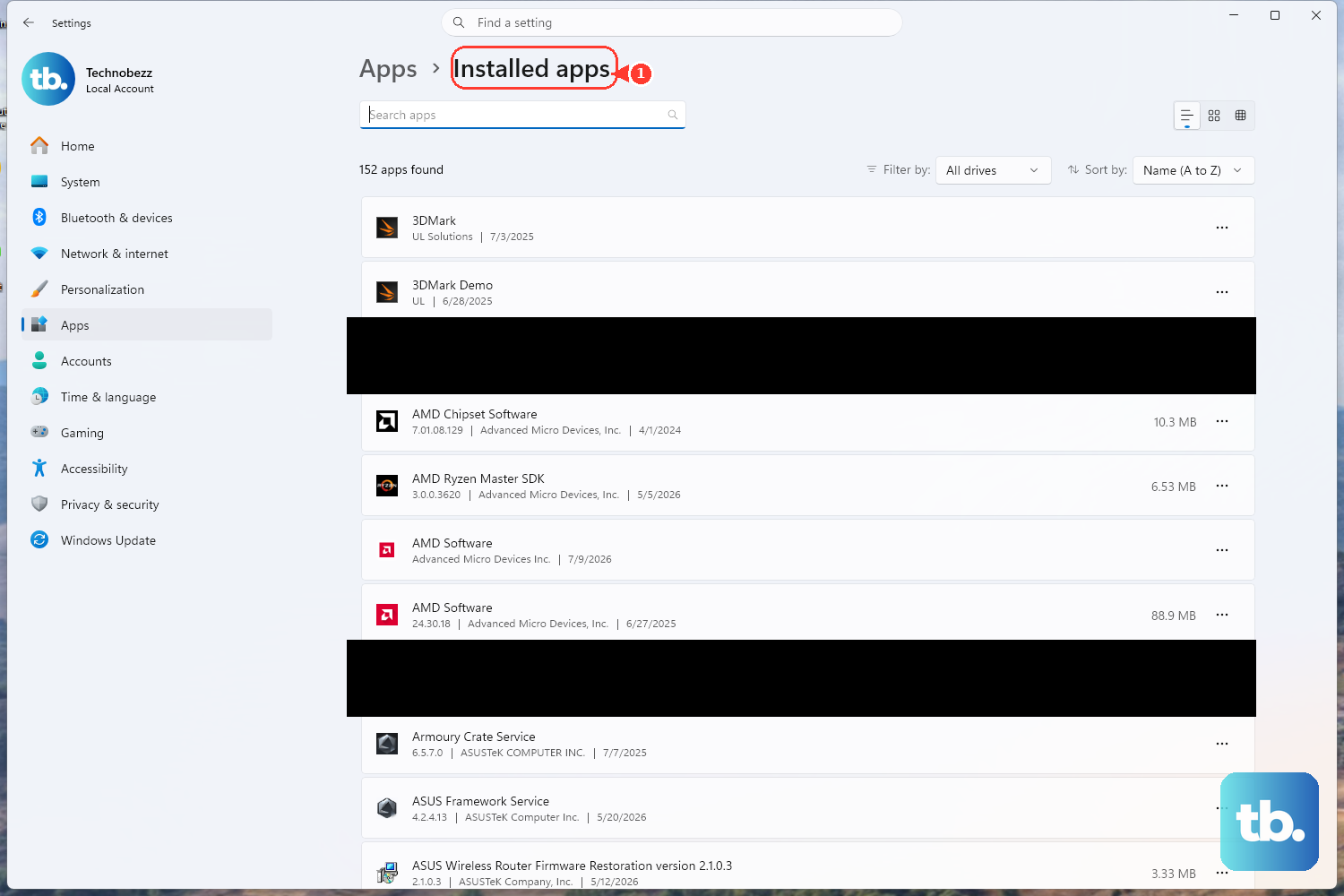
If you no longer trust an app, remove it instead of only blocking camera access. Open Start > All apps, right-click the app, then select Uninstall. You can also open Start > Settings > Apps > Installed apps, find the app, open More, then select Uninstall.
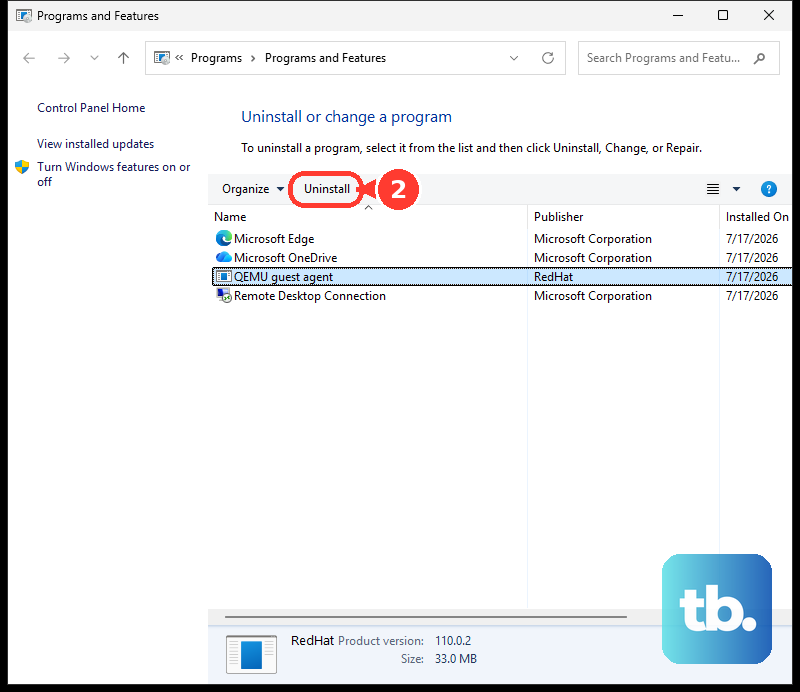
For classic desktop programs, search for Control Panel, then open Programs > Programs and Features, right-click the program, and choose Uninstall or Uninstall/Change.
On work or school devices, an administrator can manage camera access. Chrome also shows camera settings as managed when a work or school administrator controls them, and you cannot change those settings yourself.
Frequently Asked Questions
Why does my browser still say the camera is blocked?
Windows and the browser both have to allow access. Turn on Let desktop apps access your camera in Windows 11, then allow the site in Edge, Chrome, or Firefox.
Can I block one desktop app from the camera in Windows Settings?
No. Windows 11 groups desktop apps under Let desktop apps access your camera. Use the app's own settings or browser site permissions, or turn off desktop app access for the whole group. Microsoft warns that toggle is not a guaranteed block, since some desktop apps can still reach the camera, so uninstall the app or disable the camera device for a stronger block.
Does turning off Camera access stop Windows Hello face sign-in?
No. Microsoft says Windows Hello can still use the camera when Camera access is off. Turn off Windows Hello sign-in to stop that camera use.
Should I use Device Manager to manage camera permissions?
No. Device Manager is for camera driver and device troubleshooting. Use Settings > Privacy & security > Camera for normal camera permissions.
Where did the old Windows 10 camera privacy path go?
Windows 10 used Settings > Privacy > Camera, but Windows 10 support ended on October 14, 2025. Current consumer steps use Windows 11 Settings > Privacy & security > Camera.