A long Wi-Fi password is easy to mistype on a Windows laptop, especially when it is printed on a router label or shared across a room. Current Windows 11 gives you a cleaner route: scan the Wi-Fi QR code with the Camera app, then let Settings add the network. Start with the built-in method below, then use the sharing, hotspot, and permission fixes only when they match your situation.
1. Check that your PC supports the QR route
The supported consumer path is a Windows 11 device with a built-in camera or connected webcam. The flow uses Camera to read the Wi-Fi QR code, then opens Settings so you can approve the connection.
You also need a QR code that contains Wi-Fi connection information, not a regular web link or sign-in code. Do not use old Windows 10 Camera instructions as the current supported Wi-Fi QR method; Microsoft’s current Wi-Fi QR connection guidance points to Windows 11, and normal consumer support for Windows 10 ended on October 14, 2025.
2. Scan the Wi-Fi QR code from Camera
- 1.Open Camera on the Windows 11 PC you want to connect.
- 2.Select the barcode mode icon labeled Barcode.
- 3.Point the webcam at the Wi-Fi QR code and keep the full square inside the camera view.
- 4.Select the link that appears in Camera.
- 5.When Settings opens, confirm that you want to add and connect to the Wi-Fi network.
- 6.Choose whether Windows should connect automatically when the network is in range.
Once Settings accepts the QR code, the PC joins the network without you typing the password manually.
3. Share the network you are using now
Use this when one Windows 11 device is already connected to Wi-Fi and a second Windows device needs to join the same network.
- 1.On the connected Windows device, open Settings.
- 2.Go to Network & internet > Properties.
- 3.Next to Wi-Fi network password, select Show.
- 4.On the second Windows device, open Camera and select Barcode.
- 5.Scan the QR code shown on the connected device.
- 6.Select the link that appears, then confirm the connection in Settings.
4. Reveal a QR code for a saved network
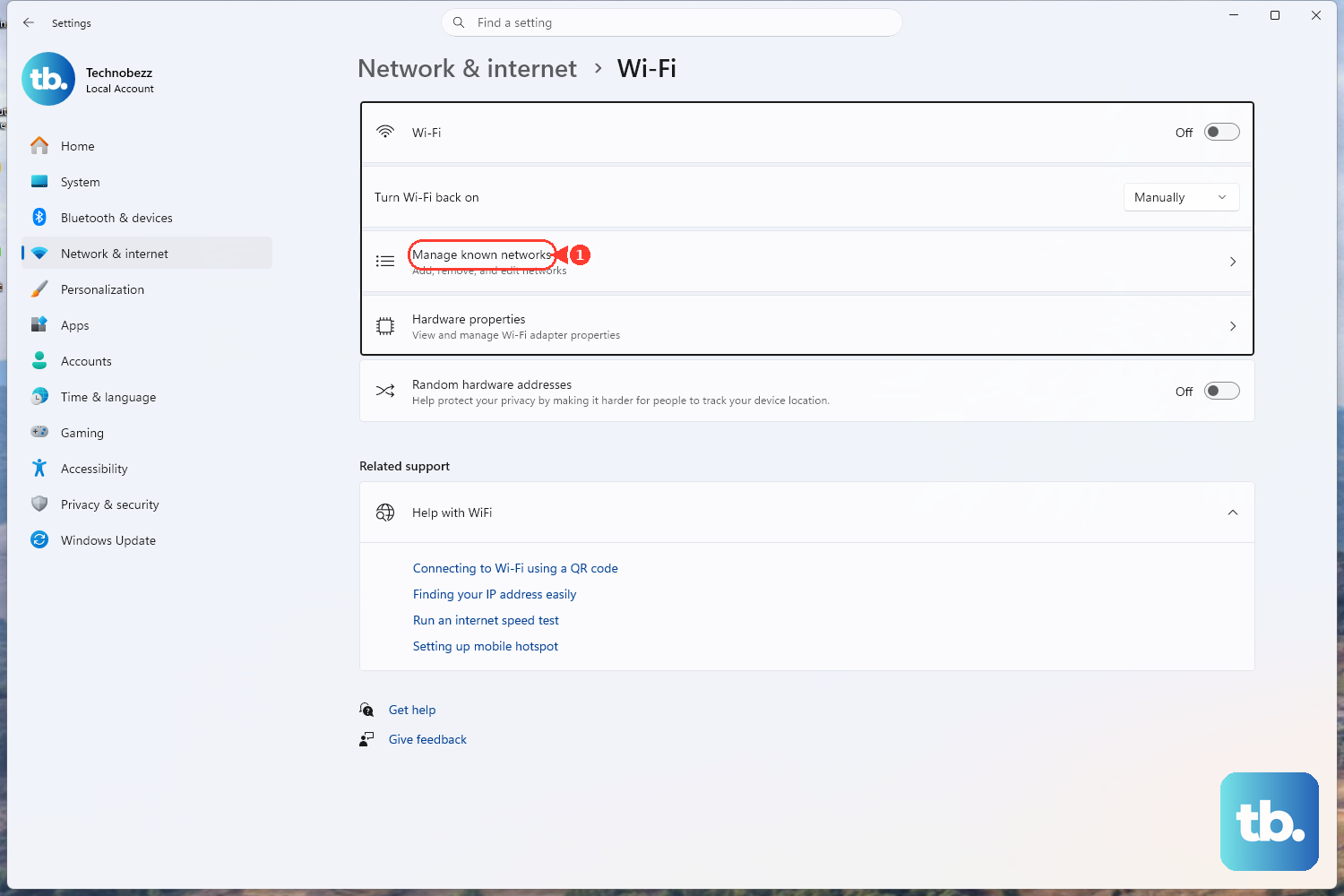
A network does not have to be the one you are using right now. If the Windows 11 device already has the network saved and Windows can show its password, you can display a QR code from the saved network page.
- 1.On the Windows 11 device with the saved network, open Settings.
- 2.Go to Network & internet > Wi-Fi > Manage known networks.
- 3.Select the saved Wi-Fi network.
- 4.Next to Wi-Fi network password, select Show.
- 5.On the Windows device that needs to connect, open Camera > Barcode.
- 6.Scan the QR code, select the link that appears, then approve the connection in Settings.
5. Join a Windows mobile hotspot by QR code
A Windows 11 PC that is sharing its internet connection through Mobile hotspot can show a QR code for that hotspot.
- 1.On the device sharing the hotspot, open Settings > Network & internet > Mobile hotspot.
- 2.Set Share my internet connection from, Share over, and Properties.
- 3.Turn on Mobile hotspot.
- 4.In Properties, leave the QR code visible.
- 5.On the connecting Windows device, open Camera and select Barcode.
- 6.Scan the hotspot QR code, select the link, then confirm the connection in Settings.
6. Restore camera access if scanning is blocked
Camera permission does not connect you to Wi-Fi by itself. It only removes the Windows privacy block that stops Camera or a scanner app from using the webcam.
- 1.Open Start > Settings > Privacy & security > Camera.
- 2.Turn on Camera access.
- 3.Turn on Let apps access your camera.
- 4.In the app list, turn on the toggle for Camera or the Microsoft Store scanner app you use.
- 5.For desktop scanner apps, turn on Let desktop apps access your camera.
After changing the permission, reopen Camera, switch to Barcode, and scan the Wi-Fi QR code again.
7. Use a Store scanner when the built-in path is not enough
The built-in Windows 11 Camera route comes first. As a backup, the Microsoft Store listing for WiFi QR Code Scanner describes a third-party app that scans a Wi-Fi QR code with a webcam, offers Connect, and says Windows saves the network for later reconnection.
- 1.Open the Microsoft Store product page for WiFi QR Code Scanner.
- 2.Select Get or Install.
- 3.Open WiFi QR Code Scanner.
- 4.Hold the Wi-Fi QR code up to the webcam.
- 5.After the app scans the code, select Connect.
This is a third-party Store app, not a built-in Microsoft Windows feature, so its screens and support come from that app vendor.
8. Ask IT when a managed PC refuses the QR flow
Work and school Windows devices can receive Wi-Fi settings from an administrator instead of using a QR scan or a typed password. In Microsoft Intune, admins can create a Windows Wi-Fi configuration profile, assign it to devices, or deploy a custom WLAN XML profile through the documented OMA-URI path.
If your organization blocks the QR flow, ask the IT team for the approved Wi-Fi setup method for that device. On a managed PC, the administrator’s profile can be the intended way to add the network.
Frequently Asked Questions
Can Windows connect to Wi-Fi directly from a QR code?
Yes. On current Windows 11, the built-in Camera app can scan a Wi-Fi QR code and hand the connection to Settings for confirmation.
Can Windows show a QR code for my current Wi-Fi password?
Yes. On Windows 11, open Settings > Network & internet > Properties, then select Show next to Wi-Fi network password.
Can I get a QR code for a network I used before?
Yes. Open Settings > Network & internet > Wi-Fi > Manage known networks, choose the saved network, then select Show next to Wi-Fi network password.
Why does the Camera app not scan my Wi-Fi QR code?
Camera access may be blocked. Open Settings > Privacy & security > Camera, turn on Camera access, and allow the Camera app or scanner app to use the webcam.
Is a Microsoft Store Wi-Fi QR scanner built into Windows?
No. WiFi QR Code Scanner is listed as a third-party Microsoft Store app, so its exact screens and support depend on that app vendor.