Your Android phone opens the Camera app, but the rear camera stays black, crashes, shows Camera Failed, or stops working inside another app. The fastest wins are simple: clean the lens, restart the phone, then check whether Android or the app itself is blocking camera access. Start here and move down only as each test fails.
1. Clean the lens and restart the phone
Wipe the rear camera lens with a soft, clean, dry cloth. On Pixel phones and tablets, also wipe the laser or sensor area near the camera.
Open the power menu, tap Restart, then tap Restart again.
On Samsung Galaxy devices, swipe down from the top of the screen, tap the Power icon, then tap Restart.
Open Camera and test the rear camera.
Rule out the physical and temporary problems first: a dirty lens, a stuck camera process, or a frozen app can make the rear camera look broken.
If the phone or Camera app is frozen, force restart it.
On Samsung, press and hold the Side key and Volume down for at least 7 seconds.
On Pixel 5a and earlier, press and hold Power for about 30 seconds.
On Pixel 6 and later, press and hold Power for about 30 seconds, until the phone restarts.
2. Turn Camera access back on
Android 12 and newer include a system-wide Camera access control. When it is off, apps cannot use the camera even when their own permissions look correct.
Swipe down twice from the top of the screen.
Tap Camera access to turn it on.
If the tile is missing, tap Edit or Add, then touch and drag the camera tile into Quick Settings.
The Settings route works too: open Settings > Security & privacy > Privacy > Privacy controls > Camera access, then turn Camera access on.
3. Allow the app that needs the rear camera
Open Settings > Apps > See all apps.
Tap the app where the rear camera fails.
Tap Permissions > Camera.
Select Allow only while using the app or Ask every time.
If the rear camera works in the main Camera app but fails in a QR scanner, banking app, Messages, Meet, Chrome, or a social app, fix that app's permission instead of resetting the phone.
The permission manager gives you the same control from the camera side. Open Settings > Security & privacy > Privacy > Permission manager > Camera, tap the app, then choose an allowed option.
For a website in Chrome, open Chrome > More > Settings > Site settings > Camera, then turn camera access on. If the site appears under Blocked, tap the site and choose Allow. From an open site, tap the View site information, lock, or tune icon beside the address bar, then tap Permissions > Camera > Allow.
4. Clear the Camera app cache and data
Refresh the Camera app before moving into bigger fixes when it opens to a black screen, crashes, or shows an error.
Open Settings > Apps > See all apps > Camera.
Tap Force stop > OK.
Tap Storage and cache > Clear cache.
Reopen Camera and test the rear camera.
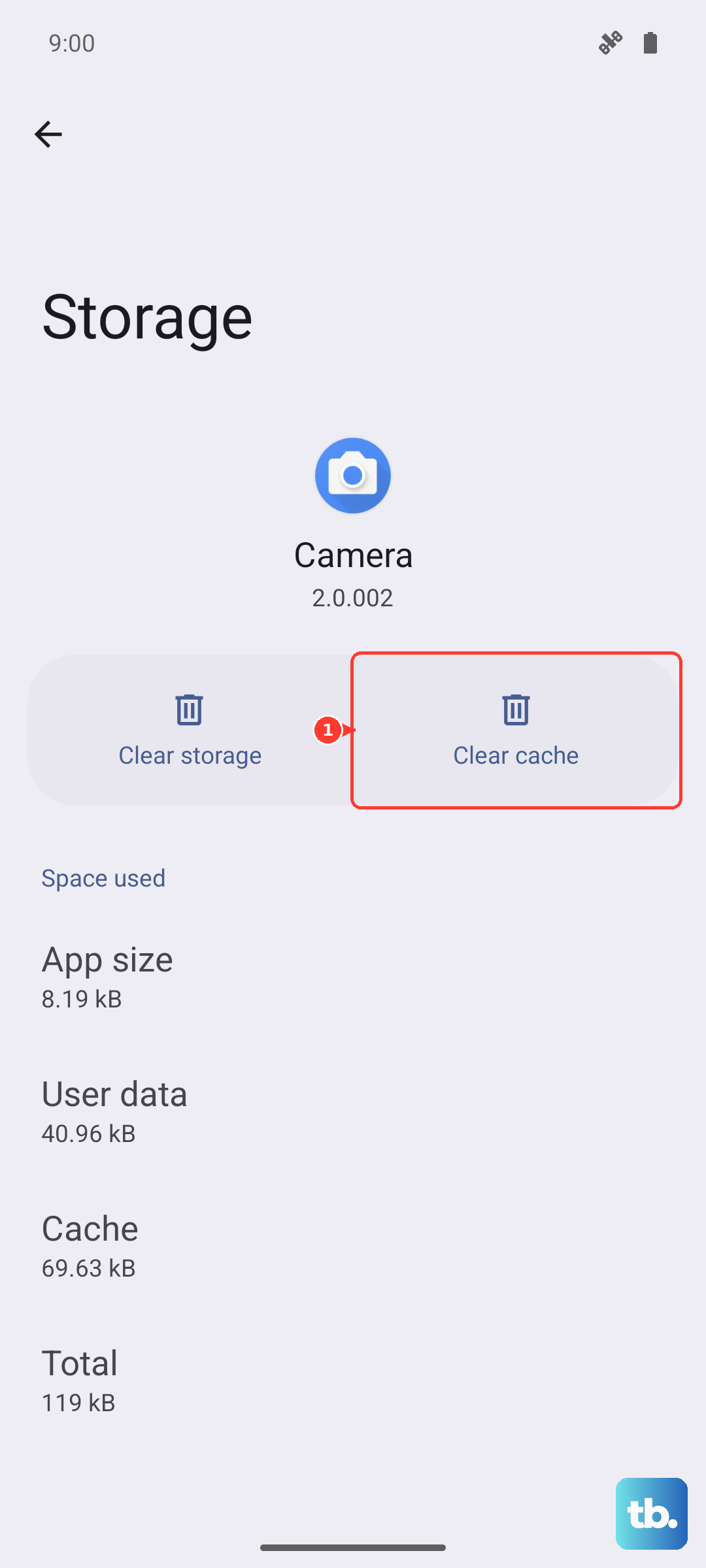
If the rear camera still fails, clear the Camera app data. On stock Android and Pixel, go to Settings > Apps > See all apps > Camera > Storage and cache > Clear storage or Clear data > OK. On Samsung, go to Settings > Apps > Camera > Storage > Clear data > Delete. Samsung says this does not delete normal photos or videos; it resets Camera app settings and app data.
Motorola users have a shortcut for this same cleanup. Touch and hold Camera > App info > Storage & cache > Clear cache. If that fails, tap Clear storage.
5. Reset Samsung Camera settings
Open Camera.
Tap the Settings icon.
Swipe to Reset settings.
Tap Reset.
Galaxy phones also have a reset inside the Camera app. Use it when Samsung Camera opens but modes, focus, zoom, or switching between cameras behaves incorrectly.
On Galaxy S25 series and devices running One UI 7.0 and above, open Camera, tap the Quick settings icon with four dots, then tap the Settings icon before choosing Reset settings > Reset.
6. Update the camera app and Android
Remove a broken camera app build or missing system update from the list next. Use the update path that matches your phone.
For camera apps updated through Google Play, open Play Store > profile icon > Manage apps & device > See details, then tap Update next to the camera app.
For Moto Camera 2, open Play Store > profile icon > Manage apps & device > See details, then tap Update next to Moto Camera 2.
For Samsung Camera, open Camera > Settings icon > About Camera > Update. On Galaxy S25 series and devices running One UI 7.0 and above, first tap the Quick settings icon with four dots, then tap the Settings icon before About Camera > Update.
On Pixel devices running Android 16 or higher, open the official Pixel Camera listing in Google Play and choose Install or Update. If Google Play does not offer Install or Update, your Pixel may not be eligible for the current build.
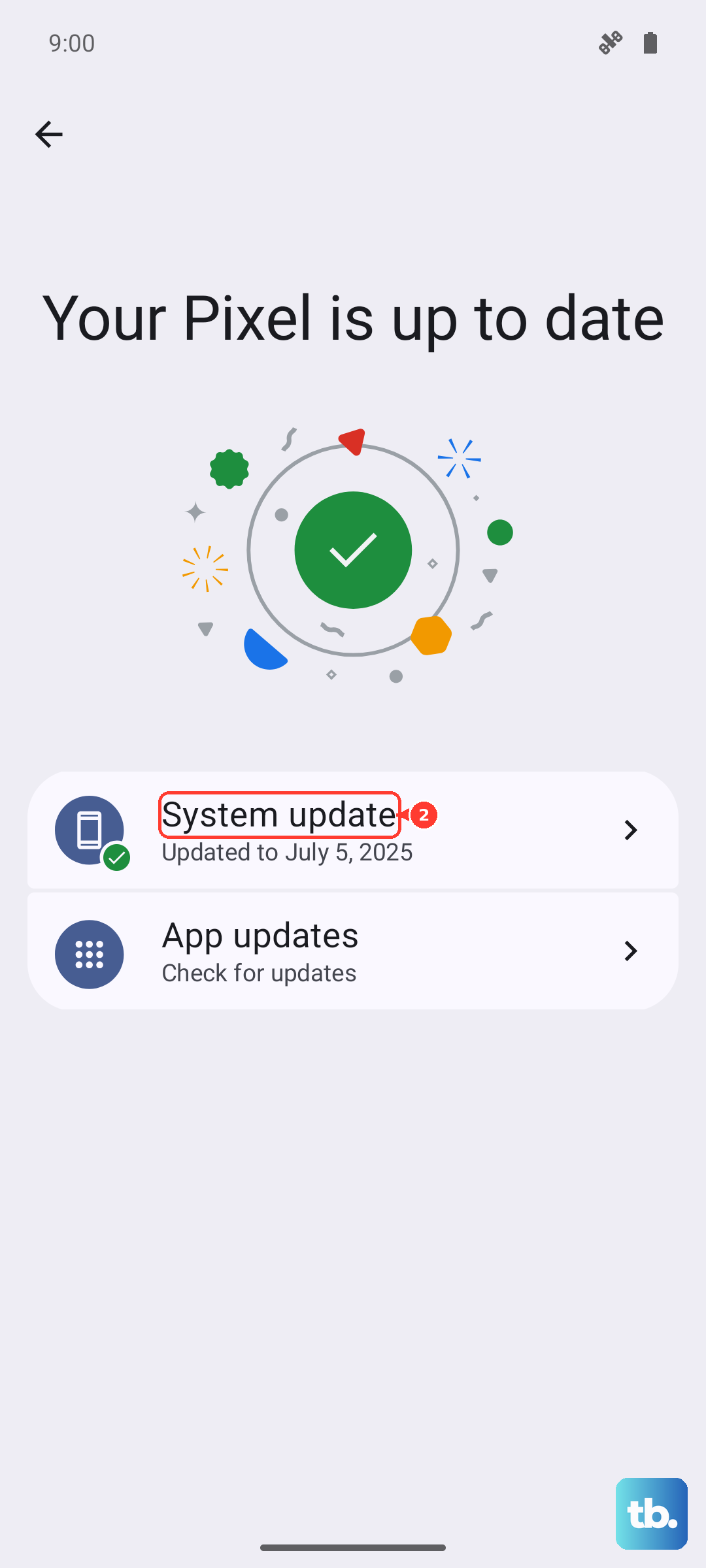
Then update Android itself. On stock Android and Pixel, open Settings > System > Software updates, then follow the on-screen instructions. On Samsung, open Settings > Software update or System updates > Download and install or Check for software updates.
If Camera Failed appears on a Samsung Galaxy device after an update, check the Google Play system update too. Open Settings > Security and privacy > Updates > Google Play system update > Check update, then install the update. When over-the-air Samsung updates are not working, install or open Smart Switch on a computer, connect the Galaxy device with USB, then choose Update if Smart Switch shows an update prompt.
7. Test Safe mode and remove the conflicting app
On Pixel 6 and later, press and hold Power and Volume Up for a few seconds, then touch and hold Power off or Restart and tap OK.
If a Pixel is off, press Power, then when the animation starts press and hold Volume down until Safe mode appears.
On Samsung, open the power menu, touch and hold Power off until Safe mode appears, then tap Safe mode.
Open Camera in Safe mode and test the rear camera.
Restart the phone to leave Safe mode.
Safe mode disables downloaded apps temporarily. If the rear camera works there, one of your installed apps is interfering with camera access.
If the camera works in Safe mode, remove recently downloaded apps one by one. In Google Play, open the profile icon > Manage apps & devices > Manage, select an app, then tap Uninstall. On Samsung, swipe up to open the app drawer, touch and hold the app icon, then tap Uninstall > OK.
On Pixel, when the option appears for a native Camera app, touch and hold Camera > App info > More > Uninstall updates > OK. Test the app, then update Pixel Camera again from Google Play.
8. Remove storage and account restrictions
A full storage state, a supervised child account, or a work or school policy can also stop the rear camera. These paths are separate from ordinary Camera app troubleshooting.
For storage problems, open Settings > Storage or use the Files app cleanup tools, then retry Camera. On Motorola phones with a trash-full camera error, open Photos > Collections > Trash > menu > Empty trash > Delete permanently.
For a supervised child's Android device, the parent opens Family Link > select child > Controls > Signed-in devices > select the child's Android device > App permissions > Camera, then allows the relevant app. For a work or school phone that says a security policy restricts camera use, contact the administrator who manages the device.
9. Run diagnostics, reset, then arrange repair
On Samsung, open Samsung Members > Support > Get started > Camera and check the result.
For repeatable Galaxy camera failures, long press Samsung Members on the Apps screen, tap Error reports, tap OK on the agreement popup, then choose the symptom category Camera.
On Pixel 3 or newer running Android 10 or higher, connect the phone to a computer with a USB cable, open pixelrepair.withgoogle.com, then follow the on-screen instructions to update or reinstall software. Google notes that repair or reset flows can require backup, erase, and restore.
After the app, permission, update, Safe mode, and storage checks fail, move to diagnostics and repair-level software tools.
Use factory reset only after backing up. On stock Android and Pixel, open Settings > System > Reset options > Erase all data (factory reset) > Erase all data. On Samsung, open Settings > General management > Reset > Factory data reset > Reset > Delete all. Test Camera before reinstalling apps.
If the rear camera still fails after a factory reset, arrange hardware service. Motorola says a continuing numeric camera error such as Error 03400001 after restart means the phone needs repair. Samsung directs users to a walk-in service center or online repair scheduling when camera issues remain after reset.
Frequently Asked Questions
Why does my rear camera fail only inside one app?
The app does not have camera permission, Chrome has blocked the website camera permission, or another app is holding camera access. Set the app to Allow only while using the app or Ask every time, and review recent camera use in Privacy dashboard.
Does clearing Camera data delete my photos?
Samsung says clearing Camera data does not delete normal photos or videos. It resets Camera app settings and erases app-saved settings or data, so your Camera preferences return to default.
What does Camera Busy mean on Android?
Motorola ties Camera Busy troubleshooting to app permissions. Open Permission manager for Camera, review apps with camera access, and remove access from suspicious or unused apps.
What should I do when a work or school phone blocks the camera?
A managed Android device can disable camera use through policy. The device administrator must change the camera policy; consumers cannot override that from the phone.