Need to capture something on your screen before it disappears? Every major phone, computer, tablet, browser, and console has a built-in screenshot shortcut, but the right one changes by device.
Start with the device in front of you, use the exact shortcut below, then check the save location or thumbnail options when the capture appears.
1. Start With iPhone and iPad Buttons
On iPhone and iPad, the button combo changes by model. Press both buttons at the same time, then quickly release them.
iPhone with Face ID: Press the Side button and Volume Up.
iPhone with Touch ID and Side button: Press the Side button and Home.
iPhone with Touch ID and Top button: Press the Top button and Home.
iPad without Home button: Press the Top button and either Volume button.
iPad with Home button: Press the Top button and Home.
For a full-page screenshot of supported scrollable content, take the screenshot, tap the thumbnail, tap Full Page, then save or share it.
For an iPhone shortcut that does not use the buttons, go to Settings > Accessibility > Touch > Back Tap. Choose Double Tap or Triple Tap, then choose Screenshot.
On iPad with Apple Pencil, swipe up from either bottom corner to capture the screen and mark it up.
2. Capture Android, Pixel, and Samsung Screens
- 1.Open the screen you want to capture.
- 2.Press Power and Volume Down at the same time.
- 3.On Android 12 and later, tap Capture more for a scrolling screenshot, then use the crop guidelines.
The main Android screenshot shortcut is simple, and Pixel phones and Pixel Tablet use the same Power plus Volume Down shortcut with a preview at the bottom left. Our step-by-step guide to taking a screenshot on Android covers every method on Samsung, Pixel and other phones.
Pixel also has an app-switcher route. With gesture navigation, swipe up and hold, choose the app, then tap Screenshot.
With 3-button navigation, tap Overview, choose the app, then tap Screenshot.
On Pixel 4a (5G) and later, set up a back-tap shortcut from Settings > System > Gestures > Quick tap. Turn on Use Quick tap, choose Screenshot, then tap twice on the back of the phone.
Samsung Galaxy phones and tablets use the same button idea, with Samsung's wording: press and hold the Power or Side button and Volume Down together, then release after a brief moment.
Supported Galaxy devices also include these extra capture tools.
Turn on Palm swipe to capture from Settings > Advanced features, then swipe the edge of your hand across the screen.
Say Hey Bixby, take a screenshot or Hey Google, take a screenshot.
With an S Pen, tap Air command > Screen write, mark up the capture, then tap Save.
Use the Edge panel by opening Tasks panel and tapping Take screenshot.
After a standard screenshot on a scrollable page, tap the Scroll capture icon with two arrows pointing down.
3. Use Snipping Tool or Print Screen on Windows
Windows has one tool for flexible captures and separate shortcuts for files or clipboard copies. For each Windows 11 method with a screenshot of every step, see our guide to taking a screenshot on Windows.
To use the Snipping Tool app, open it from Start, choose a snipping mode (Rectangle, Window, Full screen, or Freeform), then select New and capture the area or window you need.
To skip the app, press Windows logo key + Shift + S, then choose Rectangle, Window, Full screen, or Freeform from the overlay toolbar and capture directly.
Use Snipping Tool for a selected area, window, full screen, or freeform capture.
For a full-screen screenshot saved as a file, press Windows logo key + PrtScn, then open File Explorer > Pictures > Screenshots.
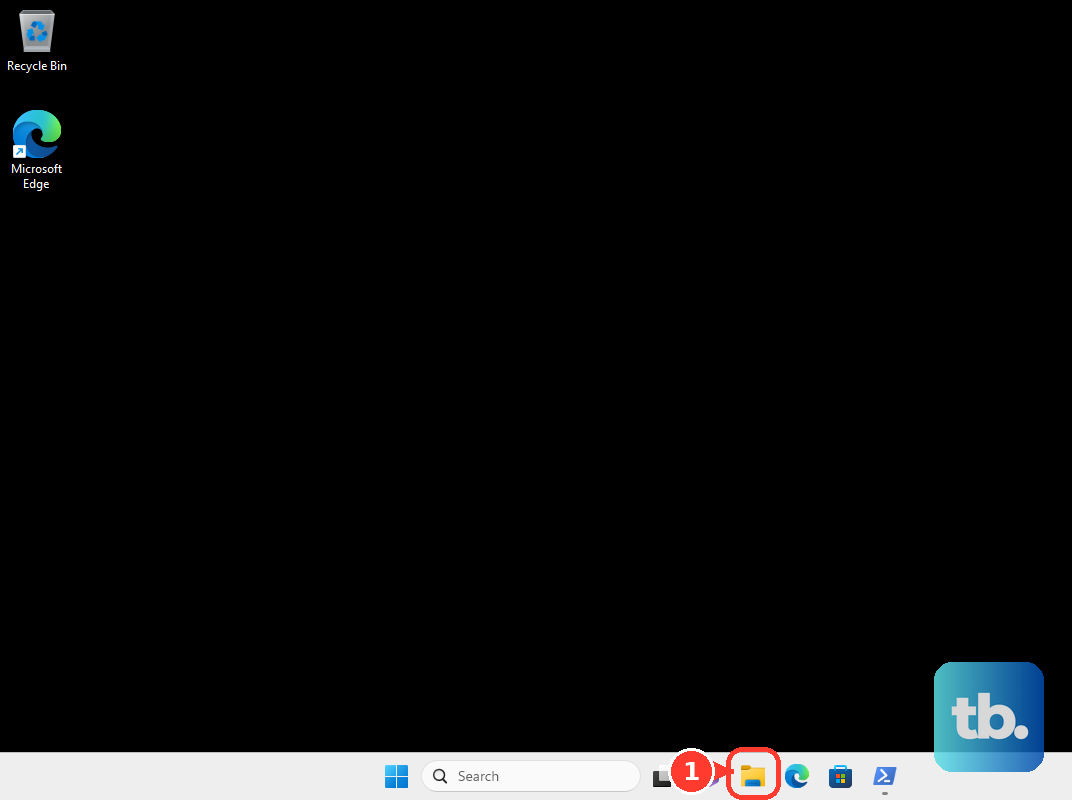
On Windows devices without a PrtScn key, press Fn + Windows logo key + Space Bar, then check the same folder.
Use these Windows shortcuts when you want the screenshot on the clipboard instead.
Print Screen: Copies the full screen. Paste with Ctrl+V.
Alt + Print Screen: Copies the current window. Paste with Ctrl+V.
Windows logo key + Alt + Print Screen: Takes a Game Bar screenshot.
To take a screenshot through Game Bar, press Windows logo key + G, then choose Widget Menu > Capture > Take screenshot.
On most Surface models, press and hold Power, then press Volume Up (this shortcut does not work on Surface Laptop).
On Surface PCs with a keyboard, use Windows logo key + PrtScn or Windows logo key + Snipping key.
On compatible Surface keyboard covers, press Fn + Spacebar for screen snip, or Fn + Alt + Spacebar for the active window.
If Print Screen opens the snipping overlay and you want the clipboard shortcut, go to Start > Settings > Accessibility > Keyboard, then turn Use the Print screen key to open screen capture off.
4. Grab Mac Screenshots With Keyboard Shortcuts
Full screen: Press Shift + Command + 3.
Selected area: Press Shift + Command + 4, drag the crosshair over the area, then release.
Press Esc to cancel.
Hold Space bar while dragging to move the selection.
Window or menu: Open the window or menu, press Shift + Command + 4, press Space bar, then click the window or menu.
Hold Option while clicking to exclude the shadow.
Screenshot toolbar: Press Shift + Command + 5, or open Screenshot from Applications > Utilities.
Choose full screen, selected window, selected portion, or Options for timer and save location.
Touch Bar: On Mac models with Touch Bar, press Shift + Command + 6.
Mac screenshots save to the desktop by default. Click the thumbnail to edit right away, or let it save.
To change the shortcuts, choose Apple menu > System Settings > Keyboard > Keyboard Shortcuts > Screenshots.
5. Open Chromebook Screen Capture
ChromeOS gives you a screenshot toolbar and quick keyboard shortcuts.
Screenshot key: Press it on a Chromebook that has one, then choose the screenshot options.
Quick Settings: Select the time at the bottom right, then select Screen capture.
Screenshot toolbar: Press Shift + Ctrl + Show windows.
External keyboard: Press Ctrl + Shift + F5 when the keyboard has no Show windows key.
Full screen: Press Ctrl + Show windows.
Partial screen: Press Shift + Ctrl + Show windows, then drag to select the area.
Tablet mode: Press Power and Volume Down.
To change the save folder, press Shift + Ctrl + Show windows, then choose Settings > Select folder at the bottom.
6. Save Webpages From Browsers and Office Apps
Use browser screenshot tools when you need a webpage section, visible area, or full-page capture.
In Microsoft Edge, open Settings and more, choose Screenshot, or right-click the page and choose Screenshot.
The shortcut is Ctrl + Shift + S.
In managed Edge browsers, the WebCaptureEnabled policy controls whether this feature appears.
In Firefox, right-click an empty part of the page and select Take Screenshot, or press Ctrl + Shift + S on Windows and Command + Shift + S on Mac.
Choose the visible area, full page, or a selection.
In Chrome DevTools, open DevTools, press Command + Shift + P on Mac or Control + Shift + P on Windows, Linux, or ChromeOS, type screenshot, then choose the capture command you need, including Capture full size screenshot.
To capture one page element, right-click it, select Inspect, right-click the node in Elements, then choose Capture node screenshot.
In Word, Excel, PowerPoint, or Outlook, select Insert > Screenshot, then choose an Available Window or Screen Clipping.
In OneNote desktop, select Insert > Screen Clipping, or press Alt+N+R.
7. Press the Capture Button on Consoles and VR
Nintendo Switch: Press the Capture Button, then open HOME Menu > Album.
Nintendo Switch 2: Briefly press the Capture Button on Joy-Con 2 (L), then open Album.
PlayStation 5: Press the create button on the DualSense wireless controller, then select Take Screenshot.
Change the create button behavior in capture settings.
Xbox Series X|S: Press the Share button on the Xbox Wireless Controller.
To view or share it, press the Xbox button, then go to Capture & share > Recent captures.
Steam games on PC: Press F12 while the Steam Overlay is active.
Change the hotkey in Steam > Settings > In-Game.
Meta Quest: Open Camera or Capture from the universal menu, then choose Take Photo or Screenshot.
Take Photo captures after a 5-second countdown.
On gaming devices, use the controller or capture menu first.
8. Check Why Screenshots Get Blocked
A blocked screenshot is not a broken shortcut. Sensitive apps, managed devices, protected browser policies, and remote desktop sessions can stop captures on purpose.
Android apps: Apps can mark sensitive windows so Android does not allow screenshots or display the content on non-secure displays.
Android 14 and later: Apps can register screenshot callbacks for hardware-button screenshots. Android notifies the user when such a screenshot is detected, and the API does not provide the screenshot image to the app.
Managed Android apps: Microsoft Intune can block screen capture, Circle to Search, and Assistant access to organization data.
Managed Apple devices: Device management can restrict screenshots and screen recordings on iPhone, iPad, Mac, and Apple Vision Pro.
Managed ChromeOS or Chrome: The DisableScreenshots policy can block screenshots taken with keyboard shortcuts or extension APIs.
Azure Virtual Desktop and Windows 365: Screen capture protection can block captures in remote sessions.
When a work profile, school device, banking app, streaming app, or remote desktop blocks screenshots, use an allowed sharing option inside that app or ask the administrator what capture method is permitted.
Frequently Asked Questions
Where do screenshots go after I take them?
Windows screenshots saved with Windows logo key + PrtScn go to File Explorer > Pictures > Screenshots. Mac screenshots save to the desktop by default. Nintendo Switch screenshots appear in HOME Menu > Album, and Xbox captures appear under Capture & share > Recent captures.
How do I take a scrolling screenshot?
On Android 12 and later, take a screenshot with Power + Volume Down, then tap Capture more. On Samsung Galaxy, take a standard screenshot and tap the Scroll capture icon. On iPhone or iPad, tap the screenshot thumbnail and choose Full Page for supported webpages and documents.
What should I press if my Windows keyboard has no PrtScn key?
Press Fn + Windows logo key + Space Bar, then open File Explorer > Pictures > Screenshots. On a Surface keyboard cover, press Fn + Spacebar to open screen snip.
Can I take a screenshot without physical buttons?
Yes. Use iPhone Back Tap, Pixel Quick tap, Pixel recent-apps Screenshot, Samsung Palm swipe to capture, Samsung voice commands, Mac Screenshot toolbar, Windows Snipping Tool, ChromeOS Screen capture, or Apple Vision Pro Siri.