


Good cable management in a mini rack comes down to four habits: plan the ports first, use the shortest cable that reaches, give every network cable one place to land, and give every plug one strip. That is how my 10-inch DeskPi RackMate T2 went from a desk full of boxes, each with its own cable going somewhere, to one rack with a row of short jumpers at the top and a power strip at the bottom.
The short version
- Write down which port each device gets before you plug anything in.
- Put the patch panel right above the switch so the jumpers between them can be a few inches long.
- Run every power plug to one rack PDU, and plan room for the power bricks.
- Use a brush or D-ring panel where cables need to pass through or bunch up.
- Keep the vents and the path from the bottom fan clear, and cover empty slots with blank panels.
Why a mini rack needs cable management
Before the rack, every device sat in a row on my desk. The switches were stacked on top of each other, with a bundle of cables coming off the board next to them.
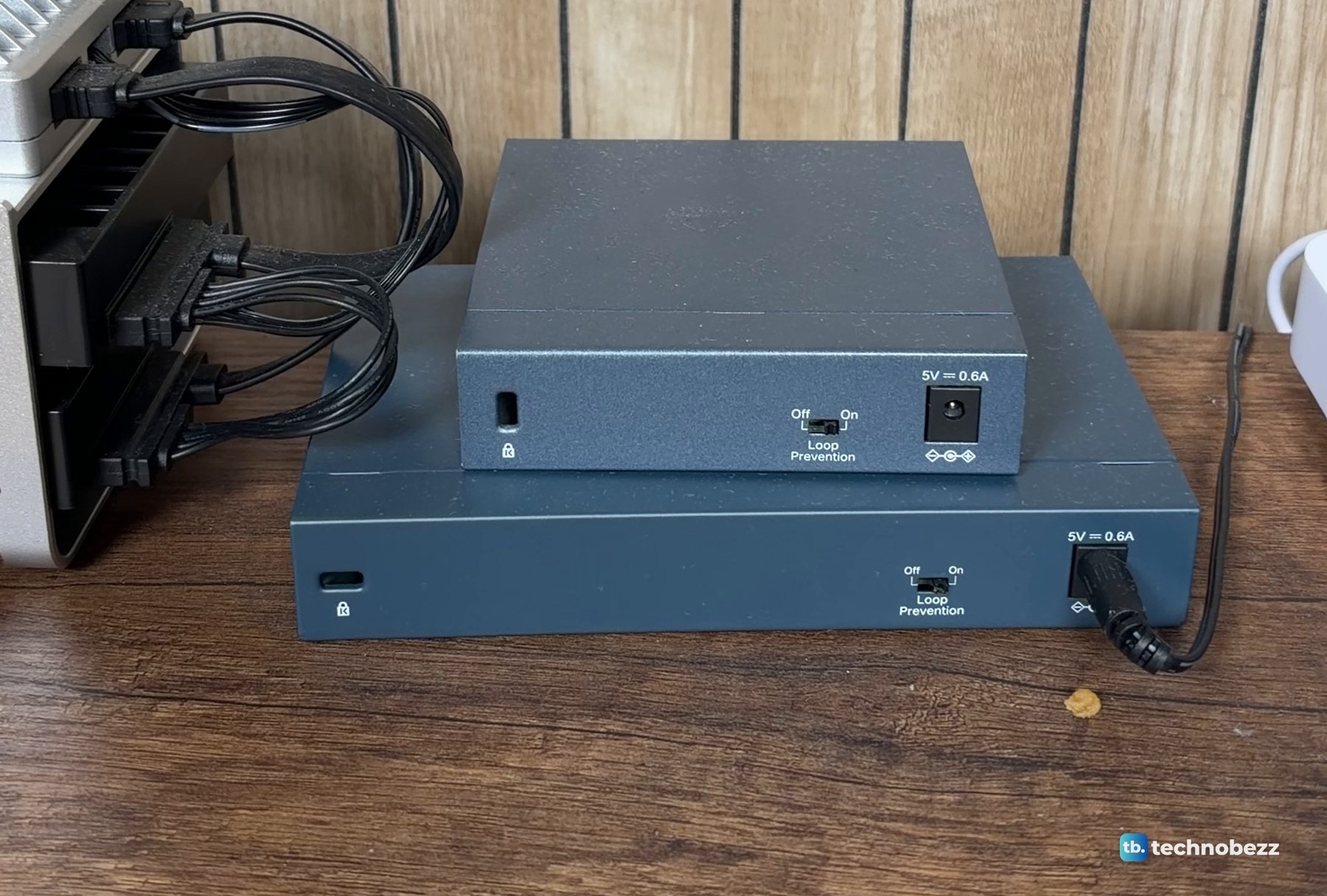
A 10-inch rack puts all of that into a much smaller space. The RackMate T2 is 260 mm (10.23 inches) deep with 212 mm of width between the rails, and standard 1 or 2 meter network cables create a lot of bulk in a cabinet that shallow. There is no room to hide extra cable.
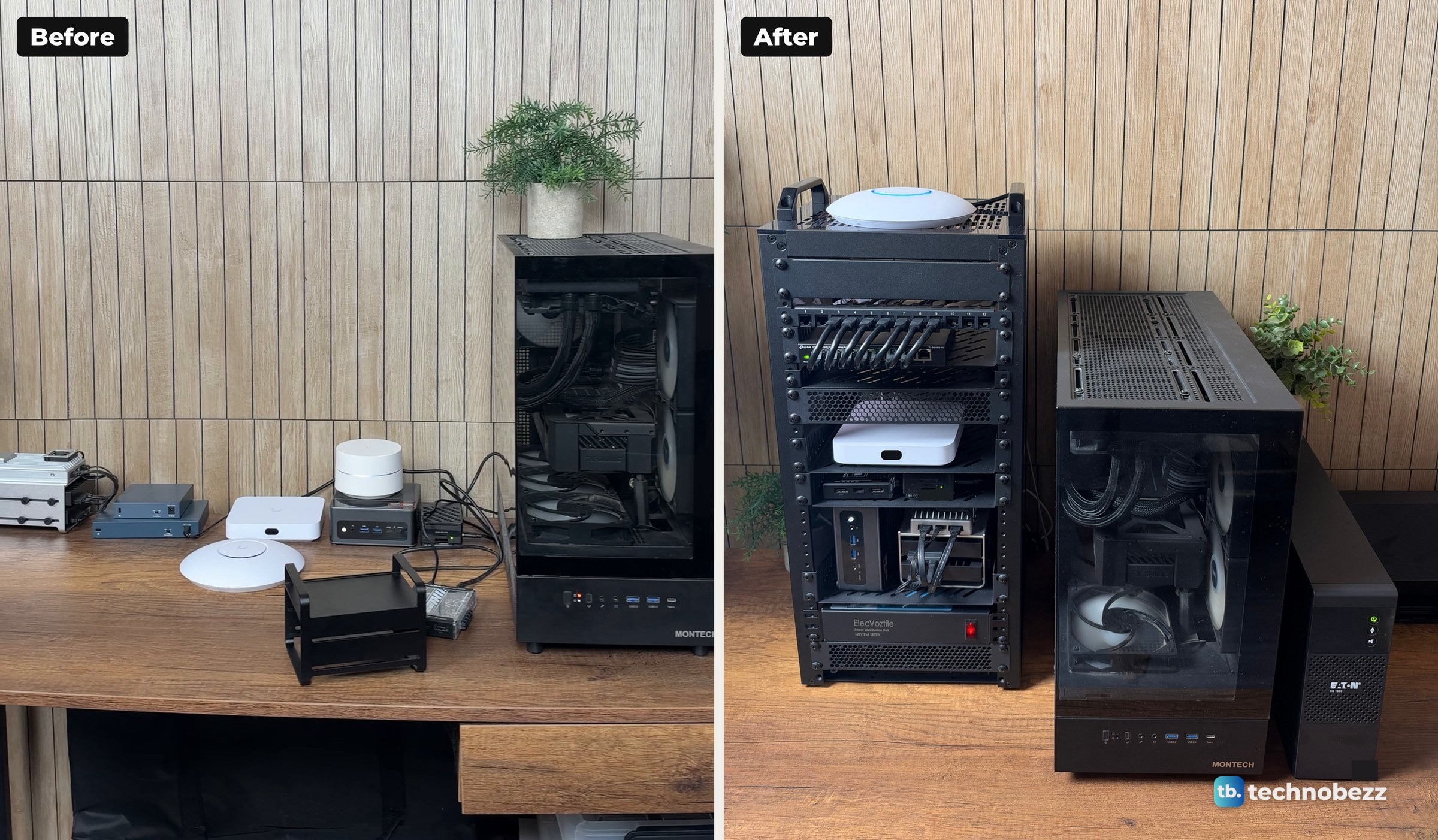
If you are still deciding whether to rack your gear at all, our guide to what a home lab is and our DeskPi RackMate T2 build cover the bigger picture.
The clip shows the whole move, from the desk full of boxes to the finished rack.
Step 1. Plan the ports before you plug anything in
Decide which device goes to which port, and write it down. My patch panel ports and switch ports are both printed with numbers, so my map is just port numbers and device types. The internet line and the gateway take the low ports, and the computers follow in a row. Labeling each run, color-coding and tying related cables together are the usual ways to keep track of which cable is which.
The full port-by-port map of my rack is in our guide on how to use a patch panel in a home lab. Plan the shelf order at the same time. Our home lab rack layout guide shows what sits where in mine.
Step 2. Use the shortest cable that reaches
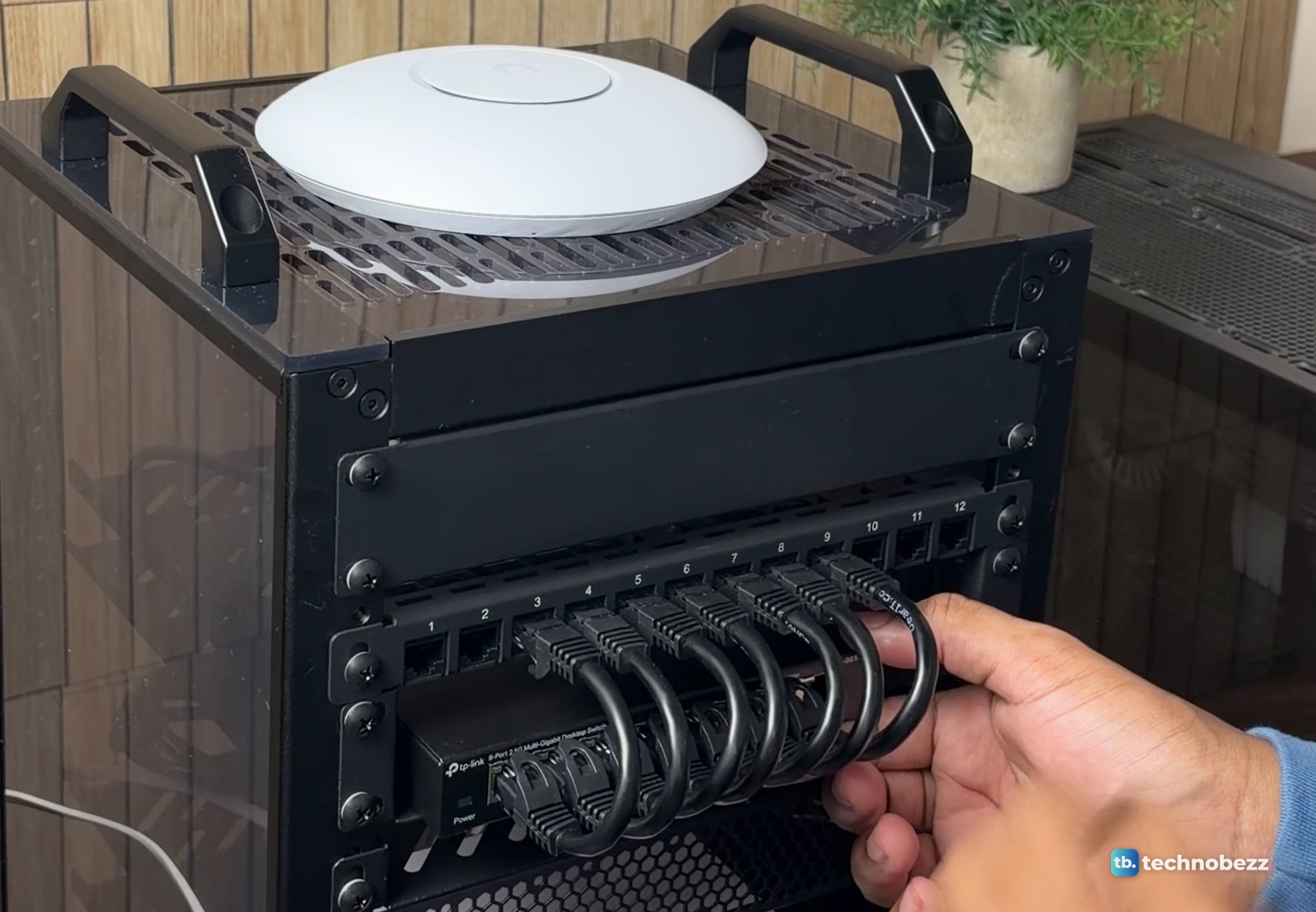
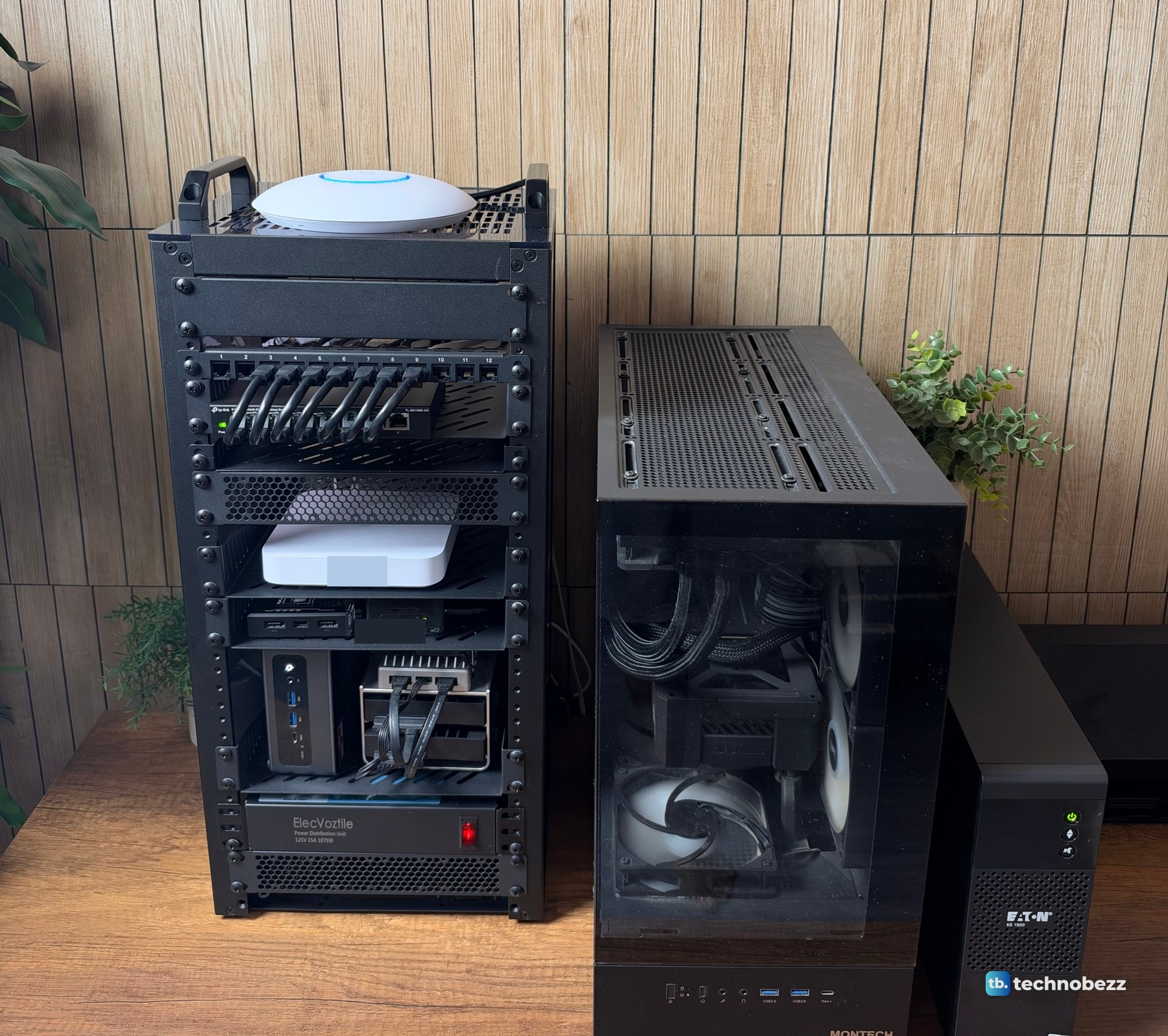
Short jumpers reduce cable bulk between a patch panel and the switch next to it. Mount the patch panel directly next to the switch and use 15 cm patch leads between them. In my rack the panel sits right above the switch, so each jumper only has to drop one row.
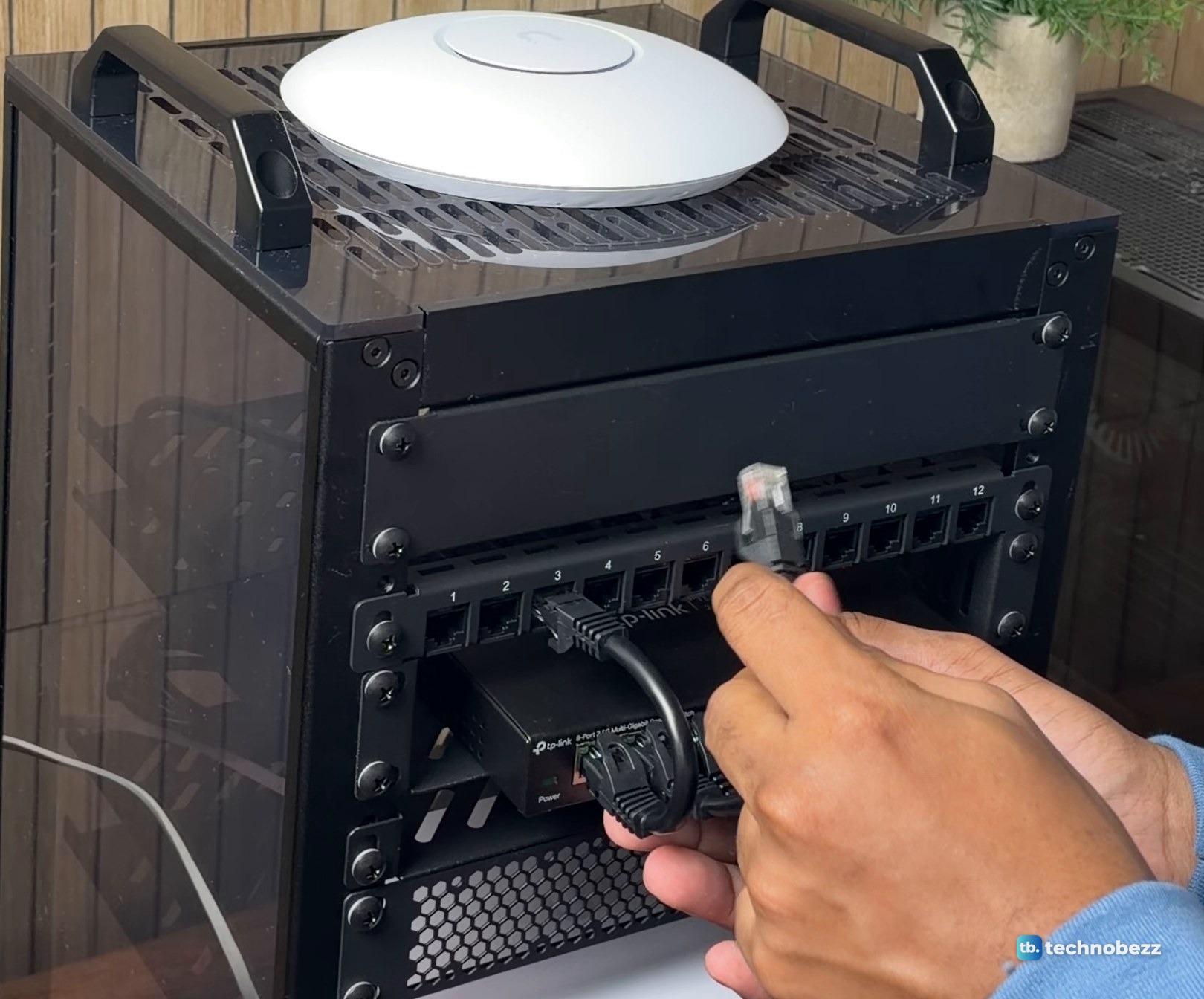
Partway through, the first jumper loops from panel port 3 to the switch, while the free ends of the other cables hang below, waiting to be connected to the panel.
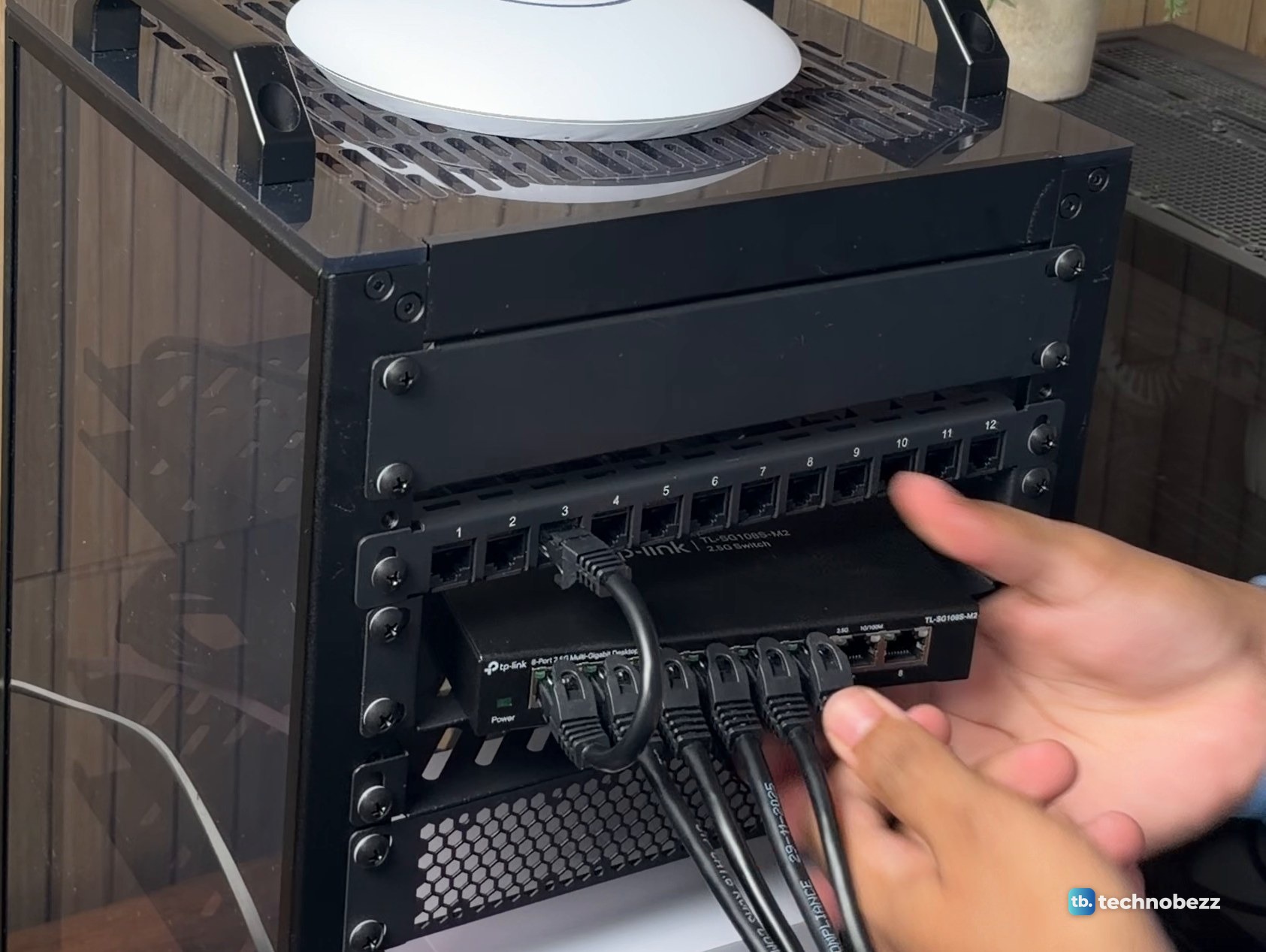
For the runs I bought short patch cables in 0.5 ft, 1 ft, 3 ft and 5 ft packs. The shortest lengths suit panel-to-switch jumpers, and the longer packs suit runs from devices. Each jumper clicks in one at a time.
After the move, my machines with 2.5G ports each moved data at about 2,350 Mbps through these short jumpers and the switch.
Step 3. Give every network cable one place to land
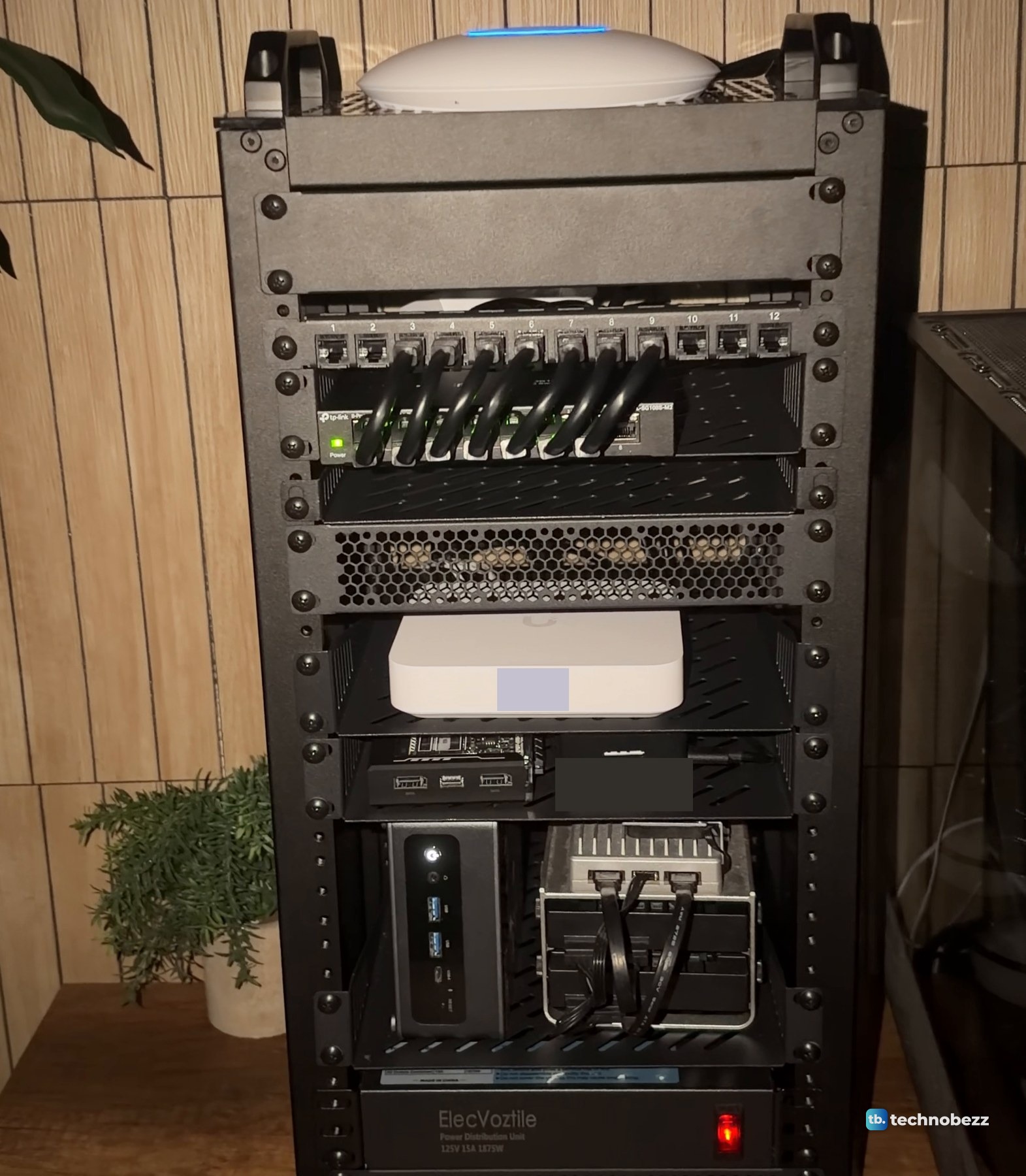
The patch panel is what keeps the front tidy. The longer network cables connect at the back of the patch panel, and short front jumpers connect the panel to the switch. From the front, the network cabling you see is the row of short jumpers near the top.
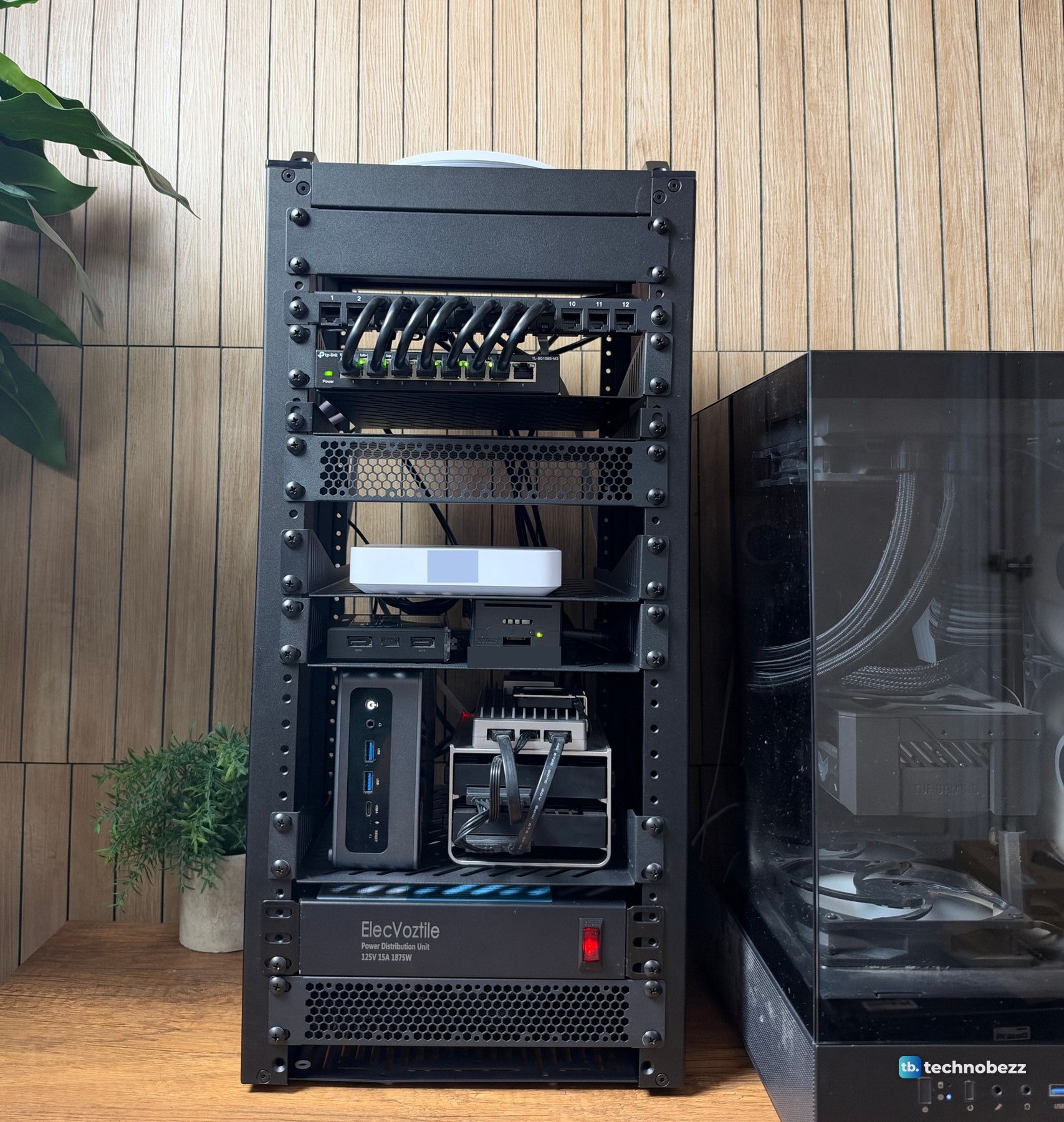
The small computers sit on their own shelves lower down, and our guide on how to rack mount a Raspberry Pi and a mini PC covers how they went in.
Step 4. Run every plug to one strip
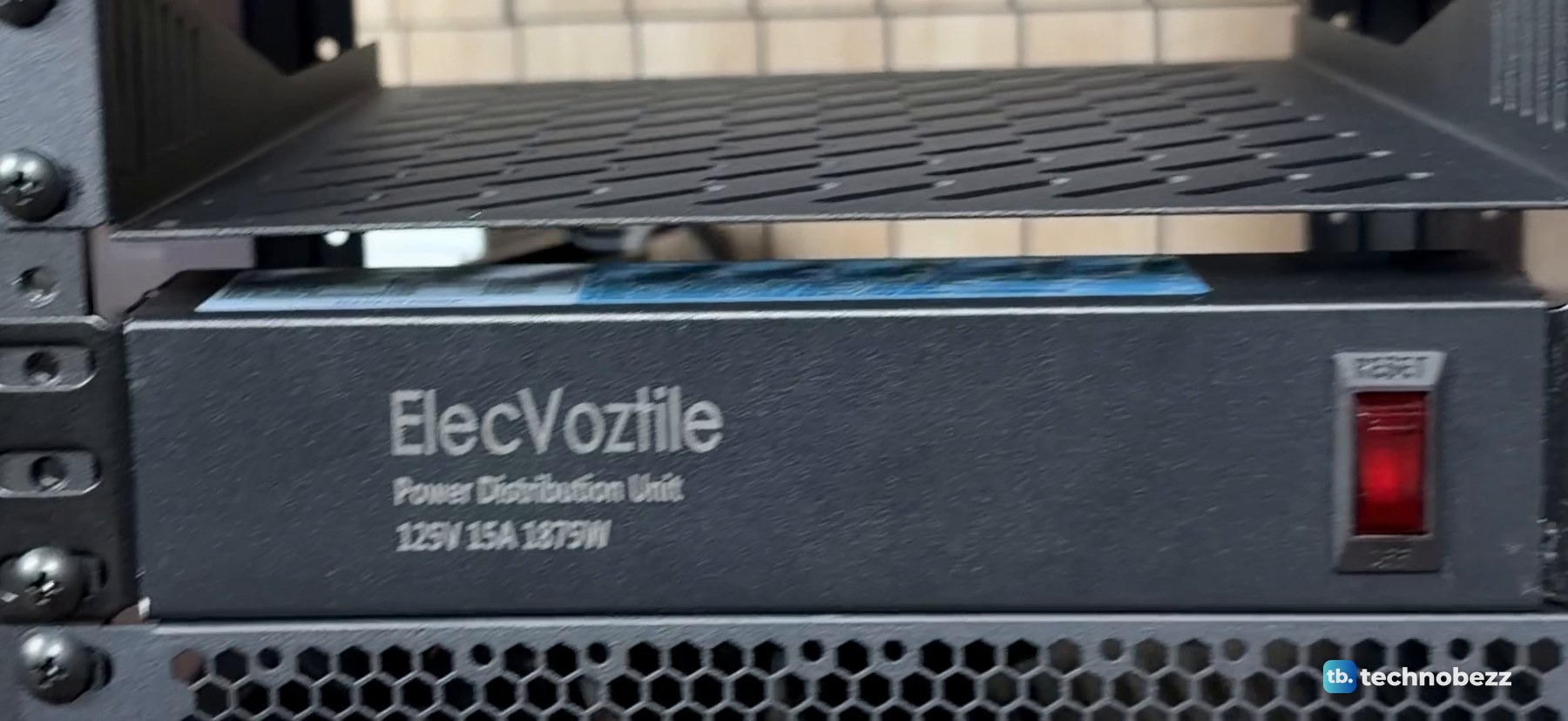
Power is the messier half of rack cabling. My rack has a 10-inch ElecVoztile PDU near the bottom with 8 outlets at the back and one switch on the front. With the switch in front and the plugs at the rear, no power cord crosses the front of the rack.
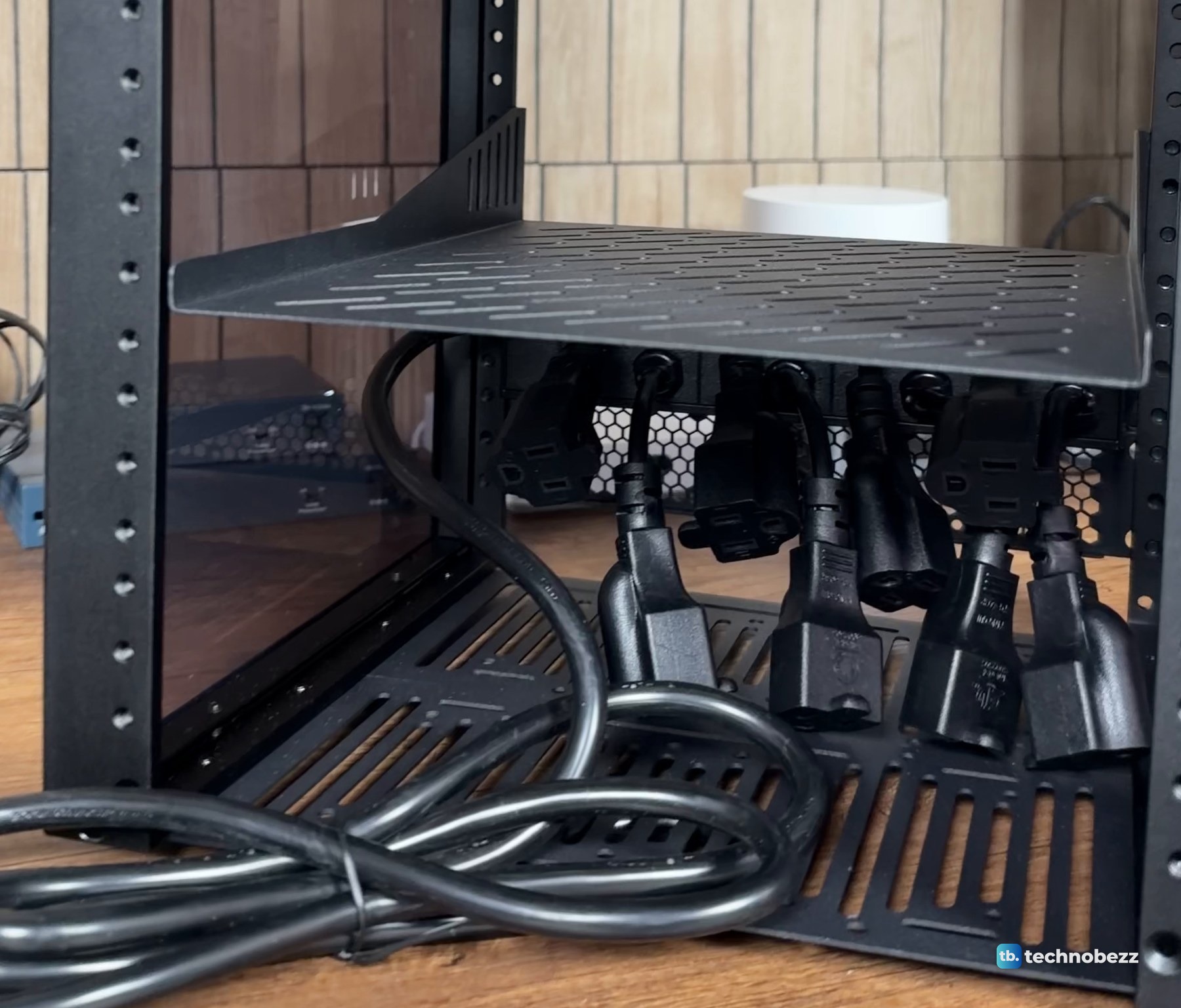
Its eight outlet leads take up extra room inside the rack, so plan the space before you buy one. Power bricks need room too. Most small devices in a 10-inch rack run on 5V or 12V DC through their own adapters, and those bricks fill the inside of a small cabinet fast. Leave space near the PDU for them.
Beside the rack, an Eaton UPS keeps all of it on when the power is not. Our guide to connecting a UPS to a home lab covers that step, and our list of the best UPS battery backups covers the options.
Step 5. Use a rack cable management panel where cables pass through
A rack cable management panel gives cables a defined way through the front of the rack. I bought a GeeekPi 1U brush cable manager for this. It is a 10-inch, 1U plate with a dense nylon brush strip that lets power cords and Ethernet cables pass through while keeping dust out.
A brush panel suits the spot where incoming lines enter the rack. A 0.5U panel with three D-rings, mounted under the patch panel, suits slack that needs to stay on the front. If your jumpers are short enough, you may not need either between the patch panel and switch. My rack has neither there.
Step 6. Keep the airflow paths clear
My rack has slotted shelves, a vented panel above the gateway, and a 120 mm USB fan at the bottom blowing air in, so it pays to keep the bottom of the rack and the shelf slots free of cable bundles. Cover unused rack slots with blank panels as well, because without them warm air can loop back through the empty gaps. I have not measured temperatures in the rack yet.
At night, the switch lights make the cabling easy to check at a glance.
When a cable stops working
Tidy racks still get bad connections. When a port goes dark, reseat the device cable at the back of the panel and the jumper at the front, then check the switch light for that port. If it stays dark, see our guide to fixing an Ethernet cable connection.
Cable management gear
| Product | Purpose | Where to buy |
|---|---|---|
| GeeekPi 12-port 0.5U Cat6 patch panel | One place for every network cable to land | Check it on Amazon |
| GeeekPi 1U brush cable manager | Cable pass-through panel, bought for this rack | Check it on Amazon |
| Monoprice SlimRun Cat6A 0.5 ft, 10-pack | Very short panel-to-switch jumpers (not the brand I used) | Check it on Amazon |
| 10Gsupxsel Cat6 3 ft, 10-pack | A 3 ft option for device connections | Check it on Amazon |
| Jadaol Cat6 5 ft, 5-pack | A 5 ft option for longer connections, similar to the cables I bought | Check it on Amazon |
| ElecVoztile 10-inch PDU | One strip for every plug | Check it on Amazon |
| GeeekPi 1U blank panel | Covers an empty slot | Check it on Amazon |
| GeeekPi vented 1U blank panel | Covers a slot and lets air through | Check it on Amazon |
We bought the rack and all of its accessories ourselves, and the rack is covered in our guide to assembling the DeskPi RackMate T2. Technobezz may earn a commission when you buy through the Amazon links on this page.











