An Ethernet cable that looks connected can still leave your computer offline. Start with the cable and router port, then move through device status, IP settings, drivers, and a final network reset in the order that saves the most time.
1. Check the cable and choose the right router port
Start with the physical link. A loose connector, bad cable, or wrong router port breaks Ethernet before Windows, macOS, or ChromeOS gets a real connection.
Unplug the Ethernet cable from the computer and router, then plug both ends back in firmly. On the router, plug the computer into a LAN or Ethernet port. Keep the computer out of the Internet or WAN port, which is used between the modem and router.
Next, try another Ethernet cable. Move the cable to a different router LAN port when the port light stays off. If no router port light turns on with a connected Ethernet cable, use the router manual or support page for that exact model.
2. Restart the modem and router in the correct order
Unplug the router power cable, then unplug the modem power cable. Remove the modem backup battery when the modem lights stay on. Wait at least 30 seconds.
Put the modem backup battery back in if you removed it. Reconnect the modem and wait until its lights stop blinking. Reconnect the router, wait a few minutes, then test Ethernet again.
For a modem-router combo, unplug the single device, wait at least 30 seconds, plug it back in, wait for it to finish starting, then test the wired connection.
3. Separate an Ethernet failure from an internet outage
Connect the same computer to Wi-Fi and load a website. If Wi-Fi works and Ethernet does not, the problem is the cable, Ethernet adapter, router LAN port, or wired settings.
On Windows, open Settings > Network & internet and read the Ethernet status at the top of the screen. If Windows shows Action needed, select Ethernet to view the wired connection settings.
On a Mac, choose Apple menu > System Settings > Network, then check the status indicator below the Ethernet service name. On a Chromebook, select the time at the bottom right and confirm that ChromeOS shows Connected to Ethernet. If another computer works on the same router, replace the Chromebook cable or USB Ethernet adapter.
4. Run the current Windows repair tool
Windows 11 puts the automated network repair flow in the Get Help app. Use it before changing drivers or resetting the network stack.
- 1.Select Search on the taskbar, type get help, then open the Get Help app.
- 2.Search for connect to network and internet.
- 3.Select Run network diagnostics.
- 4.Follow the prompts and let the troubleshooter apply the fixes it finds.
Microsoft’s Windows 10 troubleshooter path is a legacy path because Windows 10 support ended on October 14, 2025, so use the current Windows 11 flow above on supported consumer PCs.
5. Fix IP and proxy settings that block the connection
A wired link can be active while bad IP, DNS, or proxy settings stop browsers and apps from loading anything. Put home networks back on DHCP unless an ISP or administrator gave you manual values.
On Windows, open Settings > Network & internet > Ethernet. Select the Ethernet network, then choose Edit next to IP assignment. Choose Automatic (DHCP), or choose Manual and enter the correct IP address, Subnet mask, Gateway, Preferred DNS, and Alternate DNS.
For a Windows proxy check, open Settings > Network & internet > Proxy. Under Manual proxy setup, select Set up next to Use a proxy server, then turn it off unless your organization or ISP requires it.
On a Mac, choose Apple menu > System Settings > Network, select the Ethernet service, open Details > TCP/IP, then click Renew DHCP Lease. To correct IPv4 settings, use Configure IPv4 > Using DHCP, or choose Manually and enter the IP address, subnet mask, and router values supplied by the ISP or administrator. DNS is a separate tab: click DNS, then use the Add button to enter any DNS server or search domain values you were given.
6. Rebuild the Ethernet adapter on Windows
Use this after a recent Windows update, a missing adapter, or a broken wired adapter entry in Device Manager. First, download the correct Ethernet, LAN, or network driver from Dell, HP, Lenovo, ASUS, or your PC maker’s official driver page using the exact model or service tag.
Select Search on the taskbar. Type Device Manager, then open Device Manager. Expand Network adapters, then right-click or press and hold the Ethernet network adapter.
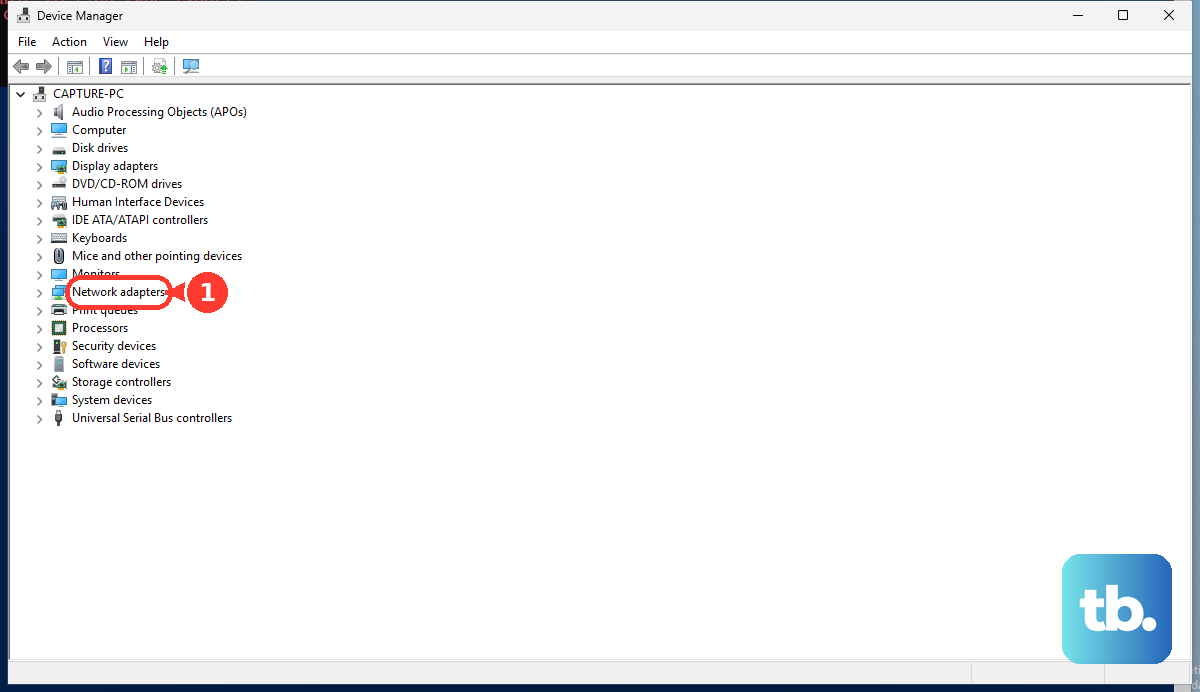
Select Uninstall device > Attempt to remove the driver for this device > Uninstall. After that, select Start > Power > Restart. If the adapter still does not work after the restart, install the downloaded manufacturer driver for that exact PC model.
7. Reset Windows networking as the last step
Microsoft still documents the command reset sequence for Ethernet problems. Run it before the full Windows 11 network reset, because the full reset removes and reinstalls network adapters and resets network settings.
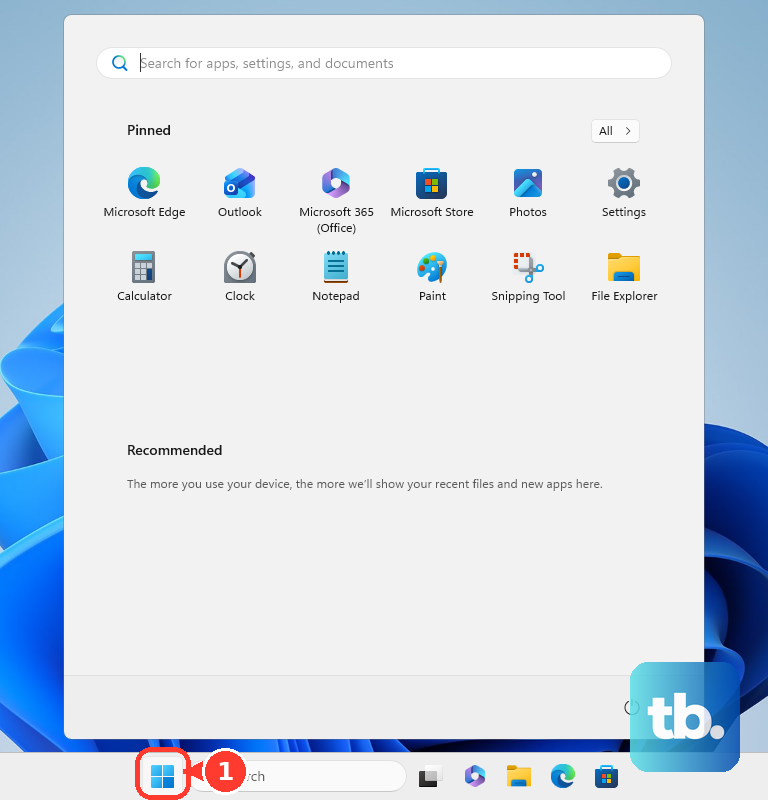
Select Search on the taskbar. Type Command prompt. Select Run as administrator > Yes.
Run netsh winsock reset, then run netsh int ip reset. Next, run ipconfig /release, then run ipconfig /renew. After that, run ipconfig /flushdns.
For the full Windows 11 reset, select Start, enter settings, then open Settings > Network & internet > Advanced network settings > Network reset > Reset now > Yes. Wait for the PC to restart, then reconnect Ethernet.
8. Handle adapters, firmware, and device-specific cases
On Macs without a built-in Ethernet port, connect through a supported USB-to-Ethernet or Thunderbolt-to-Gigabit-Ethernet adapter. Then configure the Ethernet service in System Settings > Network.
If the Mac Ethernet service is stale, open System Settings > Network. Use Delete Service or Make Inactive, then use the Action pop-up menu > Add Service. Choose the Ethernet interface, enter Service Name, and select Create.
On iPhone or iPad with USB-C, open Settings > Privacy & Security, scroll to Security, then tap Wired Accessories when a wired Ethernet adapter is blocked. On PCs where onboard LAN is disabled in firmware, enable LAN in UEFI or BIOS using the manufacturer’s model-specific menu.
ASUS NUC documents F2 during boot, then Advanced > Devices > Onboard Devices > enable LAN > F10 to save and exit; Lenovo documents the same class of onboard Ethernet LAN setting with model-specific labels. For managed work devices, stop before changing manual IP, DNS, proxy, driver, firmware, or BIOS settings. Use the values and adapter rules supplied by the administrator.
Frequently Asked Questions
Why does Wi-Fi work but my Ethernet cable does not?
That result narrows the problem to the wired side: the Ethernet cable, router LAN port, computer Ethernet adapter, or wired network settings.
Should my Ethernet cable go into the WAN port?
No. A computer should use a router LAN or Ethernet port. The WAN or Internet port is for the connection between the modem and router.
What does Renew DHCP Lease do on a Mac?
It asks the DHCP server for a fresh IP address for the selected Ethernet service, which fixes a wired connection stuck with bad automatic network details.
When should I use Windows Network reset?
Use it last on Windows 11 after cable, router, troubleshooter, IP, proxy, driver, and command reset steps fail, because it removes and reinstalls network adapters and resets network settings.