An Ethernet port that stops working can make your computer look completely offline, even when the rest of your internet is running. Start with the cable and router port, then move into diagnostics, drivers, IP settings, and adapter setup. These fixes follow current vendor-supported steps for Windows 11, macOS, Ubuntu, and ChromeOS.
1. Check The Cable And LAN Port First
Use a known-good Ethernet cable and plug it into a router LAN port. Unplug the Ethernet cable from the computer and the router, then plug it back into the computer's Ethernet port until it clicks. Plug the other end into a router LAN Ethernet port, and try a different Ethernet cable if one is available.
The cable needs to click firmly into the computer's Ethernet port and into a LAN Ethernet port on the router. Do not plug it into the router or modem port labeled Internet. On Ubuntu, also check the light beside the Ethernet port. A link light confirms that the cable and port have made a physical connection.
2. Restart The Modem And Router
- 1.Unplug the router power cable.
- 2.Unplug the modem power cable.
- 3.If the modem has a backup battery and its lights stay on after unplugging, remove the battery.
- 4.Wait at least 30 seconds.
- 5.Reconnect the modem power and wait for the lights to settle.
- 6.Reconnect the router power.
Wait a few minutes, then try Ethernet again. A stuck router or modem can break wired connections while the computer itself is fine, so power-cycle the network gear before changing drivers or IP settings.
3. Narrow Down The Failing Part
Now separate a bad computer port from a bad cable, router, adapter, or internet connection. Connect the same computer to Wi-Fi if the router has Wi-Fi, then Connect another Windows PC to the same Ethernet network if one is available. After that, Use a USB to Ethernet adapter if you have one and the computer supports it.
If Wi-Fi works on the same computer but Ethernet does not, focus on the Ethernet port, cable, adapter, driver, or Ethernet settings. If another computer fails on the same cable and router LAN port, the problem is outside the original computer.
4. Run Windows 11 Network Diagnostics
Open the Get Help app and search for connect to network and internet. Select Run network diagnostics, then complete the troubleshooting steps shown by Windows.
On Windows 11, use Microsoft's current troubleshooting surface. Then check the Ethernet status directly at Start > Settings > Network & internet and look at the Ethernet connection status at the top of the screen. If Windows shows Action needed, select Ethernet to view the Ethernet connection settings.
Skip older instructions that send you to classic standalone troubleshooters. Microsoft's current Windows 11 route is Get Help network diagnostics.
5. Repair Windows Drivers And IP Settings
A bad Ethernet driver can stop the port from working even when the cable and router are fine. Start in Device Manager.
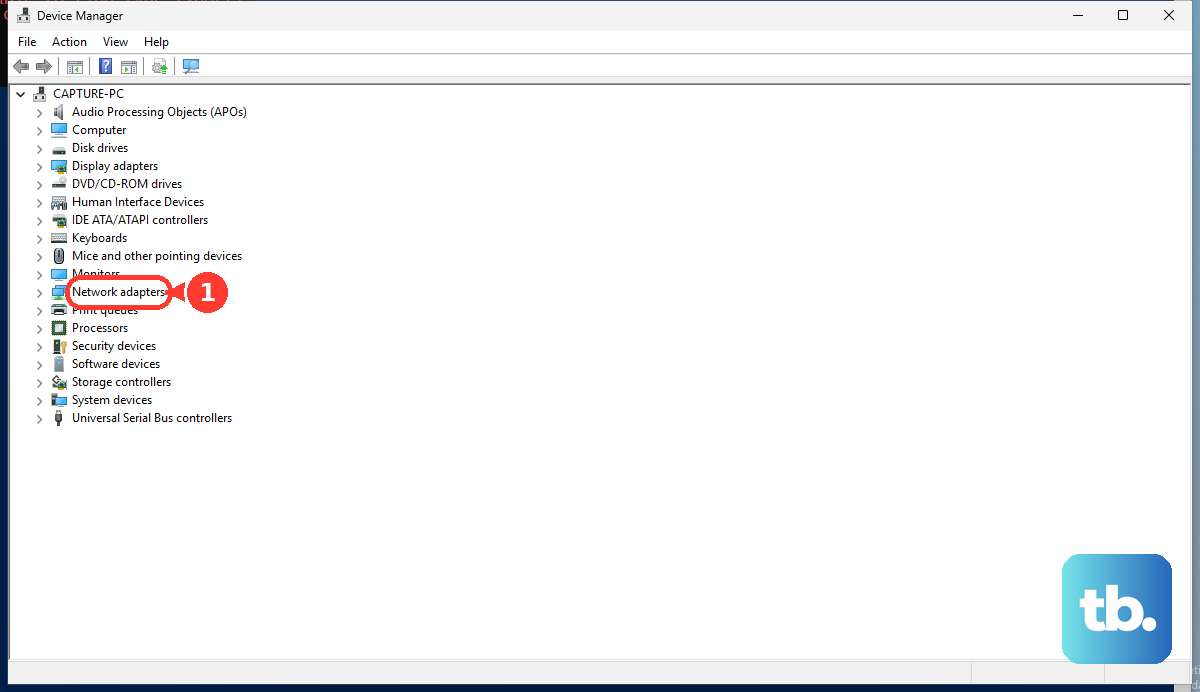
Right-click Start and select Device Manager. Expand Network adapters, then right-click the Ethernet adapter and select Update driver. Select Search automatically for updated driver software, follow the prompts, close the window, and restart if Windows asks.
Check optional driver updates next at Start > Settings > Windows Update > Advanced options > Optional updates. If a network or Ethernet driver is listed, select it, choose Download and install, and restart.
For manufacturer drivers, use official sources only. Dell users can use Dell Drivers & Downloads or SupportAssist. HP users can use HP Software and Drivers. Supported Intel Ethernet adapters and controllers can use Intel's Ethernet Adapter Complete Driver Pack.
If Ethernet broke right after a driver update, roll the driver back in Device Manager: expand Network adapters, right-click the Ethernet adapter, choose Properties, open the Driver tab, select Roll Back Driver, choose a reason, select Yes, and restart if prompted. The option appears only when Windows has a previous driver to restore.
Confirm DHCP at Start > Settings > Network & internet > Ethernet. Select the Ethernet network, choose Edit next to IP assignment, then select Automatic (DHCP). Use Manual only with IP address, subnet, gateway, and DNS values from your ISP or network administrator.
6. Reset Windows Networking
Search the taskbar for Command prompt, select Run as administrator, and select Yes. Run netsh winsock reset, then run netsh int ip reset. Next, run ipconfig /release, run ipconfig /renew, and run ipconfig /flushdns.
When the Windows adapter appears but Ethernet still will not connect, reset the network stack with Microsoft's command sequence. If that does not hold, use Windows Network reset at Start > Settings > Network & internet > Advanced network settings > Network reset. Select Reset now, choose Yes, and wait for the PC to restart.
For a driver-level reset, have the PC manufacturer's latest network adapter driver available first. Then open Device Manager, expand Network adapters, right-click the Ethernet adapter, choose Uninstall device, check Attempt to remove the driver for this device, select Uninstall, then restart from Start > Power > Restart.
7. Fix Ethernet On A Mac
Connect the Ethernet cable between your router, modem, switch, or wall jack and the Mac's Ethernet port. If the Mac has no Ethernet port, use a USB to Ethernet Adapter or Thunderbolt to Gigabit Ethernet Adapter.
Set the Mac to DHCP through Apple menu > System Settings > Network, click the Ethernet service, then open Details > TCP/IP. Set Configure IPv4 to Using DHCP. Use Using DHCP with manual address or Manually only with values from your ISP or network administrator.
Refresh the Mac's network address from Apple menu > System Settings > Network. Click the Ethernet or network service, open Details > TCP/IP, select Renew DHCP Lease, then choose OK.
Using a USB-C or Thunderbolt Ethernet adapter on an Apple silicon Mac laptop? Allow the accessory when macOS prompts you. To change the setting, open Apple menu > System Settings > Privacy & Security > Accessories, then use the menu next to Allow accessories to connect.
For a clean network test, create a new location from Apple menu > System Settings > Network. Use the More pop-up menu below the service list, choose Locations > Edit Locations, select the add button, name the location, choose Done, then make Ethernet changes in that new location.
Install macOS updates from Apple menu > System Settings > General > Software Update. Do not use Command-S single-user mode as an Ethernet repair step on current macOS. Apple says Command-S single-user mode is disabled in macOS Mojave or later.
8. Connect Ubuntu And ChromeOS Ethernet Adapters
On Ubuntu, plug in the network cable and watch for the wired network icon on the top bar while it connects. If Ubuntu does not connect, confirm one end is in the computer Ethernet port and the other end is in a switch, router, network wall socket, or similar connection point.
If the Ubuntu network does not use automatic setup through DHCP, open the wired network settings. Enter the IP, netmask or prefix, gateway, and DNS values supplied by your ISP or administrator.
On a Chromebook or ChromeOS device, plug in a supported USB Ethernet adapter, then connect the Ethernet cable. Open Settings from the status area, or type chrome:settings in the browser Omnibox. Under the network settings, select Ethernet when the USB Ethernet adapter is in use.
9. Hand Managed Network Blocks To IT
Escalate managed Ethernet blocks instead of bypassing policy. Work and school computers can block Ethernet through device installation policies, managed drivers, dock rules, or wired authentication. Escalate it to IT when Device Manager says driver installation is blocked by policy, when the Ethernet adapter is part of a managed dock setup, or when a Mac on an organization network asks for certificates or 802.1X authentication.
On managed Windows PCs, IT can check Local Group Policy Editor device installation restrictions or MDM DeviceInstallation policies. On managed Apple networks, IT can configure Ethernet 802.1X payloads, trusted certificates, EAP settings, and authentication profiles.
Frequently Asked Questions
Why does Wi-Fi work but my Ethernet port does not?
Wi-Fi working points the problem toward the Ethernet cable, router LAN port, Ethernet adapter, driver, or Ethernet settings rather than the internet service itself.
Should I set a manual IP address to fix Ethernet?
Use Automatic (DHCP) first. Enter manual IP, gateway, subnet, and DNS values only when your ISP or network administrator provided them.
Can a USB Ethernet adapter fix a bad computer Ethernet port?
Yes. It can also isolate the failure. If Ethernet works through a USB adapter, the built-in port, its driver, or its settings is the part to inspect next.
Is Airplane mode an Ethernet fix?
No. Airplane mode controls wireless radios, not Ethernet ports, on Windows, Ubuntu, and ChromeOS. macOS has no Airplane mode setting, so on a Mac you toggle Wi-Fi or Bluetooth directly. Ethernet stays unaffected either way.