


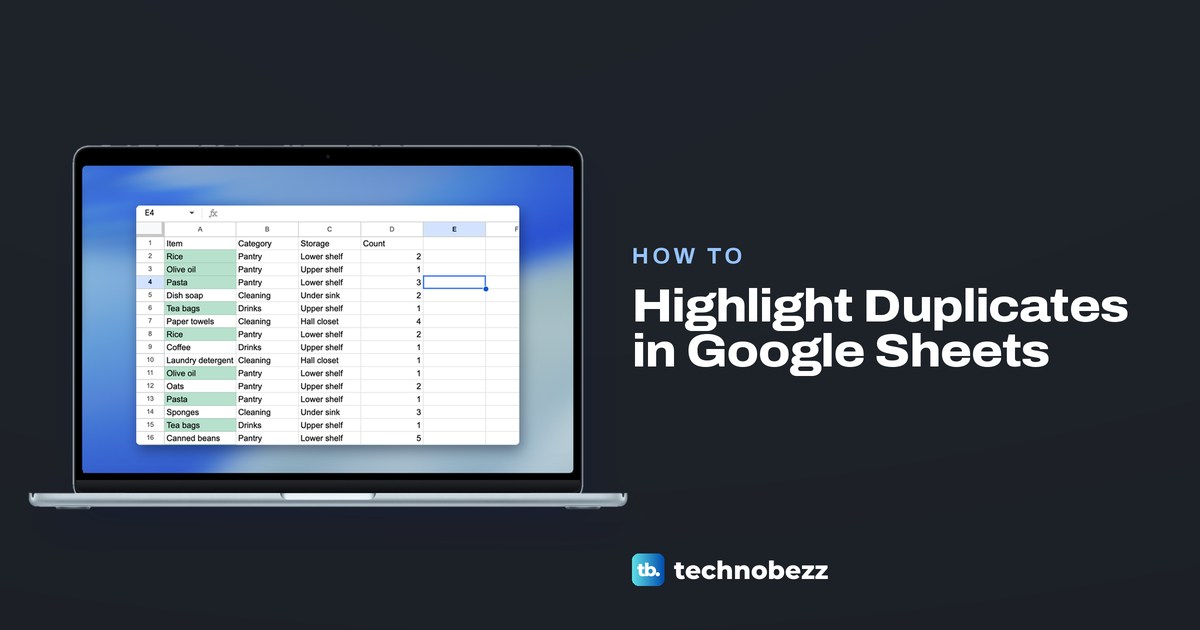
To highlight duplicates in Google Sheets, select the cells to check without their heading, open Format > Conditional formatting, choose Custom formula is and enter a COUNTIF rule such as =AND(A2<>"",COUNTIF($A$2:$A$17,A2)>1). Click Done, and every value that appears more than once turns green, the first copy included. Nothing is deleted, so it is a safe way to find duplicates in Google Sheets before you clean them up.
In that formula, $A$2:$A$17 is the list being counted and A2 is its first cell, so change both to match your column. We ran each formula in this guide on a 16-row household supply list, and each one picked out exactly the rows it should. Two results are worth knowing first: the rule followed our edits at once, but an item typed one row below its range stayed plain.
The short version
- Every repeat: select A2:A17, choose Format > Conditional formatting > Custom formula is, enter the COUNTIF rule and click Done.
- Only later copies: count a growing range, COUNTIF($A$2:A2,A2).
- Whole rows: apply the rule to A2:D17 and write $A2.
- Several columns must repeat together: use COUNTIFS.
- Green rows together: Data > Create a filter, then Filter by color.
- Phones: Android can add the rule; iPhone and iPad only show it.
Ways to highlight duplicates at a glance
Each formula below was run on our supply list, with the items in A2:A17 and four columns from A to D. Change the ranges to fit your sheet and keep the dollar signs where they are.
| What to find | Where the rule goes | Formula | What it showed on our list |
|---|---|---|---|
| Every repeated item | Apply to range A2:A17 | =AND(A2<>"",COUNTIF($A$2:$A$17,A2)>1) | Nine cells: each Rice, Olive oil, Pasta and Tea bags |
| Only the second and later copies | Apply to range A2:A17 | =AND(A2<>"",COUNTIF($A$2:A2,A2)>1) | Rows 8, 11, 13, 15 and 17 |
| The whole row when the item repeats | Apply to range A2:D17 | =AND($A2<>"",COUNTIF($A$2:$A$17,$A2)>1) | The same nine rows, across A to D |
| The whole row when item and storage both repeat | Apply to range A2:D17 | =AND($A2<>"",$C2<>"",COUNTIFS($A$2:$A$17,$A2,$C$2:$C$17,$C2)>1) | Six rows: 2, 4, 6, 8, 13 and 15 |
| The whole row only when every column matches | Apply to range A2:D17 | =AND($A2<>"",COUNTIFS($A$2:$A$17,$A2,$B$2:$B$17,$B2,$C$2:$C$17,$C2,$D$2:$D$17,$D2)>1) | Four rows: 2 and 8, 6 and 15 |
| A count, with no color | A formula in E2, copied down | =COUNTIF($A$2:$A$17,A2) | 3 for Rice, 2 for Olive oil, Pasta and Tea bags, 1 for the rest |
Highlight every duplicate in a column
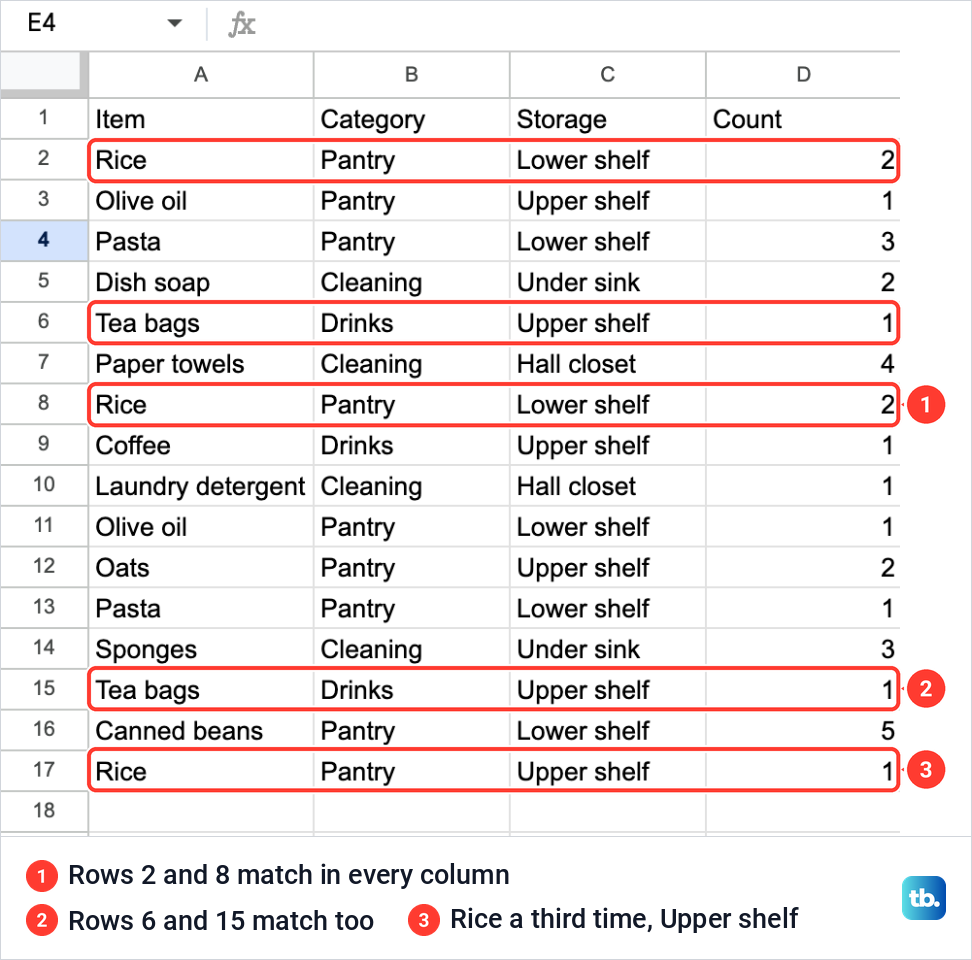
Our file, Household Supply List, had the headings Item, Category, Storage and Count in row 1 and sixteen rows below. Rows 2 and 8 match in every column, and so do rows 6 and 15, while Olive oil repeats on another shelf, Pasta repeats with another count and Rice turns up a third time on the Upper shelf.
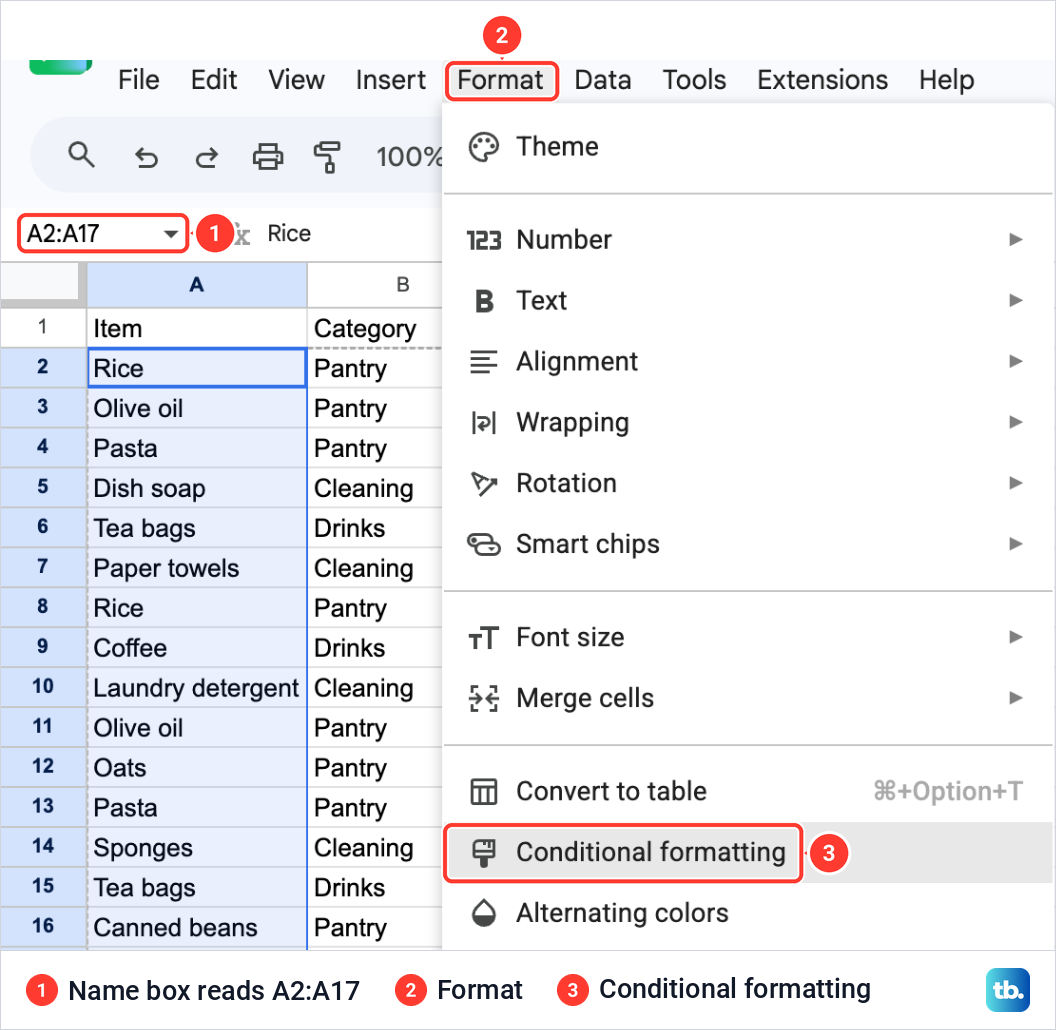
Select the cells you want to check, A2 to A17 on ours, leaving the heading out, and open Format > Conditional formatting. On our menu it sat just under Convert to table, the command that makes a table in Google Sheets, so check which one you click.
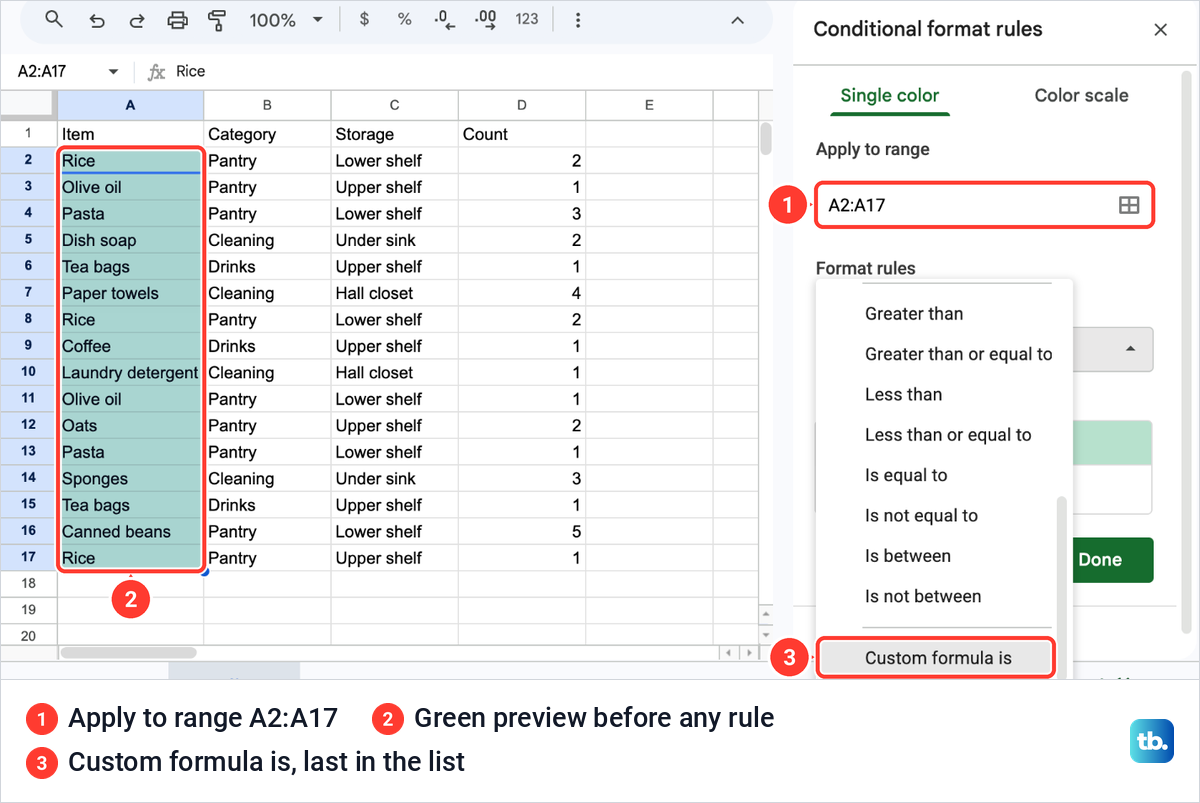
The Conditional format rules panel opens on the right with your cells already in Apply to range. Before we had typed anything, Sheets had picked the condition Is not empty and was showing its Default green on the whole column, so an all-green column at this point is normal. Open the Format cells if list and scroll to the end, where Custom formula is is the last entry.
Click the box under it and type the rule for the first cell of your range. Ours was this formula.
=AND(A2<>"",COUNTIF($A$2:$A$17,A2)>1)COUNTIF counts how often the value in A2 appears in $A$2:$A$17, and >1 colors it when that is more than once. The dollar signs hold the counted range still while the plain A2 moves down with each cell. The A2<>"" part skips empty cells, which matters once your range runs past the end of the list.
Our nine repeated cells turned green while the panel was still open, before we clicked anything: Rice in rows 2, 8 and 17, Olive oil in 3 and 11, Pasta in 4 and 13 and Tea bags in 6 and 15. The seven items listed once and the heading stayed plain. Leave Formatting style on Default for that pale green, or pick your own fill, then click Done.
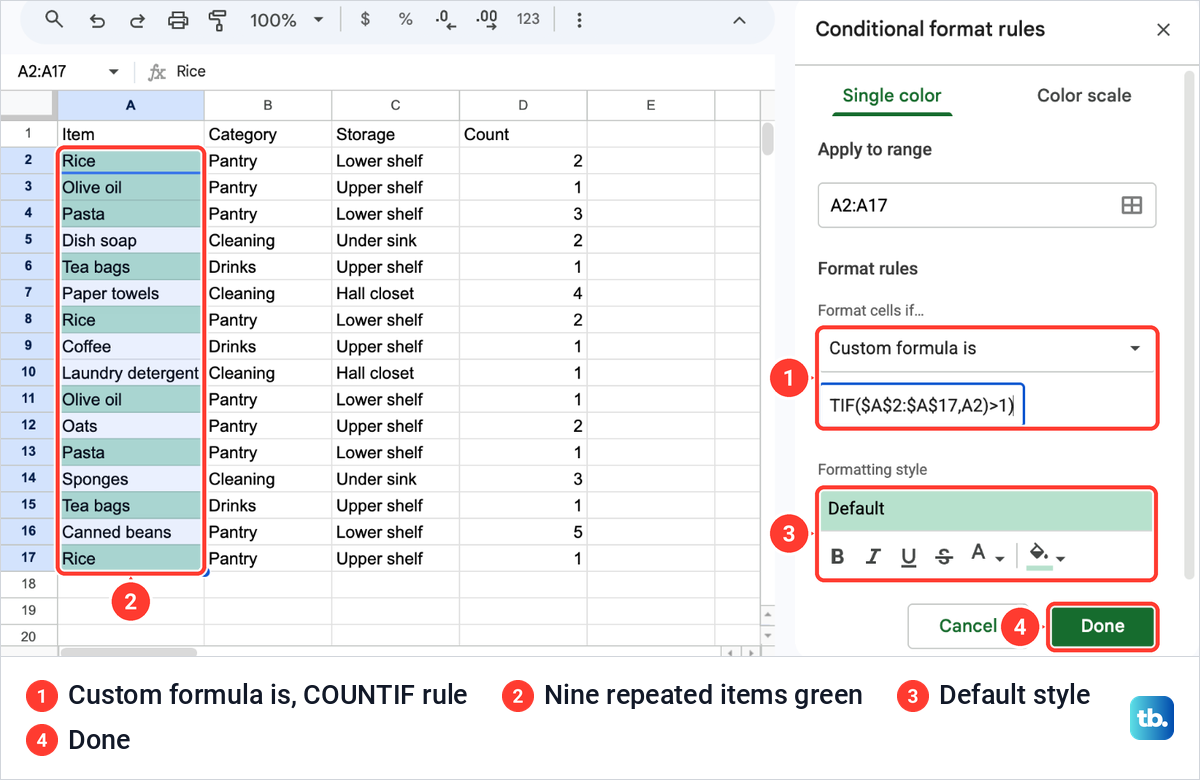
After Done the rule was listed as a card and the same nine cells stayed green. Because the color shows before Done, you can check a formula against your own data before you save the rule.
Check or change the rule later
Click any colored cell and open Format > Conditional formatting again. Instead of a blank rule, the panel lists the existing one as a card with Custom formula is, the start of the formula and its range, A2:A17 on ours.
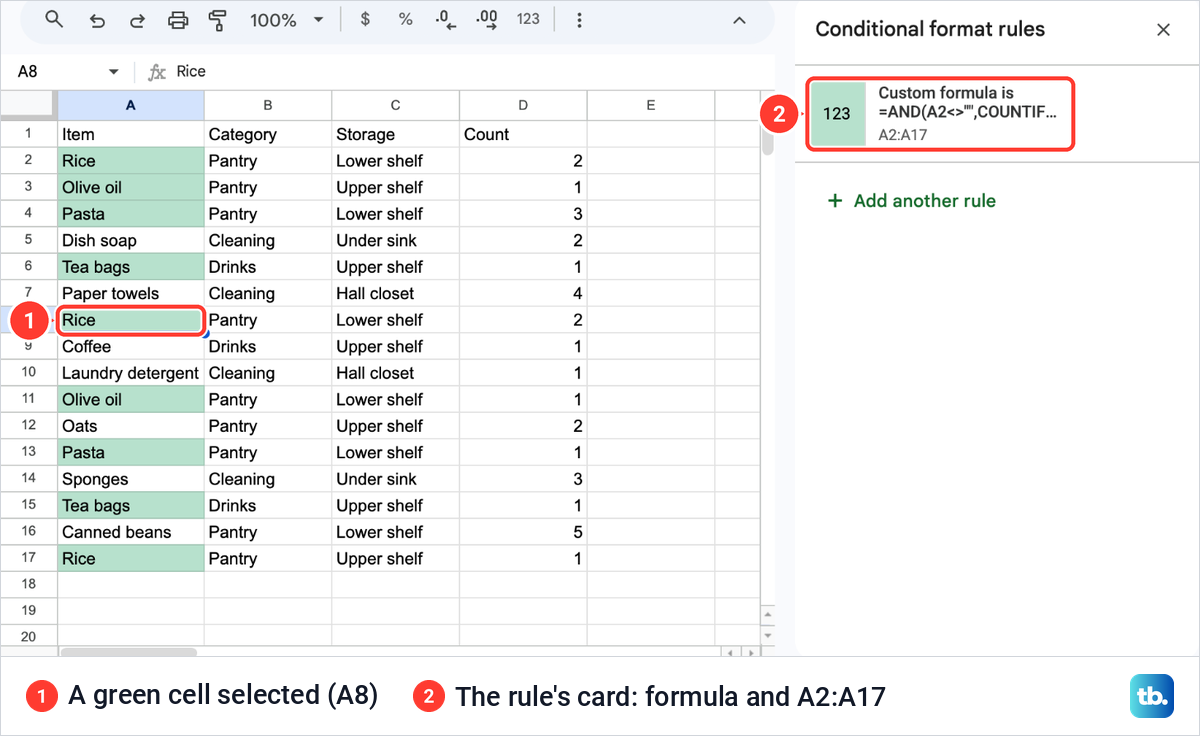
A click on the card reopened our rule, ready to edit. The formula box is narrow and showed only part of our formula, so click inside it to move through the text, or paste the whole formula again.
Highlight only the second and later copies
To leave the first entry of each item plain and color only the copies after it, change the formula so the counted range grows as the rule moves down. We opened the rule from its card, replaced the formula with this one and kept the range at A2:A17.
=AND(A2<>"",COUNTIF($A$2:A2,A2)>1)The range now starts at the fixed $A$2 and ends at the current row, so each cell is only compared with the cells above it. On our list that colored rows 8, 11, 13, 15 and 17, while the first Rice, Olive oil, Pasta and Tea bags in rows 2, 3, 4 and 6 stayed plain.
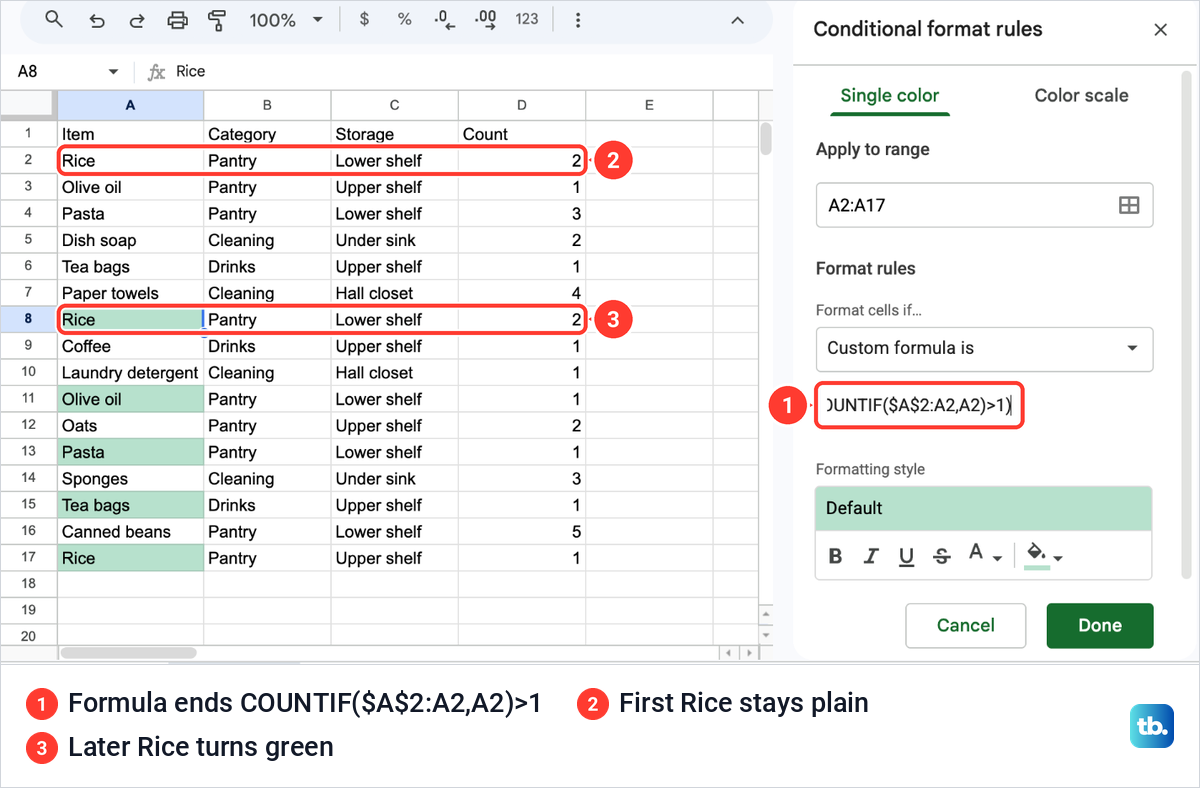
This rule marks later repeats of the item name, not repeated records: our green Olive oil, Pasta and third Rice differ from the first entry in Storage or Count. Check the other columns before deleting a row, or use the whole-record rule below. If only the lower of two matching cells turns green, the rule has a growing range; the fixed $A$2:$A$17 colors both.
Highlight the whole row when an item repeats
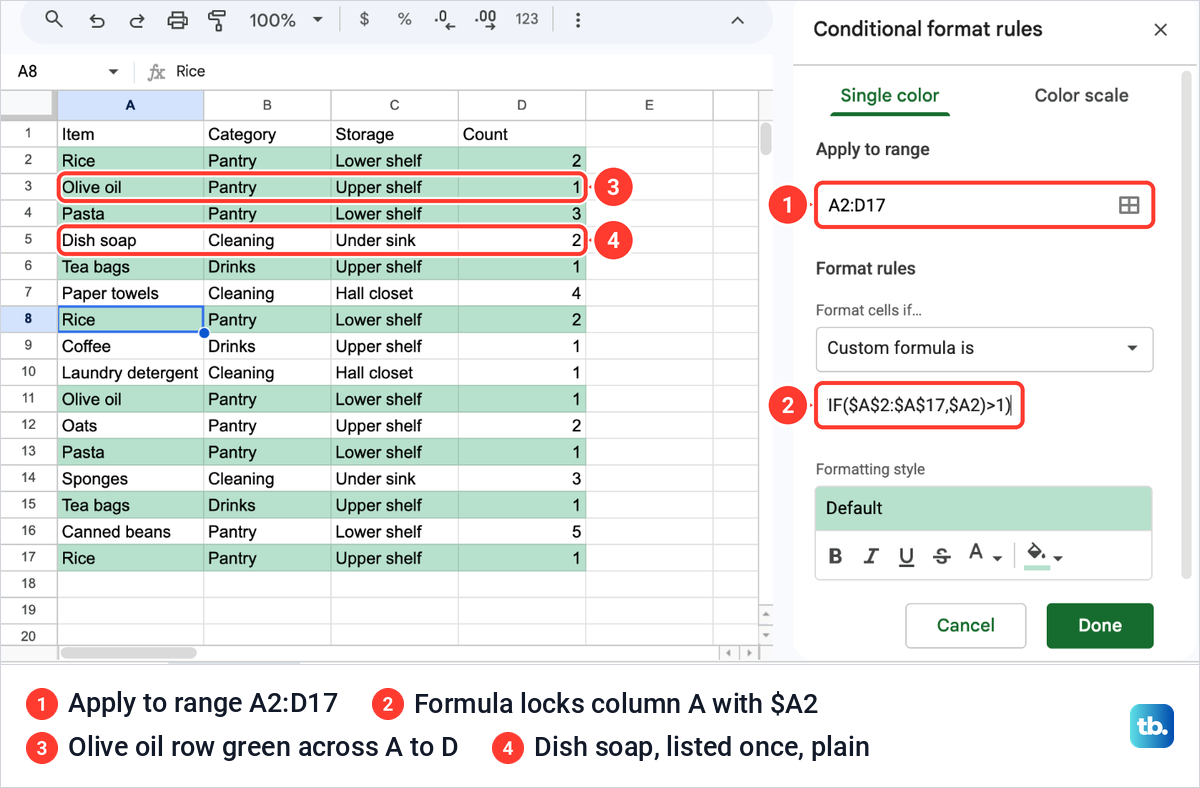
To color every cell of a row, not only the item, open the rule and change Apply to range to the whole table without its heading, A2:D17 on ours. Then put a dollar sign before each A in the moving part of the formula, so every column checks the Item column.
=AND($A2<>"",COUNTIF($A$2:$A$17,$A2)>1)$A2 keeps the column fixed at A while the row still changes, so the cells in B, C and D look at their own row's item. Without it, the colors land in the wrong places. Columns A to D turned green on the same nine rows as before, and the heading row stayed plain.
Highlight rows where two columns both repeat
A repeated item is not always a repeated record. Our Olive oil appears twice but on different shelves, and our two Pasta rows hold different counts. COUNTIFS checks several columns at once, and each extra pair of range and value narrows the match.
To color a row only when the item and the storage place both repeat, we used this rule on A2:D17. Each range must cover the same rows, 2 to 17 here.
=AND($A2<>"",$C2<>"",COUNTIFS($A$2:$A$17,$A2,$C$2:$C$17,$C2)>1)Six rows turned green: the two Rice rows on the Lower shelf, the two Pasta rows on the Lower shelf and the two Tea bags rows on the Upper shelf. Both Olive oil rows stayed plain because their shelves differ, and so did the third Rice, in row 17, on the Upper shelf.
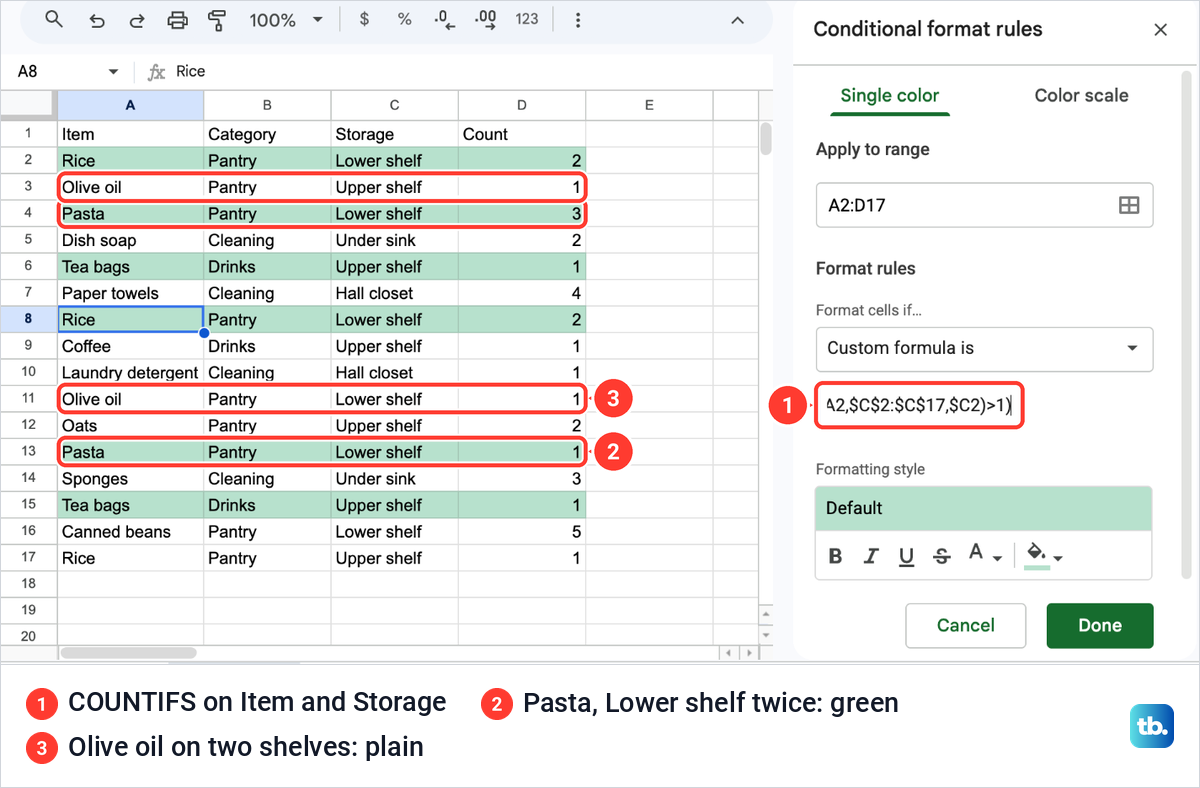
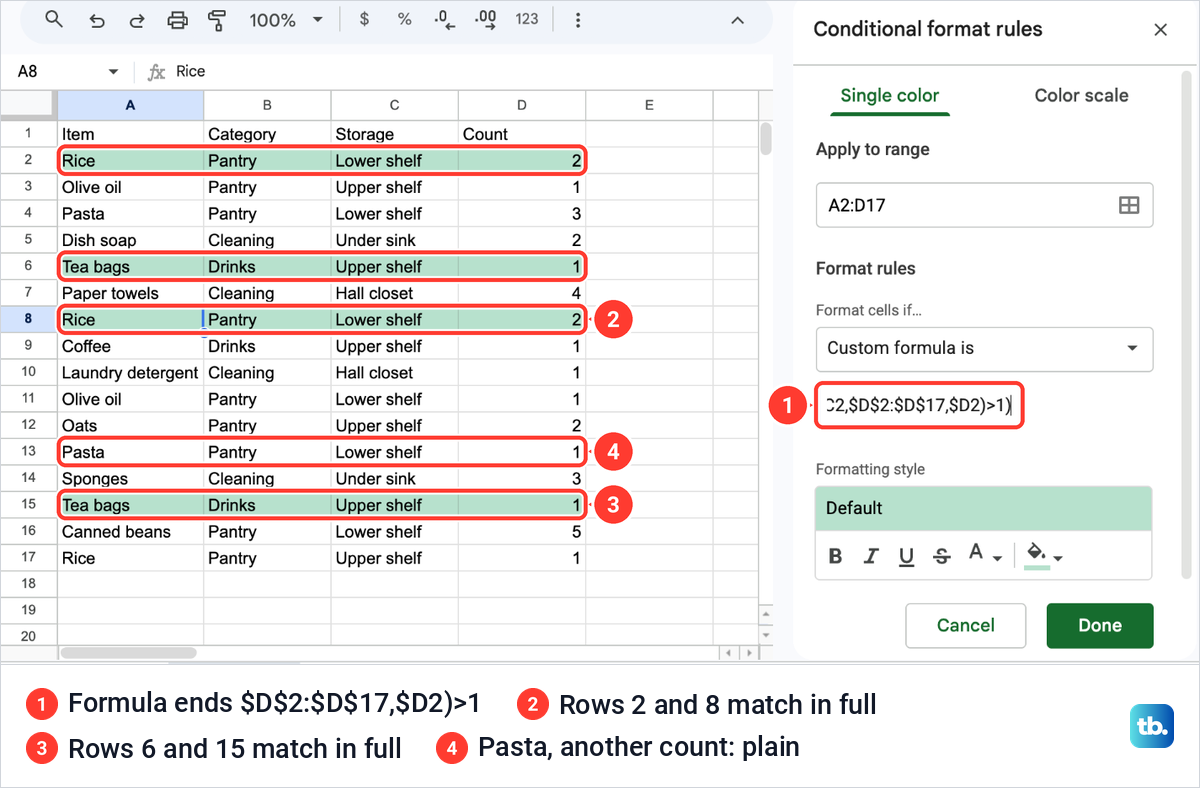
For a true duplicate row, add a pair for every column. With all four columns in the rule, only rows 2 and 8 and rows 6 and 15 turned green, the two records that match in full.
=AND($A2<>"",COUNTIFS($A$2:$A$17,$A2,$B$2:$B$17,$B2,$C$2:$C$17,$C2,$D$2:$D$17,$D2)>1)The Pasta rows stayed plain this time, since one holds 3 and the other 1 in Count. If your table has more columns, add one more range and value for each, such as $E$2:$E$17,$E2.
Keep new entries inside the rule
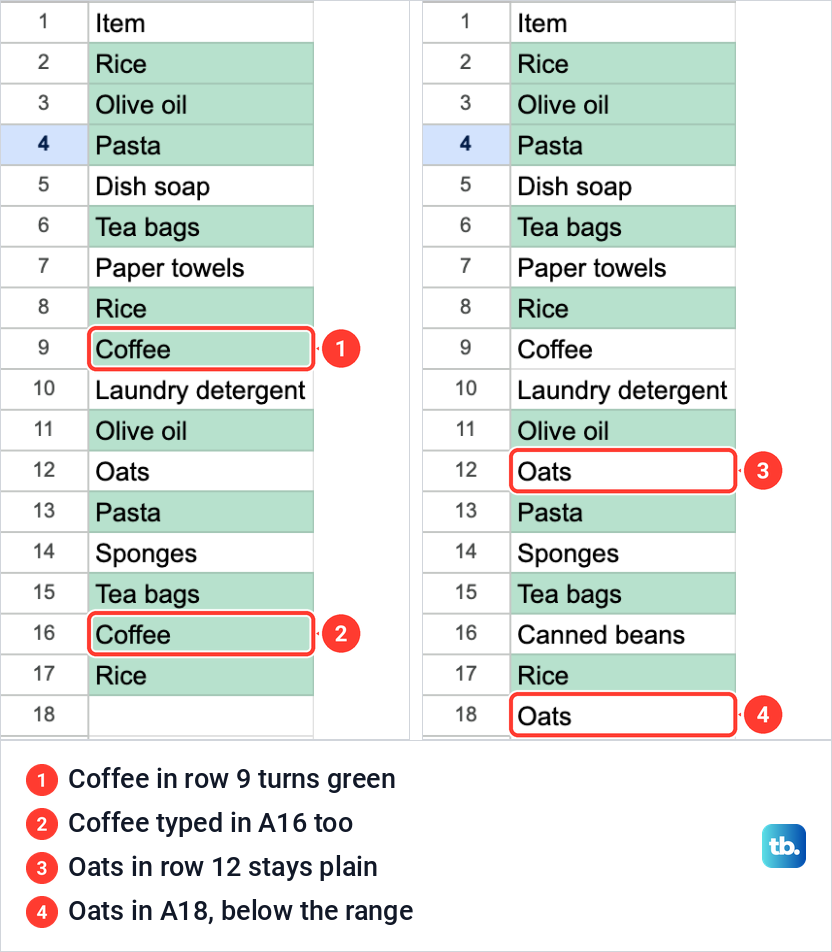
The rule watches its range, not a fixed set of values. When we typed Coffee over Canned beans in A16, the Coffee in row 9 and the new one in A16 turned green at once. The existing rule updated the colors as the value changed.
A new item typed below the range is a different story. We typed Oats in A18, one row under A2:A17, and neither it nor the Oats in row 12 changed color, because row 18 is outside both the cells the rule colors and the cells COUNTIF counts.
If your list grows, make the range longer than the data in both places, such as A2:A500 in Apply to range and $A$2:$A$500 in the formula. Keep it to rows you will use, since rules over huge ranges can slow a big sheet; the AND part keeps the empty rows plain.
Count duplicates without adding color
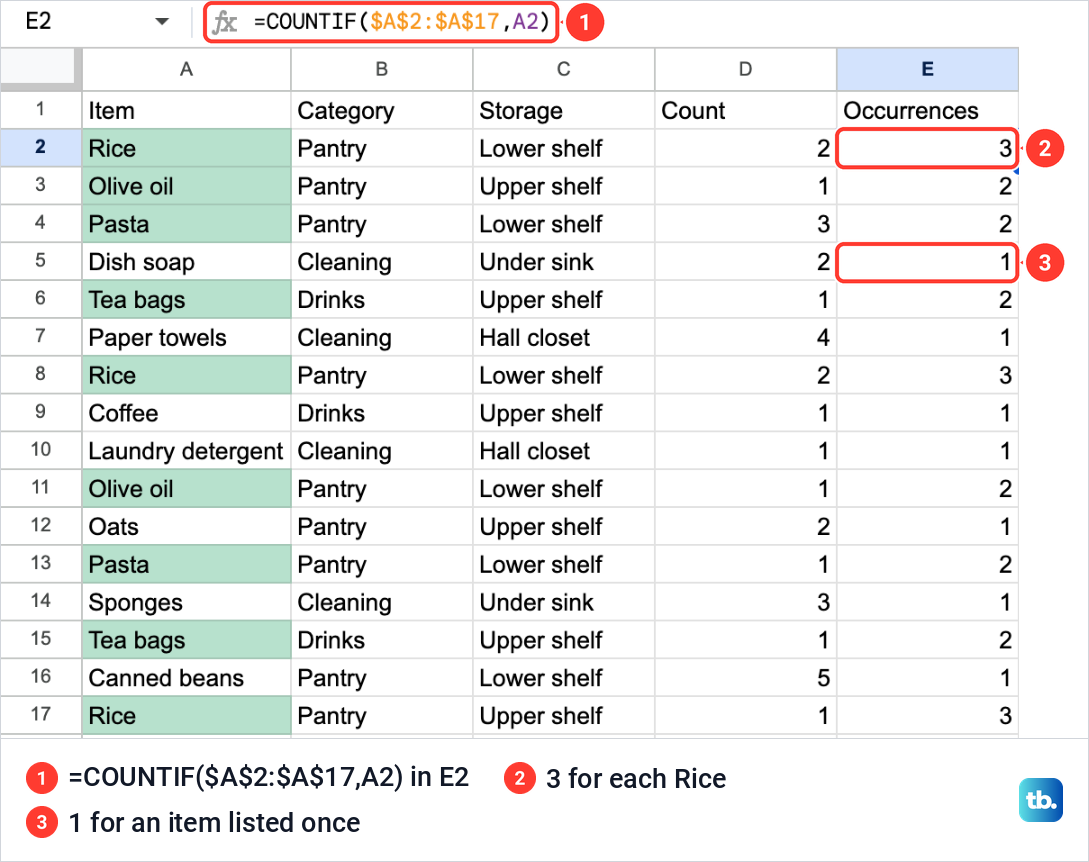
A count column tells you how many times each item appears, which a color cannot. We added the heading Occurrences in E1, typed this formula in E2 and copied it down to E17.
=COUNTIF($A$2:$A$17,A2)Each Rice showed 3, each Olive oil, Pasta and Tea bags showed 2, and every item listed once showed 1. Anything above 1 is a repeated item, though not always a repeated record. If the column beside your table is taken, add a column in Google Sheets first and delete it when you are done.
Repeats also count twice in a sum. Rows 2 and 8 hold the same Rice record, so both would go in if you total a column in Google Sheets such as Count.
Show only the highlighted rows
To bring the green rows together, select the table with its heading, A1:D17 on ours, and choose Data > Create a filter. On a long list it helps to freeze a row in Google Sheets first, so the heading and its filter buttons stay in view. Click the filter button in the Item heading, then Filter by color > Fill Color.
Sheets listed two fills there: white, and the rule's green under its code, #B7E1CD, rather than a name. Choose the fill you set for the rule; our Default green appeared as that code.
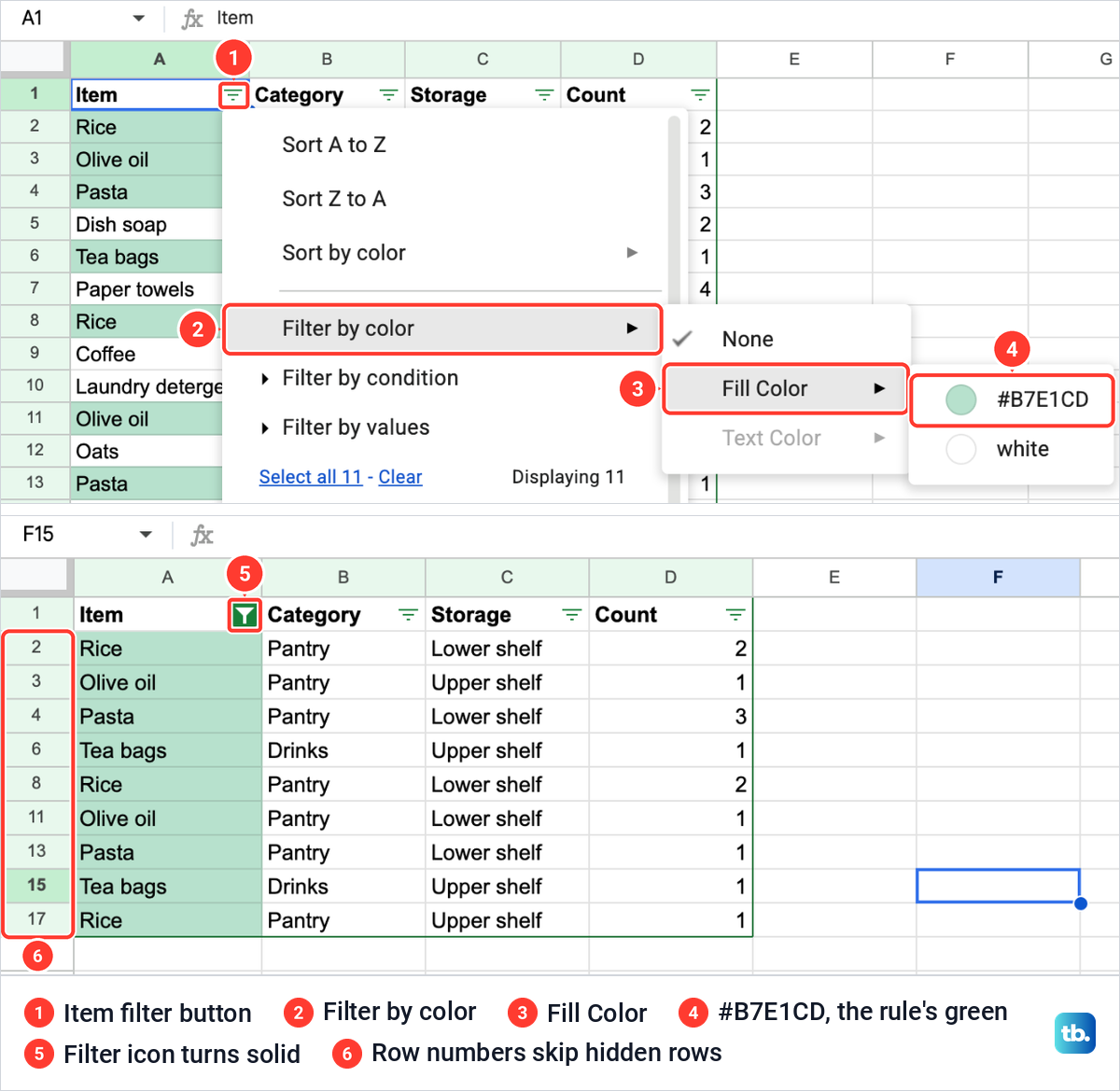
Choosing it left nine rows on our sheet, with the row numbers jumping over the hidden ones and the Item filter button solid green. Data > Remove filter brought all sixteen back.
The same menu offers Sort by color, which moves the chosen color to the top instead of hiding the rest, and Sort A to Z, which puts matching items side by side, as in our guide to alphabetizing and sorting in Google Sheets. A filter is part of the sheet, so anyone with access to the file sees it too.
Why some duplicates are not highlighted
Most misses come from the range. The formula's first cell must be the top-left cell of Apply to range, A2 for A2:A17, and the counted range needs its dollar signs, or it slides down with the rule. As our Oats in row 18 showed, an entry outside the range is neither colored nor counted.
COUNTIF ignores letter case, so rice and Rice count as the same item, but a word with a space after it is different text from the same word without one. Select the column and choose Data > Data cleanup > Trim whitespace to remove leading, trailing and extra spaces, though a non-breaking space is not trimmed.
When a cell has two rules, the first one in the list that is true sets its color, so drag a card by the handle at its left to move the rule you want to the top. Copying cells also copies their rules, so a stray color can come from a paste. A drop-down list in Google Sheets keeps near-duplicates out of columns like Category, where the same few words repeat.
Remove the highlight or the duplicates
To take the colors away, select a colored cell, open Format > Conditional formatting and point at the rule's card. A bin icon appears at its right, and its tooltip reads Remove rule.
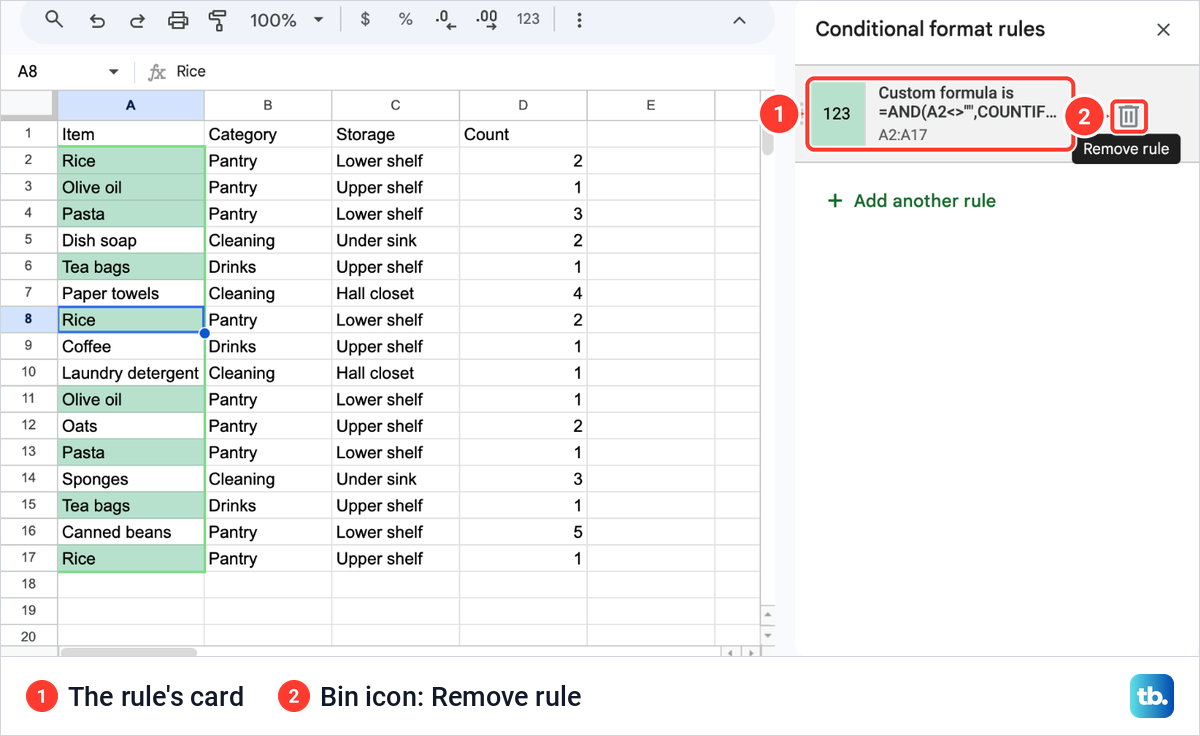
One click on our bin cleared every green fill. The sixteen rows were untouched and the panel showed only Add another rule, because a rule only changes how cells look.
Deleting the repeated rows is a separate command. Select the table with its heading and choose Data > Data cleanup > Remove duplicates. Our dialog read 17 rows and 4 columns selected, with every column ticked.
Data has header row was unticked when it opened, so tick it if row 1 holds headings. Once ticked, the list named each column by its heading, such as Column A - Item, one more reason to give your heading cells clear names in row 1.
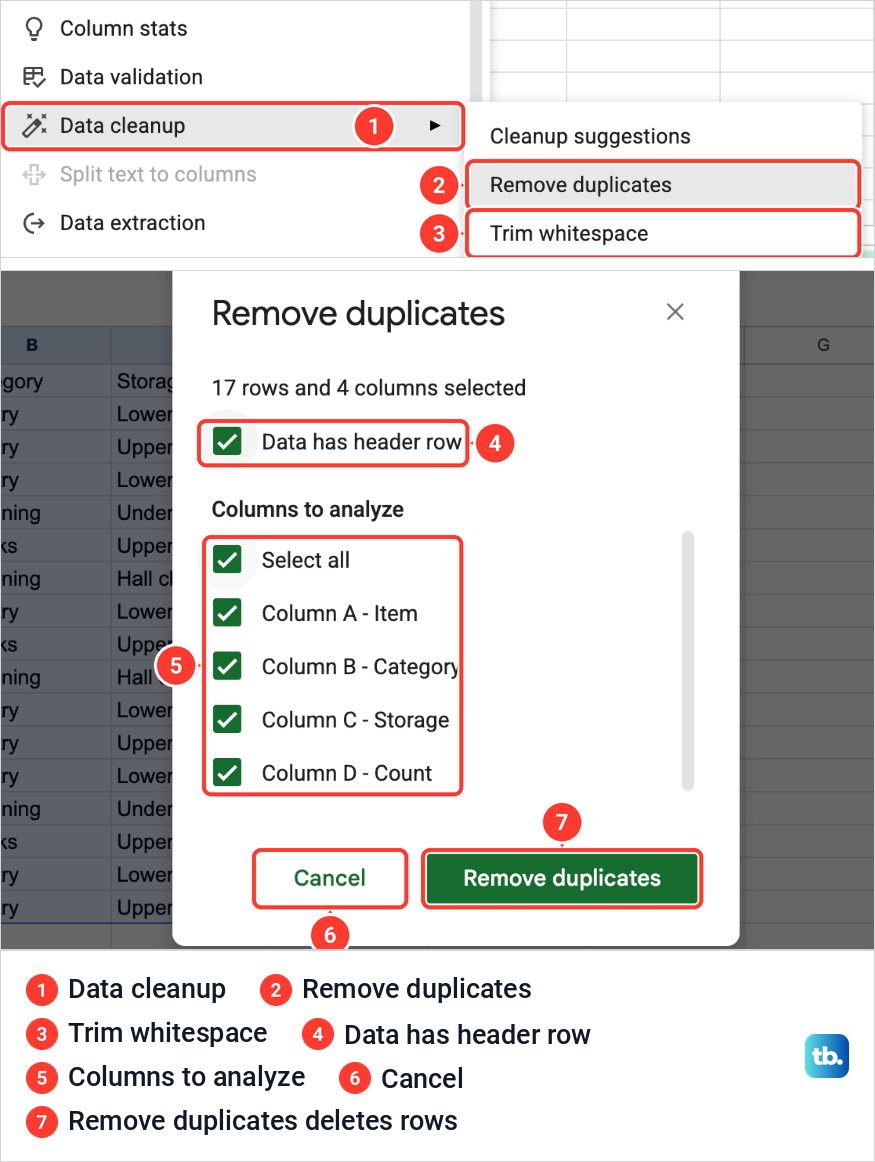
We closed the dialog with Cancel, so our list kept all sixteen rows. Clicking Remove duplicates deletes repeated rows across the ticked columns, treating cells that differ only in letter case or formatting as duplicates. Our guide to remove duplicates in Google Sheets covers that step, and Command + Z on a Mac or Ctrl + Z on Windows undoes it straight after.
Highlight duplicates on Android
The Google Sheets app for Android can add the same rule. Open the spreadsheet, select the cells, such as A2 to A17, and tap Format > Conditional formatting.
Under Format cells if, tap Custom formula, or tap an existing rule to change it. Tap Value or formula, type the same formula you would use on a computer, choose a formatting style and tap Done.
See highlighted duplicates on iPhone or iPad
On an iPhone or iPad, the Google Sheets app shows conditional formatting rules and their colors but cannot create or edit them. Add or change the duplicate rule on a computer or an Android device, and the colors show when you open the file on your iPhone.
Remove duplicates and Trim whitespace are not in the Android or iPhone app either. For those, open the file at sheets.google.com on a computer.
How we tested this guide
We tested this in Google Sheets on the web in Chrome on a Mac, up to the Remove duplicates dialog, which we closed with Cancel.
Frequently Asked Questions
How do I highlight all duplicates in Google Sheets, including the first one?
Use a fixed counted range, =AND(A2<>"",COUNTIF($A$2:$A$17,A2)>1), under Format > Conditional formatting > Custom formula is. Every copy then counts, so the first entry turns green with the rest.
How do I highlight only the second and later duplicates?
Use a range that grows down the column, =AND(A2<>"",COUNTIF($A$2:A2,A2)>1). On our list it left the first of each item plain.
How do I highlight rows where two columns both repeat?
Apply the rule to the whole table, such as A2:D17, and write $A2 in the formula. For two or more columns repeating together, use COUNTIFS with one range and value per column.
Why is conditional formatting not highlighting my duplicates?
Check that the formula's first cell is the top-left cell of Apply to range and that the counted range has its dollar signs. Entries below the range are left out, and a trailing space stops two words from matching.
Does highlighting duplicates delete them?
No. Removing our rule left all sixteen rows in place. Deleting repeats is Data > Data cleanup > Remove duplicates.
Can I highlight duplicates on my phone?
The Android app can add a custom formula rule. The iPhone and iPad app shows the colors but cannot edit rules, so make the rule on a computer.











