


To add a column in Google Sheets, right-click the letter at the top of a column and choose Insert 1 column left or Insert 1 column right. An empty column appears on that side, and the columns beyond it move one letter along. To add several at once, select that many column letters first, and the menu offers the same number.
We added columns to our Weekly expenses sheet in Chrome: one between Spent and Notes, two at once, and one past the last letter. We also checked what a new column did to a formula that pointed across it.
The short version
- One column: right-click a column letter and choose Insert 1 column left or Insert 1 column right.
- Several columns: select as many letters as you want new columns, then right-click one of them.
- From the menu bar: select the column, then choose Insert > Columns.
- Keyboard: select the column and press Command + Option + = on a Mac or Ctrl + Alt + = on Windows and ChromeOS for a column on the left.
- Past the last column: right-click the last letter and choose Insert 1 column right.
- On a phone: select the column, tap Insert and choose an option.
Ways to add a column at a glance
| Method | Select first | What you get |
|---|---|---|
| Right-click a column letter | One column letter | Insert 1 column left or Insert 1 column right |
| Insert > Columns in the menu bar | One column letter | The same two choices, with the count in bold |
| Right-click several letters | Two or more letters side by side | Insert 2 columns left or right for two letters, and the number follows how many letters you select |
| On a Mac: Command + Option + =. On Windows and ChromeOS: Ctrl + Alt + =. | The whole column | A new column on the left |
| On a Mac: Ctrl + Option + I, then C, then O. In Chrome on Windows and ChromeOS: Alt + I, then C, then O. | The whole column | A new column on the right |
| Right-click a cell | One cell | Insert 1 column left, with no right option |
| The Google Sheets app | A column | Insert, then an option from the menu |
The table describes Google Sheets on the web with its default menus, plus the phone app. The menu-key sequences, the Windows and ChromeOS keys and the app row follow Google's own instructions.
How to add a column to the left or right
Click the letter at the top of the column next to where the new one should go. In our sheet that was E, the Notes column, because we wanted a new column between Spent and Notes. The whole column turned blue, and the Name box at the left of the formula bar read E:E.
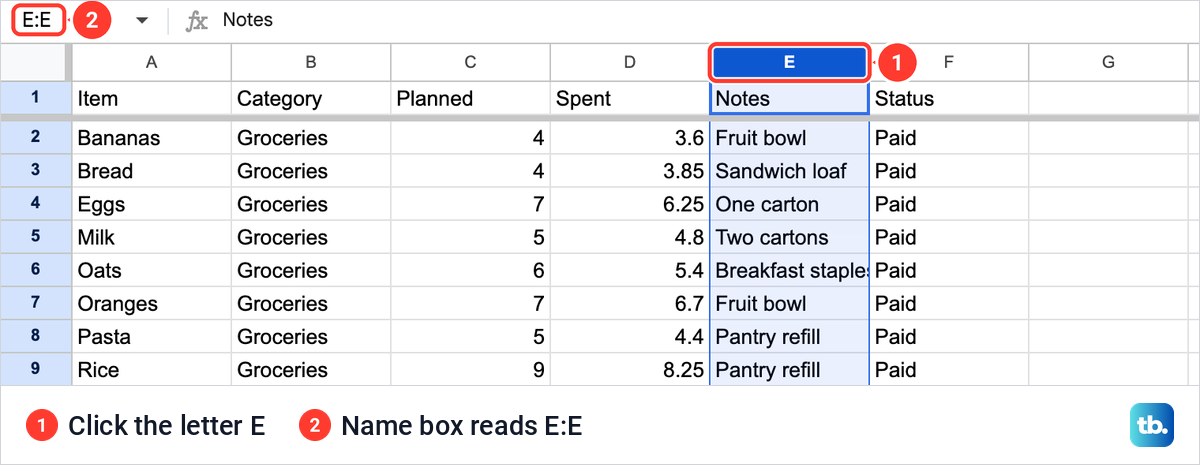
The thick grey line under row 1 in our pictures marks a frozen heading row, which stays at the top as you scroll down. It made no difference to adding columns, and our guide shows how to freeze a row in Google Sheets if you want the same.
Now right-click the selected letter. The menu lists Cut, Copy and Paste, then Insert 1 column left and Insert 1 column right, followed by Delete column, Clear column, Hide column and Resize column.
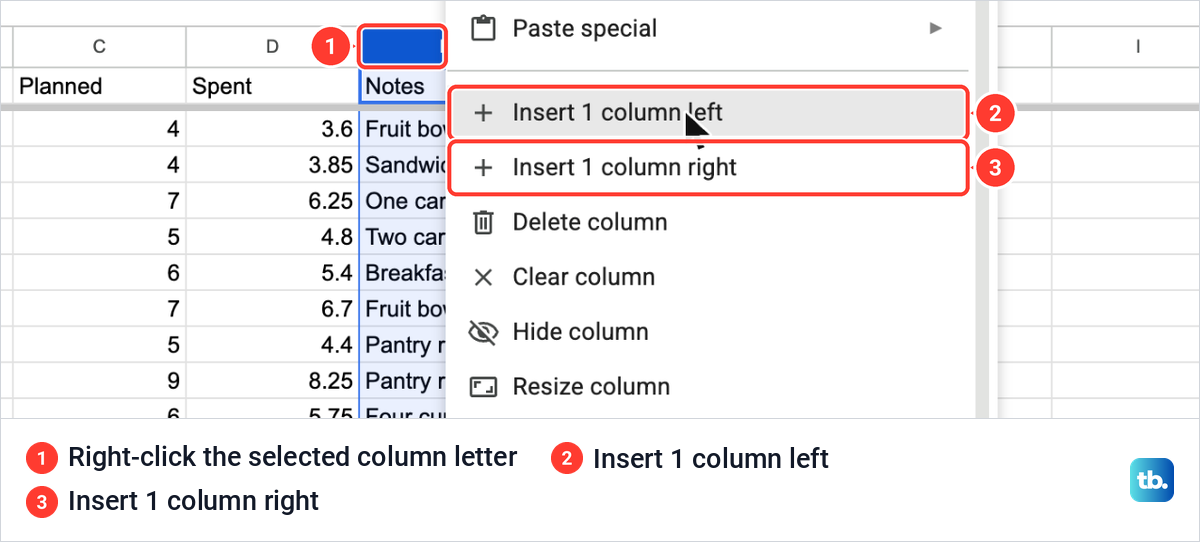
Further down, the same menu has Sort sheet A to Z and Sort sheet Z to A. Those reorder the rows rather than add anything, and our guide to sorting and alphabetizing in Google Sheets covers them.
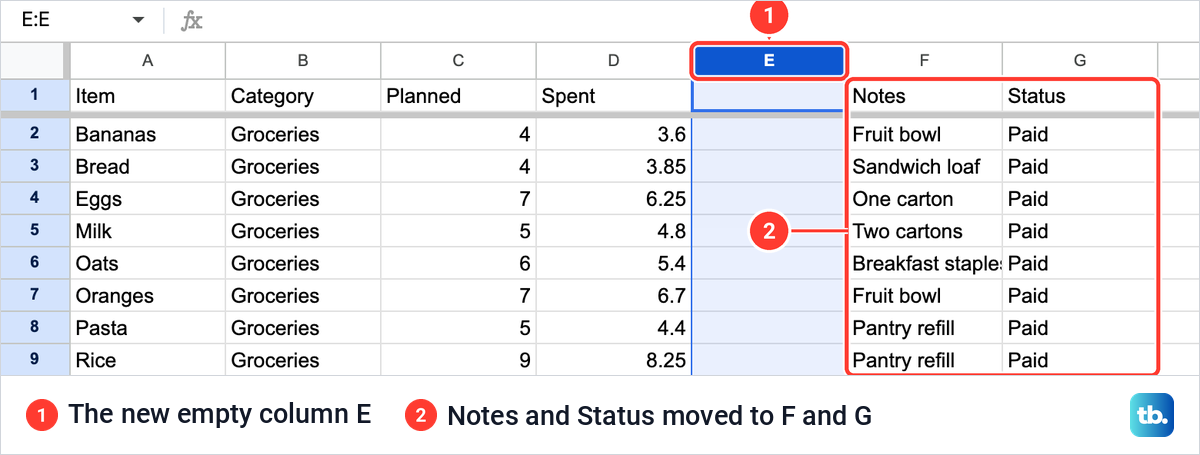
We chose Insert 1 column left. Column E came back empty and still selected, while Notes moved to F and Status to G. The new column took the letter of the one we clicked. To fill a gap, you can also right-click the letter on its left and choose right instead.
Name and fill the new column
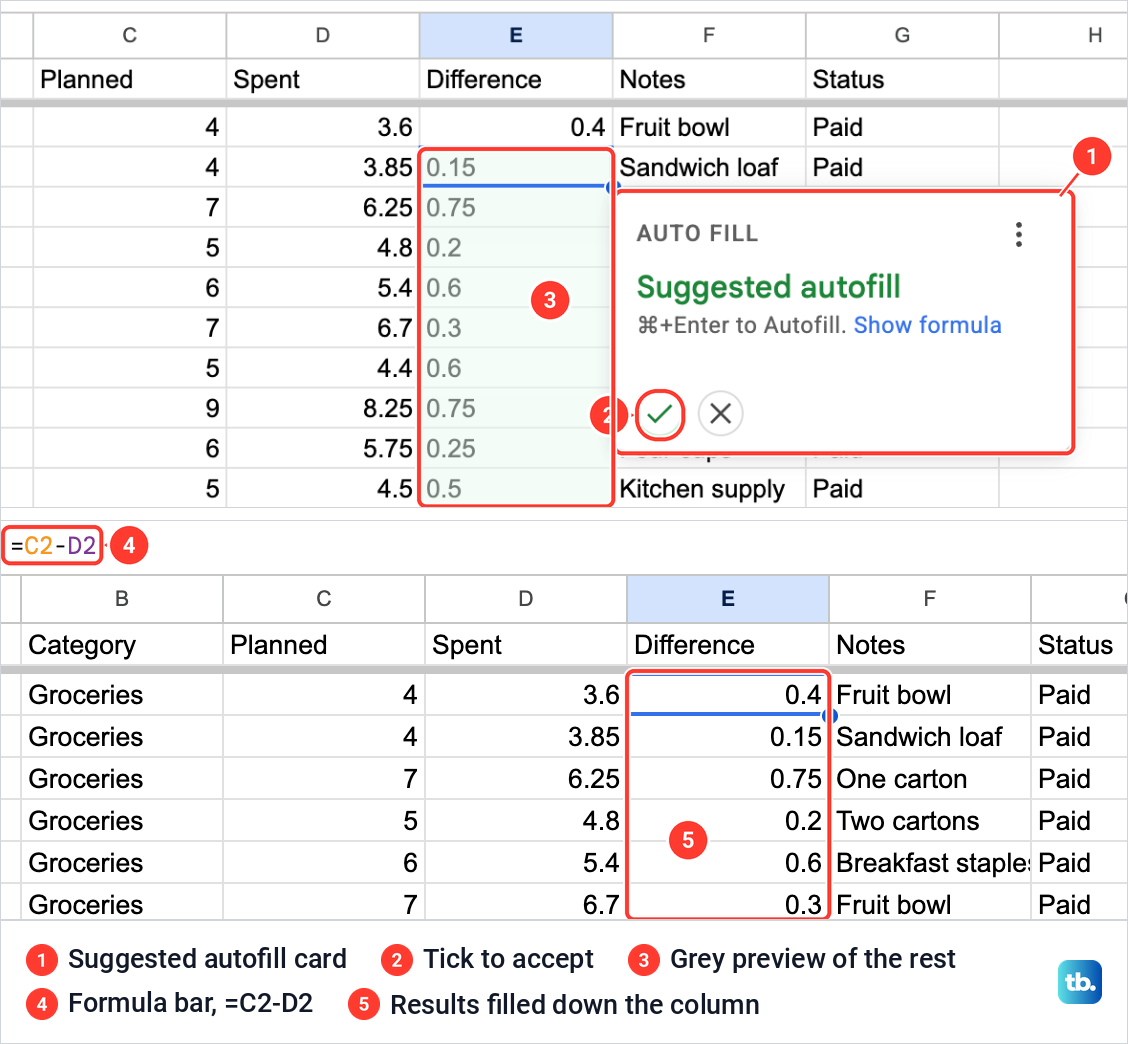
Type a heading in row 1 of the new column, then the first entry or formula in row 2. We typed Difference in E1 and =C2-D2 in E2, which takes Spent away from Planned. E2 showed 0.4 for Bananas.
As soon as we pressed Enter, a card headed AUTO FILL offered a Suggested autofill, with a tick, a cross and Command + Enter as its shortcut. The rest of the column showed the results in grey. We clicked the tick, E3 to E19 filled with the formula, and a note at the bottom left read "Formula has been applied to the table."
With Planned, Spent and Difference side by side, the numbers are ready to make a graph in Google Sheets. Not every new column holds numbers, though. For a column of set choices such as Paid, you can create a drop-down list in Google Sheets, and for a done or not done column you can add checkboxes in Google Sheets.
A new column may also be wider or narrower than its heading needs. Double-click the right edge of the column letter, and Sheets fits the column to its longest entry. Our Difference column narrowed to the width of the word Difference.
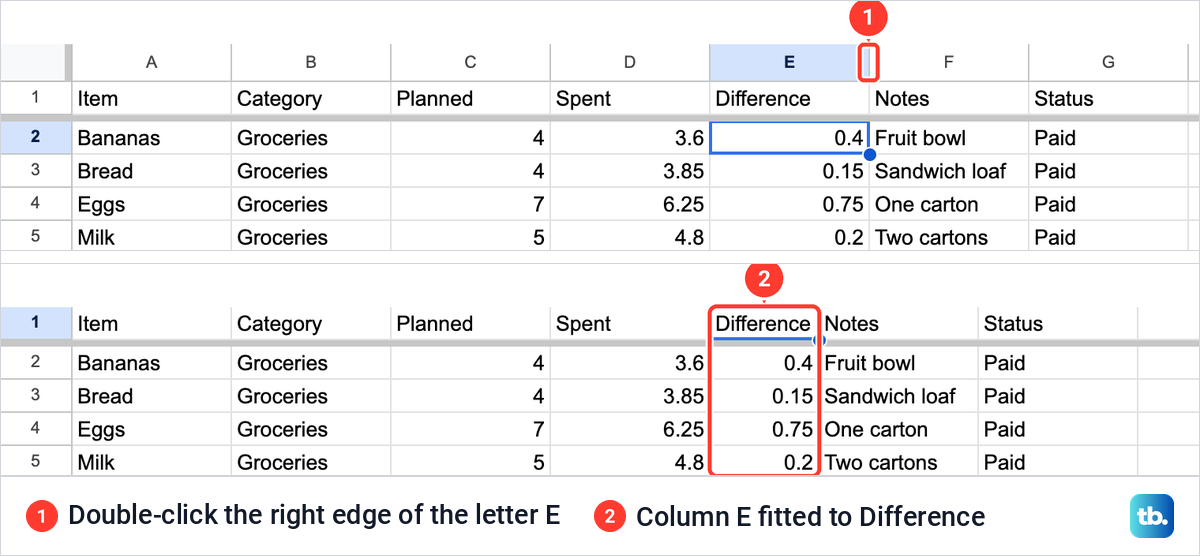
Fitting changes the width only. A long note like the one in row 6, which is cut off at the edge of our Notes column, needs wrap text in Google Sheets instead. For a width of your own choosing, right-click the letter and choose Resize column.
Use the Insert menu instead
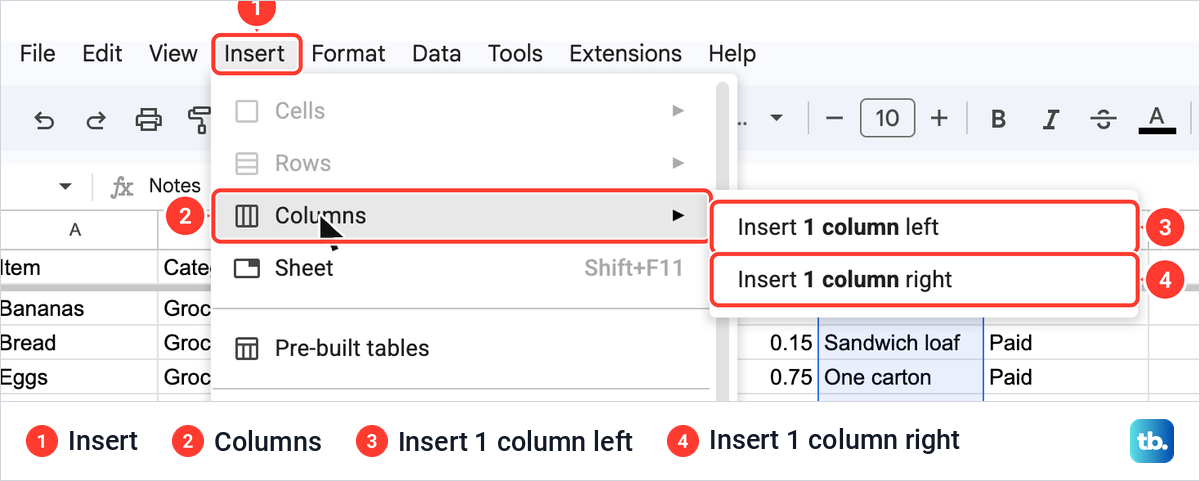
The menu bar has the same two commands. Select the column, open Insert, point to Columns and choose Insert 1 column left or Insert 1 column right. With column F selected in our sheet, Cells and Rows were greyed out at the top of the Insert menu. The submenu prints the count in bold, which is a quick check on your selection.
How to add several columns at once
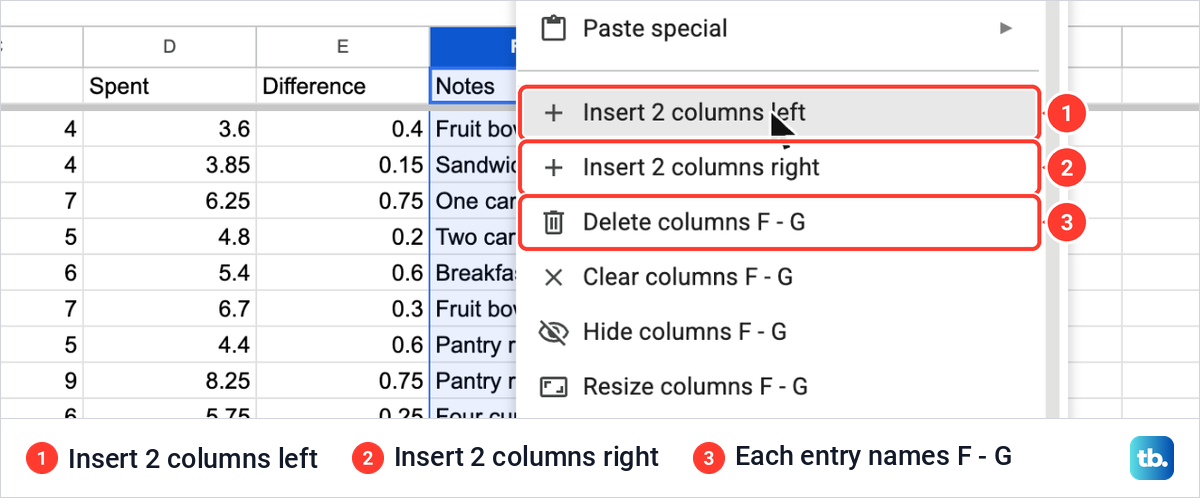
Select as many column letters as you want new columns. We clicked F, held Shift and clicked G, which selected Notes and Status together. Then right-click either of the selected letters.
The menu now reads Insert 2 columns left and Insert 2 columns right, and the entries below name the range, such as Delete columns F - G. The number in the menu is the number of letters you selected, so check it before you click.
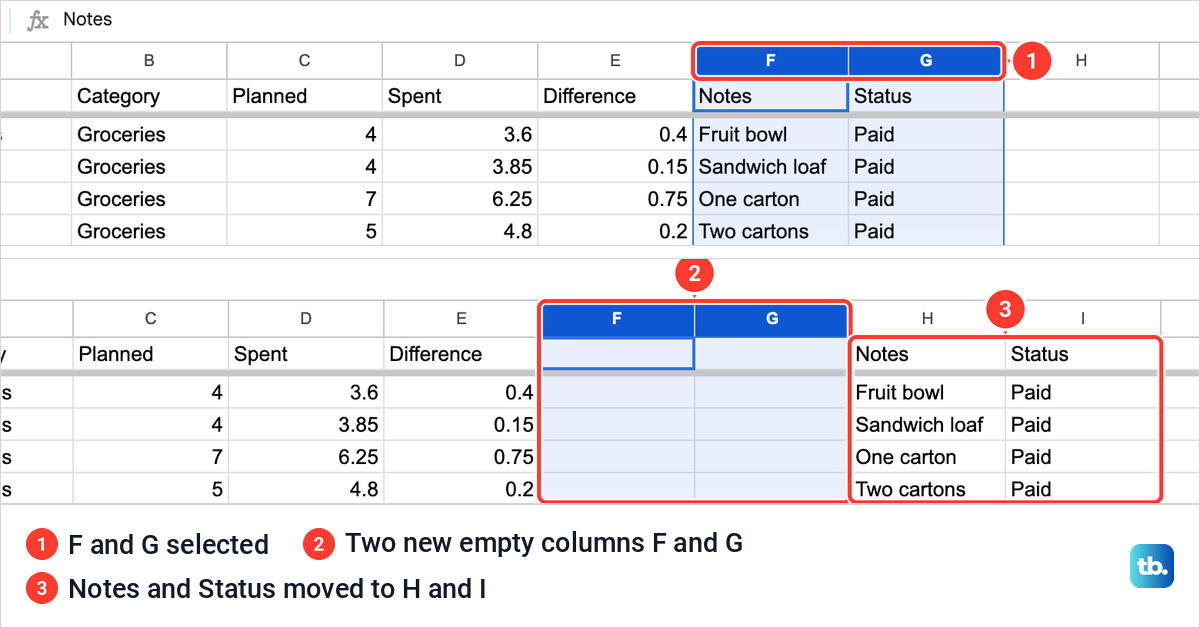
We chose Insert 2 columns left. Two empty columns arrived as the new F and G, still selected, and Notes and Status moved two letters along. Pressing Command + Z took both columns away again in one step and put Notes and Status back in F and G. On Windows and ChromeOS, undo is Ctrl + Z.
Keyboard shortcuts for adding a column
Select the whole column first, by clicking its letter or by pressing Ctrl + Space in one of its cells. Then press Command + Option + = on a Mac, or Ctrl + Alt + = on Windows and ChromeOS. On our Mac, with column F selected, the shortcut put one new column on the left of F.
There is no single shortcut for a column on the right, only a menu sequence. In Chrome on Windows and on ChromeOS, press Alt + I, then C, then O. On a Mac, press Ctrl + Option + I, then C, then O, and in other browsers on Windows start with Alt + Shift + I.
Add a column after the last letter
A sheet does not have to stop at Z. Ours started with 26 columns, A to Z, and after the Difference column went in, the last letter was AA. To add room at the edge, scroll to the far right, right-click the last letter and choose Insert 1 column right.
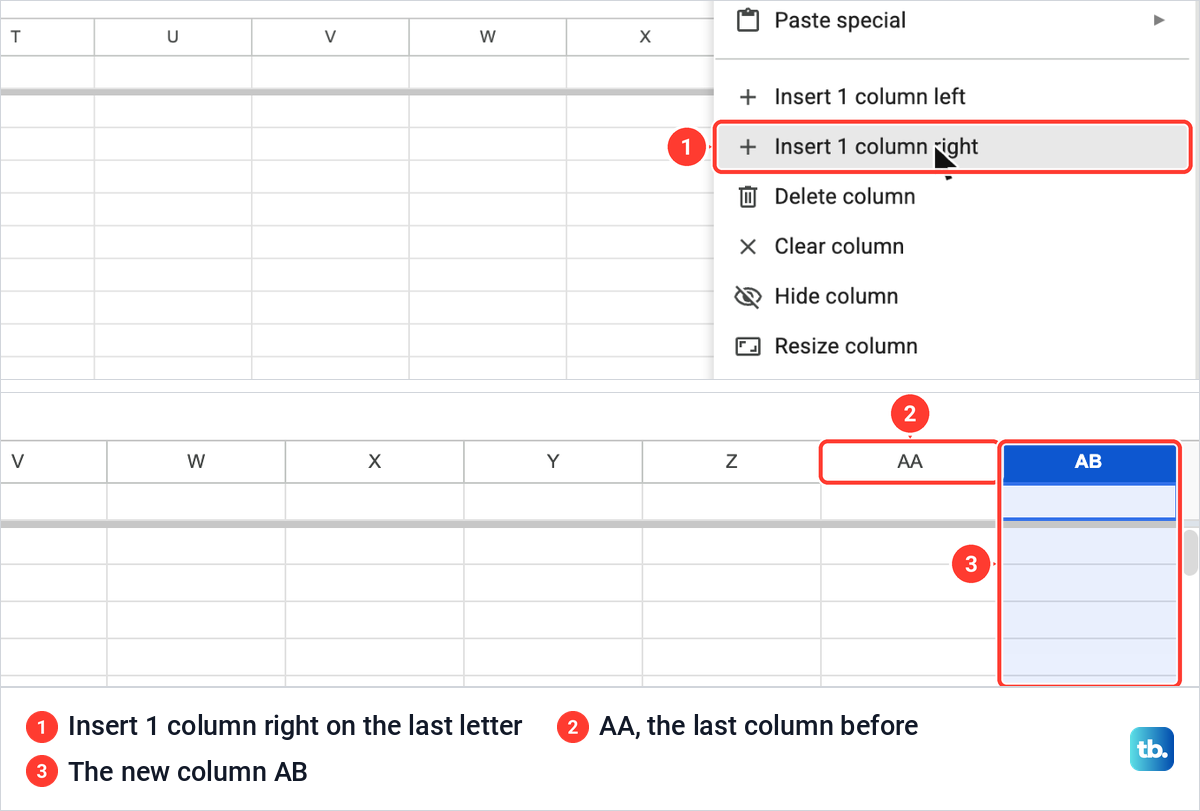
A new column AB appeared at the far right, selected and ready to use. We removed it again with Command + Z.
What a new column does to your formulas
In our sheet, a formula that pointed across the new column was rewritten for us. The Difference formula in row 2 read =C2-D2, Planned minus Spent. We inserted one column on the left of Spent, which pushed Spent to E and Difference to F, and the formula in F2 then read =C2-E2 and still showed 0.4.
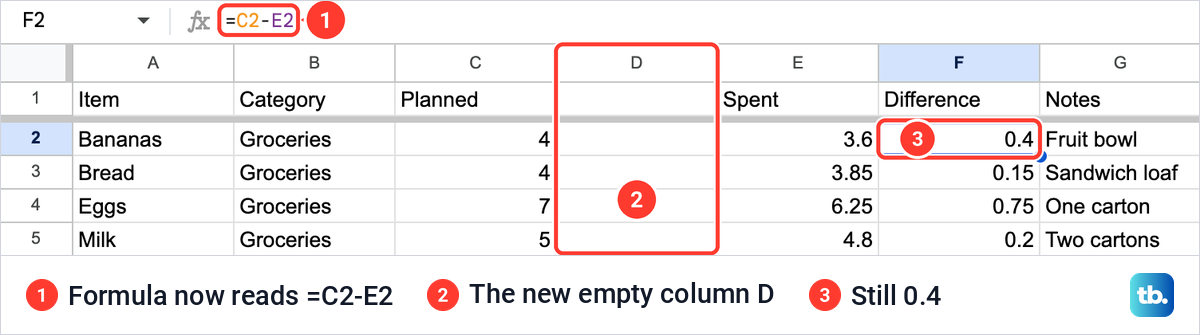
Nothing had to be retyped. After an insertion, click any formula that matters, such as the one you use to total a column in Google Sheets, and check in the formula bar that it still points where you expect.
A right-click on a cell offers less
You do not need the column letter to get an insert command, but the single cell we right-clicked gave us fewer choices. On cell B7, the menu offered Insert 1 row above and Insert 1 column left, with no column on the right and no row below. To add a column on the right, use the column letter or the Insert menu.
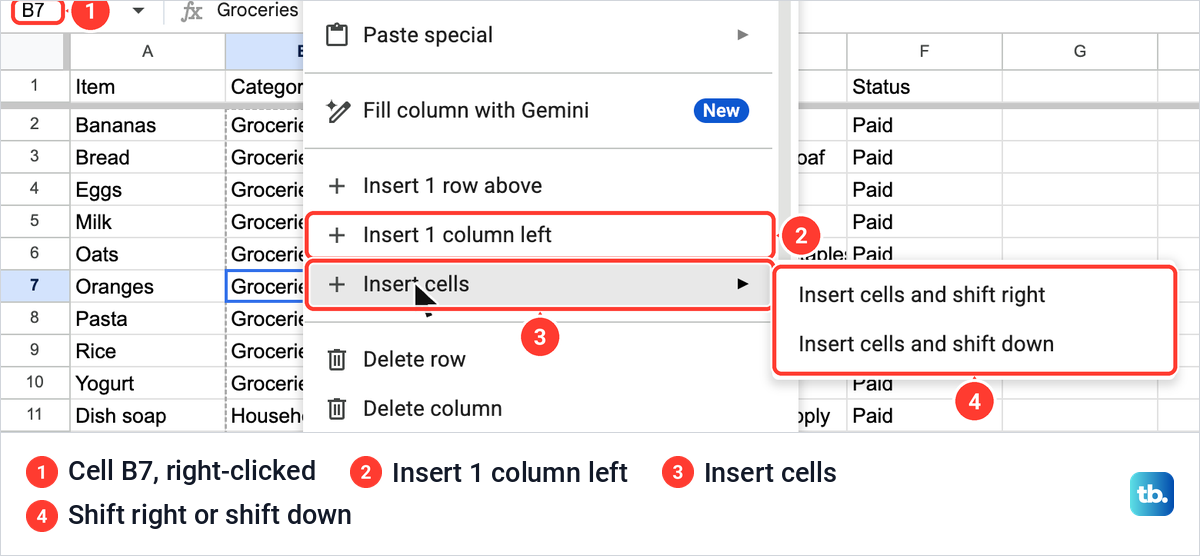
The same menu has Insert cells, which opens Insert cells and shift right and Insert cells and shift down. As the names say, those shift cells along to make room in one place rather than add a whole column to the sheet. For several rows at once, or a row below, use the row numbers, as our guide to inserting multiple rows in Google Sheets shows.
When you cannot add a column
If you cannot add a column at all, check your access first. Someone with Viewer access can look at a spreadsheet but cannot make changes, and that includes inserting columns. Ask the person who shared the file to make you an Editor.
An owner or editor can also protect a sheet or a range so that only chosen people can edit it. Choose Data > Protect sheets and ranges to check: a panel titled Protected sheets & ranges opens on the right and lists the file's protections. Ours held only Add a sheet or range, because nothing was protected.
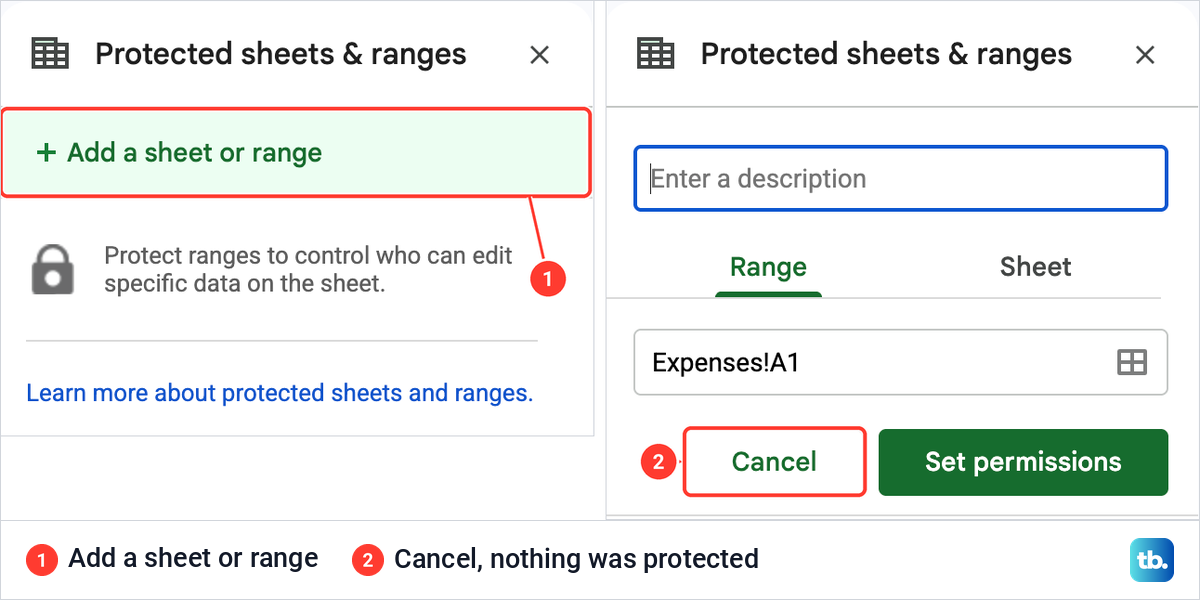
A protection set to show a warning still lets people edit after they confirm, while one that restricts who can edit blocks everyone else. If Protect sheets and ranges is missing from the Data menu, the file is probably open in Microsoft Office editing, so convert it to Google Sheets first.
How to add a column on Android, iPhone or iPad
In the Google Sheets app on an Android phone or tablet, open the spreadsheet and tap the column letter to select the column. Tap Insert, then choose an option from the menu that appears. The steps on an iPhone or iPad are the same: tap the column letter to select the column, tap Insert and choose an option.
How we tested this guide
We tested this in Google Sheets on the web in Chrome on a Mac, inserting one column and two columns into a six-column expenses sheet and filling a new column with a formula.
Frequently Asked Questions
How do I add a column between two columns in Google Sheets?
Right-click the letter of the column on the right of the gap and choose Insert 1 column left. You can also right-click the letter on the left of the gap and choose Insert 1 column right, and the new column lands in the same place.
How do I add multiple columns in Google Sheets?
Select as many column letters as you need new columns, for example click F and Shift-click G for two. Right-click one of them and choose Insert 2 columns left or Insert 2 columns right. The number in the menu follows the number of letters you selected.
How do I add columns after Z in Google Sheets?
Scroll to the last letter, right-click it and choose Insert 1 column right. The sheet carries on with AA, AB and so on, and ours grew from AA to AB this way.
What is the shortcut to insert a column in Google Sheets?
Select the column, then press Command + Option + = on a Mac or Ctrl + Alt + = on Windows and ChromeOS to add a column on the left. The right side has a menu sequence instead, Alt + I, then C, then O in Chrome on Windows, or Ctrl + Option + I, then C, then O on a Mac.
Why can't I insert a column in Google Sheets?
You may have Viewer access, which cannot make changes, so ask the owner to make you an Editor. If you can edit other parts of the file, open Data > Protect sheets and ranges to see whether the sheet or range is protected.
Will adding a column break my formulas?
It did not in our sheet. When we inserted a column between the two cells that =C2-D2 uses, Sheets changed the formula to =C2-E2 and the result stayed 0.4. Check any formula that matters in the formula bar after you insert.
Is splitting text into columns the same as adding a column?
No. Adding a column makes an empty column, while splitting spreads text from one column across several. To split entries such as "Last name, First name", select the cells and choose Data > Split text to columns.











