
To delete a notebook in OneNote, delete it where it is stored: in OneDrive on the web, tick the notebook and select Delete, or for a notebook kept on your PC, delete its folder, by default in Documents > OneNote Notebooks. OneNote itself only offers Close This Notebook, which takes the notebook off your list and deletes nothing. Either way the deleted notebook went to a Recycle bin first on our PC, so you can still bring it back if you act in time.
The steps below use desktop OneNote on Windows and OneDrive in a web browser, which is also how you delete a OneNote notebook from OneDrive on a Mac or a phone. If you only want to remove a notebook from OneNote's list, closing it is enough.
The short version
- Find it: in desktop OneNote, File > Info shows whether a notebook is on OneDrive or on your PC.
- OneDrive notebook: in OneDrive on the web, tick the notebook, select Delete or press Delete, then confirm.
- Notebook on your PC: close it, then delete the folder File > Info names, by default Documents > OneNote Notebooks.
- Just hide it: right-click the notebook and choose Close This Notebook. Nothing is deleted.
- Changed your mind: select it in OneDrive's Recycle bin or the Windows Recycle Bin and restore it.
Delete, close or restore a notebook at a glance
| What you want | Where to act | What happens |
|---|---|---|
| Hide a notebook from OneNote | Right-click the notebook > Close This Notebook | It leaves the list, and its files stay where they are |
| Delete a OneDrive notebook | OneDrive on the web, owner's account: tick the notebook > Delete | It moves to OneDrive's Recycle bin |
| Delete a notebook stored on your PC | File Explorer, the folder File > Info names (by default Documents > OneNote Notebooks): right-click it > Delete | It moves to the Windows Recycle Bin |
| Delete a team notebook | The SharePoint library: select the item > Delete | It is deleted from the library |
| Remove one person's direct access | OneDrive > Manage access > No direct access > Apply > Remove | The notebook stays, but a link or group can still let them in |
| Remove a OneDrive notebook for good | OneDrive > Recycle bin > select it > Delete | Microsoft says it can't be restored after that |
| Restore a OneDrive notebook | OneDrive > Recycle bin > tick it > Restore | It returns to its folder, still shared if it was |
| Restore a notebook from your PC | Recycle Bin > select the folder > Restore the selected items | It returns to the folder it was deleted from |
Why OneNote has no Delete button for a notebook
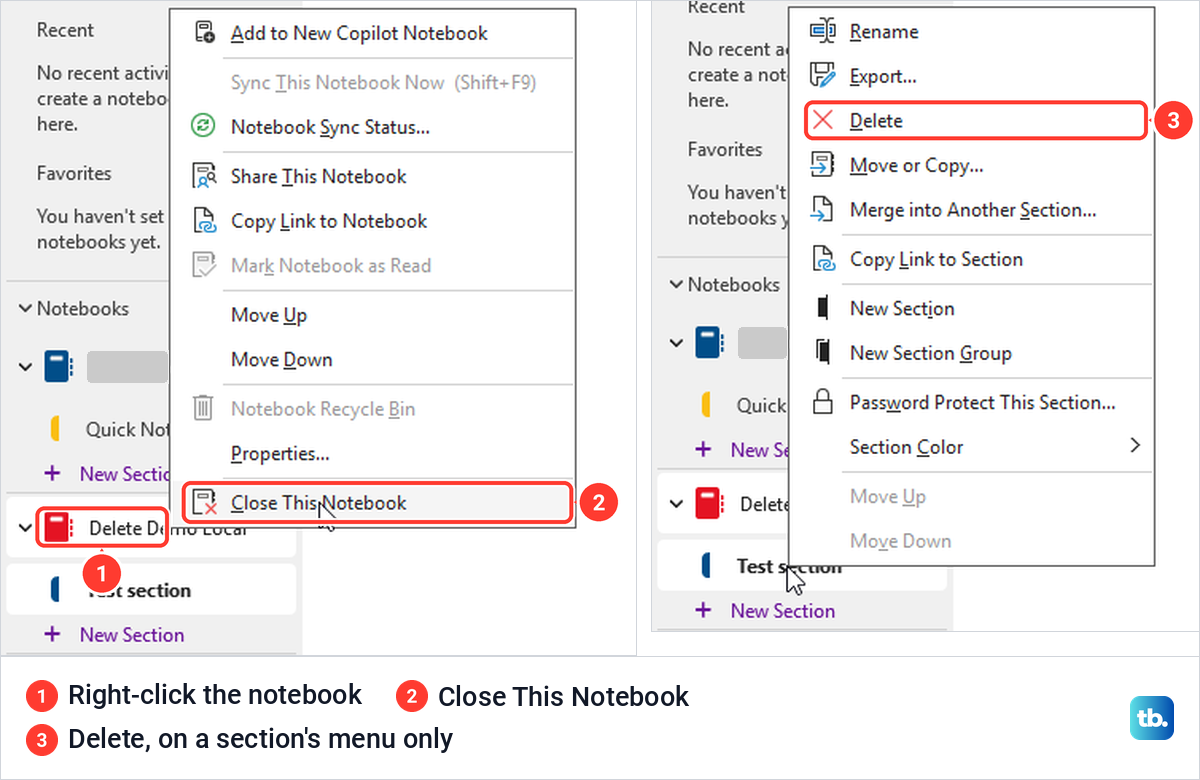
Right-click a notebook's name in desktop OneNote and the menu ends with Close This Notebook. Ours also listed Sync This Notebook Now, Share This Notebook, Copy Link to Notebook, Notebook Recycle Bin and Properties, but no Delete and no Rename for the notebook itself. The Delete commands we found inside OneNote belong to smaller things, the menu for a section and the menu for a page.
There is a reason for the split. On our PC, a notebook kept on This PC was a folder holding a contents file and one file per section, and Microsoft's own steps delete a notebook in OneDrive or File Explorer and close any leftover entry in OneNote. Use a section's Delete only when you mean to remove that one section.
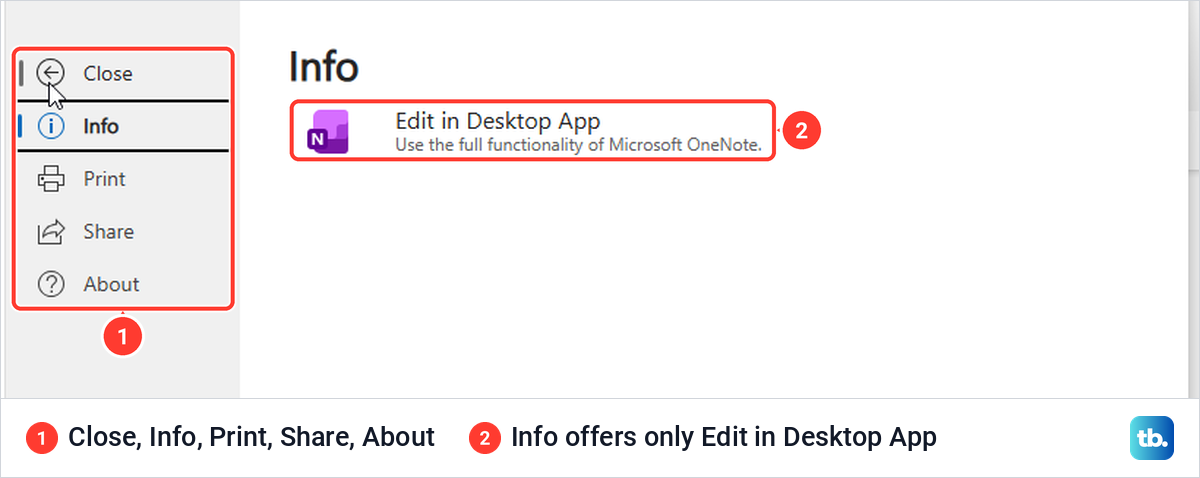
OneNote for the web has no notebook Delete either. Right-clicking a notebook in its notebook list opened no menu at all, and the File tab offered only Close, Info, Print, Share and About, with Info holding a single Edit in Desktop App button. Go to OneDrive to delete the whole notebook.
On a Mac, an iPhone or an Android phone, Microsoft's route for a notebook stored in OneDrive is OneDrive itself. Open OneDrive in a browser, sign in with the account that owns the notebook and follow the OneDrive steps below.
Find where your notebook is stored
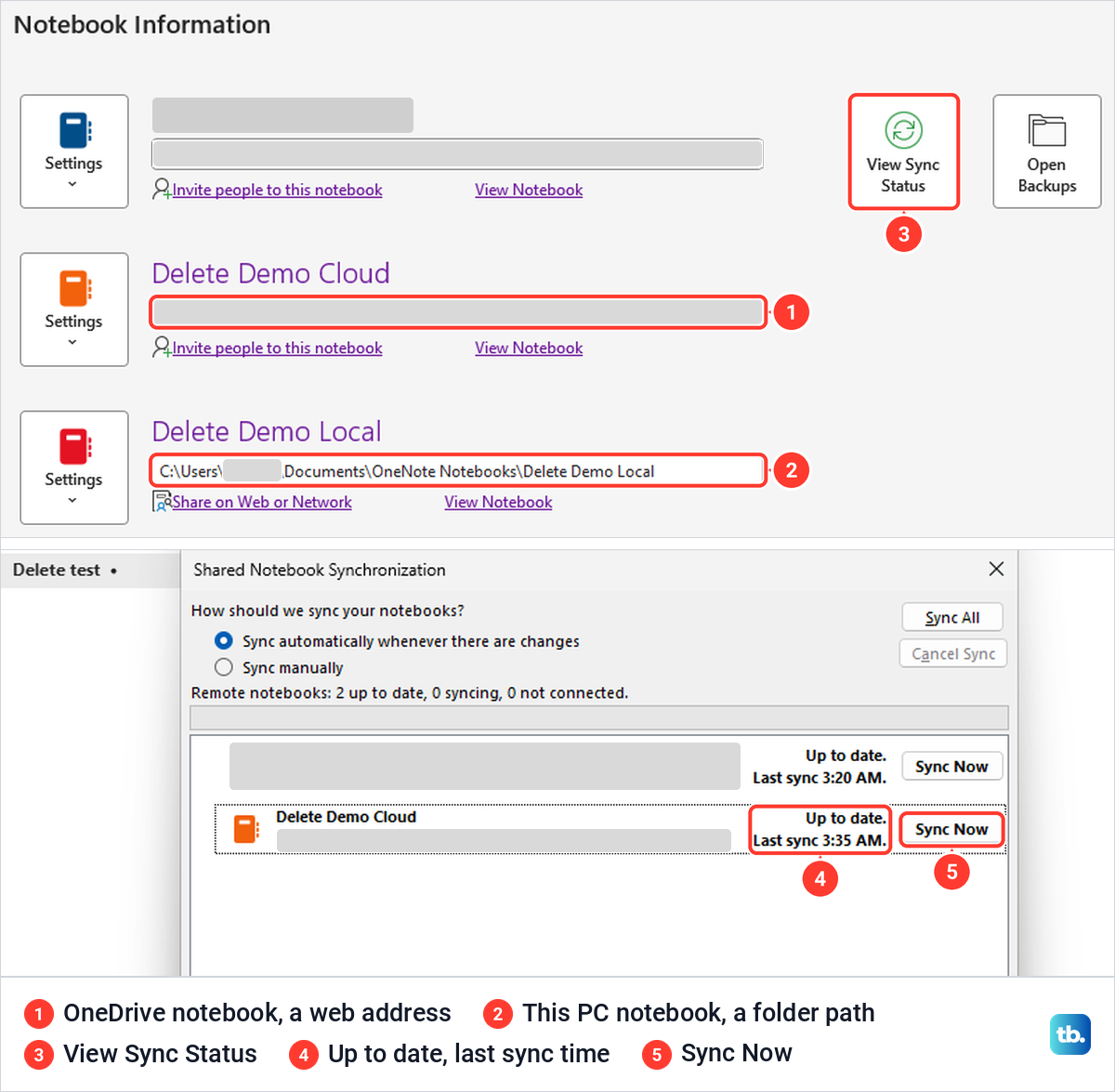
Before you delete anything, check where the notebook lives, because that decides where you delete it. In desktop OneNote, select File > Info. The Notebook Information page lists every open notebook with its location, a web address for one in the cloud and a folder path for one on your PC.
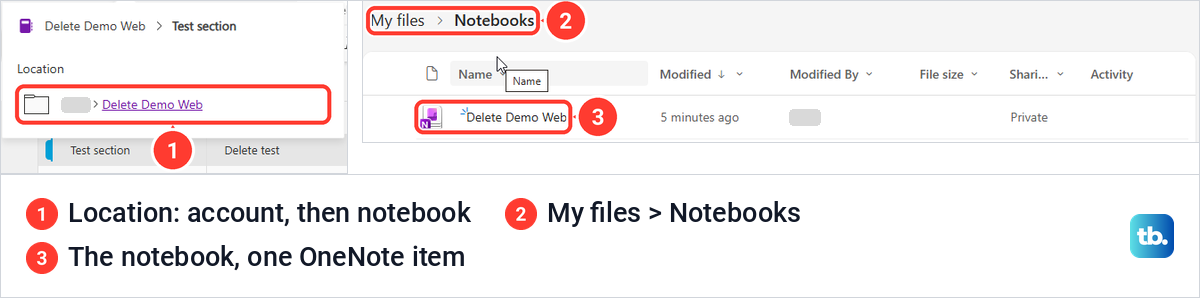
Our local notebook's path ended in Documents\OneNote Notebooks followed by the notebook's name, the folder This PC used when we left its Create in a different folder link alone. A notebook made in desktop OneNote goes wherever you pick on the New Notebook screen, while one we created in OneNote for the web landed in a folder called Notebooks inside My files in OneDrive, as a single item with the OneNote icon.
The web app's own pointer can mislead you. Clicking the notebook's name at the top of OneNote for the web showed a Location link that read only the account name and the notebook name, leaving out the Notebooks folder. Look inside My files > Notebooks rather than at the top of My files, and keep in mind that Microsoft's instructions name both Notebooks and OneNote Notebooks as folders to check.
Microsoft adds one more trap for a notebook in a OneDrive folder synced to your PC. It says OneNote notebooks have their own sync mechanism outside of OneDrive, and that the synced folder can hold a stub .url file which opens the notebook on the website.
Deleting that shortcut does not delete the notebook, so use OneDrive on the web, signed in with the account that owns the notebook, to select the real thing. The steps to set up and use OneDrive on Windows explain how that synced folder appears in File Explorer.
Check your latest changes before deleting
Microsoft's OneNote help warns that deleting a notebook is permanent and that after you delete it, you will not be able to recover it, so treat it that way before you click. On our PC an ordinary delete sent each notebook to a Recycle bin first, where it could be restored while it stayed there, as the restore section shows.
If you plan to keep a copy of the notebook, make sure its last edits reached the cloud first. Select File > Info > View Sync Status. The Shared Notebook Synchronization window lists only cloud notebooks, each with its state and a Sync Now button.
Our OneDrive notebook read Up to date with its last sync time, and Sync Now updated that time within a few seconds. The window also counted Remote notebooks: 2 up to date, 0 syncing, 0 not connected, which is a quick way to spot one that is stuck. If a notebook shows an error instead, fix OneNote when it is not syncing before you remove anything.
To keep a copy, export the notebook before you delete it; our guide on how to use OneNote for notes and organization covers exporting a notebook as a PDF. For a notebook on your PC, you can also back up and restore files in Windows and include the notebook's folder.
Close a notebook without deleting it
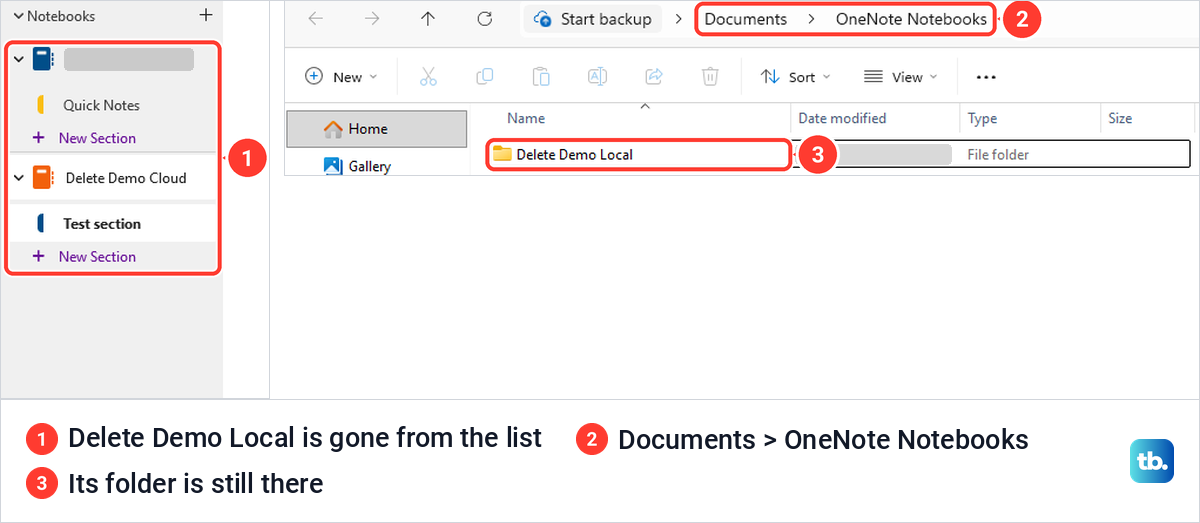
If you only want a notebook out of your way, close it. Right-click the notebook's name in the Notebooks list and choose Close This Notebook. On our PC the notebook vanished from the list straight away, with no prompt.
Microsoft says that when you remove a notebook from the list, it's not deleted, and that is what we saw. After closing our local notebook, its folder was still in Documents > OneNote Notebooks with its files unchanged. Closing our OneDrive notebook left it in OneDrive too, where File > Open still listed its folder.
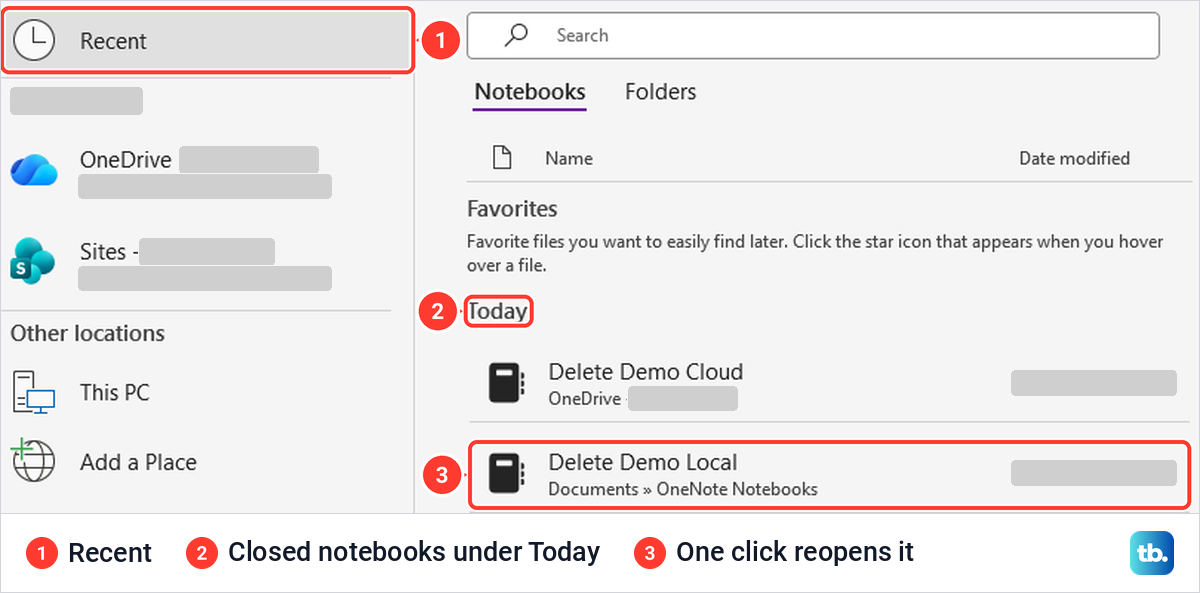
To get a closed notebook back, select File > Open. Microsoft's help calls the list Recently Used Notebooks, but our screen showed Recent selected on the left and the closed notebooks under a Today heading, each with its location underneath. One click reopened the notebook with its page intact.
Closing does not touch the notebook's files, so it is safe to do whenever the list gets crowded. It is also the step that clears a notebook you have already deleted elsewhere, as covered further down.
Delete a notebook stored on your PC
Microsoft's local steps apply to a notebook that you store on your computer, not in OneDrive. Close the notebook in OneNote first, then open File Explorer and go to the folder File > Info showed. By default that is Documents > OneNote Notebooks, the folder Microsoft's steps point to, and each notebook there is a folder with the notebook's name.
Check the folder name before you go on, because Windows did not ask us to confirm. Right-click the folder and choose Delete, which in our Windows 11 menu was the bin icon in the row across the top, with the tooltip Delete (Delete), rather than a line in the list. From the keyboard, select the folder and press Shift + F10 for the same menu, where Delete sits in that top row too.
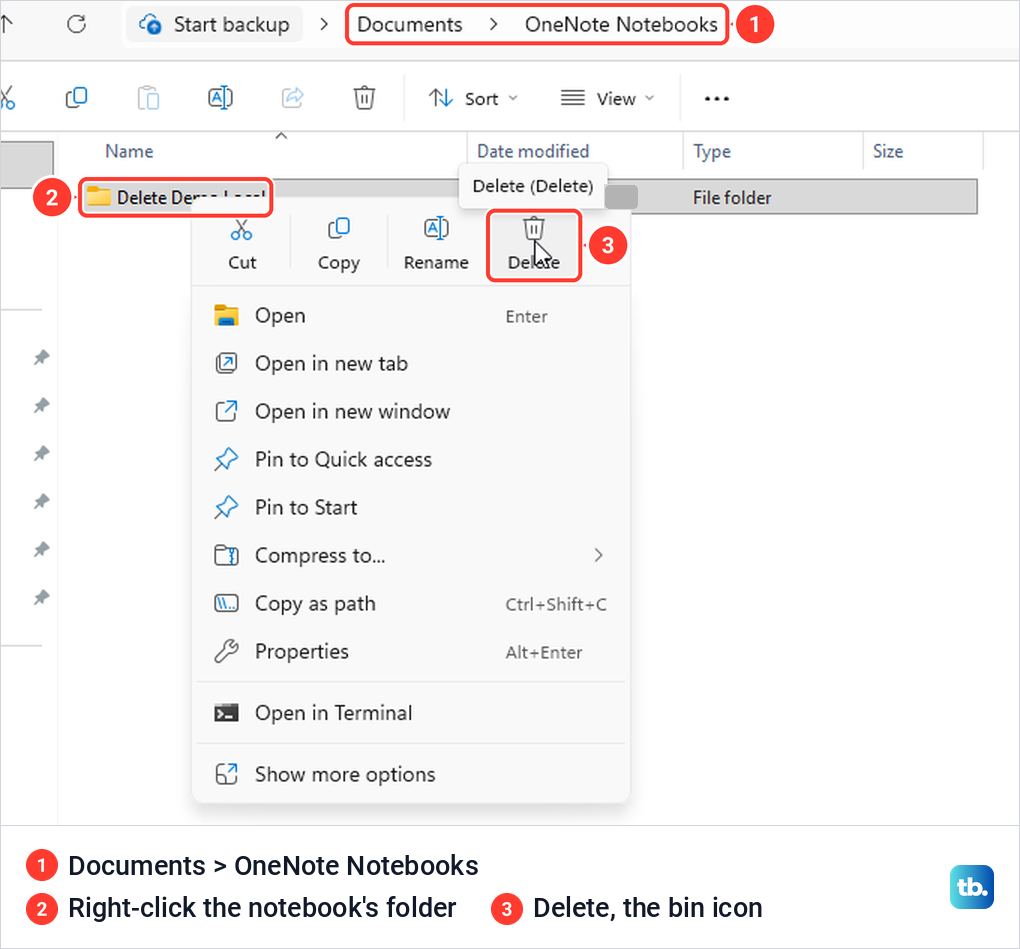
The folder disappeared the moment we clicked, and the folder view read This folder is empty. The notebook went to the Windows Recycle Bin, listed as a file folder with its original location under Documents.
Microsoft's steps finish with a separate choice, Empty Recycle Bin, for removing the notebook for good. Until you empty the bin, the notebook can come back, as the restore section below shows.
Delete a notebook from OneDrive
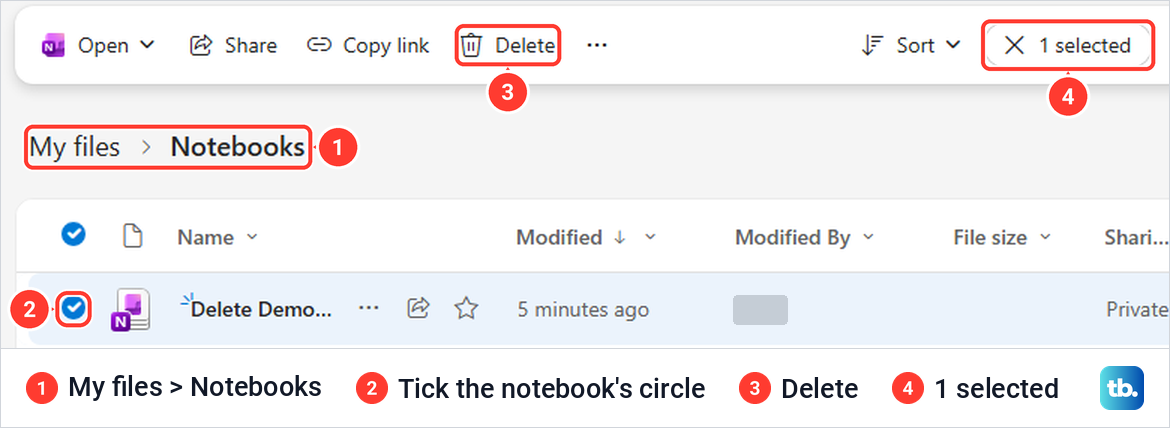
To delete a OneNote notebook from OneDrive, sign in to OneDrive on the web with the account that owns the notebook. Go to My files and open the folder that holds it, usually Notebooks, OneNote Notebooks or Documents, where the notebook shows as one item with the OneNote icon. Select the notebook itself, not the folder around it.
Point at the notebook's row and a selection circle appears at its left edge. Tick it, and the bar at the top changes to Open, Share, Copy link, Delete and more, with 1 selected on the right. Select Delete.
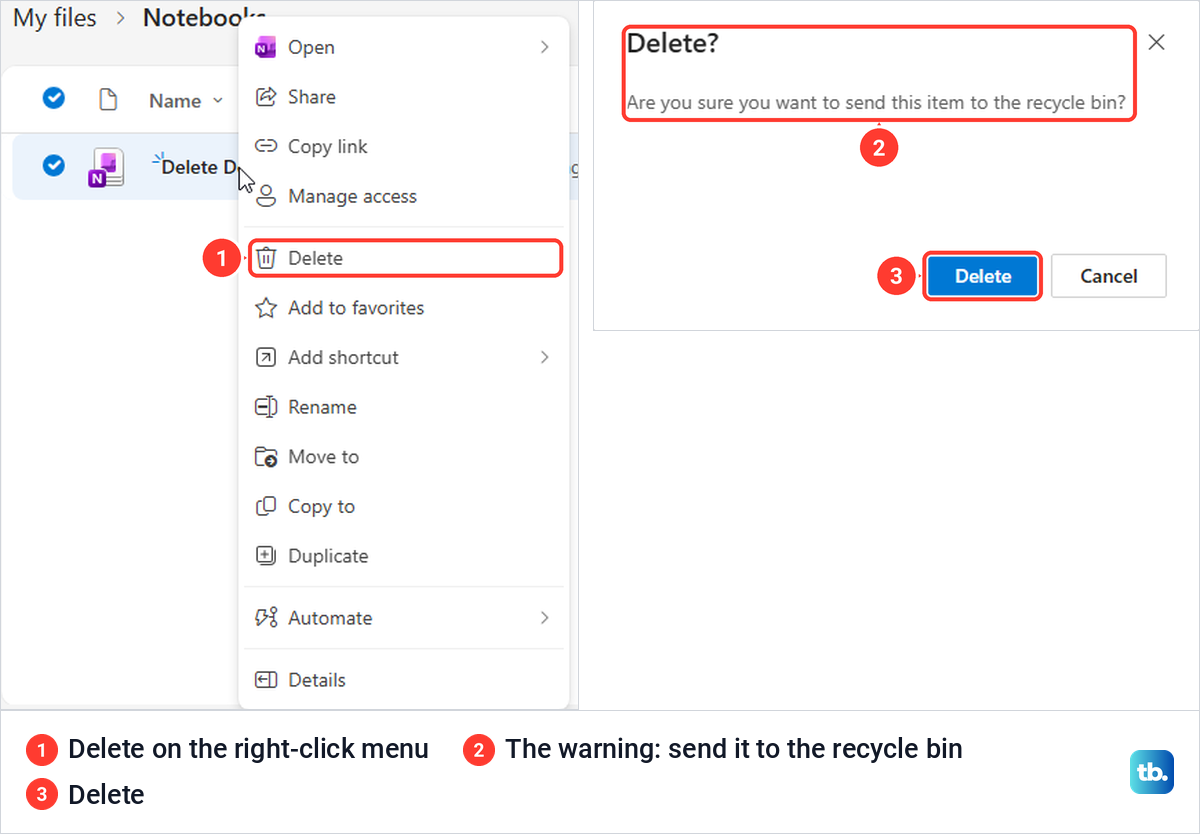
OneDrive then shows a box with the warning "Are you sure you want to send this item to the recycle bin?" and two buttons, Delete and Cancel. Select Delete to confirm. Our folder then read This folder is empty, and a Deleted 1 item message offered a link to Open Recycle bin.
Right-clicking the notebook gives the same Delete, in a menu that also holds Share, Manage access, Rename and Move to, and it raised the same warning. So did the keyboard: with the notebook ticked, pressing Delete opened the box with its Delete button already highlighted, and Enter confirmed it.
Think twice about a shared notebook. Microsoft says that if you delete an item that has been shared, you will delete it for everyone, so the people you shared it with lose it too. If you only want them out, change who has access instead, as described below.
To remove the notebook for good, Microsoft's steps continue in the recycle bin: select Recycle bin in OneDrive's left pane, select the notebook, then select Delete in the top navigation. Microsoft says you can't restore files or folders after they've been permanently deleted from the OneDrive recycle bin, so do this only when you are sure.
A notebook that is open somewhere notices the deletion. A OneNote for the web tab we had left open on the notebook showed Internal error and said OneNote can't sync this page, and after a reload the page read "Item does not exist" and suggested it may have been deleted by another user.
Clear a deleted notebook that still shows in OneNote
Deleting a notebook in OneDrive does not always remove its entry from OneNote on your PC. Microsoft's fix is to right-click the notebook name and click Close This Notebook. Its older help also warned that a deleted notebook left open can cause sync errors, so close the entry even if it looks harmless.
Do this on every computer where the notebook was open. If it turns out you deleted the wrong notebook, restore it first, as shown next, and then reopen it from File > Open.
Restore a notebook you deleted by mistake
If you deleted the wrong notebook, act quickly. Microsoft's OneDrive help says deleted files and folders go to the OneDrive recycle bin, and both of our deleted notebooks were waiting in a Recycle bin, so check there straight away.
For a OneDrive notebook, open Recycle bin in OneDrive's left pane. Our notebook was listed with its original place, My Files > Notebooks, but with a plain folder icon instead of the OneNote icon, so look for the name. Tick it and select Restore. If it is not in the list, look at the footer: for us, signed in with a work account, its link to the Second-stage recycle bin is where OneDrive itself says to look next.
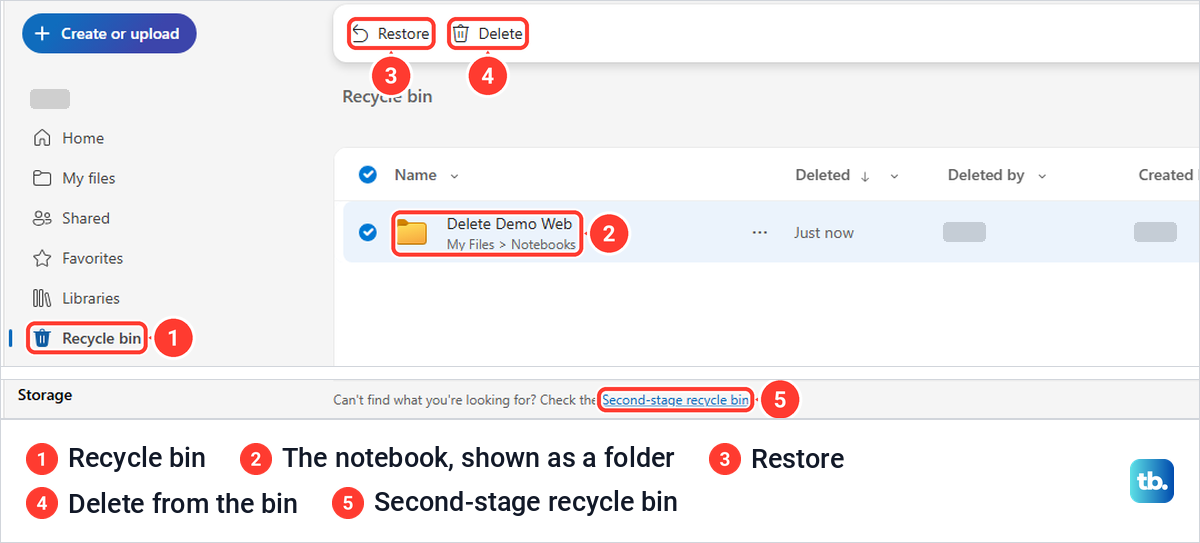
Restore asked nothing. A Restored 1 item message appeared, the notebook was back in My files > Notebooks, and it opened in OneNote for the web with its section and page intact. It also came back still shared, with its Sharing column reading Shared again, which matters if you deleted it to cut someone off.
OneDrive's Recycle bin showed no date or countdown for our notebook. Microsoft says you can restore items within 30 days for a personal account, and within 93 days for a work or school account unless your administrator changed the retention setting. To get the notebook back, pick Restore, not the Delete beside it, which removes it from the bin for good.
For a notebook you deleted from your PC, open the Windows Recycle Bin, select the notebook's folder and choose Restore the selected items on the bar. Our folder went straight back to Documents > OneNote Notebooks with its files, ready to reopen from File > Open in OneNote.
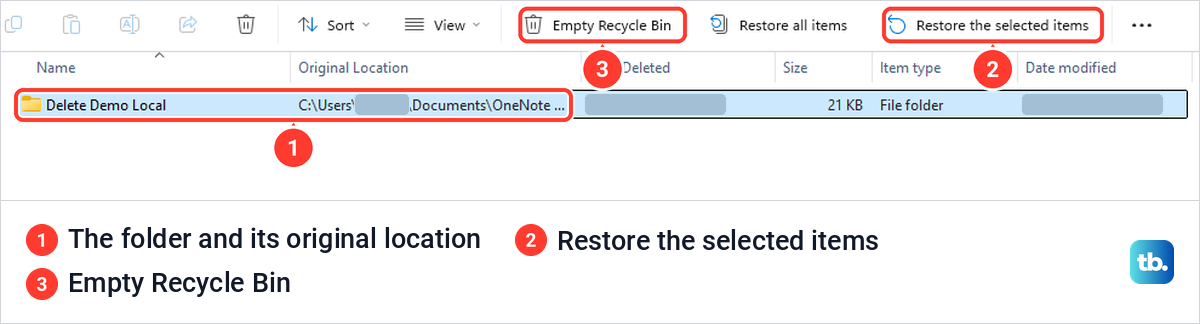
If the folder is no longer in the Recycle Bin, the broader steps to recover deleted files on Windows may still help. Empty Recycle Bin on the same bar clears everything in the bin, so leave it alone until your notebook is safe.
Delete a notebook in a SharePoint library
If File > Info shows a team site address rather than your own OneDrive, the notebook lives in a SharePoint document library. Open that library in a browser and select the notebook by its selection circle rather than its name, because Microsoft warns that clicking the name would open the file. Then select Delete on the toolbar.
A team notebook belongs to everyone who works in it, so check with them before you remove it. If you need help finding the right site and library, our guide to work with SharePoint in Microsoft 365 explains how they are laid out.
Remove someone's access without deleting the notebook
If the goal is to stop someone using a notebook rather than to get rid of it, remove their direct access. In OneDrive on the web, right-click the notebook and choose Manage access, which lists the owner and each person with access. Microsoft's help names a Remove User button for this, but our screen had none.
Select the person's permission instead. That opened an Access summary with Direct Access: can view, and expanding it offered Can edit, Can view and No direct access. Choose No direct access, select Apply, then Remove when OneDrive asks whether you want to remove that person's direct access.
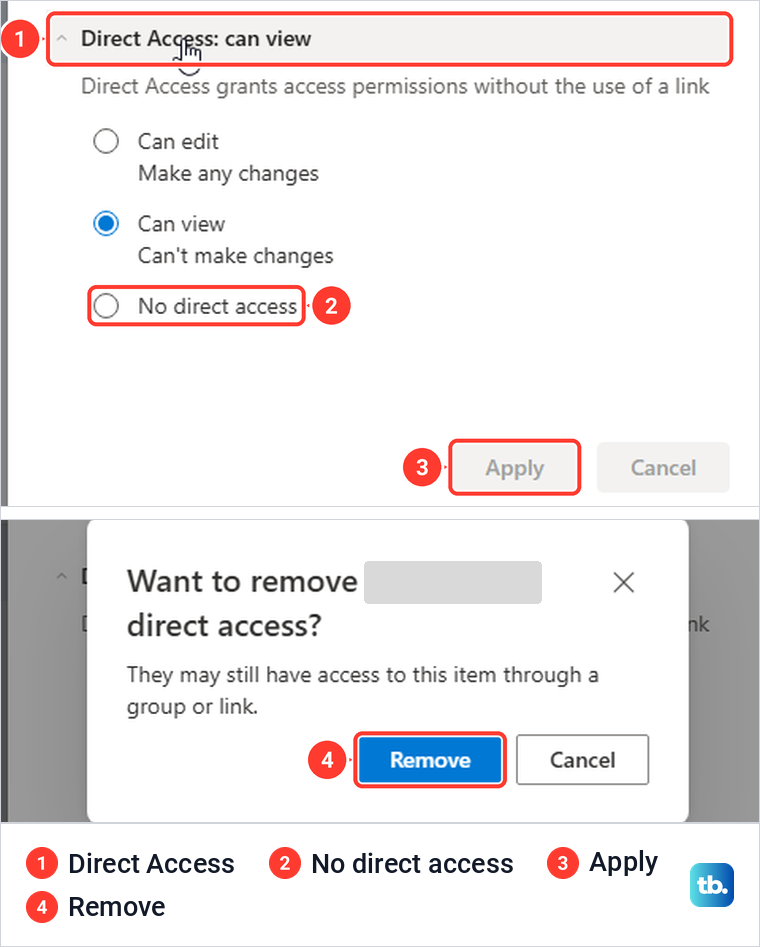
That last box warns that they may still have access to this item through a group or link, which this step does not remove, so check the Groups and Links tabs in Manage access as well. Afterwards our pane read This file has not been shared with anyone yet, and the notebook stayed exactly where it was.
Fix a missing Delete button or a notebook you cannot find
If Delete never appears, make sure you ticked the notebook itself and not a section or the folder around it. Microsoft says a missing Delete can mean you may not have permission to delete that file or folder, which is likely when someone else owns the notebook and shared it with you. In that case ask the owner to delete it, or close it in OneNote to clear it from your list.
Check the account too. When we opened the owner's notebook link in a browser signed in to a different work account, OneDrive answered You need access with a Request access button. That message means the signed-in account has no access, either because it is the wrong account or because the notebook was never shared with it, so sign in with the owner's account or check with the owner.
If you cannot find the notebook at all, search for it. In the Microsoft 365 Copilot app, searching for our notebook's name listed the notebook and, right under it, one of its pages and one of its sections, all with the same OneNote icon. The notebook result's menu had Open file location, Share, Copy link and Who can see this, but no Delete.
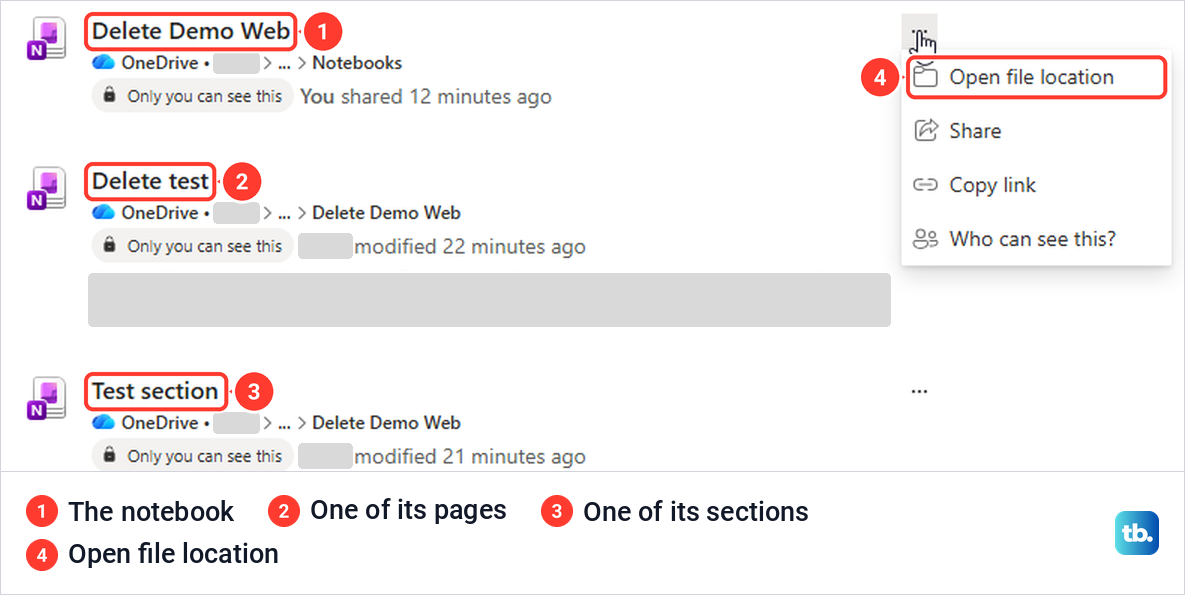
Choose Open file location on the notebook result, not on the page or section, and it opens the OneDrive folder where you can tick the notebook and delete it. For more on that search, see how to use the Microsoft 365 Copilot app and fix its common problems.
How we tested this guide
We tested this in OneNote for Microsoft 365 on Windows 11, version 25H2, and OneDrive in Microsoft Edge, deleting and restoring a local notebook and a OneDrive notebook.
Frequently Asked Questions
Why is there no Delete option for a notebook in OneNote?
Desktop OneNote's notebook menu ends with Close This Notebook, and OneNote for the web has no notebook Delete either. Delete the notebook where it is stored, in OneDrive on the web or in its folder on your PC, which File > Info shows.
Does closing a notebook delete it?
No. Microsoft says a notebook removed from the list is not deleted, and our closed notebooks stayed in OneDrive and in the OneNote Notebooks folder. Reopen one from File > Open.
Why does a deleted notebook still show in OneNote?
Its entry can stay in the list after the notebook itself is gone. Right-click the name and choose Close This Notebook on each computer where it appears.
Where is my OneNote notebook in OneDrive?
Check File > Info in desktop OneNote for its location. A notebook made in OneNote for the web went to My files > Notebooks for us, and Microsoft also names the OneNote Notebooks folder.
Can I recover a deleted OneNote notebook?
Usually, if you act quickly. Look in OneDrive's Recycle bin for a cloud notebook, or the Windows Recycle Bin for one stored on your PC, and restore it. Microsoft says files permanently deleted from the OneDrive recycle bin can't be restored.
Does deleting a shared notebook remove it for everyone?
Yes. Microsoft says deleting an item that has been shared deletes it for everyone. To keep the notebook and remove one person's direct access, use Manage access and choose No direct access, then check its Links tab.











