Your latest OneNote changes are on one device, but another still shows yesterday's notes. Start with a manual sync, then tackle the account, connection, or storage problem behind the delay. Before closing a notebook or repairing the app, save a separate copy of any notes that haven't reached the cloud.
Check the cloud copy and start a manual sync
For a notebook stored on OneDrive, open OneDrive in your browser.
Sign in with the account that owns or has access to the notebook.
Open the notebook.
For a notebook on SharePoint Online or a newer SharePoint version, open it in OneNote for the web instead. In Windows desktop OneNote, select File, right-click the URL below the notebook's name on the Info tab, and select Copy. Paste the URL into your browser's address bar and press Enter.
Compare its latest pages with the device where you made your changes to see which notes have reached the cloud.
Save a separate copy of any missing notes before troubleshooting that closes a notebook or changes local app data.
In current Windows desktop OneNote, select File > Info > View Sync Status > Sync All.
To retry only the affected notebook, select Sync Now beside it instead.
On Mac, expand the Notebooks list.
Control-click the affected notebook and select Sync This Notebook.
On Android phones, select Notebooks > More options > Settings > Sync all.
In Microsoft 365 OneNote on Windows, select Sync notebooks automatically under File > Options > Sync. Mac OneNote always syncs automatically.
Tip: Press Shift+F9 on Windows to sync the current shared notebook or F9 for all shared notebooks; on Mac, use Command+S or Command+Shift+S, respectively.
Refresh your account credentials and editing access
Expired account credentials interrupt syncing and trigger error 0xE0000024.
Select the sync-error banner in OneNote.
Enter the notebook account's current credentials when prompted.
For error E000006C/cig68, select Refresh Now or the yellow refresh banner.
If neither refresh control appears, update OneNote using the next section before trying again.
If a shared notebook won't let you edit, ask its owner to restore your editing permission.
The owner should right-click the notebook in OneDrive and select Share > Manage Access.
For access granted directly to you, select your entry under People. For access through a sharing link, select that link's gear icon under Links instead.
Choose Can Edit.
Bring OneNote up to date
Still using the separate OneNote for Windows 10 app? Its editing and syncing support ended on October 14, 2025. That retired app cannot resume supported syncing.
Open Start and search for OneNote.
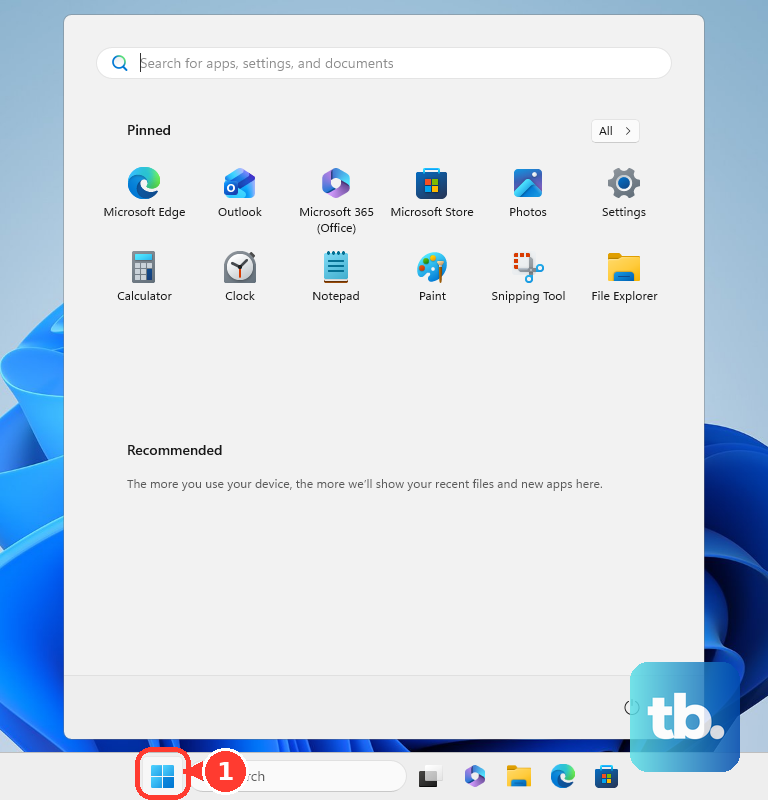
Switch to the current OneNote app included with Microsoft 365 or available from Microsoft Store.
For current Windows desktop installations that use the Office updater, open an Office app's File > Account > Update Options menu.
Select Enable Updates if updates are disabled.
Select Update Now.
On a Mac with OneNote installed from Microsoft, select Help > Check for Updates > Update.
For a Mac App Store installation, open App Store > Updates.
Select Update beside OneNote.
On iPhone or iPad, open the App Store.
Select My Account or your profile photo.
Open App Updates.
Tap Update beside OneNote.
On Android, open Google Play Store > profile icon > Manage apps & device > Updates available > See details.
Tap Update beside OneNote.
For error 0xE4020040 or a server-busy message, check Microsoft's Service Status page.
Retry synchronization after a few minutes.
If updating hasn't restored syncing on your phone or tablet, check its mobile data restrictions next.
Let your phone use the connection it needs
If syncing stops when you leave Wi-Fi, follow the step for your device.
- 1.On Android interfaces with this option, open Notebooks > More options and check Sync Notebooks on Wifi only. Connect to Wi-Fi when it is enabled, or disable it to allow mobile-data syncing.
- 2.On Google Pixel and Android devices using the same path, open device Settings > Network & internet > Data Saver > Unrestricted data and enable OneNote. This removes Data Saver's restriction; other manufacturers use different navigation.
- 3.On iPhone or a cellular-capable iPad, open device Settings > Cellular, or Cellular Data on iPad. Enable Cellular Data, then enable OneNote in the app list.
Clear storage limits and move local notebooks online
Use these fixes for quota or file-size errors, or for a notebook saved only on your Windows PC. Match the action to the error and storage location.
For error 0xE0000796, check the storage indicator in the lower-left corner of OneDrive's website.
Check the notebook's properties at its storage location for an oversized notebook.
Preserve the content you need before removing anything.
Free cloud storage if the quota is full, or reduce the notebook's size if it is oversized.
Retry synchronization.
For error 0xE0000025 on Windows, save separate copies of any oversized files you need.
Reduce or remove those files from the notebook.
To clear retained deleted content, select History > Notebook Recycle Bin > Empty Recycle Bin. This permanently removes that recovery content.
If the file-size error persists, preserve any historical page copies you need.
Select History > Page Versions > Delete All Versions.
Restart OneNote.
Retry syncing.
On iPhone or iPad, inspect local storage through device Settings > General > iPhone Storage or iPad Storage > OneNote.
Free device storage if it is full.
Let a large notebook finish its initial synchronization before editing it.
For a local notebook in Microsoft 365 on Windows, select File > Save a Copy.
Choose a OneDrive destination, using Browse if needed.
Enter a Notebook Name.
Select Save.
In OneNote 2021 or 2024, select File > Share > OneDrive instead.
Dismiss the sharing invitation to keep the notebook private.
Reopen a notebook that still refuses to sync
Close and reopen the affected desktop notebook after protecting the notes that haven't reached the cloud.
- 1.Compare the browser copy with the device where you made your changes, and save a separate copy of any remaining unsynced content.
- 2.On Windows, expand the notebook list, right-click the notebook, and select Close This Notebook. On Mac, select File > Close This Notebook.
- 3.On Windows, choose the notebook through File > Open > Recently Used Notebooks. On Mac, choose it through File > Open Recent.
- 4.Retry manual synchronization using Shift+F9 on Windows or Command+S on Mac, then compare the latest notes with the browser copy.
Rebuild a stuck section or resolve a page conflict
Only one section stuck? Start there. On Windows or Mac, create a replacement section in the notebook.
Copy the affected pages into it through Move or Copy.
Synchronize the replacement section before removing any original pages.
For conflicting page versions, merge the content you need into the main page.
Remove the redundant conflict using Delete on Windows or Delete Version on Mac.
For misplaced sections on Windows, expand Misplaced Sections in the notebook list.
Right-click the affected section and select Move or copy.
Choose a valid destination.
If rebuilding a section fails, start a replacement cloud notebook on Windows through File > New.
Choose OneDrive.
Enter a notebook name.
Select Create.
Copy the original notebook's sections into the replacement through Move or Copy.
Confirm that the replacement synchronizes before removing originals.
If failures continue across notebooks, try an Office repair next.
Repair Office when the Windows app is the problem
An Office repair addresses application-level problems after notebook, account, storage, and server checks.
Save a separate copy of all unsynced notes. Repair affects the Office suite, including other installed Office applications.
On Windows 11, right-click Start and select Installed apps.
Open the ellipsis menu beside your Microsoft 365 or Office installation.
Select Modify.
For a Click-to-Run installation, the most common type, choose Online Repair or the faster Quick Repair, then select Repair.
For an MSI-based installation, select Repair in the Change your installation window, then select Continue.
For a persistent failure, open Microsoft's Contact Microsoft Support page.
Enter a description of the error.
Select Get Help.
Select Contact Support if offered.
For a work or school notebook, send your IT administrator the error code and notebook location, including persistent SharePoint failures.
If Office's Update Options is absent, contact the administrator who manages Office updates.
Frequently Asked Questions
Can an organization block OneNote's access to online storage?
Yes. Disabling the Office policy Allow the use of connected experiences in Office also disables online storage and coauthoring. Ask IT to review that policy for a work or school account. Personal privacy settings cannot override organizational policy.
Should I delete OneNote's cache or reinstall the app?
Microsoft discourages reinstallation for sync troubleshooting. Its quota-error guidance does not identify which cache files are safe to remove. Preserve unsynced notes and get Microsoft Support's help before removing cache files; do not delete the whole cache.
Why are my notes visible on iPhone but attachments are missing offline?
Offline attachment availability is separate from text synchronization. In OneNote, open Settings > Sync. Turn on Auto Sync Attachments. Stay online until downloading finishes.
Why don't Samsung Notes appear as editable OneNote pages?
Samsung Notes synchronization displays notes in a supported web feed; it does not import them as editable OneNote notebook pages. In Samsung Notes, open Settings > Sync with Microsoft OneNote. Sign in with the same Microsoft account you use for the feed. Select the folders to sync.











