A deleted file, a damaged PC, or a clean Windows install is easier to handle when your backups are already in place. Windows 11 has separate tools for different jobs: Windows Backup for settings and setup restore, OneDrive for daily file protection, File History for automatic external-drive backups, and recovery tools for Windows itself. Use the sections below in order so you back up the right data before you need to restore it.
1. Pick the backup method that matches the job
Start by separating personal files from Windows recovery.
For files you use every day, use OneDrive folder backup for Desktop, Documents, and Pictures.
For a new PC or reinstall, use Windows Backup with a personal Microsoft account so Windows can restore backed-up folders, apps, pins, and supported settings during setup.
For an offline copy, use an external drive or File History.
A manual external-drive copy is simple storage.
File History is automatic and stores versions of included folders on an external drive or network location.
Do not treat System Restore, Point-in-time restore, or a Recovery Drive as personal-file backups.
Those tools protect or reinstall Windows itself, not your personal files.
Point-in-time restore goes further and reverts the entire system drive to the restore point, so files, apps, settings, passwords, certificates, and keys roll back and any changes made after that point can be lost; files stored in OneDrive are not affected.
None of these tools replace OneDrive, Windows Backup, File History, or a manual file copy.
2. Back up folders and settings with Windows Backup
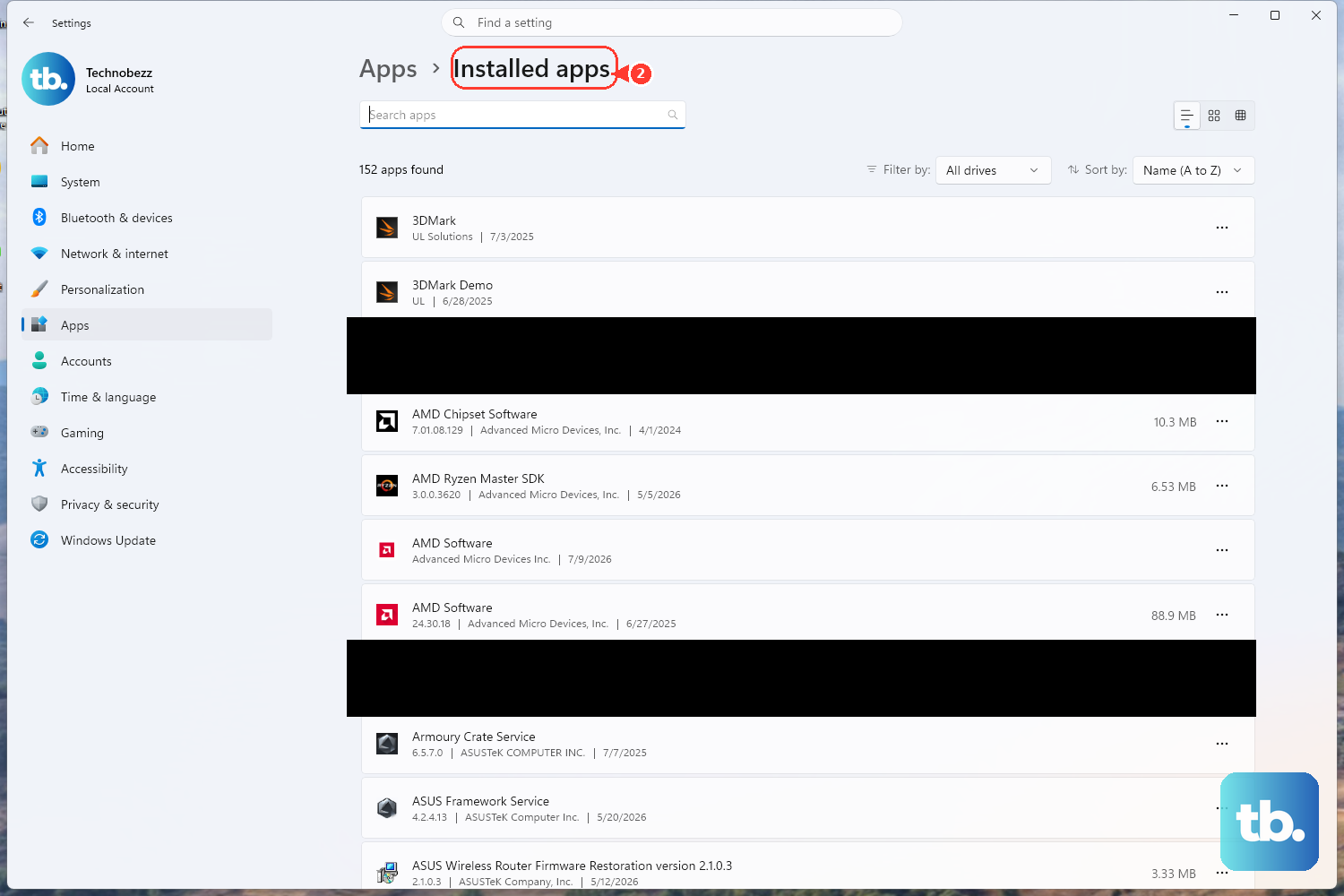
Use Windows Backup when you want Windows 11 to remember your main folders, apps, preferences, and settings through your personal Microsoft account.
- 1.Open Start, type backup, then open Windows Backup.
- 2.Sign in with your personal Microsoft account when prompted.
- 3.Expand Folders, then turn on Desktop, Documents, Pictures, Videos, and Music as needed.
- 4.Expand the settings categories, including Installed apps, Accessibility, Accounts, Wi-Fi network and passwords, Personalization, Language preferences and dictionary, and Other Windows settings.
- 5.Turn on the items you want saved, then select Back up.
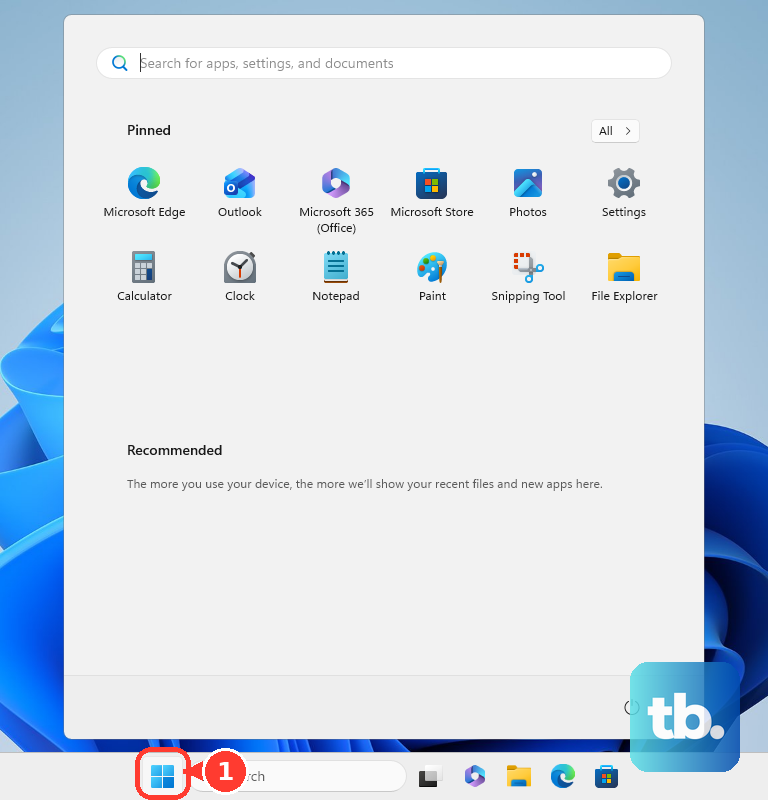
The consumer Windows Backup app works with a personal Microsoft account.
Microsoft says work or school accounts do not work with the consumer app.
You can manage the same setup from Settings.
Open Settings > Accounts > Windows backup, then use Manage sync settings under OneDrive folder syncing.
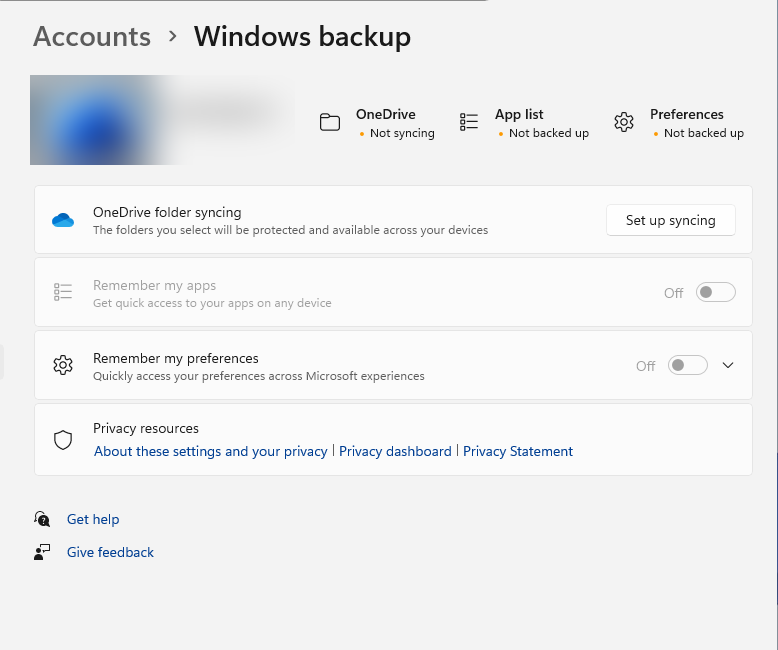
Use Remember my apps to control app backup and Remember my preferences to control settings backup.
3. Turn on OneDrive folder backup for daily files
Select the OneDrive cloud icon in the notification area.
Select the Help & Settings icon, then select Settings.
Open Sync and backup, then select Manage backup.
Choose the folders to back up.
Select Save changes.
OneDrive folder backup covers supported known folders such as Desktop, Documents, and Pictures.
It works with personal, work, or school OneDrive accounts.
To stop backing up a folder, select the OneDrive cloud icon, then go to Help & Settings > Settings > Sync and backup > Manage backup.
Turn the folder toggle off, then choose either Keep the files only in OneDrive to remove the local copies or Keep files only on my PC to remove them from OneDrive.
To pause syncing instead, right-click the OneDrive taskbar icon, select Pause syncing, then choose 2 hours, 8 hours, or 24 hours.
To quit OneDrive, select Quit OneDrive.
To remove an account from the sync app, open the OneDrive taskbar icon, select Settings > Account, then unlink or remove the Microsoft, work, or school account.
4. Copy extra files to OneDrive or an external drive
Folder backup does not cover every file location.
For extra files, upload them yourself or copy them to offline storage.
Go to OneDrive.com and sign in.
In Microsoft Edge or Google Chrome, select Add new > Files upload or Folder upload; in other browsers, select Upload > Files or Folder.
Choose the items to upload, then select Open (or Select Folder for a folder).
With the OneDrive sync app installed, you can also open File Explorer and drag files to OneDrive in the navigation pane.

In Word, Excel, or PowerPoint, save directly by selecting File > Save a Copy > OneDrive - Personal, entering a file name, using Browse when you want a specific folder, and selecting Save.
If OneDrive is missing there, select Add a Place > OneDrive and sign in.
For an external-drive copy, connect USB storage, an SD card, an external hard drive, or a network drive.
Open File Explorer, locate the files and folders, hold CTRL to select multiple items, right-click the selection, choose Show more options > Send to, then choose the external storage device.
To restore those files later, connect the drive, open File Explorer > This PC, open the external drive, open the saved folder, select More > Select all, choose Copy or Cut, go to the destination, then select Paste.
5. Add File History for automatic offline versions
File History is still documented for Windows 11.
It backs up libraries and common folders to an external drive or network location, and its setup remains in Control Panel.
Connect an external drive or configure a network location.
Open Control Panel > System and Security.
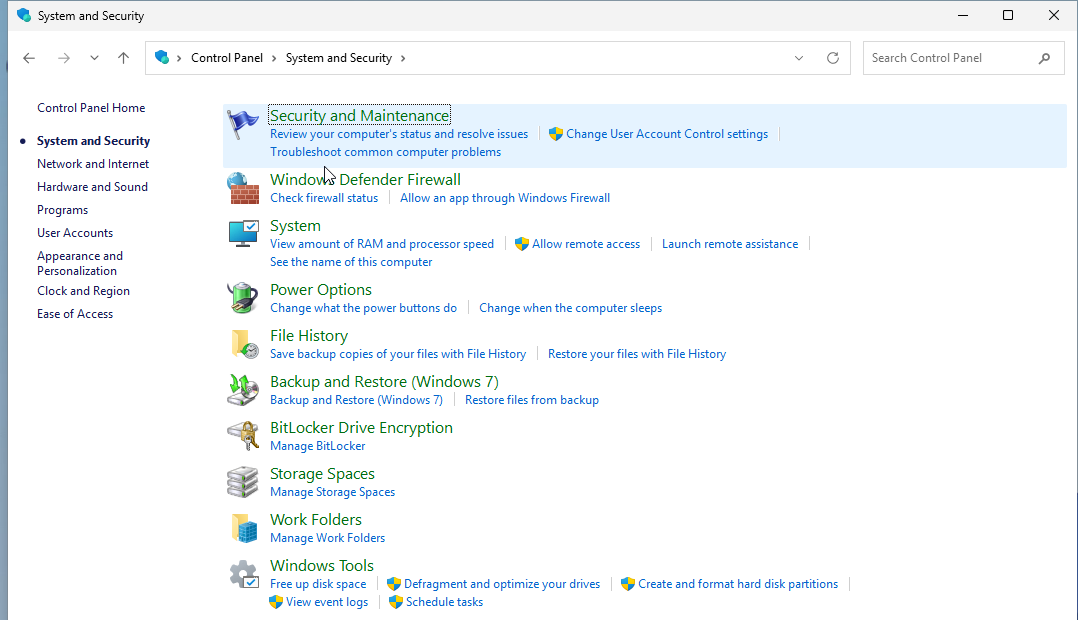
Select Save backup copies of your files with File History.
Select Turn on.
To choose a different drive, select Select drive, choose the external drive or network location, then select OK.
To restore from File History, open File Explorer and go to the folder that used to contain the file or folder.
Right-click the folder name, select Restore previous versions, choose a previous version, then select Open and Open in File History to preview it.
Select Restore or Restore to... to recover it.
6. Restore Windows Backup during setup
Windows Backup restore happens during Windows setup on a new PC or after reinstalling Windows.
Sign in with the same Microsoft account used for the backup.
When Windows detects backups, choose the restore option shown during setup.
If several PCs are backed up, select More options and choose the backup you want.
Windows restores backed-up app pins, supported settings, and OneDrive-backed files.
Store apps restore from pins, and non-Store app pins can point to installer download pages.
To delete cloud-synced Windows settings later, first open Settings > Accounts > Windows backup and turn off the backup options you no longer want.
Then open the Microsoft Account Devices page, find Cloud synced settings, and select Clear stored settings.
7. Recover deleted files and earlier versions
For local files and OneDrive synced files deleted from the PC, start with Windows.
Open Recycle Bin, select the files or folders, right-click them, then choose Restore.
Online-only OneDrive files deleted locally do not appear in the Windows Recycle Bin, so restore those on the OneDrive website.
For OneDrive deleted files, go to the OneDrive website, sign in, select Recycle bin, choose the files or folders, then select Restore.
Personal OneDrive recycle bin items are automatically deleted after 30 days.
Work or school retention is normally 93 days unless an admin changed it.
For a bad edit, use Version history.
On OneDrive.com, right-click the file, select Version history, open the ellipses next to the version, then select Restore.
In File Explorer, right-click a synced OneDrive file, select Version history, open the ellipses next to the version, then select Restore.
Microsoft says version history works with all file types, and personal OneDrive file version history is retained for 30 days.
Microsoft 365 subscribers can restore OneDrive file actions from the last 30 days.
On OneDrive.com, select Settings > Options > Restore your OneDrive for personal Microsoft 365 accounts, or Settings > Restore OneDrive for work or school accounts.
Choose a date or Custom date and time, review the activity chart and feed, then select Restore.
Permanently deleted files cannot be recovered.
For OneDrive mobile recovery, open the OneDrive app on Android, select the Me icon, select the account, open Recycle Bin, select files, then select Restore.
On iOS, open the OneDrive app, select the Me icon in the upper left, select the account, open Recycle Bin, select files, then select Restore.
When a deleted file is gone from Recycle Bin and was stored on a local drive, use Microsoft’s Windows File Recovery app.
Install Windows File Recovery from Microsoft Store, press the Windows key, type Windows File Recovery, open Windows File Recovery, approve Yes at the UAC prompt, then run winfr source-drive: destination-drive: [/mode] [/switches].
It supports local storage devices, including internal drives, external drives, and USB devices.
It does not support cloud storage or network file shares.
8. Create recovery media for Windows problems
A Recovery Drive helps reinstall Windows from USB.
It includes essential system files and OEM customizations, but it does not include personal files.
Open Start, search for Recovery Drive, then open Recovery Drive.
You can also run recoverydrive.exe.
Keep Back up system files to the recovery drive selected, then select Next.
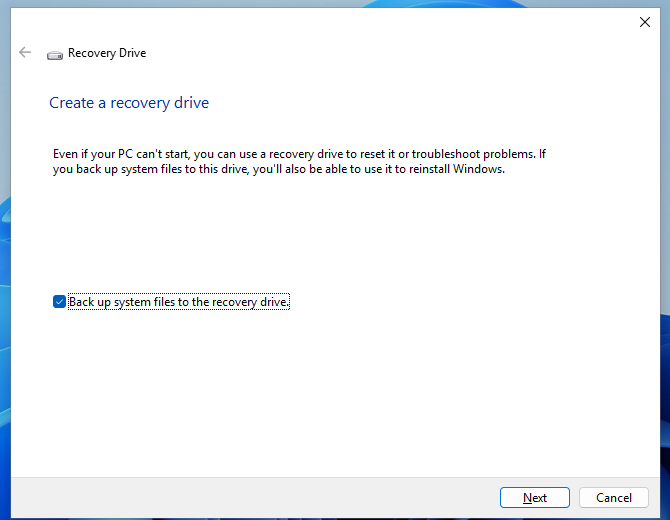
Connect a USB drive, select Next, then select Create.
To reinstall from that USB drive, boot from it, then open Windows Recovery Environment > Recover from a drive.
Choose Just remove my files or Fully clean the drive, then select Recover.
For system-file rollback, turn on System Protection by opening Start, typing Create a restore point, opening Create a restore point, selecting the System Protection tab, choosing Configure..., selecting Turn on system protection, and adjusting the disk-space slider.
To make a restore point, select Create..., enter a description, then select Create.
9. Skip old Backup and Restore advice for new backups
Older Windows guides point to Backup and Restore (Windows 7), Create a system image, or old PC-to-PC transfer features.
Microsoft marks System Image Backup, also known as the Backup and Restore (Windows 7) legacy control panel, as deprecated for new full-disk images.
Microsoft recommends third-party full-disk backup solutions or OneDrive for data-file sync instead.
Windows 11 can restore files from an older Backup and Restore (Windows 7) backup after an upgrade.
To do that, connect the external storage device containing the older backup, right-click Start, select Search, type Control Panel, open Control Panel, search for backup, open Backup and restore (Windows 7), select Select another backup to restore files from, then choose the external storage device in Restore Files (Advanced).
The old PC-to-PC transfer experience is no longer available.
Use Windows Backup and restore during setup instead.
On work or school managed devices, your organization controls backup and restore behavior.
Windows Backup for Organizations settings are managed through Intune and Windows policy settings, and OneDrive known-folder backup is managed through OneDrive policies.
Frequently Asked Questions
Does Windows 11 have Backup and Restore?
Yes. Current consumer backup options are Windows Backup, OneDrive folder backup, File History, manual external-drive copies, and OneDrive restore tools. Backup and Restore (Windows 7) remains only for restoring older backups and is deprecated for new system-image backups.
Does Windows Backup work with a work or school account?
The consumer Windows Backup app requires a personal Microsoft account. Work or school devices use organization-managed backup settings when the organization enables them.
What should I use before reinstalling Windows 11?
Use Windows Backup with your personal Microsoft account for folders, apps, and supported settings. Add OneDrive folder backup or an external-drive copy for files, because a Recovery Drive does not include personal files.
How do I restore OneDrive files after deletion?
Use the OneDrive website Recycle bin first. Personal OneDrive deleted items are automatically removed after 30 days, while work or school retention is normally 93 days unless an admin changed it.
Can File History restore an older version of a file?
Yes. Open File Explorer, right-click the folder that contained the file, choose Restore previous versions, select a version, preview it in File History, then use Restore or Restore to....