
To rename a OneNote notebook, go to where it is stored in OneDrive or SharePoint, right-click the notebook, choose Rename, type the new name and confirm. In OneNote for Windows, the notebook's right-click menu has no Rename. Its Properties window changes only the Display name shown in the app, and OneDrive keeps the old name.
That split is why so many people change a notebook name in OneNote and then find the old title still sitting in OneDrive. If the notebook is shared, tell the other authors first, because Microsoft warns that renaming a shared notebook makes everyone lose access.
The short version
- Real name: in OneDrive or SharePoint, right-click the notebook, choose Rename, type the name and confirm with Update or Save.
- Label only: in OneNote for Windows, right-click the notebook, choose Properties and change Display name. OneDrive keeps the old name.
- Keyboard: select the notebook in OneDrive and press F2 for the same Rename box, then Enter.
- Old name on screen: press F5 in any OneNote for the web tab that was open before the rename.
- Shared notebook: tell people first, because Microsoft warns that renaming it makes everyone lose access.
Which OneNote notebook name are you changing
A OneNote notebook has two names that can drift apart. The stored name belongs to the notebook item in OneDrive or SharePoint, and it is what OneDrive, the Recent list in File > Open and the people you share with see. The display name is the label in the Windows app's notebook list, and the Notebook Properties window says so in plain words: it does not affect the actual notebook folder name.
Sections and pages have names of their own, and right-clicking a section and choosing Rename changes only that section. If sections and pages are still new to you, our guide to using OneNote for notes and organization explains where they sit inside a notebook.
| What you want | Where to do it | What changes |
|---|---|---|
| A new name for a notebook on OneDrive | OneDrive in a browser, right-click the notebook, Rename, Update | The stored name, and the heading when the notebook opens |
| A new name for a notebook in a SharePoint library | The library, the three dots by the notebook, Rename, Save (Microsoft's steps) | The stored name in that library |
| A different label in OneNote for Windows | Right-click the notebook, Properties, Display name, OK | The label in the notebook list only |
| F2 in OneDrive | Select the notebook row, press F2, type, press Enter | The stored name, as with Rename on the menu |
| Ctrl + G in OneNote for Windows | Tab to the notebook, Shift + F10, Properties, type, Enter | The display name, without a mouse |
| A section's name | Right-click the section, Rename | That section only |
Change the name OneNote shows on Windows
In OneNote for Windows, right-click the notebook's name in the Notebooks list on the left. Ours offered sync, share, link and move commands, Properties and Close This Notebook, with no Rename anywhere. Rename does appear when you right-click a section, which makes it easy to rename the wrong thing.
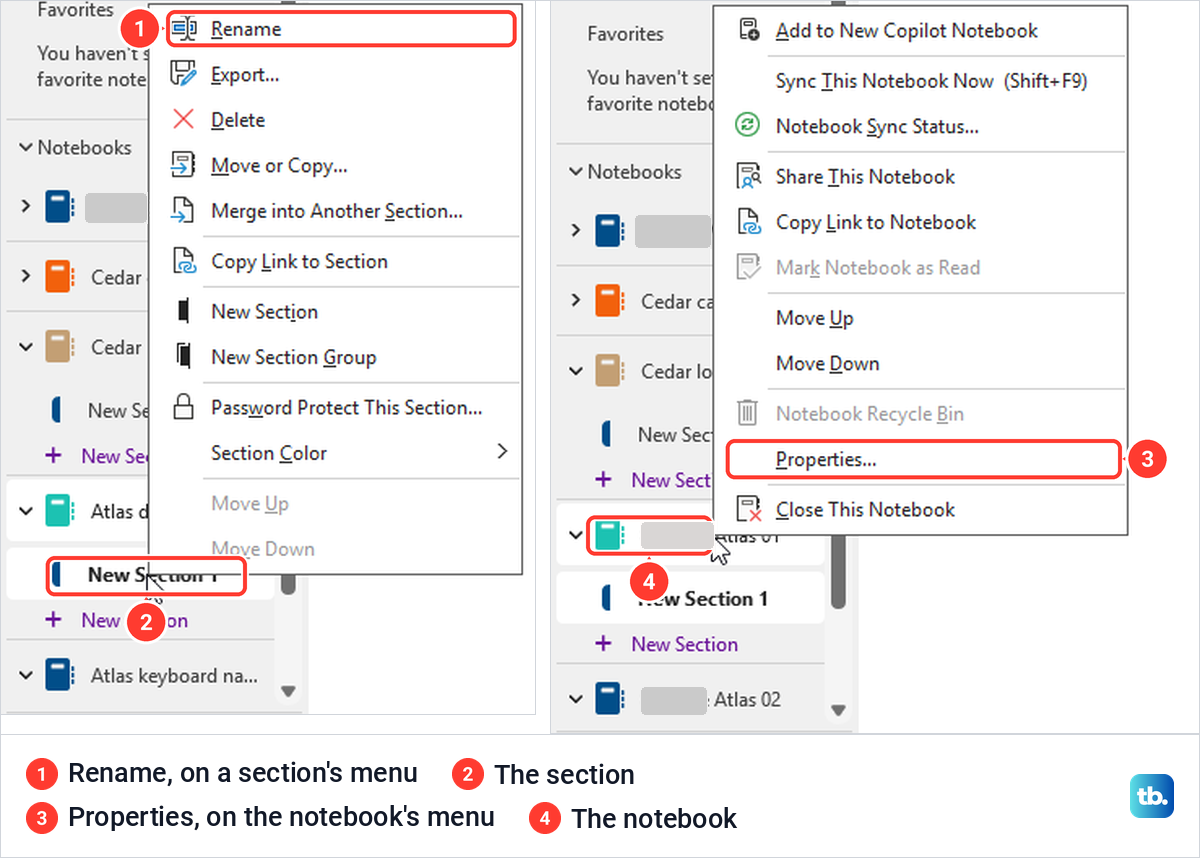
Choose Properties. The Notebook Properties window opened with the current name selected in the Display name box and the line Does not affect the actual notebook folder name underneath. The same window has Color, Location and Default Format, and Location told us the notebook lived on OneDrive.
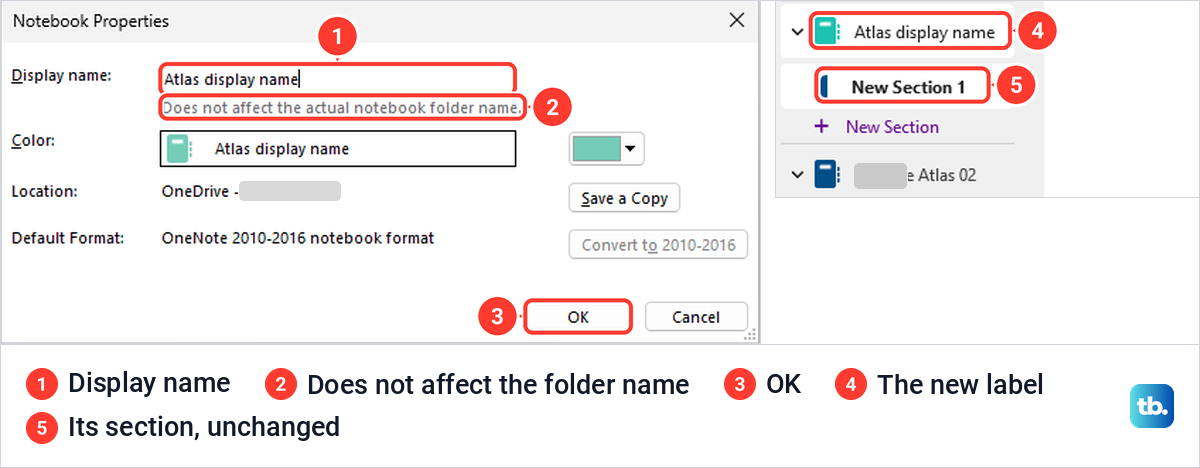
Type the new name and select OK. The notebook list showed the new label straight away, and the notebook's section and both of its pages stayed exactly where they were. Use this when all you want is a clearer label in the list, for example to tell apart two notebooks with similar names.
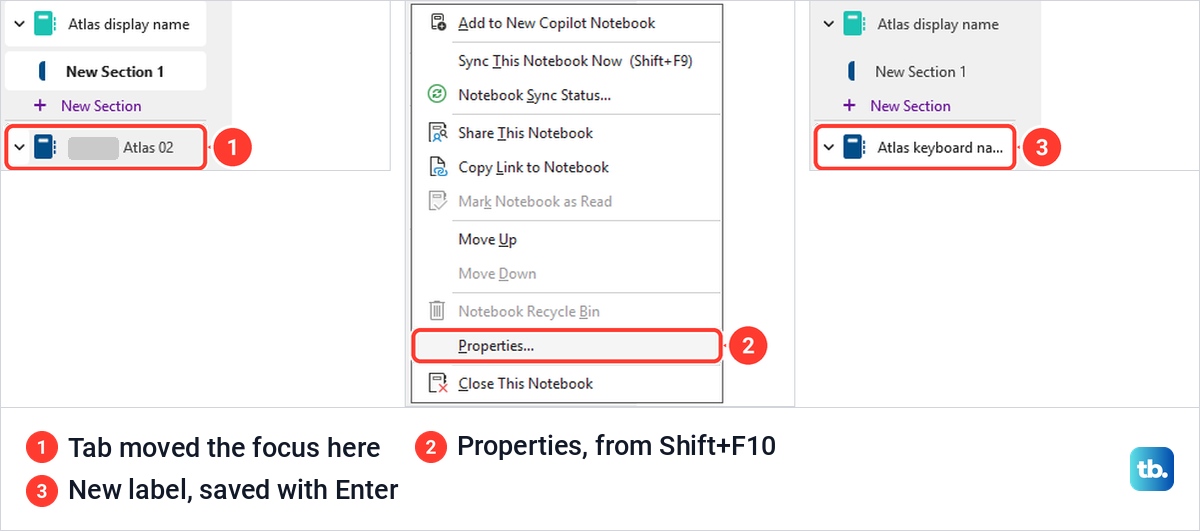
Without a mouse, press Ctrl + G to move the focus to the notebook list. Microsoft's screen reader steps move between notebooks with the arrow keys, but on our PC the arrows left the focus on the first notebook, and Tab moved it from one notebook to the next. Then press Shift + F10 for the notebook menu, choose Properties, type the name and press Enter.
Enter saved the name and closed the window, just as OK does. The renamed notebook stayed selected at the bottom of the list, its new label cut short because the panel was narrow.
Find the notebook in OneDrive
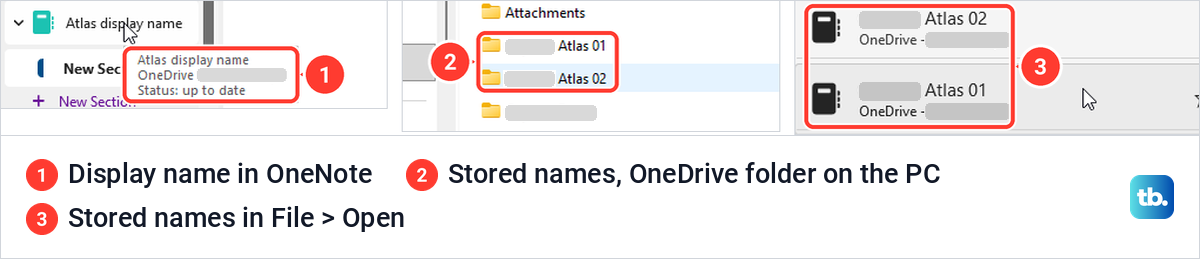
The stored name can only be changed where the notebook is kept, so find that place first. In the Windows app, point at the notebook in the list, and ours showed its display name, its OneDrive location and Status: up to date. File > Info lists every open notebook with its location, a web address for a notebook on OneDrive or a local folder path, such as one on the C: drive, for one kept on the PC.
If you know the folder, open OneDrive in your browser and go there. Microsoft says a notebook is likely in your Documents folder, which is where we saved ours from the Windows app. If you are finding the notebook through OneDrive for the first time, our guide to setting up and using OneDrive on Windows explains the account and the file view.
If you do not know the folder, let OneNote for the web show you. Open the notebook there and select its name at the top of the window. A panel opened with a Location line made of the account name, an arrow and the notebook name, and selecting that last part took us straight to the OneDrive folder that holds the notebook.
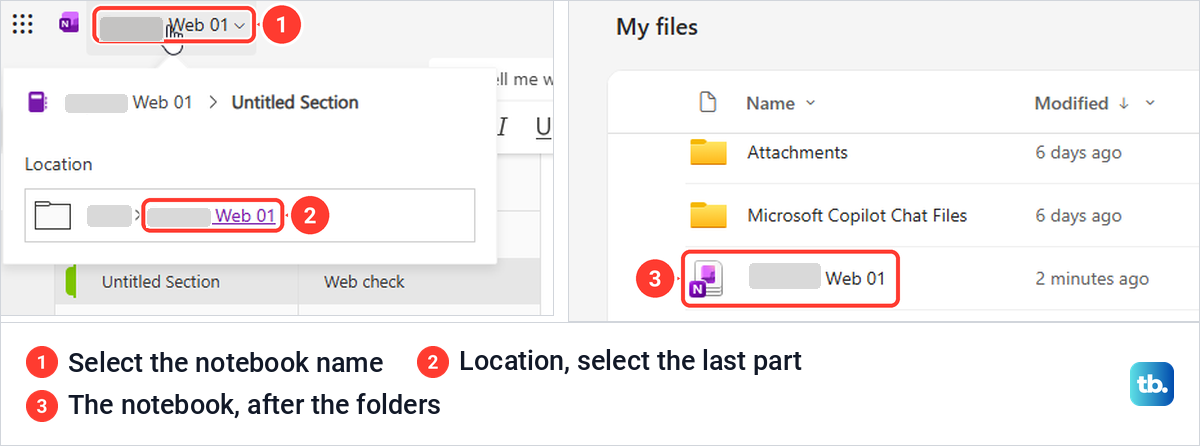
Look below the folders when you get there. Our notebook was the first item after every folder, even with the list sorted newest first, so a brand new notebook did not appear at the top. Look for the notebook's stored name: if you changed only Display name in OneNote, OneDrive still lists it under its old name.
Rename a OneNote notebook in OneDrive
If the notebook is shared, warn the other authors before this step, as the shared notebook section below explains. If OneNote for Windows has the notebook open, you can follow the order Microsoft gives for Mac and iPhone: close it first with Close This Notebook on its right-click menu, rename it in OneDrive, then open it again from File > Open, where Microsoft says notebooks stored on OneDrive are listed.
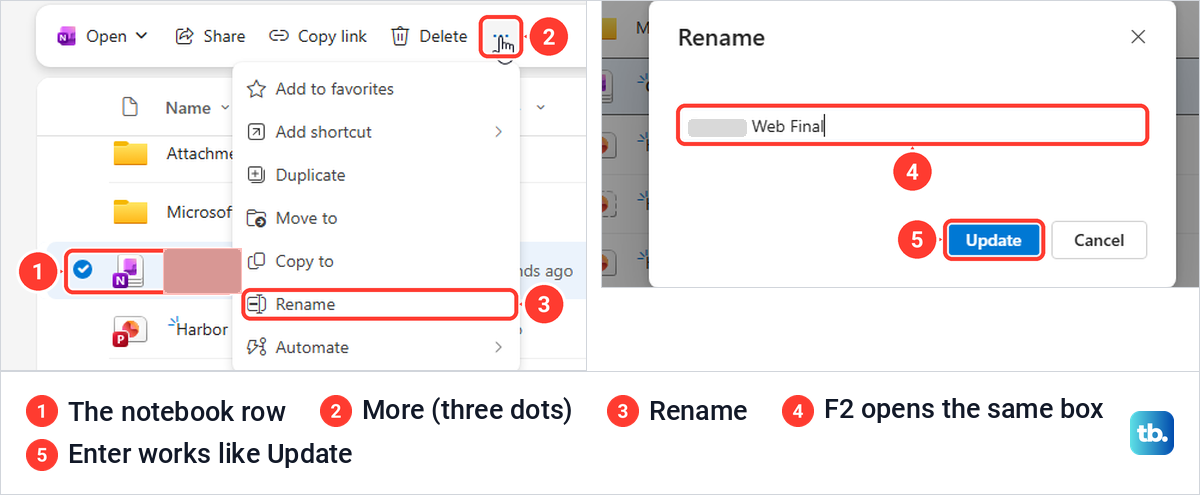
With the notebook in view, right-click it. Our menu listed Open, Share, Copy link, Manage access, Delete, Add to favorites, Add shortcut, Rename, Move to, Copy to, Duplicate, Automate and Details. Choose Rename, and check that the row you right-clicked carries the notebook's name and sits in the location OneNote showed you.
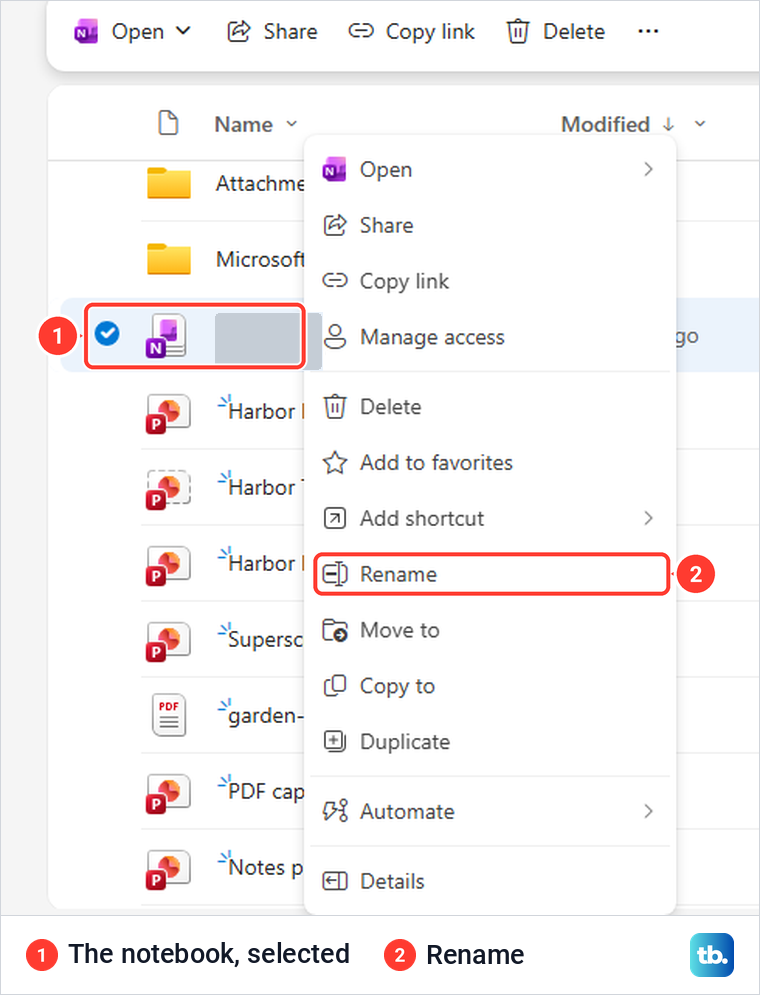
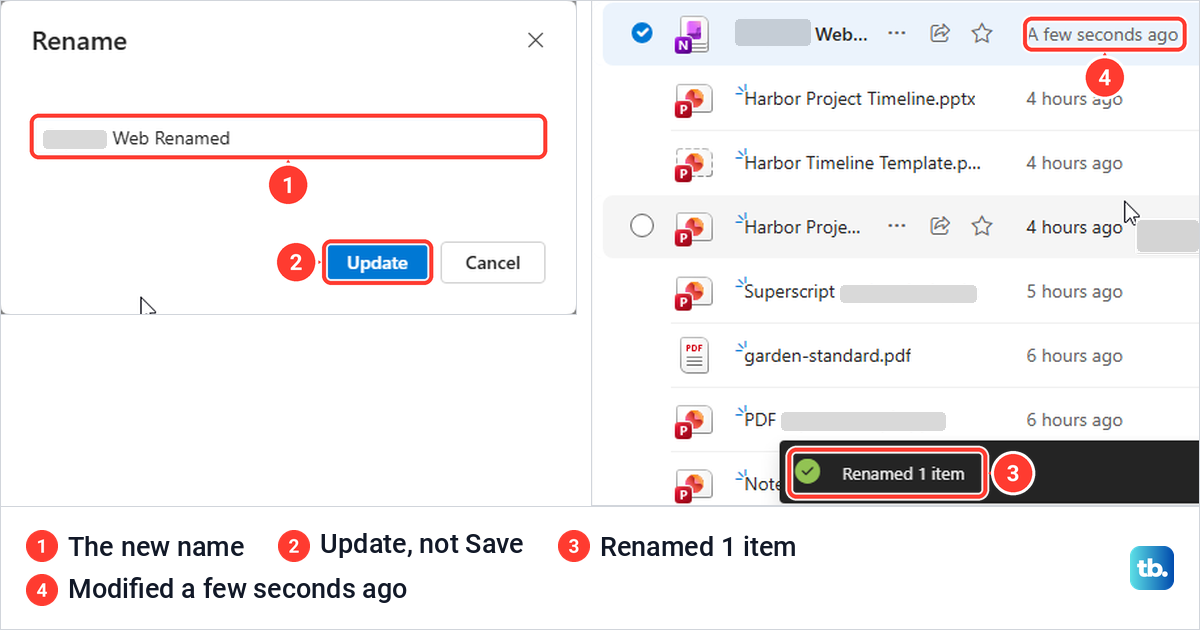
The Rename box showed the current name with the cursor at the end and no file extension. Select the old name, type the new one and select Update. Microsoft's help page says to click Save, but the button on our screen was Update, next to Cancel, so press whichever confirm button you see.
OneDrive confirmed with a Renamed 1 item message at the bottom of the page, and the row's Modified time changed to a few seconds ago. The name in the row was cut short while the row stayed selected, and it read in full once we cleared the selection.
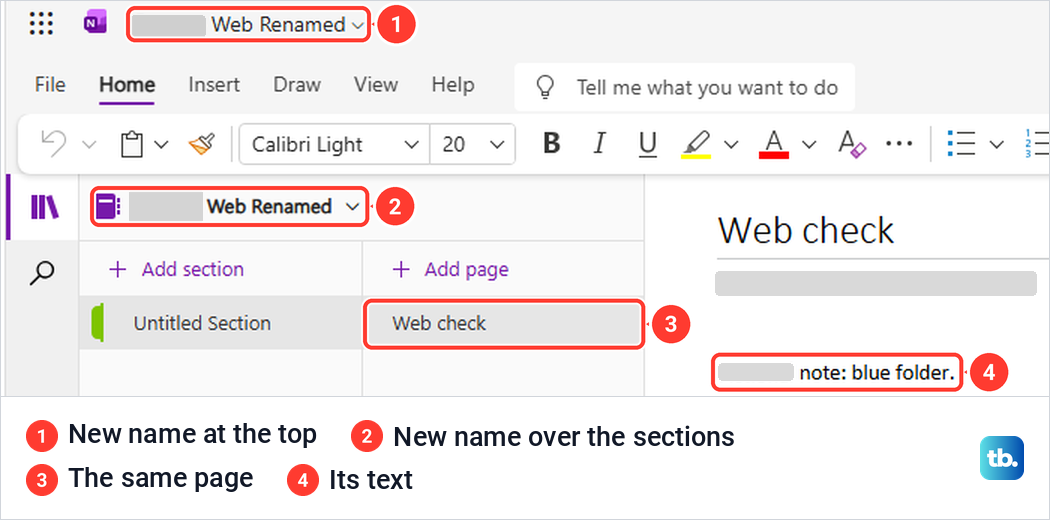
Open the notebook from the list to check the result. It opened in OneNote for the web with the new name at the top of the window and above the section list, and its section and page were unchanged, down to the one line of text on the page.
Use the command bar or F2 instead
Right-click is not the only way in. With the notebook row selected, the command bar above the list showed Open, Share, Copy link, Delete and three dots, and Rename was inside the three dots menu at our window width. If Rename is not on the bar, look under the dots before deciding it is missing.
The keyboard route is quicker still. Select the notebook row, press F2 and the same Rename box opens, then type the name and press Enter, which saved it just as Update does. Microsoft's screen reader instructions for OneNote use F2 in the same way.
Rename a notebook stored in SharePoint
A team notebook often lives in a SharePoint document library rather than in one person's OneDrive. Microsoft's OneNote instructions treat both the same way, so open the notebook's location first, either from the Location link in OneNote for the web or by going to the library yourself.
In the library, Microsoft's steps are to hover over the notebook, select the three dots to the right of its name, choose Rename, enter the new name and select Save. If the confirm button reads Update instead, as OneDrive's did for us, use that. For a notebook in a team document library, our guide to using SharePoint in Microsoft 365 explains how to get around the library.
If your work account will not open the OneDrive or SharePoint location at all, our Microsoft 365 sign-in fixes deal with the account problem first. A notebook that belongs to a team you can only read has to be renamed by someone with edit access.
If the old name still shows
If you changed the name in Properties and OneDrive still shows the old one, nothing is broken. After we changed two display names, the OneDrive folder still held both notebooks under their original names, and File > Open listed them under those names in its Recent list. View Sync Status marked both notebooks Up to date while OneDrive still showed the old names, so the mismatch is not a sync fault.
To make the names match, rename the stored notebook in OneDrive or SharePoint as described above. Microsoft's steps do that in the browser, so rename it there and not as a folder on your PC. If the Windows app keeps the old label afterwards, give it the same name in Properties.
If other files in OneDrive are not updating either, our guide to fixing OneDrive syncing on Windows covers that separate problem. Two different names in two places is not by itself a sync error.
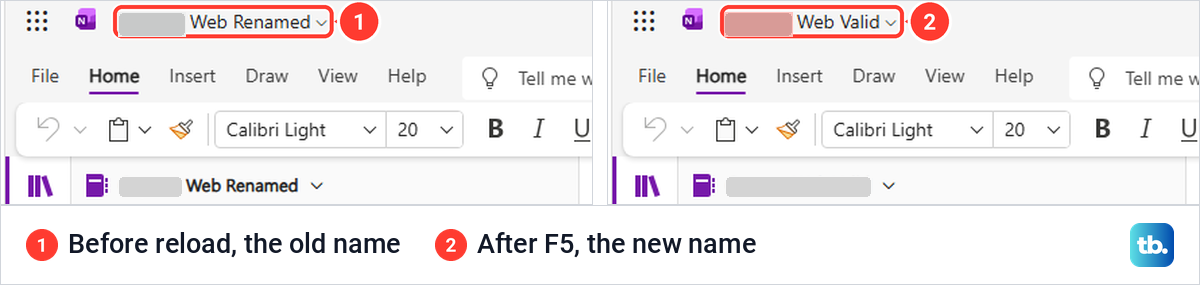
OneNote for the web can lag behind as well. A tab we had opened before renaming the notebook still showed the old name in its heading and on the browser tab minutes later, and pressing F5 to reload brought up the new name. Reload any open notebook tab after a rename before deciding the rename did not work.
Before you rename a shared notebook
Microsoft's rename page starts with a caution: If you rename a shared notebook, everyone will lose access. It asks you to give the other authors advance notice before renaming a notebook you have already shared, and says not to rename Class and Staff Notebooks, as this will disrupt student and staff access. Its Mac page adds that this includes Class and Staff Notebooks created through Microsoft Teams.
Microsoft's general SharePoint help sounds gentler, saying people with a sharing link can still reach a renamed file while a direct link stops working. For notebooks, plan around the stricter OneNote warning. Tell people first, rename, then ask them whether the notebook still opens for them.
Manage access, on the notebook's right-click menu in OneDrive, shows who a notebook is shared with. Ours, shared after its last rename, listed the owner and the invited person with Can view, under People, Groups and Links tabs, with Stop sharing at the top. Look at it before you rename, so you know whom to tell.
If someone has lost access after the rename, share the notebook again from Share, where the permission was Can edit by default and can be switched to Can view before you select Send. Microsoft says Can view lets someone only view a file or folder, while Can edit lets them view it and make changes.
If Rename is missing in OneDrive
First check what you selected. In the Windows app a notebook has Properties rather than Rename, so a Rename you find there belongs to a section. In OneDrive, select the notebook row itself, then try the right-click menu, the three dots on the command bar and F2, since our command bar did not show Rename as a button of its own.
Then check whose notebook it is. Microsoft says Can view allows someone only to view a file or folder and not make changes to it, so ask the owner to rename the notebook or to give you edit access. A notebook made with This PC sits in a folder on your computer instead, which File > Info shows as a local folder path, so there is no OneDrive item to rename. Microsoft's rename steps start from a notebook stored in OneDrive or SharePoint.
Fix a name OneDrive refuses
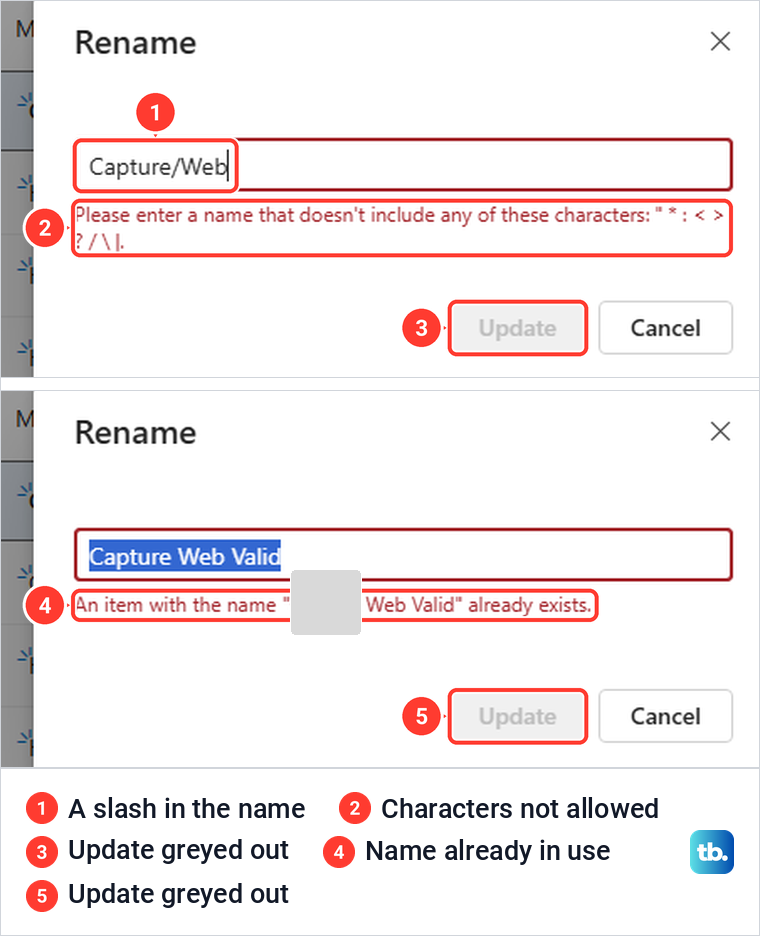
OneDrive checks the name as you type. When we typed a slash, the box turned red with the message Please enter a name that doesn't include any of these characters, followed by the list, and Update stayed greyed out until the slash was gone. Microsoft lists " * : < > ? / \ and | as not allowed, and adds that names cannot start or end with a space.
A name that another item in the same folder already uses is refused too. A second notebook could not take the first notebook's name, and the message said an item with that name already exists, again with Update greyed out. Pick a different name or rename the other item first, since Cancel leaves the notebook as it was.
Rename a notebook on a Mac, iPhone or iPad
On a Mac, Microsoft's steps also rename the notebook in OneDrive. Close it first by choosing Notebooks, then Notebooks again and Close This Notebook on the OneNote menu bar. Then open OneDrive in a browser, select the notebook with the small circle by its icon, choose Rename on the OneDrive menu bar, type the new name and press Return.
Microsoft then has you select the notebook in OneDrive to open it in OneNote for the web, and select Open in OneNote to bring it back into the Mac app. If the browser opens OneDrive under a different account, log out of that Microsoft account and sign in with the one that stores the notebook.
On an iPhone or iPad, Microsoft says to close the notebook first by opening the notebook list, touching and holding the notebook and tapping Close Notebook. Then sign in to OneDrive in Safari or another browser, touch and hold the notebook, tap the three dots and choose Rename This File, type the name and tap Done. Tapping the notebook afterwards opens it again in OneNote.
Microsoft's steps ask you to sign in with the same account the notebook is stored under. If you no longer know the password for a personal Microsoft account, reset your Microsoft account password before you sign in to OneDrive.
How we tested this guide
We tested this in OneNote for Microsoft 365 on Windows 11, version 25H2, and OneNote for the web in Microsoft Edge, renaming notebooks from Properties and from OneDrive.
Frequently Asked Questions
Why does OneDrive still show the old name after I renamed my notebook in OneNote?
Properties in OneNote for Windows changes only the display name, and its own window says it does not affect the actual notebook folder name. Our OneDrive folder kept the original names after two display name changes, so rename the notebook in OneDrive or SharePoint to change the stored name.
Is there a Rename option for notebooks in OneNote for Windows?
Not on the notebook's own right-click menu, which has Properties instead, where Display name changes the label in the list. The Rename you see on a right-click menu in the notebook list belongs to sections.
Why can't I find Rename in OneDrive?
Select the notebook row itself, then try right-click, the three dots on the command bar or F2. If the notebook was shared with you as Can view, Microsoft says you cannot make changes to it, so ask its owner to rename it.
Will people I shared the notebook with lose access?
Microsoft warns that if you rename a shared notebook, everyone will lose access, and asks you to give the other authors advance notice. Tell them first, ask them afterwards whether the notebook still opens for them, and share it again from Share if it does not.
Why does my open OneNote tab still show the old name?
A tab opened before the rename keeps the old name until it reloads. Ours still showed it minutes later, and pressing F5 brought up the new name.
Which characters can't I use in a notebook name?
Microsoft lists the double quote, asterisk, colon, less than and greater than signs, question mark, forward slash, backslash and vertical bar, and names cannot start or end with a space. OneDrive also refused a name that another item in the same folder already had.
How do I rename a OneNote notebook on an iPhone?
Close the notebook in OneNote first, then sign in to OneDrive in a browser, touch and hold the notebook, tap the three dots and choose Rename This File. Type the new name, tap Done, and tap the notebook to open it again.