You delete a file, open the folder again, and it is gone. Windows, OneDrive, File History, and recovery tools each handle deleted files in different places, so the fastest fix depends on where the file lived and how it was deleted. Start with the quick Windows restores, then move to cloud trash, backups, and Microsoft’s recovery command when the file is not in a normal restore location.
1. Undo the delete before anything else changes
If the deletion just happened in File Explorer, use Windows undo before opening other folders or making more file changes.
- 1.Stay in the same File Explorer window where the deletion happened.
- 2.Press Ctrl + Z.
- 3.Check the original folder for the restored file or folder.
Microsoft lists Ctrl + Z as Undo an action. This works for Windows shell actions while that undo history is still available.
2. Restore it from the Recycle Bin
Open Recycle Bin and select the deleted files or folders. Right-click the selected item, then choose Restore.
For a normal local deletion, the Recycle Bin is the next place to check. Restore sends the item back to its original location.
This path does not cover files deleted with Shift + Delete, many removable-drive deletions, files too large for the Recycle Bin, an emptied Recycle Bin, or OneDrive online-only files deleted from the cloud. If the desktop icon is missing, open Settings > Personalization > Themes > Desktop icon settings, check Recycle Bin, then select OK. Open Recycle Bin again and use Restore.
3. Recover cloud files from their own trash
For OneDrive, go to the OneDrive website, sign in, open Recycle bin in the navigation pane, select the files or folders, then choose Restore. In Windows, you can also select the OneDrive icon in the taskbar notification area and choose Recycle bin.
For Google Drive, go to drive.google.com, open Trash, right-click the file, then choose Restore.
For Dropbox, go to dropbox.com, open Deleted files, choose the deleted file or folder, then select Restore.
For iCloud Drive, if the file was deleted on Windows, open Recycle Bin, right-click the file, then choose Restore. If it is not there, go to iCloud.com > iCloud Drive > Recently Deleted, select the files, then choose Recover.
For Box, open the Box web app, choose More > Trash, open the item menu with ..., choose Restore, then confirm with Okay.
Cloud files can bypass the Windows Recycle Bin, so open the service that stored the file and restore it there. OneDrive personal Recycle Bin items are removed after 30 days. Work or school OneDrive retention is 93 days unless an admin changed it. Google Drive Trash keeps files for 30 days, Dropbox Basic, Plus, and Family keep deleted files for 30 days, iCloud Drive Recently Deleted covers files from the last 30 days, and Box Trash defaults to 30 days unless a business or enterprise admin changes it.
4. Pull an older copy from File History
Use File History only if it was turned on before the deletion and the missing file was inside a backed-up library or folder. Open File Explorer.

Go to the folder that used to contain the deleted file. Right-click the folder name, then select Restore previous versions.
Open the Previous Versions tab and select a version. Choose Open and then Open in File History to preview it. Choose Restore or Restore to....
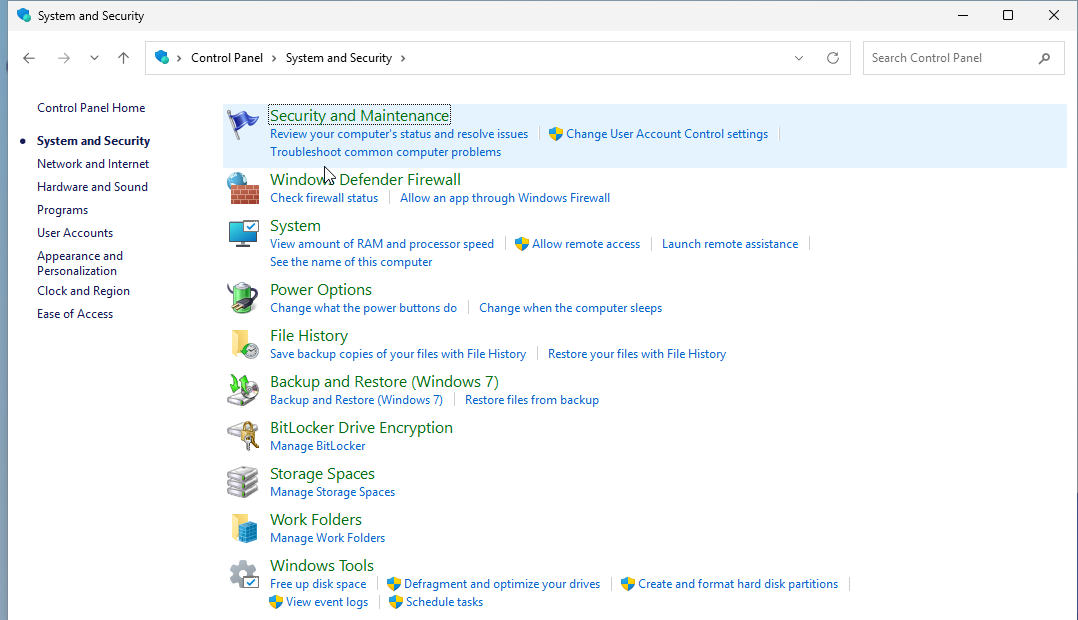
File History requires an external drive or a network location backup. For future protection, turn it on from Control Panel > System and Security > Save backup copies of your files with File History > Turn on.
5. Search Windows.old after an upgrade
After a Windows upgrade, missing files can be inside Windows.old for a limited time. Sign in as an administrator, open File Explorer, then go to This PC > C: > Windows.old > Users.
Open your user folder and check folders such as Documents, Pictures, and Desktop. Right-click the files or folders you need and choose Copy, then go to the destination folder, right-click, and choose Paste.
Windows.old content is generally available only for 10 days after an upgrade. Later install, refresh, or reset attempts can replace or delete it.
6. Run Windows File Recovery when backups miss it
Install Windows File Recovery from the Microsoft Store. Press the Windows key, type Windows File Recovery, then select Windows File Recovery. Approve User Account Control with Yes.
Run winfr source-drive: destination-drive: [/mode] [/switches]. Use different drives for the source and destination. Enter Y to start recovery.
Use Microsoft’s Windows File Recovery after Recycle Bin, cloud trash, and backup paths fail. It works on Windows 11 and Windows 10 version 2004 or later with local internal drives, external drives, USB devices, and SD cards. It is not supported for cloud storage or network file shares.
Microsoft gives examples such as winfr C: E: /regular /n \Users\<username>\Documents\ and winfr C: E: /regular /n *.pdf /n *.docx. Minimize PC use after deletion to improve the recovery chance.
7. Open Office recovery for unsaved drafts
This is the right path for a Word, Excel, or PowerPoint file lost after a crash or closed before saving. It is not a general deleted-file recovery method.
After a crash, reopen the Microsoft 365 app, select the file in the Document Recovery pane, then choose Open, Save As, Delete, Close, or Show Repairs.
For unsaved Excel or PowerPoint drafts, open File > Info > Manage Document, choose Recover Unsaved Workbooks in Excel or Recover Unsaved Presentations in PowerPoint, select the file, choose Open, then save it with Save As.
To make future Office recovery available, open File > Options > Save, check Save AutoRecover information every x minutes, and check Keep the last autorecovered version if I close without saving.
8. Use Teams or SharePoint restore for work files
For files deleted from OneDrive or chat in Teams, open Teams. Select OneDrive > Recycle bin, find the file, and right-click it. Choose Restore.
For channel files, select the Shared tab, choose More options > Open in SharePoint, open Recycle bin in SharePoint, select the files, then choose Restore.
Teams files are stored through Microsoft cloud storage, so restore them from the related Recycle Bin rather than the local Windows folder. For SharePoint files, open the SharePoint site, choose Recycle bin, select the item, then choose Restore. If the item is not visible, a site collection administrator or SharePoint admin may need to recover it from the site collection recycle bin.
9. Skip the old system recovery traps
Do not use System Restore as a deleted-photo or deleted-document fix. Microsoft describes System Restore as a way to roll back system files and settings, and it does not affect personal files.
Do not make System Image Recovery your first move for one missing file. It restores a computer image rather than selectively undeleting one document and can overwrite newer files. Use the Recycle Bin, the relevant cloud trash, File History, Windows.old, Office recovery, Teams or SharePoint restore, or Windows File Recovery first.
Frequently Asked Questions
Can I recover deleted files after emptying the Recycle Bin?
Yes, if File History, cloud trash, Windows.old, Office recovery, Teams or SharePoint restore, or Windows File Recovery can still access a copy. Start with backups and cloud trash, then run Windows File Recovery with a different destination drive.
Why are my OneDrive files not in the Windows Recycle Bin?
Online-only OneDrive files deleted from the cloud do not appear in the Windows Recycle Bin. Sign in to the OneDrive website, open Recycle bin, select the files, and choose Restore.
Does System Restore recover deleted photos or documents?
No. Microsoft describes System Restore as rolling back system files and settings. It is not a supported way to restore deleted personal files.
What should I do first after deleting an important file?
Stop making file changes, stay in the same File Explorer window, and press Ctrl+Z. If that does not restore the file, open Recycle Bin and use Restore.