


To use Copilot in Microsoft 365, open a document in Word, a workbook in Excel or a presentation in PowerPoint, select the round Copilot button at the lower right, and type what you want in the pane that opens. If Word turns the button into a thin tab at the right edge instead, select the tab to open the pane. Outlook and OneNote have their own Copilot buttons.
In Word and Excel, Copilot either answered in the pane or changed the file for us, and each change came with Done to keep it and Undo to remove it. Use whichever review controls your pane shows, since Microsoft also documents a Generate button in Word, after which you keep, discard or regenerate the draft. In PowerPoint, the slide we asked for went straight into the deck with no Done or Undo, so check it and delete it if it is wrong.
Whether you see that button depends on your account. At work, Copilot inside Word, Excel and PowerPoint needs an M365 Copilot label, while a Copilot Chat (Basic) account gets Microsoft Copilot as a chat only. The steps below show Copilot inside the Word, Excel and PowerPoint desktop apps on a work account that has it, on Windows 11, version 25H2, and the last sections fix the common reasons you cannot access Copilot.
The short version
- Open it: select the round Copilot button at the lower right, or press Alt + C (or F6) to reach it.
- Ask clearly: say what you want, who it is for, which text or cells to use and how the answer should look.
- In Excel: pick Chat only for an answer that leaves the sheet alone, and Allow editing for changes.
- Before you keep it: read the result and use the review controls the pane shows, which were Done and Undo for us in Word and Excel; in PowerPoint, check the new slide.
- No button: check the Copilot label under your name on the Microsoft 365 home page, then select File > Account > Update License and restart the apps.
Where to find Copilot in each Microsoft 365 app
| Where you work | Open Copilot | A good first request | Check the result |
|---|---|---|---|
| Word | Round button at the lower right, or its docked tab | Write a two-sentence invitation, and say what to leave out | Read the new text, then Done or Undo |
| Excel, answer only | Round button, then Chat only | Which month has the most books in Sheet1 A1:B4? | Compare the answer with the cells |
| Excel, change the sheet | Round button in Allow editing, the default | Make a column chart of books by month | Check the chart title and values, then Done or Undo |
| PowerPoint | Round button at the lower right of the slide area | Add a slide titled Next meeting with one bullet | Look at the new slide before you present |
| Outlook | Copilot on a new message's toolbar, or Summary by Copilot on a thread | Draft a short reply, or summarize this conversation | Edit the draft before sending, or check the summary against the thread |
| OneNote | Home > Copilot | Summarize this page in three bullets | Compare the summary with the page |
The Word, Excel and PowerPoint rows are what happened on our PC. In Outlook, Microsoft says the button names differ a little between classic Outlook, new Outlook and Outlook on the web.
Check which Copilot your account includes
Sign in to Microsoft 365 with your work or school account, scroll to the bottom of the home page and look under your name. Microsoft shows one of three labels there, and it decides where Copilot appears.
In Microsoft's words, Copilot Chat (Basic) means you don't have access to Copilot in Word, Excel, PowerPoint and OneNote. M365 Copilot (Basic) gives standard access to Copilot in the apps without the add-on licence, and M365 Copilot (Premium) adds priority access for the full experience. Microsoft also says all subscribers have access to Copilot in Outlook.
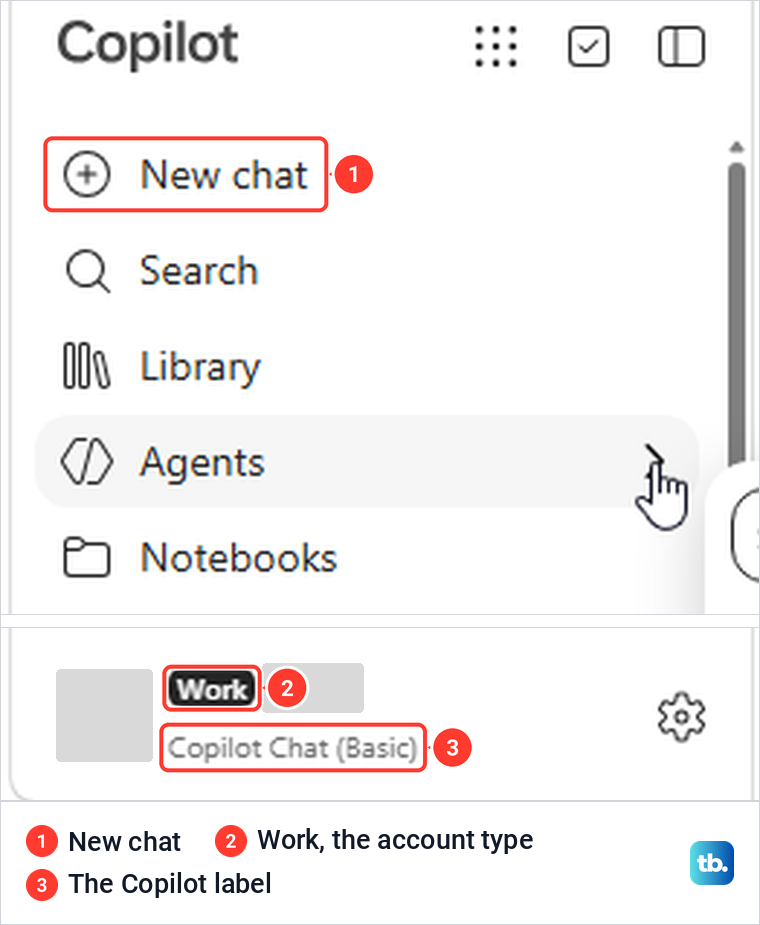
The Microsoft Copilot web page shows the label at the bottom of its left pane. For one work account we signed in with, it read Work, with Copilot Chat (Basic) under the name, so by Microsoft's labels that account gets the chat and not Copilot in the Office apps.
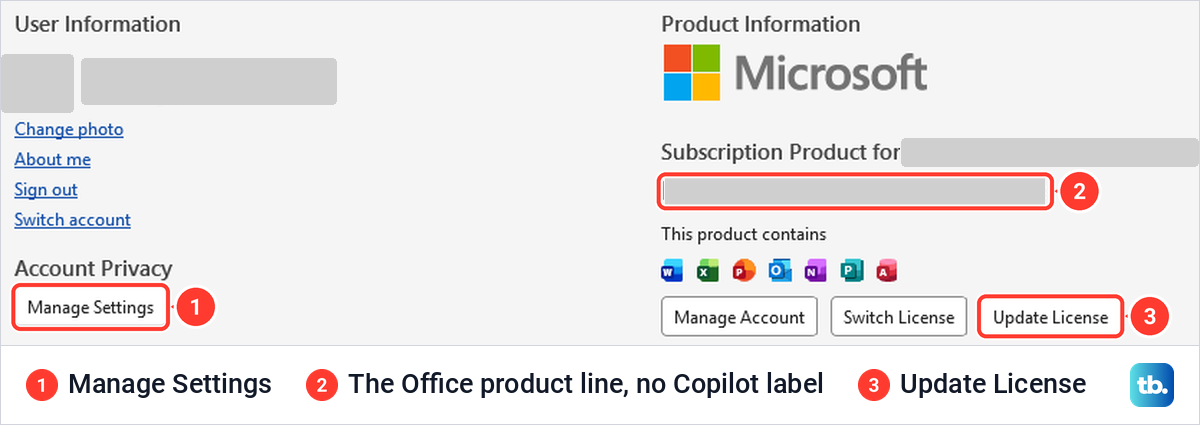
Do not look for the label inside Word or Excel. In Word, File > Account named the Office product and showed an Update License button, but no Copilot label anywhere.
A personal Microsoft account does not get one of these three Copilot labels. Microsoft says Copilot comes with a qualifying Personal, Family or Premium plan, that you can check your plan on your Microsoft account dashboard, and that only the subscription owner can use Copilot in the desktop apps.
Find the Copilot button in Word, Excel and PowerPoint
By default, Copilot no longer sits on the Home tab. In a new Word document we found no Copilot command on the ribbon, only a round button floating at the lower right of the window, and Excel showed the same button at the lower right of the grid. Microsoft calls it the Copilot Dynamic Action Button and says it only appears for people who have access to Copilot.
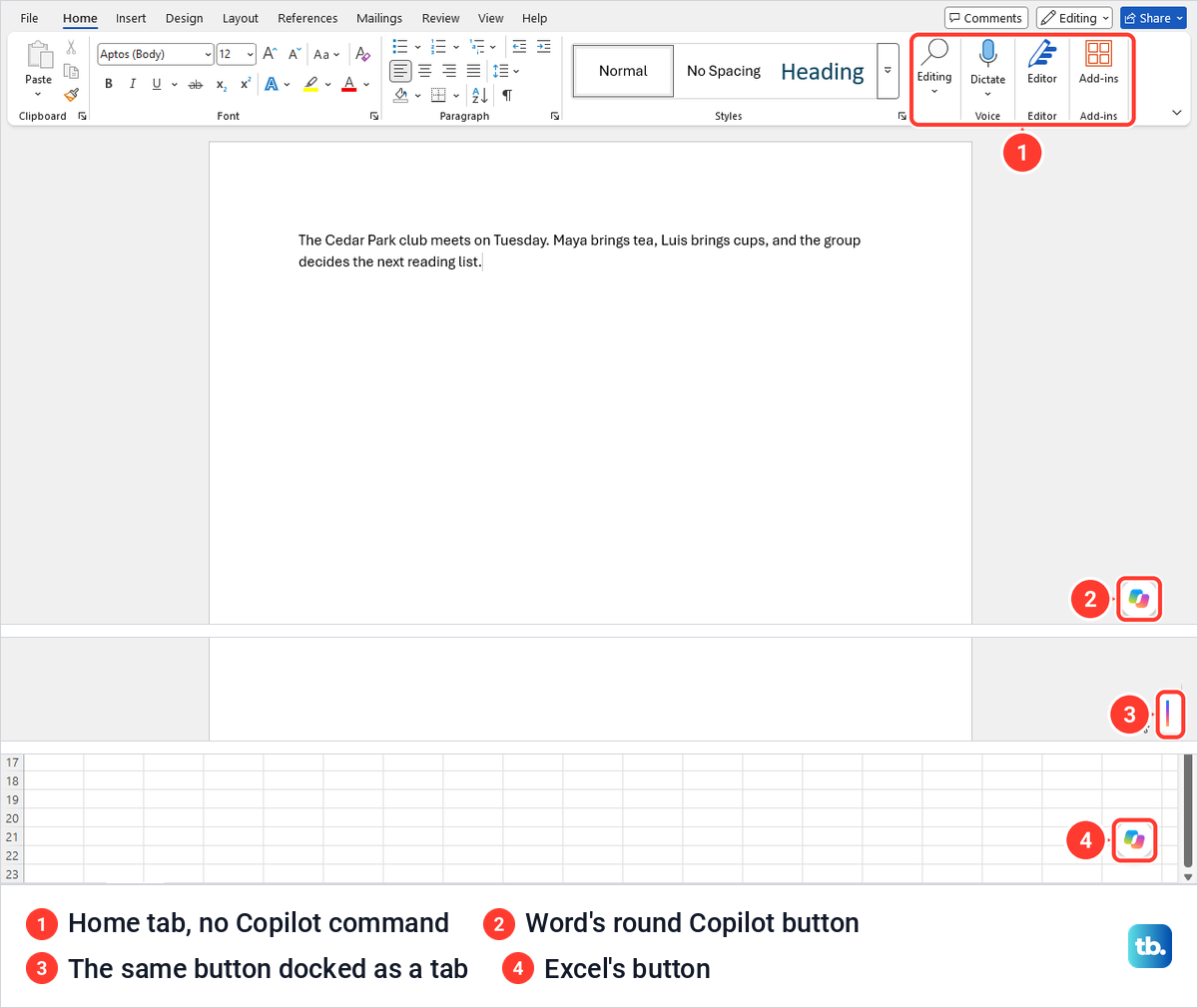
Select the button to open the Copilot pane on the right. Excel opened its pane on the first click. In Word, our first click turned the button into a thin tab at the right edge instead, selecting the tab opened the pane, and the tab stayed docked when we opened another document.
Microsoft's way to dock it is to right-click the button and select Dock, and selecting the docked tab brings Copilot back. Choose Move to ribbon from the same menu to keep it on the ribbon. From the keyboard, Microsoft gives Alt + C on Windows, with F6 working everywhere while that shortcut rolls out.
PowerPoint uses the same button at the lower right of the slide area, although a brand-new presentation did not show it for us, as the section on files explains. Outlook keeps its own Copilot buttons.
Write a prompt Copilot can act on
Microsoft splits a good prompt into four parts: the goal (what you want), the context (why, and who it is for), the source (which file, text or cells to use) and the expectations (how the answer should look). Only the goal is required, but the other three make the first answer usable.
Our Word request shows the pattern: "Write a two-sentence invitation to the Cedar Park book club's Tuesday meeting. Do not add a time or address." It names the goal, the length and the thing to leave out, and the draft Copilot wrote kept to all three.
Name the exact range or text when it matters. In Excel we asked about Sheet1 A1:B4 by name, and the answer listed the three months it had read before giving the result, which made it quick to check. Then review what comes back, since Microsoft asks you to verify facts, numbers, names and citations, and each pane we used carried a line saying its content may be incorrect.
Draft and rewrite text with Copilot in Word
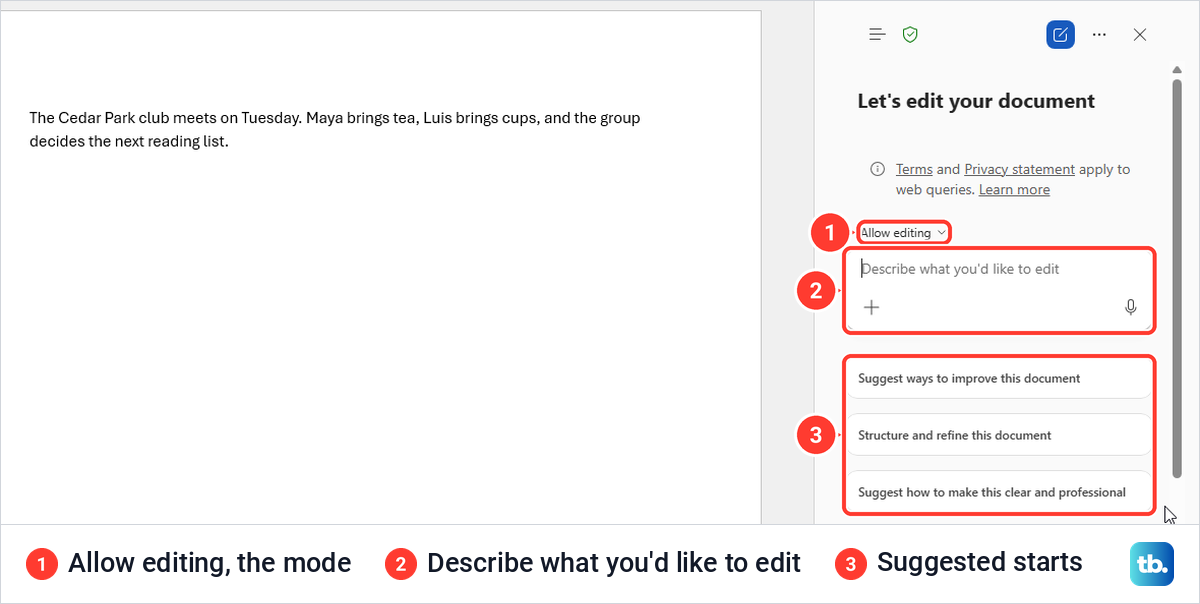
Select the Copilot button or its docked tab, and the pane opens with the heading Let's edit your document. Ours was set to Allow editing, with a box labelled Describe what you'd like to edit and three suggestion cards.
Draft new text
Click where the new text should go, type your request in the box and select the blue arrow. Our invitation request went straight into the document under the existing paragraph, as "You're invited to the Cedar Park book club's Tuesday meeting. Join us for a thoughtful conversation and help choose our next read."
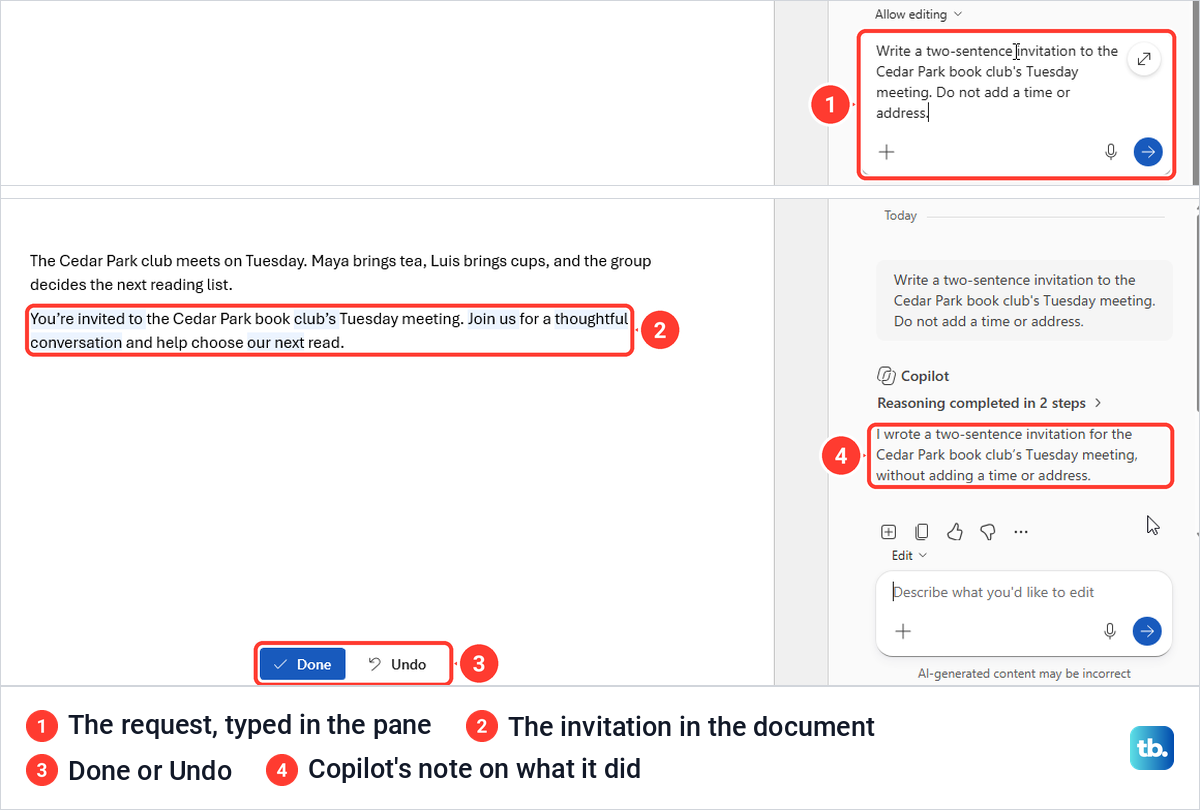
A bar with Done and Undo appeared at the bottom of the page, and the pane added a short note on what it had written. Microsoft's help page describes a Generate button, after which you keep, discard or regenerate the draft, but no Generate button appeared in this flow, so expect the controls to change as Microsoft updates the pane.
One shortcut did nothing for us. Pressing Alt + I on an empty line under existing text opened no draft box, on two tries, so the pane is the dependable way in once a document has text.
Rewrite text you have selected
Select the sentences first, then press Alt + I. With our two original sentences selected, a box opened on the page with three choices, Auto rewrite, Make shorter and Structure and refine.
About 15 seconds after we chose Auto rewrite, the selection had changed in place to "The Cedar Park club meets Tuesday. Maya provides tea, Luis supplies cups, and the group selects its next reading list." Done and Undo appeared again, and Undo put the original sentences back exactly.
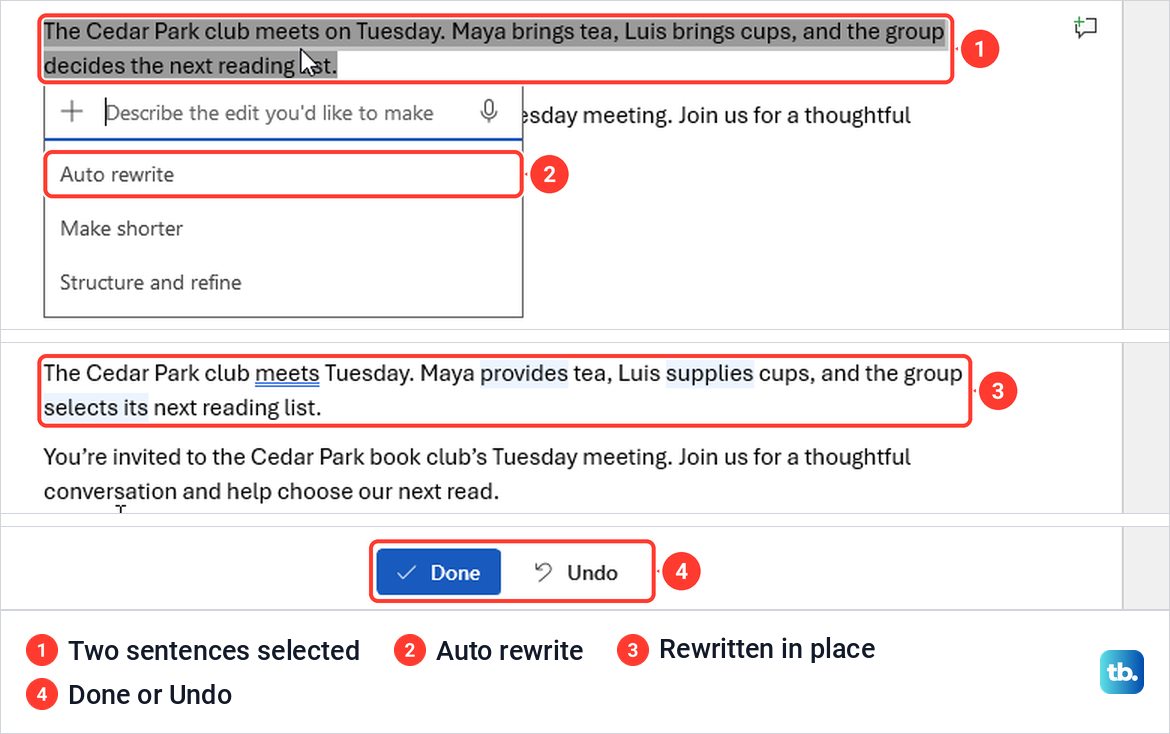
Microsoft describes a flow where Copilot offers rewrites and you choose Replace, Insert below or Regenerate, but our screen offered no list to choose from. Read the changed words, which Word highlights, before you select Done. Our guide to using Copilot in Word covers more of the Word pane.
Summarize a Word document
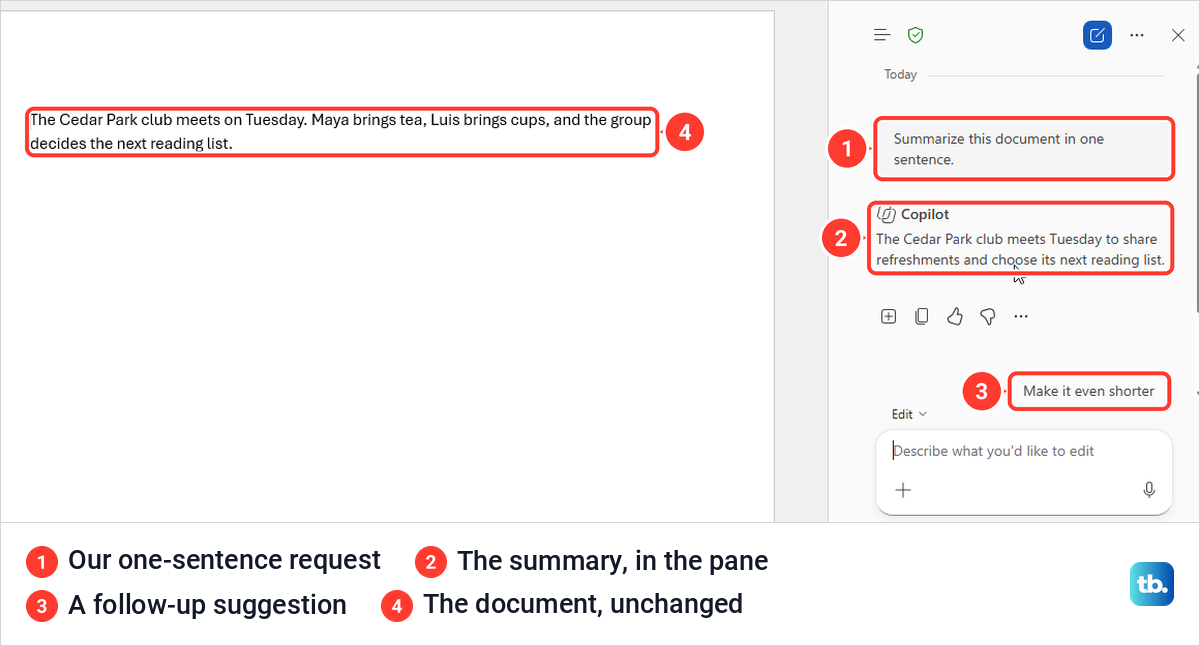
Microsoft says Copilot only writes an automatic summary at the top of a document when there are at least 200 words of reference content. Our 21-word document opened with no summary, yet the pane offered Summarize this document as a suggestion.
When we asked for a summary in one sentence, Copilot answered in the pane with "The Cedar Park club meets Tuesday to share refreshments and choose its next reading list". The document did not change, even in Allow editing, so a short file can still be summarized as long as you ask.
Ask Copilot about your Excel data
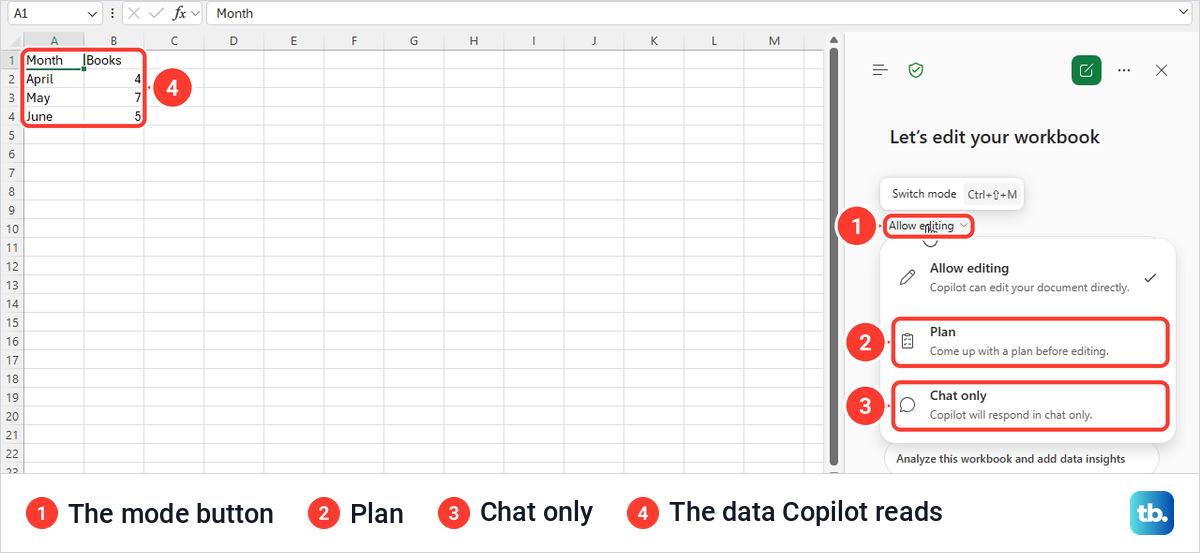
Save the workbook to OneDrive or SharePoint first, since Microsoft says Copilot in Excel works with workbooks stored there, then select the Copilot button at the lower right of the grid. Our workbook was in OneDrive, and the pane opened on the first click with the heading Let's edit your workbook and the mode set to Allow editing, which Microsoft confirms is the default.
The mode decides whether Copilot may touch the sheet. The menu above the box offered Allow editing (Copilot can edit your document directly), Plan (Come up with a plan before editing) and Chat only (Copilot will respond in chat only), and its tooltip gave Ctrl + Shift + M to switch modes.
Get an answer without changing the sheet
Choose Chat only when you want an answer and no edits. The pane changed its heading to Let's analyze together, and we asked "Which month has the most books in Sheet1 A1:B4?", and Copilot listed April with 4 books, May with 7 and June with 5, then answered "May has the most books, with 7 books".
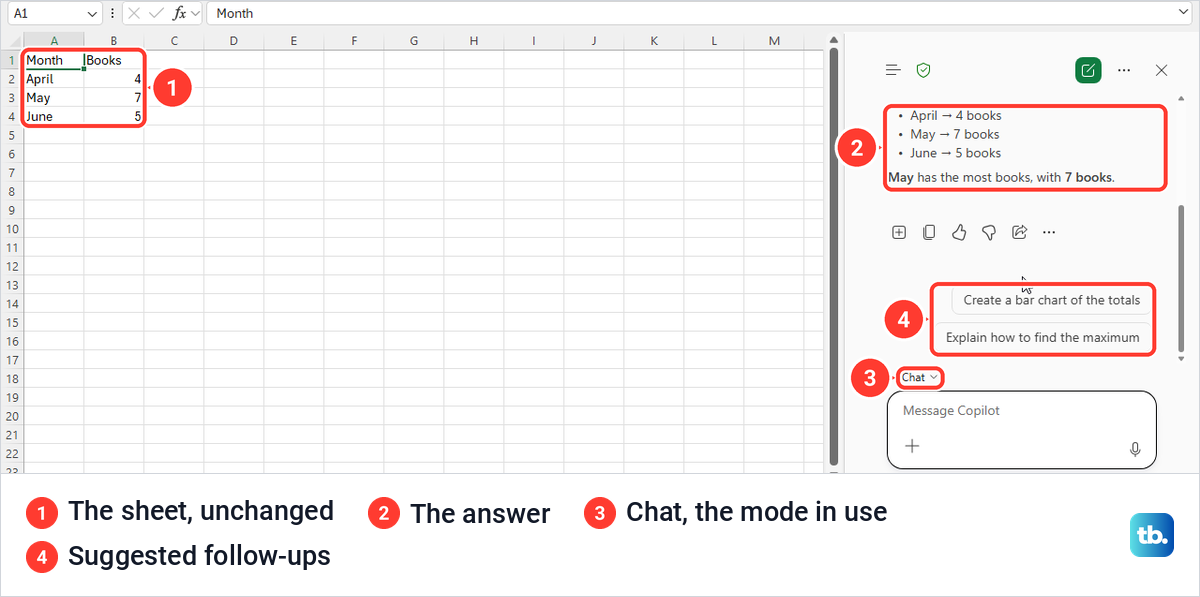
The sheet stayed exactly as it was. When we opened the mode menu again during that chat, it listed only Allow editing and Chat only, with no Plan, so choose Plan at the start of a conversation if you want Copilot to set out its approach for you to review first.
Let Copilot change the workbook
Switch back to Allow editing when you want Copilot to add or change something. In that mode, a request for a column chart of books by month from Sheet1 A1:B4 put a chart titled Books by Month on the sheet, with bars of 4, 7 and 5 that matched the cells, and Done and Undo in the pane.
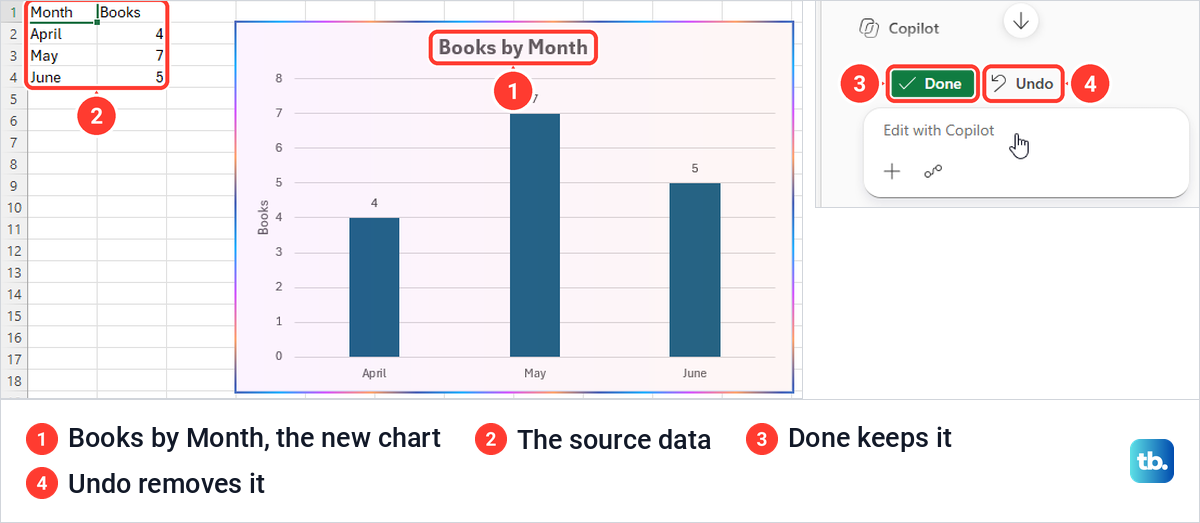
Check the title, the values and the source range before you select Done. Microsoft's Excel tips warn that Copilot makes direct changes to your workbook, so take care with shared or sensitive files, and say you can undo changes or view earlier versions afterwards.
Our guide to using Copilot in Excel goes further into its modes and requests. To fine-tune a chart by hand, make a graph in Excel from the same cells and compare the two.
Add a slide with Copilot in PowerPoint
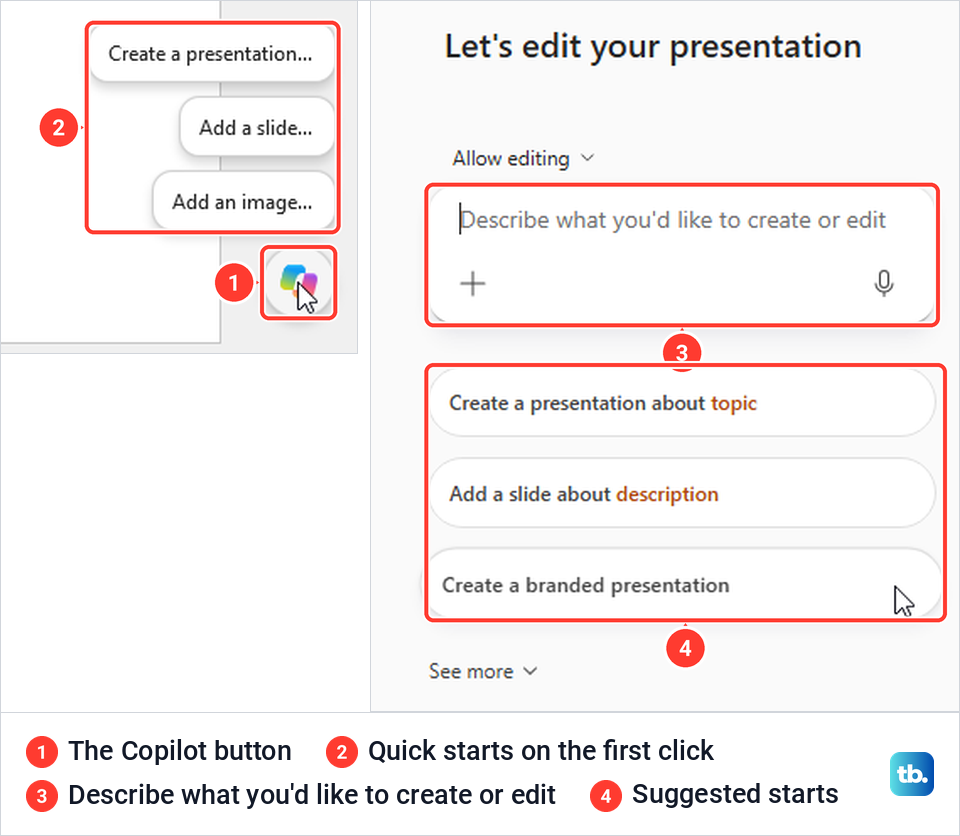
Open a saved presentation and select the Copilot button at the lower right of the slide area. On our reopened presentation, the first click showed three quick starts, Create a presentation, Add a slide and Add an image, and the next click opened a pane headed Let's edit your presentation. If the button is missing on a presentation you have just saved, close it and open it again from OneDrive, which is what brought the button back for us.
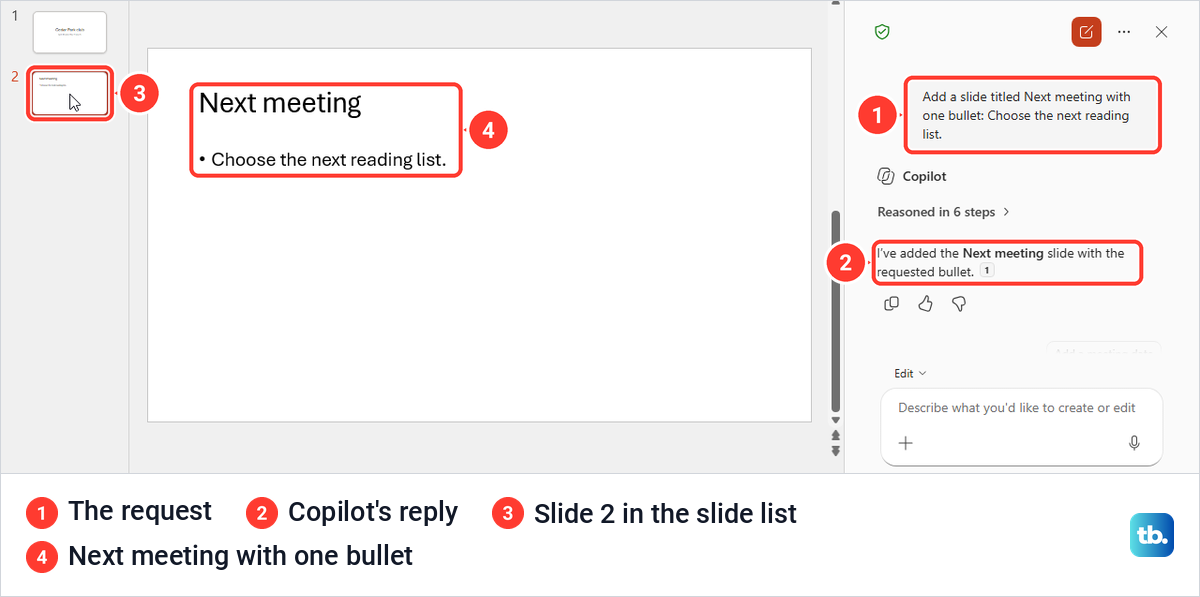
Our request was "Add a slide titled Next meeting with one bullet: Choose the next reading list". About 70 seconds later the pane confirmed it had added the Next meeting slide with the requested bullet, and slide 2 was in place with that title and bullet while slide 1 was unchanged.
No outline or confirmation step came first, so the slide went straight into the deck. Read it before you present, and delete it if it is not what you asked for.
Microsoft also documents a slide built from a file: select Reference a file in the box, or type /, and pick the document. If PowerPoint itself is new to you, start with our guide on how to use PowerPoint.
Use Copilot in Outlook and OneNote
Outlook keeps its own Copilot buttons. In classic Outlook we found a Copilot button at the right end of the tab row, and in Outlook on the web a blank new message had a round Copilot button at the top right of the ribbon but no Draft with Copilot prompt in the message area.
To draft a message in classic Outlook, Microsoft's steps are Home > New Email, the Copilot icon on the toolbar, then Draft with Copilot. Type what the message should say, select Generate, then Keep, and edit the draft before you send it.
In new Outlook and Outlook on the web, Microsoft's steps are Home > New mail, the Copilot icon on the toolbar above the blank message, then Draft, or the Draft with Copilot text in the message area if the toolbar icon is missing. Microsoft also says Draft with Copilot doesn't support plain text messages there, so set Settings > Mail > Compose and reply to HTML if the option is missing.
To catch up on a long conversation, select Summary by Copilot at the top of the thread, which Microsoft says may read Summarize instead. Our guide to using Copilot in Outlook covers more of its mail tasks.
In OneNote, Microsoft's route is Home > Copilot, which opens a pane for summaries, task lists and ideas. Go to the page first and ask for something specific, such as a summary of this page in three bullets, then compare it with your notes. If OneNote itself is new to you, see how to organize your notes in OneNote.
Start a separate Copilot chat
For questions that do not belong to an open file, use Copilot Chat on its own. Microsoft says the Microsoft 365 Copilot app is now called the Microsoft Copilot app, and it runs on Windows, Mac, phones and the web at copilot.cloud.microsoft. Sign in and select New chat.
At work, Microsoft says the Copilot Chat included with eligible business plans is grounded on the web, while the Microsoft Copilot add-on licence lets Chat answer from your work files, email and chats. A Work IQ control at the top of Chat turns that work data on or off.
With a personal account, you can use the free Microsoft Copilot, and a qualifying Personal, Family or Premium plan adds Copilot in the apps for its owner. For general chat on your PC, our guide to open Copilot in Windows or Edge covers the entry points.
Fix a missing Copilot button
Look in the lower-right corner first, because Microsoft moved Copilot off the ribbon and into that one button. If the corner is empty, Microsoft's first step is the latest build, and our guide to update Microsoft Office shows how.
Next, select File > Account > Update License in any Microsoft 365 app, then close and restart all the Microsoft 365 apps you have open. Microsoft notes that a new licence normally reaches the apps in the background but can take up to 72 hours, and that seeing the Update License button does not mean your licence is out of date.
On a Mac, Microsoft's route is the app name menu, then About, More Info and Refresh License. In Word, Excel or PowerPoint on the web, refresh the browser tab first.
At work, the update channel can hide Copilot too. Microsoft's troubleshooting page says Copilot features are not available on Semi-Annual Enterprise Channel, while its newer notes for administrators say devices on that channel get the July update, version 2606, with no channel change needed.
After that update, Microsoft says File > Account shows Monthly Enterprise Channel instead, so if it still names Semi-Annual Enterprise Channel, the update has not reached your PC yet. Ask your IT team, and use the web apps in the meantime, which Microsoft says work without a channel update.
Privacy settings are the last common cause. Microsoft says to open File > Account > Account Privacy > Manage Settings and turn on Experiences that analyze your content and All connected experiences, but that your IT admin controls these settings if your organization manages Microsoft 365.
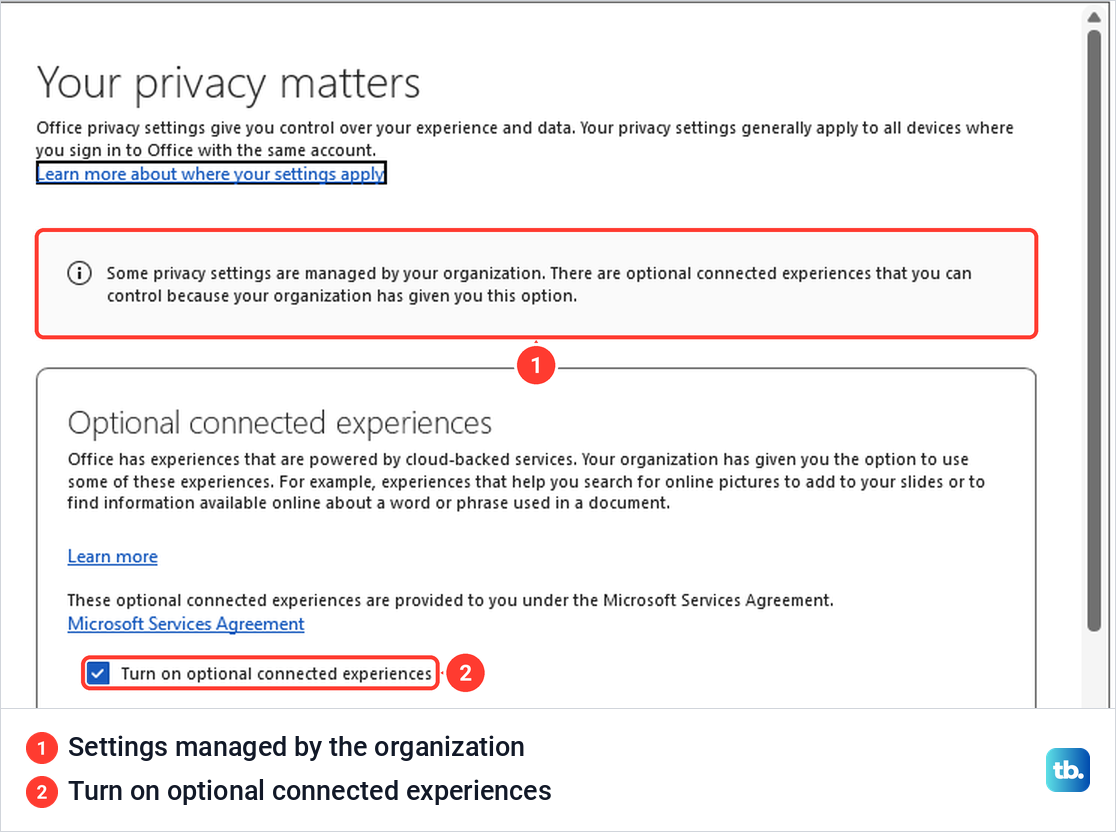
That is what we saw on a managed work account. The window said Some privacy settings are managed by your organization and offered only Turn on optional connected experiences, already ticked, with neither of the settings Microsoft names, so on a work PC this step belongs to your IT team.
In the browser, Microsoft says blocked third-party cookies can stop Copilot from validating your licence, so treat that as a check for a licence validation error in a web app, not a general fix. For errors beyond a missing button, follow the steps to fix Copilot when it stops working.
Fix licence and sign-in messages
If Update License shows Couldn't update license with Error Code 44, Microsoft says the cause is almost always being signed in with an account other than the one that holds the licence. Check the account at the top right of the app and switch to the one with the licence.
If Copilot works for a colleague but not for you, compare your labels, because Copilot Chat (Basic) means the chat only. On a shared Family or Premium plan, only the owner gets Copilot in the desktop apps, and Microsoft sends questions about licensing or access to your IT admin at work.
When Copilot does not show up for a file
The file can matter as much as the account. We created a new presentation from PowerPoint's Start page and saved it to OneDrive, and for about two minutes no Copilot control appeared anywhere. When we opened the same file again from OneDrive, the round button was there.
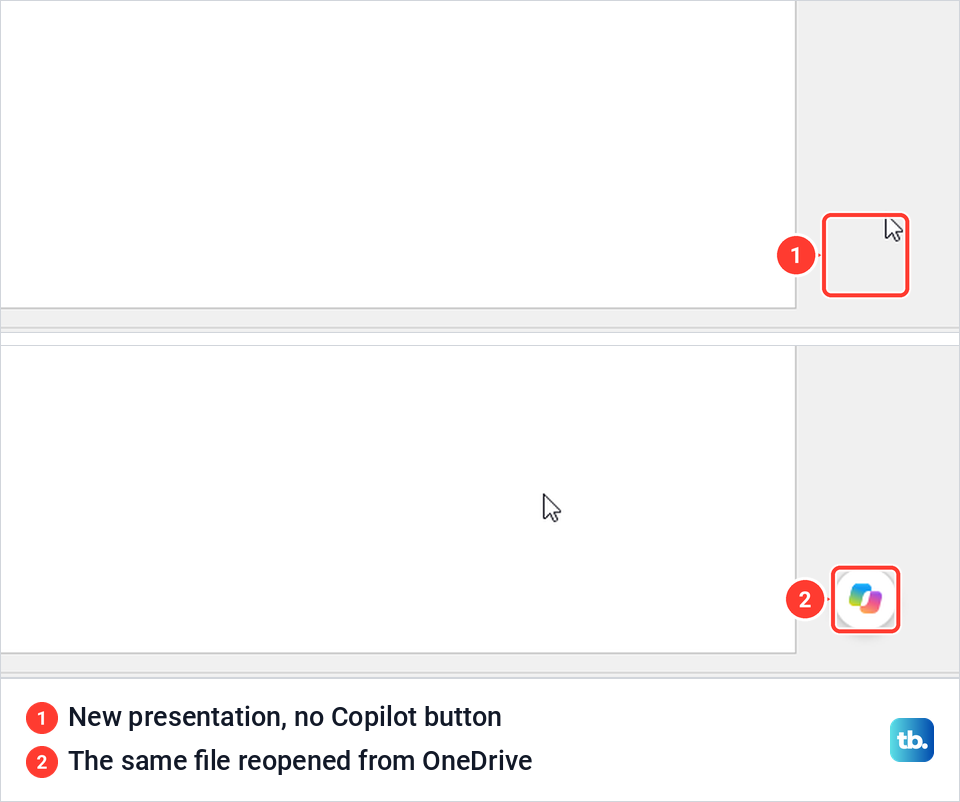
Word and Excel behaved differently for us. The button was already showing on a new Word document and a new Excel workbook before either had been saved, so on our PC the button did not wait for OneDrive in those two apps. The button is not the whole story, though, because Microsoft says a local workbook, or one in an unsupported format, will limit or disable Copilot in Excel.
Microsoft says Copilot in Excel works with workbooks stored in OneDrive or SharePoint in the .xlsx, .xlsb and .xlsm formats, and not with the Strict Open XML format, so save a local workbook to OneDrive or SharePoint if Copilot cannot use it. AutoSave can be off, and Microsoft suggests turning it off to try Copilot's changes without saving them into the file.
Turn Copilot off or move it out of the way
If the button only gets in your way, dock it or move it to the ribbon instead. To turn Copilot off with a personal Microsoft account on Windows, Microsoft's steps are File > Options > Copilot, clear Enable Copilot, select OK, then close and restart the app. Each app has its own checkbox for that PC only, so repeat it in Word, Excel and PowerPoint, and on each PC you use.
On a Mac, Microsoft's route is the app menu, then Preferences > Authoring and Proofing Tools > Copilot. In new Outlook and Outlook on the web, Microsoft uses a Turn on Copilot toggle under Settings > Copilot instead, and the choice follows your account to your other devices. Microsoft says these settings aren't available with a work or school account, where your organization controls Copilot.
The Microsoft Copilot app on Windows is separate from Copilot inside Office. Microsoft removes it from Settings > Apps > Installed apps with the More options menu beside Copilot and Uninstall, and our guide to remove or disable Copilot in Windows covers the Windows side.
How we tested this guide
We tested this in Word, Excel and PowerPoint for Microsoft 365 on Windows 11, version 25H2, giving Copilot a short task in each app and checking its result.
Frequently Asked Questions
Is Microsoft Copilot free to use?
Microsoft says the free Microsoft Copilot is at copilot.cloud.microsoft, and eligible business plans include Copilot Chat. Copilot inside Word, Excel, PowerPoint and OneNote needs an M365 Copilot label at work, or a qualifying Personal, Family or Premium plan at home.
Why is Copilot missing from Word or Excel?
Look for the round button at the lower right first, since by default Copilot is no longer on the Home tab. If it is not there, check your Copilot label, select File > Account > Update License and restart the apps.
Can Copilot in Excel change my workbook?
Yes, in Allow editing, which is the default mode. In Chat only it answers in the pane, and our sheet stayed unchanged while it worked out which month had the most books.
Can Copilot summarize a short Word document?
Yes, if you ask in the pane. The automatic summary at the top needs at least 200 words, but our 21-word document got a one-sentence summary on request.
Why is Draft with Copilot missing in Outlook on the web?
Microsoft says Draft with Copilot does not support plain text messages in new Outlook and Outlook on the web. Set Settings > Mail > Compose and reply to HTML, then check that your account has Copilot.
Can I undo what Copilot changed?
For us, Copilot's edits in Word and Excel came with Done and Undo, and Undo restored our original Word text. For Excel, Microsoft also points to undo and earlier versions of the workbook.