OneDrive is built into Windows 10 and Windows 11, so the cloud folder is already waiting for you in File Explorer. You just have to sign in, decide which folders live on your PC versus the cloud, and (optionally) let it back up your Desktop, Documents, and Pictures automatically.
This guide walks you through every step in order, from first sign-in to saving disk space, backing up folders, locking files in Personal Vault, and fixing sync when it stalls. Each step uses the exact menu path so you are never guessing where a setting lives.
You will need a Microsoft account (personal) or a work or school account to sign in. If you are on Windows 10 or 11, nothing to install; on an older Windows you download the installer first.
Sign In and Run OneDrive Setup
Windows 10 and Windows 11 already include the OneDrive app, so there is no download step. If you are on an older Windows, get the installer (OneDriveSetup.exe) from the Microsoft download page first.
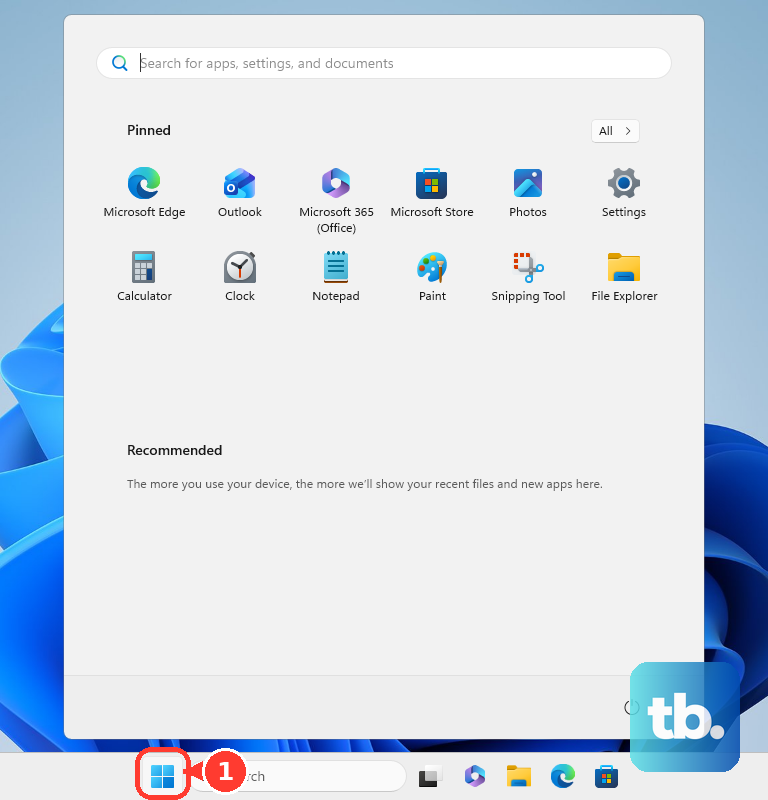
- 1.Select the Start button, search for "OneDrive", and open it.
- 2.When OneDrive Setup starts, enter your personal Microsoft account or your work or school account, then select "Sign in".
- 3.If two-step verification is enabled, choose how to receive a code (for example, Text), then enter the code to continue.
- 4.On the "This is your OneDrive folder" screen, select "Next" to accept the default location, or select "Change location" to pick a different folder, then "Choose this location".
- 5.On the "All your files, ready and on-demand" screen, select "Next".
- 6.Finish the wizard, then open your OneDrive folder when prompted.
Your files now appear in File Explorer under the OneDrive folder, and a cloud icon appears in the taskbar notification area. To add more accounts later, use "Add an account" in settings. You can link multiple work or school accounts, but only one personal OneDrive account per app.
Open OneDrive Settings
Almost every option below lives in one place, so it helps to know the path before you need it.
Select the blue or white OneDrive cloud icon in the taskbar notification area. You may need to click the "Show hidden icons" arrow to reveal it.
Select the "OneDrive Help and Settings" icon (the gear).
Select "Settings".
The window has four tabs: "Sync and back up" (backup, file collaboration, upload and download rates, Files On-Demand), "Account" (unlink or add accounts, Choose folders, Personal Vault), "Notifications", and "About" (device ID, version, Insider program). On a Mac the path differs: click the OneDrive icon in the Menu bar, click the three dots, then "Preferences".
Save Disk Space With Files On-Demand
Files On-Demand lets every file appear in File Explorer while only the ones you open take up space. Learn the status icons first: a blue cloud means the file is online-only and uses no disk space until you open it; opening it downloads it; a green circle with a white check mark means you marked it "Always keep on this device" so it is available offline.
To keep a file or folder offline, right-click it in File Explorer and select "Always keep on this device".
To convert it back to online-only and reclaim space, right-click it and select "Free up space".
To set the behavior globally, go to the cloud icon, gear, "Settings", the "Sync and back up" tab, expand "Advanced settings", and under Files On-Demand select "Free up disk space" (new files stay online-only, the default) or "Download all files" (everything downloads locally).
This requires Windows 10 version 1709 or later, or Windows Server 2019, plus a current OneDrive build. If you choose "Download all files", make sure you have enough free local disk space.
Choose Which Folders Sync to This PC
If you do not want your entire cloud copied to one computer, pick exactly what syncs there.
Select the cloud icon, gear, then "Settings".
Go to the "Account" tab and select "Choose folders".
In the "Choose Folders" dialog, uncheck any folder you do not want on this computer, then select "OK".
Unchecking a folder removes it from this computer, but the folder and its contents will still be available online, so nothing is deleted from the cloud. These selections are per-computer and per-account; the web browser and mobile app always show all folders regardless of your desktop choices. External drives cannot be added here; you can only manage folders already in your OneDrive.
Back Up Your Desktop, Documents, and Pictures
OneDrive can automatically protect your most important Windows folders so their contents live in the cloud.
Select the cloud icon, gear, then "Settings".
Go to the "Sync and backup" tab and select "Manage backup".
Each important folder shows "Not backed up" or "Backed up". Toggle ON any folder you want protected (folders available may include Desktop, Documents, Music, Pictures, and Videos).
Select "Save changes".
To stop backing up a folder, turn its toggle OFF. You are then asked whether to keep the files "only in OneDrive" (removed from this PC) or "only on my PC" (removed from OneDrive), so read that prompt carefully before confirming.
Set Up Personal Vault for Sensitive Files
Personal Vault is a special, extra-protected folder for things like IDs and financial documents. It works from the web, the mobile app, or a Windows PC, and two-step verification must be enabled on your account.
Open the Personal Vault folder and select "Get started".
Read the info and select "Next" or "Continue", confirm your account, and select "Verify".
Choose a verification method and complete it. Methods include Text (SMS code), Email, fingerprint, face, PIN, or the Microsoft Authenticator app (which generates a code without internet).
To unlock later, select the "Personal Vault" folder, choose your method (for example, "Text"), and enter the code. To lock it manually on a PC, right-click Personal Vault in File Explorer and choose to lock it. To set the auto-lock wait time, go to "Settings", the "Account" tab, and under "Personal Vault" select the lock wait time; the web version auto-locks after 20 minutes of inactivity. Note that free or Basic accounts can store a maximum of 3 files in the vault, while Microsoft 365 subscribers can store files up to their storage quota, and vault files cannot be shared until you move them out.
Pause, Resume, or Unlink Sync
Sometimes you want sync to stop temporarily, for example on a metered connection.
Pause: right-click or select the OneDrive taskbar icon, choose "Pause syncing", then pick "2 hours", "8 hours", or "24 hours". ("Quit OneDrive" closes the app entirely.)
Resume: click the OneDrive taskbar icon and select "Resume", or open Start, type "OneDrive", and launch the app.
Unlink this PC: go to the cloud icon, gear, "Settings", the "Account" tab, then "Unlink this PC". Files already synced stay on the PC, but new changes stop syncing until you sign in again.
Fix Sync Problems and Reset OneDrive
If files stop syncing, work through these in order, quickest first.
Confirm OneDrive is running. If there is no icon in the notification area, it may be behind the "Show hidden icons" arrow or not running; relaunch it from Start.
Check your storage. If you exceed your Microsoft storage, you cannot upload, edit, or sync new files.
Pause and then resume sync.
Make sure Windows has the latest updates and OneDrive is up to date.
Unlink and relink (re-sign-in to) your account, or run the guided troubleshooter at aka.ms/OneDriveSyncVA.
If problems persist, reset the app. Press Windows key + R to open Run, then type and select OK: %localappdata%\Microsoft\OneDrive\onedrive.exe /reset. If you get a "Windows cannot find" message, try C:\Program Files\Microsoft OneDrive\onedrive.exe /reset, and if that fails, C:\Program Files (x86)\Microsoft OneDrive\onedrive.exe /reset. If OneDrive does not restart on its own, open it from Start. Resetting does not delete files; it only disconnects your sync connections, so if you previously synced only selected folders, reselect them afterward.
Frequently Asked Questions
Will resetting OneDrive delete my files?
No. Resetting does not delete files or data; it only disconnects all your sync connections. If you had chosen specific folders to sync, you will need to reselect them once the reset finishes.
I unchecked a folder and it vanished from my PC. Is it gone?
No. Unchecking a folder in "Choose folders" removes it from that computer only. The folder and its contents are still available online and on your other devices.
Why did OneDrive change one of my file names?
Some characters are not allowed in synced names: " * : < > ? / \ | and leading or trailing spaces. OneDrive automatically replaces each invalid character with an underscore during sync, which is why a name can change unexpectedly. Certain reserved names such as CON, PRN, AUX, NUL, desktop.ini, and any name starting with ~$ are also blocked.
Is there a size limit for files I upload?
The maximum individual file upload size is 250 GB. Separately, the full file path including the name cannot exceed 400 characters, and Windows File Explorer itself is limited to 256 usable characters, so very deep folder structures can block sync.
A file will not sync. What is the most common reason?
A file that is open in an app cannot sync while open; OneDrive syncs it once you save and close the app. After that, also confirm you have not exceeded your Microsoft storage quota, since that blocks new uploads, edits, and syncs.
Can I sign in with more than one account?
Yes, with a limit. You can link multiple work or school accounts to the Windows app, but only one personal OneDrive account at a time. Add more through "Add an account" in OneDrive settings.