


To multiply in Google Sheets, click an empty cell, type an equals sign and the two cells joined by an asterisk, such as =B2*C2, and press Enter. The asterisk is the multiplication sign. In our order sheet, =B2*C2 multiplied a quantity of 2 by a unit price of 4.25 and showed 8.5.
We multiplied quantities by prices for 12 grocery items with the asterisk, a fixed cell and four functions, and three results are worth knowing before you start. Sheets offered to fill the whole column as soon as the first formula was in. MULTIPLY refused a range that PRODUCT took without complaint. And a word inside a formula gave an error that names MULTIPLY, even though we had typed an asterisk.
The short version
- Two cells: type =B2*C2 in an empty cell and press Enter.
- A whole column: drag the small blue square at the cell's lower right corner down, or accept the autofill suggestion by clicking its tick (Command + Enter on a Mac).
- The same number for every row: lock its cell with dollar signs, as in =D2*$H$2.
- One total of all the lines: type =SUMPRODUCT(B2:B13,C2:C13).
- On a phone: tap a cell in the Google Sheets app, type the formula and tap Done.
Ways to multiply in Google Sheets at a glance
| What you need | Formula in our sheet | What you get |
|---|---|---|
| Two cells multiplied | =B2*C2 in D2 | One result, 8.5 |
| Every row of two columns | =B2*C2, then fill it down to D13 | Twelve line totals, one formula per row |
| Every row times one fixed number | =D2*$H$2, then fill it down | Adjusted totals that all follow H2 |
| Several numbers or a range | =PRODUCT(B2:C2) | One product, 8.5 |
| Exactly two values | =MULTIPLY(B2,C2) | One product, 8.5 |
| A whole column from one cell | =ARRAYFORMULA(B2:B13*C2:C13) in D2 | Twelve line totals from one formula |
| One grand total of paired columns | =SUMPRODUCT(B2:B13,C2:C13) | One number, 95.15 |
Every formula here uses our layout: item names in column A, quantities in B2:B13, unit prices in C2:C13 and a planning factor of 1.1 in H2. Change the letters and row numbers to match your own sheet. If there is no free column beside your numbers for the results, add columns in Google Sheets first. To put the items in a set order, sort the list in Google Sheets.
Multiply two cells with an asterisk
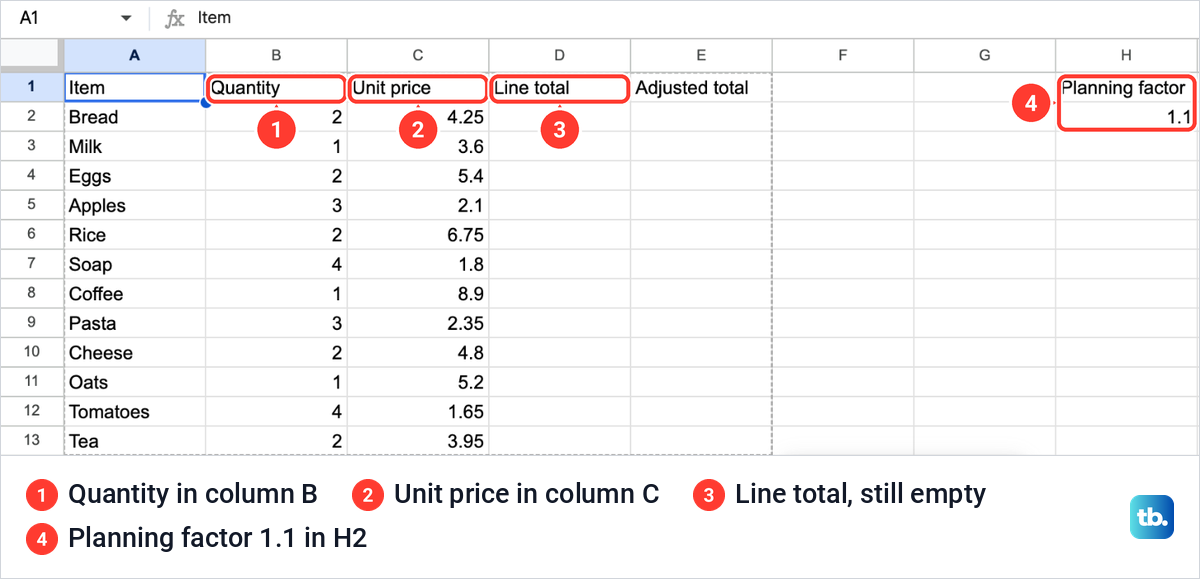
Our sheet lists 12 items with a Quantity in column B and a Unit price in column C. Column D, headed Line total, is empty and holds the results. H2 holds a planning factor of 1.1 that we use later to raise every line by ten percent.
Click an empty cell for the answer, not one of the cells you are multiplying, here D2. Type an equals sign, the first cell, an asterisk and the second cell, so =B2*C2. Every formula in Sheets starts with that equals sign.
Before we pressed Enter, B2 and C2 turned orange and purple inside the formula, C2 was shaded to match, and a small box above D2 already showed the result, 8.5. That preview is a quick check that you picked the right cells. If it shows a number you did not expect, fix the formula before you commit it.
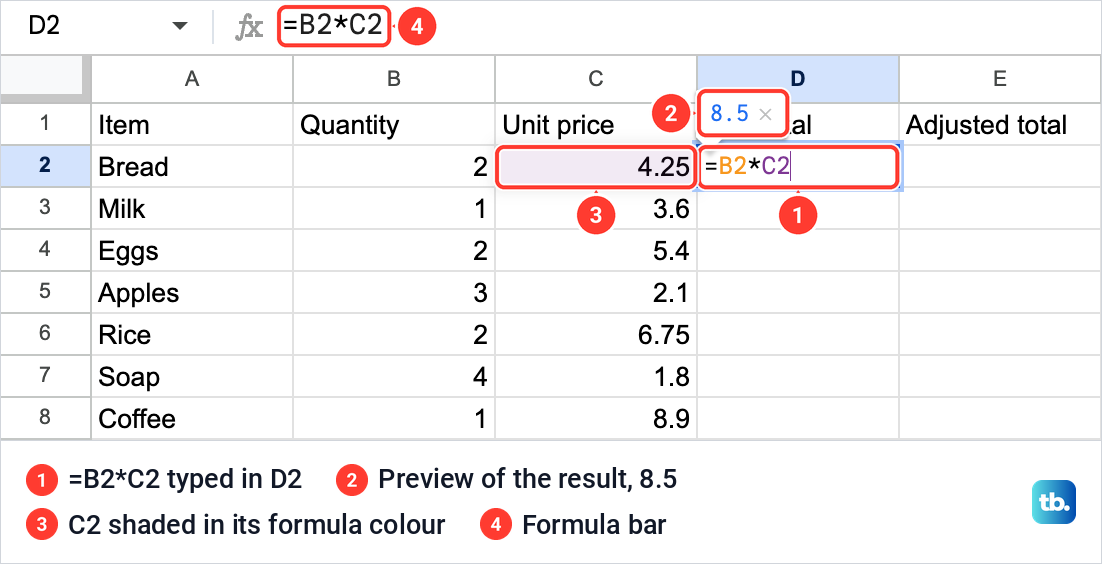
Press Enter and D2 shows 8.5. Click D2 again and the formula bar above the sheet still reads =B2*C2, while the cell shows only the answer. The asterisk works for plain numbers too: =B2*4 gave us 8, and you can chain more factors, as in =B2*C2*H2.
Fill the formula down a column
Right after we pressed Enter in D2, Sheets offered to do the rest of the column. A card titled Suggested autofill appeared beside the list, the cells from D3 to D13 showed their results in grey, and the card named the key that accepts it, Command + Enter on our Mac.
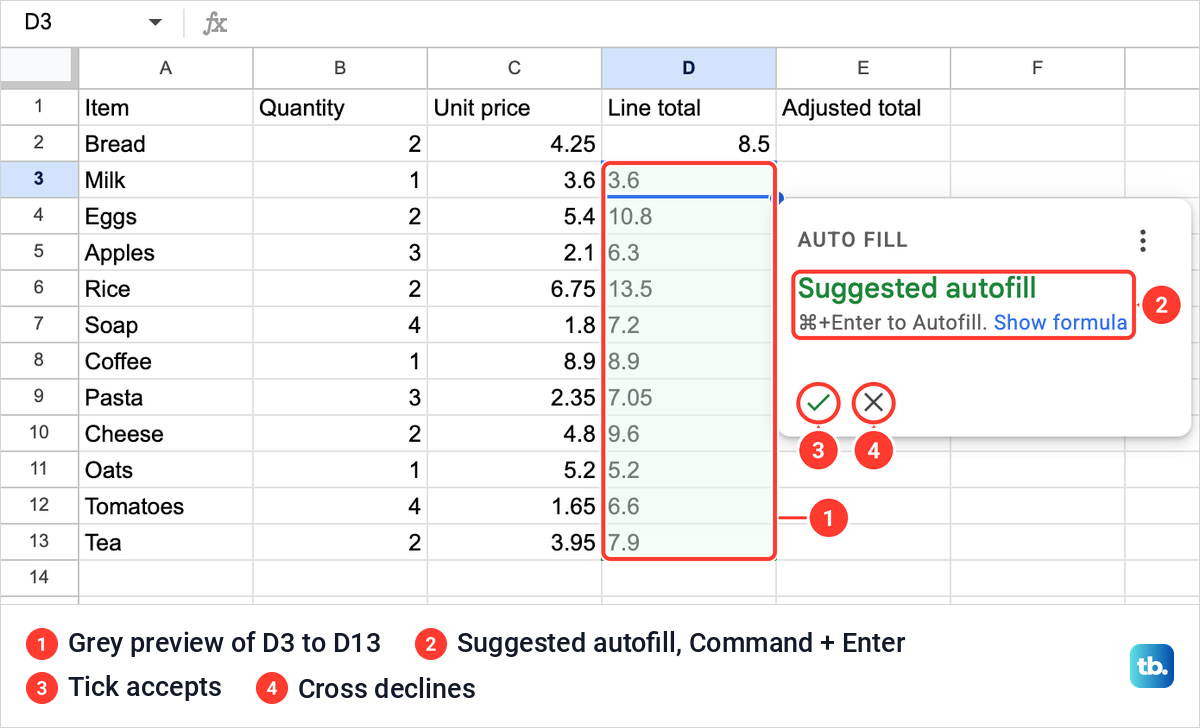
Press the key the card names, or click the tick, to fill the column. Click the cross to keep only the one formula. We pressed the cross here so we could fill the column by hand, and accepted the card later for the adjusted totals. If the card does not appear, use the fill handle.
The fill handle is the small blue square at the lower right corner of the selected cell. Click D2, put the pointer on that square, and drag it down to the last row of your list, D13 in our sheet.
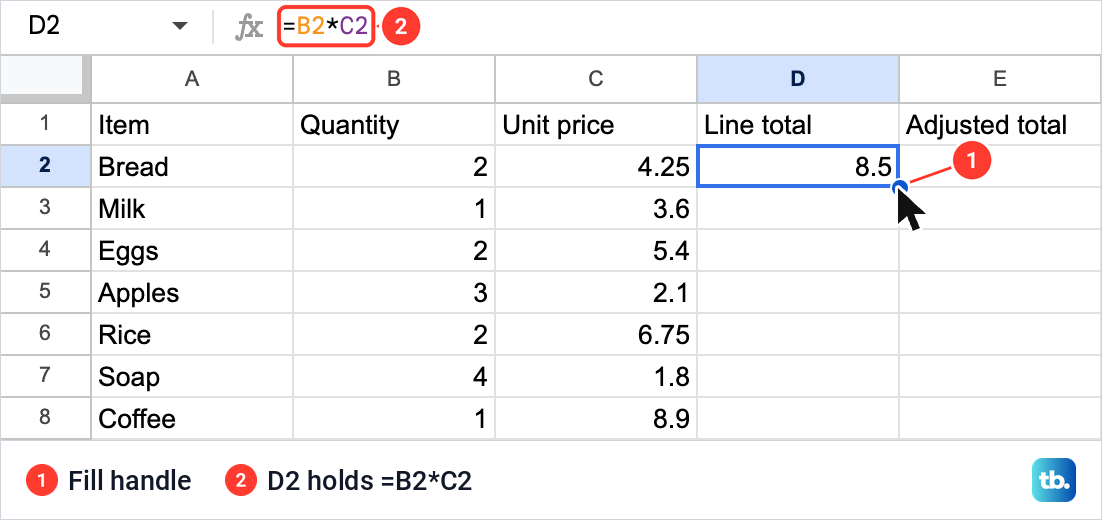
Every row got its own result, from 8.5 for Bread to 7.9 for Tea. When we clicked D3, the formula bar read =B3*C3. The row numbers moved with the formula, so each line multiplies its own quantity by its own price. With D2 to D13 selected, the Sum box at the bottom right of the window read 95.15.
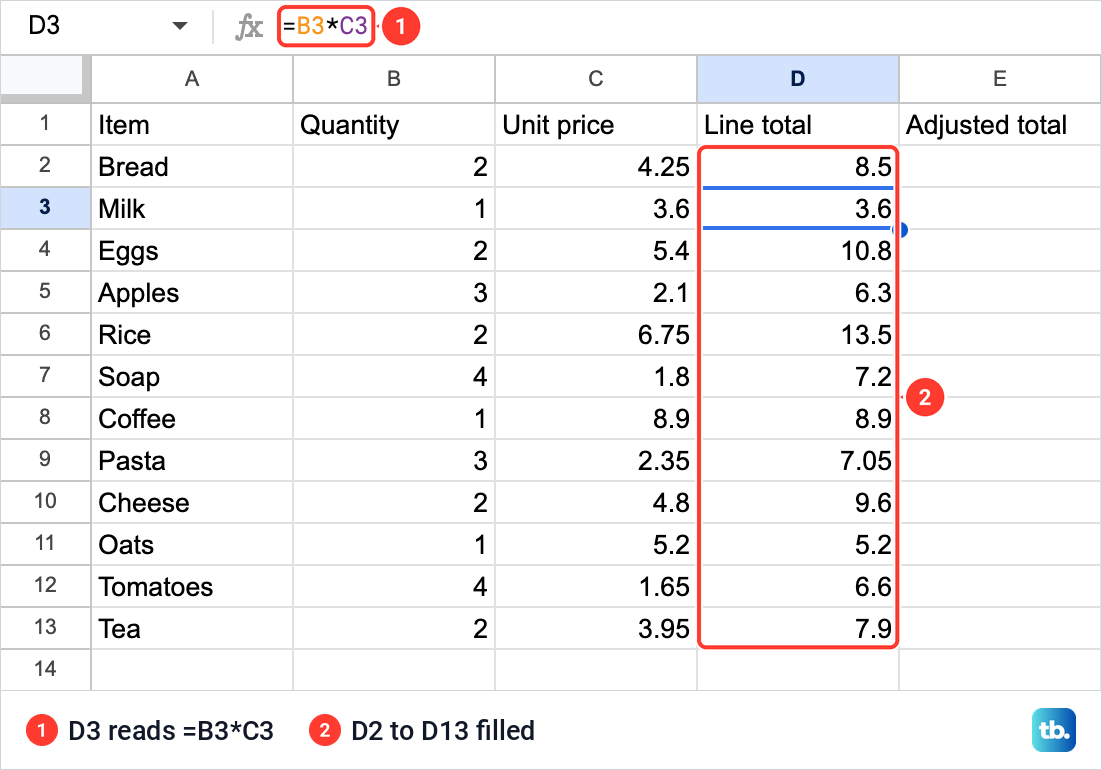
You can also fill without dragging. Select the formula cell together with the empty cells under it and press Command + D on a Mac, or Ctrl + D on Windows and ChromeOS. On a long list, freeze a row in Google Sheets so the headings stay in view while you work further down.
If you insert multiple rows in Google Sheets inside a filled column, check whether the new cells have formulas. If they are blank, fill the formula down from the row above.
Multiply a column by the same number
To multiply every row by one number, put that number in its own cell and lock the cell with dollar signs. We typed =D2*$H$2 in E2, the first Adjusted total, and accepted the autofill card with Command + Enter. E3 to E13 filled at once.
Click E3 and you can see what the dollar signs do. Its formula read =D3*$H$2: the D moved down to row 3 as before, but $H$2 stayed put. Without the dollar signs, the copy in E3 would point at H3 instead, and H3 is empty.
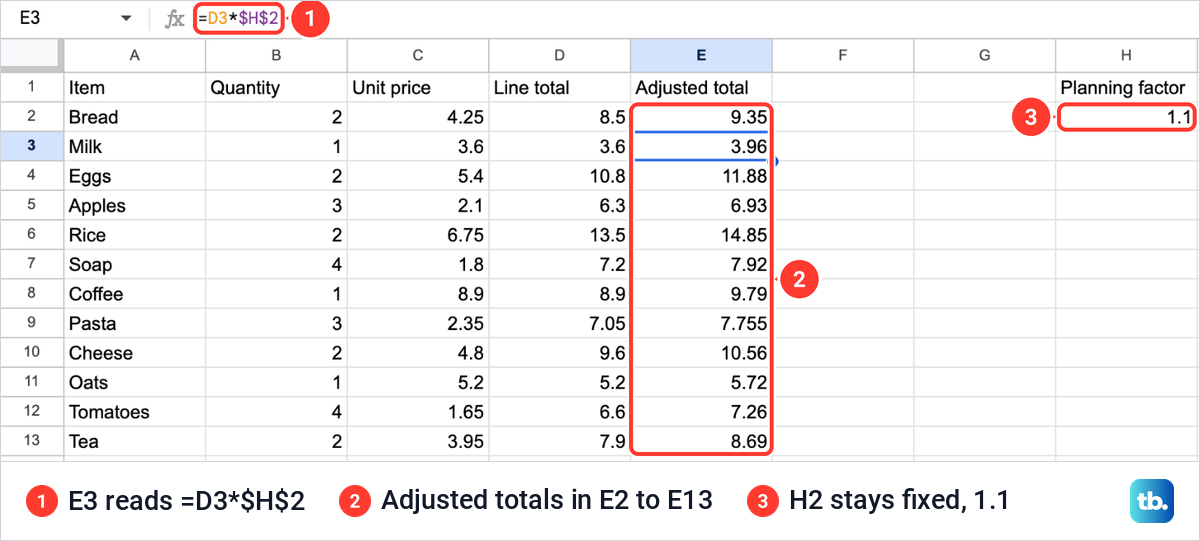
Typing the dollar signs is not the only way. While you type a formula, F4 on Windows, Fn + F4 on a Mac or Search + 4 on ChromeOS switches a reference between relative and absolute.
Keeping the factor in a cell pays off when it changes. We changed H2 from 1.1 to 1.2, and every Adjusted total changed at once: Bread went from 9.35 to 10.2 and Milk from 3.96 to 4.32. Command + Z put 1.1 back, and on Windows and ChromeOS undo is Ctrl + Z.
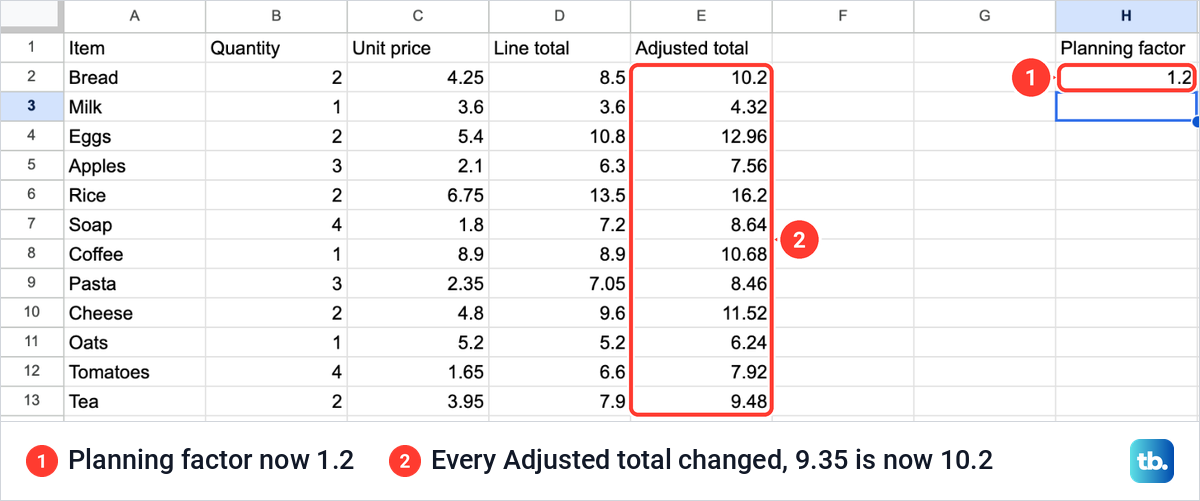
To raise each line total by a percentage, use a factor in the same way, such as 1.1 for ten percent more. Sheets showed each result with all its decimals, so Pasta's adjusted total read 7.755. To show the column as money, select it and choose Format > Number, then a currency format.
Use PRODUCT and MULTIPLY
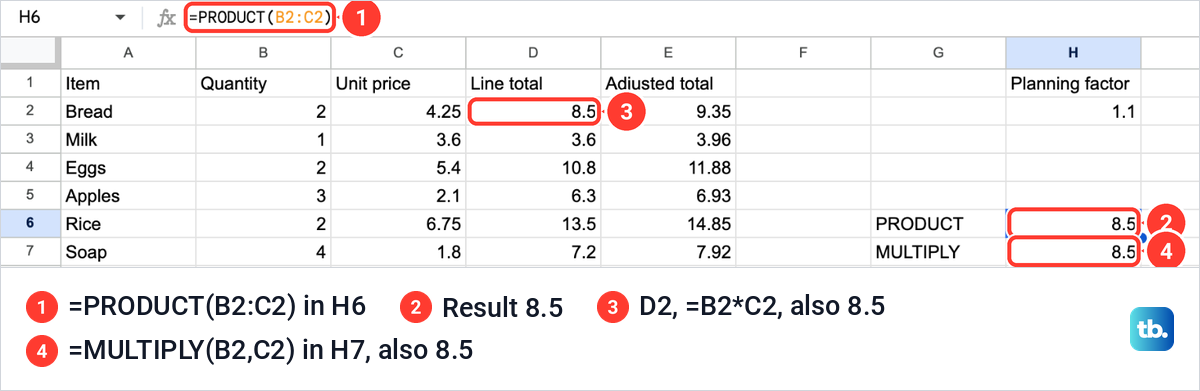
Sheets has two functions that multiply, and they are not the same. PRODUCT multiplies everything you give it, including a range. We typed =PRODUCT(B2:C2) in H6, and it gave 8.5, the same as =B2*C2. It also takes more than two values, so =PRODUCT(B2,C2,H2) multiplies all three.
MULTIPLY takes exactly two values, one before the comma and one after it. =MULTIPLY(B2,C2) in H7 also gave 8.5. It does the same job as the asterisk, so it is mostly useful when you prefer a function name you can read in the formula.
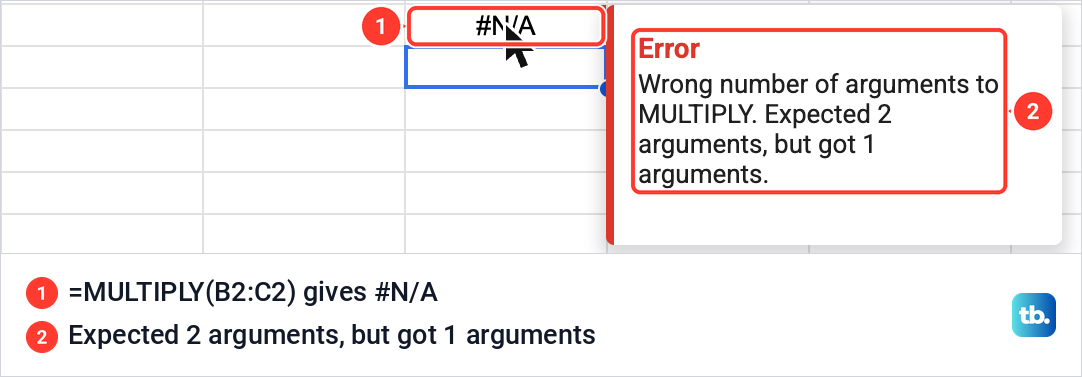
Give MULTIPLY a range and it stops. When we typed =MULTIPLY(B2:C2), one range in place of two values, the cell showed #N/A.
Resting the pointer on it showed the note "Wrong number of arguments to MULTIPLY. Expected 2 arguments, but got 1 arguments." Switch to PRODUCT, or write the two cells with a comma between them.
Neither function fills a column with one result per row. PRODUCT(B2:B13) would multiply all twelve quantities together into one number. For a result on every line, fill =B2*C2 down or use the array formula below.
Multiply two columns with one formula
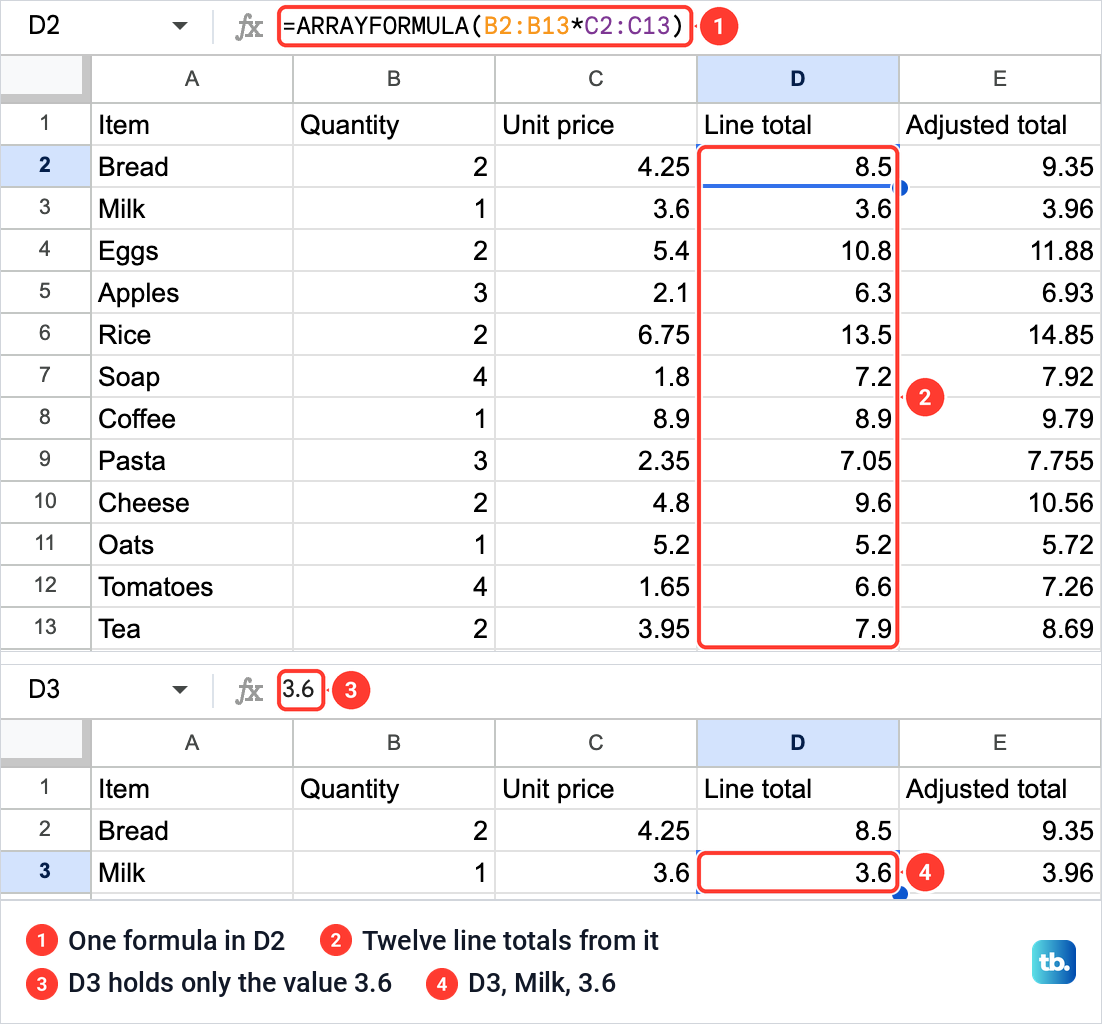
ARRAYFORMULA fills a whole column from a single cell. We emptied D2 to D13 first, then typed =ARRAYFORMULA(B2:B13*C2:C13) in D2 and pressed Enter. All twelve line totals appeared, the same values the filled formulas had given.
Only D2 in the Line total column holds a formula. When we clicked D3, the formula bar showed just 3.6, with no formula of its own. To change the calculation, edit D2. We emptied the column before typing the formula, so start from an empty column too.
The range B2:B13 stops at row 13. If your list grows past it, change both ranges in D2 so they reach the new last row. Pressing Ctrl + Shift + Enter while you type a formula, or Command + Shift + Enter on a Mac, adds ARRAYFORMULA( to its start for you.
Get one total with SUMPRODUCT
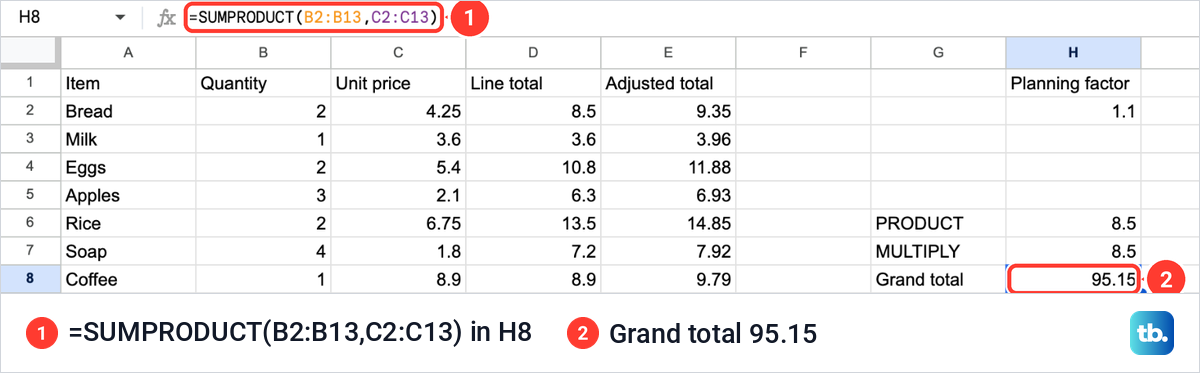
When you only need the grand total, SUMPRODUCT does it in one cell with no Line total column. It multiplies each quantity by the price on the same row and adds up the results. We typed =SUMPRODUCT(B2:B13,C2:C13) in H8 and got 95.15, the same total the Sum box showed for the twelve line totals.
Both ranges must be the same size. Start them on the same row so each quantity pairs with its item's price. SUMPRODUCT also counts every row it is given, so look at any item that appears twice: a second order belongs in the total, a line typed twice by mistake does not. Delete only the mistaken copy, or remove duplicates in Google Sheets if every repeated row is a mistake, before you trust the grand total.
If you keep the Line total column, you can also total a column in Google Sheets with SUM under its last row. To compare the items at a glance, make a graph in Google Sheets from the Item and Line total columns.
Fix a multiplication that shows an error
Text where Sheets expects a number is one cause of #VALUE!, and the cell's error note says which problem it found. We typed =B2*"four" in H9 and the cell showed #VALUE!. A small red corner marked the cell, and resting the pointer on it showed the note "Function MULTIPLY parameter 2 expects number values. But 'four' is a text and cannot be coerced to a number."
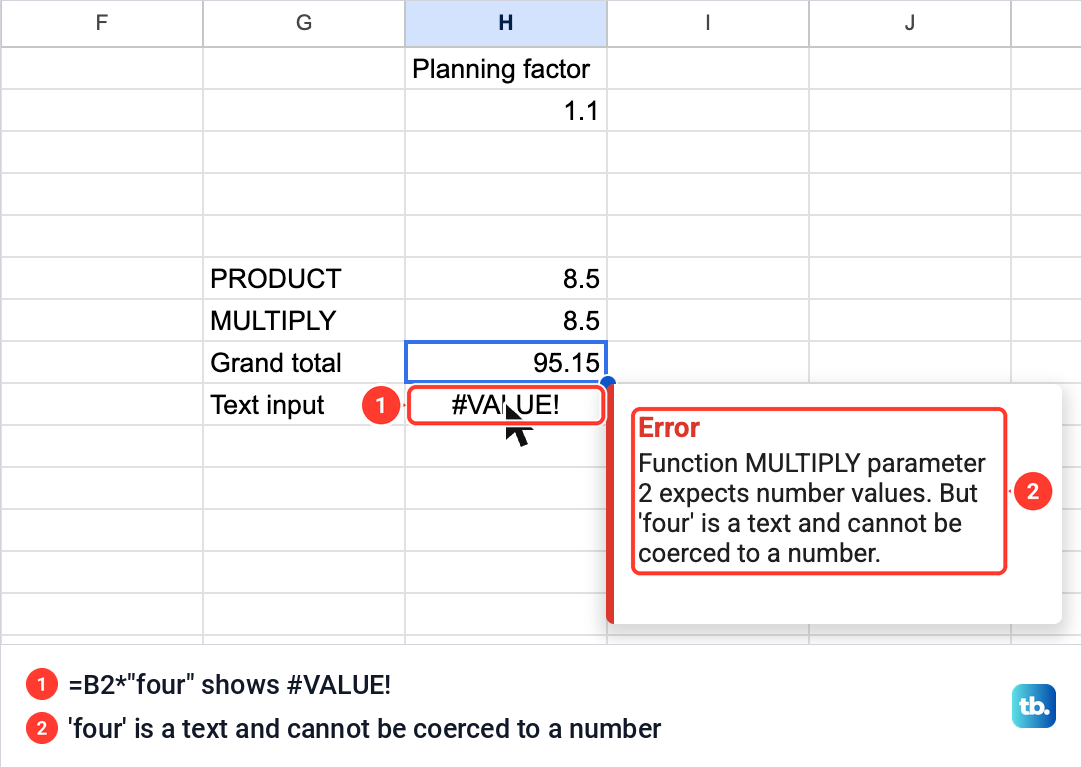
The note names MULTIPLY even though the formula used an asterisk, because Sheets reported the asterisk as that function. So the message does not mean you typed the wrong function. It means one side of the multiplication is not a number. Replacing the word with a number, =B2*4, gave 8.
In your own sheet, the text can also be inside a cell rather than in the formula, for example a price typed with a currency word after it. Click each cell the formula names and read the formula bar. Remove the word so the cell holds only the number, and use a currency format if you want it shown as money.
#N/A with "Wrong number of arguments" comes from the formula itself: MULTIPLY got a range or more than two values, as shown above. A result with no error that still looks wrong can come from a reference that moved. Click the cell and check that each name in the formula bar points where you meant.
Multiply on Android, iPhone and iPad
In the Google Sheets app on an Android phone or tablet, open the spreadsheet and tap the cell where the answer should go. Enter an equals sign and the formula, such as =B2*C2, typing the cell names into it. Tap Done to finish.
On an iPhone or iPad the steps are the same. Open the spreadsheet in the Google Sheets app, tap the cell, type =B2*C2 or any formula from this guide, and tap Done. To get a result on every row from one cell in either app, type the ARRAYFORMULA version from the section above in the first result cell.
How we tested this guide
We tested this in Google Sheets on the web in Chrome on a Mac, multiplying quantities by prices for 12 items with the asterisk, a fixed cell, PRODUCT, ARRAYFORMULA and SUMPRODUCT.
Frequently Asked Questions
What is the multiplication sign in Google Sheets?
The asterisk. Start the formula with an equals sign and put an asterisk between the values, as in =B2*C2 or =B2*4. In our sheet, =B2*4 gave 8.
How do I multiply a whole column by one number?
Put the number in its own cell, such as H2, and type =D2*$H$2 in the first row. Then fill the formula down. The dollar signs keep H2 fixed while the other cell moves to each row, and changing H2 updates every result.
What is the difference between PRODUCT and MULTIPLY?
PRODUCT multiplies any number of values and accepts a range, so =PRODUCT(B2:C2) works. MULTIPLY takes exactly two values. Given one range, it showed #N/A with "Wrong number of arguments to MULTIPLY" in our sheet.
How do I multiply two columns and get one total?
Use SUMPRODUCT with the two ranges, such as =SUMPRODUCT(B2:B13,C2:C13). It multiplies each pair on the same row and adds the results, so it gives one grand total rather than a result on each line.
Why does my multiplication show #VALUE!?
Rest the pointer on the cell to read its error note. One cause is text that Sheets cannot read as a number: our =B2*"four" gave #VALUE! with a note that 'four' "cannot be coerced to a number". Check the cells the formula uses for words typed with the number, and keep only the number.
Can I multiply in Google Sheets on my phone?
Yes. In the Google Sheets app on Android, iPhone or iPad, tap a cell, type the formula starting with an equals sign, such as =B2*C2, and tap Done.











