



To merge cells in Google Sheets, select the cells you want to join, click Format > Merge cells and choose Merge all, Merge horizontally or Merge vertically. Check what is in them first: each new merged cell keeps only its top-left value, so if other cells in it hold text, Sheets deletes that text after a warning.
To split a merged cell again, select it and choose Format > Merge cells > Unmerge. We merged and unmerged a title row and small blocks of cells in our Household Budget sheet, and three things stood out: a merged title does not center itself, merging filled cells really does delete text, and Undo brought every word back.
The short version
- Select the cells, then choose Format > Merge cells > Merge all.
- Merge horizontally joins each row on its own, and Merge vertically joins each column.
- Each merged cell keeps only its top-left value, so text in its other cells is deleted.
- Lost something? Press Ctrl + Z, or Command + Z on a Mac, straight away.
- To split a merged cell, choose Format > Merge cells > Unmerge.
Merge cells in Google Sheets on a computer
Merging joins neighboring cells into one bigger cell, which is mostly used for a title that runs across a table. Select the cells by clicking the first one and dragging across the rest, or type the range into the Name box at the top left and press Enter. If your table has no free row above it for a title, insert a row in Google Sheets first.
Our Household Budget sheet has its title in A1 and the table headings in row 3, Category, Item, Planned, Actual and Notes in columns A to E. Cells B1 to E1 were empty, which made the title row a safe first merge. We selected A1:E1, opened the Format menu and pointed to Merge cells.
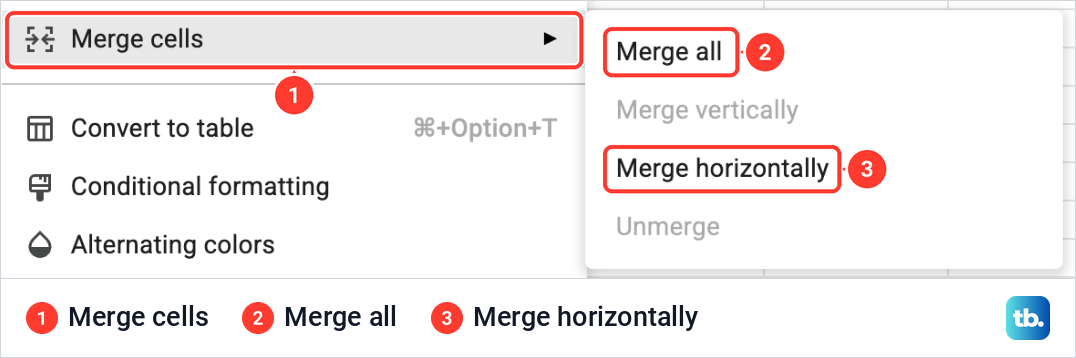
A short list opens with Merge all, Merge vertically, Merge horizontally and Unmerge. For our one-row selection, Merge vertically was grey, and so was Unmerge, because nothing on the sheet was merged yet.
We chose Merge all. Sheets turned A1:E1 into one cell that runs the full width of the table, and it did so without a question, because only A1 held text. The Name box still read A1:E1, and the formula bar showed Household Budget.
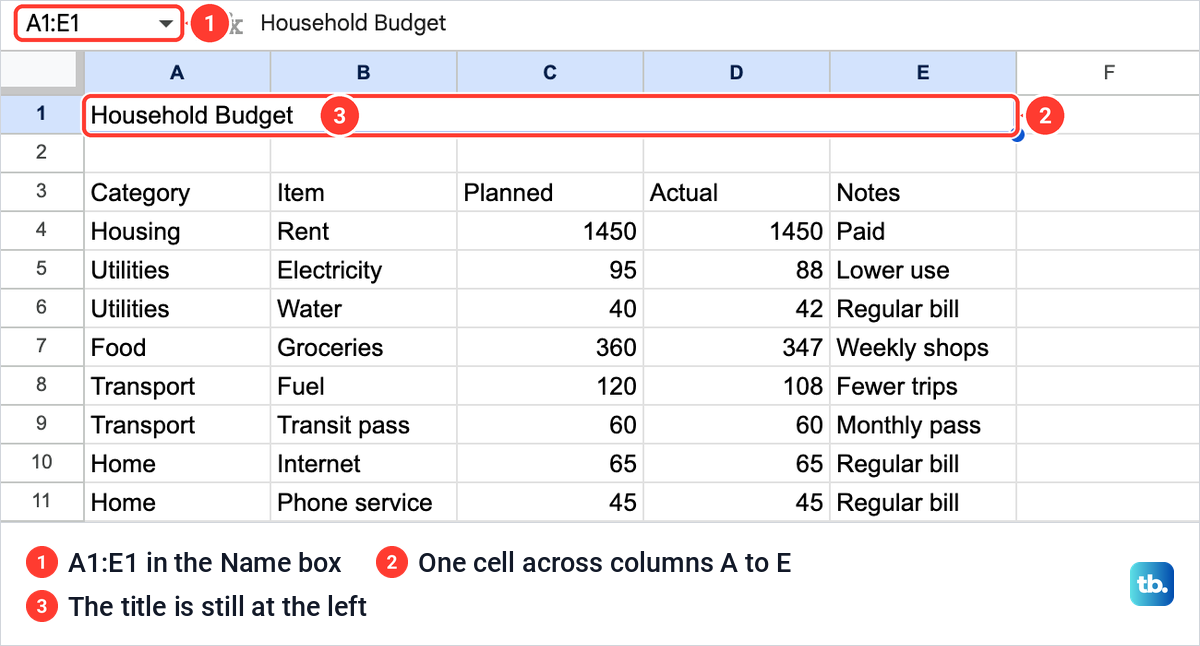
One thing did not change: the title stayed at the left edge of the wide cell. Merging does not center text. To center a title over the table, keep the merged cell selected, click the horizontal align button on the toolbar, just right of the Merge cells button, and pick Center.
Use the Merge cells button on the toolbar
The toolbar has its own Merge cells button, between the borders button and the align buttons. Clicking the button itself merged our title row back into one cell after we had unmerged it, the same result as Merge all.
The small arrow beside it, called Select merge type, opens the same four choices as the Format menu. With our merged title selected, the button was lit and Unmerge had become available in that list, while Merge vertically stayed grey for a single row.
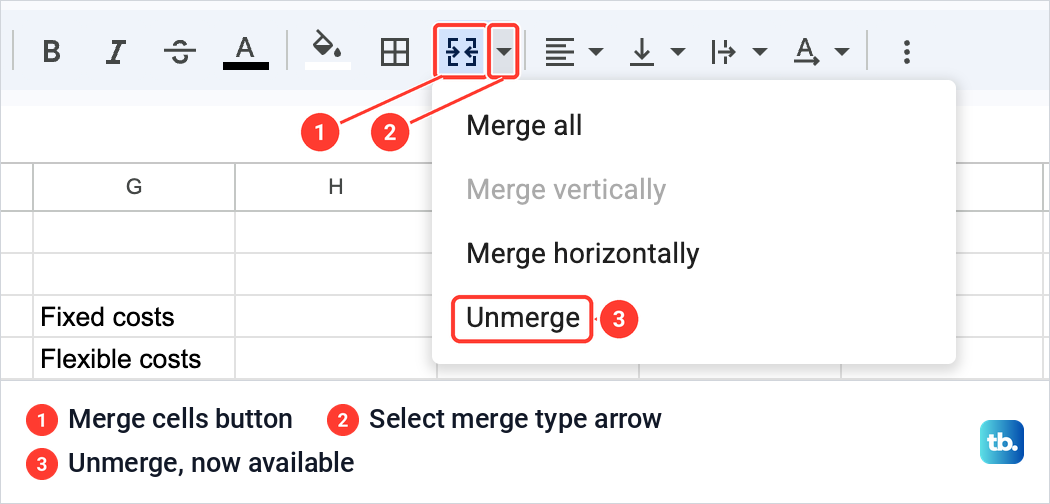
Both times we clicked the button on its own, on the title row and on two cells side by side, it joined the selection into one cell. To choose Merge horizontally or Merge vertically, or to reach Unmerge, use the arrow.
Merge all, horizontally or vertically
The three choices only give different results when you select more than one row and more than one column. To compare them, we used G3:I5, a block three columns wide and three rows deep, with Fixed costs, Flexible costs and Other costs typed down column G and the other six cells empty.
| Choice | What it does | What happened on our sheet |
|---|---|---|
| Merge all | Turns every selected cell into one cell | A1:E1 became one title cell, with no warning because only A1 held text |
| Merge horizontally | Merges each selected row on its own, one wide cell per row | G3:I5 became three wide cells, and each row kept its own label |
| Merge vertically | Merges each selected column on its own, one tall cell per column | G3:I5 became three tall cells after a warning, and only Fixed costs survived |
| Unmerge | Splits a merged cell back into single cells | The title went back into A1, with B1 to E1 empty |
| Ctrl + Z or Command + Z | Undoes the last merge, deleted text included | First entry and Second entry both came back |
Merge horizontally works row by row. On G3:I5 it made three wide cells, one per row, and each one kept its own label. No warning appeared, because no row had text in more than its first cell.
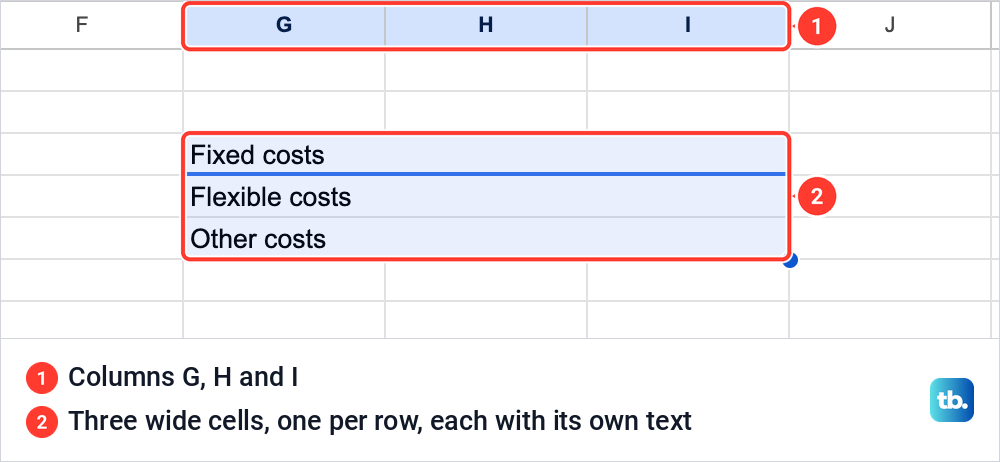
Merge vertically works column by column, and that is where text gets lost. Column G held three labels stacked on top of each other, so Sheets stopped and asked before going ahead.
What happens to text in the cells you merge
When a merge would join two or more filled cells, Sheets shows a box headed Heads up! Ours read, "Merging cells will only preserve the top-leftmost value. Merge anyway?" Below the message sit a Don't show this again for 5 minutes box, Cancel and OK.
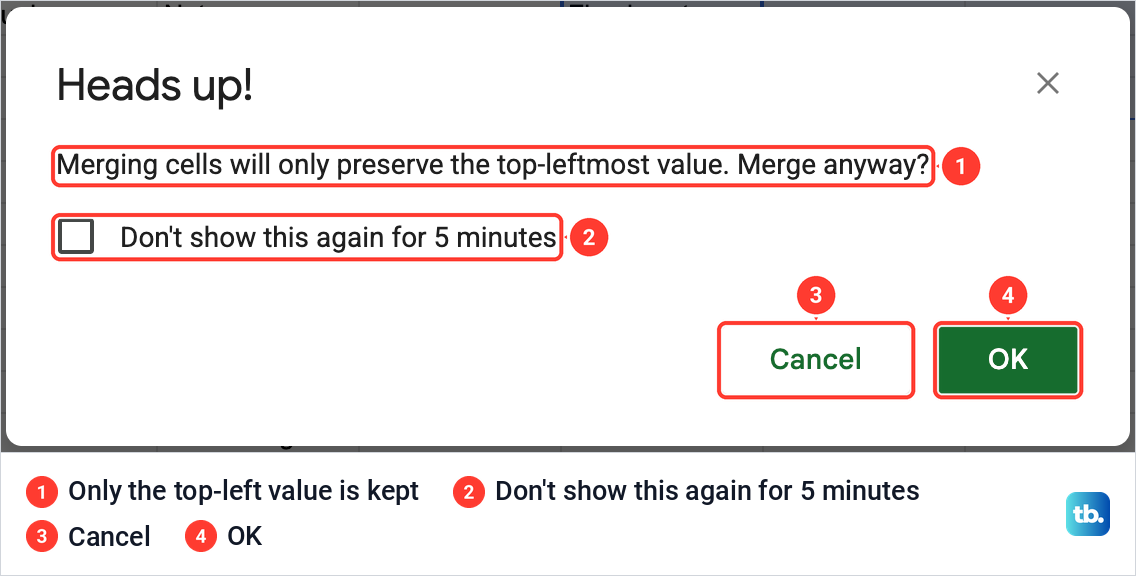
Take that message literally. Click Cancel if any of the other values matter, and leave the five-minute box unticked, since it switches off the only warning you get. We clicked OK to see exactly what goes.
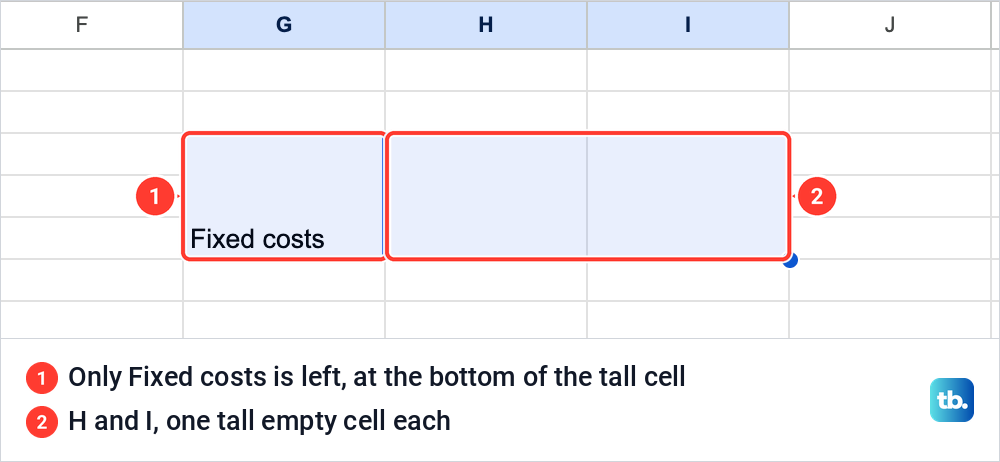
Each of the three columns became one tall cell over rows 3 to 5. Fixed costs stayed, sitting at the bottom of the tall G cell on our sheet, while Flexible costs and Other costs were gone.
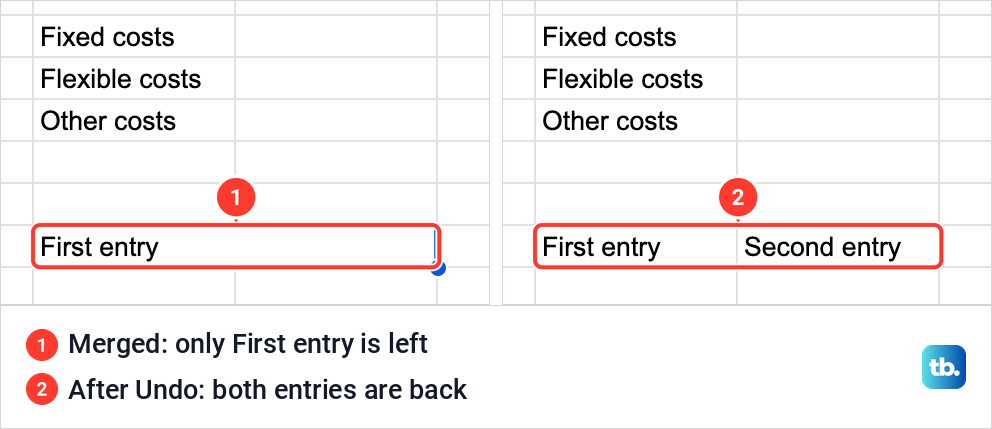
Merging two filled cells side by side deletes in the same way. We typed First entry in G8 and Second entry in H8, pressed the toolbar Merge cells button and got the same warning. After OK, the merged cell showed only First entry. If you need every value, copy the ones you want to keep somewhere else before you merge, or skip the merge and join them with a formula as shown further down.
Get back text that a merge deleted
Undo is the fix, and it worked at once for us. Straight after the G8:H8 merge we pressed Command + Z on our Mac, and First entry and Second entry both came back in their own cells. Undo also brought back Flexible costs and Other costs after the vertical merge.
On Windows or a Chromebook the shortcut is Ctrl + Z, and the curved Undo arrow near the left end of the toolbar does the same job. Undo works one step at a time, so use it before you make other edits, or you will have to undo those first.
If too much has happened since the merge, version history is the fallback. Choose File > Version history > See version history, then click a time in the list to see the file as it was. Restore this version makes that older version the current file, which also undoes everything changed after it, so look before you restore.
Unmerge cells in Google Sheets
To split a merged cell, click it and choose Format > Merge cells > Unmerge, or open the Select merge type arrow on the toolbar and pick Unmerge. The option stays grey until the selection contains a merged cell.
We unmerged our title. Household Budget went back into A1 on its own, and B1 to E1 became separate, empty cells again. The words still ran across B1 on screen, because text spills into an empty neighbor, but the cell border shows that it belongs to A1.
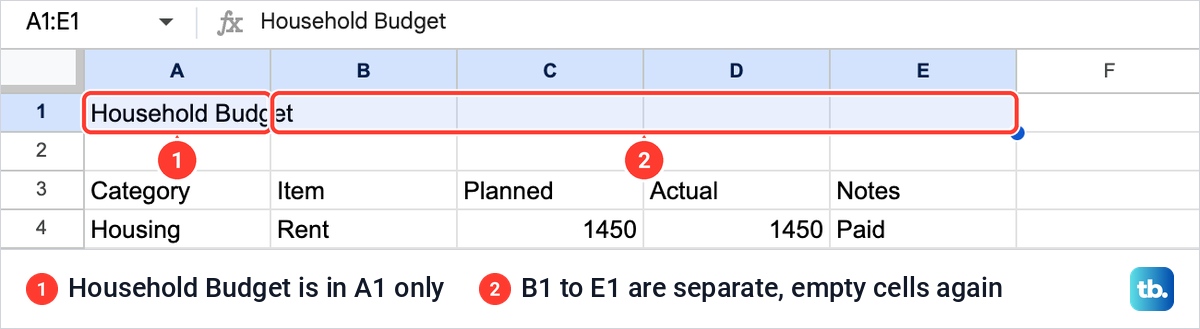
Unmerge is not Undo. It splits the cell and leaves the surviving value in the top-left cell, but the values a merge deleted were never kept, exactly as the warning said, so Unmerge has nothing else to put back. For those, use Undo or version history from the section above.
Unmerge does not split text either. If one cell holds two pieces of information, such as a first and last name, the Data menu has Split text to columns for that job.
Combine text from two cells without merging
If what you really want is the words from two cells in one cell, a formula does it without deleting anything. The TEXTJOIN function joins text with a separator you choose. We typed this formula in G10, while First entry and Second entry sat unmerged in G8 and H8:
=TEXTJOIN(" ", TRUE, G8:H8)G10 showed First entry Second entry, and G8 and H8 stayed separate and untouched. The " " part puts a space between the pieces, and TRUE tells Sheets to skip empty cells, so a blank cell in the range does not leave a double space.
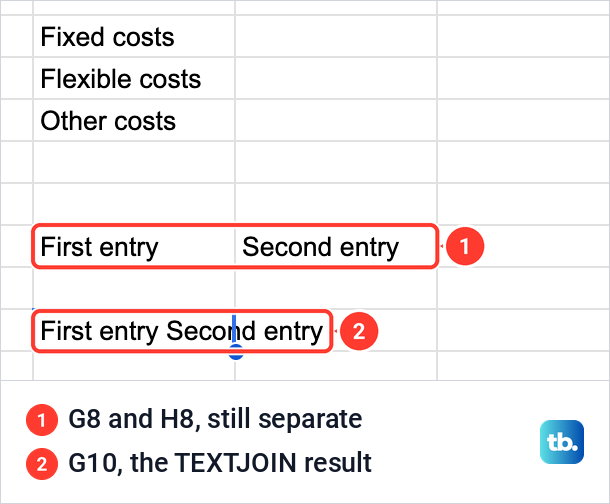
Because the result is a formula, it changes when the source cells change, so leave G8 and H8 unmerged: merging them would delete the text the formula reads. Put a comma and a space between the quotes instead if you are building a list.
When merged cells get in the way
A merged title above a table is fine for display, but merges cause more trouble inside the rows of data. When Create a filter is unavailable, check the sheet for any merged cells, a merged title included, and for hidden rows or columns, then unmerge and unhide them. Filters can apply to merged cells, so a merge does not always block a filter, but it is the first thing to check.
Keep merges out of rows you plan to sort in Google Sheets or look up as well, so every record stays on one row of single cells. After a merge, only the top-left cell of each merged block holds a value, and after our vertical merge G4 and G5 no longer held Flexible costs and Other costs. If a lookup such as VLOOKUP searches column G for those deleted labels, it will no longer find them.
A merge also stops the duplicate cleanup. In a table with one pair of cells merged, Data cleanup > Remove duplicates answered with the message Your selection contains a merged cell. To remove duplicates, all cells must contain the same number of rows and columns. Unmerge the cells first, then remove the duplicate rows.
Often a merge is not needed at all. If a long heading is the problem, wrap it inside its own cell with the Wrapping option in the Format menu. A chart does not need a merged heading either, because it carries a title of its own that you set while you make the graph.
If you want the headings to stay on screen while you scroll, freeze the row with View > Freeze. A merge cannot cross the freeze line, though. With column A frozen, we selected a cell in column A together with the one beside it and chose Merge all, and Sheets answered You can't merge frozen and non-frozen columns.
Why Merge cells is greyed out
A grey choice in the Merge cells list tells you something about the selection. With one row selected, Merge vertically was grey on our sheet, because there is no second row to merge down into. Unmerge stayed grey until the selection held a merged cell, as in the Format menu picture near the top.
If merging is not available at all, check that you can edit the file and that more than one cell is selected. With view or comment access you cannot make changes, so ask the file's owner for edit access.
Merge cells in the Google Sheets app on Android
In the Android app, Merge cells sits in the Format panel instead of a menu bar. Open the spreadsheet in the Google Sheets app, tap a cell, then drag the blue markers across the neighboring cells you want to merge.
Then tap Format, open the Cell tab and choose Merge cells. Tap the sheet to save the change.
To reverse a merge you have just made, tap Undo at the top of the screen. To split a merged cell later, open the file in Sheets on a computer and choose Format > Merge cells > Unmerge, the route shown earlier.
Merge cells on an iPhone or iPad
The iPhone and iPad app uses the same route. Open the spreadsheet in the Google Sheets app, tap a cell, and drag the blue markers across the cells you want to join.
Tap Format, open the Cell tab and choose Merge cells, then tap the sheet to save. If the result is not what you wanted, tap Undo at the top of the screen right away. To split a merged cell later, use Format > Merge cells > Unmerge in Sheets on a computer.
How we tested this guide
We tested this in Google Sheets on the web in Chrome on a Mac, merging and unmerging a title row and small blocks of cells in a household budget sheet.
Frequently Asked Questions
How do I merge two cells in Google Sheets?
Select both cells and choose Format > Merge cells > Merge all, or click the Merge cells button on the toolbar. If both cells hold text, Sheets keeps only the first one after a warning.
What is the difference between Merge all, Merge horizontally and Merge vertically?
Merge all turns the whole selection into one cell. Merge horizontally makes one wide cell for each selected row, and Merge vertically makes one tall cell for each selected column.
Can I merge cells without losing data?
Yes, if only the top-left cell of each new merged cell holds a value. Our title row lost nothing because B1 to E1 were empty, and Merge horizontally kept all three of our row labels. Otherwise Sheets keeps only that top-left value. To get the words together, join them in another cell with TEXTJOIN and leave the source cells unmerged, or copy the other values somewhere safe before you merge.
Does unmerging bring back the deleted text?
No. Unmerge only splits the cell, and the surviving value stays in the top-left cell. Press Ctrl + Z, or Command + Z on a Mac, straight after the merge, or look in File > Version history.
Is there a keyboard shortcut to merge cells in Google Sheets?
The list of Sheets keyboard shortcuts has no entry for merging cells. The Merge cells button on the toolbar is the quickest route, since one click merged the cells we had selected.
Why can't I create a filter after merging cells?
Merged cells, and hidden rows or columns, are reasons Create a filter can be unavailable. Check the whole sheet for merged cells, a merged title included, unmerge them, unhide any hidden rows or columns, and try again.
Can I merge cells in the Google Sheets app?
Yes. On Android, iPhone and iPad, select the cells by dragging the blue markers, tap Format, open the Cell tab and choose Merge cells.











