


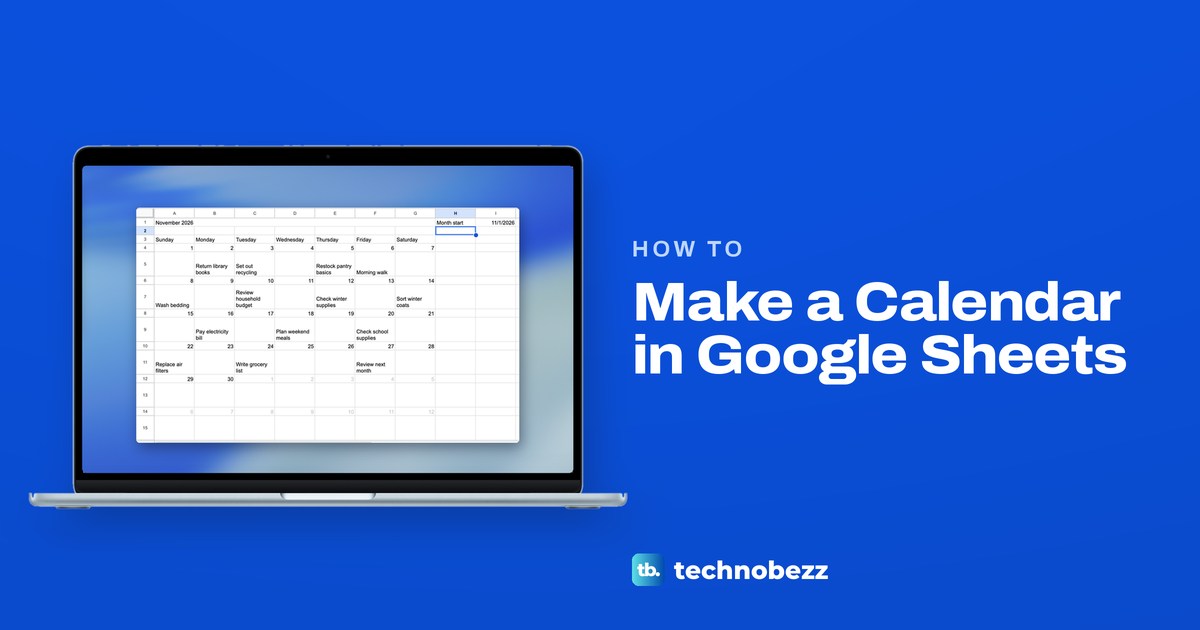
To make a calendar in Google Sheets, type Sunday to Saturday across seven columns, put the first day of the month as a real date in a cell beside the grid, and let a WEEKDAY formula work out the Sunday the grid starts on. Add one day across and seven days down for six weeks, and the whole month moves when you change that one date.
We built a November month view that way in our Household Planning Calendar file, with the plans kept on their own tab and pulled under their dates by a formula. If you would rather start from Google's own layout, the Template gallery on the Sheets start page lists an Annual Calendar card under Personal.
The short version
- Dates from one cell: type the first of the month in I1, put the WEEKDAY formula in A4, then add 1 across and 7 down.
- Six date rows, not five: August 2026 starts on a Saturday and needed all six.
- Plans on their own tab: a FILTER formula puts each plan under its date, and the plans follow when the month changes.
- Grey for days outside the month: use a conditional format with a grey text colour, because a fill colour also painted the empty note cells in our November view.
- Print one page: select A1:G15, choose File > Print and pick Selected cells.
The calendar at a glance
| What you want | What to do | What our calendar showed |
|---|---|---|
| A title that names the month | Merge A1:G1 and type the TEXT formula | November 2026 |
| The first date of the grid | The WEEKDAY formula in A4 | 11/1/2026 under Sunday |
| The other 41 dates | =A4+1 across row 4, =A4+7 down each date row | 11/1/2026 to 12/12/2026 in six rows |
| Plans under their dates | A TEXTJOIN and FILTER formula in each note cell | Two plans on 24 November on separate lines |
| Day numbers only | Format > Number > Custom date and time, then Day | 1 to 30, then 1 to 12 for December |
| Days outside the month in grey | Conditional formatting with a custom formula and grey text | 1 to 12 December in grey |
| Another month | Change I1, or duplicate the tab and change its I1 | December 2026, with 1 under Tuesday |
| One printed page | Select A1:G15, then File > Print > Selected cells | The whole month on one landscape page |
The steps below follow that order on Google Sheets in a browser on a computer, with the phone apps near the end. The cell addresses are the ones in our file, so keep the same layout if you want to copy the formulas as they are.
Set up the month title and weekday names
Open a blank spreadsheet and name it, then name the first tab Month View and add a tab called Plans. Sheets saves as you type, so there is no save step. On Month View, type Month start in H1 and the first day of the month in I1, such as 11/1/2026. Sheets lines a real date up on the right of its cell, which is how you know it took the entry as a date.
The dates in this guide are written month/day/year, the US order our file used. Sheets bases its date formats on the spreadsheet's locale, so if yours puts the day first, type I1 and the Plans dates that way and check that the title names the month you meant.
Type the weekday names in A3 to G3. You do not need to type all seven: when we typed Sunday in one cell and dragged the small blue dot at its lower right corner six cells to the right, Sheets filled in Monday to Saturday by itself.
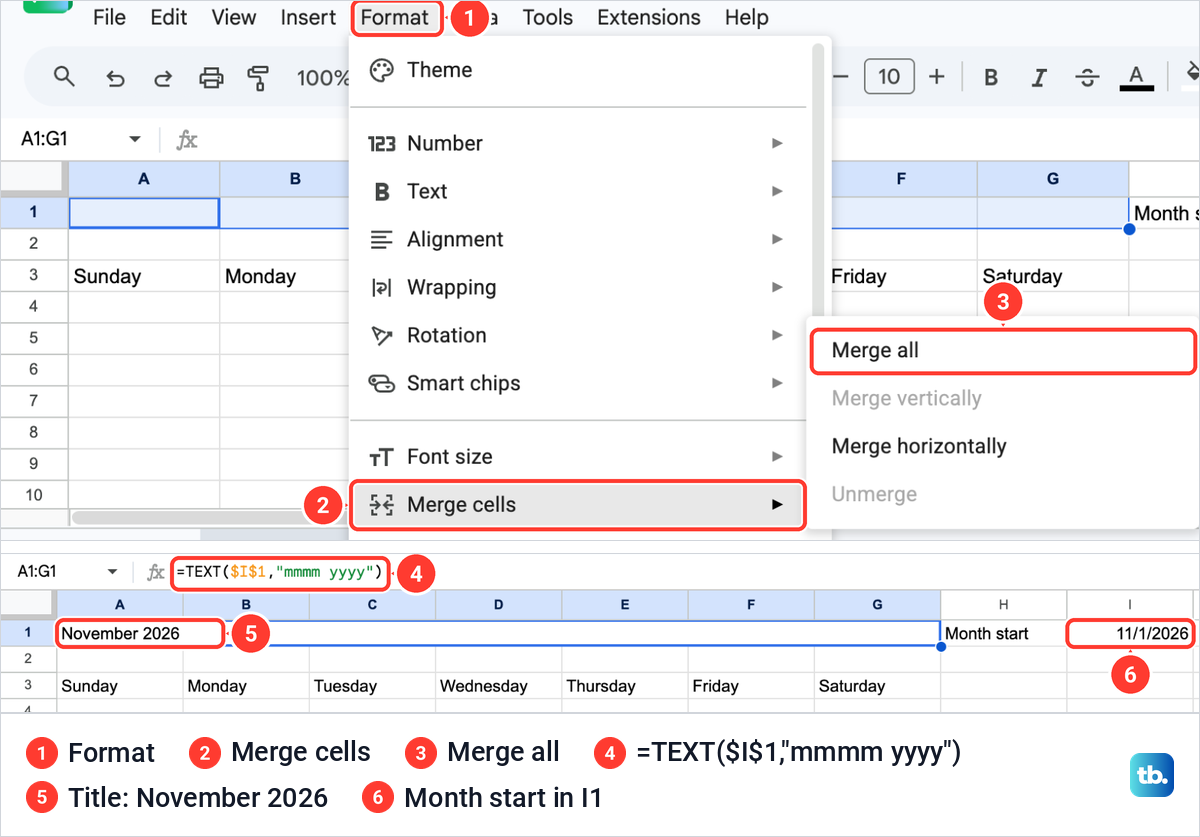
Row 1 holds the title. Select A1 to G1 while they are still empty, then choose Format > Merge cells > Merge all. Our guide to merging cells in Google Sheets shows what a merge does to text already in the cells, which is why empty cells are the safe start. Then type this in the merged cell:
=TEXT($I$1,"mmmm yyyy")Our title read November 2026. Because it reads I1, the title changes by itself whenever you change the month start date.
Fill six weeks of dates from one cell
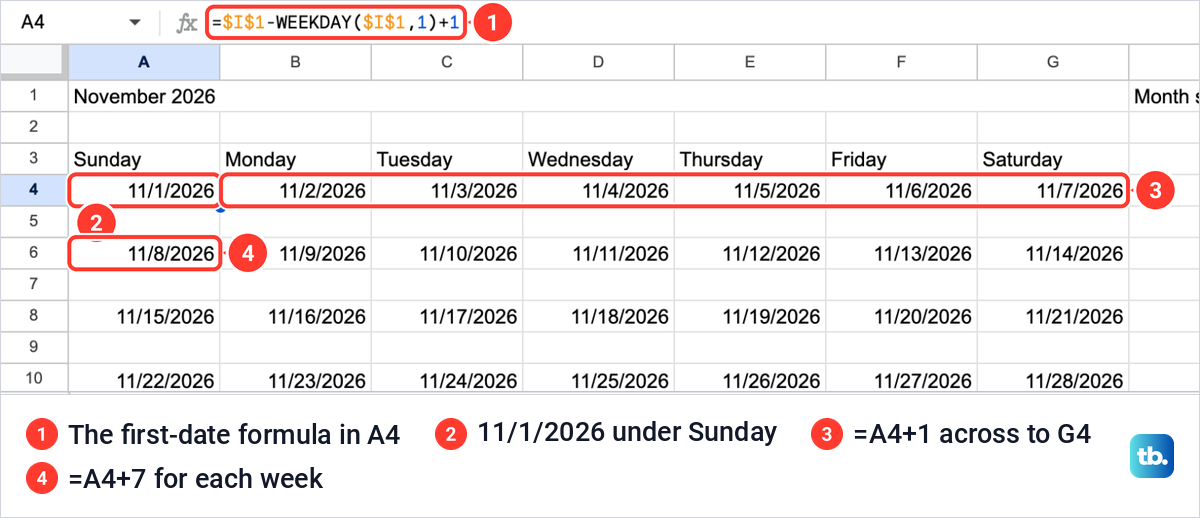
The grid needs to know which Sunday comes on or before the first of the month. Click A4 and type the formula below. WEEKDAY gives a number from 1 for Sunday to 7 for Saturday, so taking that number away from the month start and adding 1 lands on the Sunday of the first week.
=$I$1-WEEKDAY($I$1,1)+11 November 2026 is a Sunday, so A4 showed 11/1/2026. In B4 type =A4+1 and copy it across to G4, so each cell is one day after the one on its left. In A6 type =A4+7 and copy it across to G6, which puts the next week underneath.
Leave the rows in between empty for now. Rows 5, 7, 9, 11, 13 and 15 will hold the plans, so copy row 6 to rows 8, 10, 12 and 14. Our grid ran from 11/1/2026 to 12/12/2026, and every result came out as a full date without any formatting from us.
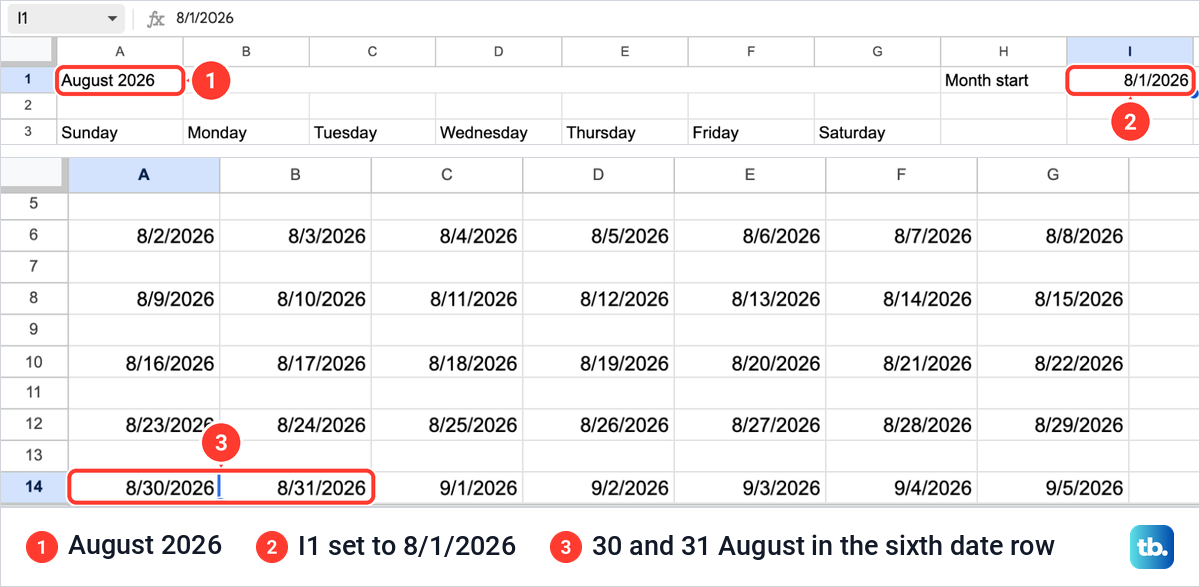
Six date rows matter more than they look. We changed I1 to 8/1/2026 to check: the title read August 2026, the first row started on 7/26 because 1 August is a Saturday, and 30 and 31 August landed in the sixth date row. A grid with five weeks would have lost the last two days of that month.
Keep your plans on their own tab
A calendar is easier to keep up when the plans live in a plain list. On the Plans tab, type Date, Plan, Category and Status in A1 to D1, then one plan per row underneath. We typed fourteen household plans from 11/2/2026 to 11/27/2026, and every date sat on the right of its cell as a real date.
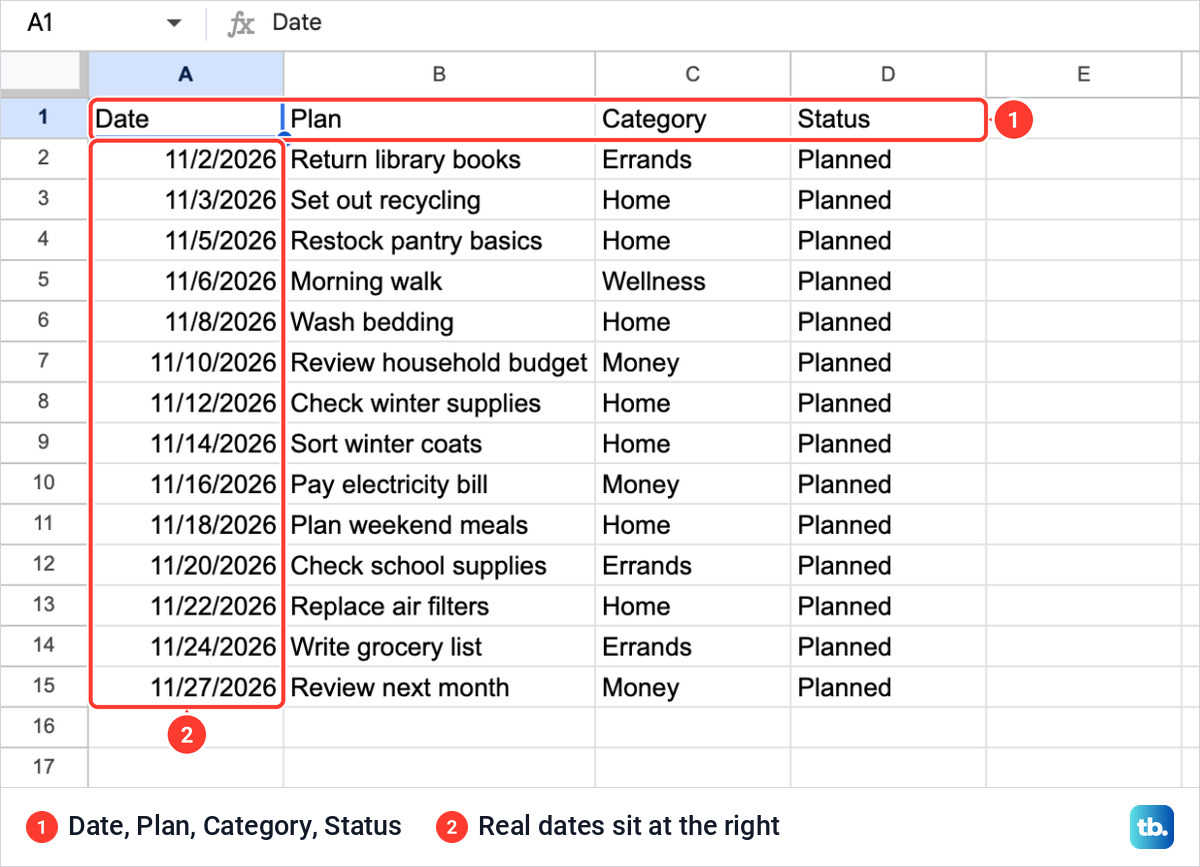
The columns after Plan are for you. Category can become a drop-down list in Google Sheets so every plan uses the same few words, and Status can hold a word such as Planned, or a tick box if you add checkboxes in Google Sheets. Once the list runs past one screen, freeze the heading row so Date and Plan stay in view.
Pull each plan under its date
Go back to Month View, click A5 under the first date and type the formula below. FILTER finds every plan on the Plans tab whose date matches A4, TEXTJOIN puts them in one cell with a line break between them, and IFERROR leaves the cell empty on a day with no plan.
=IFERROR(TEXTJOIN(CHAR(10),TRUE,FILTER(Plans!$B$2:$B,Plans!$A$2:$A=A4)),"")Copy A5 across to G5, then copy row 5 to rows 7, 9, 11, 13 and 15. Each copy reads the date cell directly above it. In our sheet A5 stayed empty because nothing was planned for 1 November, B5 showed Return library books under 2 November, and no cell showed an error.
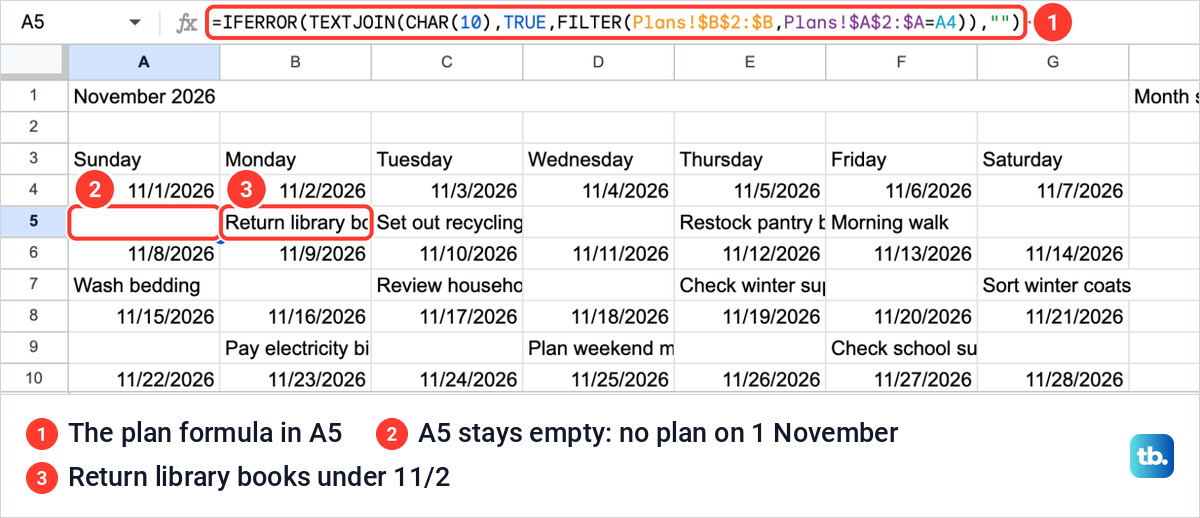
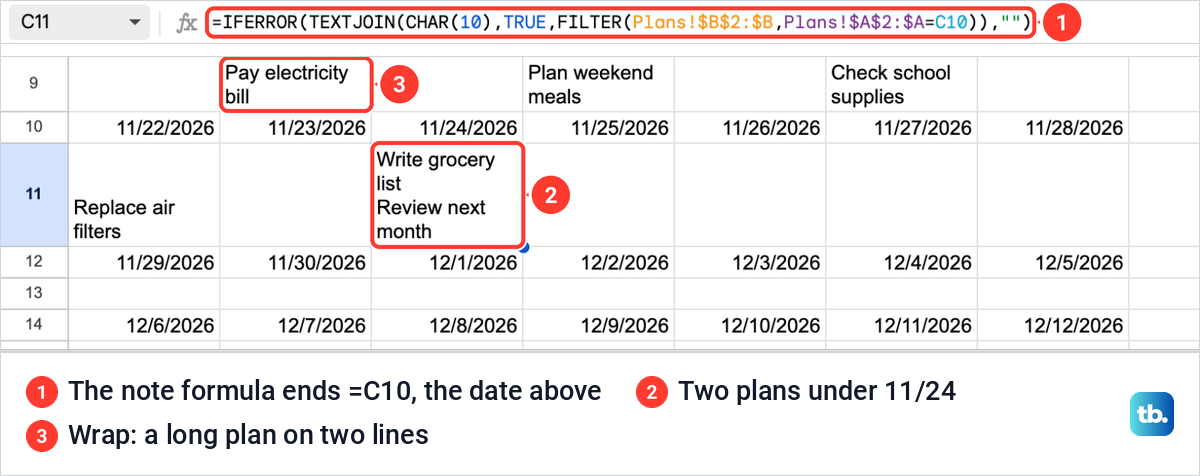
Long plans are cut off at the cell edge at first. Select A4 to G15 and choose Wrap from the text wrapping button on the toolbar, which offers Overflow, Wrap and Clip. Our note rows grew by themselves, to two lines in row 5 and three in row 7, with the text at the bottom of each cell. Our guide to wrapping text in Google Sheets explains what the other two choices do.
Two plans on one day work too. We moved Review next month to 11/24/2026 on the Plans tab, and the box under 24 November showed Write grocery list and Review next month on separate lines while its row grew to fit. The box under 27 November went empty at the same moment, and we put the date back afterwards.
Show day numbers instead of full dates
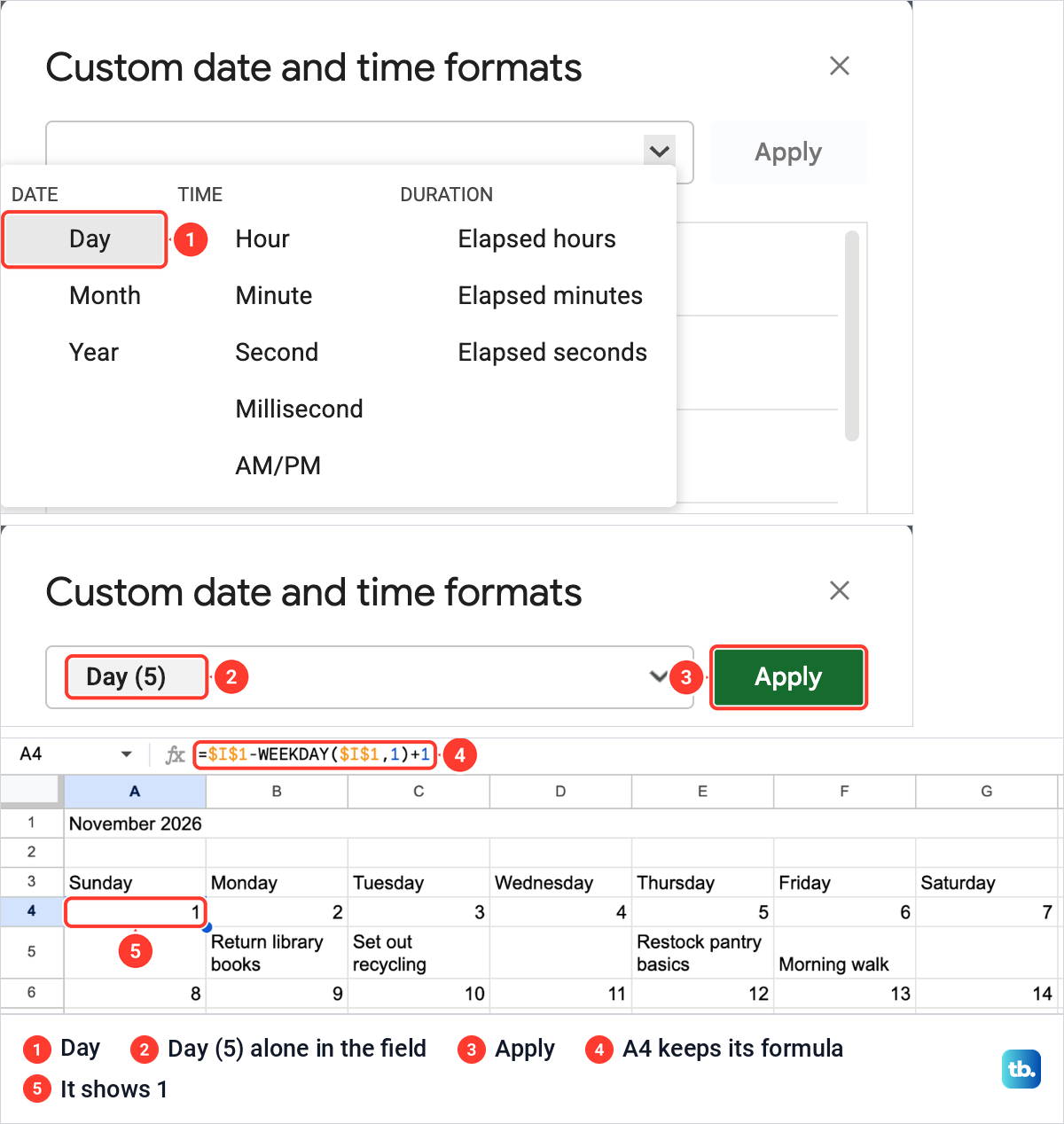
A calendar reads better with 1, 2 and 3 than with 11/1/2026. Select A4 to G14 as one block by dragging or by typing A4:G14 in the Name box. The block works because the plan cells hold text, and a date format leaves text alone.
Choose Format > Number > Custom date and time, the second-to-last entry of the Number list. The box that opens shows the current format as three parts in its field.
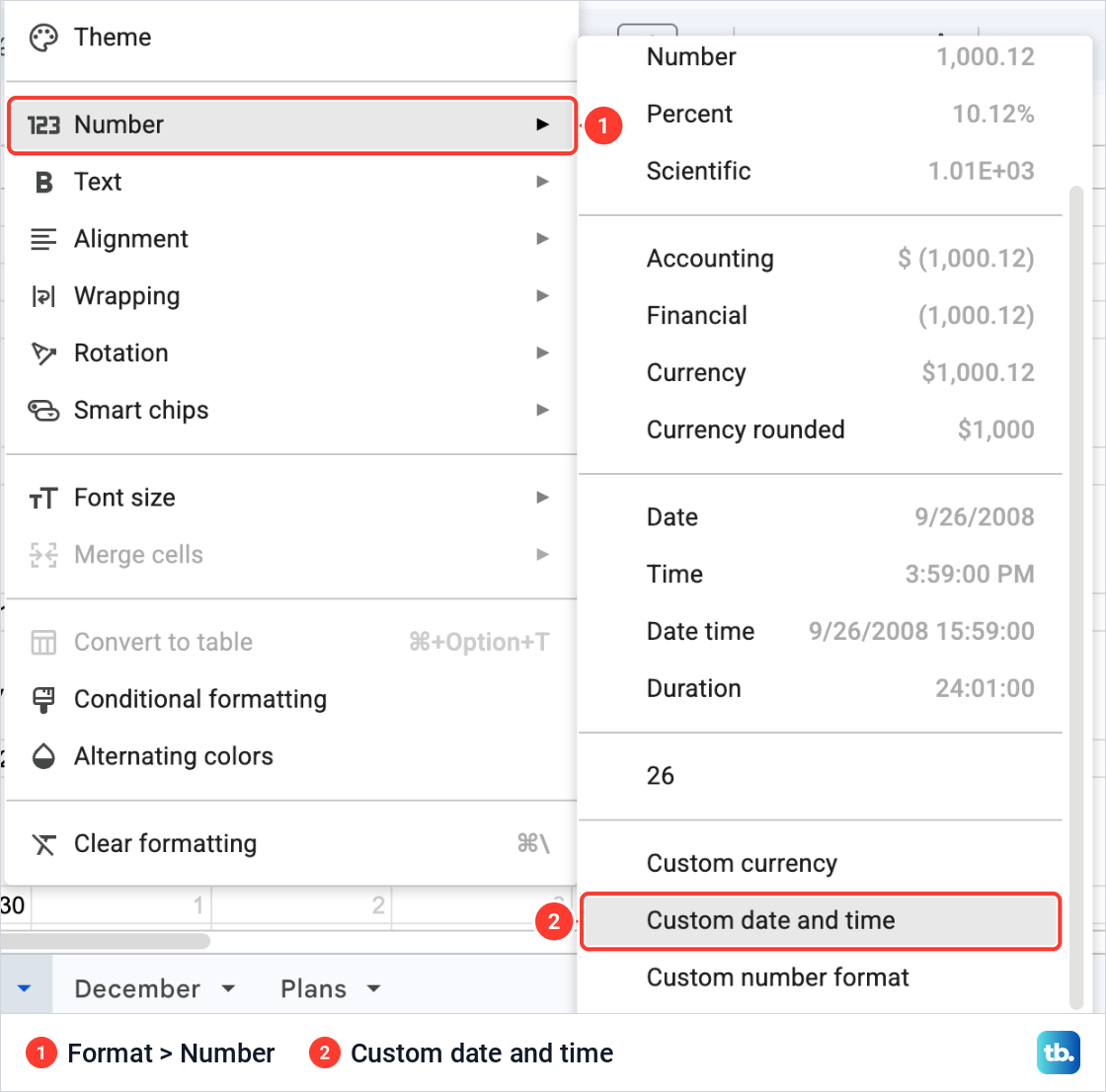
Click in the field and press Backspace until it is empty, and Apply turns grey. Click the arrow at the right end of the field, choose Day under DATE, and the field holds Day (5) on its own, where the 5 is only Sheets' example. Click Apply.
Our date rows then read 1 to 7, 8 to 14 and so on, and the plan rows did not change. A4 still held its formula, so the cells are real dates that only look like day numbers.
Grey out the days outside the month
The first and last weeks of the grid can hold days from the months either side, and those days are easier to skip when they look faded. The rule below greys any date whose month is not the month in I1. With A4:G14 still selected, choose Format > Conditional formatting. The Conditional format rules panel opens with Apply to range already set to A4:G14 and the Format cells if list on Is not empty.
Open the Format cells if list and choose Custom formula is, the last entry. Type the formula below. A4 has no dollar signs, so each cell checks its own date, while the dollar signs round I1 keep every cell pointing at the month start.
=MONTH(A4)<>MONTH($I$1)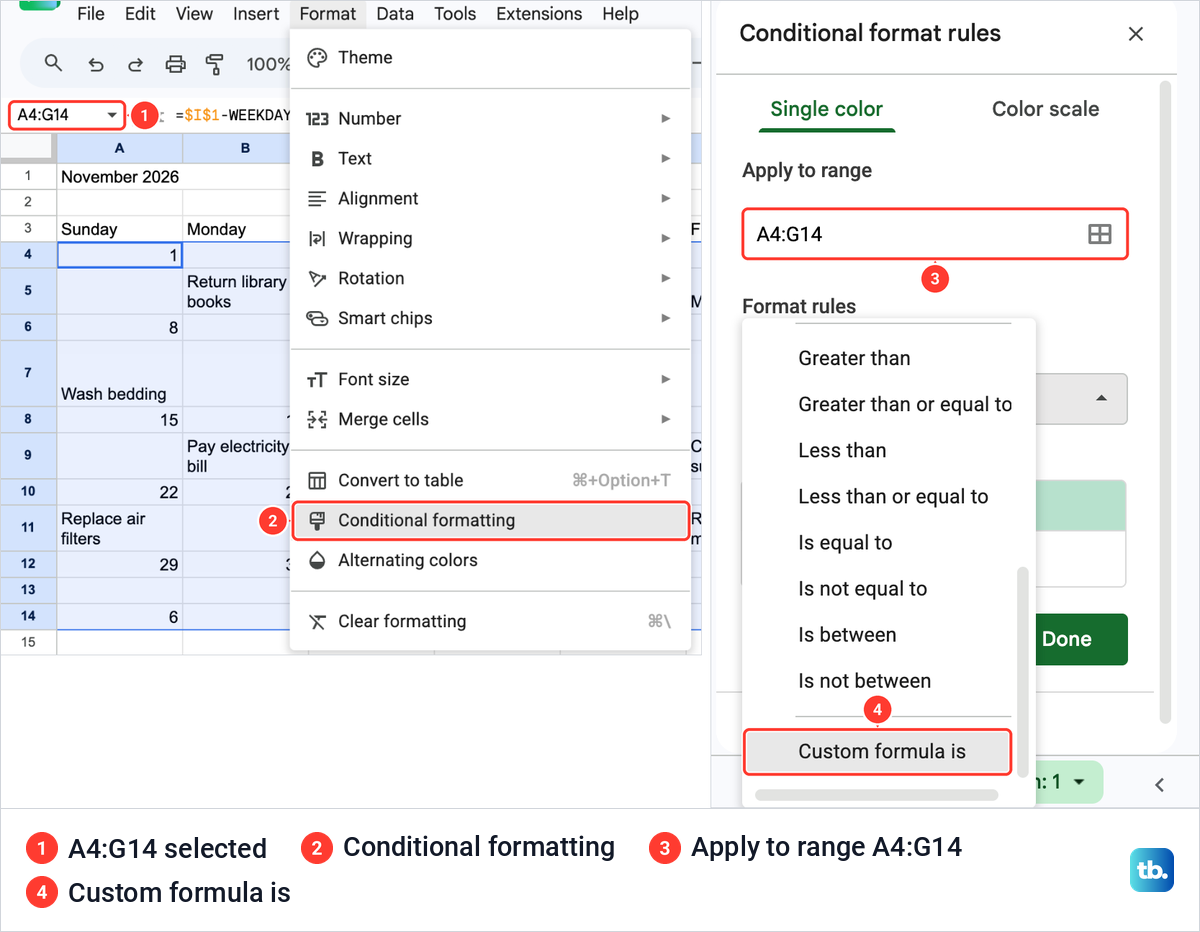
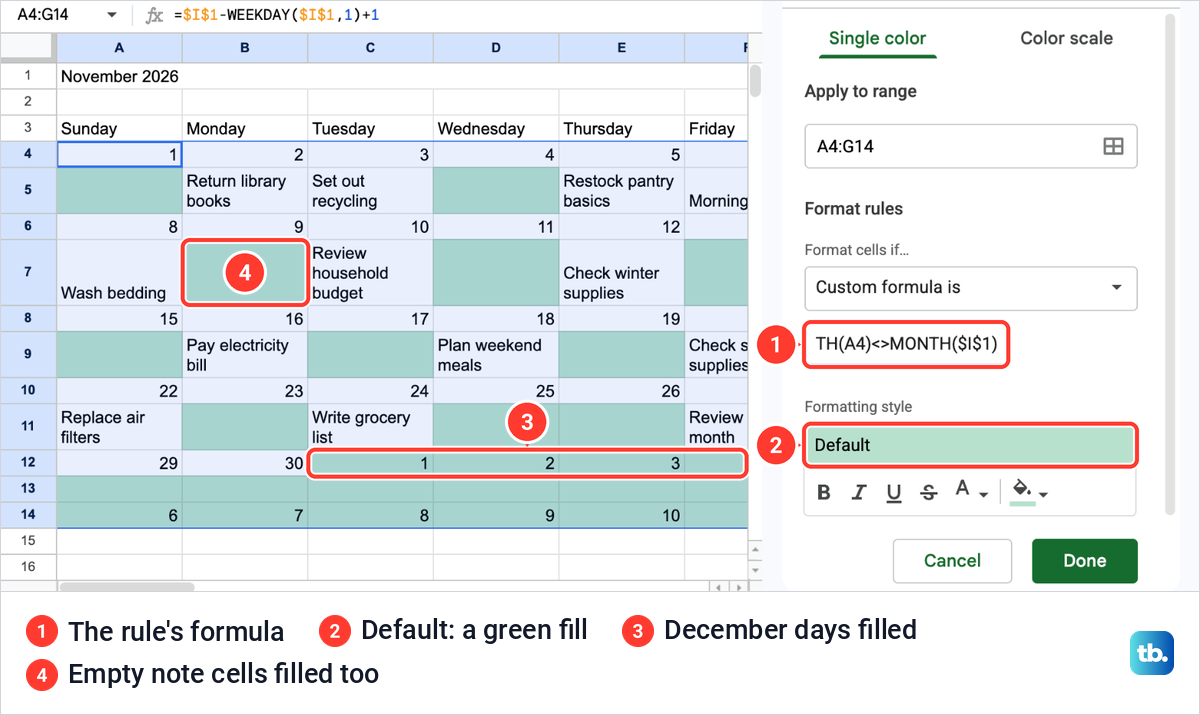
Do not keep the green style the rule starts with. The panel's Formatting style read Default, a green fill, and that fill coloured the December days and every empty note cell in the block. Note cells holding a plan were left alone, which made the grid look patchy, so leave the fill off any rule on this block.
Use a text colour instead. Click the text colour button under Formatting style and choose gray, the sixth circle of the top row, then set the fill colour to None. The style line changed to Custom, 1 to 12 December turned grey, and the empty note cells showed nothing.
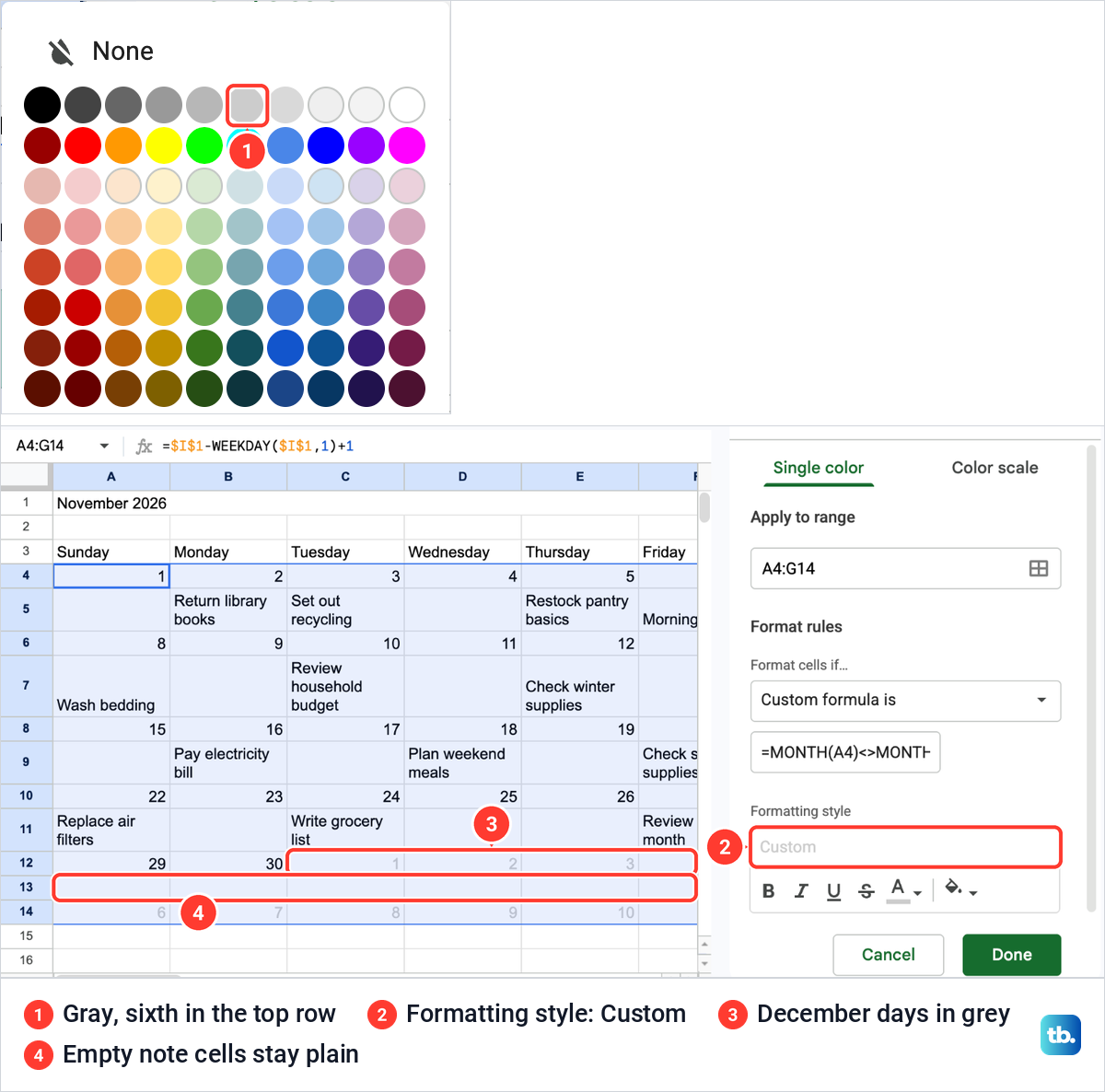
Click Done and the panel lists one rule card for A4:G14. In our grid, 29 and 30 November stayed black because they belong to the month in I1.
Give every week the same height
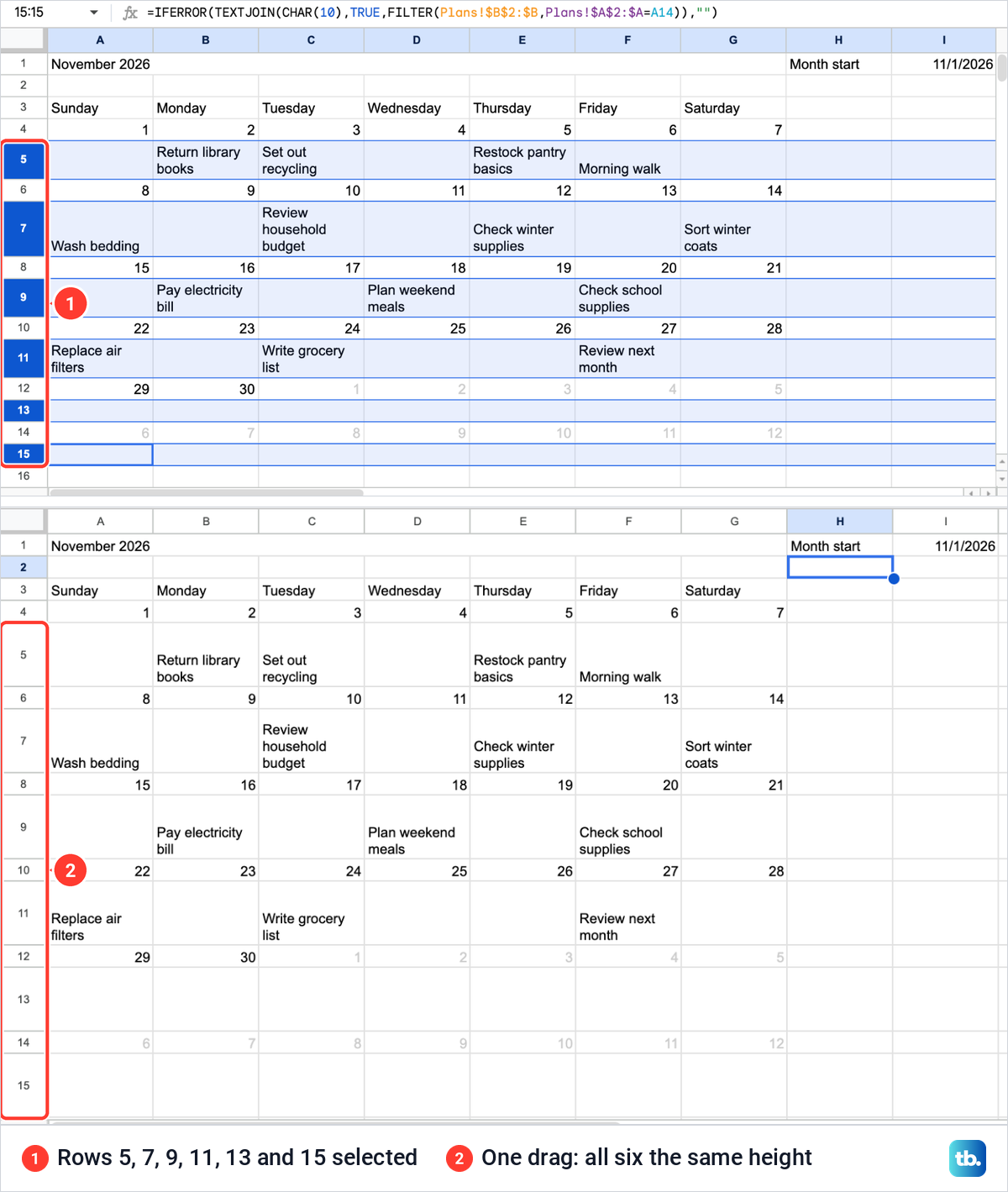
Wrapped plans make some weeks taller than others. Click the row number 5, then hold Command on a Mac, or Ctrl on Windows and ChromeOS, and click 7, 9, 11, 13 and 15. With the six note rows selected, drag the lower edge of row 5 down.
All six rows took the same height in one drag. To see the whole month at once, choose 75% from the zoom list on the toolbar.
Move to the next month or keep each month on a tab
For a calendar that always shows one month, change the date in I1. When we typed 12/1/2026, the title read December 2026, the 1 sat under Tuesday, and every plan row emptied, because the Plans tab held nothing for December. The rows kept the height we had set. Change I1 back and the November plans return.
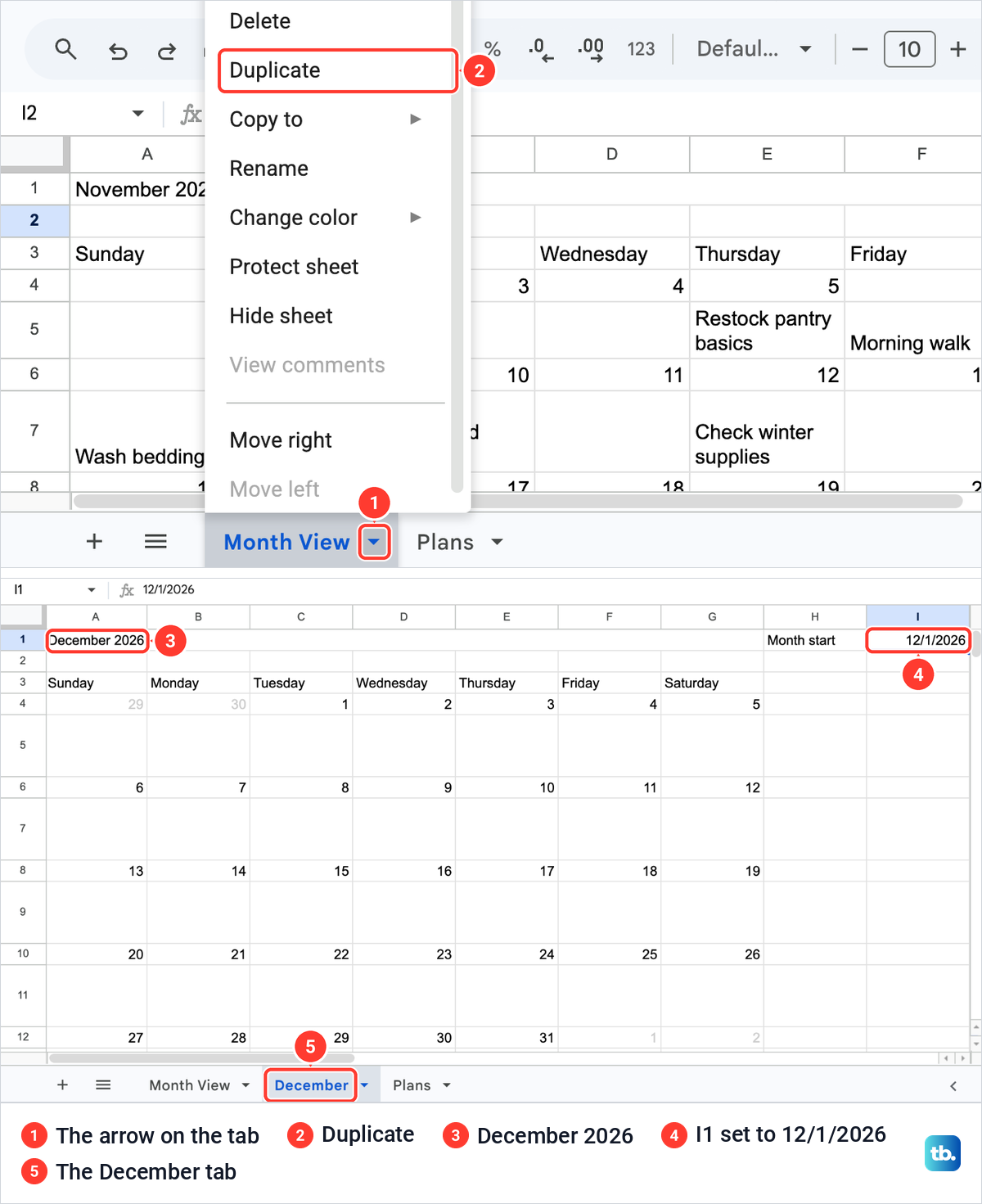
To keep each month, copy the tab: click the arrow on the Month View tab and choose Duplicate. Sheets made a tab called Copy of Month View beside the original. We renamed it December and set its I1 to 12/1/2026, and it showed December while Month View still showed November. The copy kept the grey rule and the row heights, and both tabs read the same Plans tab.
Type plans on the Plans tab, never straight into the grid. We typed Call the plumber into D5, under 4 November, and it replaced that cell's formula. When I1 then changed to 12/1/2026, Call the plumber stayed in D5, now under 2 December, while every other note cleared.
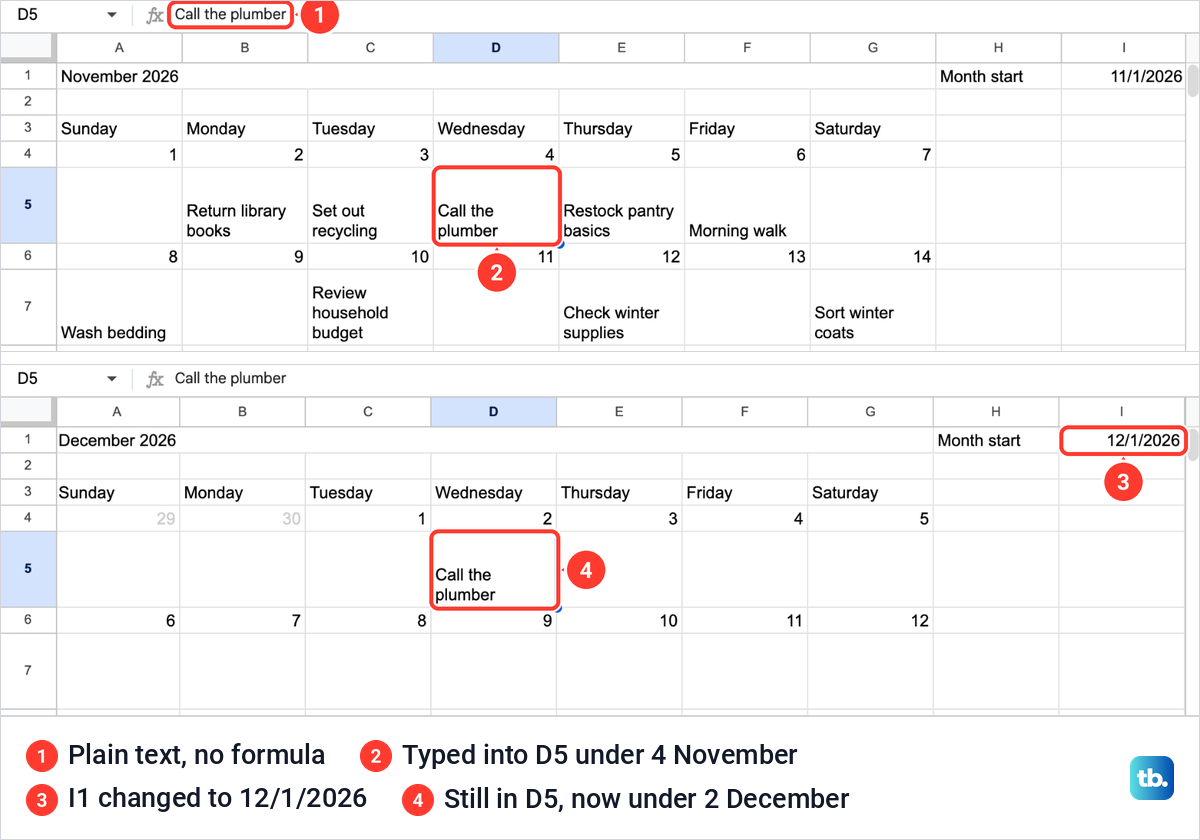
A note typed into the grid belongs to the cell, not the date. If it happens, press Command + Z on a Mac, or Ctrl + Z on Windows and ChromeOS, to undo it, or copy the formula back in from the cell beside it.
Print one month on a page
Select A1 to G15, then choose File > Print, the last entry of the File menu. Print settings opened on Current sheet, which also put the Month start cells, H1 and I1, on the page. Open the Print list and choose Selected cells (A1:G15).
With Selected cells, the preview held only the calendar: six weeks and the plan text on one page, with Total: 1 page at the top. Ours opened with Landscape already chosen, Letter paper and Scale on Fit to width, which suits a seven-column grid. If Page orientation shows Portrait, choose Landscape.
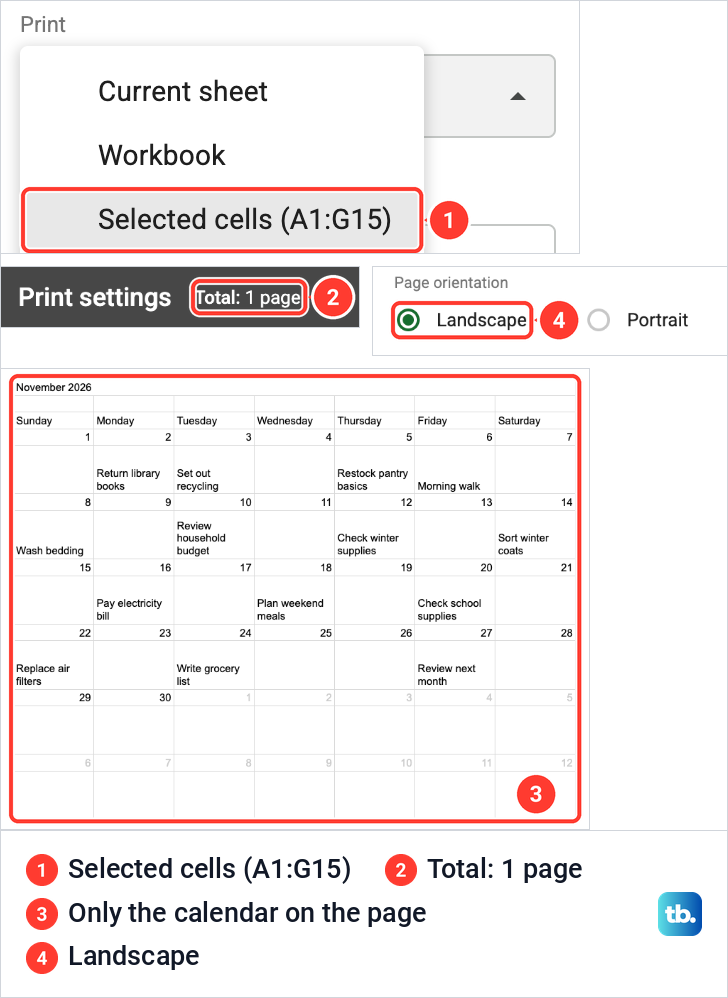
Sheets does not keep that choice between prints, so choose Selected cells each time. Our guide to setting the print area in Google Sheets covers the other print settings. Fit to page did not make our calendar bigger, and the preview looked the same as with Fit to width.
When the preview is right, click Next. In Chrome, the browser's print window opens, while Firefox and Safari download a PDF that you print from your PDF viewer.
Use the calendar in the Google Sheets app
On an Android phone or tablet, open the file in the Google Sheets app, double-tap a cell on the Plans tab, type the plan and tap Done. To start from a Google template instead, tap New in the bottom corner, then Choose template.
The Android app can also create and change the grey rule: select the range and tap Format > Conditional formatting. To print, tap More, then Share & export > Print, tap Paper size to choose your settings, pick the printer and tap Print.
On an iPhone or iPad, New and Choose template work the same way. Conditional formatting rules show on an iPhone or iPad but cannot be edited there, so change the grey rule on a computer or an Android device. To print, tap More, then Share & export > Print.
When the calendar does not behave
A plan does not show under its date. The date on the Plans tab has to be a real date that matches the grid. A date stored as text sits on the left of its cell, and our guide to sorting by date in Google Sheets shows how to spot one and turn it into a real date.
The last days of the month are missing. The grid has five date rows instead of six. Add a sixth week with =A12+7 in A14 copied across, and a note row under it.
Empty boxes turned green with the days outside the month. The conditional format uses a fill colour. Open Format > Conditional formatting, click the rule, set the fill colour to None and choose a grey text colour.
A note stays put when the month changes. It was typed into the grid and replaced the formula there. Move it to the Plans tab with its date and copy the note formula back into the cell.
The week should start on Monday. Type Monday to Sunday in row 3 and use 2 instead of 1 as the second number in WEEKDAY, which counts Monday as day 1. The rest of the grid stays the same.
How we tested this guide
We tested this in Google Sheets on the web in Chrome on a Mac, building a November month view fed by a Plans tab and taking it as far as the print preview.
Frequently Asked Questions
Does Google Sheets have a calendar template?
Yes. The Template gallery on the Sheets start page lists an Annual Calendar card under Personal. The steps in this guide build a month view that follows a date you choose and pulls plans from a list.
How do I make the dates change with the month?
Put the first day of the month as a real date in one cell, such as I1, and build the grid from it with the WEEKDAY formula in the first date cell. Changing that one cell moved our whole grid, title included.
Why do my events stay in the wrong boxes when I change the month?
They were typed into the grid cells, so they belong to those cells rather than to dates. Keep the events in a dated list on another tab and pull them into the grid with the FILTER formula, and they move with their dates.
Can I fit the month on one printed page?
Yes. Select only the calendar, choose File > Print and pick Selected cells. Our six-week month with plans fit on one landscape Letter page at Fit to width.
Can I start the week on Monday?
Yes. Type Monday to Sunday across row 3 and change the second number in WEEKDAY from 1 to 2. WEEKDAY then counts Monday as day 1, so the grid starts on a Monday.
Can I change the grey days rule on an iPhone?
No. An iPhone or iPad shows conditional formatting rules but cannot edit them. Change the rule in a browser on a computer or in the Android app.
Will a Google Sheets calendar send reminders?
No. It is a spreadsheet, so it sends no reminders and adds nothing to Google Calendar. Google Calendar has its own import from a CSV file on a computer, which is a separate task from this one.











