

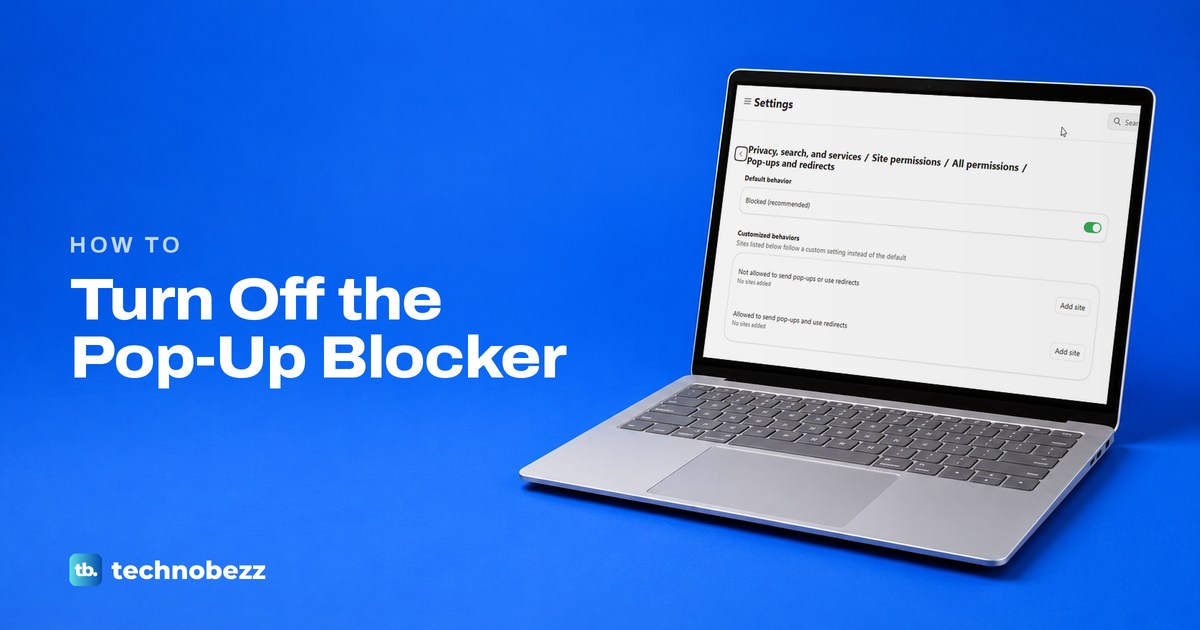
To disable a pop-up blocker, allow pop-ups for the website in the browser you are using. Edge and Chrome call the setting Pop-ups and redirects, Firefox uses a Block pop-ups and third-party redirects box, and Safari on a Mac keeps it under Websites > Pop-up Windows. Allow only the site that needs it, then load the page again.
The quickest route starts at the blocked message itself. In Edge and Firefox on Windows 11, the browser marked the blocked window in the address bar or in a bar above the page, and that message offered to allow the site. When we allowed one site in the browser's settings, the blocker kept working for other addresses, which is safer than switching it off.
The short version
- One site, fastest: click the blocked pop-up icon or message, choose to always allow that site, then load the page again.
- Edge and Chrome: in Pop-ups and redirects, add the site under Allowed to send pop-ups and use redirects.
- Firefox: keep Block pop-ups and third-party redirects ticked, add the site under Manage exceptions, then select Save changes.
- Safari: on a Mac, choose Allow beside the site under Pop-up Windows. On an iPhone or iPad, turn off Block Pop-ups in Settings > Apps > Safari.
- Finished? Remove the site again, or turn the blocker back on, so other sites stay blocked.
Where the pop-up setting is in each browser
Every browser keeps its own pop-up setting, so changing it in one leaves the others as they were. Find your browser in the table, then go to its section for the full steps.
| Browser | Where the setting is | Allow one site | Allow every site |
|---|---|---|---|
| Microsoft Edge on a computer | Settings > Privacy, search, and services > Site permissions > All permissions > Pop-ups and redirects | Add site under Allowed to send pop-ups and use redirects | Turn off Blocked (recommended) |
| Google Chrome on a computer | Settings > Privacy and security > Site settings > Pop-ups and redirects | Pop-up blocked icon, then Always allow pop-ups and redirects from the site | Choose the default that lets sites send pop-ups |
| Firefox on a computer | Settings > Privacy and security > Permissions | Manage exceptions, Allow, then Save changes | Clear Block pop-ups and third-party redirects |
| Safari on a Mac | Safari > Settings > Websites > Pop-up Windows | Allow in the menu beside the website | Remove Configured Websites entries, then set When visiting other websites to Allow |
| Safari on iPhone or iPad | Settings > Apps > Safari | Apple's steps use one switch for every site | Turn off Block Pop-ups |
| Chrome on iPhone or iPad | Chrome > More > Settings > Content Settings | Always show under Pop-ups blocked | Turn off Block Pop-ups |
| Chrome on Android | More > Settings > Site settings > Pop-ups and redirects | Always show on the page where the pop-up was blocked | Use Always show on each site you need |
| Edge on Android | Menu > Settings > Site permissions > Pop-ups and redirects | Microsoft documents one switch for every site | Toggle Pop-ups and redirects on |
The Edge and Firefox rows match what we saw on Windows 11, version 25H2. The Chrome, Safari and phone rows follow Google's, Apple's and Microsoft's own instructions.
Turn off the pop-up blocker in Microsoft Edge
Edge comes with Windows 11, and Microsoft says its pop-up blocker is turned on by default. When a site tries to open a window by itself, Edge stops it and shows a small crossed-out window icon at the right end of the address bar. On our PC there was no other warning, so the icon is easy to miss.
Click that icon to open the Pop-ups blocked panel. It lists the window Edge stopped as a link, with two choices underneath: Always allow pop-ups and redirects from followed by the site's address, and Continue blocking, which is selected.
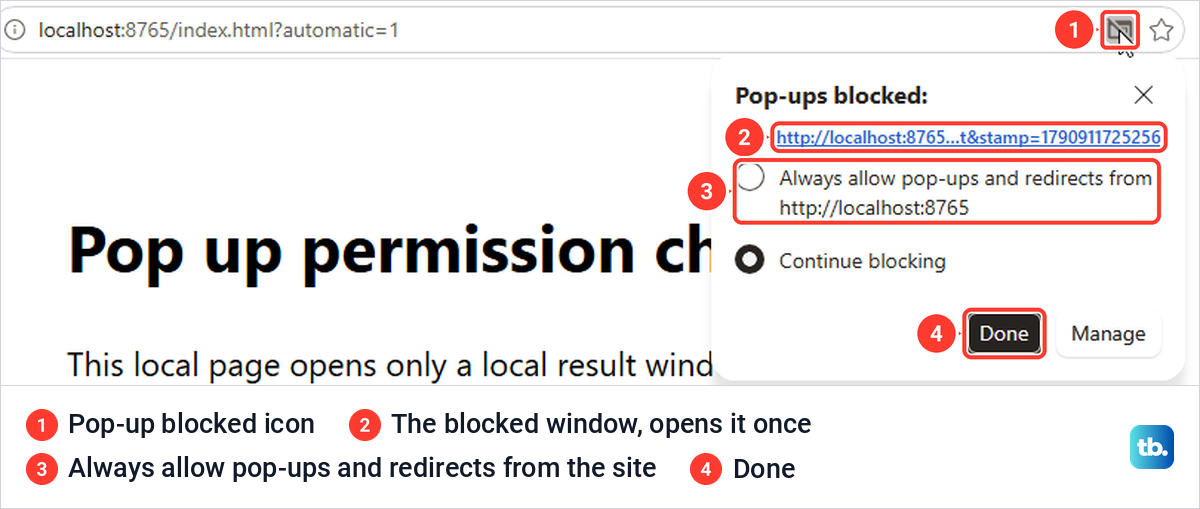
The link is the answer when you need the window only once. When we clicked it, the blocked window opened straight away, and the setting stayed as it was, so the next load of the page was blocked again. Choose Always allow and then Done if the site will need pop-ups every time you use it.
Settings is the place to check what is already allowed. Open the Settings and more menu at the top right, choose Settings, then Privacy, search, and services, Site permissions, All permissions and Pop-ups and redirects. Typing edge://settings/content/popups into the address bar and pressing Enter took us to the same page.
The page has one switch and two lists. Blocked (recommended) under Default behavior was on when we opened it. Edge's own note on the page says the sites listed below follow a custom setting instead of the default, so a site in the Allowed list can open pop-ups while the switch stays on.
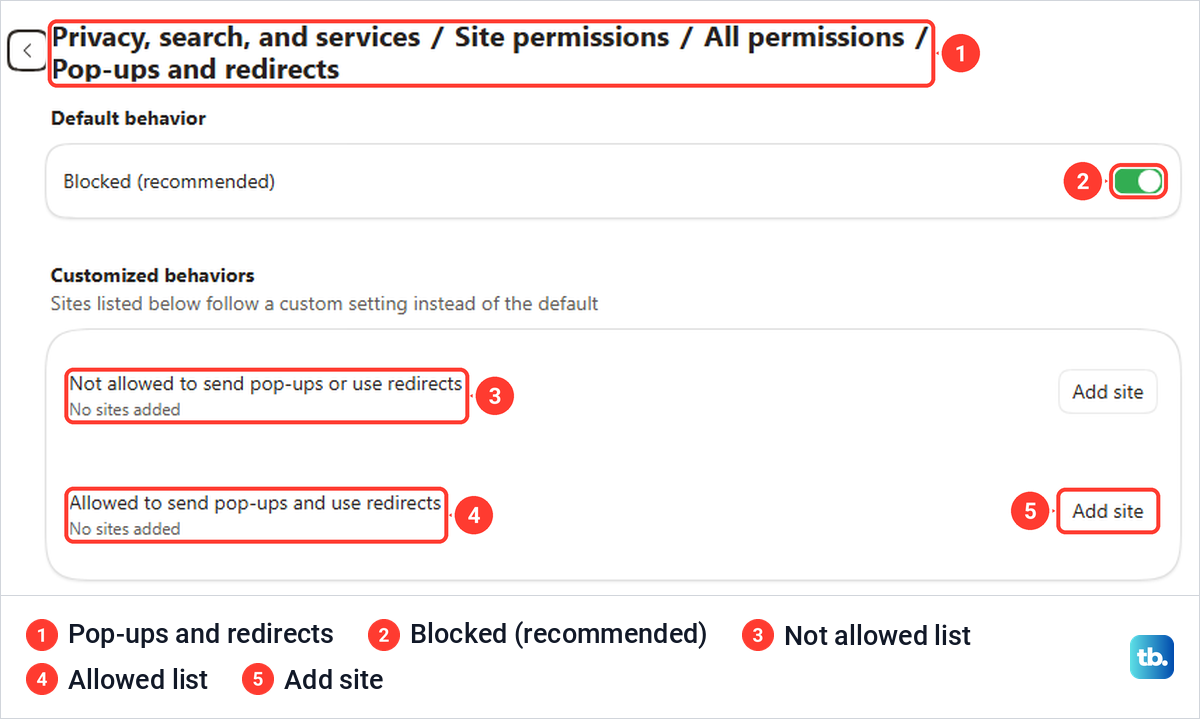
To allow one site, select Add site next to Allowed to send pop-ups and use redirects, type the site's address and select Add. Microsoft's instructions are to include the beginning of the address, such as https://, and the site then appears in the list.
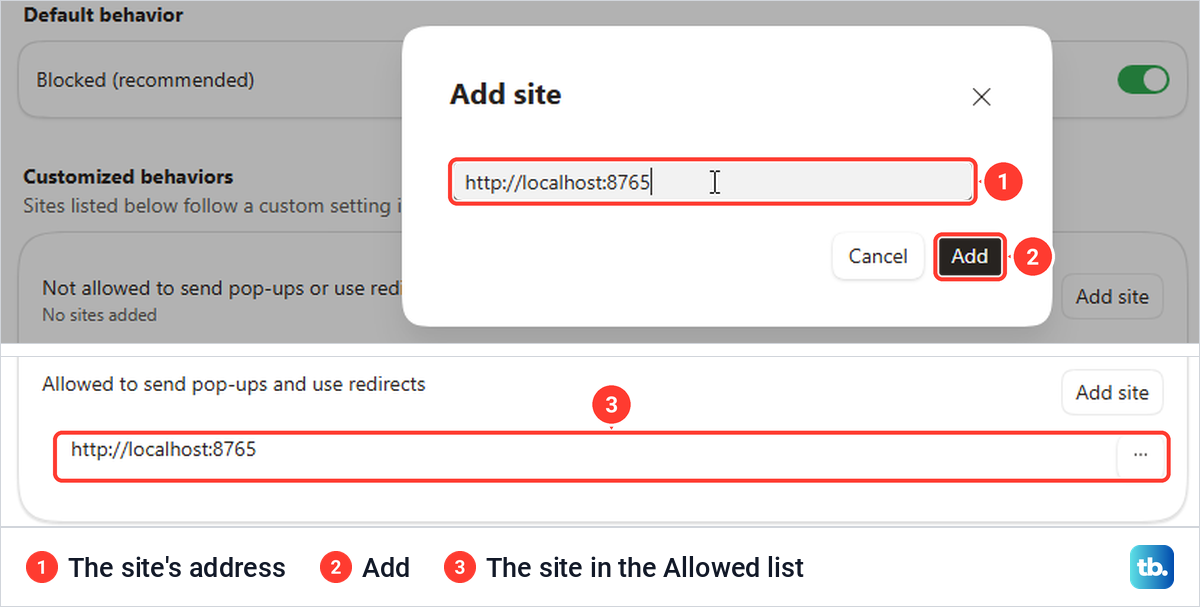
When we added a site this way and loaded its page again, the window opened by itself while the switch still read Blocked (recommended). The same test page under a second address stayed blocked, so the allowance covered that one site address only.
To let every site open pop-ups instead, turn off Blocked (recommended). That is a broad change, so keep it for as long as you need it and turn the switch back on afterwards.
Microsoft's screen reader instructions describe a different route through Cookies and site permissions, with a switch called Block (recommended). If your Edge shows that heading instead, look for Pop-ups and redirects inside it.
Turn off the pop-up blocker in Google Chrome
The Chrome steps follow Google's instructions. Google says Chrome blocks pop-ups from showing up automatically by default, and that the address bar is marked Pop-up blocked when it stops one.
To allow a single site, go to the page where the pop-up was blocked and click Pop-up blocked in the address bar. Google's steps are to click the link for the pop-up you want to see, or to select Always allow pop-ups and redirects from the site and then Done. Edge's panel, shown above, uses the same wording. If you would rather follow screenshots, our Chrome guide shows how to enable pop-ups in Google Chrome on a computer or phone.
If there is no blocked icon, change the site's permission directly. Select View site information to the left of the web address, select Site settings and change the Pop-ups and redirects permission for that site. Google notes that the change saves automatically.
For every site at once, click More at the top right, then Settings, Privacy and security, Site settings and Pop-ups and redirects. Google's instruction there is to choose the option you want as your default, so pick the one that lets sites send pop-ups. The same page lists the sites you have allowed under Allowed to send pop-ups and use redirects.
Turn off the pop-up blocker in Firefox
Mozilla says pop-up blocking is turned on by default in Firefox. When it stopped a window on our PC, a bar across the top of the page read Firefox prevented this site from opening a pop-up window, with an Options button at its end.
Options opens a short menu. The first item, Allow pop-ups and third-party redirects for followed by the site's name, is the one-site choice, and the second opens the setting itself. The last item, Show followed by the blocked address, offers the window that was stopped.
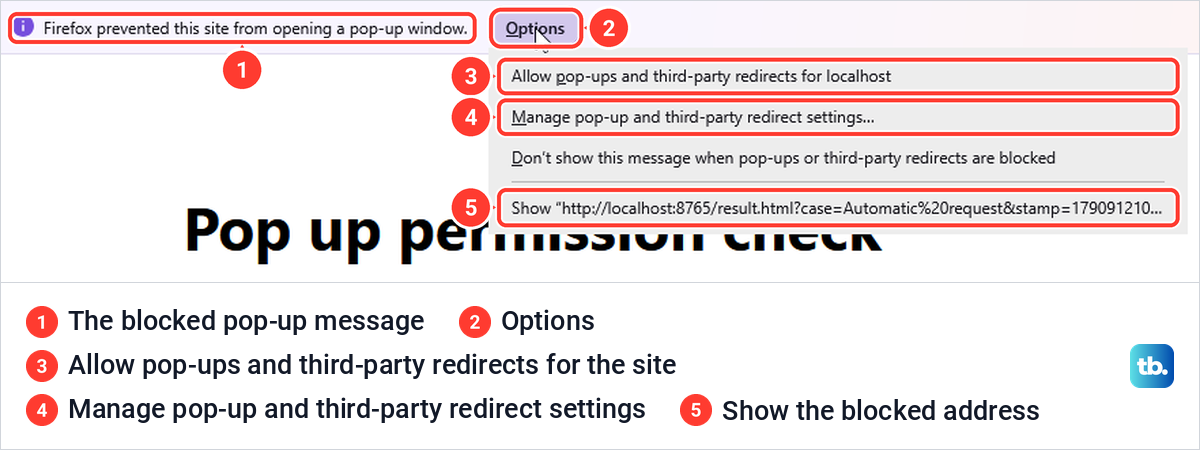
To get to the setting yourself, open the Firefox menu at the top right, choose Settings and select Privacy and security on the left. Go down to the Permissions section. The box named Block pop-ups and third-party redirects was ticked when we got there, with a Manage exceptions row under it.
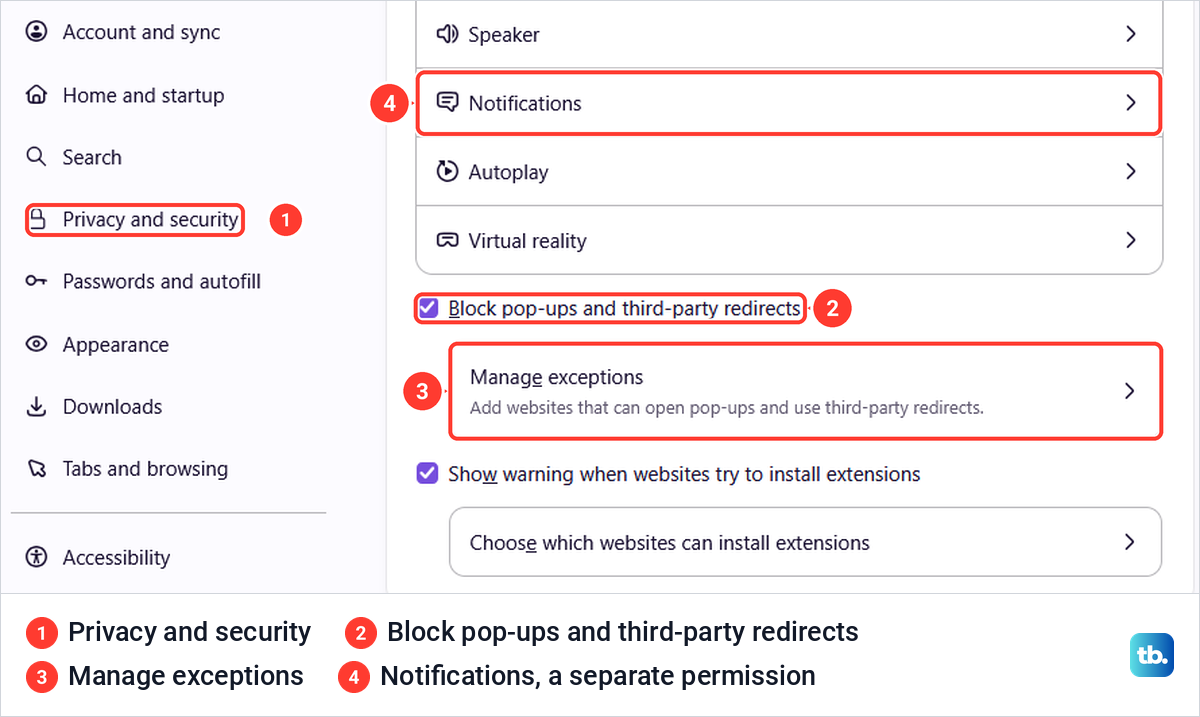
Leave the box ticked if you only need one site. Select Manage exceptions, type the site's address in Address of website, select Allow and then Save changes. When we reopened the dialog afterwards, the site was still listed with the status Allow.
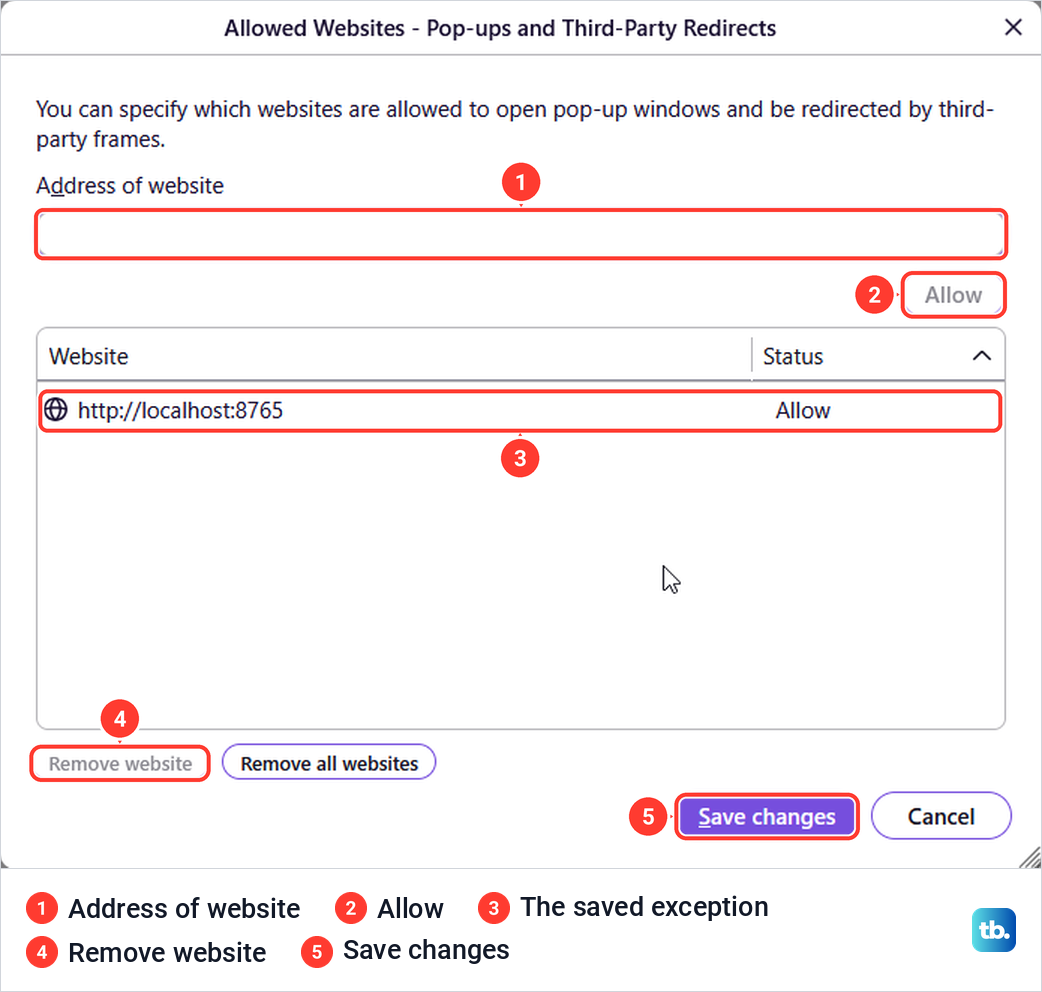
With the exception saved, the site's window opened as soon as we loaded the page again. The same page under a second address was still stopped by the bar, so type the address the site really uses.
To switch the blocker off for every site, clear the Block pop-ups and third-party redirects box. Mozilla says this disables the pop-up blocker altogether, and notes that the pop-up and third-party redirect settings are linked and change together.
Mozilla's help page also uses other labels in places, such as Privacy & Security and an Exceptions button. On our PC, Firefox showed Privacy and security and a Manage exceptions row instead, so look for those names.
Allow pop-ups in Safari on a Mac
Safari on a Mac lets you choose website by website, and Apple's steps start with opening that website. Go to the site in Safari, choose Safari > Settings and click Websites. Click Pop-up Windows on the left, scrolling to the bottom of the list if it is not in view, then choose Allow in the menu beside the website.
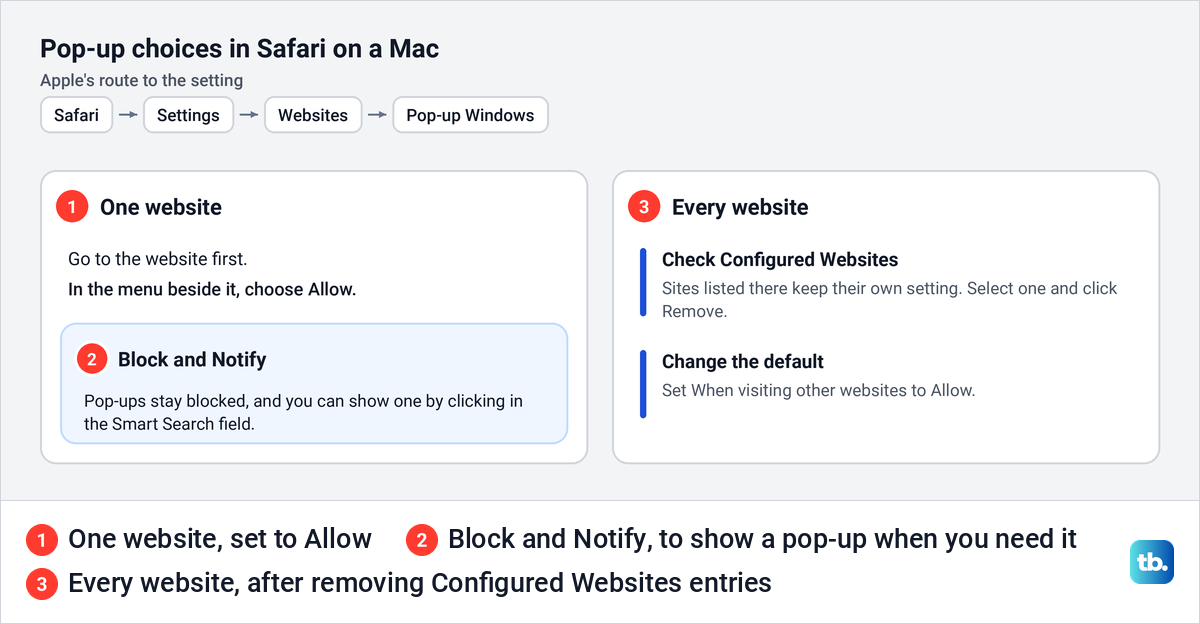
Apple also offers Block and Notify. Pop-ups from that website stay blocked, but when you visit it you can choose to show them by clicking in the Smart Search field, which suits a site that needs a window only now and then.
To allow pop-ups on every website, set the When visiting other websites menu to Allow. Check Configured Websites first, because sites listed there keep their own setting, and Apple's steps are to select each one you want to change and click Remove. Apple also notes that the menu item can read Preferences instead of Settings. Our Safari guide goes further into how to unblock pop-ups in Safari on a Mac, iPhone and iPad.
Allow pop-ups on an iPhone, iPad or Android phone
The phone steps follow Apple's, Google's and Microsoft's instructions, and each browser keeps the setting in a different place. On an iPhone or iPad, Safari's switch is in the Settings app rather than in Safari: open Settings, tap Apps, tap Safari and turn off Block Pop-ups.
Apple's documented route is that one switch, which covers every site. Turn it off for the task, then turn it back on when you are done.
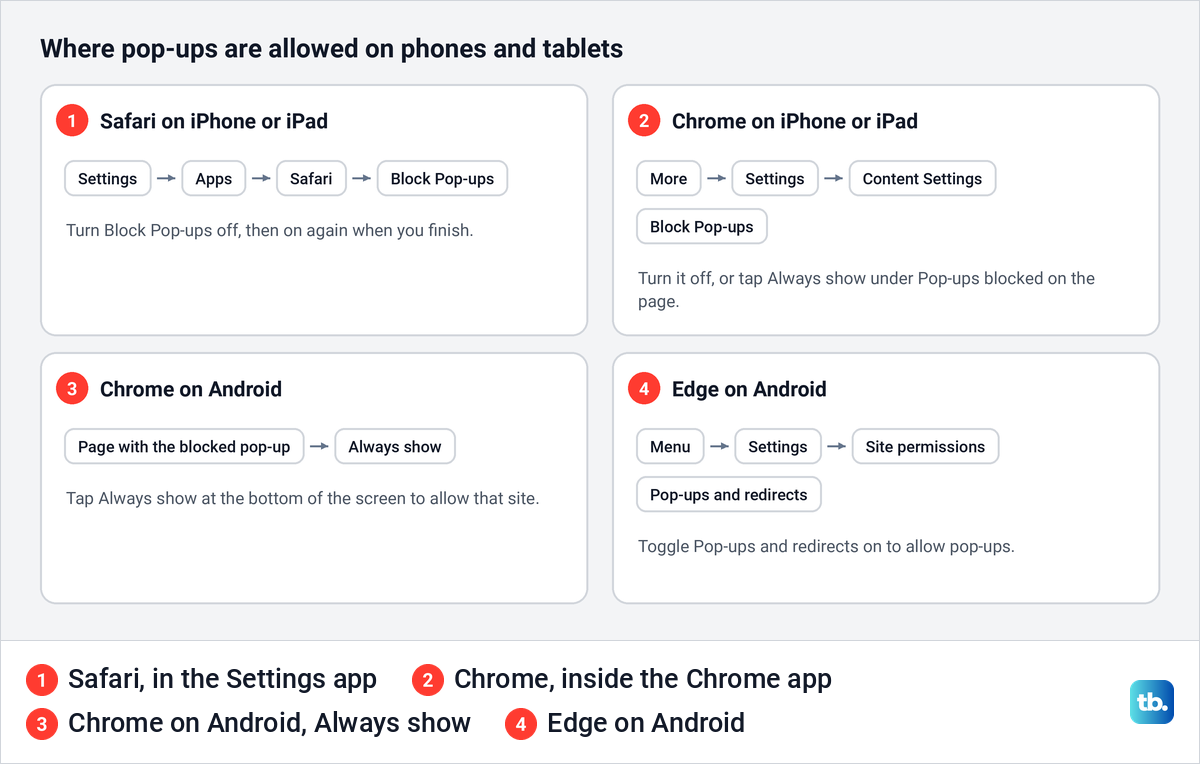
Chrome on an iPhone or iPad has its own setting inside the app. Tap More, then Settings, Content Settings and Block Pop-ups, and turn it off. For one site, Google's steps are to go to the page where pop-ups were blocked and tap Always show under Pop-ups blocked at the bottom.
Chrome on Android allows one site the same way: go to the page with the blocked pop-up and tap Always show at the bottom of the screen. In Edge for Android, Microsoft's steps are to tap the menu, then Settings, Site permissions and Pop-ups and redirects, and toggle Pop-ups and redirects on to allow pop-ups.
Load the page again and check the window
After you allow a site, reload the page or repeat the step that should open the window, such as a sign-in, a payment or a printable statement. In our tests in Edge and Firefox, the window opened as soon as we loaded the page again.
Watch the address bar when you retry. If the blocked icon or the Firefox bar comes back, check that the allowance covers the address the page is using and, in Firefox, that you selected Save changes. The blocked message names the site it stopped.
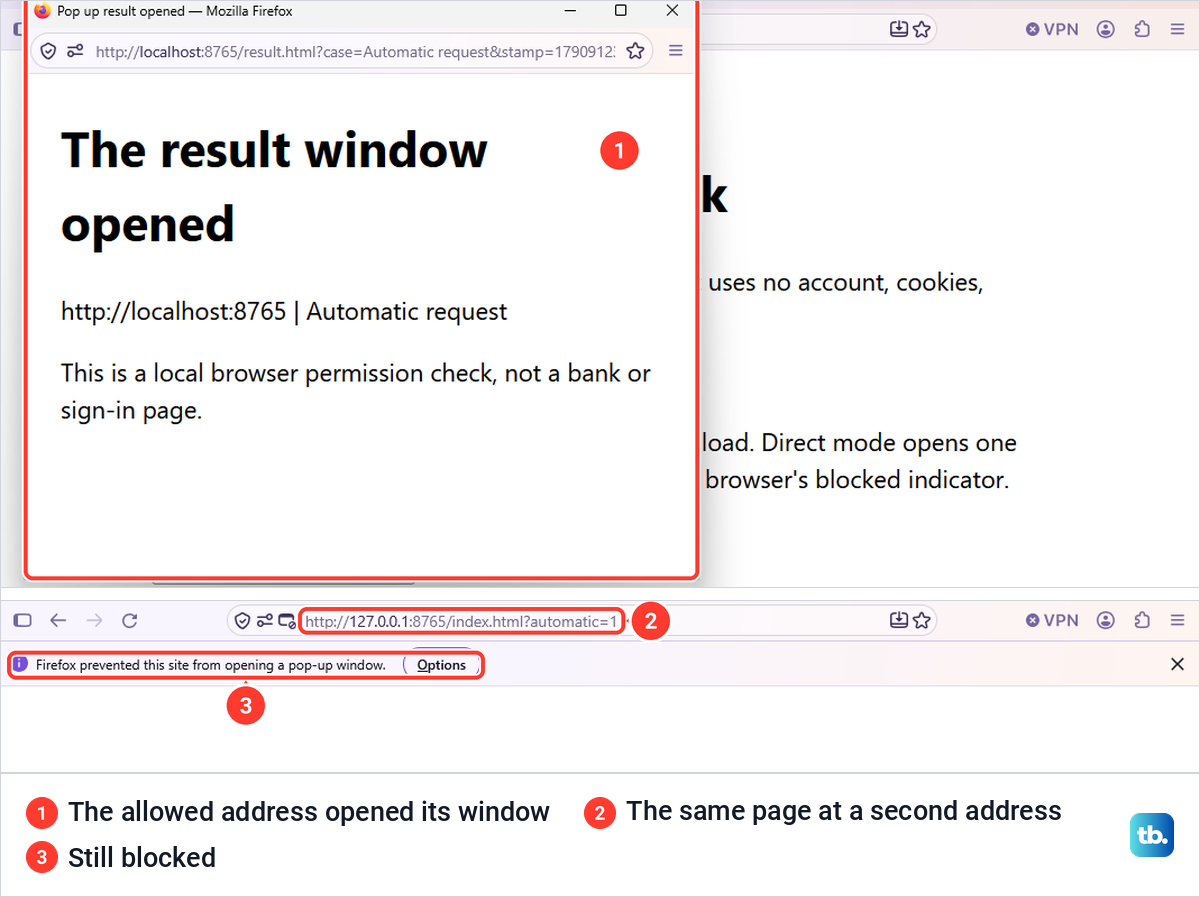
In our tests an allowance covered only the site address we entered: the same page under a second address stayed blocked. If the site sends you on to a different website, such as a payment or sign-in service, and that window is blocked, allow that website from its own blocked message.
A click is treated differently from a window that opens by itself. Microsoft says Edge does not stop a pop-up that opens when you select a button or link on a page, and Mozilla says the same about clicks and key presses in Firefox. So when a site's button opens nothing and no blocked icon appears, move on to the checks below.
If the window still does not open
Start with the browser's own message. Google and Microsoft both say the address bar is marked when a pop-up is blocked, so no icon means the blocker did not stop this window. In Firefox, look for the pop-up icon in the address bar as well, because the bar above the page can be turned off from its Options menu. If the icon is there, open it again and check that the site it names is the one you allowed.
An installed extension that handles ads or pop-ups is the next thing to check. To turn one off for a moment in Edge, select Extensions to the right of the address bar, then Manage extensions, and select the toggle next to the extension. In Chrome, Google's route is More > Extensions > Manage extensions, where each extension has its own on and off switch. Turn each one back on when you are done.
On a work or school PC, the setting may be locked. Google says that on a managed Chrome device you cannot change this setting yourself and the network administrator sets up the pop-up blocker, and Microsoft gives administrators a policy that can make Edge's pop-up setting mandatory. Ask your IT team to allow the site you need.
A window that opens but stays blank or shows an error is a different problem. If the page says scripts are needed, enable JavaScript for the site before you try its button again. If it says cookies are blocked, allow cookies for the website rather than changing the pop-up permission again.
When the window loads but looks broken, cached data is the next suspect. Google describes clearing the cache and cookies as a fix for loading and formatting issues, so clear the Chrome cache or clear cached files in Edge. Save any unfinished work first, because clearing cookies signs you out of sites.
Last, make sure the browser is current. If Chrome's menus do not match the steps above, update Google Chrome from More > Help > About Google Chrome and select Relaunch if it is offered.
Pop-ups, notifications and page ads are different things
Not everything that pops up on screen is a pop-up window. Google's help says that if you still get pop-ups after disabling them, you may have subscribed to a site's notifications, and Microsoft says website notifications are not the same as pop-ups.
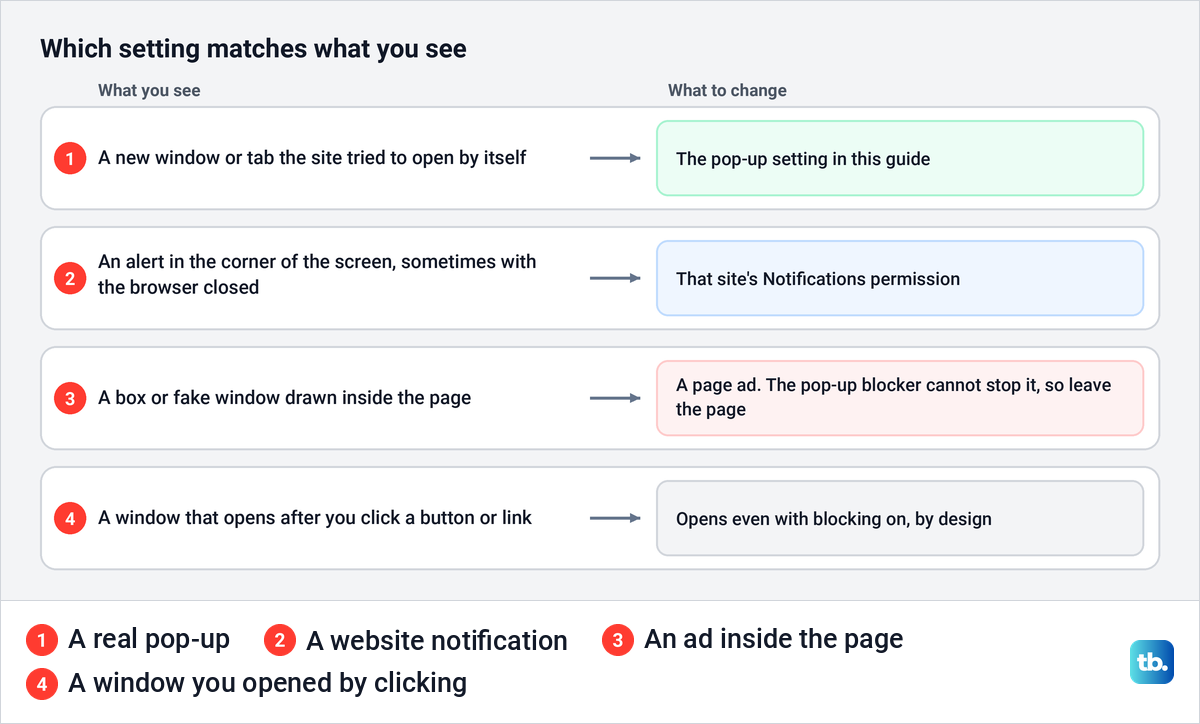
Website notifications are a separate permission. Microsoft says they appear in the lower right corner of the screen and in the notification center, and that they still appear even when Edge is closed. Firefox lists Notifications as its own row in the same Permissions section as the pop-up box, as the Firefox settings picture above shows.
To stop corner alerts from an Edge website, open Edge notification settings and set that site's Notifications permission to Block. If the alerts look like virus warnings or prize offers, follow our steps to stop unwanted browser notification ads in Chrome and Edge.
Ads drawn inside the page are another case. Mozilla says some ads are designed to look like windows but are not, and Microsoft says website advertisements cannot be blocked by Edge's pop-up blocker. Apple warns that some have fake close buttons, so leave the tab or type a new address rather than clicking inside them.
Turn the pop-up blocker back on
A site you allow stays on the list after you leave the page, so remove it when the one-off task is done. Switch the blocker back on as well if you turned it off for every site.
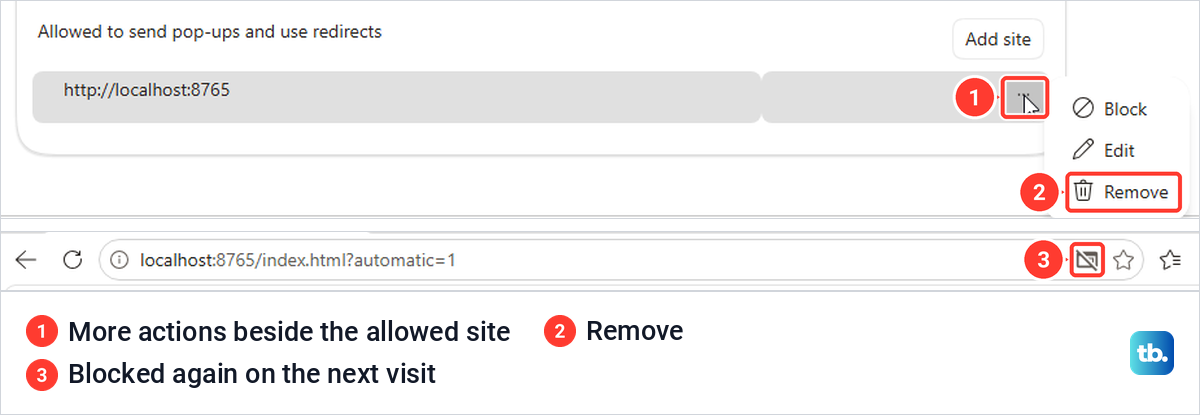
In Edge, return to Pop-ups and redirects, select the three-dot button beside the site in the Allowed list and choose Remove. The same menu also offers Block and Edit. After we removed our site, both lists read No sites added, and the next visit to the page was blocked again.
If you turned off Blocked (recommended), turn it back on, which is Microsoft's own step for blocking pop-ups. In Chrome, Google's steps are to find the site under Allowed to send pop-ups and use redirects, click More beside it and choose Block, and to set the default back to blocking if you changed it.
In Firefox, open Manage exceptions, select the site, choose Remove website and then Save changes, and tick Block pop-ups and third-party redirects again if you cleared it. In Safari on a Mac, set the site or When visiting other websites back to Block or Block and Notify, and on an iPhone or iPad turn Block Pop-ups back on.
If unwanted pop-ups keep appearing with the blocker on, you need the opposite of this guide. Our guide on how to block pop-ups in your browser covers that side, and Mac users can work through fixing the Safari pop-up blocker when it lets them through.
How we tested this guide
We tested this on Windows 11, version 25H2, in Microsoft Edge and Firefox, allowing a test page's address so its pop-up window opened.
Frequently Asked Questions
Where is the pop-up blocker in Windows?
Each browser has its own pop-up blocker, so the setting is in the browser you use for that site. Open Pop-ups and redirects in Edge or Chrome, or the Block pop-ups and third-party redirects box in Firefox, and allow the site there.
Can I allow pop-ups for just one website?
Yes. In Edge, add it under Allowed to send pop-ups and use redirects; in Firefox, add it under Manage exceptions and select Save changes; in Chrome, choose Always allow from the Pop-up blocked icon; and in Safari on a Mac, choose Allow beside the site under Pop-up Windows. Then load the page again so the site can open its window.
Can I allow pop-ups for one site in Safari on an iPhone?
Apple's documented route is a single switch, Block Pop-ups in Settings > Apps > Safari, which covers every site. Turn it off for the task and back on afterwards. Chrome on an iPhone does offer Always show for a single blocked site.
Why is the window still blocked after I allowed the site?
Check that the allowed site address matches the one in the blocked message, because in our tests the same page under a second site address stayed blocked. In Firefox, also make sure you selected Save changes, and if the window opens but stays blank, work through the script, cookie and cache checks above.
Why do I still see pop-ups with the blocker turned on?
Google and Microsoft both point to website notifications, which have their own permission, and Microsoft adds that ads drawn inside a page cannot be blocked by Edge's pop-up blocker. Block the site's notifications, and leave pages whose ads imitate windows.
Is it safe to turn off the pop-up blocker?
Allowing one site you trust is safer than turning the blocker off everywhere, because the blocker keeps working on every other site. Apple warns that some pop-ups use fake warnings or prizes to trick you, so never allow a site you do not trust.
How do I turn the pop-up blocker back on?
Turn on the control you changed: Blocked (recommended) in Edge, the default in Chrome, the Block pop-ups and third-party redirects box in Firefox, or Block Pop-ups on an iPhone. Then remove the sites you allowed for a one-off task, because they stay on the list after you leave the page.











