

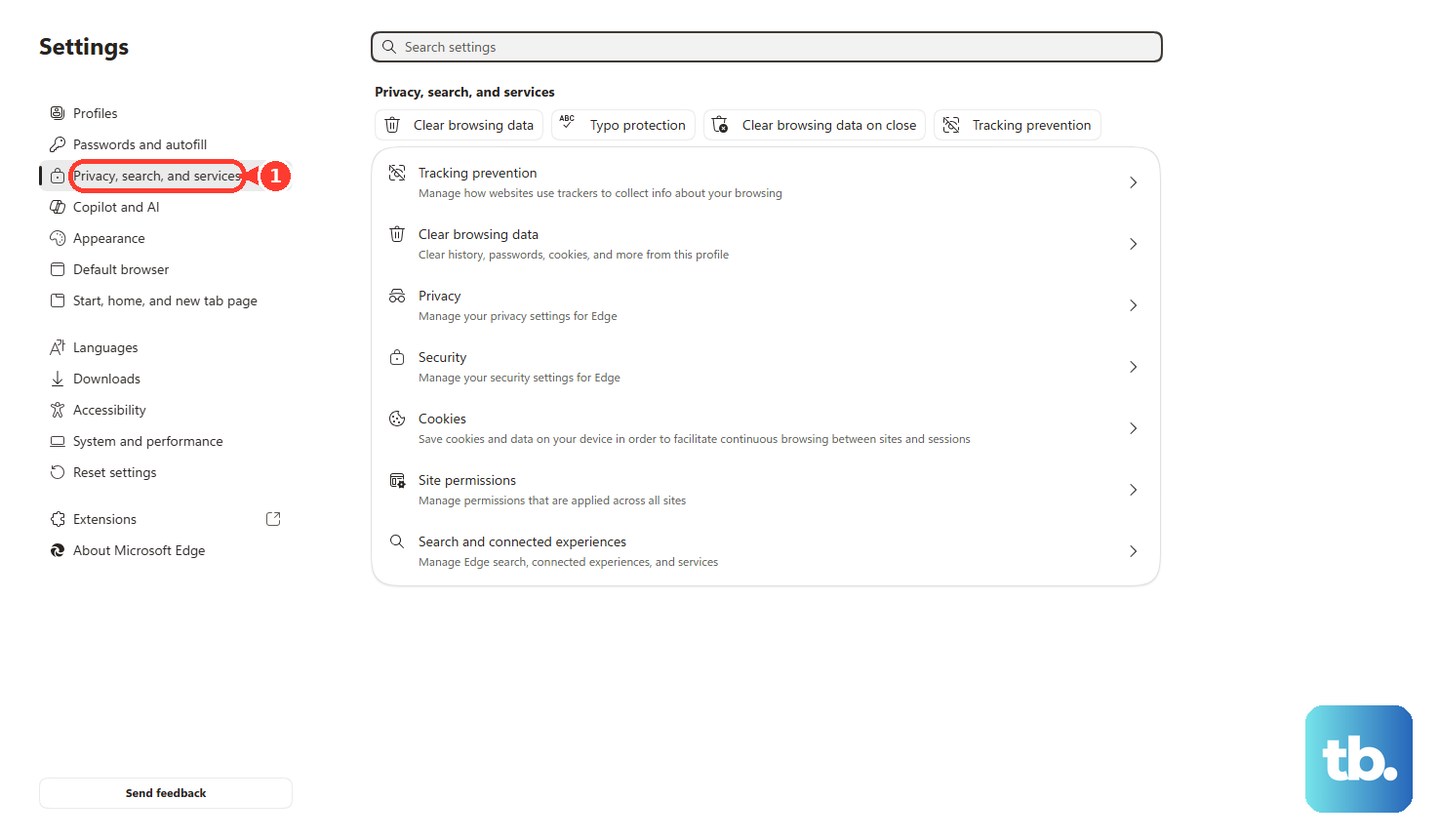
To clear the cache in Microsoft Edge, select Settings and more > Settings > Privacy, search, and services, select Clear browsing data, then Choose what to clear. Pick a Time range, select Cached images and files and select Clear now. Edge keeps cookies, site data, cached images and cached files until you clear them, they expire, or an applicable policy removes them. On a managed work or school PC with Sync turned off, an administrator can also apply the Browsing Data Lifetime Settings policy, which periodically deletes the chosen data types once they are older than a set age.
Start with the standard desktop cleanup, then use the direct page, keyboard shortcut, one-site cleanup, mobile setting, InPrivate window, or close-browser option that matches the problem.
Clear cache and cookies from Edge settings
Use this on a Windows 11 or Windows 10 PC when you want the standard Edge cleanup for the selected time range. It clears the data types you choose, including Cookies and other site data and Cached images and files.
Clearing only Cookies and other site data and Cached images and files affects the device you are using, because Microsoft lists both as stored on your device. If you also clear a type that syncs, such as browsing history, and only want to clear this device, turn off sync first in Settings > Profiles > Sync. Open Settings and more, then select Settings. Select Privacy, search, and services.
Under Clear browsing data, select Choose what to clear next to Clear browsing data now. Open Time range and choose the period you want to remove. Select Cookies and other site data and Cached images and files. Select Clear now.
Clear Edge cache without deleting cookies
To keep your site sign-ins and preferences, clear only the cache. In Clear browsing data, select only Cached images and files, leave Cookies and other site data unselected, then select Clear now. Microsoft describes cookies and other site data as what websites store to remember your preferences, such as sign-in info, while cached images and files are copies of pages and media that help sites load faster.
Open the clear browsing data page directly
Use the built-in Edge settings address when you want the shortest desktop route.
- 1.Select the address bar and enter edge://settings/clearbrowserdata.
- 2.Press Enter to open Clear browsing data.
- 3.Choose the Time range.
- 4.Select Cookies and other site data and Cached images and files.
- 5.Select Clear now.
Use the keyboard shortcut
Press Ctrl + Shift + Delete on Windows or Linux. Press Command + Shift + Delete on macOS. In Clear browsing data, open Time range.
Select Cookies and other site data and Cached images and files. Select Clear now. Choose All time before clearing to remove data from every available time range.
Refresh one page without clearing all cache
When only one page keeps showing old content, press Ctrl + Shift + R on that page. Microsoft lists this shortcut as reloading the current page while ignoring cached content, so the rest of your cache stays in place.
Remove cookies for one website
Choose this when one website needs its saved cookies and site data removed without clearing every site's data. This path clears cookies and site data for that site, not the general browser cache.
Open Settings and more, then select Settings. Select Privacy, search, and services. Select Cookies. Open See all cookies and site data.
Search for the website. Select the down arrow to the right of the site. Select Delete.
Set Edge to clear data when it closes
The most common cause of repeated cleanup work is using Clear now once while the close-browser clearing options stay off. Open Settings and more, then select Settings. Select Privacy, search, and services. Under Clear browsing data, select Choose what to clear every time you close the browser.
Turn on Cookies and other site data. Turn on Cached images and files when you want Edge to remove cached files on exit as well. Quit Edge fully after browsing to clear the selected data. If Edge keeps running in the background, its icon stays in the system tray; close it from there so the browsing session ends.
Clear Edge data on iPhone or Android
This fixes saved browsing data inside the Microsoft Edge mobile app. Tap the menu button shown as .... Tap Settings. Open Privacy.
Tap Clear browsing data. Select the browsing data types for cookies, site data, and cached files. Tap Clear.
Browse InPrivate to keep new data temporary
InPrivate is for a new session whose cookies, site data, cached images, and cached files disappear after you close every InPrivate window. Open it from Settings and more > New InPrivate window.
You can also right-click the Microsoft Edge taskbar icon and choose New InPrivate window, or right-click a link and choose Open link in InPrivate window.
The keyboard shortcut is Ctrl + Shift + N on Windows and Linux, or Command + Shift + N on macOS. Closing all InPrivate windows deletes that session's data; it does not remove cache or cookies already saved in a normal browsing window.
Fix data that remains after clearing
The most common cause is a narrow Time range or clearing only Cookies and other site data while Cached images and files stays unselected. Run the standard Edge cleanup again. Set Time range to All time. Select both Cookies and other site data and Cached images and files.
Select Clear now. For one website, open See all cookies and site data. Delete that site's cookies. Reload the site and sign in again.
On Android, open Android Settings, then Apps or Applications. Select Microsoft Edge. Open Storage.
Select Clear cache to remove temporary app cache. Use Clear storage only for a full app-data reset that removes sign-ins and stored site data.
Check outdated Legacy paths and managed settings
Use this check when instructions mention Microsoft Edge Legacy or a work or school computer keeps changing Edge's data behavior. Current Edge uses Privacy, search, and services, not the old Privacy & security Legacy wording.
For current Microsoft Edge, use Settings and more > Settings > Privacy, search, and services > Clear browsing data. When your organization enables them, policies such as Clear browsing data when Microsoft Edge closes, Clear cached images and files when Microsoft Edge closes, Configure cookies, and Browsing Data Lifetime Settings control the behavior. Use the Edge controls available to your profile, then ask your administrator to change the managed setting that controls cookie or cache behavior.
Frequently Asked Questions
Is there a cookies-only option in Edge?
Yes. Use Settings and more > Settings > Privacy, search, and services > Clear browsing data > Choose what to clear, select Cookies and other site data, then select Clear now.
Is the History page another way to clear Edge data?
Yes. Open Settings and more > History > Open history page > Delete browsing data, choose a Time range, select Cookies and other site data and Cached images and files, then select Clear now.
What does Android Clear storage do to Edge?
Clear storage is a full app reset that removes Edge app data, including sign-ins and stored site data. Use Clear cache for temporary app cache only.
Is DevTools the right tool for Edge cookies?
Use normal Edge settings for browser-wide cleanup. Use DevTools only for the current site or origin: right-click the page, select Inspect, open Application, then use Cookies or Storage controls such as Clear site data.