Safari pop-ups keep coming back when the built-in blocker is off, a website has an allow rule, or a bad page is using alerts, redirects, notifications, or extensions instead of a normal pop-up window. Start with Safari’s own controls, then clean up the settings that let the same pages return. By the end, Safari will block ordinary pop-up windows again and you will know what to change when a trusted site needs one.
Check Safari’s pop-up switch
The most common cause on iPhone and iPad is that Safari’s built-in pop-up blocker is turned off.
Open Settings, tap Apps, then tap Safari.
Turn on Block Pop-ups.
Turn on Fraudulent Website Warning in the same Safari settings screen. This warning helps Safari flag deceptive websites; it works alongside the pop-up blocker instead of replacing it.
When a trusted banking, school, payroll, or work site needs a pop-up, turn Block Pop-ups off for that task, finish the sign-in or form, then turn Block Pop-ups back on.
Fix one website on Mac
Use this when one Mac website keeps opening pop-ups while other sites behave normally.
- 1.Open Safari and go to the website.
- 2.Choose Safari, then Settings.
- 3.Open Websites, then select Pop-up Windows.
- 4.Open the website’s pop-up menu and choose Block and Notify or Block.
- 5.Set When visiting other websites to Block and Notify or Block.
Block and Notify blocks the pop-up but leaves a controlled way to open one when needed. When Safari blocks a wanted pop-up, click Show in the Smart Search field.
Remove old Mac exceptions
Old allow rules make Safari look broken because the setting applies only to saved websites. Open Safari, choose Safari, then Settings.
Go to Websites, select Pop-up Windows, then review Configured Websites. Select sites that no longer need separate pop-up rules and click Remove.
Use When visiting other websites and choose Block and Notify or Block. Choose Allow only for required site features that fail without pop-up windows.
Leave scam pop-ups safely
This method applies when a page shows a fake warning, prize message, virus alert, or support prompt that refuses to close normally. Treat the page’s own close button as unsafe when the message looks deceptive.
Click or tap the Safari Search field and enter a new URL or search term. On iPhone or iPad, tap the top of the screen first if the Search field is hidden.
If the page keeps trapping you, close the Safari tab or window. On Mac, choose View, then Reload Page, or press Command-R when Safari is still responsive.
When Safari will not quit normally on Mac, press Option-Command-Esc, select Safari, then force it to quit.
Stop bad pages from reopening
The most common cause after a force quit is Safari restoring the same unwanted browsing session.
Quit Safari.
Press and hold Shift while opening Safari again. Safari opens without restoring the bad page.
To change this behavior across apps, open the Apple menu, choose System Settings, go to Desktop & Dock, then turn on Close windows when quitting an application.
To adjust Safari’s startup behavior, open Safari, choose Settings, then General. Use Safari opens with to choose how Safari starts.
Clear website data
Stored website data keeps repeat offenders tied to Safari after the tab is closed.
On iPhone, open Settings, tap Apps, then tap Safari. Tap Clear History and Website Data, choose the timeframe, then tap Clear History.
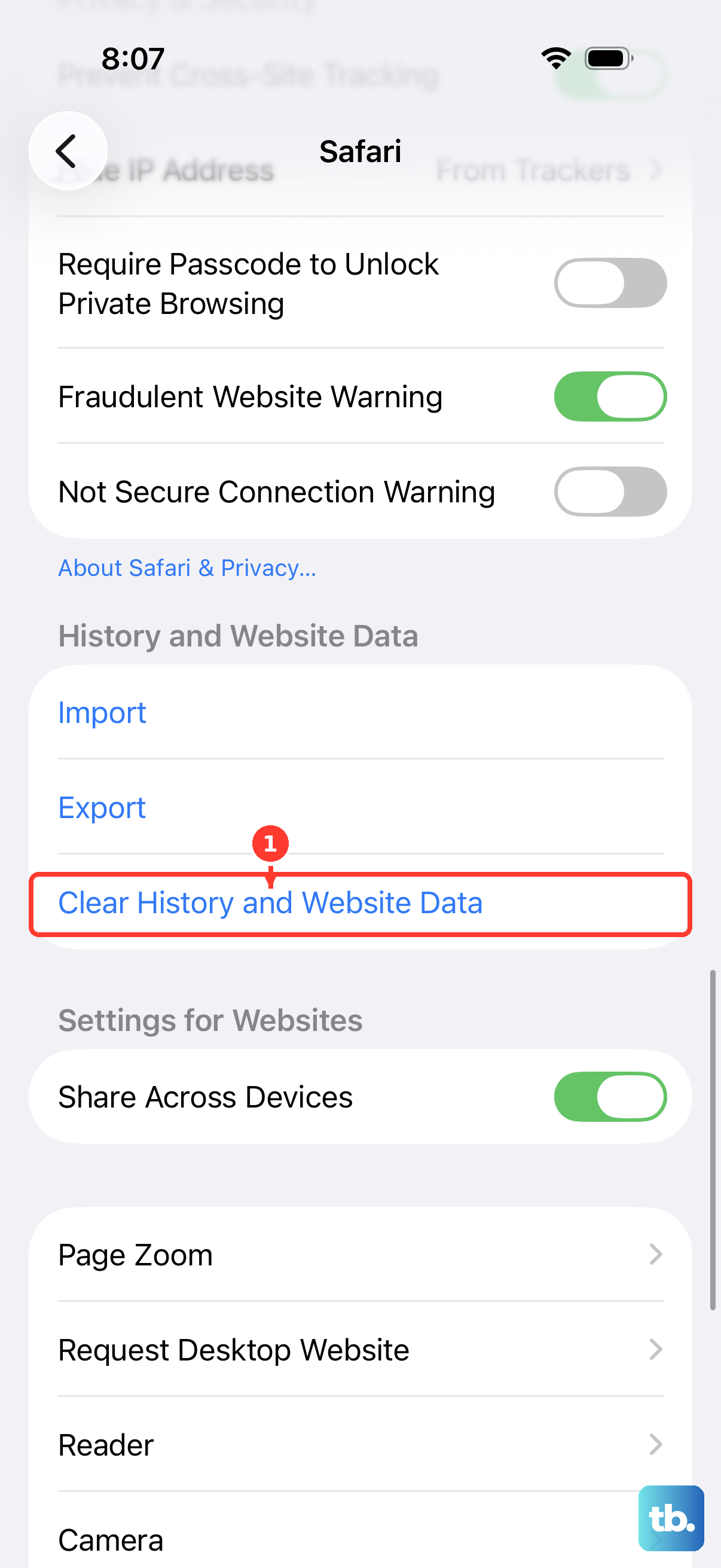
To keep history but remove stored site data on iPhone, open Settings, tap Apps, tap Safari, then open Advanced and Website Data. Tap Remove All Website Data, then tap Remove Now.
On Mac, open Safari, choose Safari, then Settings. Open Privacy, choose Manage Website Data, select the affected websites, then click Remove or Remove All.
If this method fails, turn off Safari extensions next, because an unexpected extension can inject ads or change pages after they load.
Turn off extensions or add blockers
Extensions can create unwanted pop-ups, and content blockers can stop ads, resources, pop-ups, and other page content beyond Safari’s basic pop-up blocker.
- 1.On Mac, open Safari, choose Safari, then Settings or Preferences, and open Extensions.
- 2.Deselect the checkbox next to an extension’s name to turn it off. Safari profiles manage extensions separately, so if the pop-ups appear in another profile, choose Safari, then Settings, open Profiles, select that profile, and use its Extensions tab.
- 3.Select an extension and click Uninstall to remove it. If the extension came with an app, delete that app.
- 4.On iPhone, open Settings, go to Apps, tap Safari, then Extensions, and use Allow Extension for each extension. If you use Safari profiles, turn on Allow Extension for each profile where you want the extension to run.
- 5.To add a content blocker on iPhone or iPad, download one from the App Store, then enable it in Settings, Apps, Safari, and Extensions.
On Mac, open Safari, choose Safari Extensions, install the blocker from the App Store, click Open, then follow the extension’s setup steps. Safari 12 or later is required to get Safari extensions from the App Store.
Stop notification pop-ups and bad advice
The most common cause of pop-ups outside the Safari window is website notifications that were allowed earlier.
On Mac, open Safari, choose Safari, then Settings. Go to Websites, select Notifications, then deselect Allow websites to ask for permission to send notifications.
To stop one website at the system level, open the Apple menu, choose System Settings, choose Notifications, then open Application Notifications. Click the website and turn off Allow Notifications.
Skip old fixes that mention Safari and Reset Safari. Current Safari troubleshooting uses website data controls, extension controls, OS updates, and restarts instead.
Update Safari through the operating system. On Mac, open the Apple menu, choose System Settings, go to General, then open Software Update and click Update, Upgrade, or Restart Now if offered.
On iPhone or iPad, open Settings, tap General, then tap Software Update. Tap Download and Install and follow the onscreen instructions.
For a work, school, or managed device, ask the device administrator to check Safari pop-up and extension restrictions when your settings are locked or keep changing.
Frequently Asked Questions
Why does Safari still show pop-ups when Block Pop-ups is on?
Safari blocks pop-up windows, but deceptive pages also use redirects, alerts, website data, notifications, and extensions. Fix the site rule, clear website data, and disable unknown extensions.
Should I allow pop-ups for a site that needs them?
Yes, for trusted sites that require them, such as banking, school, payroll, or work portals. On Mac, allow pop-ups for that one website instead of allowing them everywhere.
Does updating Safari fix pop-up blocker problems?
Yes, when the issue is tied to an outdated Safari build. Safari updates come through OS updates on Mac, iPhone, and iPad.
Can I get Safari for Windows to fix this?
No. Safari for Windows is outdated and not current, so use a supported browser on Windows.