Chrome stores site files under Cached images and files, so clearing the cache is not the same as deleting every kind of browsing data. If pages look broken, old images keep loading, or a site refuses to refresh properly, start with Chrome's own Delete browsing data controls.
The fastest path depends on your device. Use the desktop, Android, iPhone, or iPad steps below, and stick to Cached images and files when you only want to clear the cache.
Clear cache from the desktop menu
Use this for Chrome on Windows, macOS, Linux, or ChromeOS.
Open Chrome and choose More > Delete browsing data.
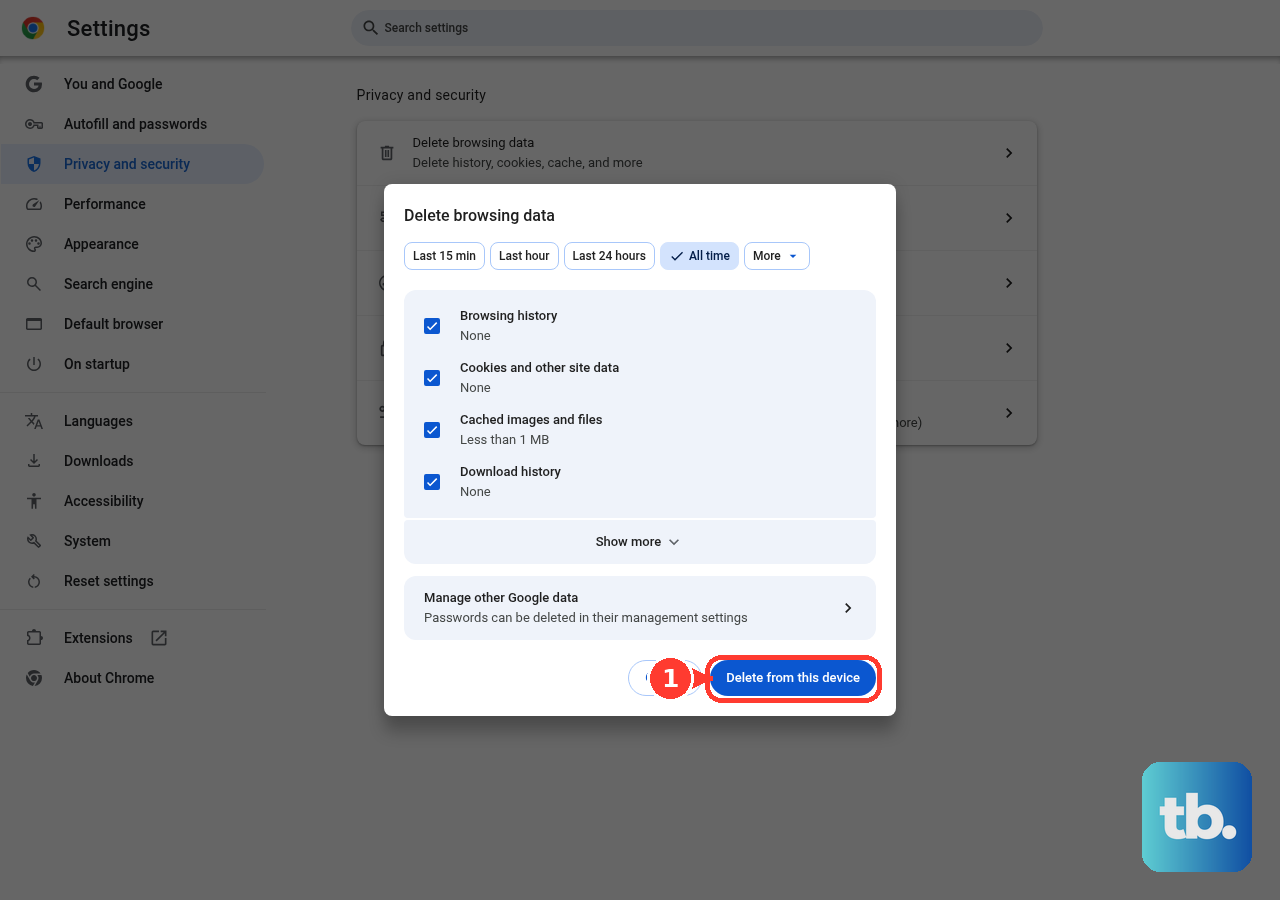
Choose a Time range, such as Last hour or All time.
Select Cached images and files.
Choose Delete data.
Open cache controls with the keyboard
The most common reason to use this shortcut is speed: it opens Delete browsing data without digging through Chrome's menu.
On Windows, Linux, or ChromeOS, press Ctrl + Shift + Delete.
On Mac, press Command + Shift + Delete.
Open Time range and choose how far back Chrome should clear.
Select Cached images and files.
Choose Delete data.
Clear Chrome cache on Android
Android has two cache routes, and the Chrome app route is the one to use for Chrome browsing data. Open Chrome and tap More.
Tap Delete browsing data, then tap More options. Select Cached images and files.
Choose the duration if you need to change how much data Chrome removes. Tap Delete data.
Clear Android app cache for Chrome
Use this when you want Android's app-storage cache control instead of Chrome's browsing-data screen.
Open Settings > Apps > Chrome > Storage or Storage & cache > Clear cache.
The exact storage labels vary by phone maker. Some Android storage steps only work on Android 14 and up.
If this route does not match your phone, use Chrome's in-app More > Delete browsing data path instead.
Delete Chrome cache on iPhone or iPad
On iPhone and iPad, Chrome places cache removal inside Delete Browsing Data. Open Chrome and tap More, then tap Delete Browsing Data.
Set Time Range, then open Browsing Data. Select the browsing data types, including cached data where Chrome shows it.
Tap Confirm, then tap Delete Browsing Data.
Use Chrome Actions from the address bar
Chrome Actions can take you straight from the address bar to cache controls when the feature is available. On a computer, type clear browser cache or Clear cache, then select the Action chip that opens the Clear browsing data page from Settings.
On desktop, finish by choosing Time range, selecting Cached images and files, and choosing Delete data.
On Android, type Delete browsing data in the address bar, tap the Action chip, tap More options, select Cached images and files, and tap Delete data.
On iPhone and iPad, type Delete browsing data in the address bar, tap the Action chip, set Time Range, open Browsing Data, select the browsing data types, tap Confirm, and tap Delete Browsing Data.
Empty cache with DevTools
Use this desktop method when you are testing a page and need Chrome's hard refresh option while DevTools is open.
- 1.Open More > More Tools > Developer Tools, or open DevTools with a keyboard shortcut: on Windows or Linux, press F12 or Ctrl + Shift + I; on Mac, press Fn + F12 or Command + Option + I.
- 2.Keep DevTools open and long-press Reload.
- 3.Choose Empty cache and hard reload.
Handle managed Chrome at work or school
This applies when Chrome is managed by a workplace, school, or another organization. In organization-managed Chrome, an admin can remove Cached images and files when Chrome exits or after a set browsing-data lifetime. Family Link supervision is different: it covers site filtering, site permissions, and extensions, not automatic cache deletion.
Use the normal Delete browsing data path when it is available in your profile.
If the cache setting is controlled or Chrome clears cache automatically, contact the person who manages the browser.
Frequently Asked Questions
What time range should I choose when clearing Chrome cache?
Use Time range to decide how far back Chrome removes Cached images and files. Choose All time when you want the broadest cache clear.
Does a hard reload clear Chrome cache?
No. Shift + F5, Ctrl + Shift + R, and Command + Shift + R reload while ignoring cached content, but they do not empty Chrome's cache.
Why do Android cache steps look different on my phone?
Android Settings labels vary by phone. Chrome's in-app Delete browsing data path is separate from Android's Settings > Apps > Chrome app-cache control.
Can Chrome clear cache automatically on a work or school browser?
Yes. Managed Chrome can remove cached images and files when Chrome exits or after a configured browsing-data lifetime.











