Microsoft Edge notifications have two separate control points. Website alerts live inside Edge, while Windows, macOS, Android, and iPhone also control the Edge app at the system level. Start with the browser setting, then use the device setting if alerts still appear.
Open Edge Notifications Directly
This is the fastest route to Edge website notification permissions on desktop.
- 1.Open Microsoft Edge.
- 2.Select the address bar.
- 3.Enter
edge://settings/content/notifications. - 4.Press Enter.
- 5.Use the site lists and toggles such as Quiet notification requests to adjust notification behavior.
Use Edge Settings Menus
This fixes website notification permissions from Edge's normal settings menus. Open Microsoft Edge. Select Settings and more in the upper-right corner.
Choose Settings. Go to Privacy, search, and services. Open Site permissions.
Select All sites. Choose the website you want to change. Find Notifications and select Block from the dropdown menu.
Change One Site From The Address Bar
Use this when one specific website is sending alerts and the site is already open in Edge. This changes that site's permission without opening the full site list.
Select View site information to the left of the address bar. Under Permissions for this site, find Notifications.
Choose Block from the dropdown menu to stop that site's notifications. Return to the same menu and choose Allow to resubscribe.
Use Site Permissions In Edge Settings
Edge's settings layout differs between versions, so use whichever of the two entries your browser shows. Open Microsoft Edge. Go to Settings.
Microsoft's current documentation lists Privacy, search, and services, then Site permissions. If your left pane still shows Cookies and site permissions as its own entry, select that instead; it leads to the same permission list. Open Notifications.
Use Ask before sending, Quiet notification requests, and the site Allow or Block lists to control website notification requests. Tip: use edge://settings/content/notifications when you only need the notifications page.
Control Edge Notifications In Windows 11
Use Windows settings when Edge notifications need system-level control.
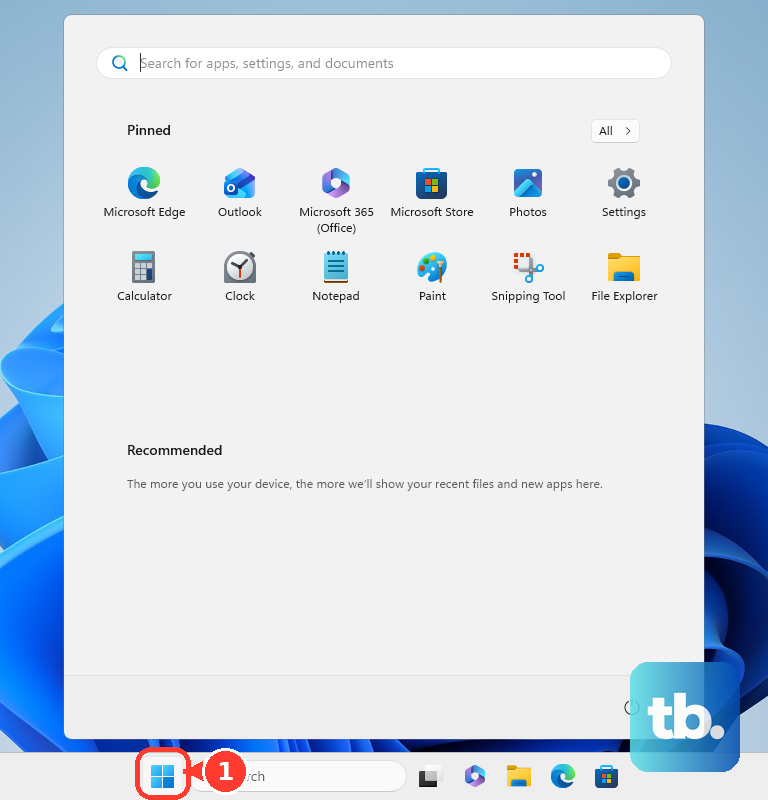
- 1.Select Start.
- 2.Open Settings.
- 3.Go to System, then Notifications.
- 4.Select Microsoft Edge under Notifications from apps and other senders.
- 5.Adjust notifications on or off, Show notification banners, Show notifications in notification center, lock-screen content, sound, and priority.
Turn Off Edge From A Windows Notification
Edge website notifications appear in the Windows notification center. Open Notification Center by selecting the clock or notification bell icon on the taskbar, pressing Windows key + N, or swiping from the side of the screen.
On an Edge notification, select the more button. Choose Turn off all notifications.
Older Windows 10 guides point to Settings, System, and Notifications & actions. Windows 10 support ended on October 14, 2025, and the current Windows consumer path is Settings, System, and Notifications.
Adjust Edge Notifications On Mac iPhone And Android
Use these settings when the device itself is blocking or allowing Edge notifications. These controls affect the Edge app at the operating-system level, not individual website permissions inside desktop Edge.
On Mac, open System Settings, go to Notifications, then select Microsoft Edge under Application Notifications. Turn Allow notifications on or off and adjust the alert style and other options.
On iPhone, open Settings, tap Apps, choose Microsoft Edge, then open Notifications. Turn Allow Notifications off or on.
On Android, open Settings, go to Notifications, then App notifications, and choose Microsoft Edge. Google notes that these settings can vary by phone, so on non-Pixel devices the menu names and their locations may differ; check your manufacturer's support pages if the path does not match. Turn the app's notifications on or off, or touch and hold an arriving Edge notification and change the app's notification setting from there.
Check Work Or School Controls
This fixes blocked or locked notification settings on a managed device. Work and school admins can set the default website-notification behavior for Edge. Admins can allow notifications for specific sites. Admins can block notifications for specific sites.
Admins can control whether Edge uses Windows system notifications. Admins can control Edge feature-recommendation and browser-assistance notifications. Contact your organization's IT support for the allowed notification setup on that device.
Frequently Asked Questions
What does edge://settings/content/notifications open?
It opens the Microsoft Edge desktop page for website notification permissions, including site allow and block lists and notification request controls.
Why do I still get Edge notifications after blocking a site?
Edge website permissions and operating-system app notifications are separate. Check both the site permission in Edge and the Microsoft Edge notification setting in Windows, macOS, Android, or iPhone settings.
Can I block one website without turning off all Edge notifications?
Yes. Visit the website, select View site information beside the address bar, open Notifications under Permissions for this site, and choose Block.
Is the Windows 10 Notifications and actions path still current?
No. It is an older Windows 10 path. Windows 10 support ended on October 14, 2025, and Windows 11 uses Settings > System > Notifications.