Pop-ups usually come from one of four places: the browser's pop-up permission, website notifications, intrusive ads, or an extension that has taken over the session. Use the browser setting first, then tighten the exact permission that matches what keeps appearing. The steps below use the current vendor-supported paths and skip older menu routes that have been replaced.
1. Turn on the main browser blocker
Start here when a new tab, small window, or redirect opens while you browse.
Chrome on desktop: Open Chrome, click More, then go to Settings > Privacy and security > Site settings > Pop-ups and redirects.
Choose the default behavior that blocks sites from sending pop-ups or using redirects.
Microsoft Edge: Click Settings and more, then open Settings > Privacy, search, and services > Site permissions > All permissions > Pop-ups and redirects.
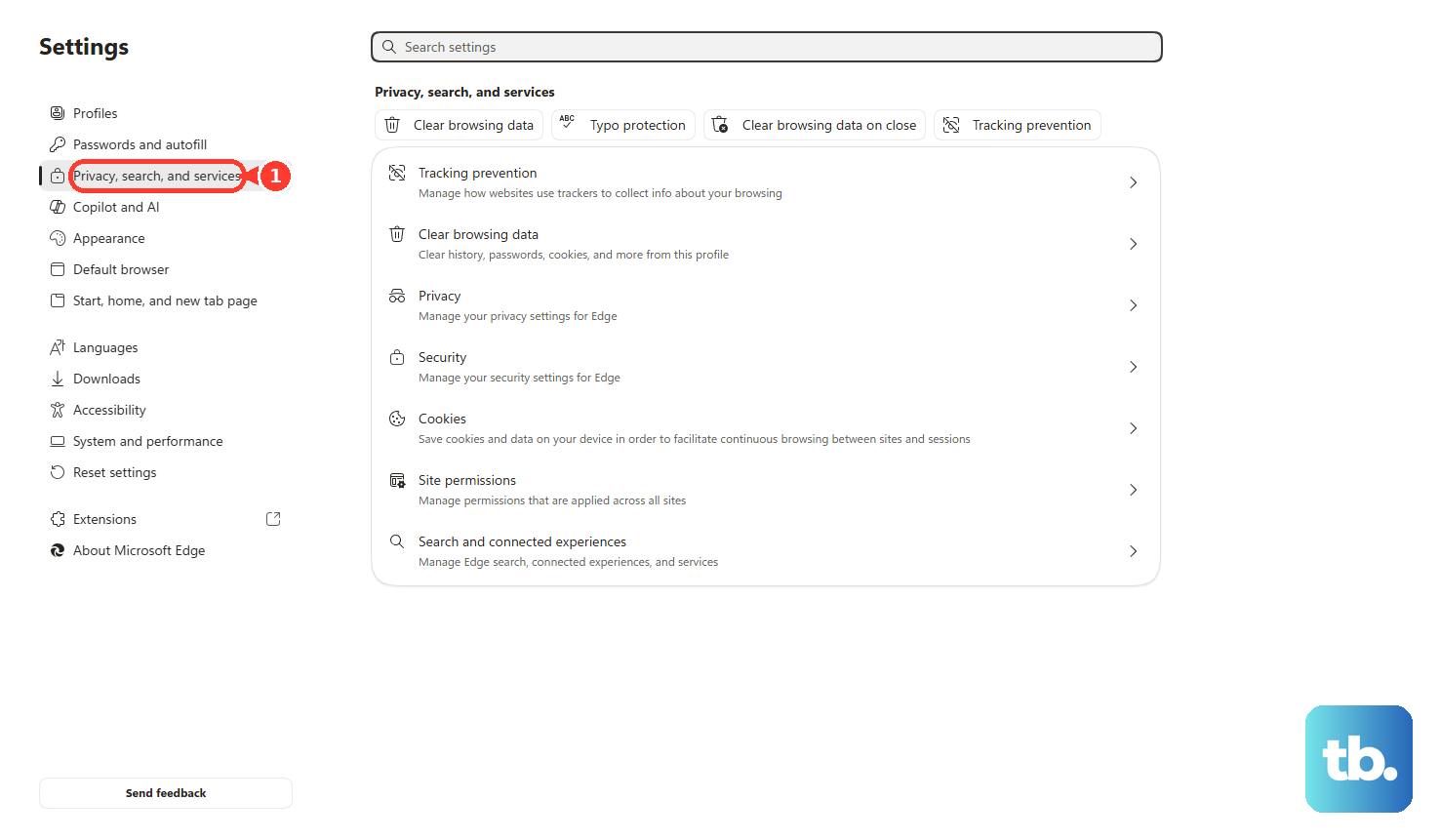
Turn on Blocked (recommended).
Firefox on desktop: Open the Firefox menu and choose Settings.
On Mac, choose Firefox > Settings.
Open Privacy & Security or Permissions and data, go to Permissions, then check Block pop-up windows or Block pop-ups and third-party redirects.
Safari on Mac: Open Safari > Settings > Websites > Pop-up Windows.
Remove conflicting entries under Configured Websites, then set When visiting other websites to Block and Notify or Block.
Opera on desktop: Open Settings, click Advanced in the left sidebar, then open Privacy & security > Site settings > Pop-ups and redirects.
At the top, turn Allowed off to block pop-ups.
These controls handle classic browser pop-ups before you move into ads, notifications, or extension cleanup.
2. Block them on phone and tablet
Chrome on Android: Open Chrome, tap More beside the address bar, then tap Settings > Site settings > Pop-ups and redirects.
Turn Pop-ups and redirects off.
Chrome on iPhone or iPad: Open Chrome, tap More, then tap Settings > Content Settings > Block Pop-ups.
Turn Block Pop-ups on.
Safari on iPhone or iPad: Open Settings, tap Apps, then tap Safari.
Turn Block Pop-ups on.
Use Fraudulent Website Warning from the same Safari settings page as well.
Samsung Internet: Open Samsung Internet, tap the bottom-right Menu icon, then tap Ad blockers.
Install one of the listed third-party blockers with the download icon, then turn on its toggle.
Mobile browsers use shorter menus, and each browser has its own switch.
3. Allow only the sites you trust
Keep the main blocker on for normal browsing, then create an exception only for a site that needs one for a bank, payment page, form, or sign-in flow.
In Chrome on desktop, open the trusted site, click Pop-up blocked in the address bar, open the pop-up link you want, then choose Always allow pop-ups and redirects from [site].
To manage this from settings, open More > Settings > Privacy and security > Site settings > Pop-ups and redirects, then beside Allowed to send pop-ups and use redirects click Add, enter the website address, and click Add.
Use the [*.] prefix before the domain to cover a whole site.
To revoke the exception later, find the site under Allowed to send pop-ups and use redirects, click More, then choose Block.
In Microsoft Edge, open Settings and more > Settings > Privacy, search, and services > Site permissions > All permissions > Pop-ups and redirects.
Under Allowed to send pop-ups and use redirects, select Add site, type the URL beginning with https://, then select Add.
In Firefox, open Settings > Privacy & Security or Permissions and data.
In Permissions, click Exceptions... or Manage exceptions next to the pop-up blocking setting.
Type or paste a website address and click Allow, or select a listed site and click Remove Website.
Finish with Save Changes.
In Safari on Mac, open the website first, then go to Safari > Settings > Websites > Pop-up Windows.
Use the menu for that website and choose Allow.
In Opera on desktop, open Settings > Advanced > Privacy & security > Site settings > Pop-ups and redirects, then use Add to set a site-specific preference.
4. Shut off notification alerts separately
Chrome on desktop: Open More > Settings > Privacy and security > Site Settings > Notifications.
Beside Not allowed to send notifications, select Add, enter the site address, then select Add.
For quieter permission prompts, select Allow sites to ask to send notifications, then choose Use quieter messaging.
Microsoft Edge: Open Settings and more > Settings > Privacy, search, and services > Site permissions > All sites.
Select the website, find Notifications, and choose Block.
From the address bar, select View site information > Permissions for this site > Notifications > Block.
If alerts keep appearing after pop-ups are blocked, the website notification permission is the setting to change.
5. Use ad blocking for fake windows and intrusive ads
A browser pop-up blocker handles pop-up windows and redirects, not every ad surface.
In Chrome on desktop, open More > Settings > Privacy and security > Site settings > Additional content settings > Intrusive ads, then select the default option you want.
In Opera on desktop, open Settings or press Alt+P, then under Privacy protection turn on Block ads.
To manage Opera's filter lists, use Settings > Privacy protection > Block ads > Manage lists.
For Safari, install Safari extensions or content blockers from the App Store.
On Mac, enable the extension in Safari > Settings > Extensions.
To turn one off, deselect its checkbox; to remove it, select the extension and click Uninstall.
On iPhone, open the Safari Page Menu button, tap Manage Extensions, then turn each extension on or off.
Brave Shields blocks third-party ads and trackers automatically, and Brave blocks pop-ups automatically through its separate Popups and redirects site permission.
For a site's classic pop-up permission in Brave, open the website, click the tune icon to the left of the address, click Site settings, then change Popups and redirects.
In-page ads designed to look like windows, ad surfaces that are not separate windows, and many ad interruptions need the browser's ad controls, Shields, or a content blocker.
Install browser tools only from official surfaces: Chrome Web Store, Microsoft Edge Add-ons, Firefox Add-ons, Opera Add-ons, the App Store, and Samsung Internet's Ad blockers screen.
Skip direct binaries and third-party download portals for browser extensions.
6. Remove the extension or app behind repeat pop-ups
Chrome extensions: Open More > Extensions > Manage extensions.
Click Remove, then confirm with Remove.
To reset Chrome, open More > Settings > Reset settings > Restore settings to their original defaults > Reset settings.
Windows unwanted apps: Open the Start menu, then go to Settings > Apps > Installed apps.
Select the unwanted app and choose Uninstall.
Mac unwanted apps: Open Finder > Applications, right-click the unwanted app, then choose Move to Trash.
Right-click Trash and choose Empty Trash.
Microsoft Edge extensions: Open Settings and more > Extensions > Manage extension, then turn each extension off.
Update Edge through Settings and more > Settings > About Microsoft Edge.
Then scan for malware, block third-party cookies, and clear the cache.
Firefox desktop extensions: Open the Firefox menu, choose Add-ons and themes or Extensions and themes, then select Extensions.
Turn off an extension with its blue toggle, or open the extension's ellipsis menu and choose Remove.
Firefox for Android extensions: Open the add-ons or extensions list.
Tap the enabled add-on, or use Add-ons Manager or Extensions Manager, then tap Remove or use the Enabled slider.
Remove the browser add-on or unwanted software that is creating repeat pop-ups before adding more extensions, because another blocker will not clean up a bad one already installed.
Firefox for iOS does not offer Firefox add-ons as a current pop-up-blocking surface, and Safari or iOS extensions do not automatically work in Firefox for iOS.
7. Escape a pop-up that will not close
Do not click inside a stubborn Safari pop-up to dismiss it.
On iPhone or iPad, tap the top of the screen to reveal the Search field, then navigate away or close the tab.
On Mac, quit Safari, then hold Shift while opening Safari so old windows and tabs do not reopen.
After the browser opens cleanly, install software updates and check for adware or other unwanted software.
In Chrome, use the matching cleanup path: remove suspicious extensions, reset settings, and uninstall unwanted apps on Windows or Mac.
8. Ignore replaced menu paths
Use the current Chrome path: Settings > Privacy and security > Site settings > Pop-ups and redirects.
Older Chrome tutorials point to Settings > Advanced > Content Settings > Pop-ups and redirects, which has been replaced.
Older Safari tutorials say Safari > Preferences; current macOS documentation uses Safari > Settings.
9. Ask the admin on managed browsers
On a work or school browser, the pop-up setting can be controlled by policy instead of your personal toggle.
Chrome, Edge, and Firefox provide admin-managed controls for default pop-up behavior and site exceptions.
For a managed device, ask the organization that controls the browser to change the rule for the site you need.
Frequently Asked Questions
Why do pop-ups keep showing after I blocked them?
They are coming from a different surface: website notifications, intrusive ads, in-page ad elements, an extension, or unwanted software. Block notifications, turn on ad controls, then remove suspicious extensions or apps.
Should I turn off the pop-up blocker for a banking or payment site?
Keep the main blocker on. Add an exception only for that exact trusted site, then remove the exception when the task is finished if you no longer need it.
How do I block pop-ups in Chrome on my phone?
On Android, use Chrome > More > Settings > Site settings > Pop-ups and redirects and turn Pop-ups and redirects off. On iPhone or iPad, use Chrome > More > Settings > Content Settings > Block Pop-ups and turn it on.
Can Firefox for iOS use add-ons to block pop-ups?
No. Mozilla says desktop and Android Firefox add-ons are not available for Firefox for iOS, and Safari or iOS extensions do not automatically work in Firefox for iOS.
Where should I get an ad blocker?
Use the official store for your browser: Chrome Web Store, Microsoft Edge Add-ons, Firefox Add-ons, the App Store, or Samsung Internet's Ad blockers screen.