

To get more storage on your iPhone, open Settings > General > iPhone Storage, see which category fills the bar and clear that one first: offload apps you rarely use, turn on Optimize iPhone Storage for iCloud Photos, and remove downloaded music, shows and files you can get again. Buying iCloud+ adds space in iCloud, not on the phone.
On our iPhone 17 Pro with iOS 26.6, the bar split the space into Applications, Photos, Messages, Music, iOS and System Data, and the page offered a single recommendation, Offload Unused Apps. Apple says your iPhone might offer recommendations, so don't wait for a tip that never appears. The bar and the app list tell you more than the tips do.
The short version
- Find the culprit: Settings > General > iPhone Storage, then read the bar and sort the apps by Size.
- Apps: Offload App frees the app but keeps its documents and data. Delete App removes both.
- Photos: with iCloud Photos on, choose Optimize iPhone Storage rather than deleting, because deletions reach every device.
- Deleted is not gone yet: Photos, Messages and Files keep deleted items in Recently Deleted for up to 30 days, but Apple says photos deleted while iCloud is over its limit go at once.
- iCloud+ is not phone storage: it enlarges your iCloud plan, never the iPhone's built-in capacity.
Which cleanup fits your storage bar
Every fix below works on one kind of content, so start with whatever takes the most room on the bar or in the app list. The table lists where to look for each category and the choice that frees space while keeping what you still want.
| What is taking the space | Where to look | What frees space | Keep in mind |
|---|---|---|---|
| Applications | iPhone Storage, then the app's name | Offload App, or remove downloads inside the app | Delete App also removes the app's data on the iPhone |
| Photos | Settings > your name > iCloud > Photos | Optimize iPhone Storage, or delete photos you don't want | With iCloud Photos on, a deletion reaches every device |
| Messages | A conversation's Photos list, and Keep Messages | Delete large attachments you no longer need | 30 Days or 1 Year deletes older conversations for good |
| Music, podcasts and shows | The Downloaded view in Music, Podcasts and TV | Remove Download | Delete from Library in Music is a different action |
| Files and downloads | Files > Browse > On My iPhone and iCloud Drive | Delete local files, or Remove Download for iCloud Drive files | Deleting an iCloud Drive file removes it everywhere |
| Safari data | Settings > Apps > Safari > Advanced > Website Data | Remove All Website Data | Websites may sign you out |
| System Data | The iPhone Storage bar | Clear the other categories and let iOS manage it | There is no button that empties it |
Check what is using your iPhone storage
Open Settings, tap General, then tap iPhone Storage. At the top you see how much is used, then a coloured bar with a key underneath, then Recommendations and the list of apps.
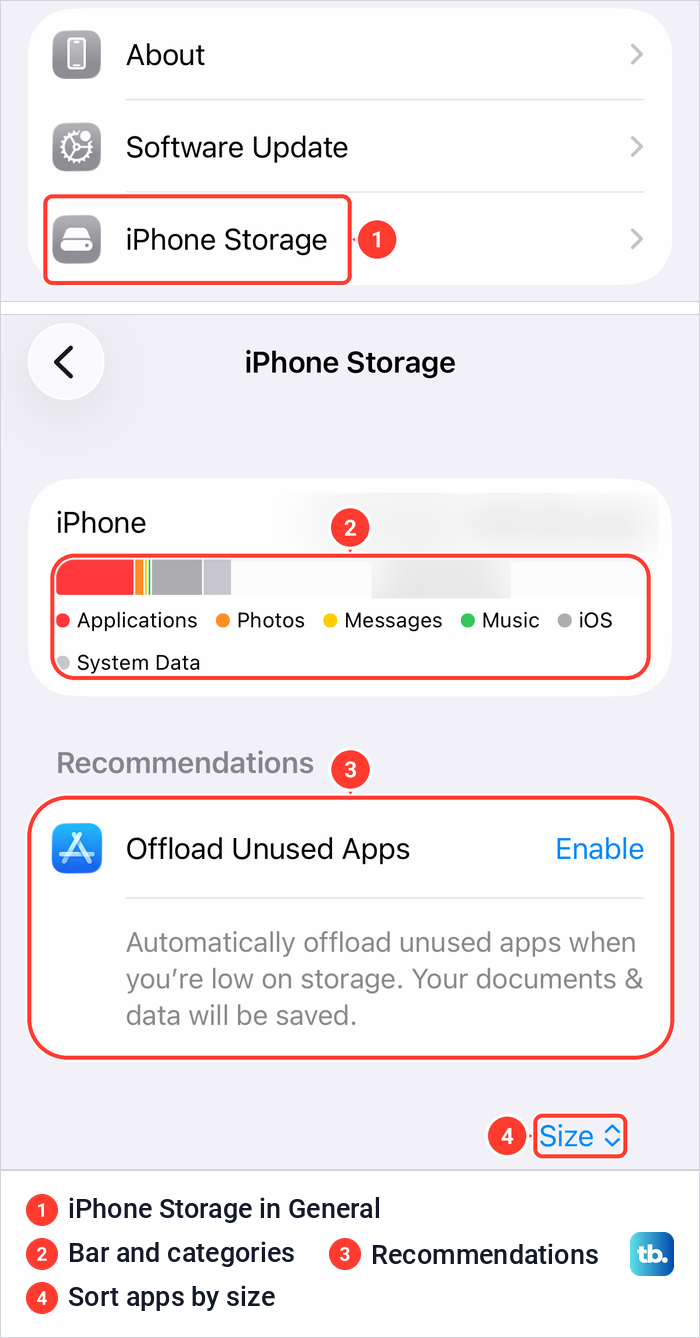
On our iPhone the app list sat under a Size button, which sets the order of the list. Tap any app to see two figures: App Size, which is the app itself, and Documents & Data, which is what the app has saved. Apple notes that cached and temporary data might not count as usage, so the numbers won't always add up to the bar.
If your iPhone shows a Storage Almost Full alert, Apple's advice is the same: check the recommendations or remove content such as videos and apps. Under each recommendation, Apple says to read the description, then tap Enable to turn it on or tap the recommendation to review what you can delete. On our iPhone 17 Pro there was no Show All button and only one recommendation.
Offload apps you rarely use
Offloading is the safest big win when Applications fills the bar. Tap an app in the iPhone Storage list and you get two buttons with iOS's own explanation under each. Offload App read: "This will free up storage used by the app, but keep its documents and data. Reinstalling the app will place back your data if the app is still available for download."
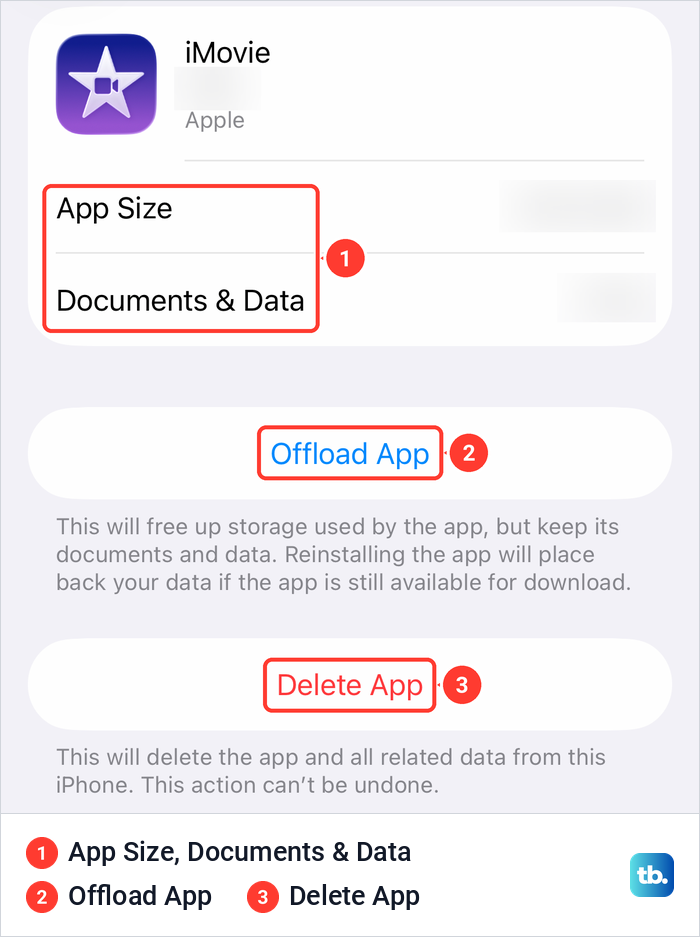
Delete App read: "This will delete the app and all related data from this iPhone. This action can't be undone." So compare the two figures before you choose. If Documents & Data is the large one, offloading frees little, and the space is inside the app, such as downloaded videos, maps or offline playlists that the app itself lets you remove.
To let your iPhone do this for you, go to Settings > Apps > App Store and turn on Offload Unused Apps. On our iPhone 17 Pro it was off, and the iPhone Storage recommendation offered the same feature with an Enable button. Apple says that when storage is low, iPhone removes unused apps but keeps your documents and data, and the icon stays on the Home Screen with a cloud symbol that you tap to reinstall.
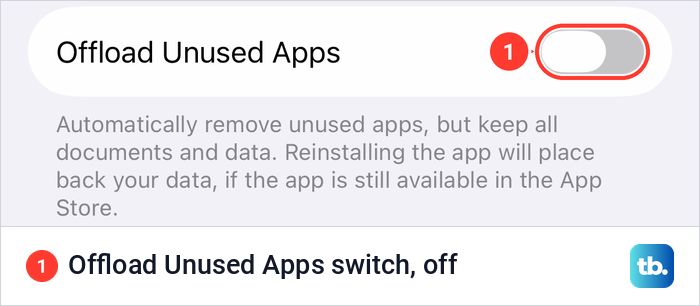
Offloading needs the app to still be in the App Store when you want it back, as the switch's own footer says. For the whole reinstall side, see how to offload an iPhone app without losing data. Once there is room again, you can update an app on iPhone that stalled for lack of space.
One thing that frees nothing: Remove from Home Screen. Apple's wording is that it keeps the app in App Library, so the app and its data stay on the iPhone. Only Delete App or Offload App gives the space back.
Keep your photos while using less space
If Photos is the biggest colour and you use iCloud Photos, don't start by deleting pictures. Apple says that when you delete photos on one device, they are deleted everywhere that you use iCloud Photos. The setting that saves phone space without losing anything is Optimize iPhone Storage.
Open Settings, tap your name, tap iCloud, then tap Photos. On our iPhone 17 Pro with iOS 26.6 the page showed the Sync this iPhone switch, a Status row, and two choices directly below: Optimize iPhone Storage, which was ticked, and Download and Keep Originals. Tap Optimize iPhone Storage if it isn't ticked.
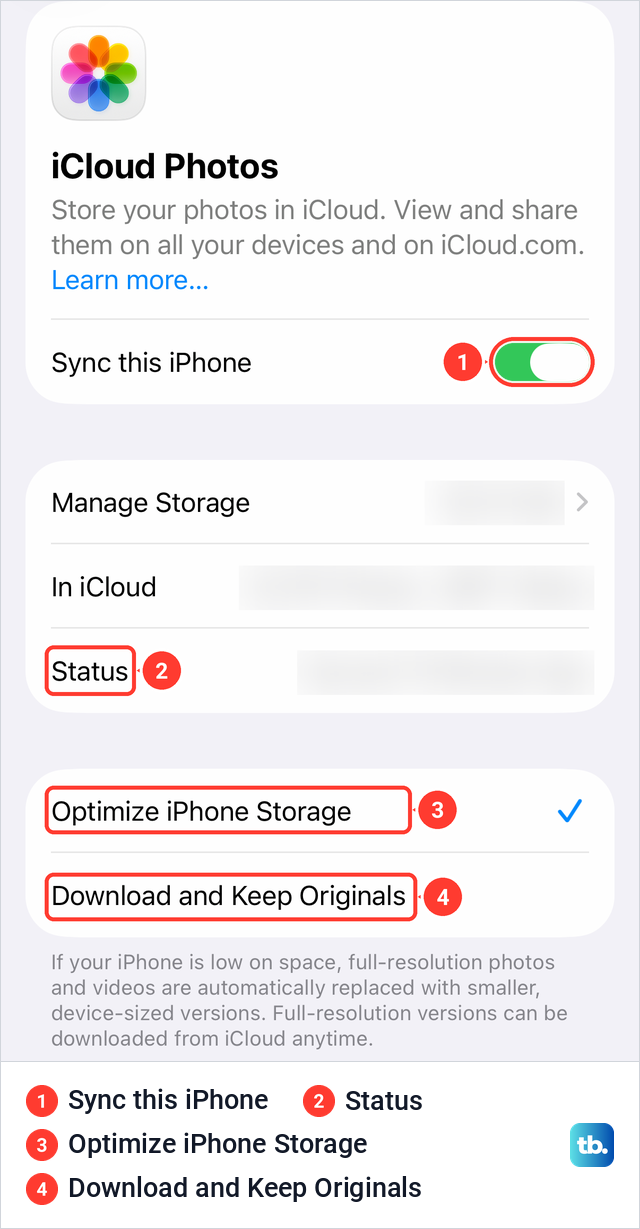
The footer under the two choices explains the effect: "If your iPhone is low on space, full-resolution photos and videos are automatically replaced with smaller, device-sized versions. Full-resolution versions can be downloaded from iCloud anytime." Apple adds that optimizing starts with the photos and videos you access least, so the space comes back gradually as the iPhone needs it, not all at once.
Two checks help. Your iCloud plan needs room for the whole library, and the Status row shows whether syncing is running, paused or done, so you can tell whether the originals have reached iCloud. If you want to see them there, here is how to access your iCloud Photos from the iPhone or a browser.
Apple's current support article describes one extra step for iOS 27, where you tap iPhone Storage and then choose Optimize Storage. It also says that in iOS 26 or earlier you just choose the option directly, which matches the page on our iPhone.
Delete unwanted photos and empty Recently Deleted
When you really don't want some photos or videos, delete them in the Photos app. Tap Select in your library, tap each item, then tap the trash button. If you want a copy outside Apple's cloud first, transfer photos from iPhone to a PC and check the copy before deleting.
On our iPhone 17 Pro, the Collections tab listed Duplicates and Recently Deleted under Utilities, and Recently Deleted carried a lock. If Duplicates appears on yours, you can remove duplicate iPhone photos before touching anything you only have once.
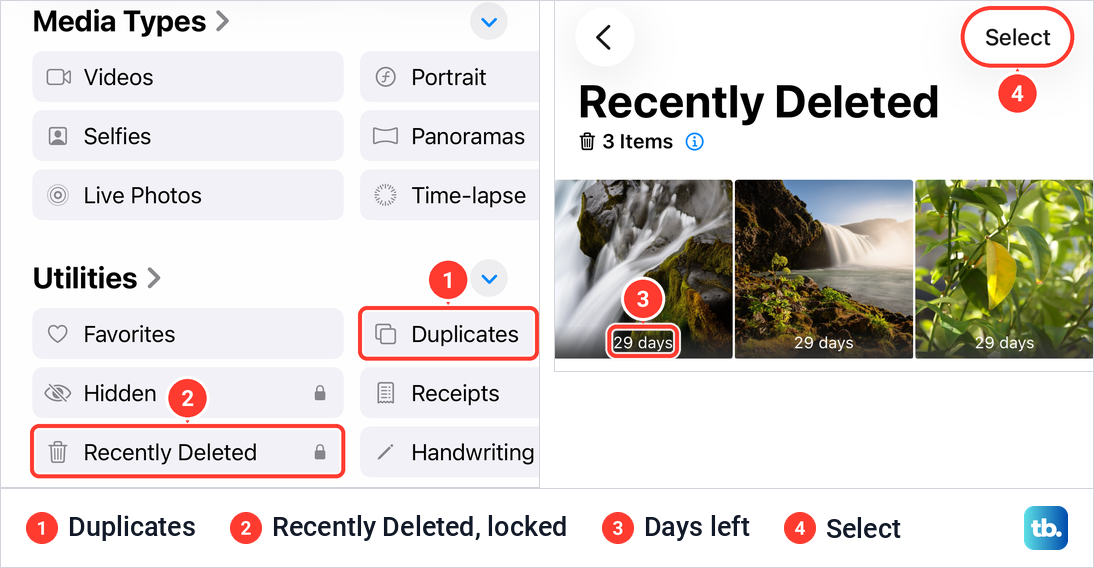
Deleting a photo does not usually free its space straight away. Apple says deleted photos and videos stay in Recently Deleted for 30 days before they are permanently removed from your iPhone, iCloud and your other devices. On iOS 26.5, our unlocked Recently Deleted album showed each sample photo with "29 days" on it, the time left before permanent deletion.
There are two exceptions. If you exceed your iCloud storage limit, Apple says your device immediately removes any photos and videos you delete, and they won't be available for recovery in Recently Deleted. Photos deleted from a shared album are also deleted immediately, so save a copy to your own library first if you want to keep one.
To empty it sooner, Apple's steps are to tap Collections, tap Recently Deleted under Utilities, tap View Album and unlock with Face ID, Touch ID or your passcode. Then tap Select, choose the items, tap the More button and tap Delete. That can't be undone, so look through the album first, and if you removed the wrong picture, use the steps to recover deleted iPhone photos instead.
Remove large attachments in Messages
Photos and videos in your chats count toward Messages in the bar, and a few busy group chats can hold a lot. Some guides promise a Review Large Attachments recommendation for this. Our iPhone Storage page had no such card, so use the route inside each conversation that Apple documents.
Open the conversation and tap the contact or group icon at the top. Tap a category such as Photos, then tap Edit and Select. Tap each attachment you no longer need, tap the trash button and confirm. If you use Messages in iCloud, Apple says a deletion on your iPhone deletes the item from all your devices where Messages in iCloud is on.
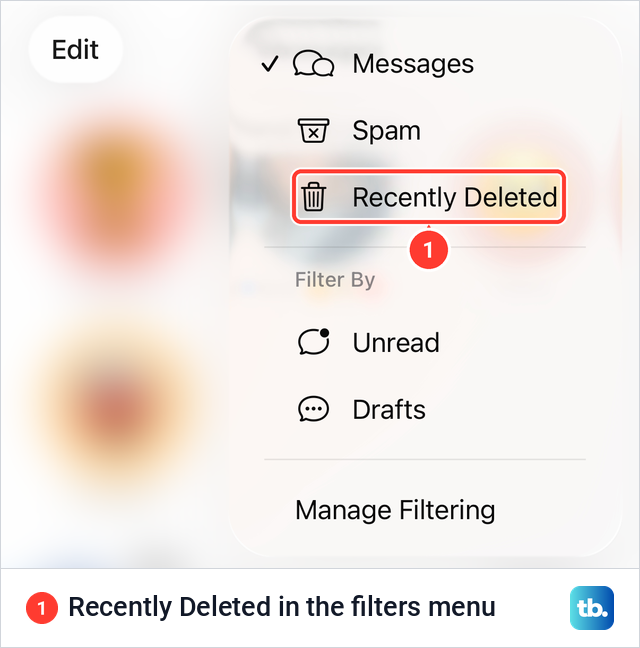
Deleted messages and attachments go to Recently Deleted for up to 30 days. On our iPhone 17 Pro, Recently Deleted was in the filters menu at the top right of the conversation list, not under Edit. Apple's steps there are to select the conversations, tap the trash button and then Delete, with the warning that this can't be undone.
If something you still needed went too early, there are ways to recover deleted iPhone messages while the 30 days run. After a permanent delete, that window is gone.
Keep fewer old messages
For a cleanup that keeps going, go to Settings > Apps > Messages and scroll to Keep Messages under Message History. On our iPhone it read Forever. Tapping it showed three choices, 30 Days, 1 Year and Forever, with the note "Keeping messages for 30 days or 1 year will permanently delete older messages."
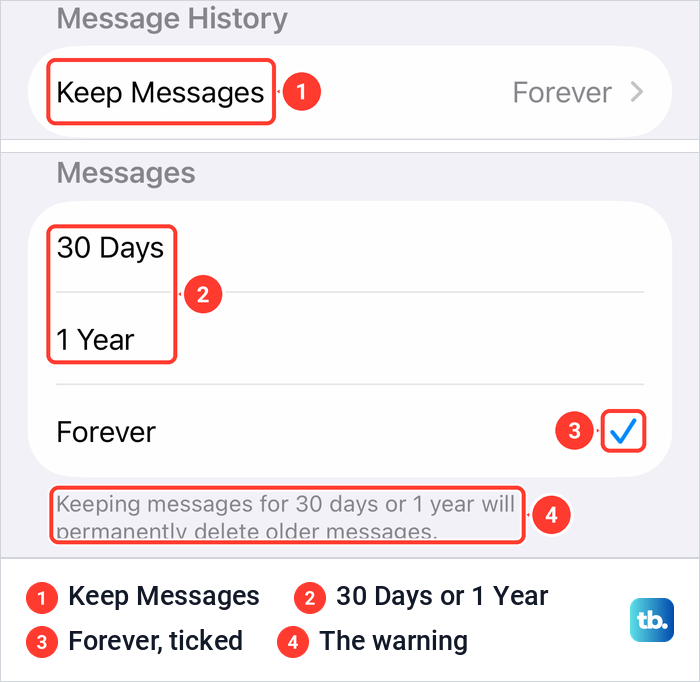
Read that note twice before you pick a shorter period. Apple says that with any option other than Forever, your conversations, including all attachments, are removed automatically once they pass that age. With Messages in iCloud, Apple says deletions on your iPhone reach your other devices where it is turned on. Leave it on Forever if old chats hold photos or details you might want later.
Clear Safari website data
Websites store data on your iPhone to load faster and keep you signed in. Apple's way to clear it while keeping your history is Settings > Apps > Safari > Advanced > Website Data, then Remove All Website Data and Remove Now. On iOS 26.5 the Website Data page listed each site we had visited, with an Edit button at the top right and Remove All Website Data below the list.
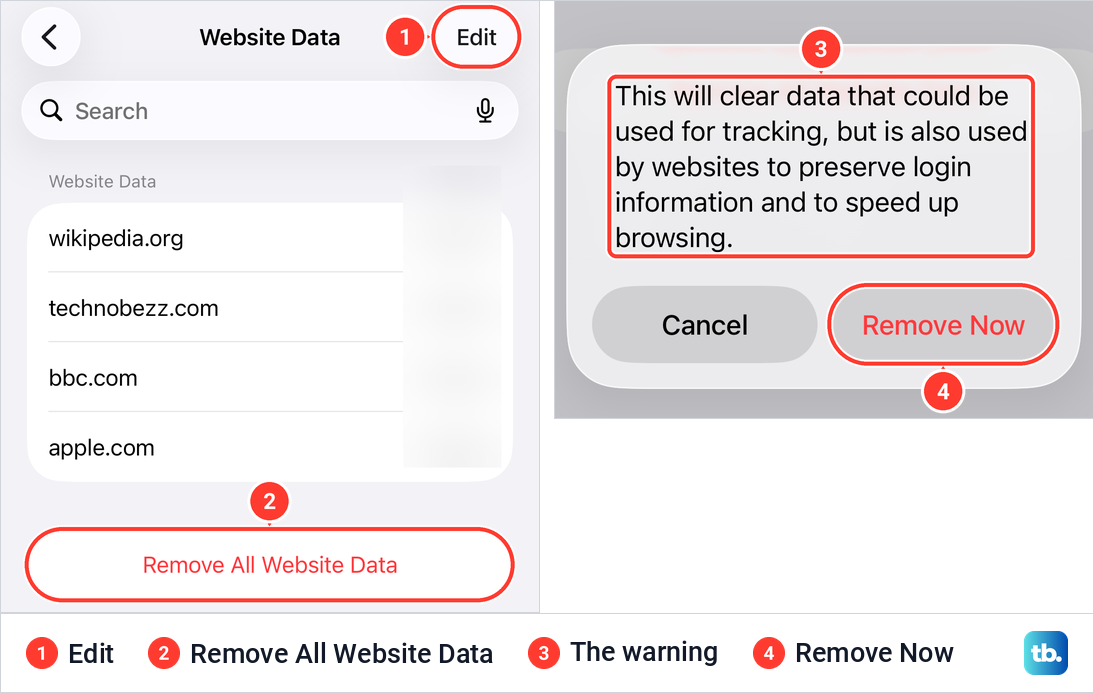
The prompt before Remove Now spells out the cost: "This will clear data that could be used for tracking, but is also used by websites to preserve login information and to speed up browsing." Expect to sign back in to some sites. For every Safari and Chrome option, see how to clear cookies on iPhone.
Clear History and Website Data, higher up the Safari settings, removes your browsing history as well. Check the timeframe it shows before you tap Clear History, because it applies to everything in that period. If privacy is your goal rather than space, the steps to clear iPhone search history are separate for each browser.
Remove downloaded music, podcasts and shows
Downloads that you can stream or download again later are the easiest space to take back. The trick is to remove the download, not the item. Each Apple app words the step a little differently, and Music has a second choice that does something else.
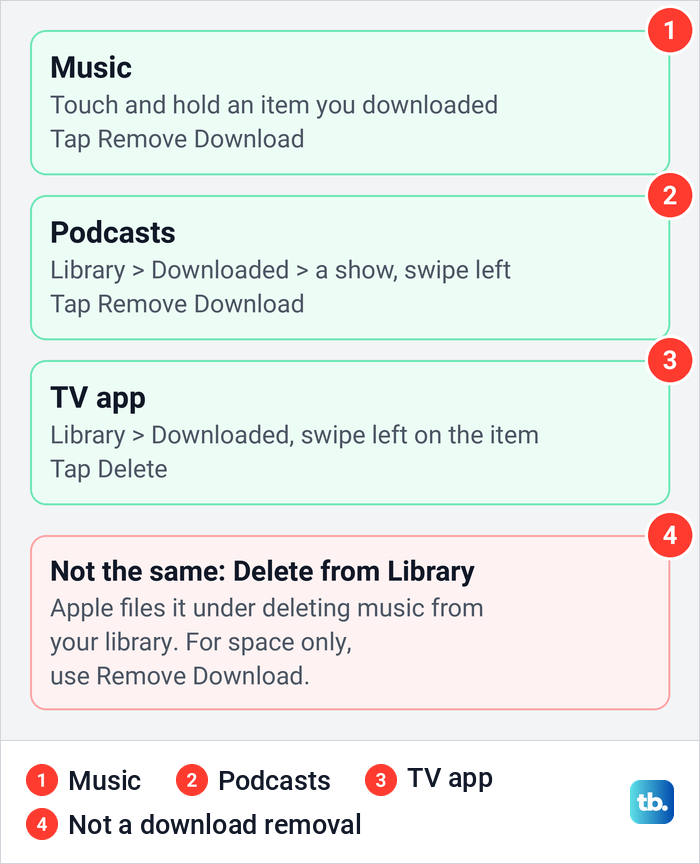
In Music, touch and hold something you downloaded and tap Remove Download. To clear a lot at once, Apple's route is Settings > Apps > Music > Downloaded Music, tap Edit, then remove All Songs or particular artists. Apple also lists an Optimize Storage setting under Settings > Apps > Music that removes downloaded music you haven't played in a while when space runs low.
Avoid Delete from Library when you only want space. Apple lists it under deleting music from your library. For space, its step is Remove Download, and Apple says the item is then removed from iPhone but not from your music library on your other devices. In Podcasts, tap Library, then Downloaded, open a show, swipe left on an episode and tap Remove Download, and Apple also offers Remove All Downloads on the Downloaded view.
Saving an episode in Podcasts downloads it automatically, Apple notes, unless you turn off Download When Saving in Settings > Apps > Podcasts. In the TV app, tap Downloaded in your library, swipe left on a movie or episode you've watched and tap Delete. For streaming apps from other companies, remove downloads inside each app.
Clean out files and downloads
Apple's storage categories put files in the On My iPhone folder and Safari downloads under Apps, shown as Applications in the bar, and iCloud Drive files you downloaded to the phone under a category of their own. Open Files and tap Browse. On iOS 26.5, Locations listed iCloud Drive, On My iPhone and Recently Deleted, and On My iPhone held a Downloads folder.
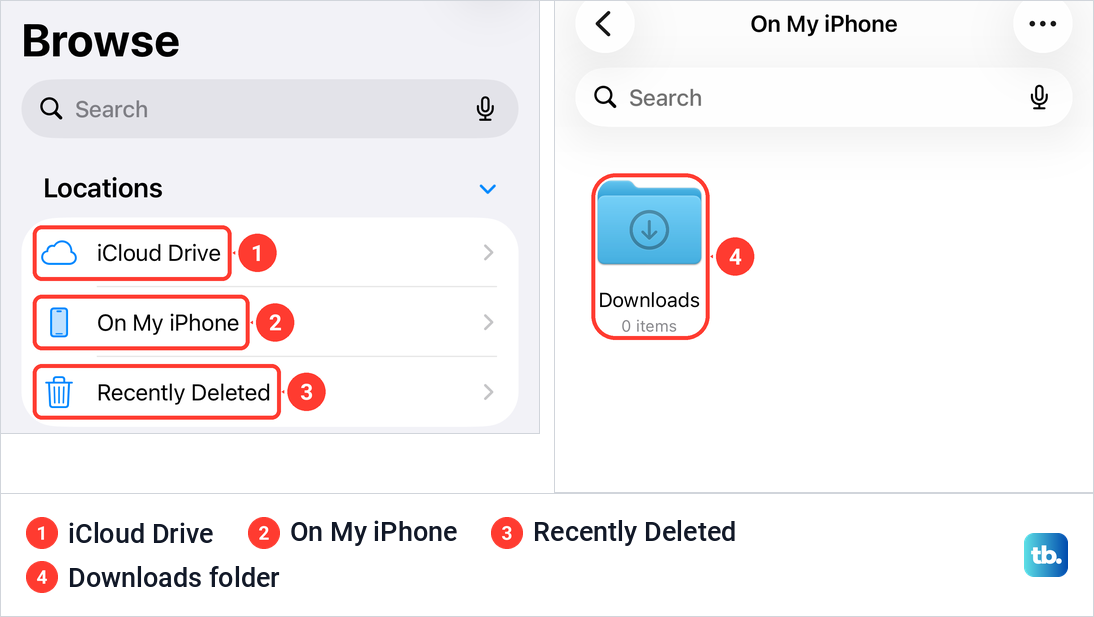
Apple's steps to delete are to open the location, tap the More button, tap Select, choose the files and tap the trash button. If you can't spot something you saved, first find downloads on iPhone so you know what each file is before it goes.
iCloud Drive needs more care. Apple counts iCloud Drive files that you downloaded to the phone against your iPhone storage. To free that space and keep the file, touch and hold it and tap Remove Download, because deleting it removes it from every device signed in to your Apple Account.
Deleted files sit in Recently Deleted for 30 days, and Apple says files deleted from there are gone immediately and can't be recovered. On iOS 26.5 that folder also noted that recently deleted items may be permanently deleted by your storage provider.
What System Data is and why it won't empty
System Data is the grey part of the bar that no setting clears directly. Apple's storage article doesn't use the name System Data. Its closest category, Other, covers non-removable mobile assets such as Siri voices, fonts and dictionaries, non-removable logs and caches, the Spotlight index, and system data such as the Keychain and CloudKit database.
Apple says that to free up space, your device removes cached and temporary files, so you don't have to, and that when storage is low it removes items you can download again, like unused apps and temporary files. That is why there is no Clear System Data button, and why a cleaner app is not something Apple's instructions ask for.
The practical fix is to clear the categories you control, then come back to iPhone Storage and let the page recount. A large System Data figure on its own is not a reason to erase your phone. Apple's storage instructions don't name any size at which a reset is needed, and an erase removes everything. Keep that for when you hand the phone on, following how to erase an iPhone before selling it.
Does buying iCloud storage give you more iPhone storage
No. Apple keeps the two apart: device storage is the storage built into your iPhone, and it comes in a set amount. iCloud storage holds your photos, files, messages and backups in the cloud. An iCloud+ plan makes the cloud side bigger and leaves the phone's capacity exactly as it was.
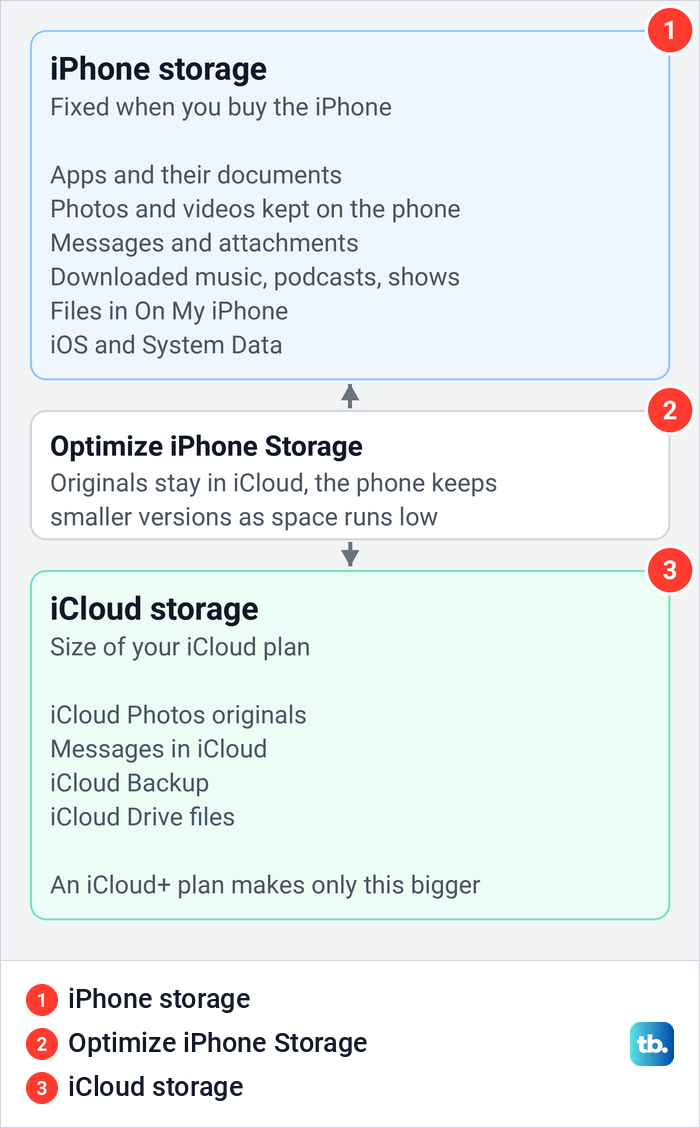
A bigger plan still helps one common case. Optimize iPhone Storage relies on the originals being kept in iCloud, so a library larger than your plan can't be fully stored there. Apple says that when iCloud is full, the features you use might not stay up to date until you manage your storage or buy more.
To see your iCloud usage, open Settings and tap your name, then iCloud. On our iPhone 17 Pro, Settings also had its own iCloud row, and the Storage line opened a page titled Manage Storage. It showed the iCloud bar, a Change Storage Plan row, and iCloud Photos, Messages and Backups with their sizes.
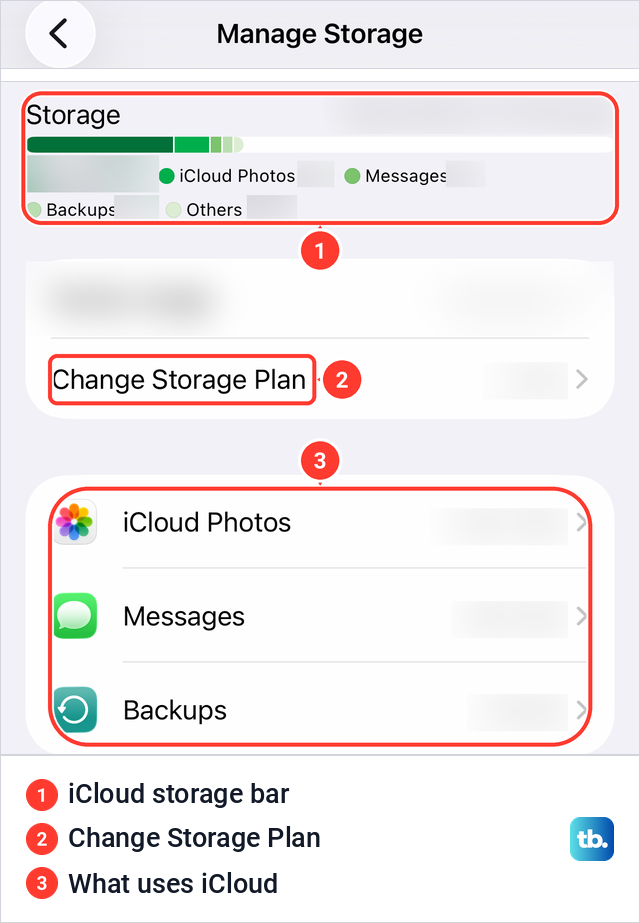
Apple's steps for iOS 26: if you already pay for iCloud+, tap your name, tap Subscriptions, tap iCloud+ under Active and tap See All Plans. If you don't, tap iCloud, scroll down and tap Upgrade to iCloud+. Apple's guide for iOS 27 words it differently: under iCloud+ Features, tap Manage Plan, or tap Storage and then Get More Storage.
iCloud+ is a subscription, listed with the others under Subscriptions. If you later decide you don't need the bigger plan, it sits in the same Subscriptions list that our guide to cancel subscriptions on iPhone walks through.
How we tested this guide
We tested this on an iPhone 17 Pro with iOS 26.6, going through iPhone Storage and the Offload Unused Apps switch.
Frequently Asked Questions
Can I add more storage to the iPhone I already have?
No. The built-in storage is fixed when you buy the iPhone. An iCloud+ plan only adds space in iCloud, which helps the phone when it gives iCloud Photos room for your originals, so Optimize iPhone Storage can keep smaller copies on the iPhone.
Why is my iPhone full when iCloud still has space?
They are separate pools. Check Settings > General > iPhone Storage for the phone, then turn on Optimize iPhone Storage if photos fill it and your iCloud plan can hold the library.
Will deleting photos from my iPhone keep them in iCloud?
Not when iCloud Photos is on. Apple says a deletion on one device deletes the photo everywhere you use iCloud Photos, so use Optimize iPhone Storage instead.
Does Offload App delete my data?
No. iOS says Offload App frees the app's storage but keeps its documents and data, and reinstalling brings them back if the app is still available. Delete App is the button that removes the data.
Why didn't deleting photos free up space?
Deleted photos normally stay in Recently Deleted for 30 days before Apple removes them for good. Empty that album once you are sure, then reopen iPhone Storage so it can recount.
Can I clear System Data on iPhone?
Not directly. Apple says the iPhone removes cached and temporary files itself when it needs space, so clear the categories you control and check the bar again.
How do I remove downloaded songs without losing my music?
Touch and hold the song, album or playlist and tap Remove Download. Apple says the item is removed from iPhone but not from your music library on your other devices, while Delete from Library is its step for deleting music from your library.