
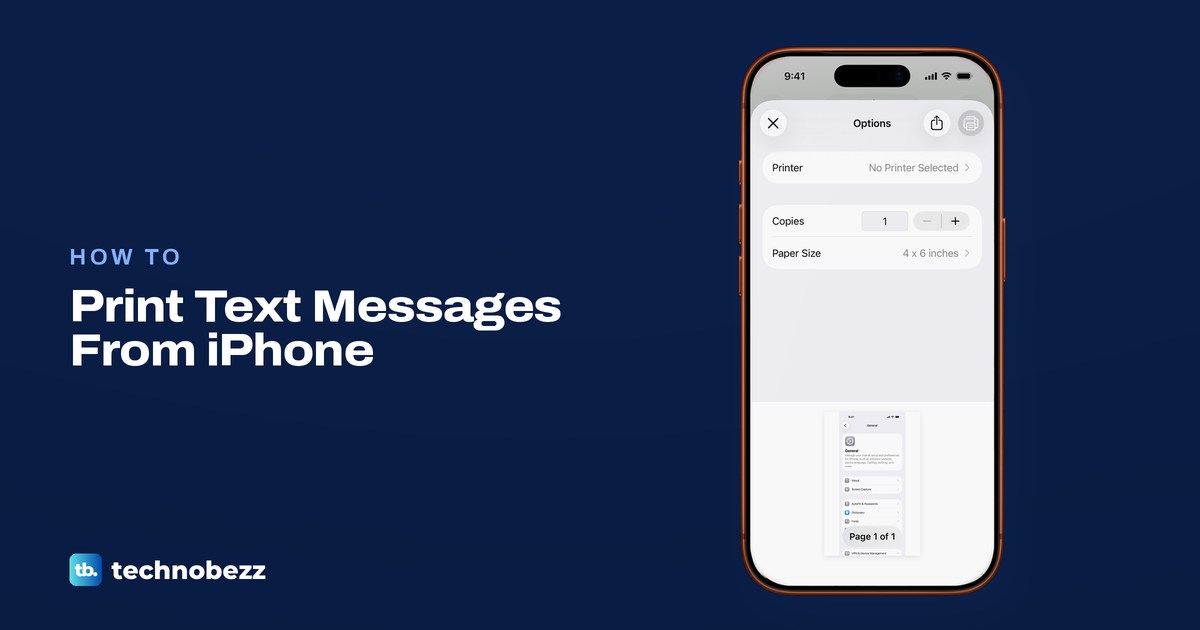
To print text messages from an iPhone, drag a message bubble to the left so the times show, take screenshots of the conversation, then open them in Photos and tap Share > Print. For a long thread, Messages on a Mac offers File > Print for the conversation, and you then check the preview for the messages you need.
Apple does not document a direct print or export command for a conversation in Messages on iPhone, so the phone-only methods below start with screenshots or copied text. We followed the iPhone side on iOS 26.5, from saving a screenshot to the print screen, and found two things worth knowing. Print sits near the bottom of the share sheet, and the print screen has its own Share button that hands the page over as a PDF Document, with no printer at all.
The short version
- Capture: drag a bubble left to show the times, press Side + Volume Up (Side + Home on an iPhone with a Home button), and let each screenshot overlap the last.
- Print: in Photos, select the screenshots, tap Share, then Print, with an AirPrint printer on the same Wi-Fi.
- PDF on the iPhone: on the print screen, tap Share, then Save to Files.
- Long conversation: open it in Messages on a Mac, press Command + P, then choose Save as PDF from the PDF menu.
- For court: keep the phone and the original screenshots, and ask your lawyer or the court clerk what they accept.
Ways to print text messages from an iPhone
Which route fits depends on how much of the conversation you need and whether you have a Mac. The table sums up the four options, and each one is explained below.
| Route | Best for | What you end up with | Watch out for |
|---|---|---|---|
| Side + Volume Up or Side + Home, then Photos > Share > Print | A few screens of messages | One printed page per screenshot | Check the paper size before printing |
| Print screen > Share > Save to Files | A PDF without a printer or a computer | A PDF document in the Files app | Check that every page is in it |
| Copy into Notes, then Share > Print | Quoting one or two messages | Copied text on paper or as a PDF | The bubbles, names and times are lost |
| Messages on a Mac, Command + P | A long conversation | Printed pages or a PDF of the chat | The Mac shows only the messages it has synced |
If you only have a Windows PC, the screenshot route still works: move the pictures to the PC and print them there. That is covered after the Mac section.
Capture the conversation with names and times
A printout is only useful if a reader can tell who said what and when. Open the conversation in Messages, where Apple's guide puts the name of the person you are texting at the top of the screen. Then check that both sides of the exchange are in view, your messages and theirs.
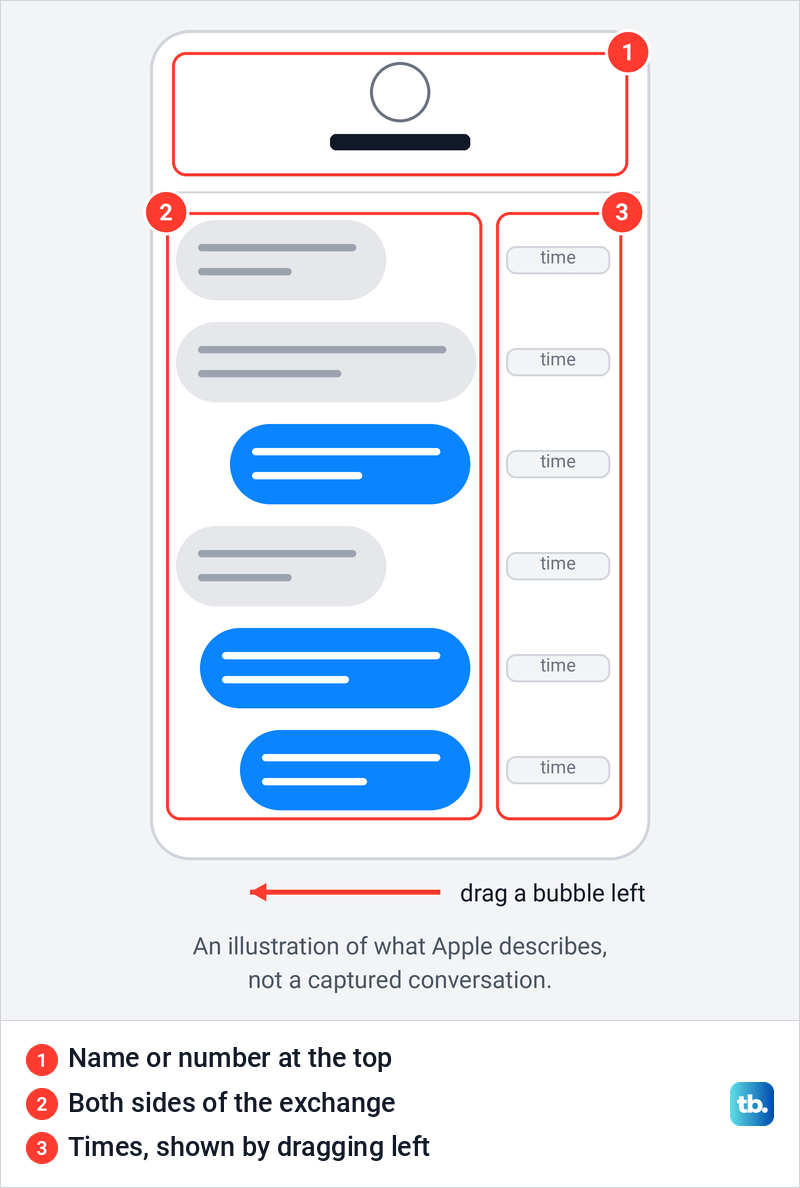
Messages hides the exact time of each message until you ask for it. Apple's tip is to drag a message bubble to the left to see timestamps for all messages in the conversation. If the times slide away when you let go, keep one finger dragging and press the screenshot buttons with the other hand.
Apple's buttons are the side button and volume up, pressed and released together, on an iPhone with Face ID. On an iPhone with a Home button, press the side button and the Home button, or the top button and the Home button on older models with the button on top. For the editor and the other ways to capture, see our guide on how to take a screenshot on iPhone.
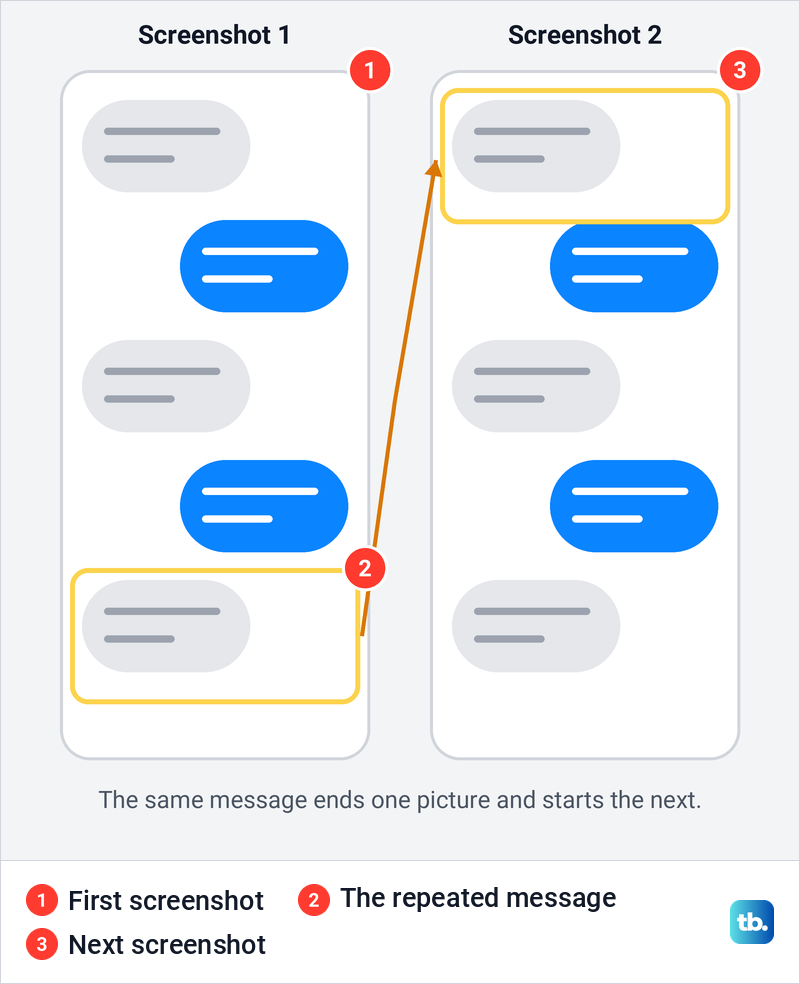
A long thread needs several screenshots. Scroll up until the messages you want start at the top, take a screenshot, then scroll so the last message on screen moves to the top before you take the next one. That repeated message is your proof that nothing was skipped between two pictures.
Do not count on a full page screenshot to grab the whole thread. Apple's example of content longer than the screen is an entire webpage in Safari. When we took a screenshot of a Settings screen, the editor showed no Full Page tab at all, while a long Safari page did, so plan on ordinary screenshots for a conversation.
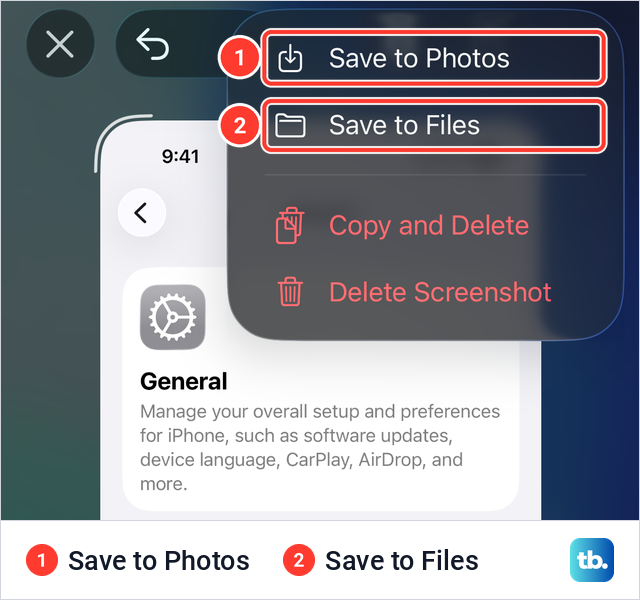
On iOS 26 the screenshot opens full screen by default. On iOS 26.5, tapping the checkmark at the top right gave us a menu with Save to Photos at the top, followed by Save to Files and two delete choices. Save to Photos keeps each screenshot in your library, where the printing steps below pick it up.
Tapping the checkmark for every screenshot gets slow on a long thread. In Settings > General > Screen Capture, turning off Full-Screen Previews brings back the small thumbnail in the corner. When we left that thumbnail alone, it went away by itself and the screenshot was in Photos, with no extra taps.
Print the screenshots from Photos
Your screenshots are in the Photos library with everything else, and Photos also gathers them in their own album. Open Photos, tap Collections, scroll to Media Types and tap Screenshots. Then tap Select at the top right.
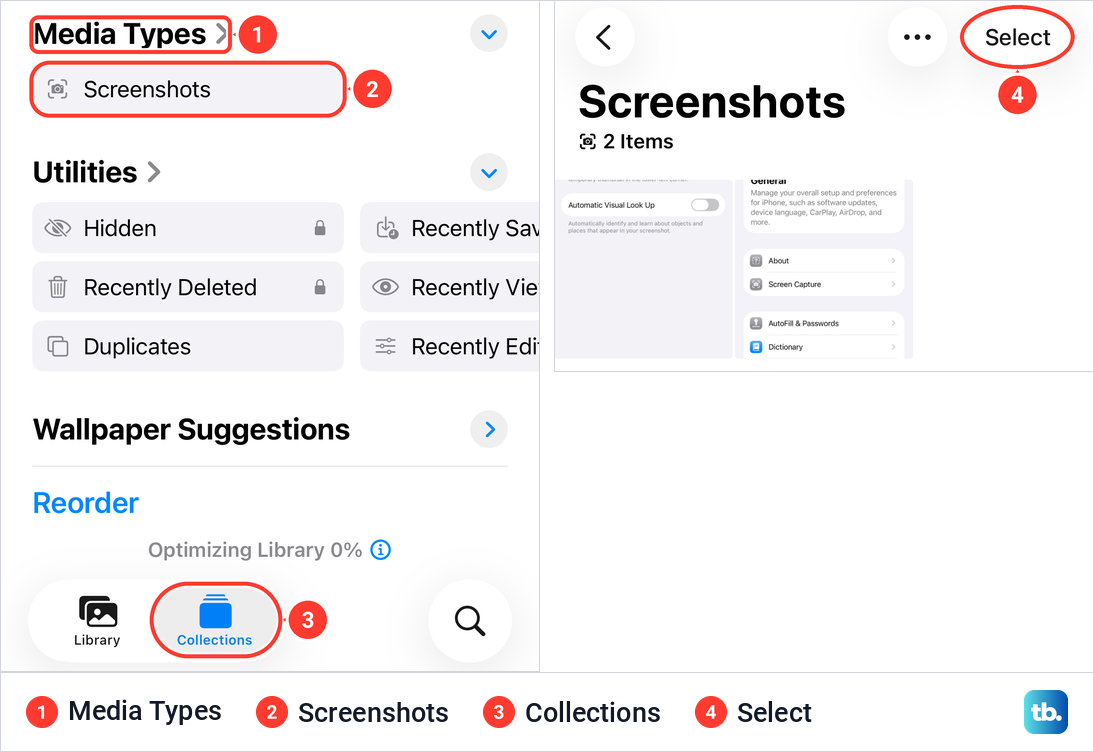
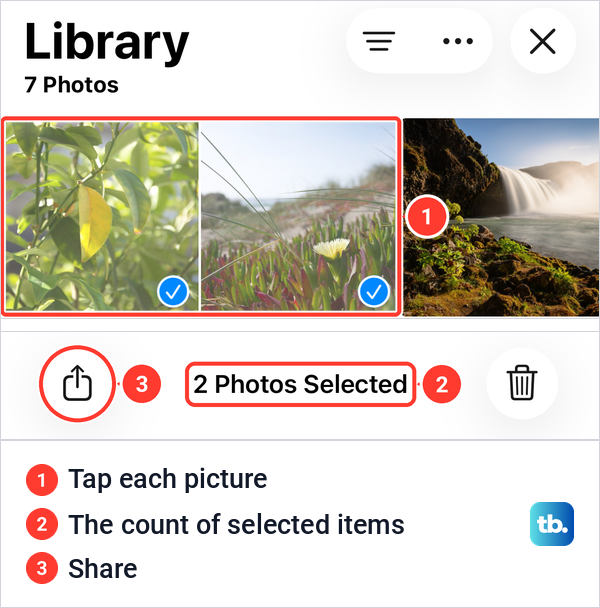
Tap each screenshot you want to print, and a check mark appears on each one. The bar at the bottom counts what you have chosen, and the Share button sits at its left end. Apple's steps for printing several photos are exactly this: tap Select, select each photo, tap Share, then Print.
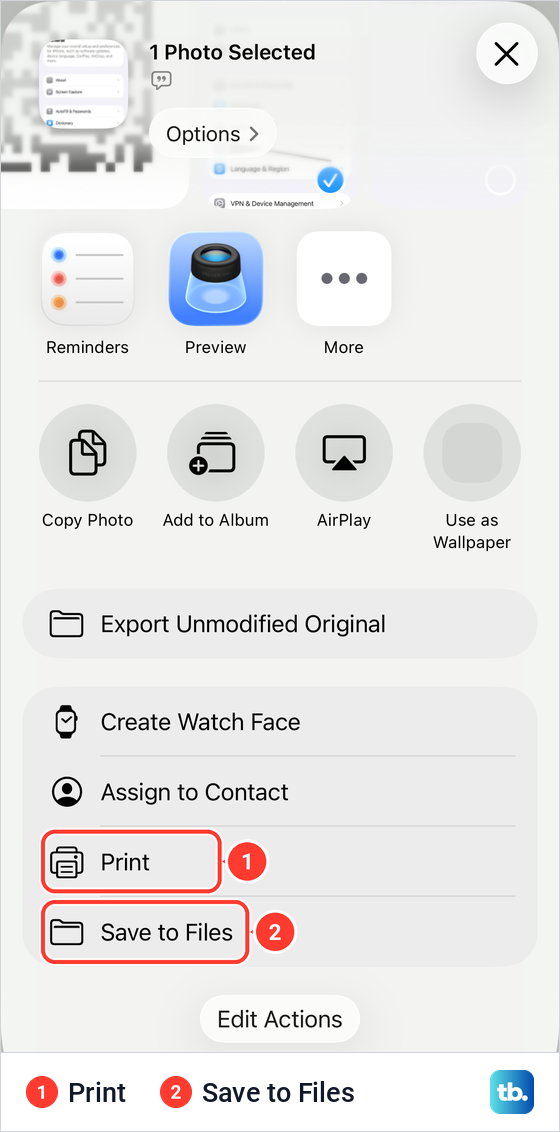
The share sheet opens with app icons and actions at the top. On iOS 26.5, Print was not on the first screen of the sheet, and we had to swipe up to reach it under Assign to Contact, just above Save to Files. Apple's instructions say the same: if you don't see Print, swipe up.
Tap Print and the Options screen appears. For a single screenshot we saw a Printer row reading No Printer Selected, Copies set to 1, Paper Size set to 4 x 6 inches, and a preview of the page labelled Page 1 of 1. With two pictures selected, the preview read Page 1 of 2, so expect one page per screenshot and swipe through the preview to check the order.
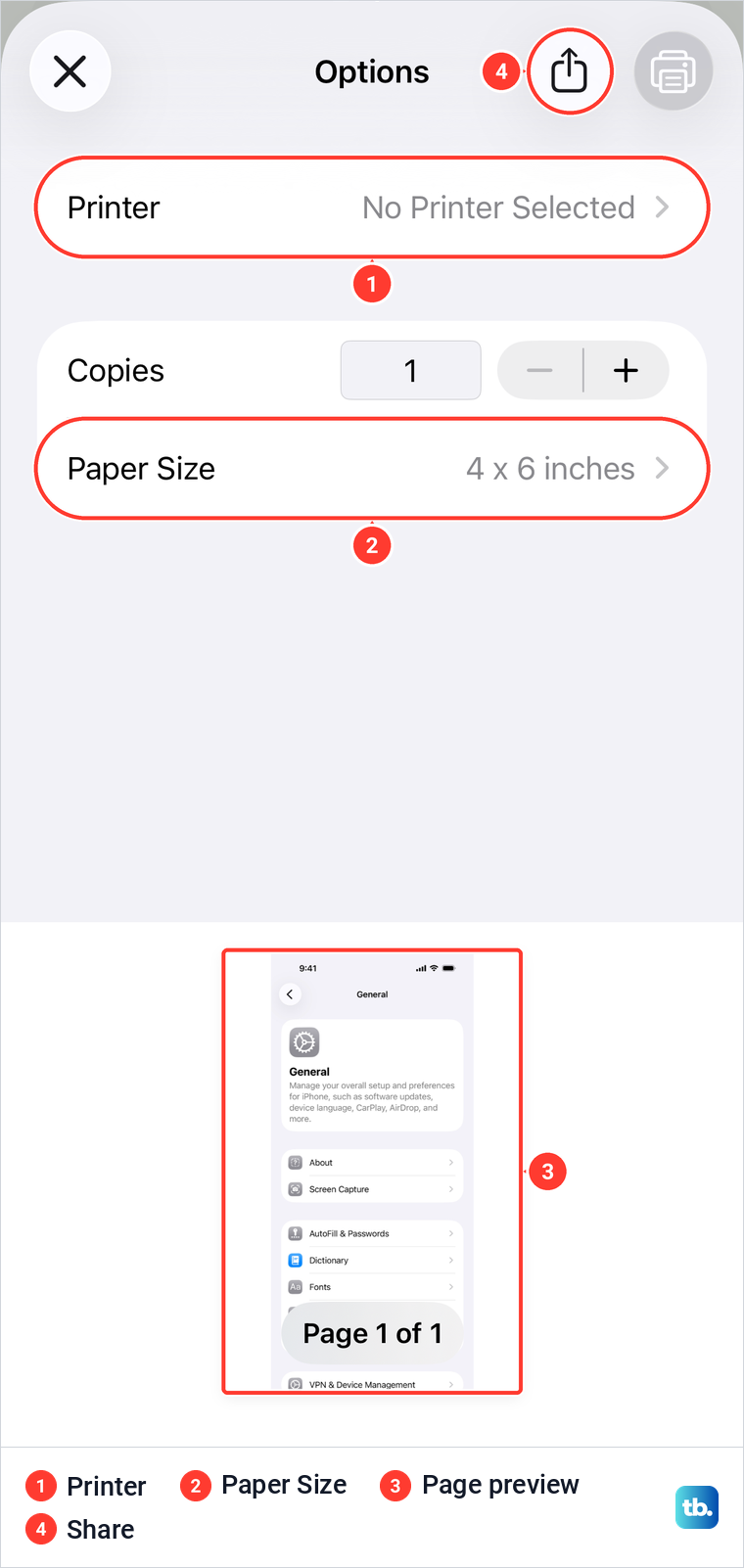
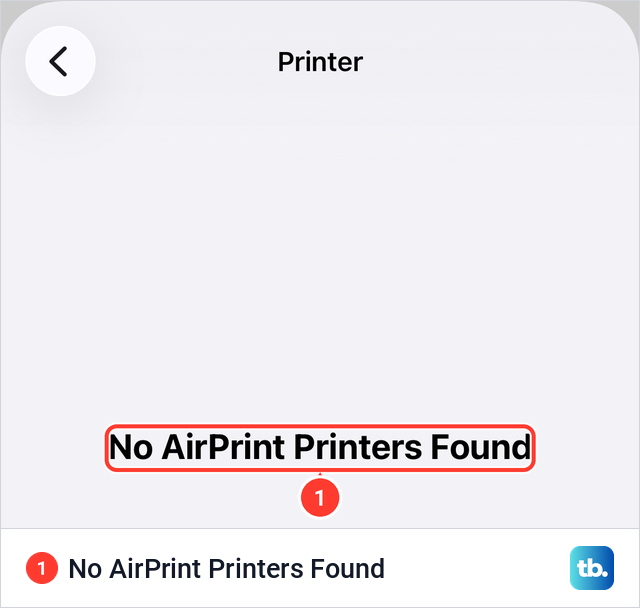
Tap No Printer Selected and pick your printer. Apple's requirements are an AirPrint-enabled printer and an iPhone on the same Wi-Fi network as the printer. The print button at the top right was greyed out while no printer was selected, and on an iPhone with no printer nearby the list said No AirPrint Printers Found.
Check the paper size after you pick the printer. Before a printer was chosen, our Paper Size list held photo and postcard sizes such as 4 x 6, 5 x 7 and 8 x 10 inches, A6 and Postcard, with no Letter or A4. Choose the printer and paper size, then tap Print at the top right. If your printer still does not appear, our guide on how to print from an iPhone with or without AirPrint covers the network and printer checks.
Save the screenshots as a PDF
You do not need a printer to make a PDF. On the same Options screen, tap the Share button beside the greyed print button. On iOS 26.5 it opened a second sheet titled Photo, described as a PDF Document, with Preview, Copy and Save to Files.
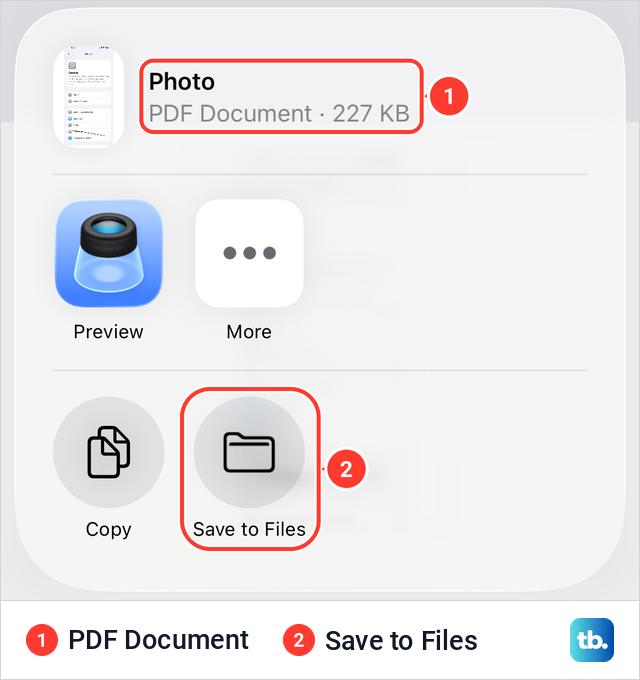
Tap Save to Files and choose a folder in the Files app, where you can email, upload or print the PDF later. The share sheet showed a PDF Document for one screenshot, so after saving several selected screenshots, open the file and check every page and its order. If you end up with one PDF per screenshot, you can combine the separate PDF files into one document.
If you would rather not go through the print screen, you can also save an iPhone photo as a PDF in other ways. Either way, a PDF of screenshots is a set of pictures of the conversation, not an export of the messages themselves.
Copy a few messages into Notes
For one or two messages, typed text can be easier to read than a screenshot. Apple's steps are to touch and hold the message, tap Select, select the text you want, then tap Copy. Paste it into a new note in the Notes app, and if the gestures are new to you, see how to copy and paste text on any device.
Copied text loses everything around it: the bubble, the sender and the time. Type the sender's name or number and the date and time above each quote, and compare them with the original before you print. To print the note, Apple says to open it, tap Share, then Print.
Apple also documents a PDF route for notes. Open the note, tap Share, then tap Markup, mark up the pages if you want, then tap Done to save the PDF. Treat this as a transcript you put together yourself, not a copy of the conversation, and do not offer it as the original anywhere it matters.
Print a conversation from a Mac
On a Mac, Messages can print a conversation directly. Apple's steps in Messages on Mac are to choose File > Print, and its list of shortcuts names Command + P as Print the conversation. To make a PDF instead of paper, open the PDF pop-up menu at the bottom of the print dialog and choose Save as PDF, then pick a name and a folder.
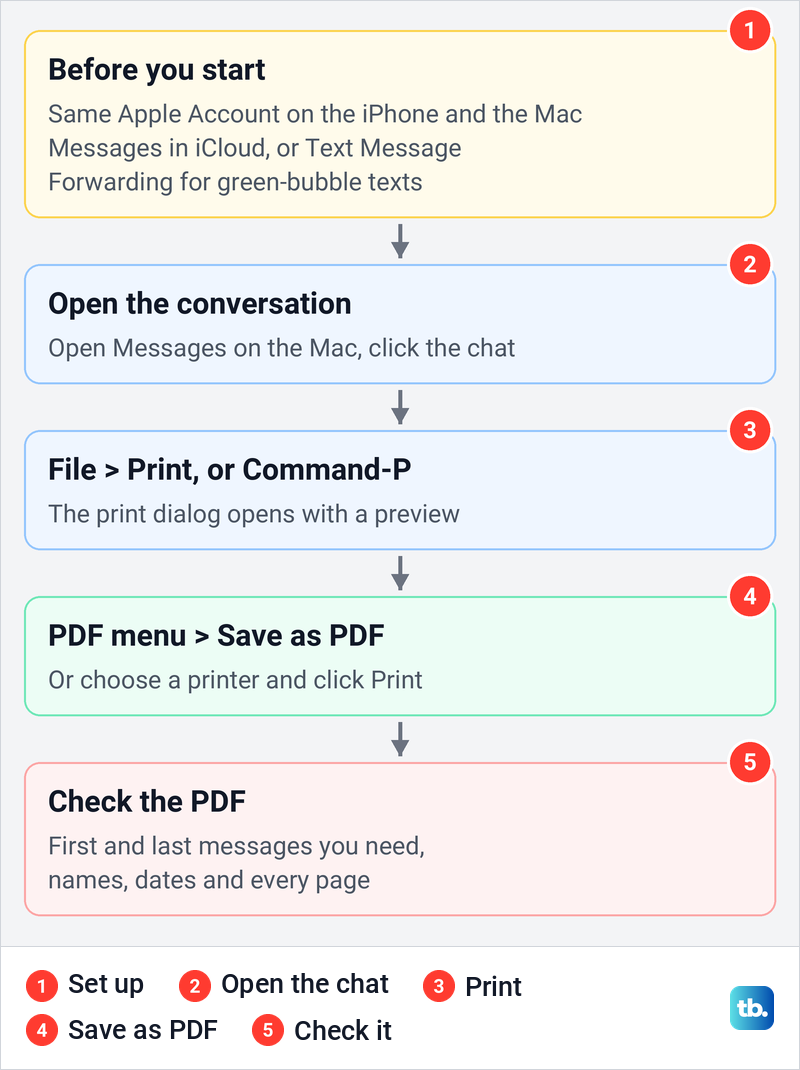
The conversation has to be on the Mac first. Apple says to sign in to the same Apple Account on every device, and with Messages in iCloud turned on, your entire message history is kept up to date across them, including SMS, MMS and RCS texts. If you still need to set up Messages on a Mac, do that before anything else.
Text Message Forwarding is the other setting Apple names. It shares your green-bubble texts with the Mac without Messages in iCloud, and Apple says availability varies by region and carrier. On our iPhone 17 Pro with iOS 26.6, the row sits in Settings > Apps > Messages, and Apple's step is to tap it and turn on your Mac.
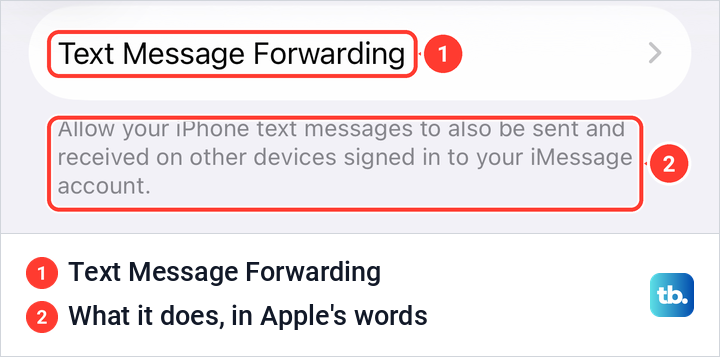
Apple's description of forwarding covers the messages you send and receive, while Messages in iCloud is the setting it describes as keeping your whole history in sync. If older messages are missing on the Mac, check Messages in iCloud first. If the Mac shows no blue-bubble history at all, check that Messages on the Mac is signed in with the same Apple Account, and that you enable iMessage on your iPhone with that account.
Apple does not say how much of a long thread lands in the printout, so check the result instead of trusting it. Scroll the conversation to the first message you need before you print, then page through the preview or the saved PDF. Look for the first and last messages, the names, the dates and any pictures that matter.
Print iPhone texts from a Windows PC
The print command for a conversation is in Messages on a Mac, so the free route on a Windows PC starts with the same screenshots. Take and check them on the iPhone as described above, then move the screenshots to a Windows PC and print them from there. Print them in the order you took them, and check the first and last pages against the phone.
Paid computer programs also exist that read an iPhone backup and export threads as a PDF or spreadsheet. Before you trust one with a private conversation, check what it keeps, such as names, times and pictures, what it costs, and where your messages go. Check a sample of the output against the phone before you rely on it.
Prepare text messages for court or another formal record
Start by making sure nothing disappears while you work. On our iPhone 17 Pro, Keep Messages sits under Message History in Settings > Apps > Messages and was set to Forever. Its page offers 30 Days, 1 Year and Forever, with the warning that the shorter choices will permanently delete older messages.
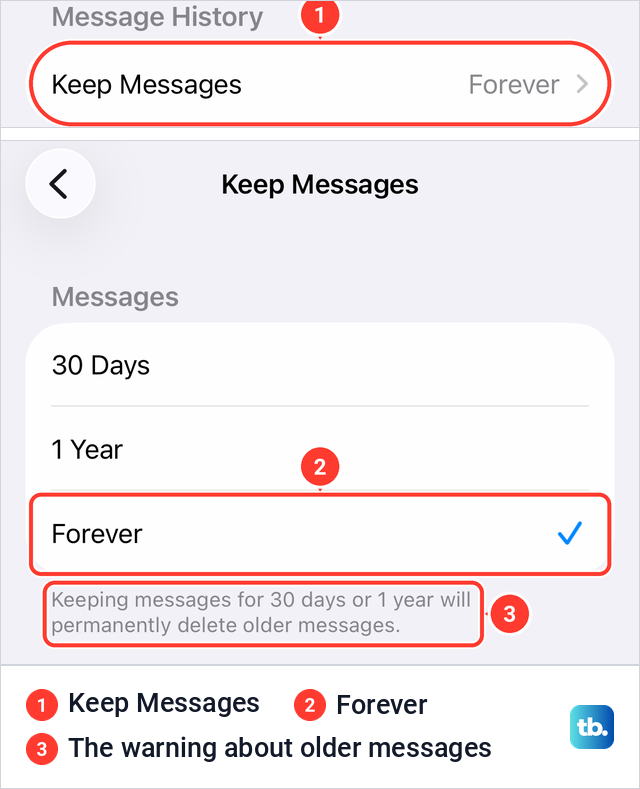
Leave it on Forever until the matter is over. If a lack of space is why you chose a shorter setting, get more storage on your iPhone another way. Apple also warns that with Messages in iCloud on, anything you delete from the iPhone is deleted from your other Apple devices too.
Make a copy of everything before you start cropping or stitching. Back up your iPhone, and keep a separate copy of the screenshots or PDF in another place, such as a computer or a drive. If part of the conversation has already gone, try to recover deleted messages on iPhone, starting with Recently Deleted in Messages. Ask your lawyer before you restore the phone from a backup, because Apple says you need to erase all of its content first.
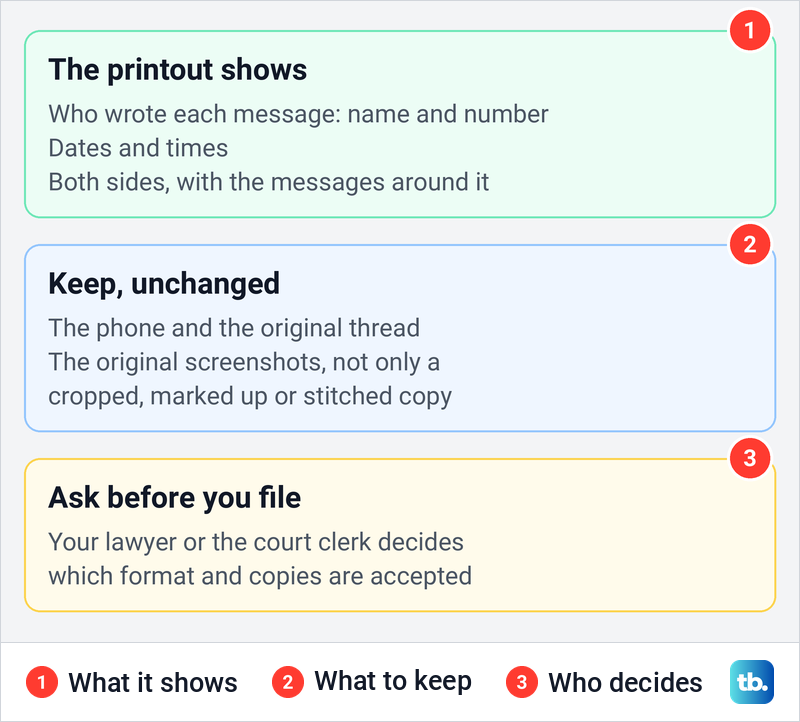
A useful printout shows who wrote each message, by name and phone number where you can, the dates and times, both sides of the exchange and the messages around the part that matters. Keep the original screenshots unedited, even if you also prepare a cropped or stitched copy. Label any copy you made, and never change the words of a message.
Printing does not make a message evidence on its own. The U.S. Federal Rules of Evidence, for example, require whoever offers an item to show that it is what they claim it is, and testimony from a witness with knowledge is one of the ways the rules list. State and local courts have their own rules, so your lawyer or the court clerk decides which format and how many copies are needed.
What your carrier can and cannot give you
Do not expect your phone bill or usage log to show the words of a conversation, and iMessage adds another barrier. Apple says iMessage uses end-to-end encryption, so there is no way for Apple to decrypt the content of your conversations in transit.
Green-bubble texts are different, because Apple says sending and receiving SMS is a service provided by your carrier. Verizon's transparency report says a warrant may be used to obtain stored content such as text message content, and that a law enforcement officer must show a judge probable cause to get one. Do not count on carrier records in a private case: treat the phone and your own screenshots as the record, and ask your lawyer before relying on anything from the carrier.
How we tested this guide
We tested this on iOS 26.5, taking screenshots and following the share sheet and print Options up to the printer list.
Frequently Asked Questions
Can I print a whole iPhone text conversation at once?
Apple does not document a direct print or export command for a conversation in Messages on iPhone, so on the phone you print screenshots instead. On a Mac signed in to the same Apple Account, open the conversation in Messages and choose File > Print, then check the preview for the range you need.
How do I show the date and time on printed text messages?
Drag a message bubble to the left before you take the screenshot, and the times appear beside the messages. If they slide away when you let go, keep dragging with one finger while you press the screenshot buttons.
Can I save iPhone text messages as a PDF without a computer?
Yes, as screenshots. Select them in Photos, tap Share, then Print, and on the Options screen tap Share and choose Save to Files. For a short quote, Apple's Notes app can also save a note as a PDF.
Will a full page screenshot capture a whole text conversation?
Do not rely on it. Apple's example for Full Page is a webpage in Safari, and on iOS 26.5 a screenshot of a Settings screen offered no Full Page tab. Take ordinary screenshots that overlap by one message instead.
Are printed text messages accepted in court?
That depends on the court and the case, not on the printout. Keep the phone, the thread and the original screenshots, and ask your lawyer or the court clerk what format they need.
Can my phone carrier print my text messages for me?
Do not expect the words of a conversation from an ordinary bill or usage log, and iMessage content is encrypted end to end. Verizon says a warrant, which law enforcement gets from a judge, may be used to obtain stored text message content. Treat the phone and your own screenshots as the record, and ask your lawyer about anything more.