Trying to undownload apps on iPhone gets confusing because deleting, offloading, hiding, and removing an icon all do different things. Use the right option and you'll clear storage, tidy the Home Screen, or keep app data without deleting the wrong thing.
Delete an app from the Home Screen
Touch and hold the app icon on your Home Screen until the shortcut menu opens.
Tap Remove App.
Tap Delete App.
Tap Delete to confirm.
If Delete App is missing for a regular App Store app, fix Screen Time restrictions before trying again.
Remove the icon but keep the app
Use this when you only want to clean up your Home Screen. The app stays installed on your iPhone and remains available in App Library, which Apple added in iOS 14.
Touch and hold the app on your Home Screen.
Tap Remove App.
Tap Remove from Home Screen.
Open App Library later when you want to find or use the app again.
Delete an app from App Library
Use App Library when the app is no longer sitting on your Home Screen.
- 1.Go to App Library and tap the search field to open the app list.
- 2.Find the app you want to remove.
- 3.Touch and hold the app icon.
- 4.Tap Delete App.
- 5.Tap Delete again to confirm.
Offload one app and keep its data
Open Settings.
Tap General.
Tap iPhone Storage.
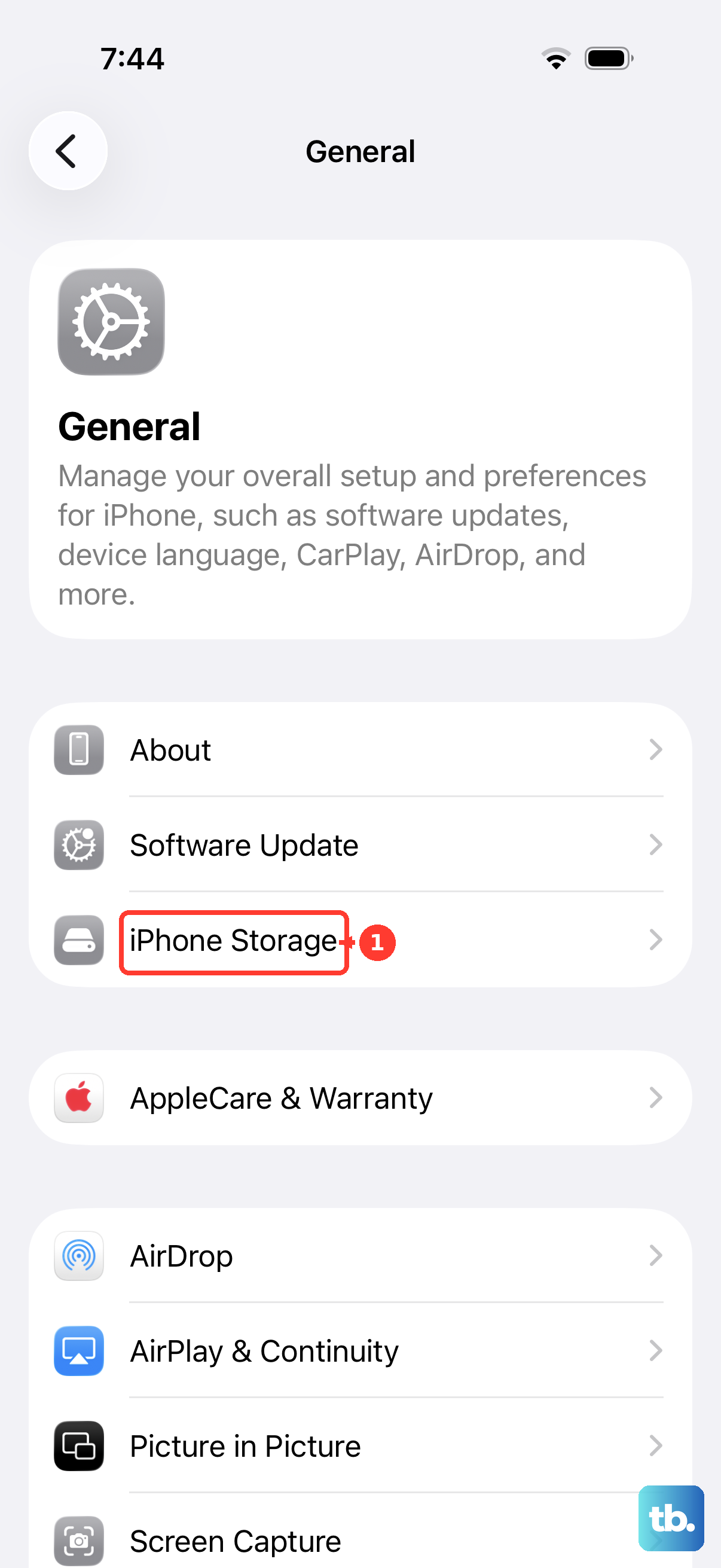
Tap the app's name.
Choose Offload App to offload the app, then confirm when prompted.
Offloading frees the storage used by the app while keeping its documents and data.
Turn on automatic offloading
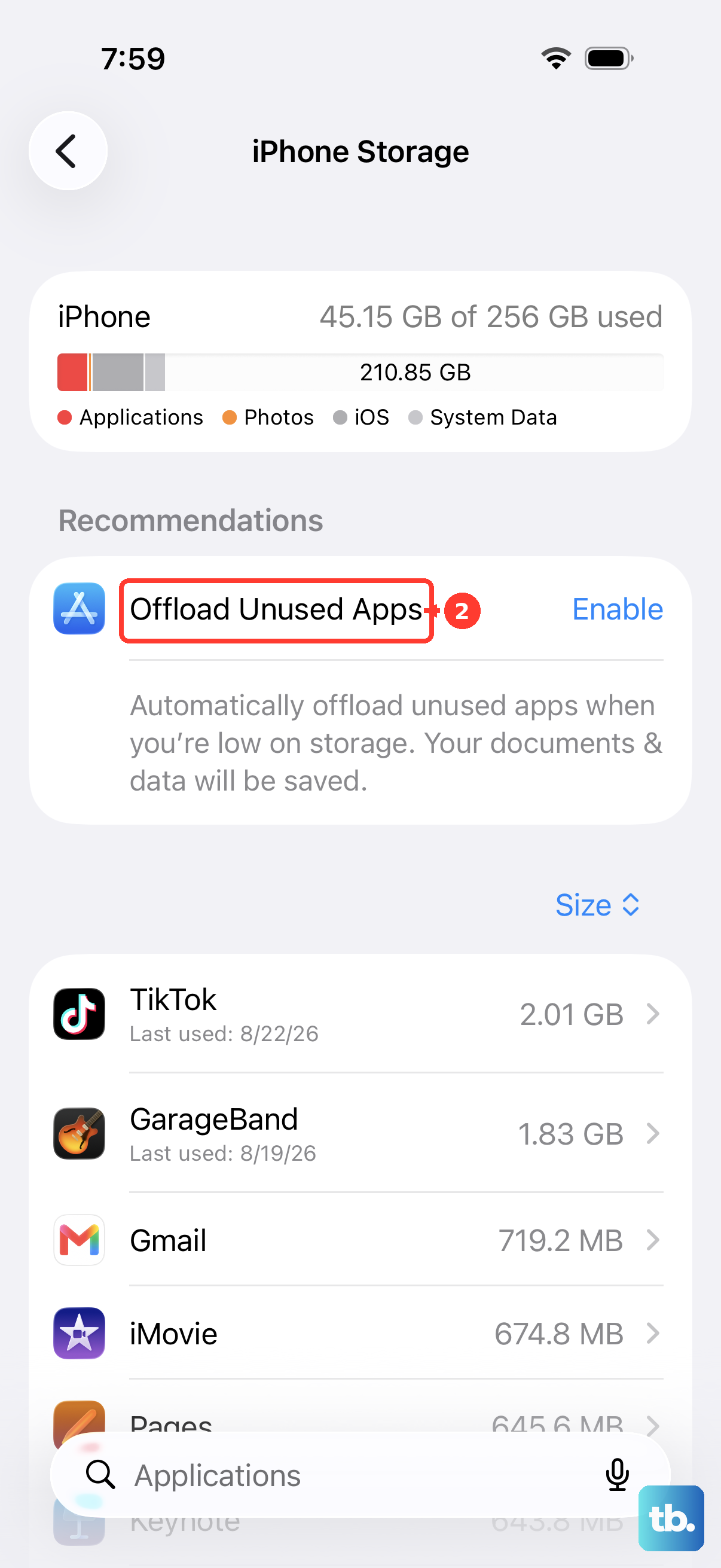
Use this when your iPhone keeps running low on storage. iPhone removes unused apps when storage is low and keeps their documents and data.
Open Settings.
Tap Apps.
Tap App Store.
Turn on Offload Unused Apps.
Tap an offloaded app icon with the cloud symbol when you want to reinstall it.
Hide an app instead of undownloading it
Hiding is for privacy, not storage cleanup, and it needs iOS 18 or later. On the Home Screen, touch and hold the app, then tap Require Face ID, Require Touch ID, or Require Passcode.
Tap Hide and Require Face ID, Hide and Require Touch ID, or Hide and Require Passcode, authenticate, then tap Hide App. This hides access to the app but does not uninstall it.
Hiding works only for apps downloaded separately from the App Store. Built-in apps, default browser apps, and default app marketplaces in the EU cannot be hidden.
Delete built-in Apple apps that support removal
Touch and hold the built-in Apple app you want to remove.
Tap Remove App or Delete App from the shortcut menu.
Tap Delete App or Delete from the submenu.
Some built-in Apple apps cannot be deleted, and deleting a built-in Apple app from iPhone also deletes its related Apple Watch app when it is installed.
Fix a missing Delete App option
This fixes a removable app that does not show Delete App.
Open Settings.
Tap Screen Time.
Tap Content & Privacy Restrictions.
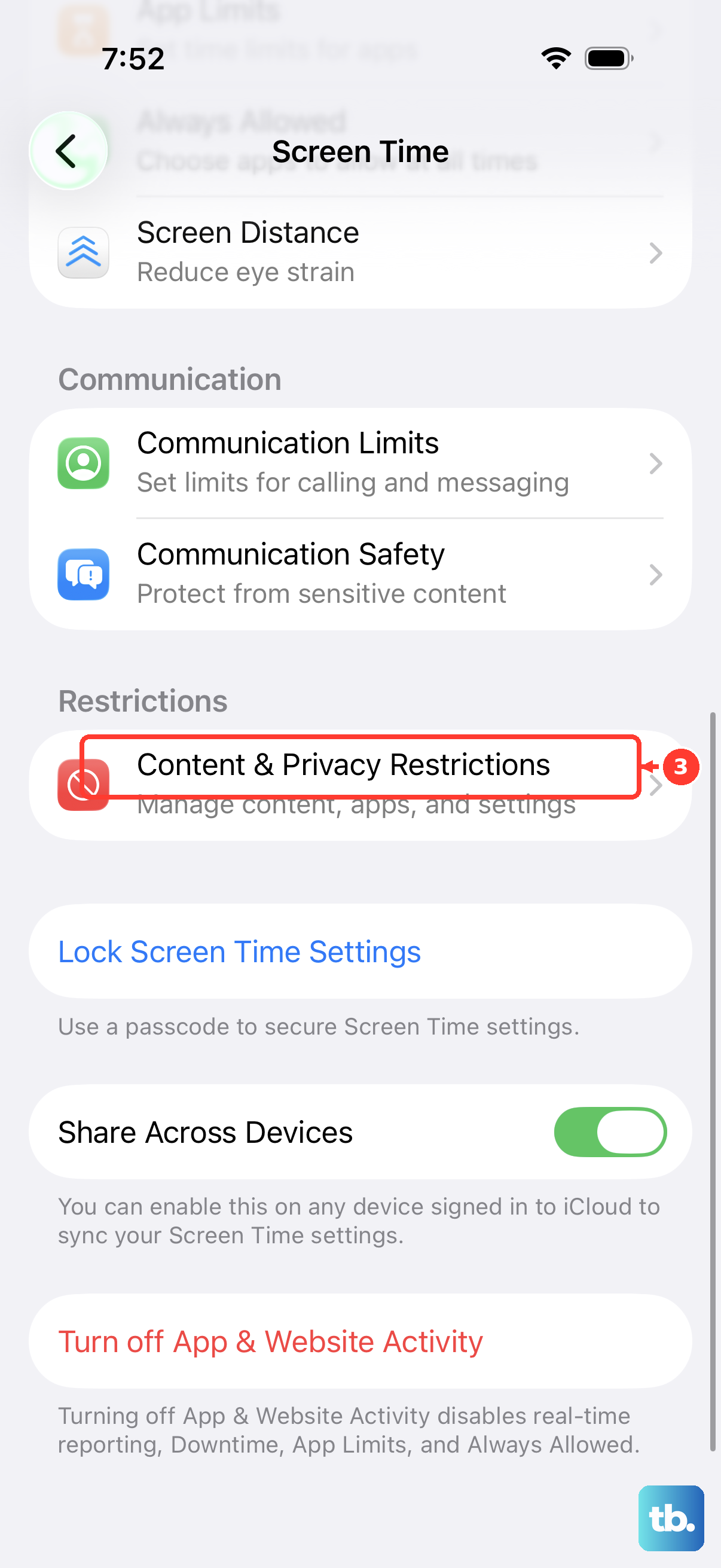
If that switch is off, Screen Time is not what is blocking the deletion, so check Settings > General > VPN & Device Management for a management profile instead. If it is on, leave it on and carry on.
Tap iTunes & App Store Purchases.
Set Deleting Apps to Allow.
Try deleting the app again from the Home Screen or App Library.
Handle work phones and old iTunes advice
On a work or school iPhone, the organization that manages the device controls app removal. Admin settings can block removing installed apps, block removing native Apple apps, or mark a managed app as nonremovable.
When a managed app is marked nonremovable, iPhone prevents deleting or offloading it and shows an alert. Only the organization that manages the device controls that setting.
Older iTunes app-management instructions are not the current way to delete one iPhone app. For individual app removal, use the controls on iPhone; Finder, Apple Devices, and iTunes are documented for restoring the whole iPhone.
Frequently Asked Questions
Can I redownload an app after deleting it?
Yes. Open App Store, tap your account button or photo, tap Apps & Purchase History, tap Your Apps, choose Not on this iPhone, then tap the redownload button.
Does hiding an App Store purchase delete the app?
No. Hiding a purchase removes it from the App Store purchase list and Family Sharing redownload list; it does not remove the app from a device or erase purchase history.
Does turning off iCloud Backup for an app uninstall it?
No. Settings > your name > iCloud > Storage or Manage Account Storage > Backups controls backup data, not the installed app.
Should I erase my iPhone to undownload one app?
No. Erase All Content and Settings removes apps, personal information, content, and settings, so it belongs to reset, sale, or full troubleshooting situations.











