
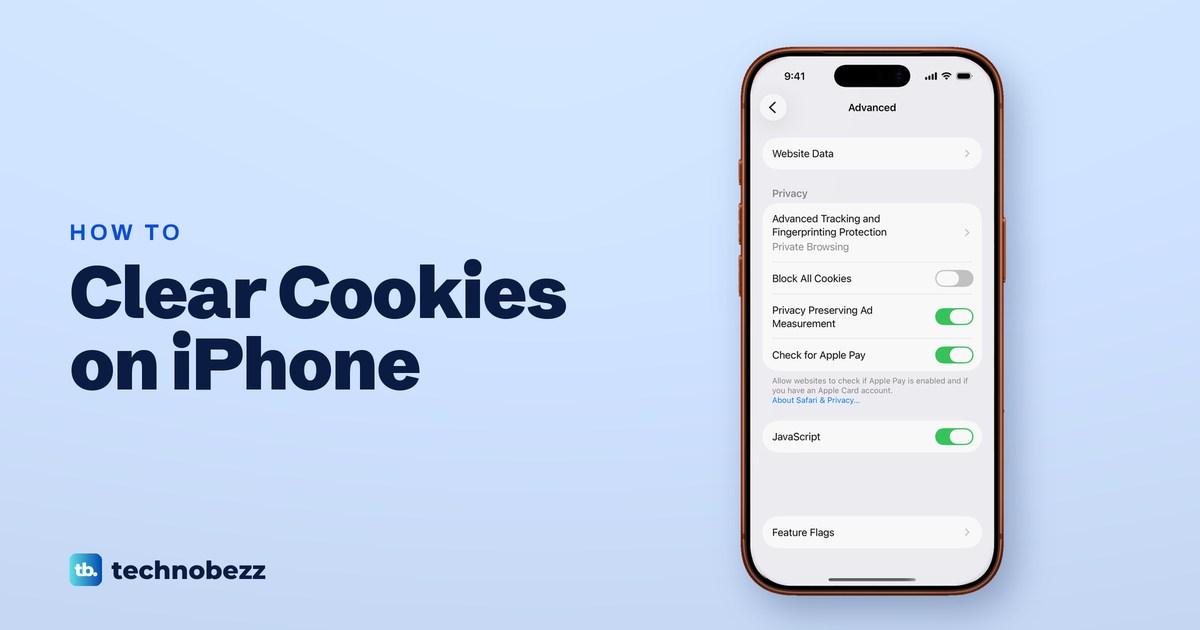
To clear cookies on iPhone without deleting your history, open Settings, tap Apps, then Safari, Advanced and Website Data, and tap Remove All Website Data, then Remove Now. To delete cookies, cache and history in one go, tap Clear History and Website Data on the same Safari settings page and pick All history. Chrome keeps its own cookies, so you clear those inside Chrome.
Expect to sign in to websites again afterwards. Apple says Remove Now clears data that websites use to save login information, and that clearing history and website data doesn't change your AutoFill information. On iOS 26.5 we used Remove All Website Data, Clear History and Website Data and Block All Cookies in Settings.
The short version
- Keep your history: Settings > Apps > Safari > Advanced > Website Data > Remove All Website Data > Remove Now.
- Cookies and history together: tap Clear History and Website Data and make sure All history is ticked before you tap Clear History.
- Expect sign-outs: websites ask you to sign in again. Apple says a history clear doesn't change your AutoFill information.
- Chrome is separate: tap More > Delete Browsing Data, and change the Time Range, which Google sets to 15 minutes by default.
Which cookie option to use
| What you want | Where to go | What it removes | What stays |
|---|---|---|---|
| Clear all Safari cookies and keep history | Settings > Apps > Safari > Advanced > Website Data > Remove All Website Data | Cookies and website data for every site | Your Safari history |
| Clear cookies and history together | Settings > Apps > Safari > Clear History and Website Data, with All history ticked | History, recent searches, cookies, and location and notification permissions you gave sites | Your AutoFill information |
| Stop sites saving cookies | Settings > Apps > Safari > Advanced > Block All Cookies | Existing cookies and website data, then blocks new ones | History, but many sign-ins stop working |
| Clear Chrome's cookies | Chrome > More > Delete Browsing Data, then Cookies, Site Data | Chrome's cookies and site data for the Time Range you pick | Saved passwords, which Google deletes separately |
| Leave no cookies behind next time | An Incognito tab in Chrome | Chrome removes them when you close all Incognito tabs | Your normal Chrome cookies |
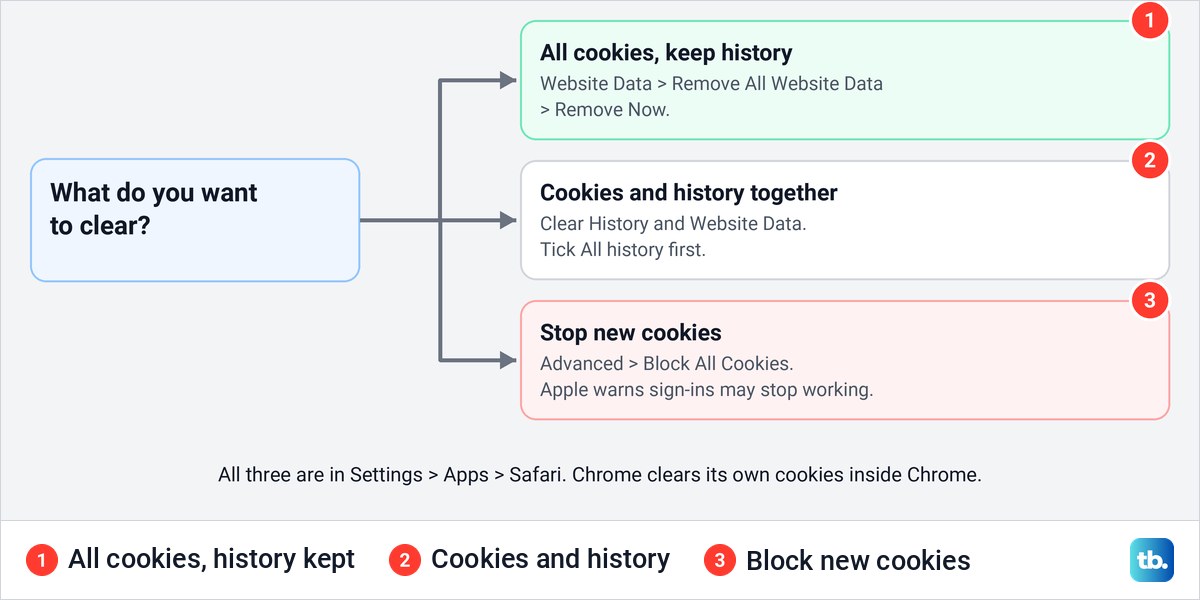
The three Safari routes in this table are all in the Settings app, and Safari's own History screen can also clear history and cookies together. Every other browser keeps its own cookies, so clearing Safari leaves Chrome's cookies alone, and the other way round. The chart below matches the three Safari options to what you want gone.
Clear all Safari cookies and keep your history
Apple calls this route clearing cookies and cache but keeping your history, so it signs you out of websites without touching the list of pages you visited. Open Settings, tap Apps, then tap Safari.
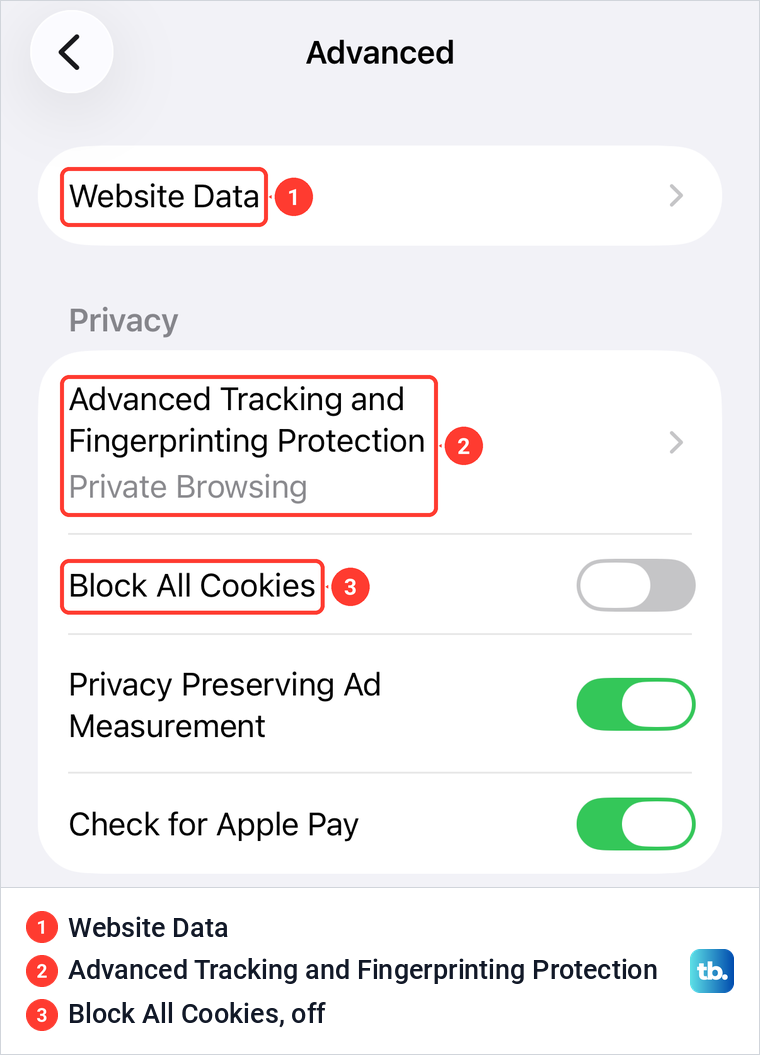
Scroll to the bottom of the Safari page and tap Advanced, the last row. On iOS 26.5 the Advanced screen opened with Website Data at the top, followed by a Privacy group that holds Advanced Tracking and Fingerprinting Protection and Block All Cookies.
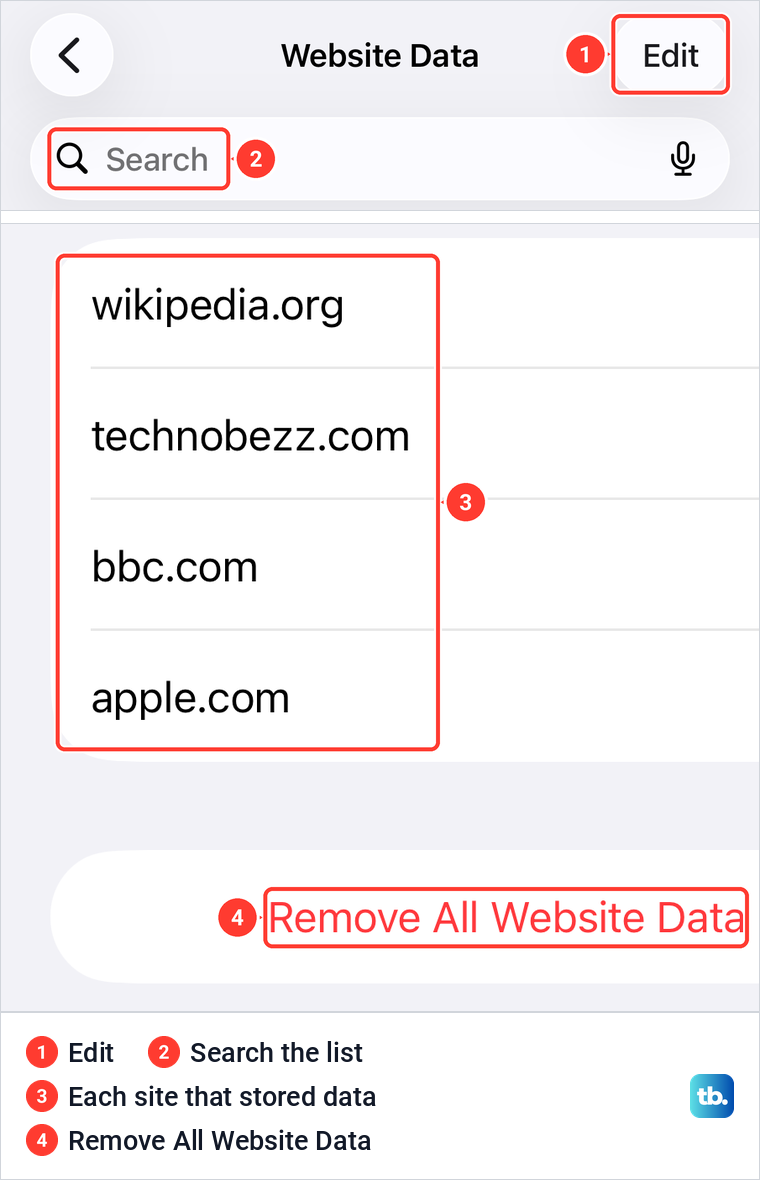
Tap Website Data. It lists every site that has stored data on the iPhone, with a Search field above the list and a red Remove All Website Data button below it. When we opened it, the sites we had just visited in Safari were already in the list.
Tap Remove All Website Data. iOS 26.5 asks you to confirm with a short warning: "This will clear data that could be used for tracking, but is also used by websites to preserve login information and to speed up browsing." Tap Remove Now to clear everything, or Cancel to leave it as it is.
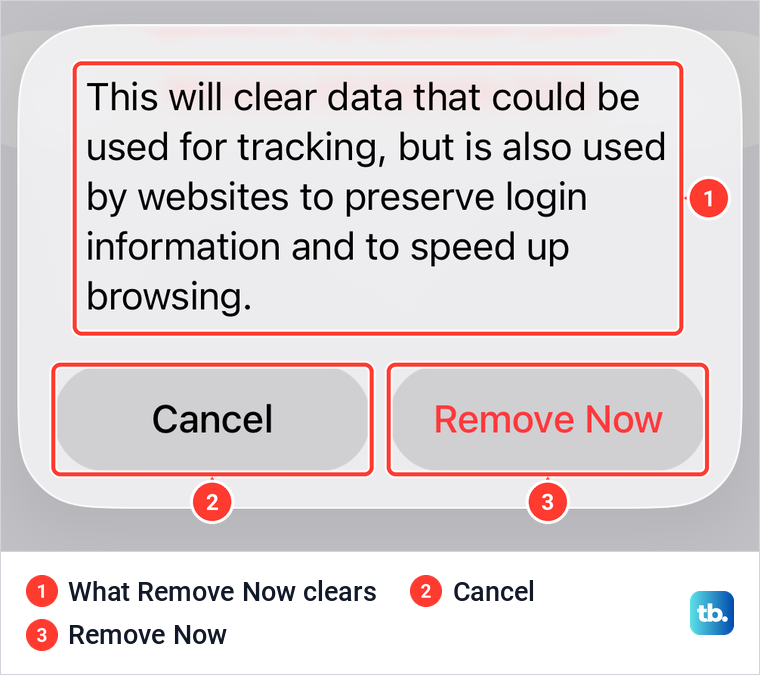
Both times we tapped Remove Now, Settings went straight back to the Advanced screen, with no message saying that anything was removed. Open Website Data again if you want to check the list.
When only one website misbehaves
Clearing every site signs you out everywhere, which is more than you need when one shopping site or forum misbehaves. To check whether that site has stored data on your iPhone, open the same Website Data list and type part of its name in the Search field at the top.
Remove All Website Data clears that site's data together with every other site's. If the site still fails after its data is gone, work through our fixes for Safari not loading websites. The same goes for a page where Safari keeps reloading and shows A Problem Repeatedly Occurred on that one site.
Clear cookies and history together
Clear History and Website Data removes far more than cookies. Apple says it erases the history of websites you visited and your recent searches, and also removes the cookies and permissions you granted to websites to use your location or send you notifications. Use it when you want a clean slate rather than a quick fix.
Open Settings, tap Apps, then Safari, and scroll to the History and Website Data group. Tap Clear History and Website Data, and a Clear History sheet opens with four timeframes: Last hour, Today, Today and yesterday, and All history.
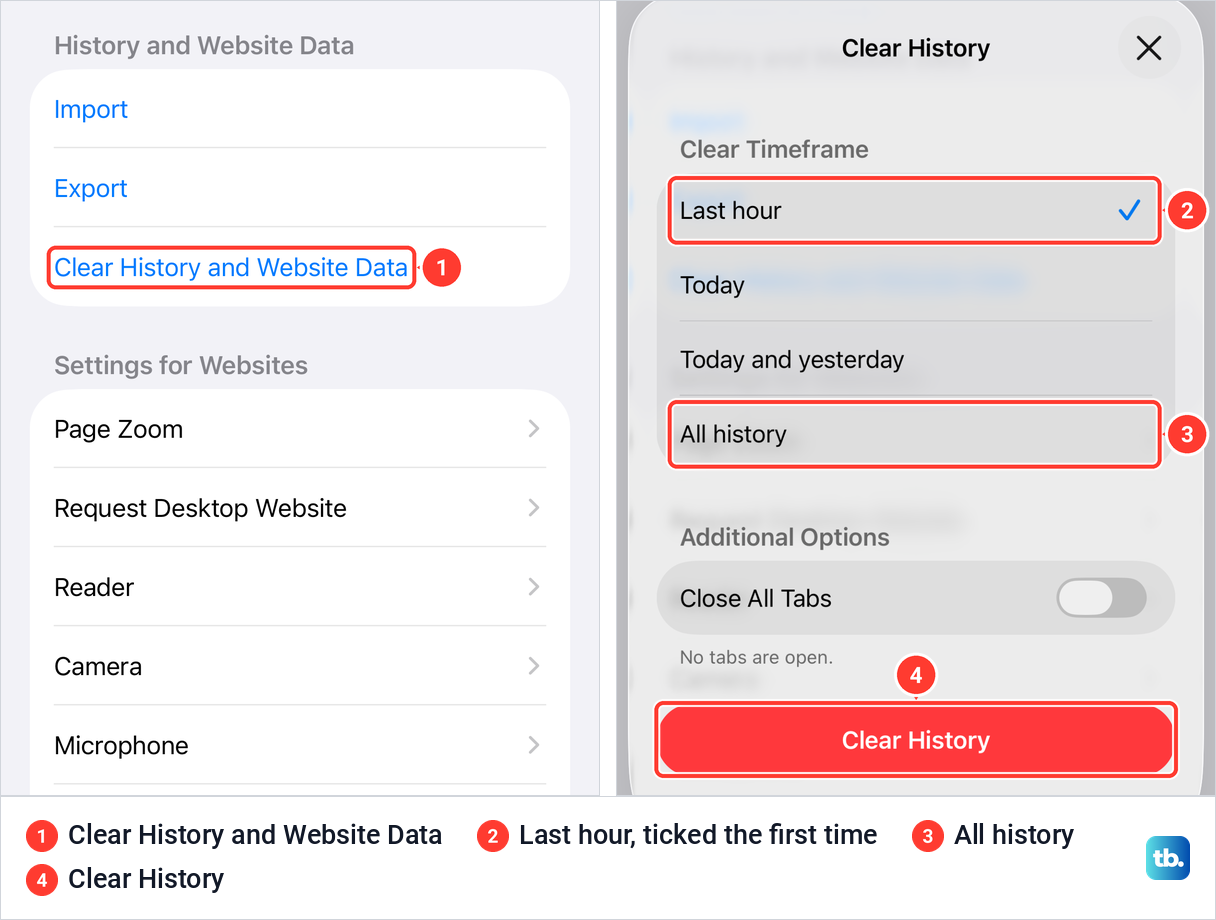
Check the tick before you tap anything else. The first time we opened the sheet on iOS 26.5, Last hour was ticked, which would clear only the last hour. After we had cleared with All history, the sheet opened on All history the next time, so it does not always start on the same choice. Tick All history, then tap the red Clear History button.
Close All Tabs, under Additional Options, was off both times we opened the sheet, so your open tabs stay unless you turn it on. If you use Safari profiles, Apple says you can clear the history of one profile or pick All Profiles.
The cookies went with the history when we tried it. After an All history clear, the sites we had opened just before it were gone from Website Data, and only the two sites we visited afterwards were listed. For the History screen inside Safari and its own Clear button, our guide to clearing your Safari browsing history walks through it.
What clearing cookies signs you out of
Websites you were signed in to will ask you to sign in again. Apple says Remove Now clears data used by websites to save login information, and Google gives the same warning for Chrome: "If you remove cookies, you'll be signed out of websites and your saved preferences could be deleted." Google adds that some settings on sites get deleted along with them.
Apple says clearing history and website data doesn't change your AutoFill information. If a site asks for a password that does not fill in by itself, you can find your saved passwords and copy it from there. Have your sign-in details for important sites ready before you clear, especially any that send a code to another device.
Apple says a history clear also removes the permission you gave sites to use your location or send notifications, so those sites ask again. Apple's list of what Safari keeps in iCloud names your history, bookmarks, open tabs and profiles, and Apple says changes on one device appear on your other devices, but the list does not name cookies or website data.
Block all cookies in Safari
Block All Cookies stops sites from saving new cookies and deletes the ones already there. It sits on the same Advanced screen as Website Data, and on iOS 26.5 it was off until we turned it on.
Open Settings > Apps > Safari > Advanced and turn on Block All Cookies. iOS asks "Are you sure you want to block all cookies?" and warns: "Websites may not work if you do this. It will remove existing cookies and website data. Safari will quit and your tabs will be reloaded." Tap Block All to go ahead.
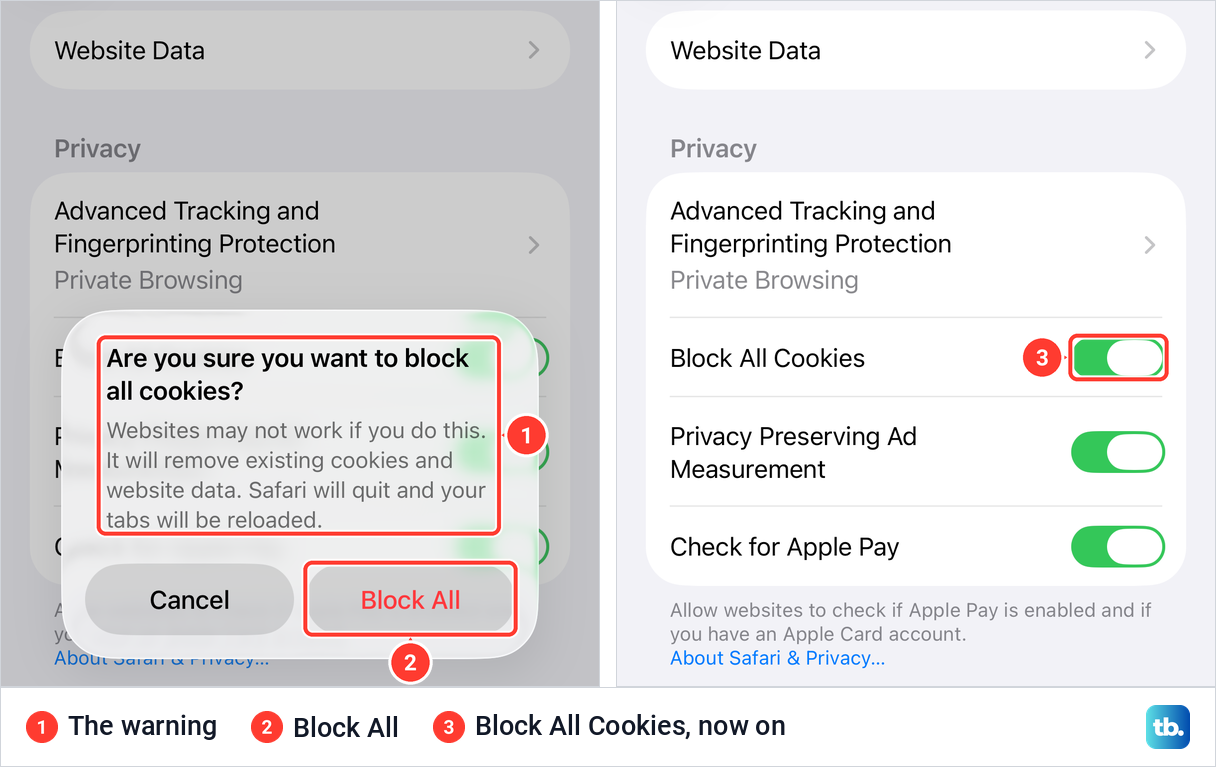
Apple's list of what breaks starts with signing in. Apple says you will likely not be able to sign in to a site, even when using your correct username and password, that you might see a message saying cookies are required, and that some features on a site might not work.
We turned the switch back off straight away, and that is what most people should do. To undo it, go back to Advanced and turn off Block All Cookies, or follow our steps to allow cookies on iPhone again if a site keeps saying they are off.
Stop tracking cookies without blocking every site
You rarely need Block All Cookies to stop tracking. Apple says Prevent Cross-Site Tracking, a switch on the Safari settings page, limits third-party cookies and data by default, so leave it on. Apple adds that Safari's Privacy Report shows a summary of the trackers Intelligent Tracking Prevention found and prevented on the page you are visiting.
For more control, Apple's steps are to download a content blocking app from the App Store, then go to Settings > Apps > Safari > Extensions and turn it on. On iOS 26.5, Extensions sat in the General group of Safari's settings, between Block Pop-ups and Downloads.
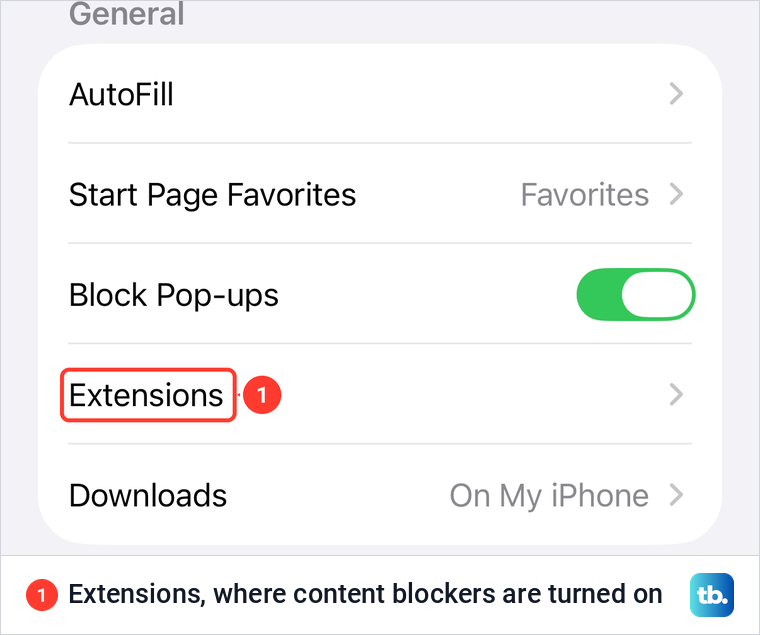
Safari's switches only cover websites. On iOS 26.5, Settings > Privacy & Security has a separate Tracking row for apps, so you can also turn off ad tracking on your iPhone while you are there.
Clear cookies in Chrome on iPhone
Chrome keeps its own cookies, so nothing in the iPhone's Settings app touches them. Google's steps are to open Chrome, tap More, then Delete Browsing Data. A window opens where you set a duration and choose what to delete.
Check the Time Range first. Google says the default time range duration is 15 minutes, so pick a longer duration if you want older cookies gone. Then tap Browsing Data, select Cookies, Site Data and untick anything else you want to keep, such as Browsing History. Tap Confirm, then Delete Browsing Data.
Leave Autofill Data unticked if you want Chrome to keep your form entries, since Google lists it as a separate item. Google also gives a Settings route through More > Settings > Privacy and Security > Delete Browsing Data, and a shortcut: type "Delete browsing data" in the address bar and tap the Action chip.
If a page only looks out of date and you want to stay signed in, clear only the cache in Chrome instead. Google lists Cached Images and Files as its own item, so you can tick it and leave cookies alone.
Google warns that clearing cache and cookies might sign you out of your Google Account, and suggests updating your recovery phone number and email address first. To sign out of your Google Account on every website at once, Google says to sign out of Chrome itself.
Two things are not touched by this clear. Google says saved passwords are deleted separately in the Google Password Manager, and that searches are saved to your Google Account, so you delete your Google search history there. If you sync Chrome, Google says data saved to your Google Account is also removed from your other signed-in devices.
Clear cookies in other iPhone browsers
Brave's help says to tap Menu, then All Settings, then Shields & Privacy, choose the data types you want to remove and tap Clear Data Now, and it warns that this action cannot be reversed. For a single site, Brave's Shred erases the data that site stored on your device and closes every tab open to it. Brave says you reach Shred from a long press on the tabs button or from the Shields menu.
Firefox and other browsers keep their own cookies too, so clearing Safari or Chrome leaves theirs in place. Google's advice for them is to check that browser's support site.
Use Private Browsing or Incognito next time
Private Browsing keeps a session apart from your normal one. Apple says private tabs don't appear in History on iPhone or in the list of tabs on your other devices, and since iOS 17 Safari locks them after a period of inactivity, so they open only with your passcode, Face ID or Touch ID.
Private tabs sit in their own group. You can turn Private Browsing off again by switching to another Tab Group, which Apple says leaves the private tabs open and locks Private Browsing.
Google spells out what happens to cookies in Chrome's Incognito mode. It says Chrome temporarily keeps cookies and site data during an Incognito session and removes them when the session ends, which happens when you close all Incognito tabs. To open an Incognito tab, tap More, then New Incognito Tab, and to close them all, tap Switch tabs, the Incognito icon, then Edit > Close All Tabs.
When the clear buttons are gray
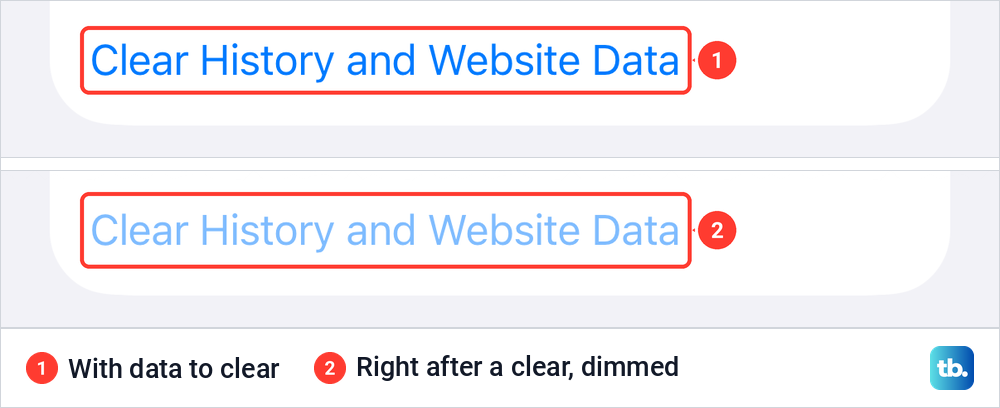
Apple gives two reasons why Clear History and Website Data or Remove All Website Data can be gray. Either there is no data to clear, or you might need to check your web content restrictions in Screen Time. The first is normal: right after we cleared, the row on the Safari page turned a faded blue.
The second is common on a child's iPhone. Apple says Limit Adult Websites is on by default for children under 18, and our guide to Screen Time website limits shows where those limits are set and changed.
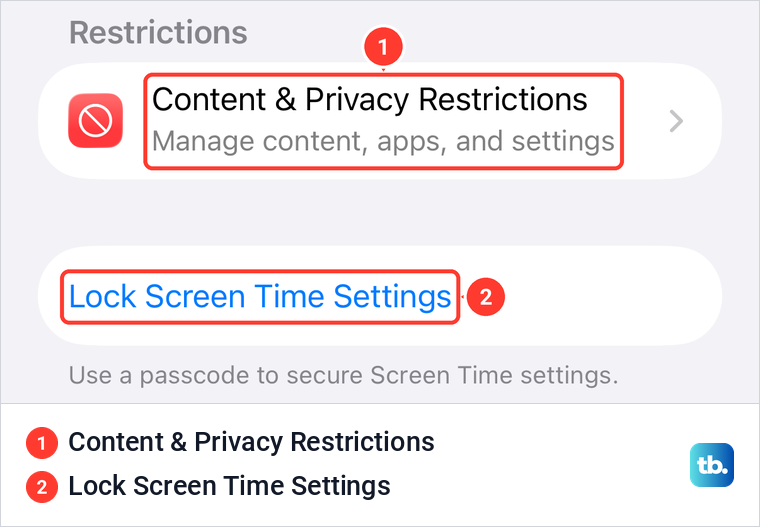
On iOS 26, Apple's steps go through Settings > Screen Time > Content & Privacy Restrictions, then App Store, Media, Web, & Games, then Web Content. On iOS 26.5, Lock Screen Time Settings sat just below it, the option that puts a passcode on these settings.
On the parent's iPhone with iOS 27, Apple moves this to Settings > Family, your child's name, Apps & Websites, Restrictions, then Filtering under Websites, and asks for the Screen Time passcode if one is set. On a work or school iPhone, ask whoever manages it.
If your iPhone runs an older or newer iOS
Apple's guides put Safari's settings under Settings > Apps > Safari from iOS 18 onward. On iOS 17 and earlier, Apple's steps start from Settings > Safari instead, without the Apps step.
On iOS 27, Apple words the Settings steps the same way as on iOS 26, with Block All Cookies still under Advanced. Clearing history inside Safari changes, though. Apple's iOS 26 route is More, Bookmarks, History, More, Clear, while on iOS 27 you start from the start page and tap Show Bookmarks, History, More, then Clear History.
How we tested this guide
We tested this on iOS 26.5 with Safari, removing website data with Remove Now and clearing the browsing history.
Frequently Asked Questions
Will clearing cookies log me out of websites?
Yes, in that browser. Apple says Remove Now clears data websites use to save login information, and Google says that if you remove cookies, you'll be signed out of websites. Sign in again the next time you open each site.
Does clearing cookies delete my saved passwords?
Passwords are not on Apple's list of what a clear removes, and Apple says clearing history and website data doesn't change your AutoFill information. In Chrome, Google lists saved passwords as data that doesn't get deleted with cookies.
Does clearing Safari history also clear cookies?
Yes. Apple says clearing history also removes the cookies and the permissions you gave websites to use your location or send notifications. After our All history clear, the sites we had opened before it were gone from Website Data.
Does clearing cookies in Safari clear them in Chrome?
No. Each browser keeps its own cookies. Clear Chrome's from More > Delete Browsing Data inside Chrome.
If I clear cookies on my iPhone, are they cleared on my Mac too?
Apple's list of what Safari syncs through iCloud includes history, bookmarks, open tabs and profiles, but it does not include cookies or website data. To be sure a Mac or iPad holds no old cookies, clear them on that device as well.
Will clearing cookies make my iPhone faster?
Not for browsing, at first. Google says that after you clear cache and cookies, some sites can seem slower because content, like images, needs to load again. Clear cookies to fix a site or to sign out, not for speed.
Does offloading a browser app clear its cookies?
No. Apple says offloading an app frees up the storage it uses but keeps its documents and data. Deleting the app removes it and its related data, but clearing cookies in the browser's own settings does the job without reinstalling anything.