

To take a screenshot on iPhone, quickly press and release the side button and the volume up button together on a Face ID iPhone, or the side button and the Home button on a Home button iPhone. Older models use the top button and the Home button. On iOS 26 the screenshot then opens full screen to crop, mark up, save or delete, and one setting brings back the corner thumbnail.
We followed the whole flow on iOS 26.5, from the first screenshot to the Screenshots album in Photos. Three things surprised us: a one-time card on the first capture, a full page capture that offered only a PDF, and a Screenshots album that was not there until we saved our first screenshot.
The short version
- Face ID iPhone: press Side + Volume Up together, then let go quickly.
- Home button iPhone: press Side + Home, or Top + Home on older models.
- Keep it: crop or mark it up, tap the checkmark, then choose Save to Photos.
- A whole web page: tap Full Page in the editor and save it as a PDF in Files.
- No buttons: use AssistiveTouch, Back Tap or Siri.
- Find it later: Photos > Collections > Media Types > Screenshots.
iPhone screenshot methods at a glance
Every iPhone that runs iOS 26 uses one of the first two button pairs below. Apple's list of iOS 26 models starts at iPhone 11 and includes the second and third generation iPhone SE, the only ones with a Home button and a side button.
| Method | Use it for | What happens next |
|---|---|---|
| Side + Volume Up | Any iPhone with Face ID | On iOS 26, the screenshot opens full screen by default |
| Side + Home | iPhone SE and other Home button models with a side button | On iOS 26, the screenshot opens full screen by default |
| Top + Home | Older Home button models with the button on top | These models cannot run iOS 26, so the full-screen editor does not appear |
| AssistiveTouch | An iPhone with a broken or stiff button | Tap the floating button, set up to take a screenshot |
| Back Tap | One-handed use | Double or triple tap the back of the phone |
| Full Page | A Safari page longer than the screen | The whole page, saved as a PDF in Files |
The top button pair is for older models that cannot run iOS 26, so they do not get the editor described below. The last three rows need a minute of setup or a different capture, all covered below.
Take a screenshot with the buttons
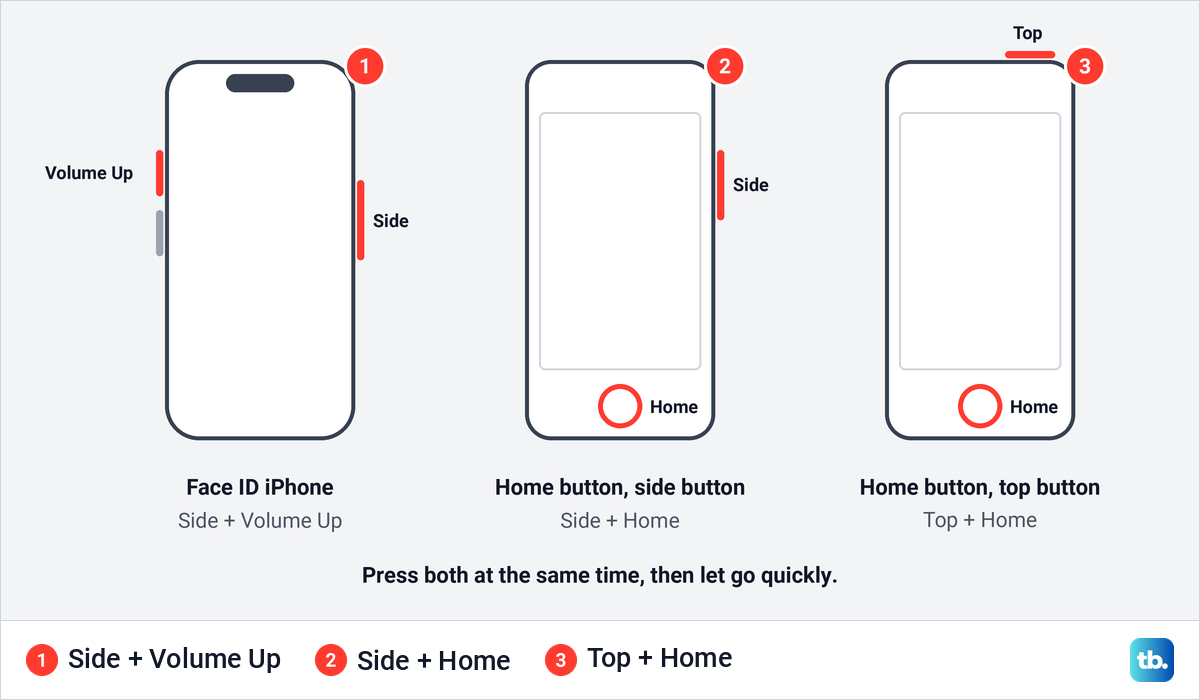
Apple's instruction is short: quickly press and release the side button and the volume up button at the same time. The side button is the long one on the right edge, and volume up is the upper of the two volume buttons on the left. Press both together and let go straight away.
On an iPhone with a Home button, press the side button and the Home button together and release them quickly. Older models with the power button on the top edge use the top button and the Home button, the third layout in Apple's support article.
The same two buttons do a little more on some iPhones. Apple says pressing the buttons you use for a screenshot also gives you visual intelligence for what is on the screen, on models with Apple Intelligence.
What you see after you take a screenshot
On iOS 26 the screenshot fills the screen instead of shrinking into a corner, and Apple's settings guide says it appears in full screen by default. The very first time, we also got a card titled Visual Intelligence with Screenshots. It had two buttons, Keep Full Screen and Go to Settings.
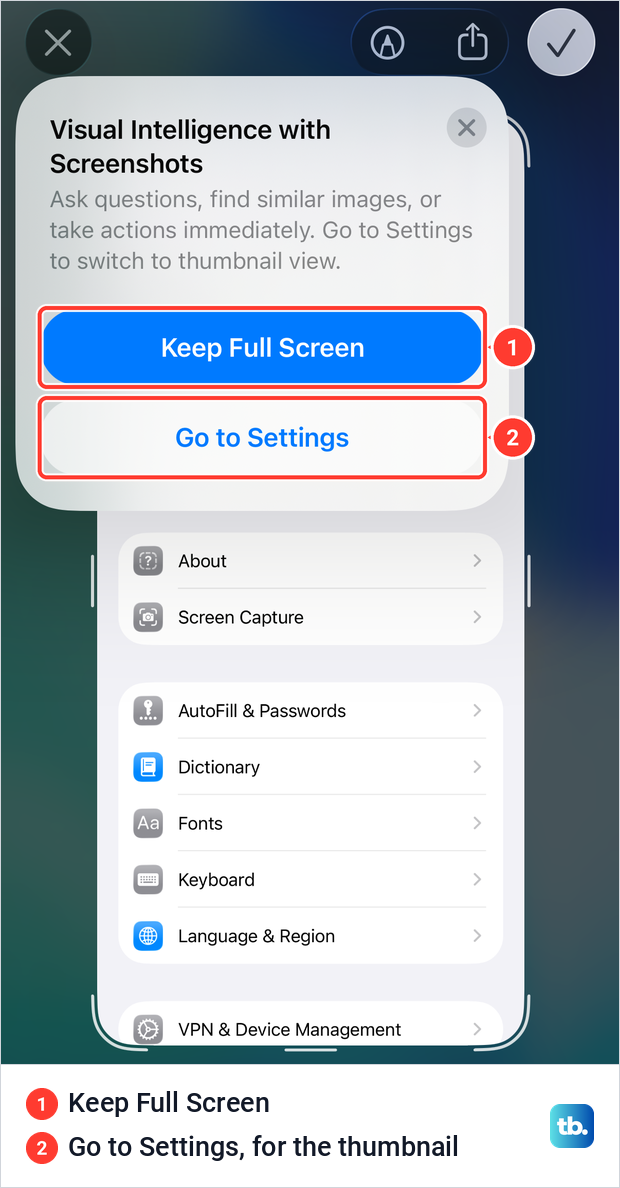
Keep Full Screen closes the card and leaves the editor as it is. Go to Settings is the way to the switch for the small thumbnail, which the card itself mentions. Our later screenshots went straight to the editor without the card.
The editor has four controls along the top. On the left is the X to close it, and on the right are Markup, Share and a checkmark, which is where saving happens. The capture itself sits inside a frame with handles at its corners and edges. To be sure the screenshot is kept, finish with the checkmark and Save to Photos rather than the X.
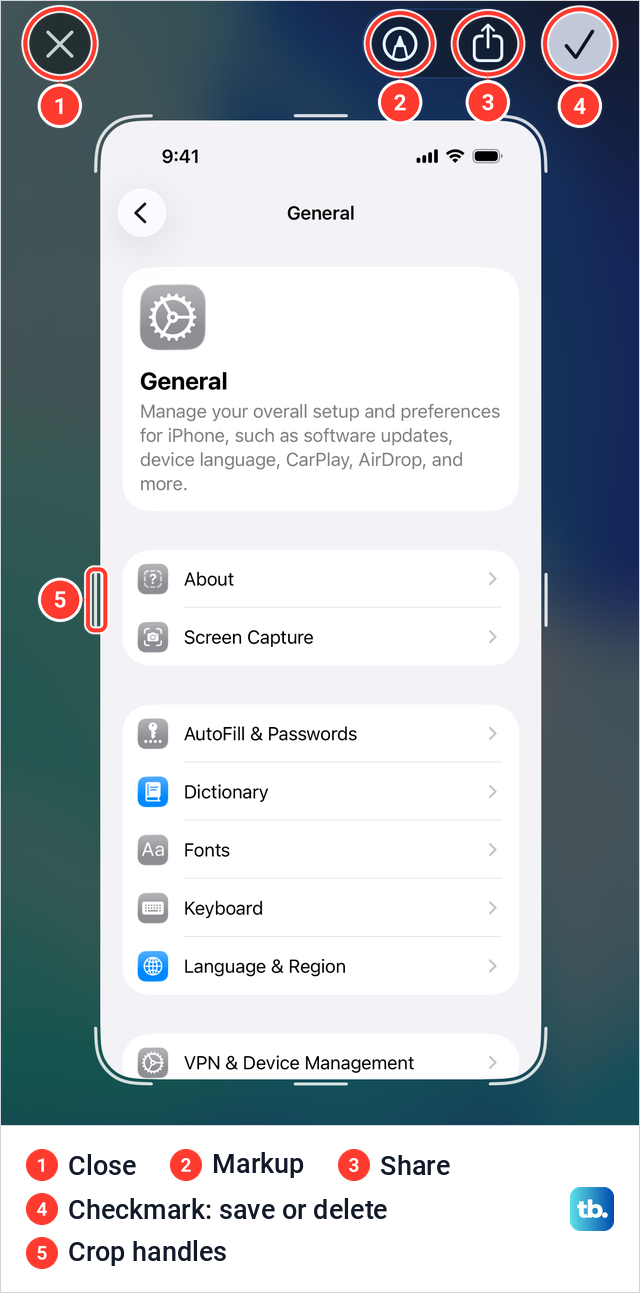
There is no Done button, only the checkmark. When we tapped it and chose Save to Photos, the editor closed and we were back on the Settings screen we had captured. No banner confirmed the save, so check Photos if you are not sure it worked.
Crop and mark up a screenshot
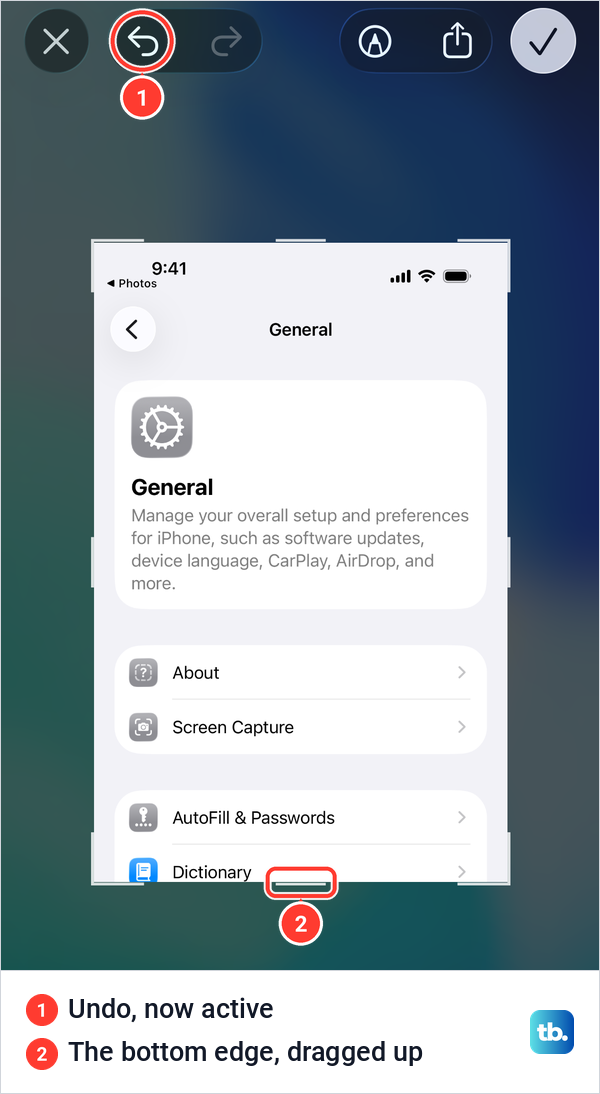
To crop, drag one of the handles inward. We dragged the bottom edge up, and the capture shrank to the part above it, with the Undo arrow at the top left now active in case you take off too much. Apple's instruction is the same: drag the handles to save only the portion you want.
Tap the pen icon to mark up the capture. A tray slides up from the bottom with a pen, a fine marker, a highlighter, an eraser, a pencil, a color ring and a plus button for more tools. We drew one line across the screenshot, and Undo and Redo appeared at the top.
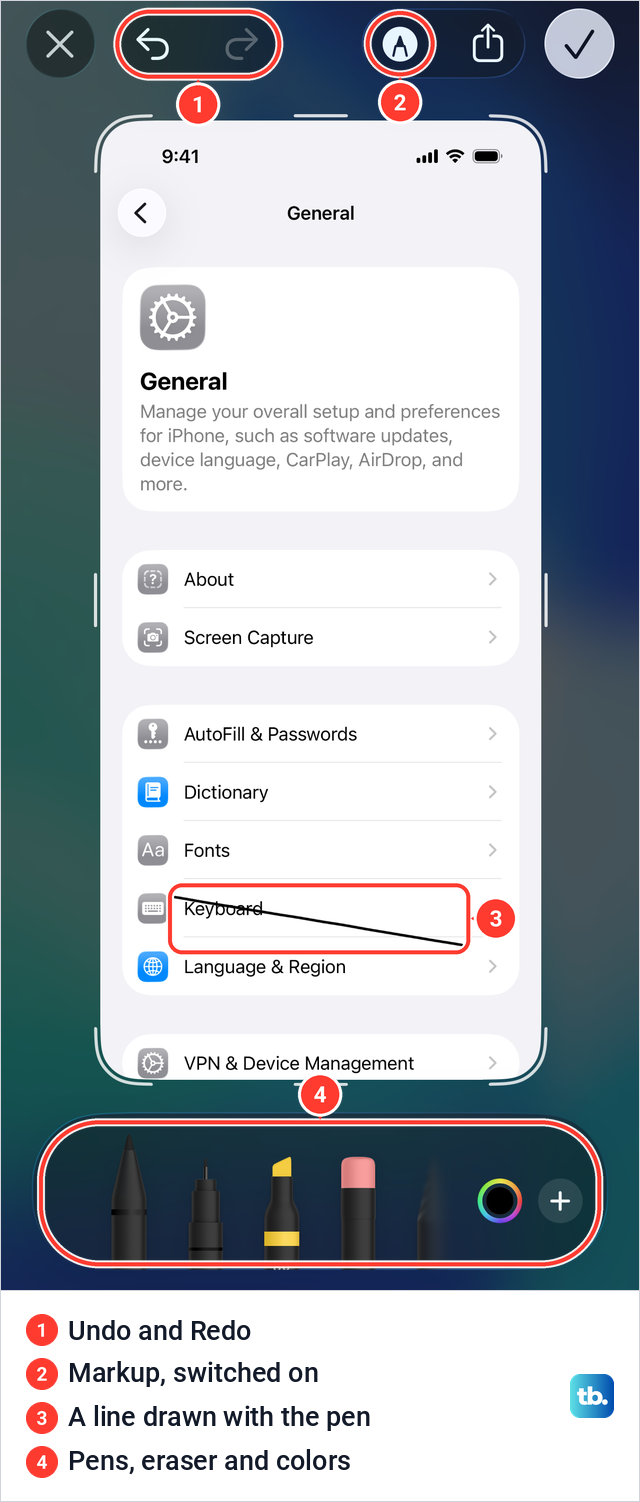
Markup is handy for circling a setting or pointing at an error message before you send it. For bigger changes after saving, such as light or color, you can edit photos on your iPhone in the Photos app like any other picture.
Save, share or delete a screenshot
Tap the checkmark at the top right when you are done. On iOS 26.5 it opened a menu with four choices: Save to Photos, Save to Files, and then two in red, Copy and Delete and Delete Screenshot.
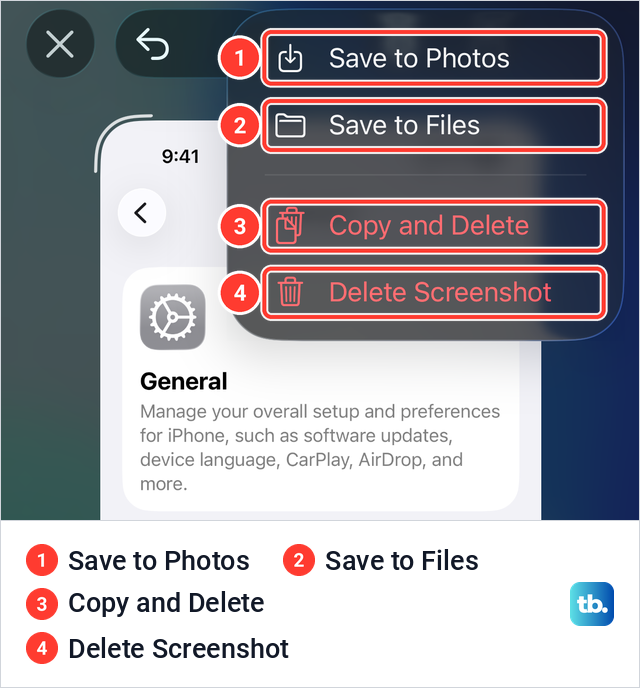
Save to Photos puts the image in your photo library, which is where Apple says screenshots go by default. Save to Files lets you pick a folder in the Files app instead. Delete Screenshot throws the capture away.
Copy and Delete is the one to use for a quick share. As the name says, it copies the screenshot and then deletes it, so you can paste it into a message or a note without filling your library. When we used it, Photos held the same number of items afterwards.
To send the capture instead, tap Share in the editor and choose a sharing option, as Apple describes. For a nearby iPhone, iPad or Mac, you can send it with AirDrop rather than a message.
Bring back the small thumbnail in the corner
If you prefer the old way, where a small preview sits in the lower-left corner and the screenshot saves itself, change one switch. Open Settings > General > Screen Capture and turn off Full-Screen Previews. On iOS 26.5 this page had just two switches, with Full-Screen Previews on and Automatic Visual Look Up off.
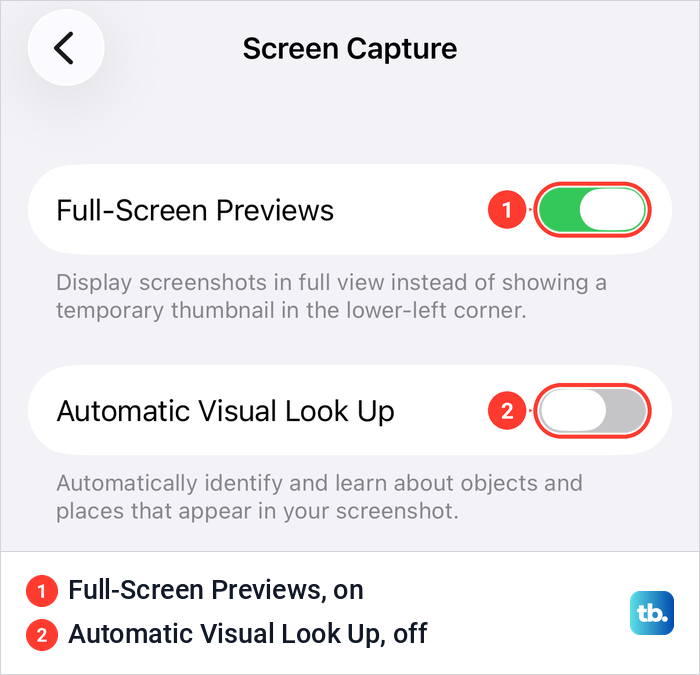
With the switch off, our next screenshot appeared as a thumbnail in the lower-left corner over the same screen. We left it alone, it went away by itself, and the capture was in Photos afterwards. Apple's instructions for the thumbnail, written for iOS 18 and earlier, are to tap it to open it or swipe it left to dismiss it.
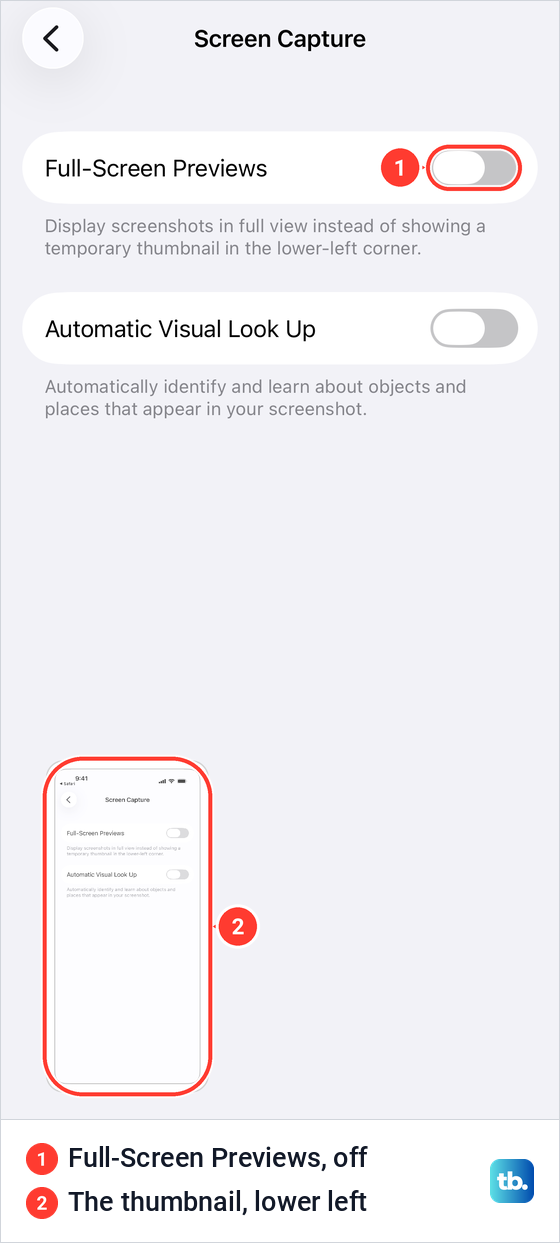
This choice is mostly about speed. With the thumbnail, a screenshot you leave alone saves without any extra taps, while the full-screen editor waits for you to pick a choice from the checkmark menu. Turn Full-Screen Previews back on to return to the default.
Take a full page screenshot of a web page
For a page longer than the screen, take the screenshot in Safari as usual. The editor then shows two tabs under the top bar, Screen and Full Page. Tap Full Page and the preview becomes the whole page, without Safari's own toolbars.
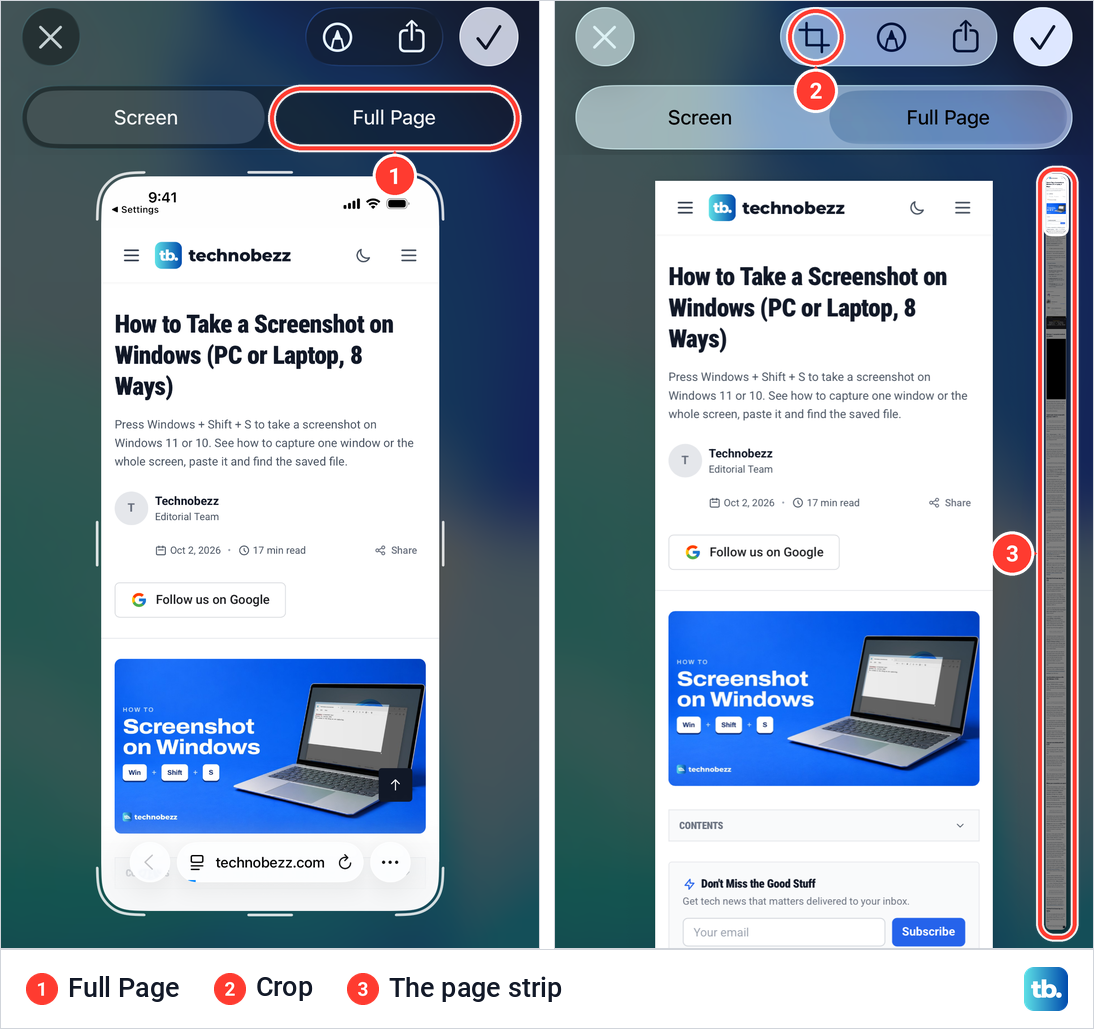
A tall strip on the right edge shows the entire page, with a highlighted window for the part you are looking at. Apple says to drag your finger on that strip to see more of the page. A Crop button also joins the top bar, so you can trim the page to the section you need.
Full Page depends on what you capture. When we took a screenshot of a Settings screen, the editor showed no tabs at all. Apple gives an entire webpage in Safari as its example, so do not expect the tab in every app.
Here our result differs from Apple's guide. Apple's iOS 26 guide lists Save to Photos for a full page image as well as Save PDF to Files. For the long page we captured on iOS 26.5, the checkmark menu offered only Save PDF to Files, plus Copy and Delete and Delete Screenshot.
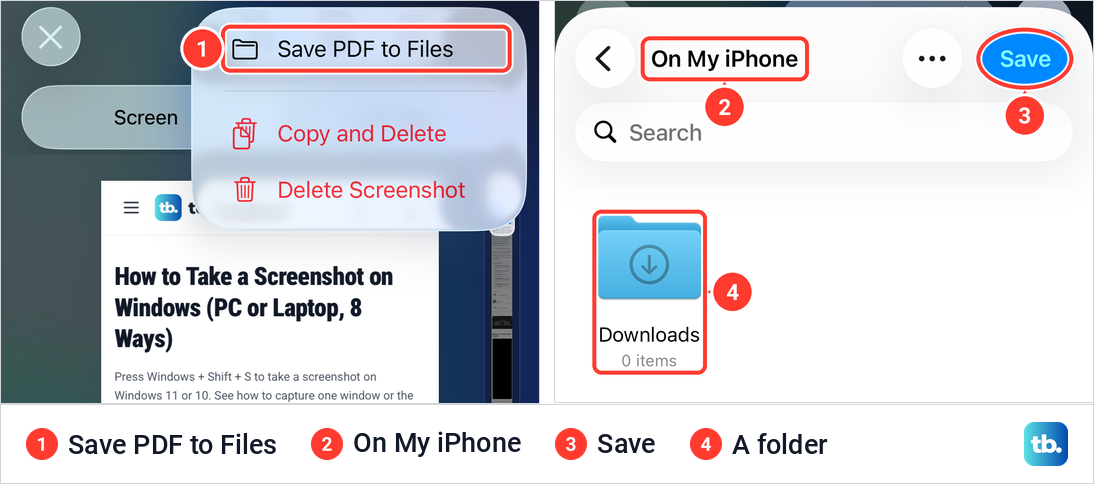
Save PDF to Files opened the Files picker at On My iPhone, with a Downloads folder, a Save as field holding the page title and a blue Save button. Pick a folder and tap Save, and the PDF stays there rather than in Photos. If you need it on paper, open the PDF in Files and print from your iPhone.
Where screenshots are saved on iPhone
Screenshots you save to Photos sit in the Library with your other pictures, and Photos also gathers them in their own album. Open Photos, tap Collections, scroll down to Media Types and tap Screenshots. Ours read 2 Items, the two captures we had saved.
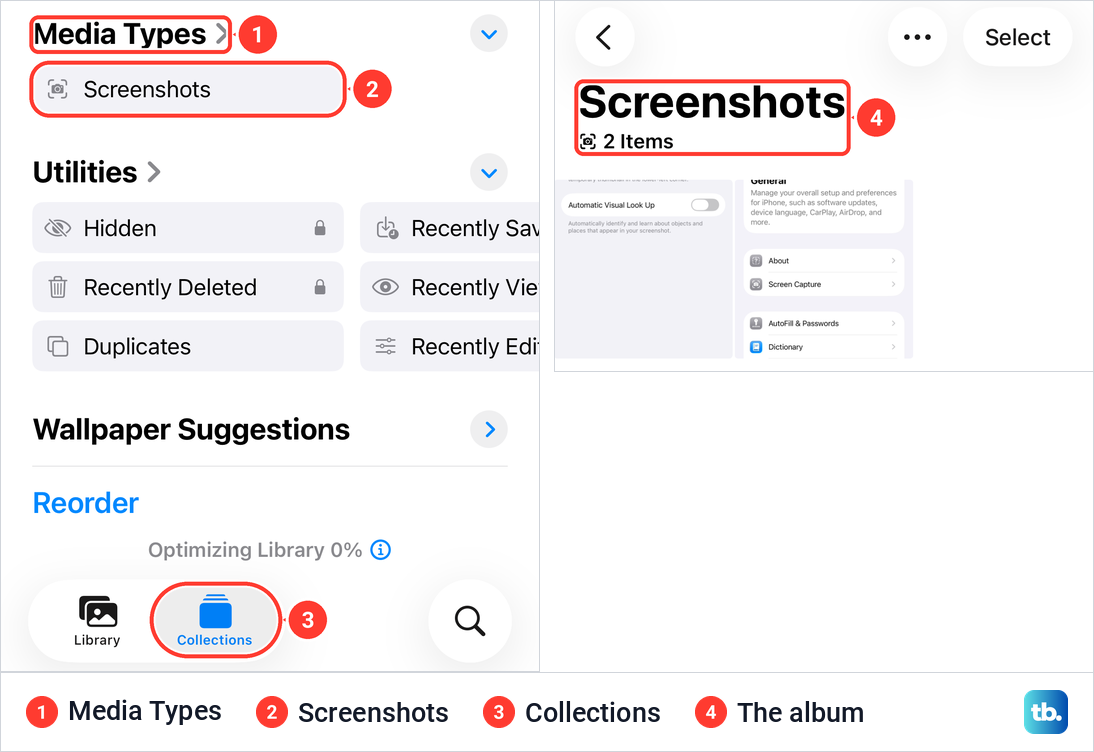
One detail can make the album look missing. Before we saved any screenshot, Collections had no Media Types section at all, not even in its Reorder list. The section and its Screenshots row appeared once the first screenshot was in Photos.
Captures saved with Save to Files or Save PDF to Files are not in Photos, so look in the Files app, in the folder you picked. A screenshot you closed with Copy and Delete or Delete Screenshot was not saved anywhere.
Deleted a saved screenshot from Photos by mistake? You can recover deleted photos from iPhone while it is still in Recently Deleted. Screenshots and full page PDFs add up over time, so if your iPhone warns that it is nearly full, free up storage on iPhone before you capture more.
Take a screenshot without the buttons
Apple lists three other ways to take a screenshot: AssistiveTouch, Back Tap and Siri. They help when a button is broken, when a case makes the buttons stiff, or when you only have one hand free. AssistiveTouch and Back Tap are set up once in Settings.
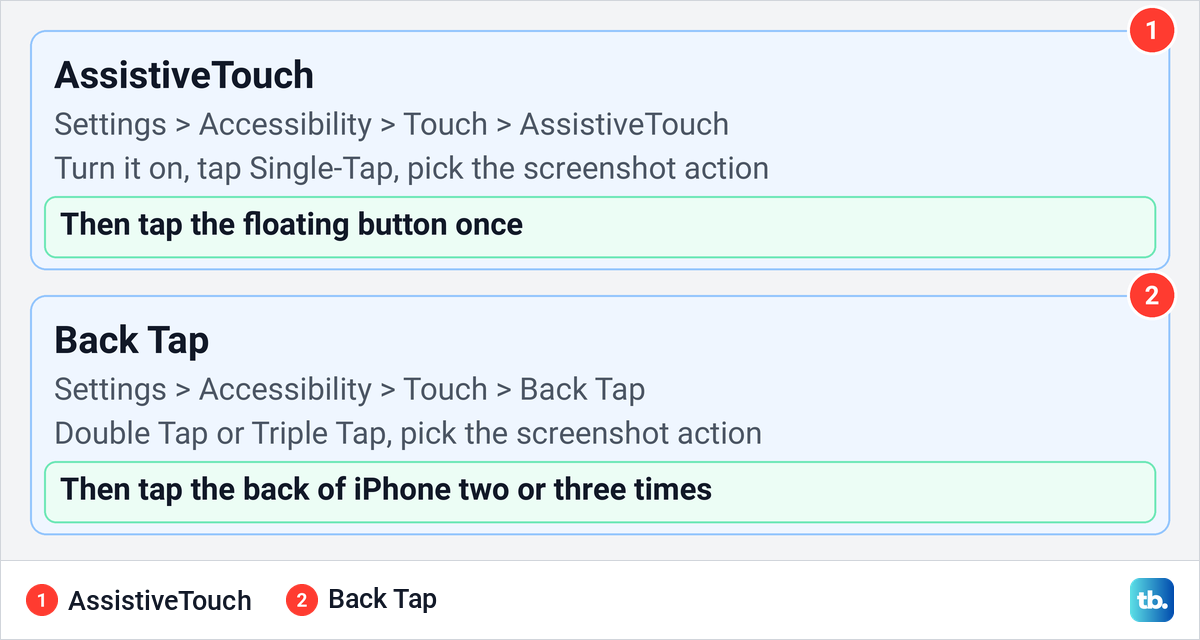
AssistiveTouch puts a floating button on the screen. Apple's steps are to go to Settings > Accessibility > Touch > AssistiveTouch and turn it on, then tap the menu button and choose an action, and taking a screenshot is one of the actions Apple lists. For a one-tap route, tap Single-Tap on the same AssistiveTouch settings page and choose the screenshot action, which Apple's page describes as assigning a custom action to the menu button.
After that, one tap on the floating button takes the screenshot, and you can drag the button to any edge where it stays out of your way. Because this changes what a single tap does, pick Double-Tap or Long Press for the screenshot instead if you still need the AssistiveTouch menu. Apple also says you can ask Siri to turn on AssistiveTouch, or triple-click the side or Home button once the Accessibility Shortcut is set up.
Back Tap turns a double or triple tap on the back of the phone into a screenshot. Apple's route is Settings > Accessibility > Touch > Back Tap, then Double Tap or Triple Tap, then the action you want. To turn it off later, Apple says to choose None in the same place.
Siri is the third option, listed in Apple's guide as a voice command. Activate Siri, by voice if you have that turned on, and ask for a screenshot.
Visual intelligence and other screenshot settings
On iPhones with Apple Intelligence, the screenshot editor also works as visual intelligence. Apple's guide says tools at the bottom of the screen let you search the web for similar items, swipe over one item to highlight and search for it, add an event to Calendar or get a summary. Apple Intelligence is not available on every model, language or region, so these tools may not appear on yours.
Automatic Visual Look Up, the second switch on the Screen Capture page, is a separate feature. Apple says it has iPhone automatically identify and learn about objects and places in your screenshots. It was off on iOS 26.5.
Apple's iOS 26 guide also describes a CarPlay Screenshots switch and a choice of SDR or HDR in Screen Capture. SDR screenshots use PNG format and HDR screenshots use HEIC format, and Apple notes that HDR screenshots appear in SDR on standard displays. If your Screen Capture page offers the choice, SDR is the safer pick for screenshots you share, because PNG files open almost anywhere.
When a screenshot will not work
If a screenshot does not turn out as expected, check these four possibilities. The first two are how iOS behaves rather than faults.
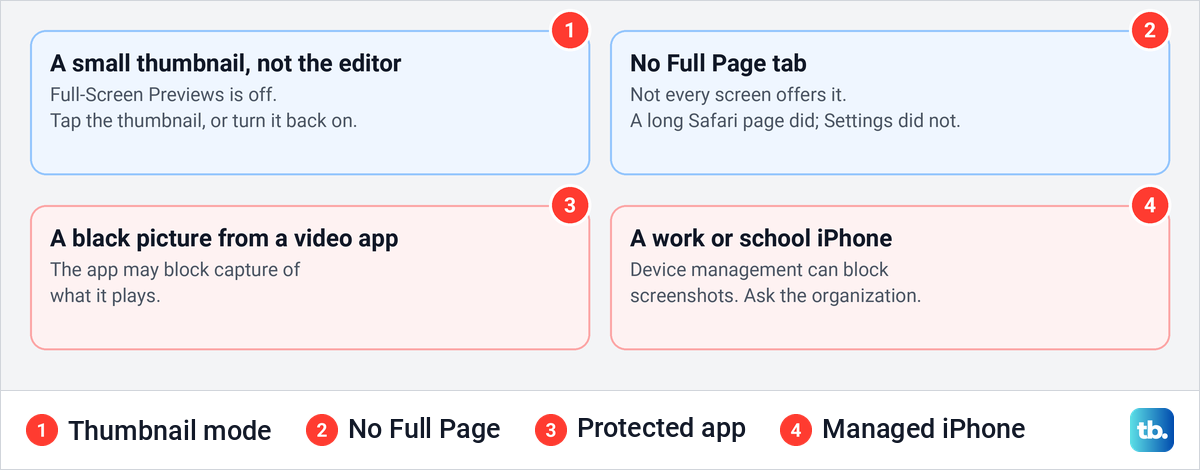
A thumbnail instead of the editor means Full-Screen Previews is off, as described above. A missing Full Page tab means that screen does not offer a full page capture. It appeared for a long web page in Safari but not for a Settings screen, so it depends on the app, not only on how long the content is.
If a show or film comes out black, the app may be protecting its video. Apple warns that some apps might not allow you to record their content, and one report on Apple's community forums describes a black screenshot of a film in the Apple TV app. If the app is protecting its content, no iPhone setting changes it.
On a work or school iPhone, screenshots may be switched off entirely. Apple's device management documentation lists a restriction under which users can't save a screenshot or recording of the screen, and only the organization that manages the phone can lift it.
If the buttons do nothing because the whole phone is frozen, the screenshot is not the problem. Force restart a frozen iPhone first, then try again. For moving video with sound instead of a still, record your iPhone screen from Control Center.
How we tested this guide
We tested this on iOS 26.5, taking screenshots of Settings and a long Safari page and saving the Full Page version as a PDF in Files.
Frequently Asked Questions
Which buttons take a screenshot on iPhone?
On an iPhone with Face ID, press the side button and the volume up button together and let go quickly. On a Home button iPhone, press the side button and the Home button, or the top button and the Home button on older models.
How do I take a screenshot on iPhone without buttons?
Turn on AssistiveTouch under Settings > Accessibility > Touch and use its floating button, or set Back Tap to take a screenshot when you tap the back of the phone. Apple also lists Siri as a voice command for the same job.
Why does my iPhone screenshot fill the whole screen?
Full-screen previews are the default on iOS 26. To get the small thumbnail in the lower-left corner back, go to Settings > General > Screen Capture and turn off Full-Screen Previews.
How do I take a scrolling screenshot on iPhone?
Take a screenshot of a long page in Safari, tap Full Page in the editor, then tap the checkmark. For the long page we captured on iOS 26.5 the only save choice was Save PDF to Files, while Apple's guide also lists Save to Photos.
Where do screenshots go on iPhone?
By default they go to Photos, where you also find them under Collections > Media Types > Screenshots. Captures saved with Save to Files or as a full page PDF stay in the Files folder you picked.
What does Copy and Delete do on an iPhone screenshot?
It copies the screenshot so you can paste it somewhere, then deletes it instead of saving it. When we used it, nothing new was added to Photos.
Why is my iPhone screenshot black?
The app on screen may be protecting its content, as some streaming apps do. On a work or school iPhone, device management can also block screenshots, and only the organization can lift that restriction.