

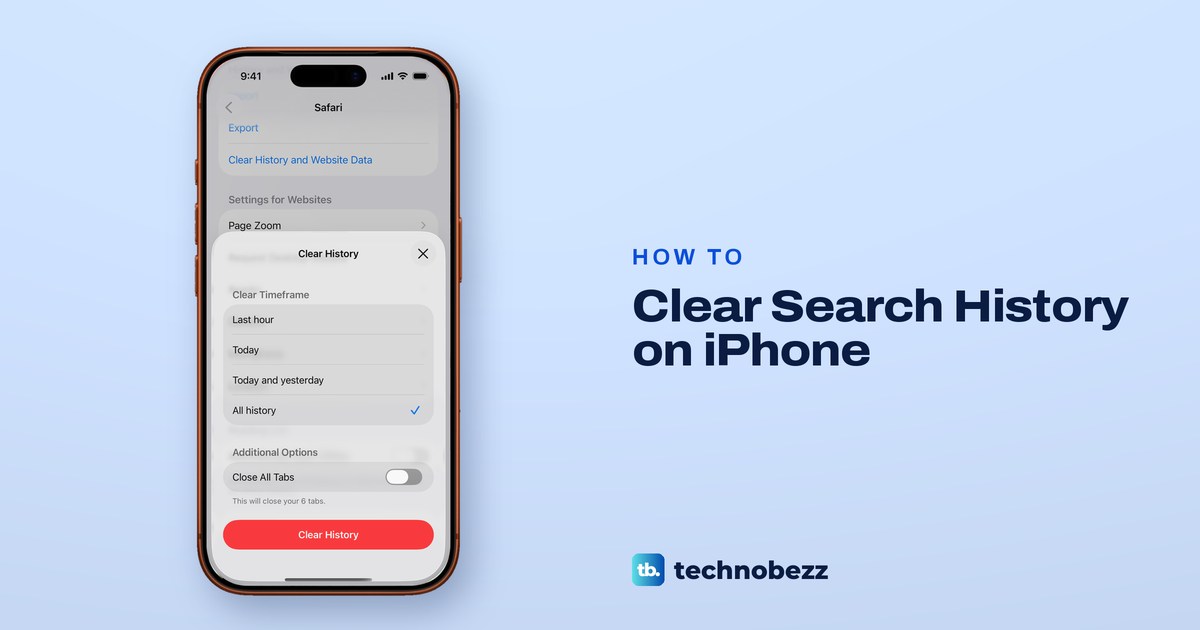
To clear search history on iPhone, open Settings, tap Apps, then Safari, and tap Clear History and Website Data. Tap All history under Clear Timeframe, check that the tick moved there, then tap Clear History. That deletes the websites you visited and your recent searches in Safari, and Apple says it does not change your AutoFill information.
Two things catch people out when they delete search history on iPhone. The first time we opened that sheet on iOS 26.5, the tick sat on Last hour, so tapping the red button straight away would have cleared one hour and kept the rest. And Safari is only one of the places an iPhone keeps searches, because the Google app, Chrome, Spotlight, Siri and the keyboard each keep their own.
The short version
- Open Settings > Apps > Safari > Clear History and Website Data to clear Safari's history and recent searches.
- Tap All history and check the tick before you tap Clear History. Ours first opened on Last hour.
- The Google app, Chrome, Spotlight, Siri and the keyboard keep their own lists, and each one is cleared on its own.
- A grey button means nothing is left to clear, or Screen Time, a parent or your workplace is limiting websites.
- Private Browsing keeps new visits out of Safari's History.
Where your iPhone keeps search history
Apple says clearing your history in Safari doesn't clear histories kept by the websites you visited, or your browsing history in other apps. So the first job is knowing which list you mean. The map shows the eight places an iPhone keeps searches, and the table after it says what to tap in each one.
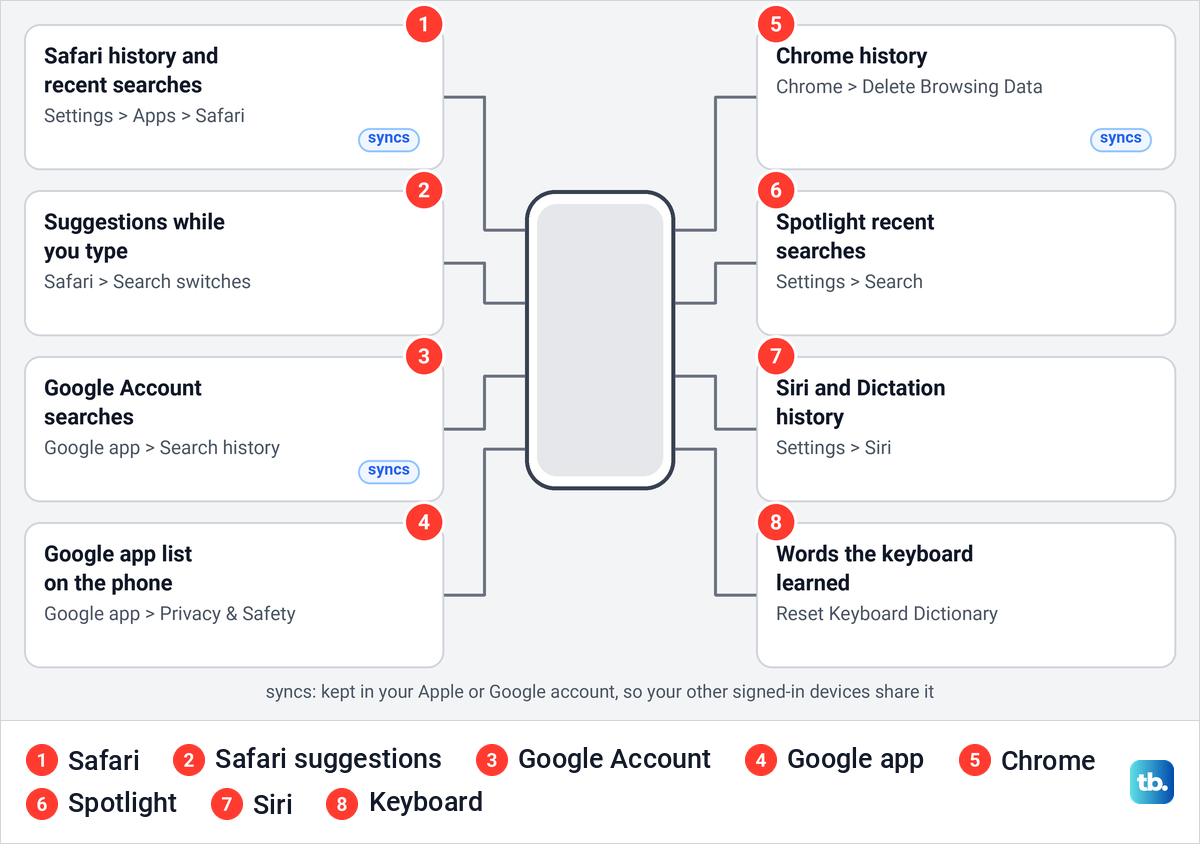
Searches you made in the Google app while signed in are saved to your Google Account, and Google says some of that activity might also stay on the device. Some of what pops up while you type in Safari comes from suggestion switches rather than from your history, so it can stay after a clear. Spotlight, Siri and the keyboard learn from what you do, each in its own corner of Settings.
| What you want gone | Where to go | What to tap | Watch out for |
|---|---|---|---|
| Sites and searches in Safari | Settings > Apps > Safari | Clear History and Website Data, All history, Clear History | The sheet can open on Last hour, and cookies go too |
| One site in Safari | Safari start page > History > More | Select Websites, then Trash | The rest of your history stays |
| Recent searches under Safari's search field | Settings > Apps > Safari | Turn off Show Recent Searches | It hides the list and deletes nothing |
| Searches saved to your Google Account | Google app > profile picture > Search history | Delete, then Delete all time | Google says it cannot be undone |
| Google app searches kept on the phone | Google app > profile picture > Settings > Privacy & Safety | Clear app history, then Clear all | Separate from your account's list |
| Chrome history | Chrome > More | Delete Browsing Data, then change Time Range | The range is 15 minutes by default |
| Spotlight recent searches | Settings > Search | Turn off Show Recent Searches | Apple documents no clear button, and the switch only turns the list off |
| Siri requests | Settings > Siri > Siri & Dictation History | Delete Siri & Dictation History | The first row may read Apple Intelligence & Siri |
| Words the keyboard learned | Settings > General > Transfer or Reset iPhone > Reset | Reset Keyboard Dictionary | Leave the other reset buttons alone |
Clear Safari search history in Settings
To clear Safari history on iPhone from Settings, open Settings, tap Apps, then tap Safari. Scroll down past the privacy switches to the group called History and Website Data. Apple's iOS 27 guide reaches Safari's settings the same way, through Settings, Apps, Safari.
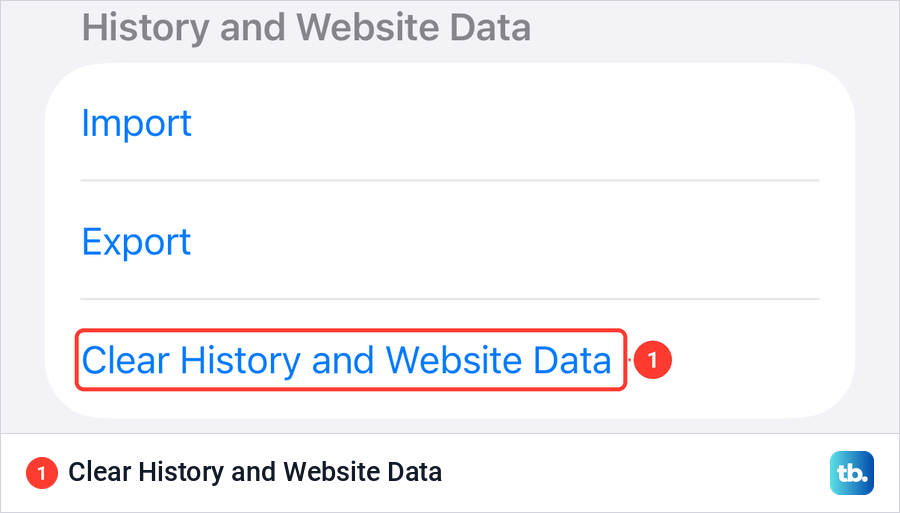
On iOS 26.5 that group held three blue rows, Import, Export and Clear History and Website Data. Tap Clear History and Website Data at the bottom of the group.
A sheet called Clear History slides up. Under Clear Timeframe, tap All history and check that the blue tick moved there, then tap the red Clear History button. The next section shows why the tick matters.
The sheet also has a Close All Tabs switch under Additional Options. It was off both times we opened it, and with six tabs open the note under it read This will close your 6 tabs. Turn it on only if you want those tabs gone as well. Our guide shows the other ways to close all tabs on your iPhone.
Apple says the clear removes the history of websites you visited and your recent searches. It also removes cookies and the permissions you gave websites to use your location or send notifications, so expect to sign in to some sites again. If you would rather keep your history and only sign out of sites, clear cookies from iPhone instead.
Apple says Safari history syncs through iCloud, and that changes you make on one device appear on your other devices. If a site you cleared still shows on your iPad or Mac a while later, check whether iCloud is not syncing on that device.
Check the timeframe before you tap Clear History
This is the step that decides whether the clear works. The first time we opened the Clear History sheet on iOS 26.5, the tick sat on Last hour, not All history. Tapping the red button at that point clears one hour and leaves everything older in place. Apple's own picture of the sheet in its iPhone User Guide shows Last hour selected as well.
The sheet does not always open on the same choice. After we cleared with All history, the next time we opened the sheet, hours later, All history was already ticked. So read the tick every time rather than trusting what it showed last time, especially on a phone someone else has used.
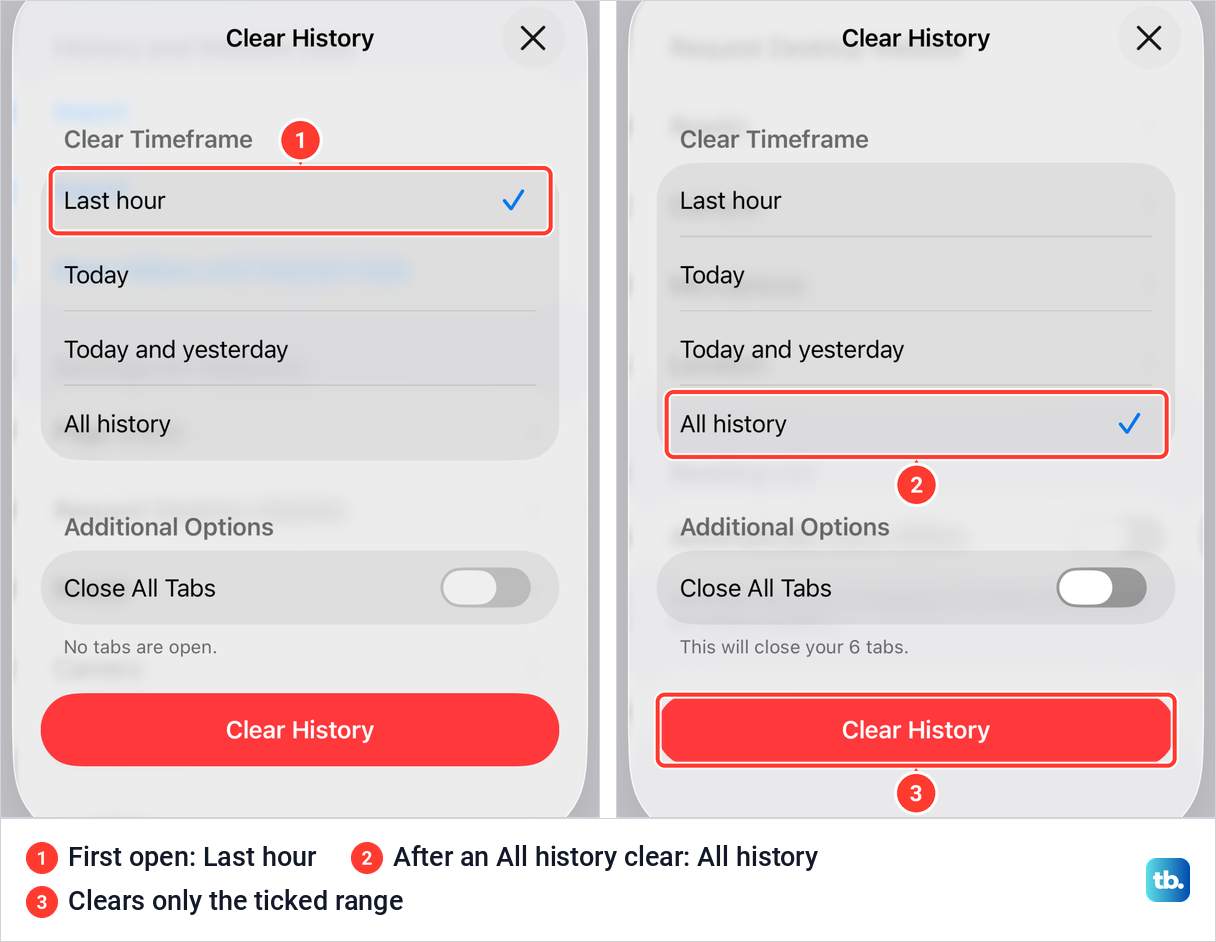
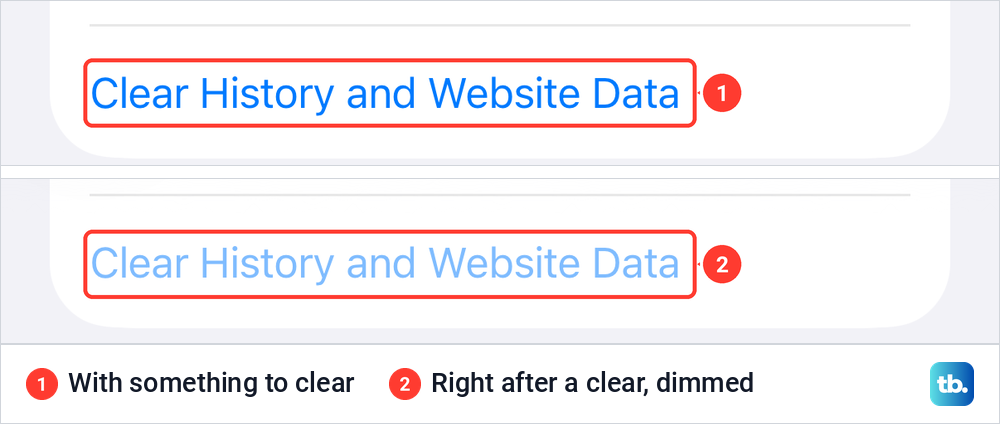
The four choices are Last hour, Today, Today and yesterday, and All history. There is no custom date range, so to remove one site from last week, use the steps for a single website further down. Right after our full clear, the Clear History and Website Data row turned a faded blue, which is what an empty history looks like.
Clear history inside the Safari app
You can also clear history without leaving Safari, and these steps follow Apple's iPhone User Guide for iOS 26. Tap the More button, then Bookmarks. If your tab layout is Bottom or Top, tap the Show Bookmarks button instead.
Tap the History button, tap More, then tap Clear. Apple says to choose how much of your history to clear below Clear Timeframe and then tap Clear History, so the same tick check applies here. If you use Safari profiles, Apple says to select one profile to clear only its history, or select All Profiles.
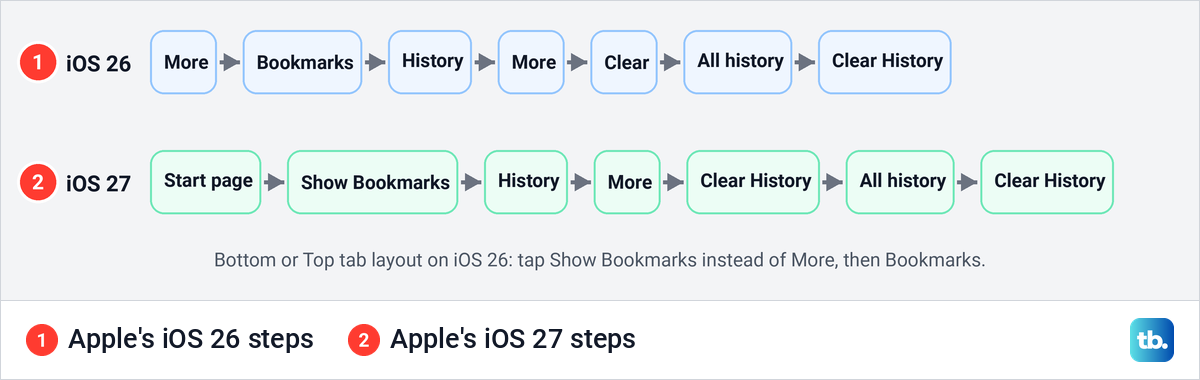
Some guides claim this route keeps your cookies. Apple's page for these exact steps says the process also removes the cookies and the website permissions, the same as the Settings route.
Delete one website or one search
To remove a few sites and keep the rest, Apple's support article starts from Safari's start page. Open a start page, or tap the Tabs button and then the Add button to make one. Tap the History button, then More, then Select Websites, tick the sites to delete and tap the Trash button.
In the Google app, Google says to tap the search bar, find the search, swipe left on it and tap Delete. To erase one search from your Google Account instead, open Search history from your profile picture and tap Delete activity next to it. In Chrome, Google's steps are More, History, Edit, tick the entries, Delete, then Done.
Stop old searches showing as you type
If old searches seem to come back after a clear, you may be seeing suggestions, not history. Safari's settings have a Search section with three switches that decide what appears while you type, and all three were on when we opened it on iOS 26.5. Turning them off hides suggestions but deletes nothing, so use them together with a clear.
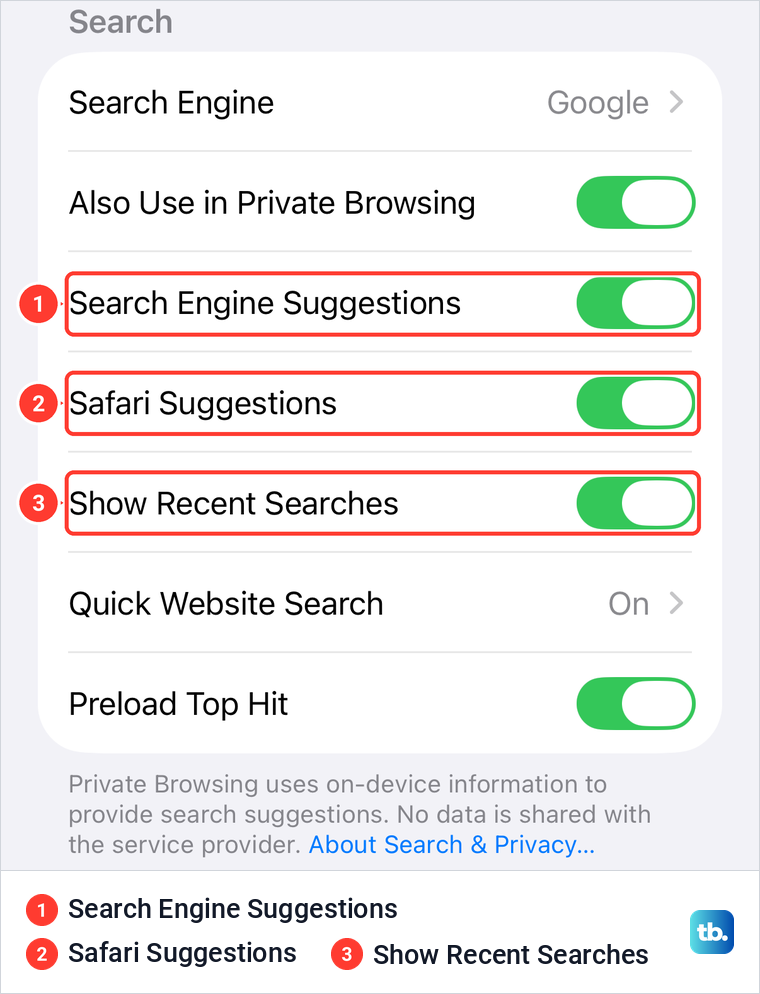
Show Recent Searches controls the list of earlier searches that appears when the search field is empty. Apple's steps are Settings, Apps, Safari, then turn off Show Recent Searches below Search. Search Engine Suggestions controls the terms your search engine proposes, and Apple says to turn it off if you don't want to see suggested search terms.
Safari Suggestions is the middle switch of the three. If suggestions still appear with the other two switches off, turn it off as well. The note under the section on our screen said Private Browsing uses on-device information to provide search suggestions and that no data is shared with the service provider.
Delete Google search history on iPhone
To clear Google search history on iPhone, first decide which list you mean, because Google keeps them apart. Google says the on-device Search history in the Google app is separate from the Search history saved to your Google Account. Clearing Safari touches neither of them, and Chrome keeps a third list.
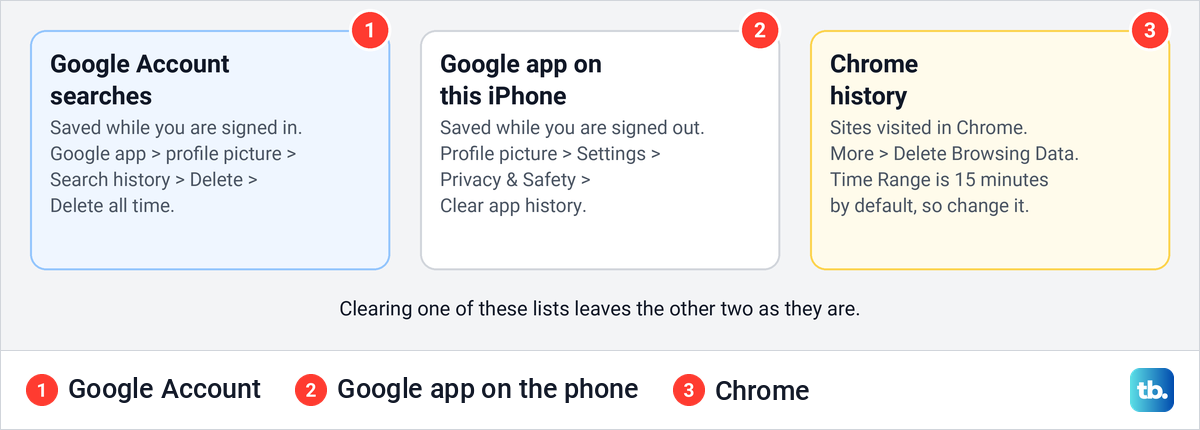
For searches saved to your account, open the Google app, tap your profile picture or initial at the top right, then tap Search history. Tap Delete, then Delete all time, or Delete custom range for a period. Google warns that once you erase search history saved to your Google Account, you can't get it back.
The same page has Controls, where Google lets you auto-delete activity older than 3, 18 or 36 months. Google is also rolling out a setting called Search Services History, and where it has not arrived, Search history is still controlled by Web & App Activity.
Searches you make while signed out are kept on the phone instead. Google's steps are profile picture, Settings, Privacy & Safety, Clear app history, then Clear all in the confirmation. If you sign out of a Google account to keep searches off it, this on-device list is where your new searches land.
Clear Chrome history on iPhone
Chrome keeps its own history, and Google's steps for it are short. Open Chrome, tap More, then Delete Browsing Data. Google says the time range is 15 minutes by default, so change Time Range first, the same trap as Safari's Last hour.
Tap Browsing Data, select the types of data to delete, tap Confirm, then Delete Browsing Data. Google also offers a shortcut: type Delete browsing data in the address bar and tap the Action chip. If you are signed in to Chrome with history sync on, Google says the deletion reaches your other signed-in devices too.
Chrome's delete does not touch your Google searches, because Google says searches and other activity on Google services are saved to your Google Account. Clear those from the Google app as shown above.
If links from other apps keep opening in Chrome and filling its history, you can change your default web browser on iPhone. Links then open in the browser you picked.
Clear Spotlight recent searches
Apple documents no button that clears the recent searches in Spotlight, the search on your Home Screen. Its control is a switch, which turns recent searches off rather than deleting them. Open Settings, tap Search, and turn off Show Recent Searches, and turn off Show Related Content on the same page if you also want web-based results gone.
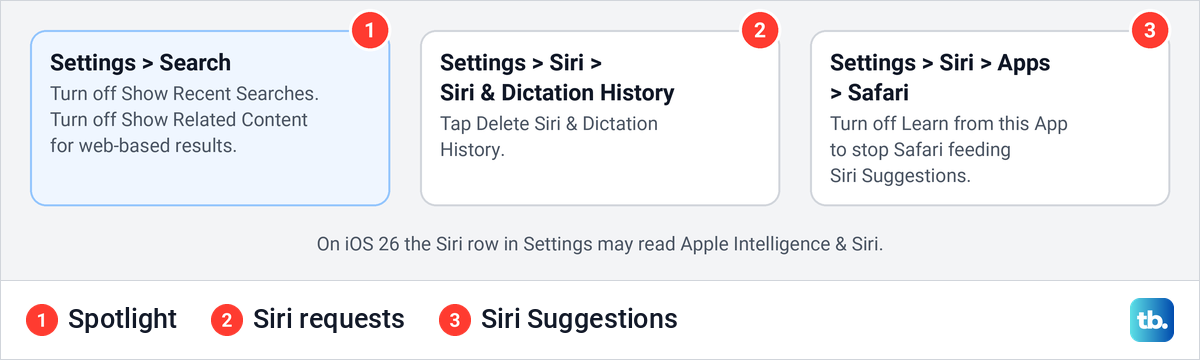
Further down the same page, Apple says you can tap an app and turn Show App in Search off to keep that app out of the results. Apple also describes Spotlight's index as a local, private index that stays on your device and isn't shared with Apple or your other devices.
Delete Siri history and Siri Suggestions
Siri keeps transcripts of your requests on the iPhone. Apple's privacy page says to go to Settings, Siri, Siri & Dictation History and tap Delete Siri & Dictation History to delete the transcripts stored on your device. Apple's iOS 26 guide names that first row Siri or Apple Intelligence & Siri.
The delete button covers what is stored on your iPhone. Apple says the request history it keeps, which includes transcripts, is tied to a random, device-generated identifier rather than your Apple Account, and that Apple may retain and use it for up to two years.
Apple adds that if you turn off Siri on iPhone and turn off Dictation, the transcripts stored on the device are deleted. That is a bigger change than most people need, so the delete button is usually enough.
Siri Suggestions are a separate thing. Apple says Siri uses information stored on your device, such as your Safari browsing history, to make suggestions in searches, Safari and apps. To stop an app feeding them, Apple's steps are Settings, Siri, Apps, the app's name, then turn off Learn from this App.
Clear words the keyboard learned
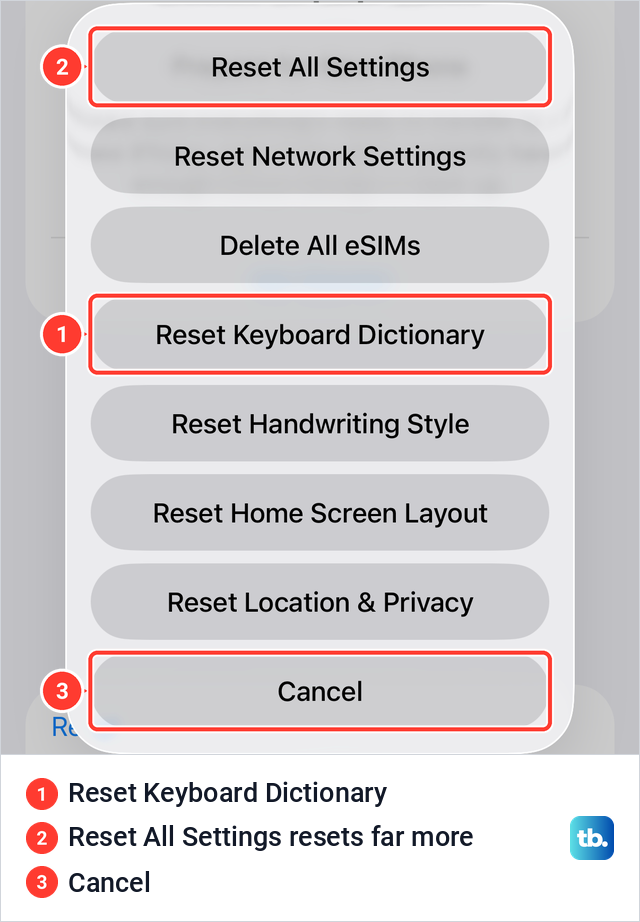
Apple says you add words to the keyboard dictionary by rejecting words your iPhone suggests as you type, and that Reset Keyboard Dictionary erases only the words you've added. Open Settings, tap General, then Transfer or Reset iPhone, then Reset.
On our iPhone 17 Pro with iOS 26.6, Reset opened a sheet with seven reset buttons and Cancel, and Reset Keyboard Dictionary was the fourth. Read the label before you tap, because Reset All Settings sits at the top, and Apple says it resets every setting, the keyboard dictionary included. We tapped Cancel.
Erase All Content and Settings sits just below this sheet on the same page, and it wipes the whole phone. If you are handing the phone on, clearing history is not enough, so erase your iPhone before selling it instead.
Why Clear History and Website Data is grey
Apple gives two reasons for a grey button: there is either no data to clear, or you might need to check your web content restrictions in Screen Time. We saw the first one ourselves, in the faded row shown earlier, right after a full clear. Open a website and look again, and if the row is still grey, work down the questions below.
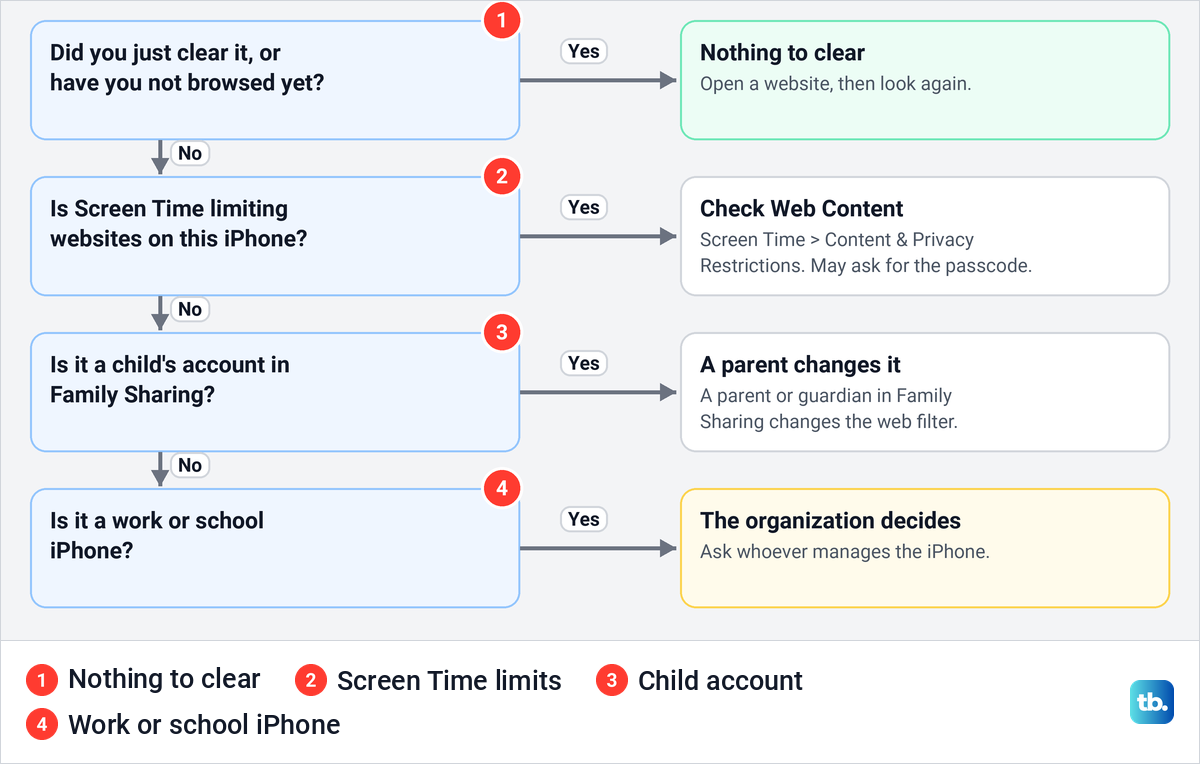
Next, look at Screen Time. Apple's path on iOS 26 is Settings, Screen Time, Content & Privacy Restrictions, App Store, Media, Web, & Games, then Web Content. The same screen is where you block websites on iPhone, so if anyone set a website limit on this phone, change it there.
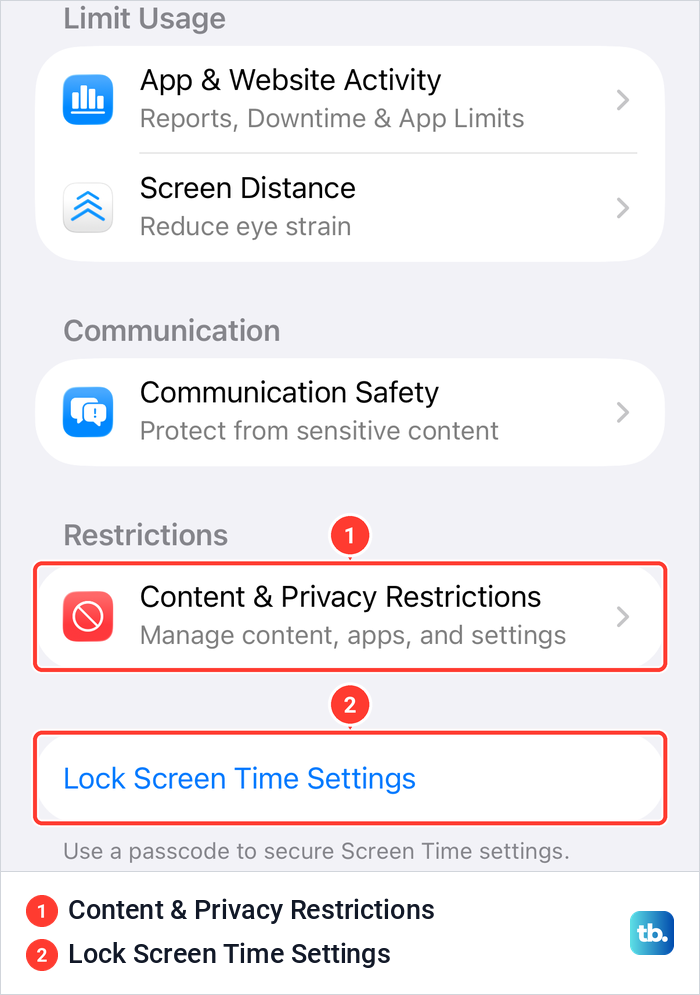
On iOS 26.5, Screen Time listed Content & Privacy Restrictions under Restrictions, with Lock Screen Time Settings below it. If someone used that to set a Screen Time passcode, you need the passcode to change web content.
On a child's iPhone the parent holds the switch. Apple says Limit Adult Websites is on by default for children under 18, and that iOS 26.1 turned on web filters for existing child accounts aged 13 to 17. The parent who set up Family Sharing on iPhone changes the filter.
On iOS 27, Apple's path for a child is Settings, Family, your child's name, Apps & Websites, Restrictions, then Filtering under Websites. Apple notes that in some places settings like Screen Time and content restrictions can't be turned off.
A work or school iPhone can be stricter still. Apple's device management documentation lists a setting that lets an organization stop Safari history clearing on supervised iPhones, and says a managed content filter also restricts clearing history and website data. Only whoever manages the phone can change that.
Keep new searches out of your history
Private Browsing is the simplest habit. Apple says private tabs don't appear in History on iPhone or in the list of tabs on your other devices. To open one, Apple's steps are tap the More button, then All Tabs, then swipe right on the tab bar until Private Browsing opens, and tap Unlock if it asks.
On iOS 26.5, Also Use in Private Browsing was on in Safari's Search settings, so private tabs used the same search engine as normal ones. Apple says you can turn that off and pick a separate Private Search Engine. The same idea works elsewhere, and you can use Private Browsing in any browser.
In the Google app, Google's steps are More at the bottom right, then Turn on incognito, which Google says also stops recent searches from showing up below the search bar. In Chrome, open an Incognito tab from the More menu, and Google says Chrome's History does not store pages you visit in Incognito mode.
How we tested this guide
We tested this on iOS 26.5, clearing Safari's history from the Clear History sheet, and on an iPhone 17 Pro with iOS 26.6, stopping at the Reset prompt.
Frequently Asked Questions
Why is Clear History and Website Data grey on my iPhone?
Either there is nothing left to clear, which is what we saw right after a full clear, or Screen Time is limiting websites. On a child's account the parent changes the filter, and on a work or school iPhone the organization decides.
Does clearing search history delete my saved passwords?
Apple lists what the clear removes as history, recent searches, cookies and website permissions, and says it does not change your AutoFill information. Saved passwords are not on that list. You may still have to sign in to sites again, because their cookies are gone.
Will clearing Safari history on my iPhone clear it on my iPad and Mac?
Apple says Safari history syncs through iCloud and that changes on one device appear on your other devices. Its Mac guide says that with iCloud set up for Safari, cleared history is removed from all of them.
Why do my Google searches still show after I cleared Safari?
Safari clears only Safari. Searches made while signed in are in your Google Account, and the Google app keeps its own list on the phone, so clear both from the Google app. Suggestions as you type can also come from Safari's Search switches.
How do I clear Spotlight search history?
Apple documents no clear button for it. Turn off Show Recent Searches in Settings > Search, which Apple documents as a way to turn recent searches off, not as a delete.
Can I recover search history I deleted?
Google says searches erased from your Google Account can't be brought back. Apple's Safari steps offer no undo either, so choose the timeframe with care.
Does Private Browsing stop my searches being saved?
Apple says private tabs don't appear in Safari's History. Google says the Google app's incognito mode stops recent searches showing below the search bar, and Chrome's History does not store Incognito pages.
Why do some pages still show in Safari after clearing?
Open tabs stay unless you turned on Close All Tabs in the Clear History sheet. Apple's list of what a clear removes covers history, recent searches, cookies and website permissions, and it does not mention bookmarks or the Reading List. To remove pages you saved for later, clear the Reading List in Safari separately.