
To update apps on iPhone, open the App Store, tap your picture at the top right, tap App Updates, then tap Update All, or Update next to one app. App Store apps also update on their own by default, and the switch for that is in Settings > Apps > App Store. Apps that come installed with iOS update when you update iOS instead.
Automatic does not mean instant. On our iPhone 17 Pro with iOS 26.6, the App Updates switch was on, yet the App Updates list showed 23 updates waiting under a heading called Upcoming Automatic Updates, with dates going back more than two weeks. If an update matters to you, install it by hand instead of waiting.
The short version
- Update now: open the App Store, tap your picture, tap App Updates, then Update All.
- Automatic: Settings > Apps > App Store, then turn on App Updates. It is on by default.
- Still waiting: automatic updates can lag by days. Apple says even an update released in stages can be installed by hand at any time.
- Nothing installs on its own: turn off Low Power Mode and Low Data Mode.
- Apps that come with iOS: they update with iOS in Settings > General > Software Update.
Ways to update apps on iPhone at a glance
Most people only need the first row. The others cover automatic updates, cellular data and the apps that do not update through the App Store's list.
| What you want | Where to go | What happens |
|---|---|---|
| Update every app now | App Store > your picture > App Updates > Update All | Every waiting update starts, and finished apps move below Updated Recently |
| Update one app | App Store > your picture > App Updates > Update next to the app | Only that app updates |
| Updates on their own | Settings > Apps > App Store > App Updates | The App Store installs new app updates for you |
| Updates over cellular | Settings > Apps > App Store > Cellular Data | Choose whether apps download automatically over cellular, and the size limit |
| Update apps that come with iOS | Settings > General > Software Update | They update with iOS |
| Update Apple Watch apps | App Store on the watch > Account > Updates | Update or Update All on the watch |
| Update a TestFlight beta | TestFlight > the app's page | Update there, or turn on Automatic Updates |
Update all your apps from the App Store
Open the App Store and look at the top right of the Today screen. On our iPhone the account picture sat there, next to the Today title, and Apple's support page describes it as the My Account button or your photo at the top of the screen. Tap it.
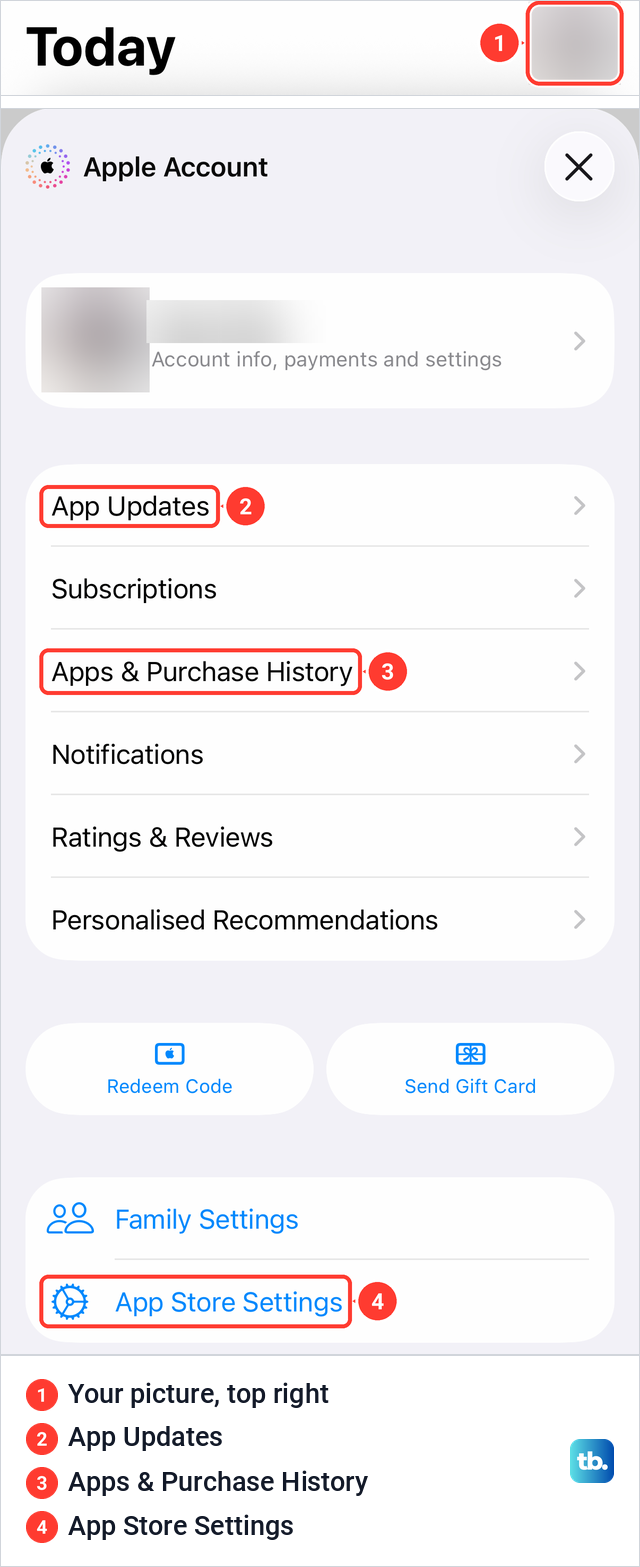
The sheet that opens is titled Apple Account. On our iPhone its first row was App Updates, above Subscriptions, Apps & Purchase History and Notifications, with App Store Settings at the bottom. Older guides mention an Updates tab, but our App Store's tab bar held only Today, Games, Apps, Arcade and Search.
Tap App Updates. At the top sits an Update All button with the number of waiting updates, 23 on our iPhone. Below it, the heading Upcoming Automatic Updates lists each app with its date, a short release note with a more link, and its own Update button.
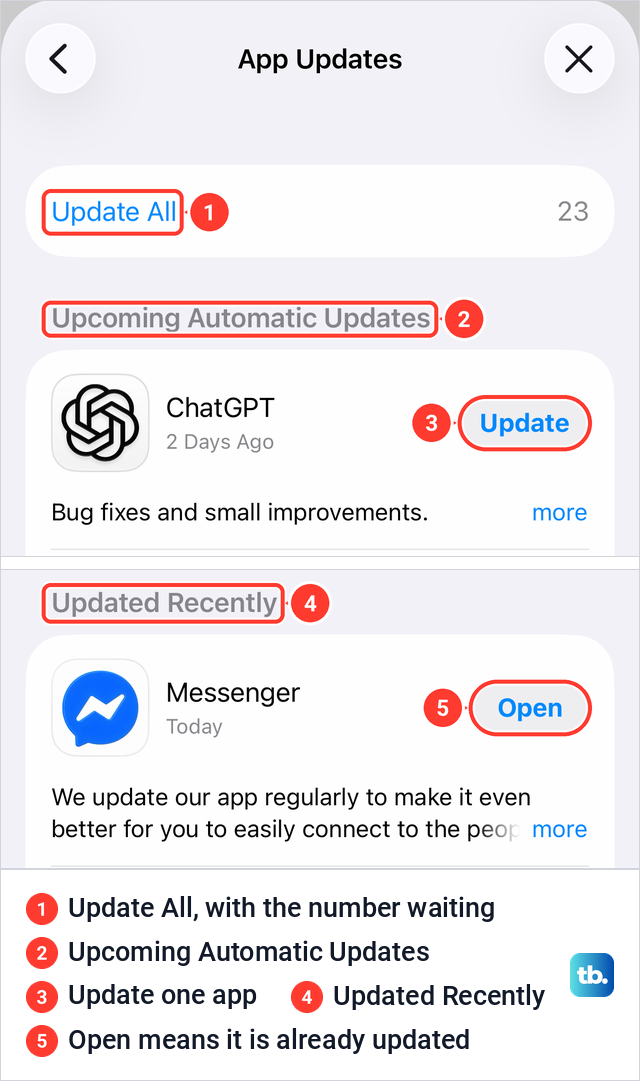
Tap Update All to start every waiting update, or Update next to one app to update only that one. Apple says a progress indicator appears on the app icon while the app downloads. After an app is updated, Apple says it moves below Updated Recently, where our list showed apps with an Open button instead of Update.
Apple's iOS 27 guide words the first step as tapping the My Account button or your picture, without saying where it sits. The rest of the path, App Updates and then Update or Update All, is the same in that guide.
Turn automatic app updates on or off
App Store apps update automatically by default, and the switch lives in Settings, not in the App Store. Open Settings, tap Apps, tap App Store, and turn App Updates on or off. Older guides send you to an App Store row in the main Settings list, but on our iPhone the page sat under Apps.
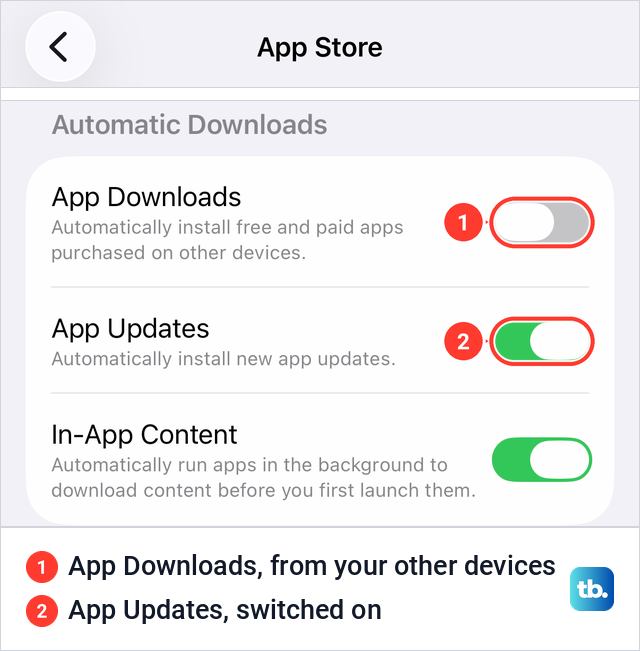
On our iPhone the App Updates switch was on, with the line Automatically install new app updates under it. Above it, App Downloads, which was off, automatically installs free and paid apps bought on your other devices. In-App Content, which was on, lets apps download content in the background before you first open them.
If you switch App Updates off, Apple says the App Store sends you a notification each time an update for one of your apps is released. You then update from the App Updates list as shown above. Leaving it on is the simpler choice, because you can still update by hand from App Updates.
Let apps download over cellular data
Apple says the App Store can use cellular data once you allow it in the App Store settings, where you also adjust automatic downloads. On our iPhone the Cellular Data group on that same page held an Automatic Downloads switch, which was off, and an App Downloads row set to Ask If Over 200 MB.
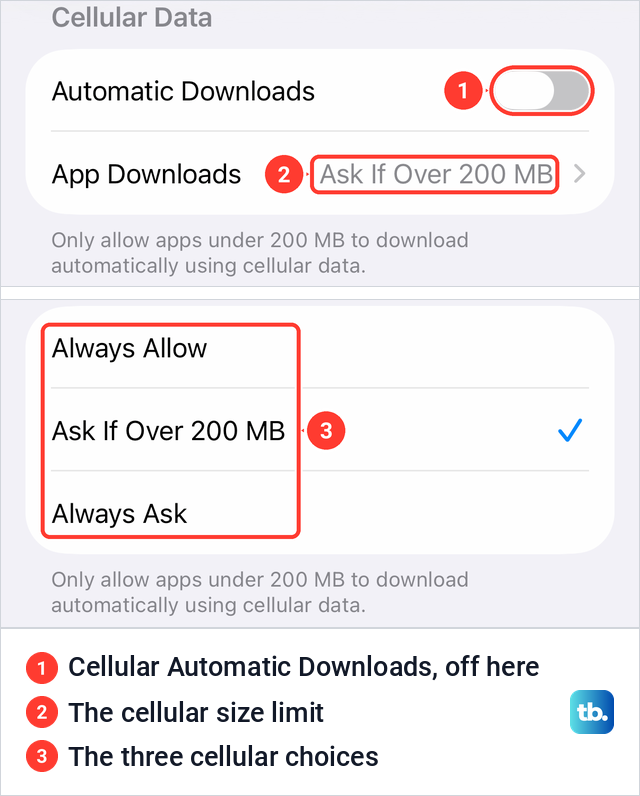
Tapping App Downloads showed three choices: Always Allow, Ask If Over 200 MB and Always Ask. The note under them reads "Only allow apps under 200 MB to download automatically using cellular data." On a small data plan, keep the 200 MB limit and let big updates wait for Wi-Fi. If updates only ever arrive on Wi-Fi and you want them over cellular too, turn on Automatic Downloads in this group, the cellular setting for automatic downloads that Apple's guide points to.
The App Store also has its own cellular switch. Our Settings > Cellular page listed the App Store among the apps allowed to use cellular data, with its switch on. If that switch is off on yours, turn it on.
Why an update is waiting even with automatic updates on
Developers can release an update in phases. Apple's instructions for developers say a phased update goes to a random sample of users with automatic updates on over 7 days, from 1 percent on day 1 to everyone on day 7, and can be paused for up to 30 days. The same page says anyone can download it by hand from the App Store at any time.
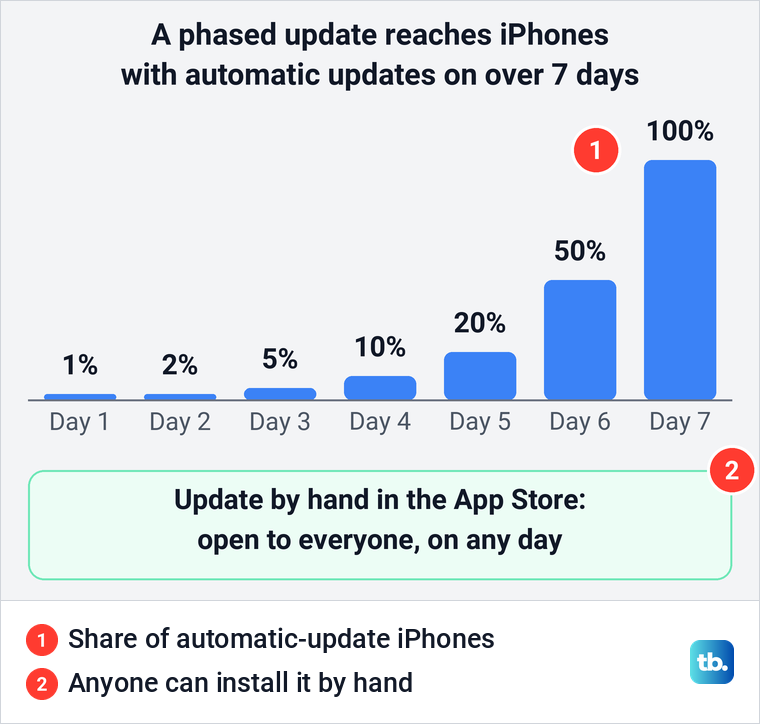
That can explain a common puzzle: a friend has the new version and you do not. Open App Updates and tap Update instead of waiting for your turn. If the app already sits under Updated Recently, it has been updated.
Low Power Mode and Low Data Mode pause automatic updates
Two battery and data settings switch automatic updates off. Apple lists "Turns off automatic downloads" among the things Low Power Mode does. For the App Store, Apple says Low Data Mode "Turns off video autoplay, automatic updates, and automatic downloads".
On iPhone 15 and later, Apple's path is Settings > Battery > Power Mode, then Low Power Mode. On iPhone 14 and earlier it is Settings > Battery. You can also tap the battery icon in Control Center, and Apple says that if your iPhone supports Adaptive Power and it is on, Low Power Mode turns on when the battery goes below 20 percent. Apple also says Low Power Mode turns off once you charge to 80 percent or higher.
Low Data Mode is set separately for cellular and for each Wi-Fi network. On our iPhone the cellular setting was under Settings > Cellular > Cellular Data Options > Data Mode, with Standard ticked, and the page's own note says Low Data Mode helps reduce cellular data usage by pausing automatic updates and background tasks. On an LTE or 4G plan, Apple says Low Data Mode is a switch directly under Cellular Data Options.
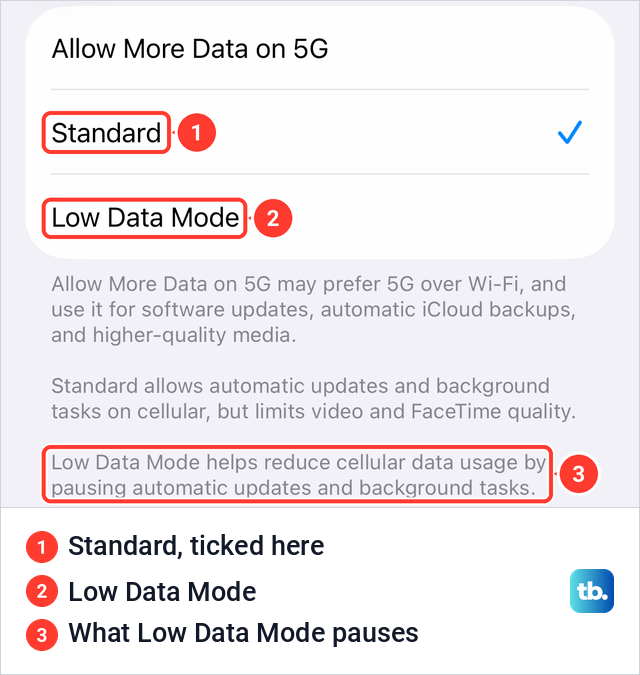
For Wi-Fi, Apple's steps are Settings > Wi-Fi, tap the Info button next to the network you are on, and turn off Low Data Mode. Turn both settings off when you want updates to flow, then open App Updates to catch up.
When an update is stuck or will not install
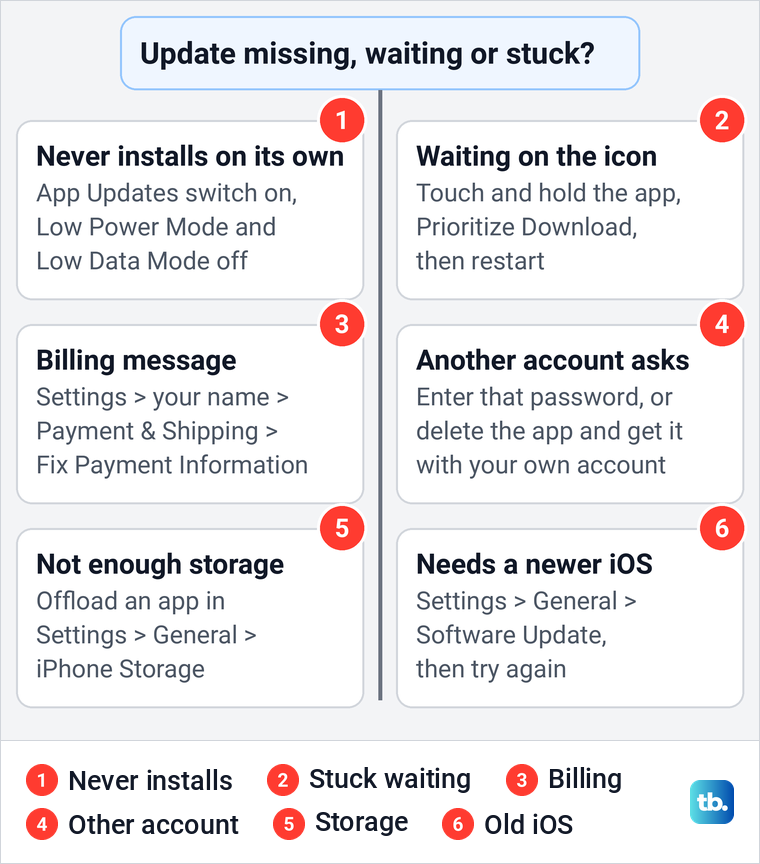
Apple's own list for apps that will not download or update starts with updating the app by hand, then checks your payment method. Apple says you might need a valid payment method on file even if the app is free, and that a message saying "billing problem with a previous purchase" or "verification required" means you have an unpaid balance.
Until that balance is paid, Apple says you may not be able to download free apps. To fix it, open Settings, tap your name, tap Payment & Shipping, tap Fix Payment Information, then tap Try Again.
Apple says you can also pay the balance by redeeming an Apple Gift Card or App Store Card, and that once it is paid you can make purchases and use subscriptions again. If a subscription you no longer want is behind the charge, our guide shows how to cancel subscriptions on iPhone.
If an app icon on the Home Screen is waiting to update, touch and hold it and choose Prioritize Download. Apple's next tip is to restart your iPhone with the buttons, then check again. If the screen stops responding altogether, force restart an iPhone that froze.
Apple also says that in some countries or regions you might have to confirm you are an adult before certain apps download. When nothing on the list works, Apple's last step is to contact Apple Support.
If the App Store cannot connect at all, Apple's first checks are its System Status page and any website in a browser. If websites load on your laptop but not on the phone, fix Wi-Fi that works on other devices but not your iPhone. Apple also says to check your VPN and third-party security software, turn on Cellular Data if you use cellular, and update iOS. Our VPN guide shows how to turn a VPN on or off on iPhone.
When the App Store asks for another Apple Account
Apple's rule is that you can't update content you bought with a different Apple Account. So if the App Store asks for someone else's password when you tap Update, that app was downloaded with their account, and only that account can update it.
The App Store's Apple Account sheet shows the signed-in account's name at the top, above App Updates. To switch accounts, Apple's support pages use Settings, your name, then Media & Purchases to sign out and sign in with another account, and Apple notes you don't need to sign out of iCloud or iMessage to do it.
You then have two ways out. Enter that account's password to update the app, or delete the app from your iPhone and download it with your own account. The purchase stays with the other account, so a paid app has to be bought on yours. Deleting removes the app's data from the iPhone, so save anything you need first.
Our steps to find and reinstall deleted apps start in the same App Store account sheet, under Apps & Purchase History. If the prompt names your own old account and you have forgotten its password, recover an Apple Account password first. Apple adds that an app missing from your purchase history might have been bought with a different Apple Account.
Make room when storage is full
An update has to download before it installs, so a full iPhone can hold it back. Open Settings > General > iPhone Storage to see what takes up space, then tap an app to open its page. On our iPhone each app page showed App Size, Documents & Data and two buttons, Offload App and Delete App.
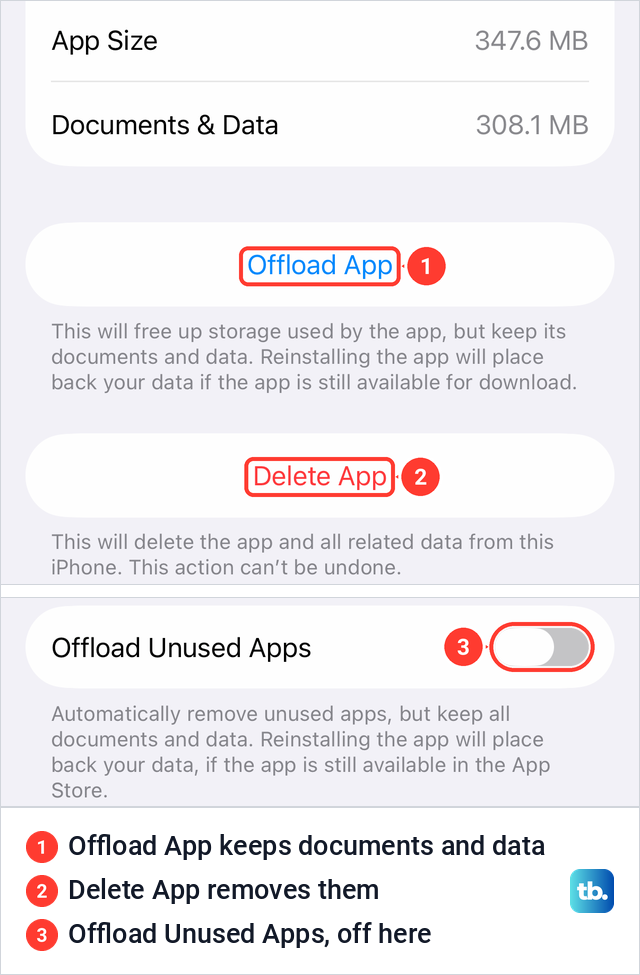
Offload App is the safer choice. Its note says it frees up the storage used by the app but keeps its documents and data, and that reinstalling the app puts your data back if the app is still available. Delete App removes the app and all related data from the iPhone, and its note warns that this can't be undone.
The App Store page in Settings also has Offload Unused Apps, which was off on our iPhone. Its note says it removes apps you don't use but keeps all their documents and data. After freeing space, go back to App Updates and try again.
Update iOS when an app needs a newer version
Apps installed with iOS update whenever you update iOS, and Apple says some older iOS versions no longer support services like the App Store. If an app or its update needs a newer iOS than yours, check which iOS version your iPhone runs first.
Then open Settings > General > Software Update. On our iPhone it offered iOS 26.7.1 with Update Now and Update Tonight, showed Automatic Updates as On, and listed Upgrade to iOS 27 under Also Available.
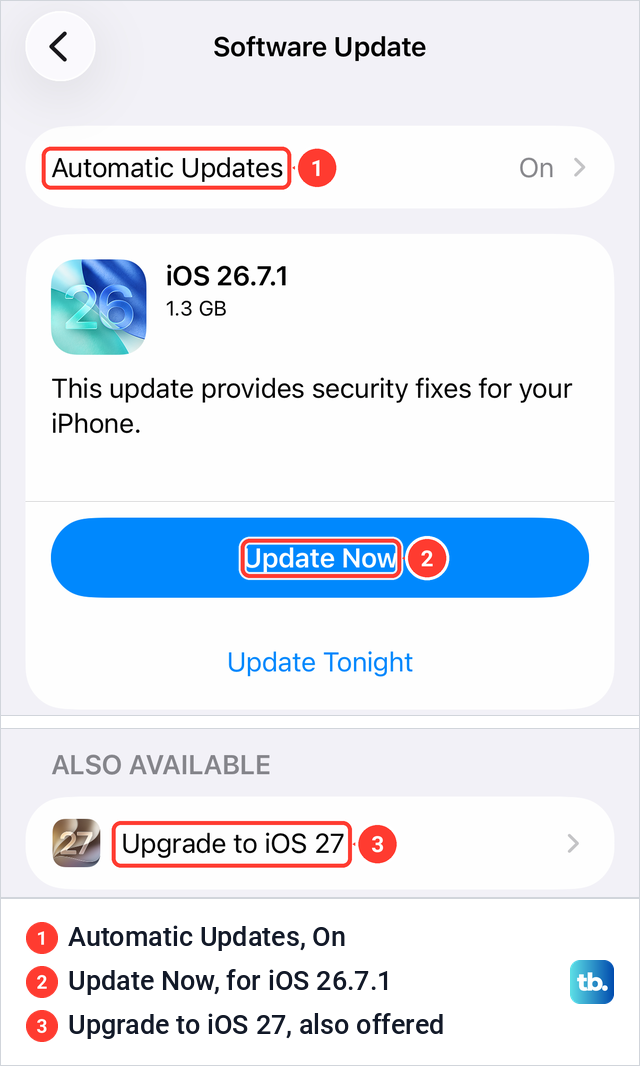
Apple says that if the iPhone asks to remove apps temporarily to make room for the update, tap Continue, and those apps are reinstalled automatically once installation is complete. Our guide to update iOS and Apple's other software covers the rest. If the download never starts, see how to fix an iOS update stuck on Update Requested.
When the App Store icon is missing
Apple says that if the App Store is missing, Content & Privacy Restrictions may be turned on, and the fix is to set Installing Apps to Allow. Apple's iOS 26 guide calls that menu iTunes & App Store Purchases. On our iOS 26.5 screen it was named App Installations & Purchases, with Installing Apps and a separate App Store row.
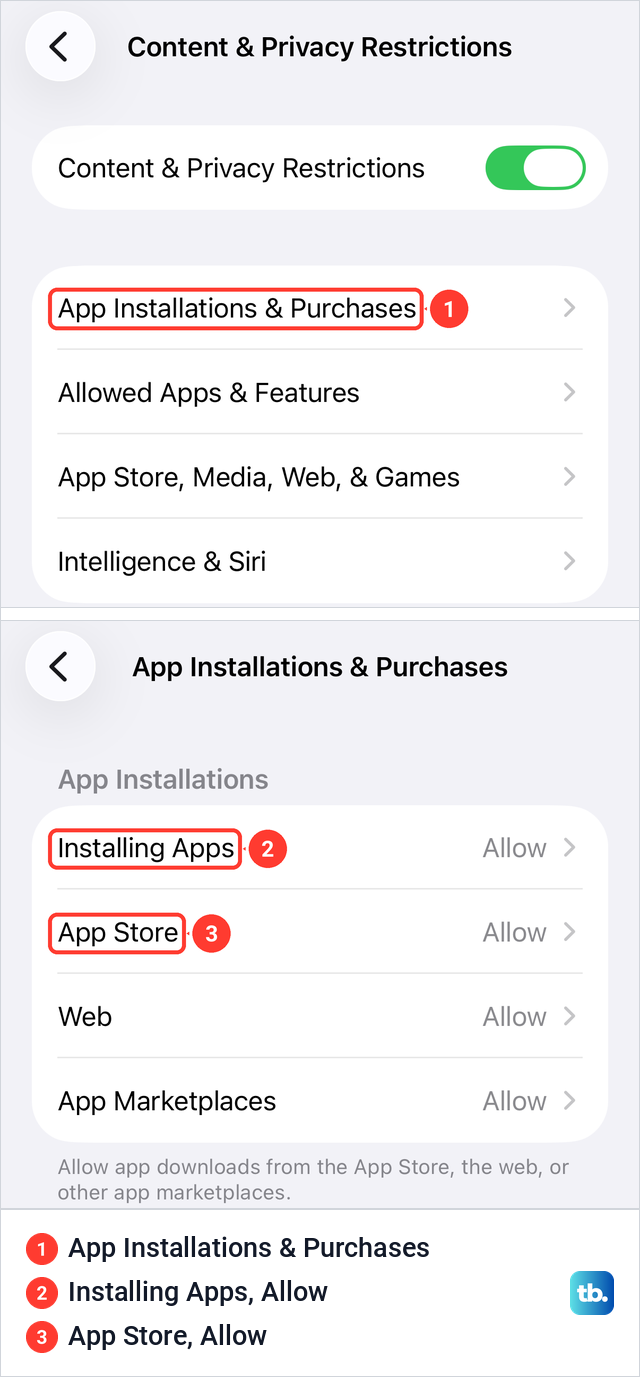
Open Settings > Screen Time > Content & Privacy Restrictions, then App Installations & Purchases (iTunes & App Store Purchases in Apple's guide), and set Installing Apps to Allow. If an App Store row appears under it, as on our iOS 26.5 screen, set that to Allow too. If the icon is still missing, Apple suggests swiping down on the Home Screen and searching for App Store.
With the new parental controls in iOS 27, Apple's path starts on the parent's iPhone: Settings > Family, tap your child's name, tap Apps & Websites, tap App Store, then set Installing Apps to Allowed. Apple says those controls need every device in the Family Sharing group on the 27 software versions, and a parent has to update the family's parental controls first. Otherwise you adjust the settings on the child's iPhone as above.
Ask to Buy does not hold updates back. Apple says a parent gets no request when a child installs an update, redownloads their own purchase or uses a redemption code. Ask to Buy is part of the family group you create when you set up Family Sharing on iPhone.
Update apps on Apple Watch
Apple Watch has its own App Store with different labels. Apple's steps are to open the App Store on the watch, scroll down to the bottom, tap Account, then Updates, and tap Update next to an app or Update All.
For automatic updates, open Settings on the watch, tap App Store and turn on Automatic Updates. Apple also lets you do it from the Watch app on your iPhone by scrolling to App Store, tapping it and turning on Automatic Updates.
Apps from TestFlight or another app marketplace
Beta apps from TestFlight update inside TestFlight, not in the App Store's list. Apple says each build can be tested for up to 90 days, and that you can turn on Automatic Updates for New Apps from Settings at the top right of TestFlight, or Automatic Updates for one app under App Information on its page.
In Brazil, Japan and the European Union, apps can also come from alternative app marketplaces, and in the EU from a developer's website. Apple says these update automatically when Automatic Downloads is on for App Updates under Settings > Apps > App Installation, otherwise you check each app under Settings > Apps. You can keep updating them for up to 90 days after you leave the region.
In the EU, Apple also lets you delete the App Store itself once another app marketplace is your default for app installation. Apple says apps you got from the App Store then get no updates, not even by hand, until you go to Settings > Apps > App Installation and choose Restore App Store at the bottom of the page.
How we tested this guide
We tested this on an iPhone 17 Pro with iOS 26.6, going through the App Updates list in the App Store and the Software Update page.
Frequently Asked Questions
Why are my apps not updating automatically?
Check that App Updates is on in Settings > Apps > App Store, then turn off Low Power Mode and Low Data Mode, which both switch automatic updates off. Automatic updates can also wait for days, so open App Updates and tap Update All.
Where is the Updates tab in the App Store?
There is no Updates tab in the App Store's tab bar. Tap your picture at the top right of the App Store, then tap App Updates.
How do I force an app to update?
Open App Updates and tap Update next to the app. Apple says even an update that a developer is rolling out in stages can be downloaded by hand at any time.
Does updating iOS update my apps?
It updates the apps that come installed with iOS. Apps you download from the App Store, including Apple apps you got there, update through the App Store, automatically by default or from App Updates.
Why does the App Store ask for someone else's password?
The app was downloaded with that Apple Account, and Apple does not let you update content bought with a different one. Enter that password, or delete the app and download it again with your own account.
Can apps update over cellular data?
Yes, if you allow it. The Cellular Data group in Settings > Apps > App Store sets whether apps download automatically over cellular and the size limit, and Low Data Mode pauses automatic updates.
How do I update apps on Apple Watch?
On the watch, open the App Store, scroll to the bottom, tap Account, then tap Updates. Tap Update next to an app, or Update All.