

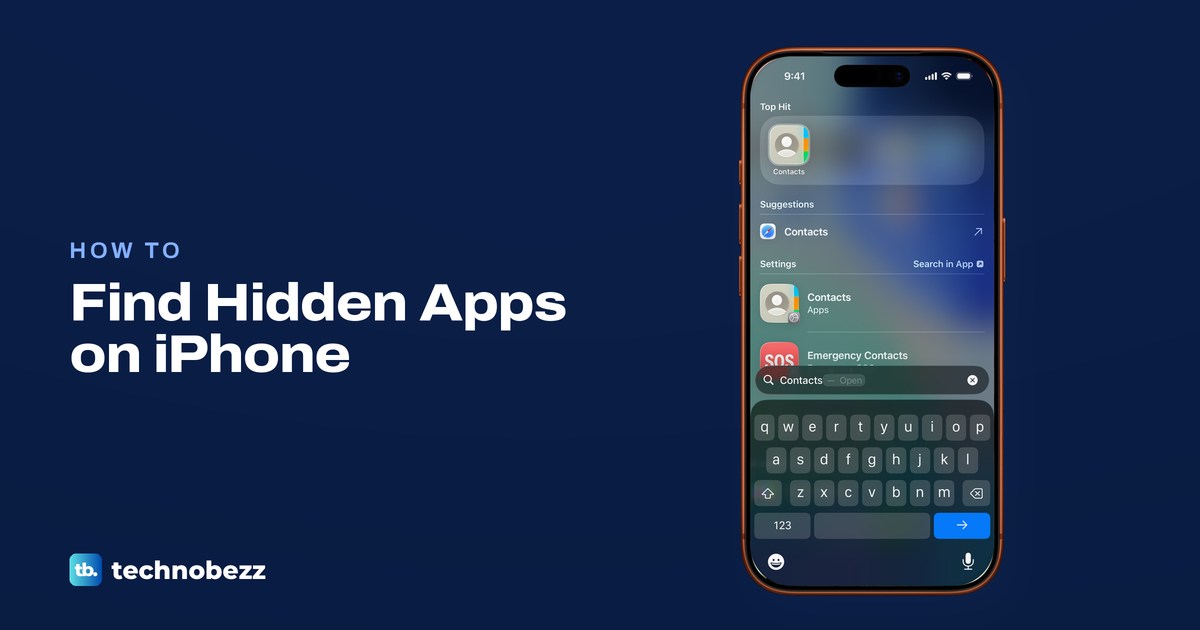
To find hidden apps on iPhone, swipe left past your last Home Screen page to open App Library, scroll to the bottom and tap the Hidden folder, then unlock it with Face ID, Touch ID or the passcode. Every app inside is one that someone chose to hide. To check on one app, type its name into Search first. Search can't find apps in the Hidden folder, but other settings can also keep an app out of Search.
A missing icon is not always a hidden app. Apple says an app you can't see may still be in App Library, on a hidden Home Screen page or in the Hidden folder, and Screen Time can take built-in apps such as Safari off the screen too. On a family member's iPhone the Hidden folder still needs that phone's Face ID, Touch ID or passcode, and a parent's Screen Time view works differently, as explained further down.
The short version
- Hidden folder: open App Library, scroll to the bottom, tap Hidden, then use Face ID, Touch ID or the passcode.
- The full list: Settings > Apps > Hidden Apps names every app hidden on that iPhone.
- One app: if Search finds it, it is not hidden, so look in App Library, folders and hidden pages.
- Safari gone: built-in apps can't be hidden, so check Allowed Apps & Features in Screen Time.
- A child's iPhone: a parent sees downloads and use in Screen Time, but the folder opens only on the child's phone.
Where a missing iPhone app can be
Start from what you can see, because each clue points to a different place. Apple's own checklist for a missing app names App Library, a hidden page and the Hidden folder. The table adds the settings that make an app look hidden when it isn't, so treat each row as the next place to look rather than a final answer.
| What you notice | Where to look | What to do |
|---|---|---|
| Search can't find an app you downloaded | The Hidden folder, then Settings > Search | Open Hidden with Face ID or the passcode, then check Show App in Search |
| Search finds the app, but no Home Screen page shows it | App Library and your folders | Drag it from App Library or out of its folder onto a page |
| A whole page of apps is gone | Edit Pages on the Home Screen | Tick the page's circle, then tap Done |
| Apps vanish only at certain times | The Home Screen choice of a Focus | Change that Focus's Home Screen pages or turn the Focus off |
| Safari or another built-in app is gone | Screen Time > Content & Privacy Restrictions > Allowed Apps & Features | Turn the app's switch back on |
| An icon is dimmed with an hourglass | Screen Time Downtime | Wait for Downtime to end or change the schedule |
| An icon shows a cloud | The app was offloaded | Tap it to download the app again |
| An app is missing from your App Store purchases | App Store > Hidden Purchases | Tap Unhide, then download it if it was deleted |
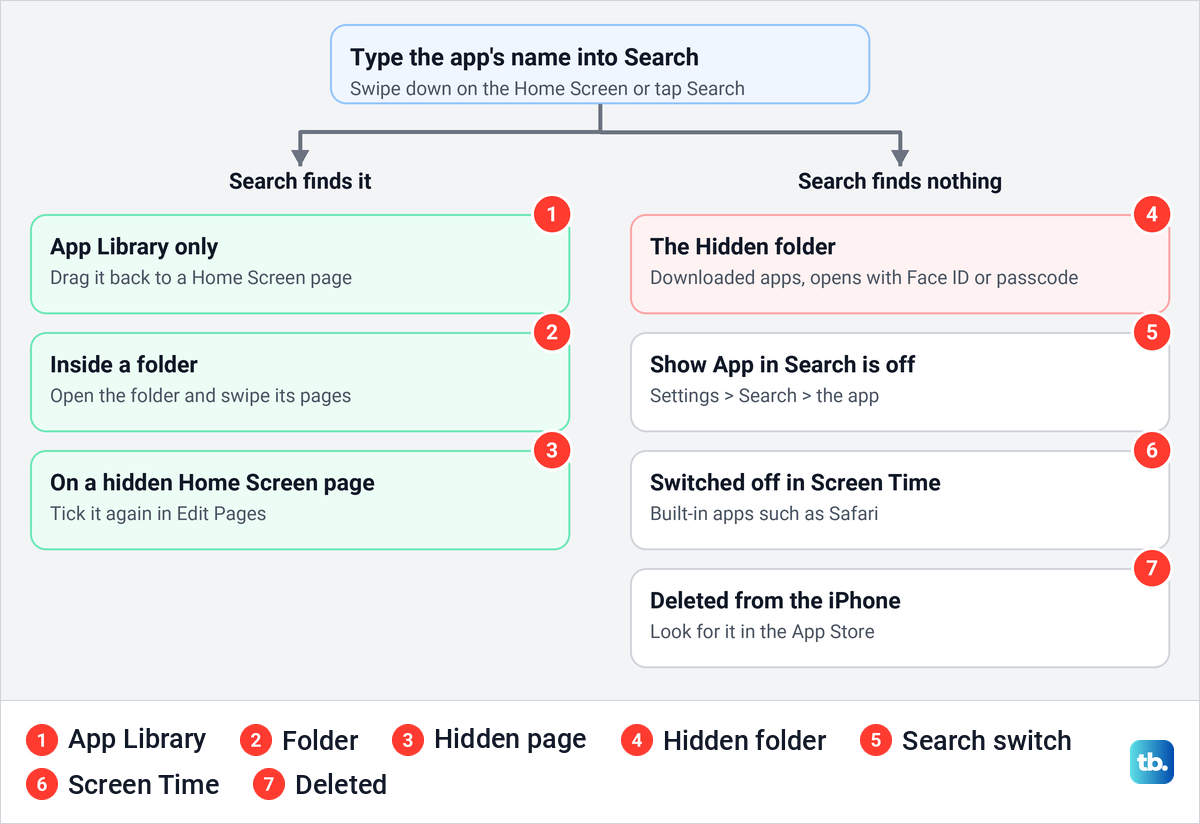
The diagram puts the same checks in order. Search splits them in two: an app that Search finds is not in the Hidden folder, while an app it can't find is hidden, left out of Search, switched off in Screen Time or deleted from the iPhone. Offloading is a separate case: Apple describes an offloaded app's icon staying on the Home Screen with a cloud symbol, covered further down.
Search for the app first
Search is the quickest test, and Apple builds its own missing-app advice around it. Swipe down from the middle of the Home Screen, or tap Search just above the Dock, and type the app's name. On iOS 26.5 the Home Screen had that Search button above the Dock, and typing Contacts put the Contacts app at the top of the results as the Top Hit.
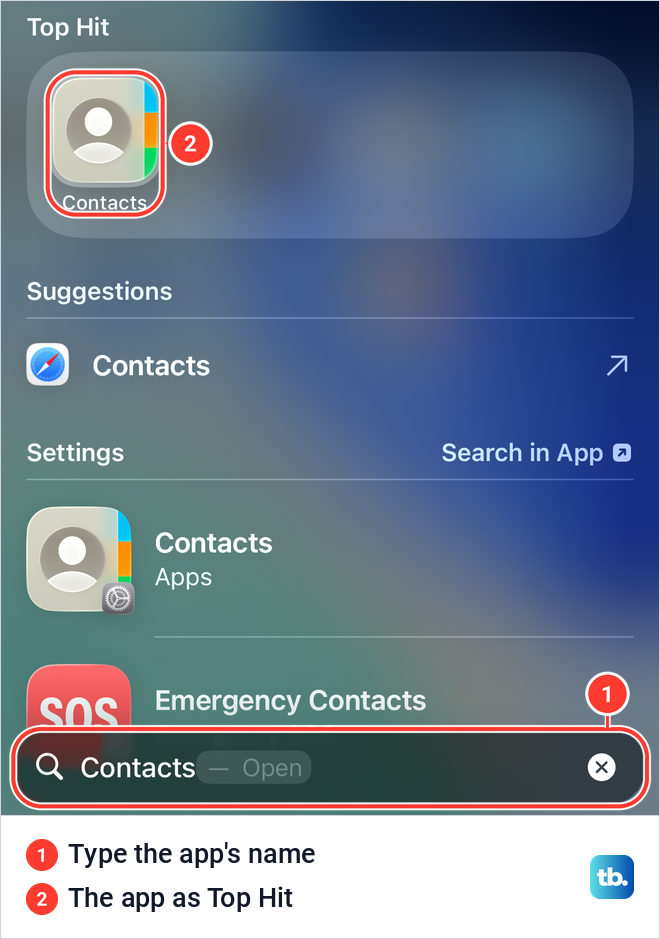
If the app shows up, it is not in the Hidden folder, because Apple says a hidden app "can't be found with Search". Tap the icon to open it, then use the folder and page sections below to work out where it went. If nothing shows up, Apple's next suggestions are to check the Hidden folder or download the app again.
Some advice says Spotlight can open a hidden app directly. Apple's documentation says the opposite: a hidden app can't be found with Search, and a locked app's information stays out of search and Siri suggestions. Search is how you rule the Hidden folder out, not a way into it.
Open the Hidden folder in App Library
The Hidden folder arrived with iOS 18, so check the iOS version on your iPhone if you can't find it. If you're on iOS 18 or later and still don't see it, Settings > Apps > Hidden Apps lists every hidden app. Go to the Home Screen and keep swiping left until App Library opens after your last page. Then scroll down past every category until you reach the bottom.
On our iPhone 17 Pro with iOS 26.6, the folder named Hidden was in App Library's bottom row while nothing on the phone was hidden, its tile a grid of empty frosted squares. So an empty-looking tile tells you nothing until you open it. Tapping it on our iPhone brought up the Enter iPhone Passcode keypad straight away.
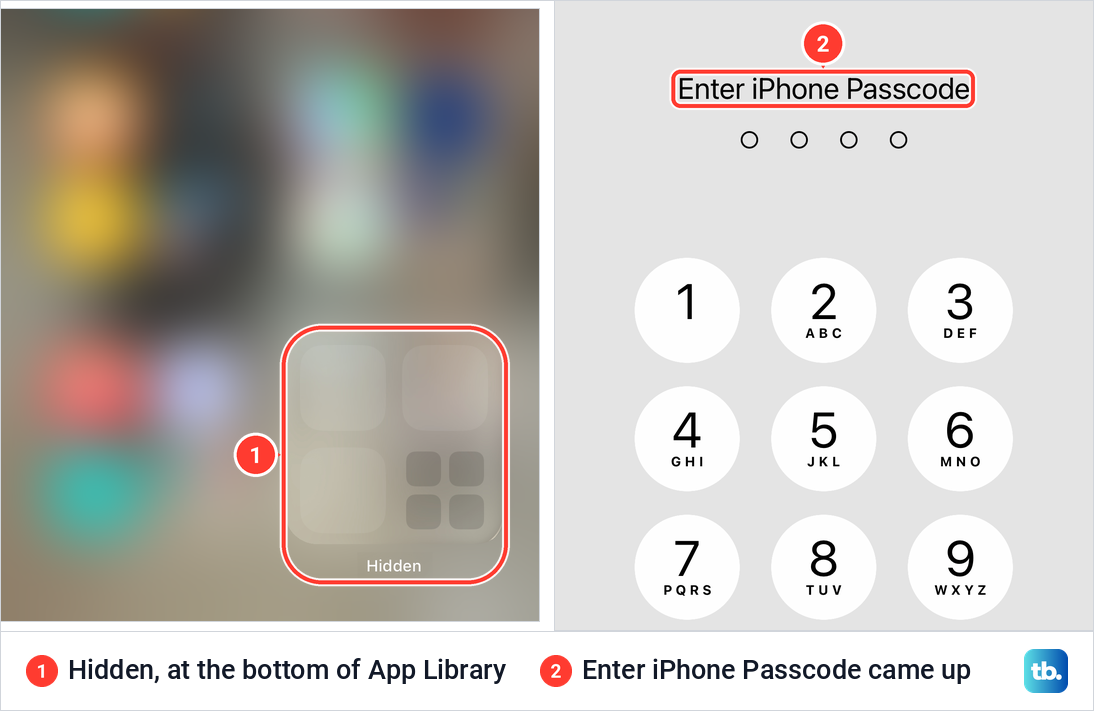
Apple says Face ID, Touch ID or the passcode unlocks the folder, and it documents no other way in. If Face ID or Touch ID isn't available, you need the iPhone passcode. Once the folder opens, each app inside is one that was hidden on that iPhone.
Apps get there through the app's lock sheet. On our iPhone, YouTube's Require Face ID sheet offered Hide and Require Face ID, while Safari's offered only Require Face ID and Cancel, because Apple says apps that came with the iPhone can't be hidden. Our guide on how to hide apps on your iPhone shows that sheet if you want to know how an app ended up in the folder.
See the list of hidden apps in Settings
Settings keeps a second, plainer view of the same apps. Apple's path is Settings > Apps > Hidden Apps, and Apple says this list also asks for Face ID, Touch ID or the passcode. On our iPhone the Hidden Apps row was the very last one, below the # group at the end of the A to Z list, and on iOS 26.5 it sat in the same place.
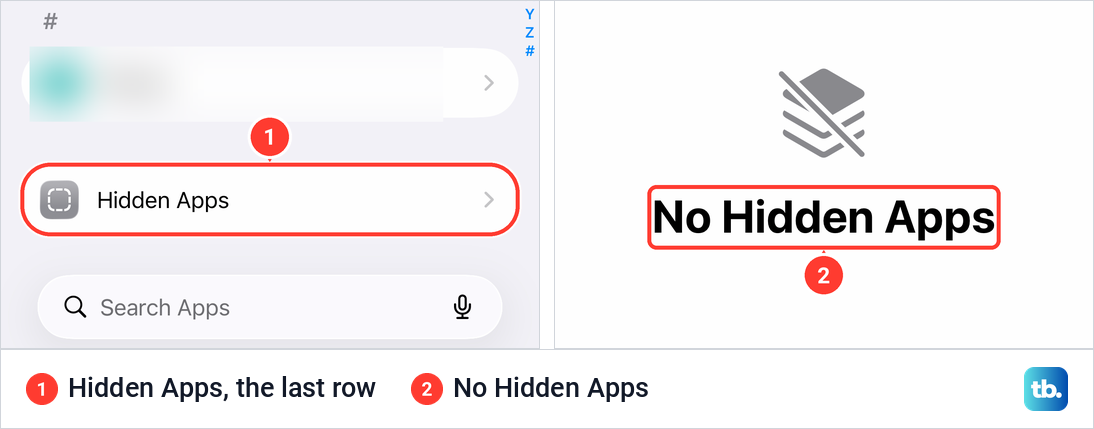
Our iPhone had nothing hidden, and the page said so plainly: No Hidden Apps, under a struck-through icon. That empty page answers whether an iPhone has any hidden apps at all. If names appear instead, write them down, then open the Hidden folder to deal with the apps, which is where Apple's unhide steps start.
Hidden does not mean invisible everywhere. Apple says a hidden app's name still shows in places such as Screen Time, Battery Usage By App in Settings and your App Store purchase history. Apple also says hidden status doesn't sync with iCloud, so check each iPhone and iPad on its own.
When Search misses an app that isn't hidden
An app can be missing from Search without being hidden at all. Open Settings > Search and scroll down to the list of apps; if the one you are looking for is listed there, tap it to see its Search setting. On iOS 26.5 the Contacts page held two switches under While Searching, Show App in Search and Show Content in Search, and both were on when we checked.
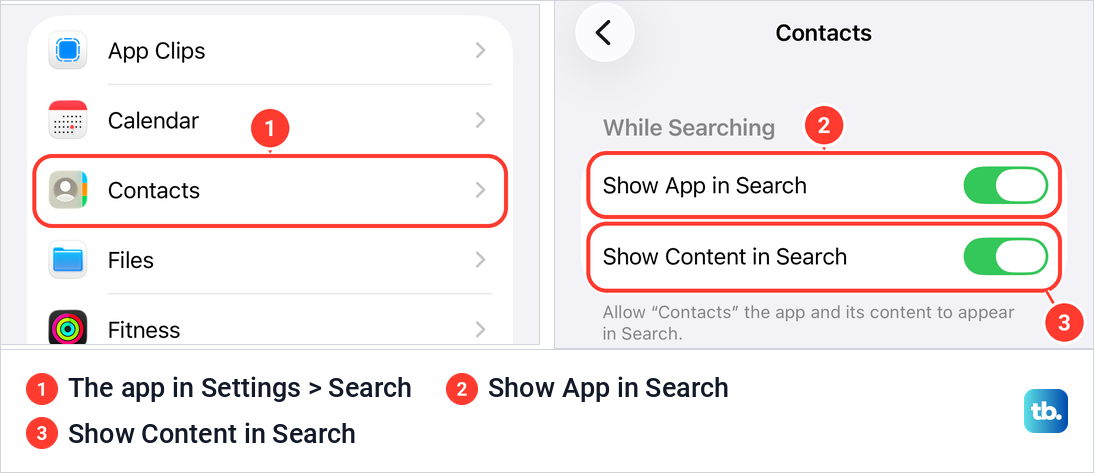
The note under those switches reads “Allow “Contacts” the app and its content to appear in Search.” With Show App in Search off, an app can look hidden while it sits on your Home Screen or in App Library. On iOS 26.5 the same two switches also appear under Settings > Apps, the app's name, then Search, so either route works.
Look inside folders and App Library
If Search finds an app that no Home Screen page shows, it is usually somewhere ordinary. Folders come first. Open each folder and read every icon; Apple notes a folder can hold several pages, so swipe left inside it too. To get an app out, Apple says to touch and hold it and drag it onto the Home Screen, where you can move and organize iPhone apps as you like.
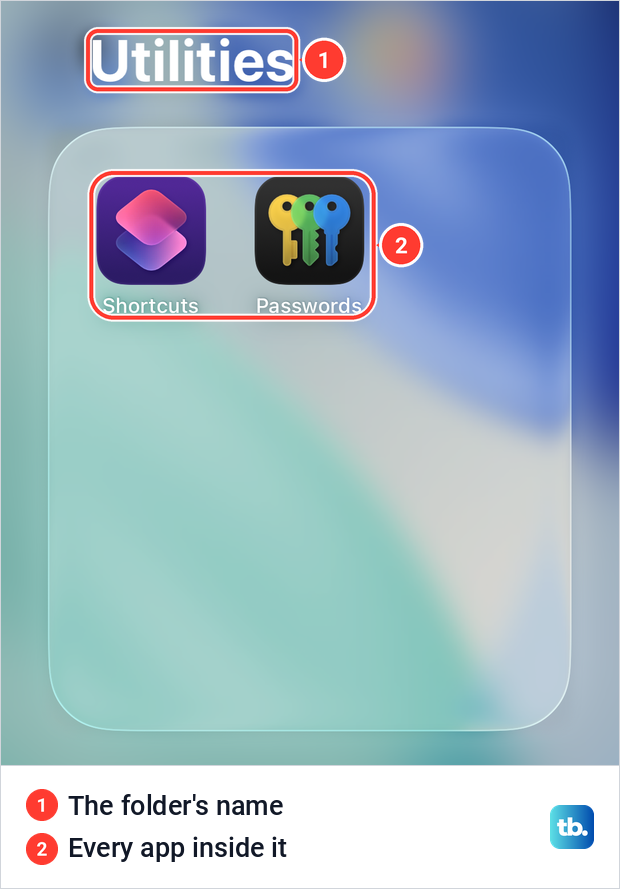
App Library shows your installed apps sorted into categories, including ones that are not on any Home Screen page. Swipe left past your last page, then type the name in the search field at the top or scroll through the alphabetical list. On iOS 26.5, typing Contacts there left a single Contacts row, and Apple says tapping a category's small icons expands it to show all its apps.
From App Library, Apple's steps are to touch and hold the app, drag it to the Home Screen page you want and tap Done. If you cleared icons off your Home Screen on purpose, the guide on how to delete apps on iPhone explains which choices keep an app and which remove it.
Show a hidden Home Screen page
When a whole page of apps disappears at once, the page itself may be hidden. Touch and hold an empty part of the Home Screen until the icons jiggle, then tap Edit. On iOS 26.5 that opened a menu with Add Widget, Customize, Edit Wallpaper and Edit Pages.
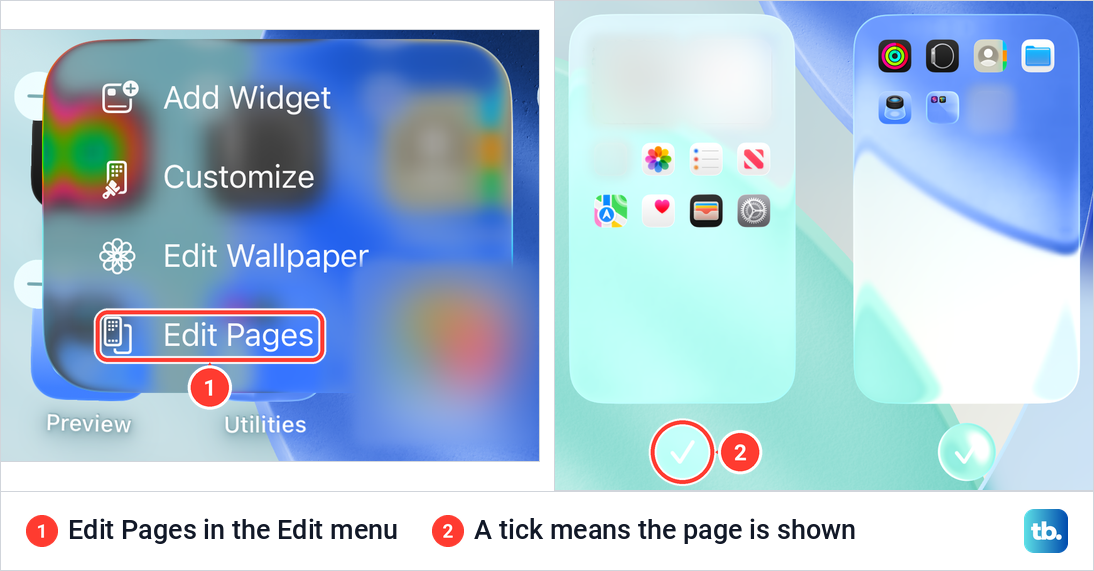
Edit Pages shows each Home Screen page as a thumbnail with a circle beneath it. On iOS 26.5 both pages had a tick and the only button was Done. Apple says to tap any unchecked circle to show that page again, then tap Done, and that apps on a hidden page still appear in App Library and Search.
Hidden pages can also make a new download look as if it vanished. Apple says that while pages are hidden, new apps you download may go to App Library instead of the Home Screen.
A Focus can also choose which pages you see. On our iPhone, the Do Not Disturb page under Settings > Focus had a Customize Screens section with a Home Screen choice, and Apple says a Focus can switch to chosen pages while it is on. If the apps come back when you turn off Focus on iPhone, change that Focus's Home Screen choice.
Find built-in apps switched off in Screen Time
Apps that came with the iPhone can't go into the Hidden folder, so a missing Safari was never hidden there. Go to Settings > Screen Time > Content & Privacy Restrictions > Allowed Apps & Features. That page lists built-in apps such as Safari, Wallet and AirDrop, under a note that turning one off removes it from the Home Screen but does not delete it.
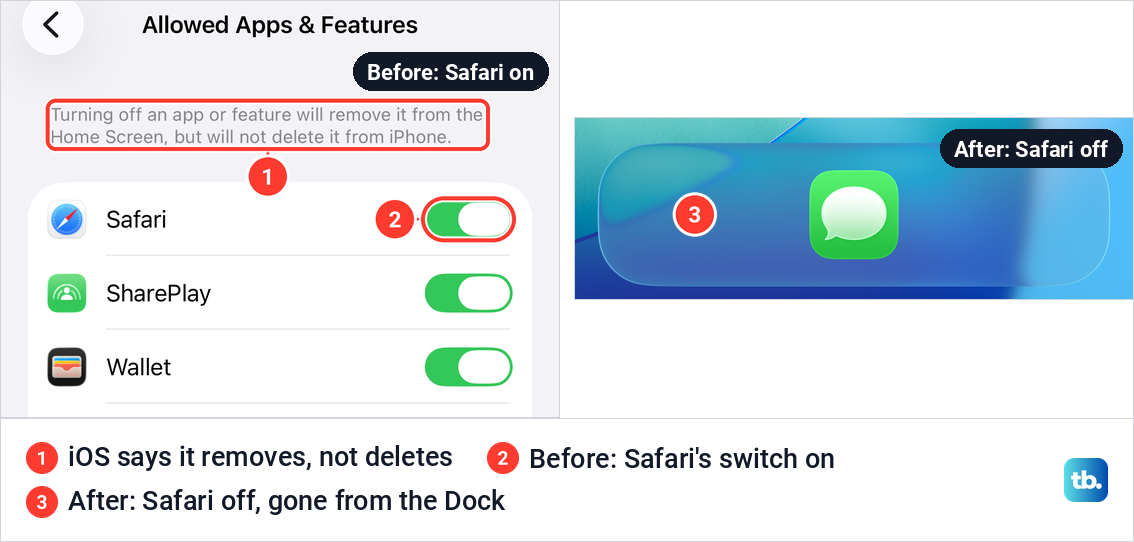
We switched Safari off to see what happens, and it disappeared from the Dock, leaving Messages on its own. Then we switched it back on. Apple's wording for iOS 26 is that a switched-off app "isn't deleted; it's temporarily hidden from your Home Screen until you turn it back on".
On a child's iPhone that uses Apple's updated iOS 27 parental controls, the parent manages apps from their own iPhone instead. Apple's route is Settings > Family, the child's name, then Apps & Websites, entering the Screen Time passcode if asked, and every app the parent blocks is kept in a Blocked list there.
Screen Time can also leave an app on screen but block it. Apple says that during Downtime, blocked apps can't be opened and appear dimmed with an hourglass icon. That app is not hidden or deleted, and it works again once Downtime ends or the schedule changes.
Tell an offloaded or deleted app from a hidden one
An offloaded app is not hidden; its download was removed to save space. Apple says the icon stays on your Home Screen with a cloud symbol, and tapping it reinstalls the app. On our iPhone, an app's page under Settings > General > iPhone Storage offered Offload App, and iOS explained that it frees the app's storage but keeps its documents and data.
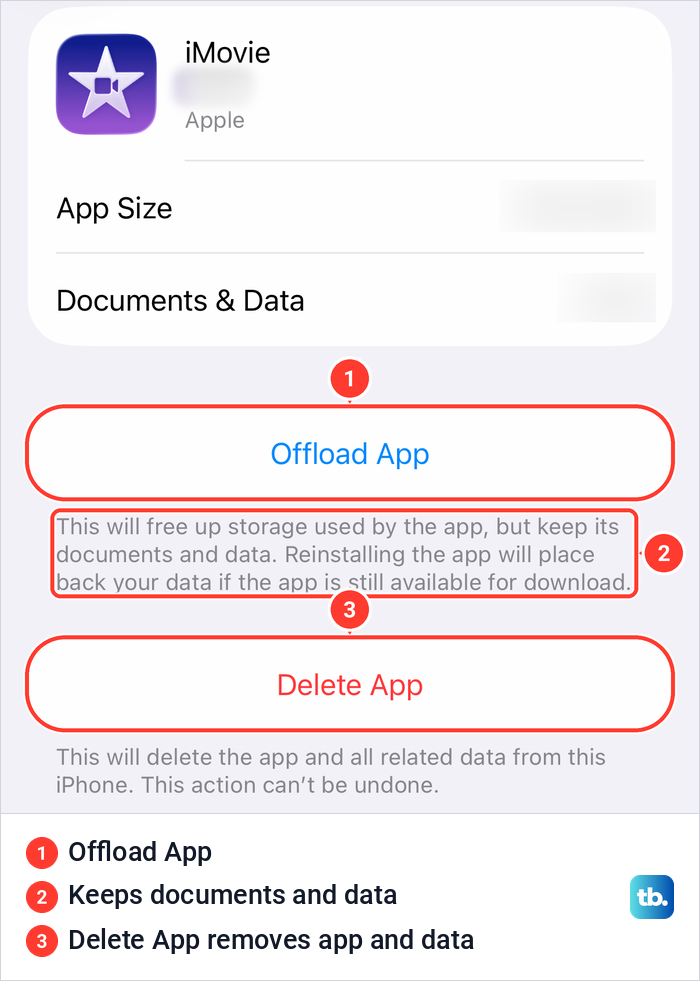
Apps can be offloaded automatically too. On our iPhone, Offload Unused Apps sat under Settings > Apps > App Store and was off, and Apple says that when it is on and storage is low, iPhone removes unused apps but keeps their data. Our guide to get more storage on iPhone covers that switch, and you can also undownload apps on iPhone by hand.
A deleted app is gone from the iPhone rather than hidden. If Search, App Library, the Hidden folder, the Search switch and Screen Time all come up empty, look for it in the App Store. Our steps to find and reinstall deleted apps show where your past downloads are listed.
Hidden Purchases are a separate list
The App Store has a Hidden Purchases list of its own, and it works on your purchase history, not on the phone. Apple says hiding a purchase leaves the app installed on your device, on family members' devices and on anything else signed in to your Apple Account. What changes is the list, and while a purchase stays hidden, family members can't redownload it from your shared purchases.
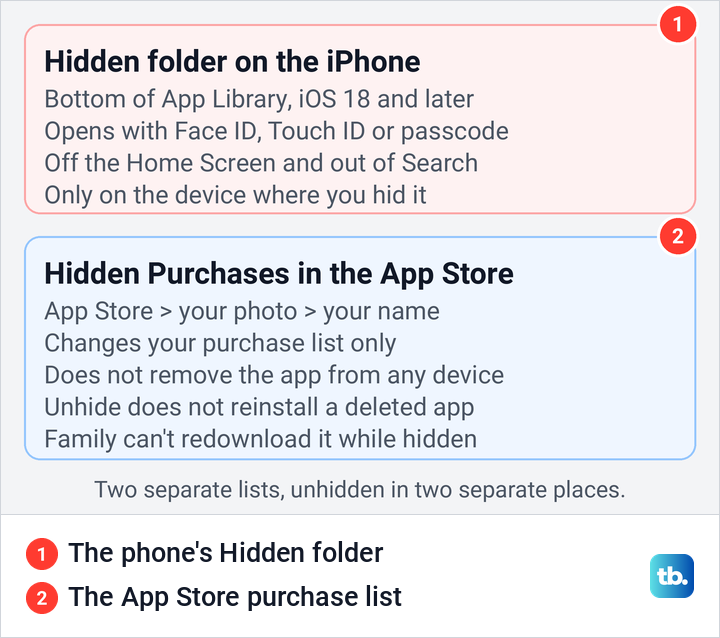
To open that list, start in the App Store, tap your photo or initials, then your name, then Hidden Purchases, and tap Unhide next to the app. If the app was deleted, Apple says unhiding the purchase won't put it back on your Home Screen, so download it again from the App Store.
Unhide an app once you find it
Inside the Hidden folder, Apple's steps are to touch and hold the app, tap Don't Require Face ID (Don't Require Touch ID or Passcode on other iPhones) and confirm with Face ID, Touch ID or the passcode. Apple says the app goes back to App Library, near the top, so don't expect it on the Home Screen straight away.
To put the icon back, touch and hold it in App Library, drag it onto a Home Screen page and tap Done. Our guide to unhide apps on iPhone goes through those steps, including the label an iPhone with Touch ID shows.
Finding hidden apps on a child's iPhone
Apple's answer depends on age. Children under 13 in a Family Sharing group can't lock or hide apps. Teens aged 13 to 17 can, but Apple says a parent or guardian in the group can still see that the app was downloaded and how much time it is used, and can restrict it with Screen Time. Apple adds that these ages vary by country or region.
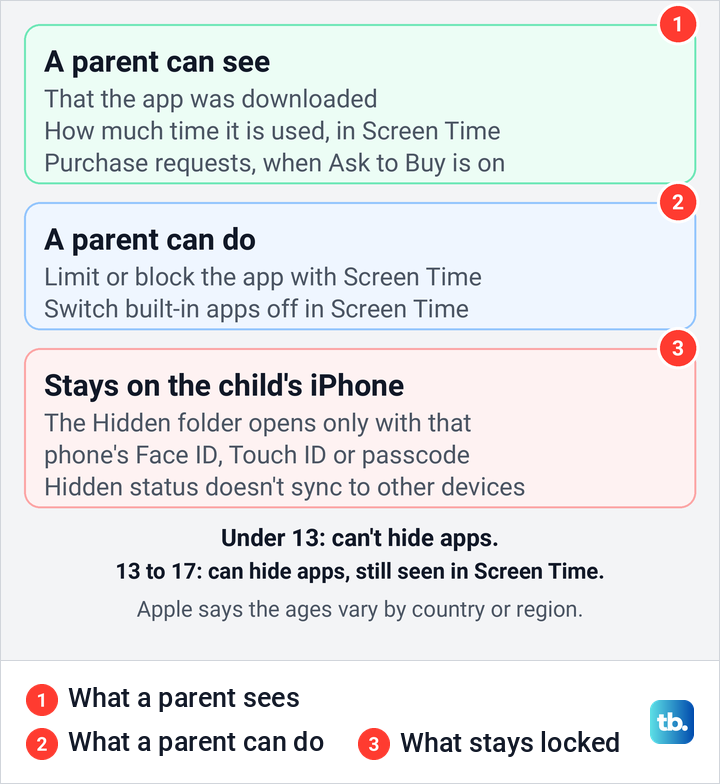
That view lives on the parent's own iPhone once you set up Family Sharing on iPhone for the child. On iOS 26, Apple's route is Settings > Screen Time, then the child's name and their app and website activity. With Apple's updated iOS 27 parental controls, it is Settings > Family, then the child's name, where Most Used Today lists their apps. Apple says a hidden app's name still shows in Screen Time, so hiding an app does not take it out of that report.
Apple's parental controls also include Ask to Buy, on by default for children under 13 and, in some states, countries or regions, for every child under 18; a parent can also turn it on so downloads need approval. What Apple does not describe is any way to open the Hidden folder from another device. The folder opens only with the Face ID, Touch ID or passcode of the iPhone it is on, so looking inside has to happen on that iPhone.
How we tested this guide
We tested this on iOS 26.5, running Home Screen and App Library searches and opening the Edit Pages view.
Frequently Asked Questions
Where is the Hidden folder on iPhone?
It is at the bottom of App Library. Swipe left past your last Home Screen page, scroll all the way down and tap Hidden. It needs iOS 18 or later.
Can I see hidden apps without Face ID?
Yes, with Touch ID or the iPhone's passcode instead. Apple says the folder and the Hidden Apps list in Settings both ask for one of the three, and on our iPhone the passcode keypad also appeared.
Why does Search find an app that isn't on my Home Screen?
The app is installed and not hidden, so it is in App Library only, inside a folder or on a hidden Home Screen page. Open it from Search, then drag its icon from App Library to the page you want.
Why is a whole page of apps missing?
The page is probably hidden, or a Focus is showing only certain pages. Touch and hold the Home Screen, tap Edit, then Edit Pages and tick the page, and check the Customize Screens choice of any Focus that is on.
Why is Safari missing from my iPhone?
Safari can't be hidden, so look in App Library first. If it is not there, open Settings > Screen Time > Content & Privacy Restrictions > Allowed Apps & Features and turn Safari back on.
Can parents see hidden apps on a child's iPhone?
Partly. Apple says a parent in Family Sharing can see that a teen's hidden app was downloaded and how much it is used, and can restrict it with Screen Time. Opening the Hidden folder still needs the child's Face ID, Touch ID or passcode.
Are Hidden Purchases the same as hidden apps?
No. Hidden Purchases only changes your App Store purchase list and does not remove an app from any device. The Hidden folder is on the iPhone itself and is unhidden from App Library.