


To erase an iPhone and factory reset it, open Settings > General > Transfer or Reset iPhone, tap Erase All Content and Settings and then Continue. Choose whether to keep or delete the eSIM, then enter your passcode and your Apple Account password. Apple says the Hello screen appears when the erase is complete, and that Find My and Activation Lock turn off when you erase the iPhone this way.
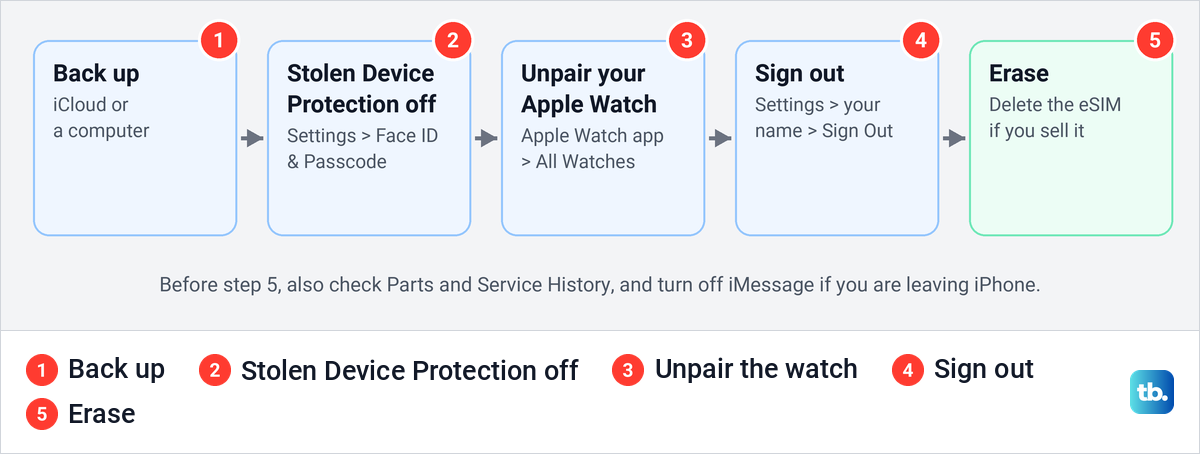
If the iPhone is leaving you, the order matters. Back it up, turn off Stolen Device Protection, sign out of your Apple Account, then erase it and choose to delete the eSIM. If the phone is locked, will not start or is already gone, the sections further down cover each case.
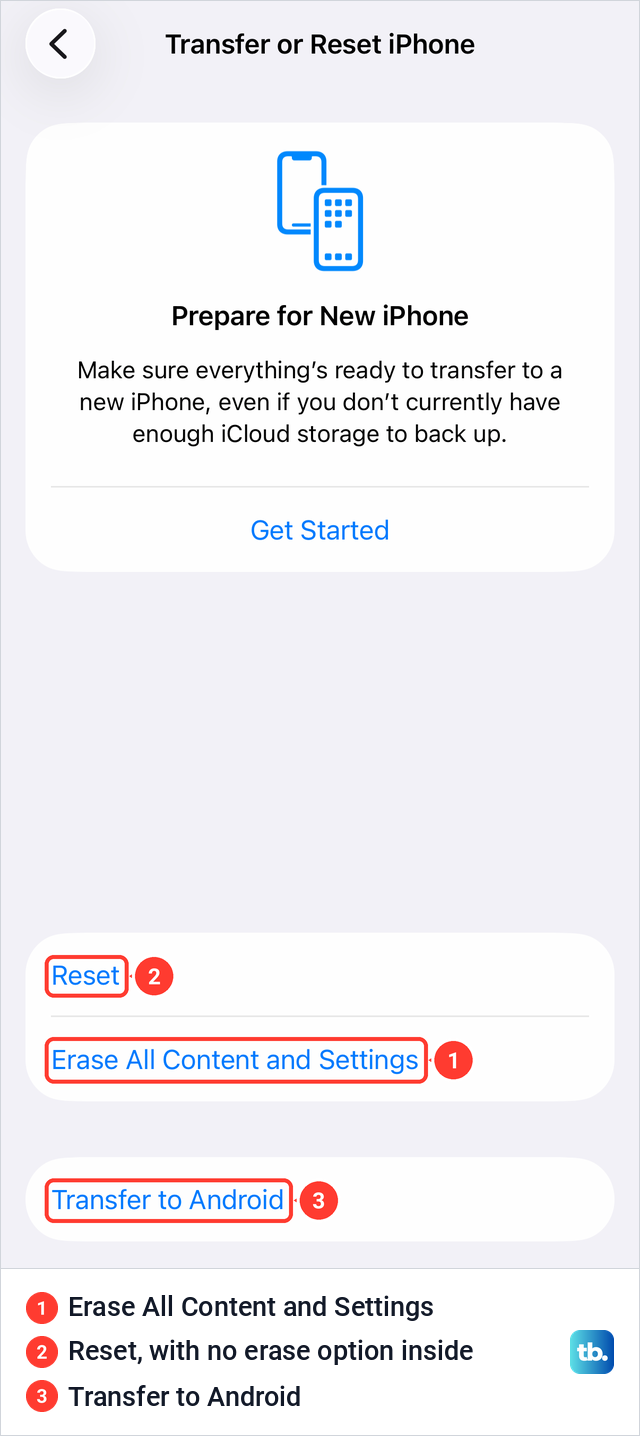
We opened Transfer or Reset iPhone on our iPhone 17 Pro on iOS 26.6. Erase All Content and Settings is a plain blue row in the middle of the page, not a red button at the bottom.
The short version
- Factory reset: Settings > General > Transfer or Reset iPhone > Erase All Content and Settings.
- Selling or trading it in: back up, turn off Stolen Device Protection and sign out first, then erase and delete the eSIM.
- eSIM: deleting it does not cancel your phone plan. Only your carrier can do that.
- Moving to a new iPhone: if you used the free temporary iCloud backup, restore it on the new phone before you erase the old one.
- Phone already gone: erase it in Find My, and remove it from your account only if you sold it.
Which erase method fits your iPhone
| Your iPhone | Where to erase it | What you need | Afterwards |
|---|---|---|---|
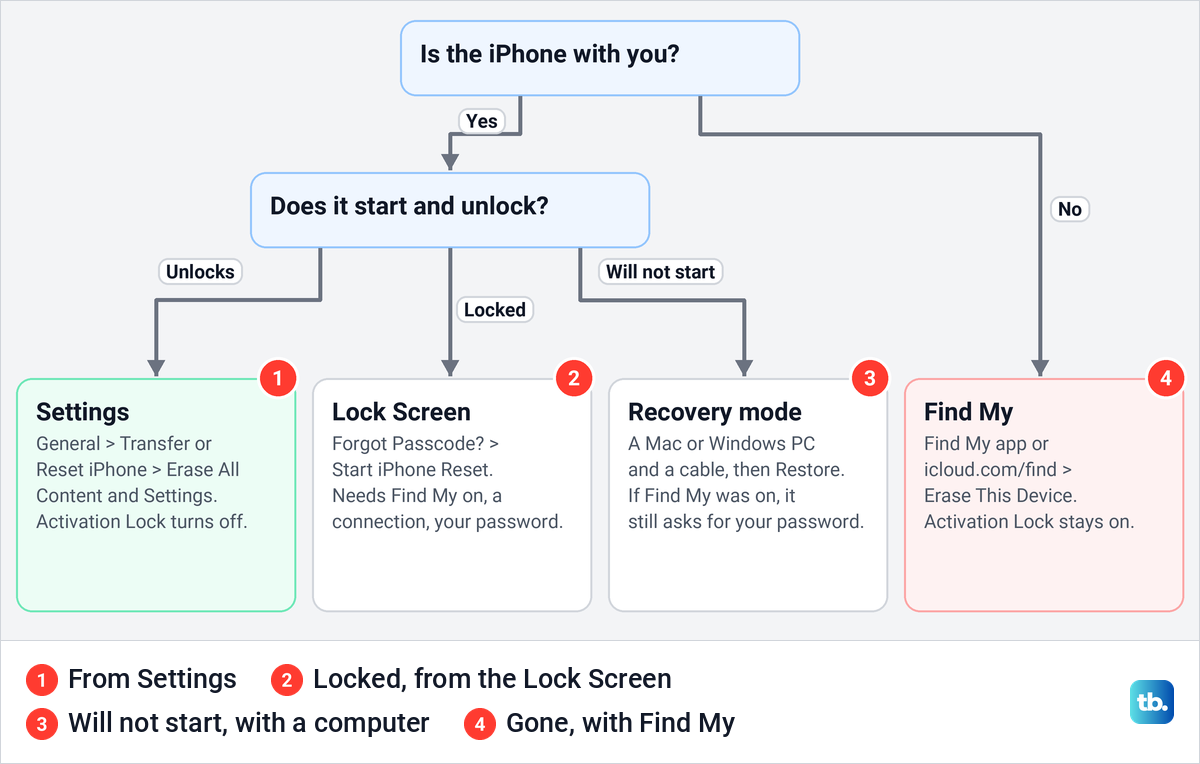
| Works and you have it | Settings > General > Transfer or Reset iPhone > Erase All Content and Settings | The passcode and your Apple Account password | Find My and Activation Lock turn off. You choose to keep or delete the eSIM |
| Works, and you want a fresh copy of iOS | Finder on a Mac or Apple Devices on Windows, then General > Restore iPhone | A cable, and Find My turned off first | The latest iOS is installed. The eSIM is not deleted |
| Will not start, or the computer cannot see it | Recovery mode, then Restore | A Mac or Windows PC, a cable and the iPhone's buttons | If Find My was on, Activation Lock still asks for your Apple Account password |
| Locked, passcode forgotten | Lock Screen > Forgot Passcode? > Start iPhone Reset | Find My turned on earlier, Wi-Fi or cellular, your Apple Account password | You are signed out. On iOS 17 or later you choose what happens to the eSIM |
| No longer with you | Find My app or icloud.com/find | Your Apple Account password, and Find My turned on before it left you | Activation Lock stays on. Remove This Device only if you sold it or gave it away |
Each row follows Apple's instructions for that route. Not sure which row is yours? The chart below picks one in two questions.
Back up your iPhone before you erase it
An erase cannot be undone, so the backup comes first. For a phone that is going to someone else, work in the order below. It follows Apple's sell-or-trade-in checklist, plus Stolen Device Protection, which Apple's separate advice says to turn off before you sell. Do that before you sign out, because away from familiar locations such as home or work it delays the sign-out by an hour.
For an iCloud backup, connect to Wi-Fi, open Settings, tap your name, then iCloud > iCloud Backup > Back Up Now. Apple says the date and time of your last backup then shows under Back Up Now, so check it before you go on. If the backup stops for lack of space, check how much iCloud storage you have, and if your iPhone will not back up to iCloud at all, fix that first.
Apple says an iCloud backup leaves out data already stored in iCloud, such as iCloud Photos and synced messages, plus mail stored with other services such as Gmail or Exchange, Apple Pay details and Face ID settings. If you are leaving iCloud altogether, copy your photos to a Windows PC or a Mac first.
A computer backup works too, in Finder on a Mac or the Apple Devices app on Windows. Apple says it only includes Health, Activity and Keychain data if you select Encrypt local backup and set a password, and that you can't recover the backup without that password. Afterwards you can find the iPhone backups on your Mac to make sure the new one is there.
Do not tidy up by deleting things one at a time. Apple warns that while you are signed in, deleting contacts, calendars, documents or photos by hand removes them from iCloud and all your connected devices. Erasing the phone does not, because Apple says your content won't delete from iCloud when you erase your device.
The temporary backup for a new iPhone
On our iPhone 17 Pro, the top of Transfer or Reset iPhone is a Prepare for New iPhone card with a Get Started button. It reads "Make sure everything's ready to transfer to a new iPhone, even if you don't currently have enough iCloud storage to back up." It is for moving to a new phone, not a step for a sale.
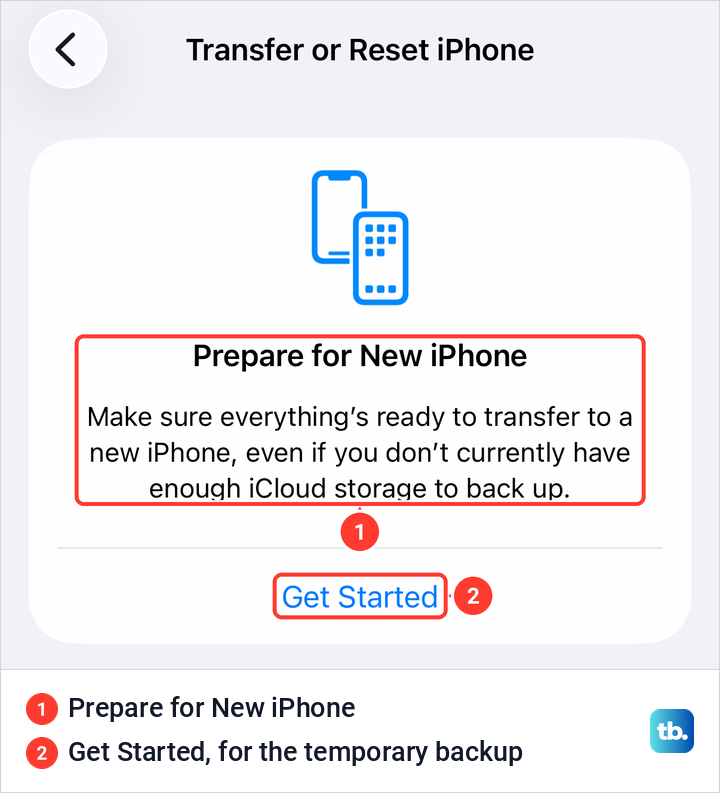
Apple gives you 21 days to restore that temporary backup on the new iPhone, and Keep My Backup Longer adds another 21. Apple's warning is plain: do not erase your current iPhone until you restore your temporary backup to your new device.
Turn off Stolen Device Protection and unpair your Apple Watch
Stolen Device Protection adds checks when the iPhone is away from familiar locations such as home or work, and Apple says it might be turned on by default. Away from those places, erasing needs Face ID or Touch ID with no passcode fallback, and signing out of your Apple Account waits an hour. Apple also says you can't turn Find My off while it is enabled.
Apple's advice is to turn off Stolen Device Protection before you sell, give away or trade in your iPhone. Go to Settings > Face ID & Passcode, enter your passcode, tap Stolen Device Protection and switch it off. Do it at home, because away from a familiar location a security delay starts first.
If an Apple Watch is paired, unpair it next. In the Apple Watch app, go to My Watch > All Watches, tap the info button next to the watch and tap Unpair Apple Watch. Apple says unpairing erases the watch and removes its Activation Lock, while erasing a watch without its iPhone leaves the lock on.
While the phone is still set up, check its Parts and Service History under Settings > General > About, where Apple says the section appears if the iPhone has been repaired. A part marked Finish Repair has to be finished before a trade-in, Apple says. On iPhone 18 Pro Max, Apple says you may also need to turn on Prepare to Ship under Transfer or Reset iPhone before you ship it.
Sign out of your Apple Account and Find My
On iOS 26 and later, open Settings, tap your name, scroll down and tap Sign Out. You get two choices, Erase this iPhone or Sign Out But Don't Erase. If it asks which account, tap Sign out of iCloud and Store, then enter the passcode or your Apple Account password.
Pick Erase this iPhone for a phone that is leaving you. Apple says Sign Out But Don't Erase leaves most data on the phone, including Health, Passwords, Contacts, Photos, Notes, Wallet passes and data that hasn't yet synced with iCloud. On iOS 18 or earlier, Apple's steps are to tap Sign Out, enter your Apple Account password and tap Turn Off.
Apple says Erase this iPhone removes that data from the phone as you sign out. Its checklist still lists Erase All Content and Settings as the next step, and that is where Apple's steps ask about the eSIM.
Almost every route asks for that password, either to erase the phone or to set it up again afterwards. If you have forgotten it, reset your Apple Account password first, as Apple advises before you sign out of a trusted device.
Signing out is Apple's recommended order, not the only thing that frees the phone. Apple says that when you erase your iPhone, Find My and Activation Lock turn off, so an erase from Settings with your password clears the way for the next owner either way.
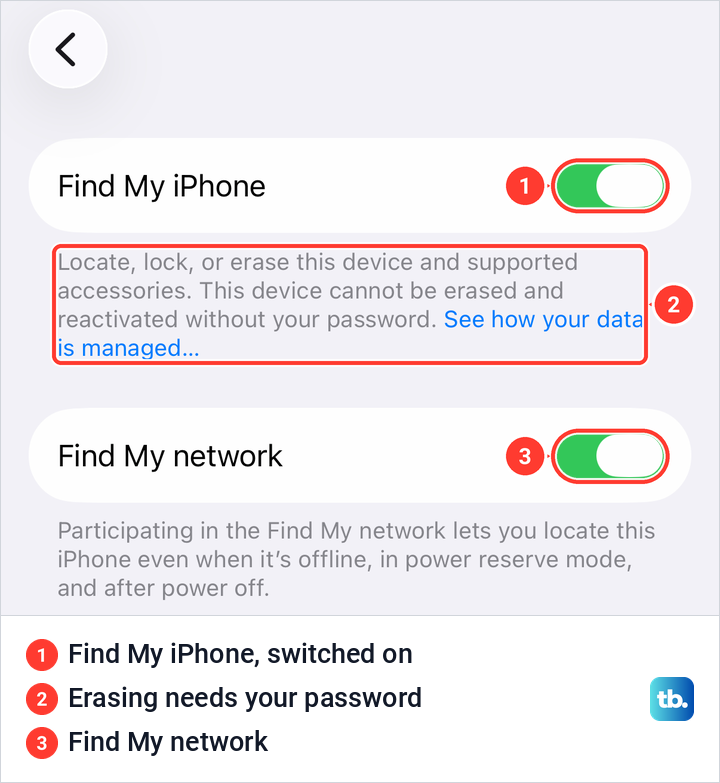
Find My iPhone sits under Settings > your name > Find My > Find My iPhone. On our iPhone 17 Pro the page had three switches, Find My iPhone, Find My network and Send Last Location. Under the first, iOS warns, "This device cannot be erased and reactivated without your password."
Moving to a phone that is not an iPhone? Before you erase, turn off iMessage and FaceTime under Settings > Apps > Messages and Settings > Apps > FaceTime, with the SIM in the iPhone. If the iPhone is already gone, Apple lets you deregister iMessage online.
Erase your iPhone from Settings
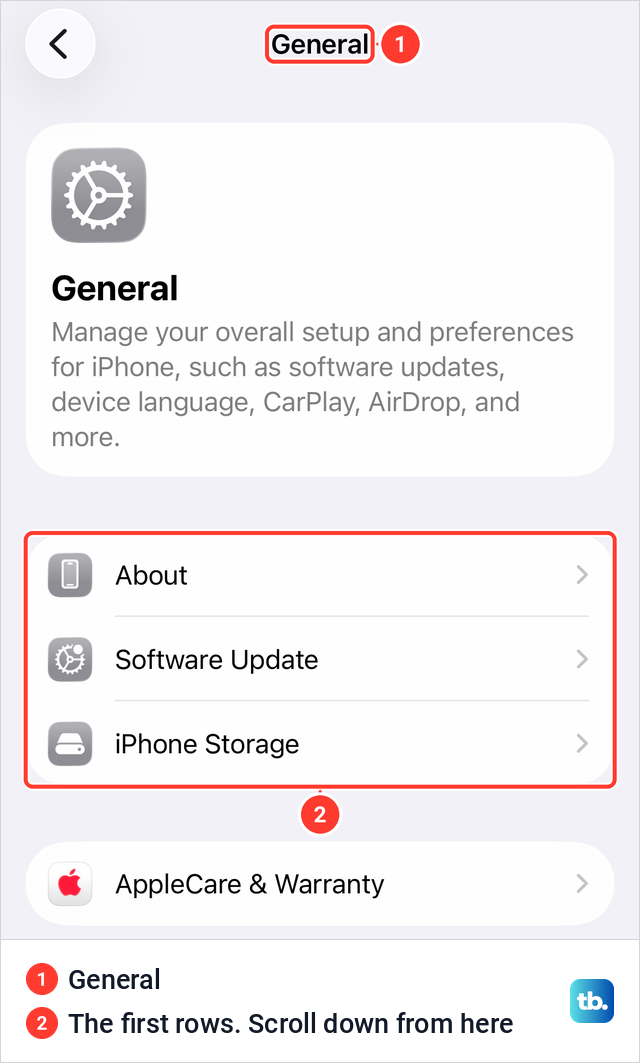
With the backup done and the account signed out, open Settings and tap General. On our iPhone 17 Pro, General opens with About, Software Update and iPhone Storage. Scroll down and tap Transfer or Reset iPhone.
Erase All Content and Settings is the second row of the middle group, under Reset, and it is blue like the other rows. Transfer to Android sits below it on its own. Tap Erase All Content and Settings.
Apple's order is to tap Continue, choose to keep or delete your eSIM, enter your device passcode, wait for your backup to finish, then enter your Apple Account password. Apple's user guide asks for the passcode or password before Continue, so the prompts may come in a slightly different order.
Apple says the iPhone is completely erased, including Apple Pay cards, photos, contacts, music and apps, while your content stays in iCloud. Its security guide adds that the erase removes the key protecting the stored data, which renders all files cryptographically inaccessible. When the process is complete, the Hello screen appears. To keep using the phone, set it up from there and restore your iPhone from that backup.
Decide what happens to your eSIM
The erase asks whether to keep or delete your eSIM. For a phone you are selling, Apple's advice is to choose the option that erases the device and the eSIM profile. Keep it only if the phone stays with you, because Apple says that after you erase an eSIM, you need to contact your carrier to reactivate the plan.
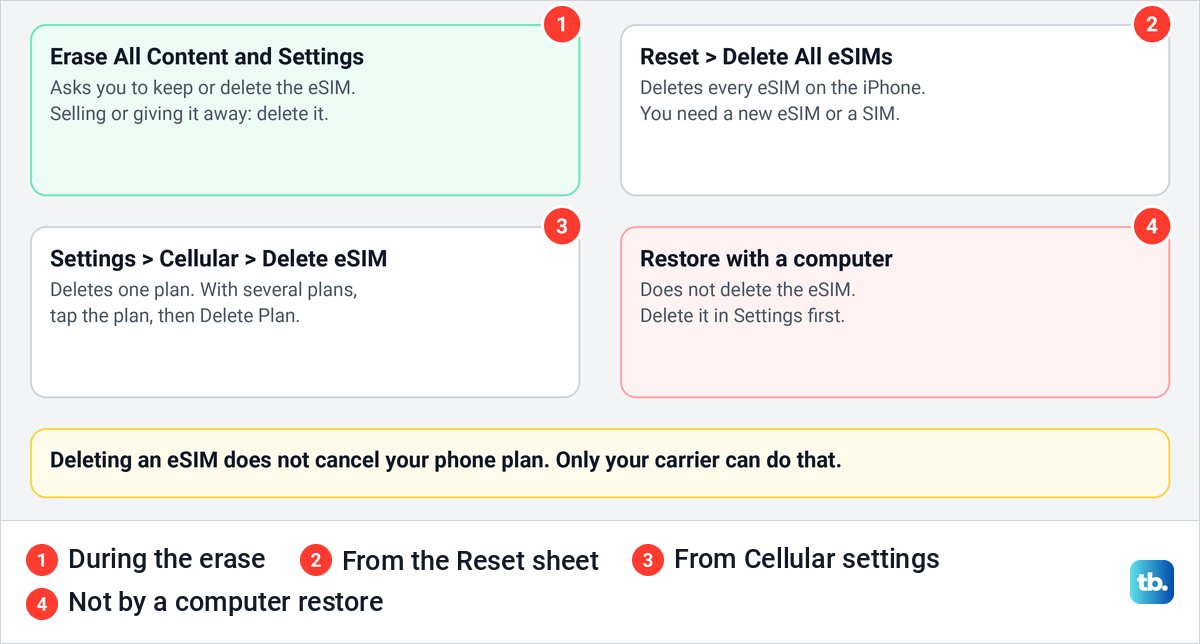
Deleting an eSIM does not end your contract, and Apple says to contact your carrier to cancel the plan. Moving to a new iPhone? Move the number before you erase. Apple's eSIM Quick Transfer needs both phones signed in to your Apple Account, nearby with Bluetooth on, and on iOS 18.4 or later.
A computer restore leaves the eSIM alone, so delete it first under Settings > Cellular > Delete eSIM, or tap the plan and Delete Plan if you have several. A physical SIM card is a separate card no erase touches, so take it out of the tray. Apple says iPhone 14 models and later bought in the United States work with eSIM only.
Reset is not the same as erase
Just above Erase All Content and Settings sits Reset, and older instructions still send readers there to wipe the phone. On our iPhone 17 Pro on iOS 26.6, Reset opened a menu of seven choices plus Cancel, and none of them erases the phone.
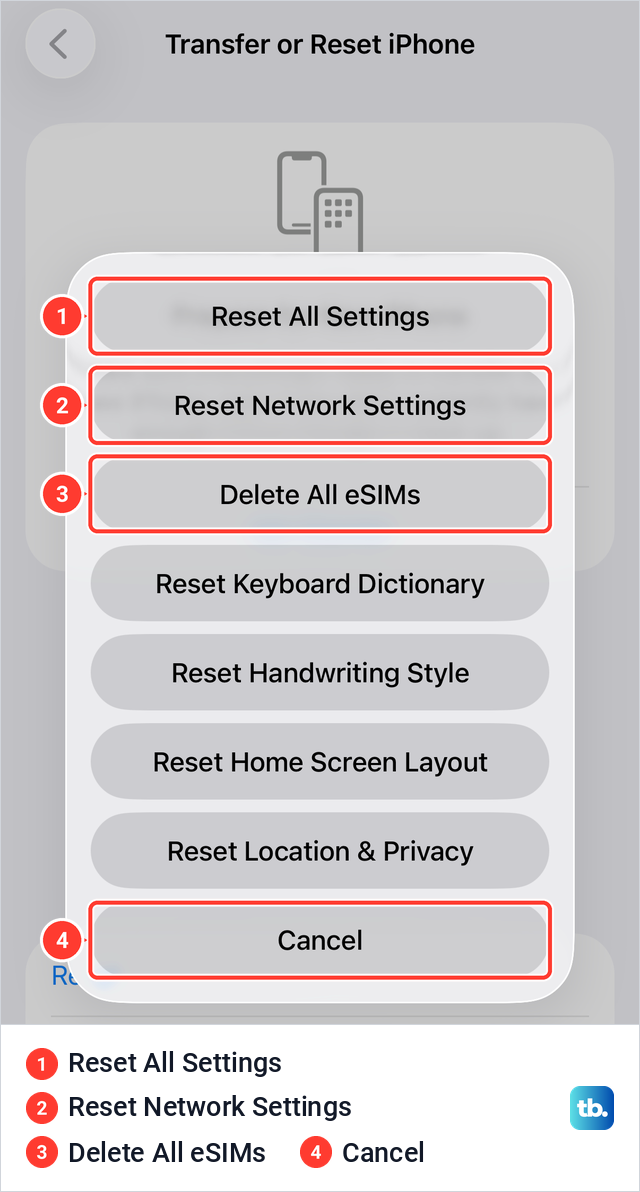
Apple says Reset All Settings puts settings back to their defaults and deletes no data or media. Delete All eSIMs deletes every eSIM, after which you need a new eSIM or a SIM card to get a cellular connection.
If Wi-Fi or cellular is the real trouble, read what Reset Network Settings does before you wipe anything. If the phone is only frozen, it may need a restart instead, and our guide shows how to hard reset an iPhone with the buttons.
Erase an iPhone with a Mac or Windows PC
A computer restore erases the iPhone and installs the latest iOS in one go. Apple's preparation is to update the computer, back up the iPhone, then turn off Find My iPhone on the phone with your Apple Account password. A computer will not restore the phone until you switch off Find My iPhone, and Stolen Device Protection has to be off before that switch will move.
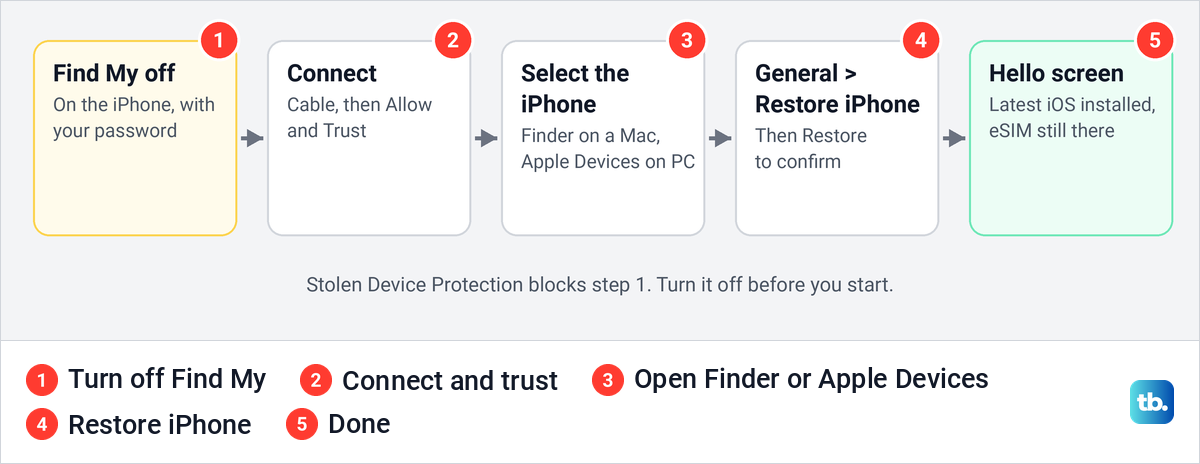
Connect the iPhone with a cable, click Allow if the computer asks, and tap Trust This Computer if the phone asks. Select the iPhone in Finder on a Mac or the Apple Devices app on Windows, click General, then Restore iPhone and Restore. Apple says to use iTunes on macOS 10.14 or earlier, or on a PC without Apple Devices.
Apple says the computer erases the iPhone, installs the latest iOS and shows the Hello screen when it finishes. Restoring doesn't delete your eSIM, so delete it in Settings first. For each app's steps, see our guide to restoring an iPhone with iTunes, Finder or Apple Devices.
Use recovery mode if the iPhone will not start
Apple's signs that you need it are an Apple logo for several minutes with no progress bar, a computer that does not recognize the phone, the Connect to computer screen, or a phone that keeps starting up to Recovery Assistant. Connect the iPhone and open Finder or Apple Devices first.
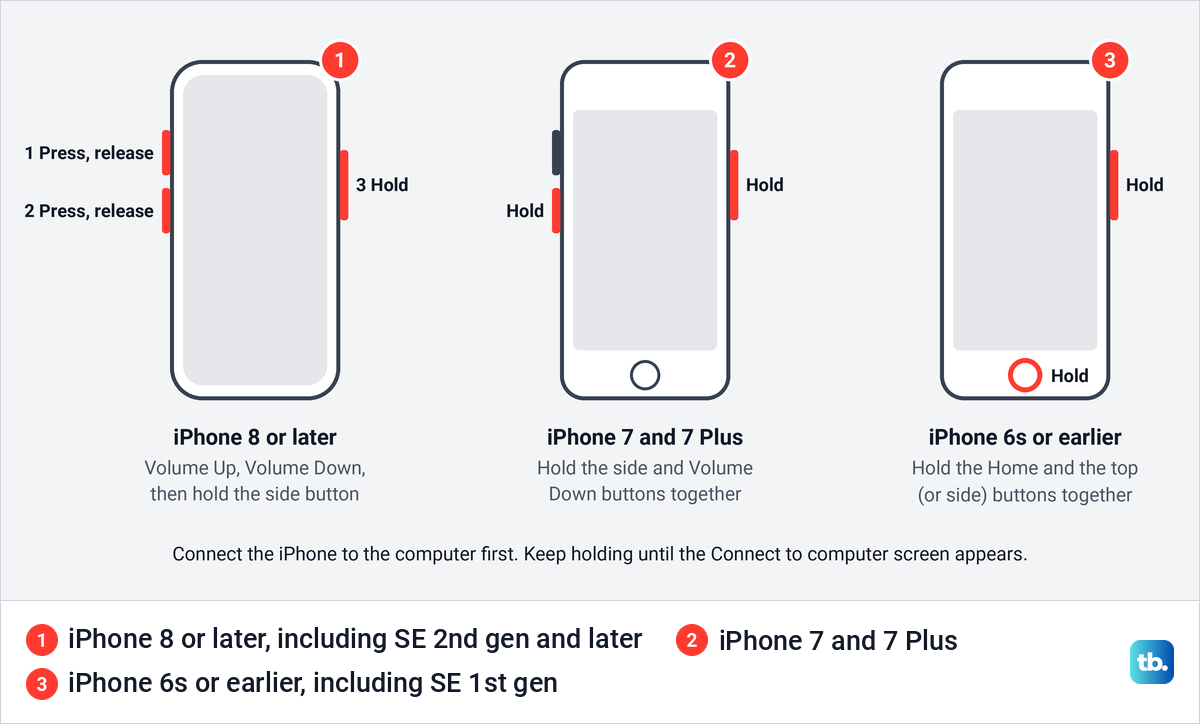
On iPhone 8 or later, including iPhone SE (2nd generation and later), press and quickly release Volume Up, then Volume Down, then press and hold the Side button until the Connect to computer screen appears. On iPhone 7 and 7 Plus, hold Side + Volume Down. On iPhone 6s or earlier, including iPhone SE (1st generation), hold Home + Top (or Side).
When the computer offers Update or Restore, choose Restore, which Apple says reinstalls iOS and erases all your data. If you haven't tried updating yet, Apple says to try Update first. If the download takes more than 15 minutes, the phone may leave the Connect to computer screen, so let it finish and press the buttons again.
Recovery mode does not get around Activation Lock. Apple says the iPhone checks Activation Lock each time it is activated or recovered, and that Activation Lock turns on automatically with Find My. If Find My was on, the Apple Account password is required before anyone can use the phone again.
Erase a locked iPhone when you forgot the passcode
If you changed the passcode recently, Passcode Reset on iOS 17 and later lets you use the old one for 72 hours. On the Lock Screen, tap Forgot Passcode? and then Enter Previous Passcode. Our guide to what to do when you forgot your iPhone passcode compares every option in one place.
To erase it from the Lock Screen, Apple says you need iOS 15.2 or later, Find My turned on earlier, a connection and your Apple Account password. On iOS 17 or later, enter the passcode until the iPhone Unavailable screen appears, tap Forgot Passcode? and then Start iPhone Reset.
Enter your Apple Account password to sign out, then tap Erase iPhone, choosing to keep or delete the eSIM. On iOS 15.2 or iOS 16, tap the Erase iPhone option when it appears on the Lock Screen instead. With an eSIM on iOS 16 or earlier, Apple says to ask your carrier for a QR code first, to set the eSIM up again.
If the Lock Screen offers no reset, use a computer, with a different button method from the one above. Apple says to allow up to 60 minutes. On an iPhone with Face ID, hold Side + Volume Down until the power off slider appears, and on an iPhone with a Home button, hold the Top or Side button. Drag the slider to turn the phone off.
Plug the cable into the computer, then connect the iPhone and quickly hold the Side button (Volume Down on iPhone 7 and 7 Plus, Home on iPhone 6s and earlier, including the first iPhone SE). Keep holding until a computer and cable image appears, then choose Restore in Finder or Apple Devices.
Erase an iPhone you no longer have
A remote erase works only if Find My was on before the phone left you. If the iPhone was stolen, Apple's advice is to mark it as lost first, as quickly as possible and with no contact details, and to erase it only if you cannot get it back.
In the Find My app, tap Devices and the iPhone, tap Erase and Continue, then confirm with your Apple Account password. From a laptop you can use Find My iPhone on a computer at icloud.com/find and choose Erase This Device.
Apple says an offline iPhone shows Erase Pending and erases the next time it is online. Until then, Cancel Erase in the app or Stop Erase Request on the web calls it off. Activation Lock remains on afterwards, and on iOS 15 or later you can still locate the phone.
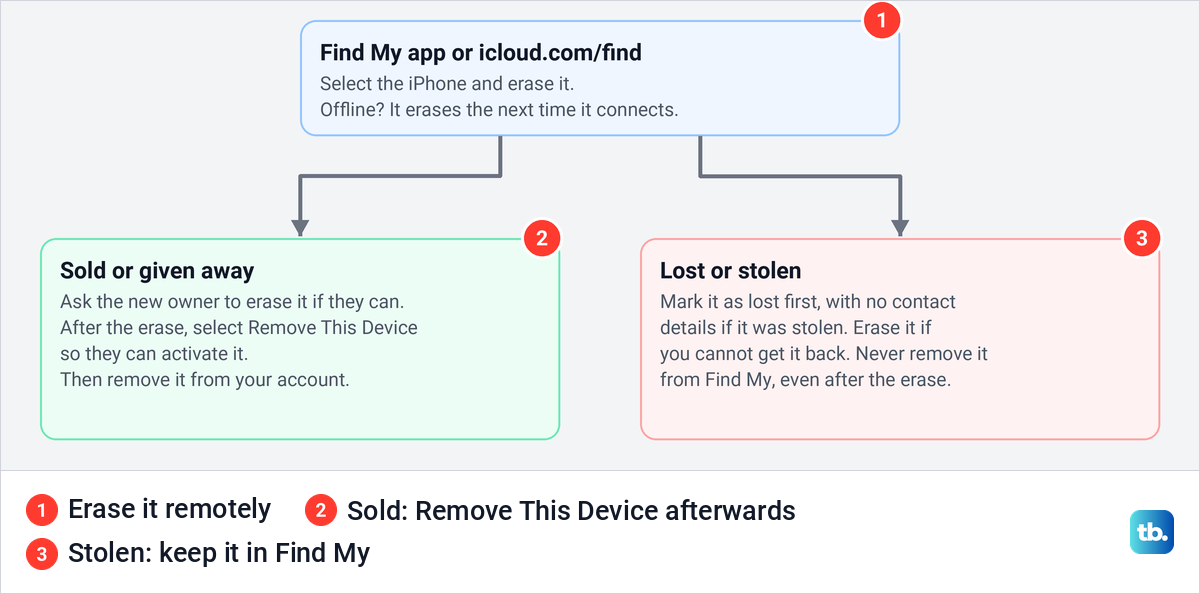
If you sold it or gave it away, Apple suggests asking the new owner to erase all content and settings, then clearing Activation Lock as the next section shows. A stolen iPhone is the opposite case: never remove it from Find My, even after the erase, because Apple says that removes Activation Lock and helps the thief resell it.
If Find My was never on, the iPhone cannot be erased remotely. Apple says to change your Apple Account password right away.
Clear Activation Lock for the next owner
After an erase on the phone with your password, Apple says Activation Lock is already off. After a remote erase or a recovery restore of a phone you sold, go to icloud.com/find, select the iPhone and click Remove This Device. Our guide on how to turn off Find My iPhone from a computer covers a sold phone, an offline phone and a remote erase.
Last, remove the iPhone from your Apple Account. Sign in at account.apple.com, select Devices, choose the iPhone and click Remove from Account. If the lock still will not clear and you have proof of purchase, Apple accepts an Activation Lock support request.
A buyer can check your work. Apple says a device is ready to use when it shows the Hello screen, while an iPhone Locked to Owner screen means Activation Lock is still on. For a work or school phone, Apple says to contact your IT department or manager.
Before you hand it over
If you have an AppleCare plan, Apple says you can cancel it or transfer it to the new owner. Buyers often ask about the network too, so check whether your iPhone is carrier unlocked before you list it.
Trading in at an Apple Store? Apple says you might need your Apple Account password, and that with Stolen Device Protection on, changing it at the store is likely to have a one-hour delay.
How we tested this guide
We tested this on an iPhone 17 Pro on iOS 26.6, going through Transfer or Reset iPhone, stopping at the Reset prompt.
Frequently Asked Questions
Does erasing an iPhone delete my iCloud photos and data?
No. Apple says your content won't delete from iCloud when you erase your device. Deleting items one by one while signed in is what removes them everywhere.
Do I have to sign out of my Apple Account before I erase my iPhone?
Apple lists signing out first, and on iOS 26 you pick Erase this iPhone, not Sign Out But Don't Erase. An erase from Settings also turns off Find My and Activation Lock, Apple says.
Does a factory reset remove the eSIM?
Only if you choose to delete it when the erase asks. A computer restore leaves it, and deleting it never cancels your plan.
Can I erase an iPhone without the Apple Account password?
Recovery mode will erase it, but if Find My was on, the phone still asks for that password before anyone can use it. Reset the password, or use Apple's Activation Lock support request with proof of purchase.
How do I factory reset a locked iPhone?
Try Passcode Reset within 72 hours of a passcode change. Otherwise use Forgot Passcode? and Start iPhone Reset on the Lock Screen, or a computer and recovery mode.
Will erasing my old iPhone affect my new one?
No, it erases only the phone you erase. If you moved with the temporary iCloud backup, restore it on the new iPhone first.
Is Reset All Settings the same as erasing?
No. Apple says it deletes no data or media and only puts settings back to their defaults.