

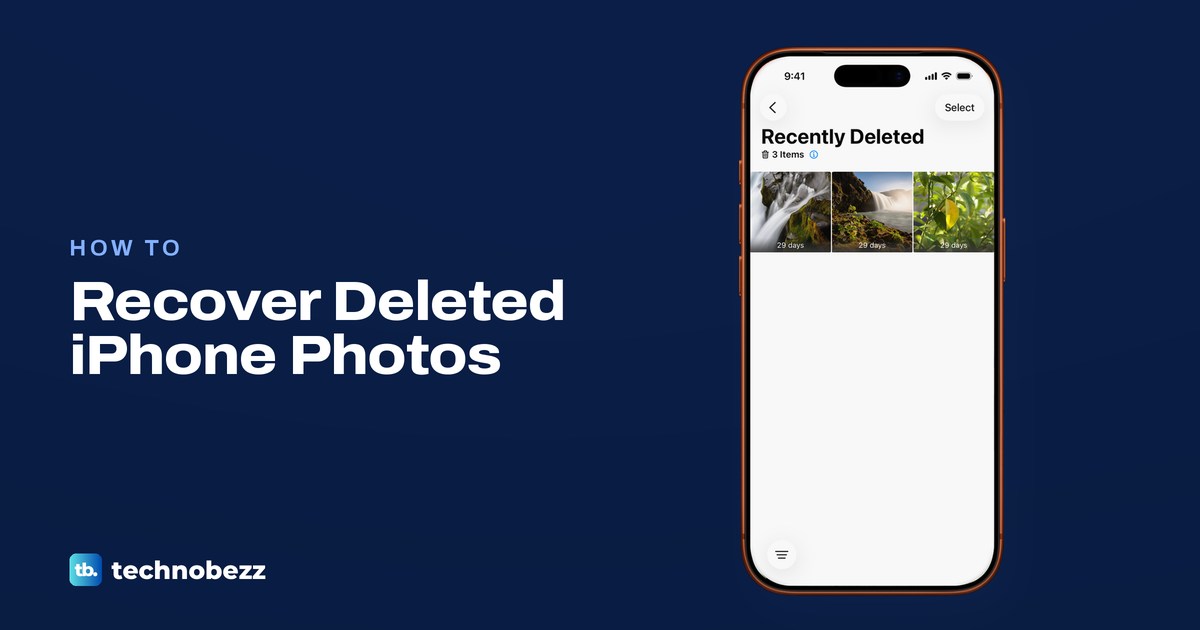
To recover deleted photos on iPhone, open the Photos app, tap Collections and scroll to Recently Deleted under Utilities. Tap View Album, unlock it with Face ID, Touch ID or your passcode, open the photo and tap Recover. Photos you delete from your Library normally stay there for 30 days, each showing the days it has left. Apple names two exceptions: over your iCloud storage limit, deleted photos are removed at once, and so is a photo deleted from a Shared Album.
We deleted, recovered and unhid sample photos on iOS 26.5, and looked at the same Photos and iCloud screens on our iPhone 17 Pro with iOS 26.6. The iCloud.com, Shared Library, Recovered album and backup steps follow Apple's instructions. If the photo is not in Recently Deleted, it may be hidden, filtered out of your Library or still in iCloud. An old backup helps only if it could contain the photo, so settle that before you erase anything.
The short version
- Look here first: Photos > Collections > Utilities > Recently Deleted. Apple normally keeps deleted items there for 30 days, but not when your iCloud storage is over its limit.
- One photo: open it, tap Recover, then Recover Photo.
- Several photos: tap Select, pick them, tap the More button (three dots), then Recover.
- Not there: check Hidden, your Library filters, the Shared Library view and iCloud.com.
- Backups: your best chance is one made after the photo was on your iPhone and before you deleted it, and an iCloud backup only helps if iCloud Photos was off. Turn off Back Up This iPhone so a new backup can't overwrite it.
Recover a photo from Recently Deleted
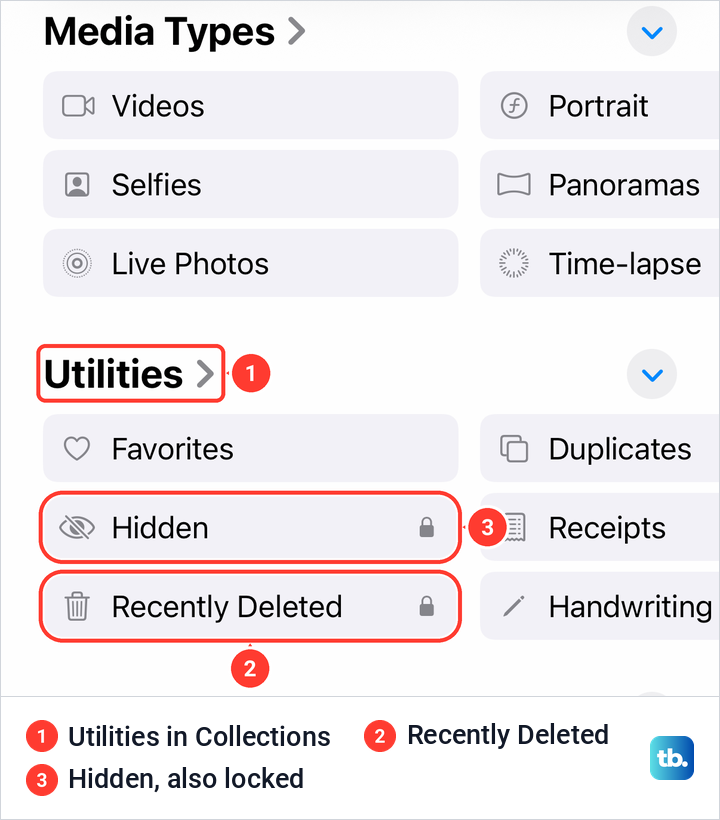
Open the Photos app and tap Collections at the bottom of the screen. Scroll down to the Utilities section, where Recently Deleted sits below Hidden. On our iPhone 17 Pro both rows carried a small lock icon, because Apple locks these two albums by default. If you don't see the row, tap the Utilities heading, which opened the full list on our iPhone 17 Pro.
Tap Recently Deleted, then View Album, and unlock it. On iOS 26.5 the album stayed blank behind that button until the passcode was entered, and Apple says Face ID or Touch ID opens it on an iPhone set up for them. Once open, the album listed our three deleted sample photos as "3 Items", and every thumbnail carried a "29 days" label.
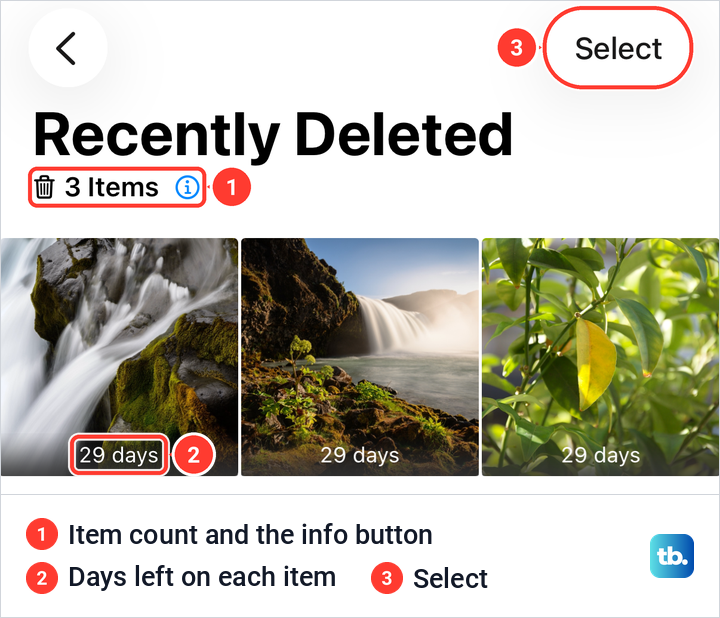
That label is the countdown. The info button next to the item count explains it in iOS's own words: "Photos and videos show the days remaining before deletion. After that time, items will be permanently deleted." Our photos read 29 days only minutes after we deleted them, not 30.
To bring one photo back, tap it. The opened photo shows Delete at the bottom left and Recover at the bottom right. Tap Recover, then Recover Photo to confirm, and on iOS 26.5 the album dropped from 3 Items to 2 straight away.
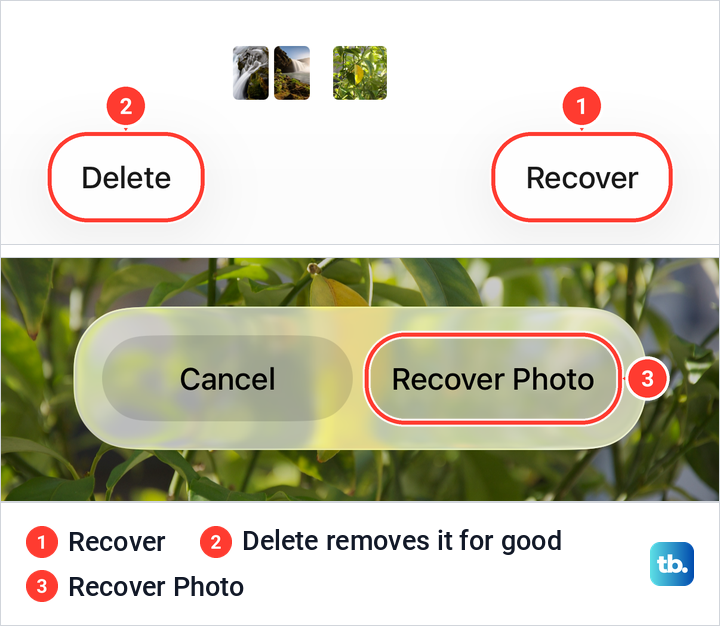
Be careful with Delete on this screen. Apple says you can recover items or delete them permanently during the 30 days, so Delete here is the permanent one. Our recovered photo went back to its original spot in Library, among the photos from the day it was taken, not to the top as if it were new.
Recover several photos at once
Open Recently Deleted, tap Select at the top right, then tap each photo you want back until it shows a blue check mark. On iOS 26.5 no buttons appeared at the bottom after we selected two photos, only the words "2 Photos Selected". The actions sit behind the More button, the three dots at the top right.
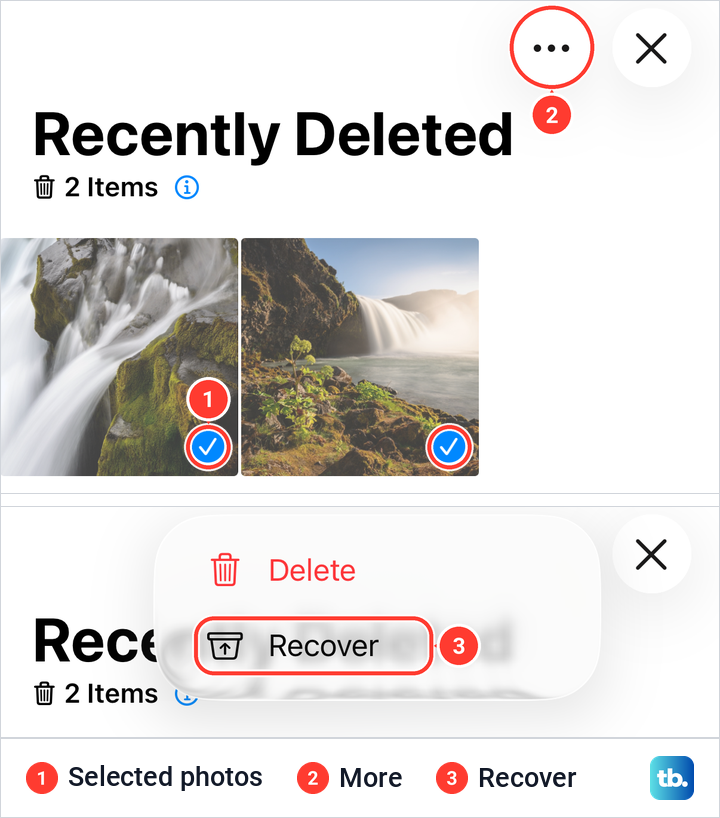
Tap More and choose Recover, not the red Delete right above it. iOS then asked us to confirm with a single Recover 2 Photos button, and both photos left the album, which then read "0 Items" and "No Photos or Videos". Apple gives the same Select, More and Recover steps for videos.
How long deleted photos stay on your iPhone
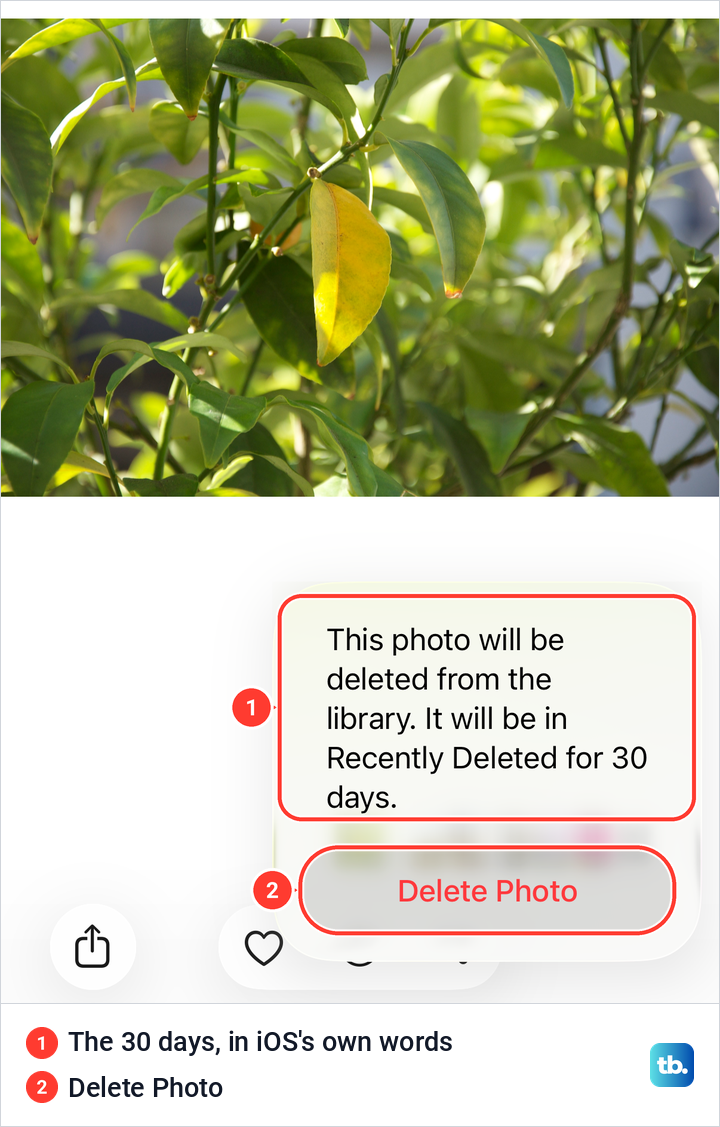
Apple keeps a deleted photo in Recently Deleted for 30 days, then removes it from your iPhone, iCloud and the other devices on your Apple Account. iOS tells you this when you delete. When we deleted a sample photo on iOS 26.5, the confirmation read "This photo will be deleted from the library. It will be in Recently Deleted for 30 days."
One exception catches people out. Apple says that if you exceed your iCloud storage limit, your device immediately removes the photos and videos you delete, and they won't be available in Recently Deleted. Your storage today can't prove whether the account was over its limit on the day you deleted the photo, so treat it as a clue: check your available iCloud storage, and think back to any storage-full warning from around that time.
Shared photos follow other rules. Apple says photos deleted from a Shared Album are deleted immediately, with no 30-day wait. In a Shared Library, any participant can delete a photo, but only the person who added it can delete it permanently before the 30 days are up.
Where a missing iPhone photo can be
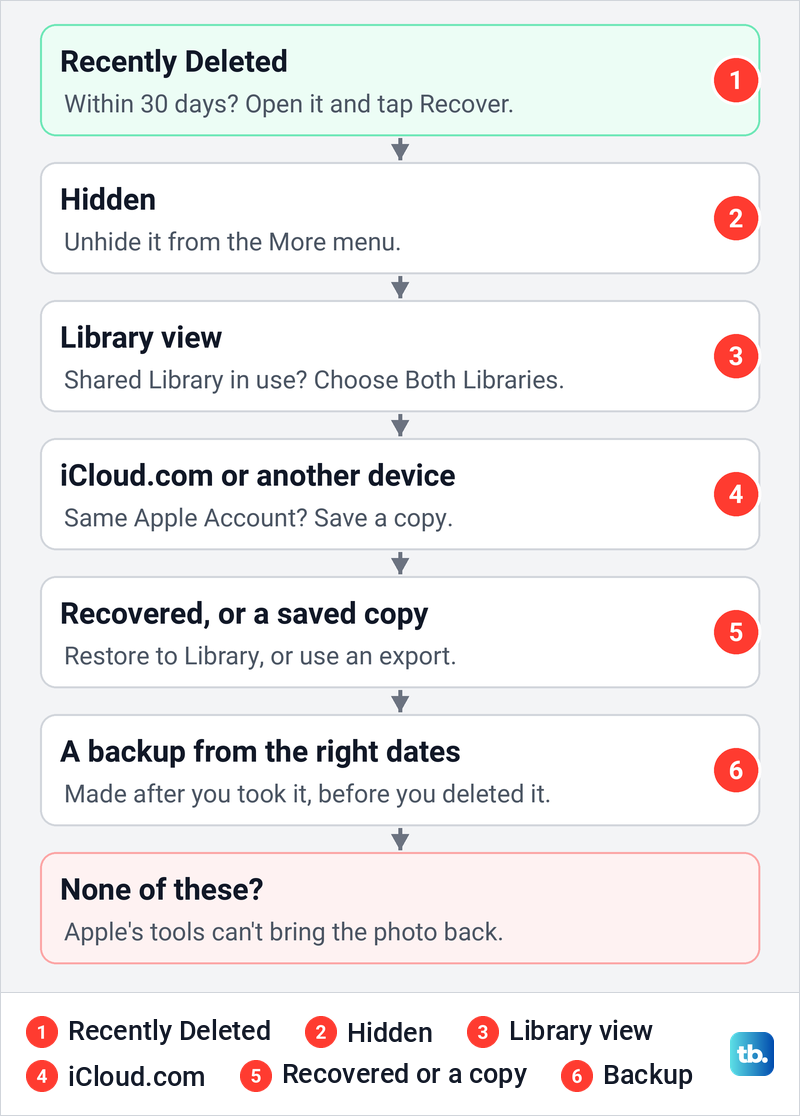
If the photo is not in Recently Deleted, it may not be deleted at all. The table lists every place worth checking, in the order we suggest, and what you can do in each.
| Where the photo may be | Check here | What you can do |
|---|---|---|
| Recently Deleted | Photos > Collections > Utilities > Recently Deleted | Recover it within 30 days |
| Hidden album | Photos > Collections > Utilities > Hidden | Open it, tap More, then Unhide |
| Library filters | The three-line button next to Select in Library | Undo any Filter or View Options change |
| Shared Library | Photos > Collections > profile button | Choose Both Libraries |
| iCloud.com | icloud.com/photos > Recently Deleted | Recover it within the same 30 days |
| Recovered album | Photos > Collections > Utilities, only when it appears | Restore to Library |
| A copy elsewhere | A computer, chats, email or a Shared Album | Save it back to Photos |
| An older backup | Settings > your name > iCloud > iCloud Backup, or your computer | Restore only if it could hold the photo |
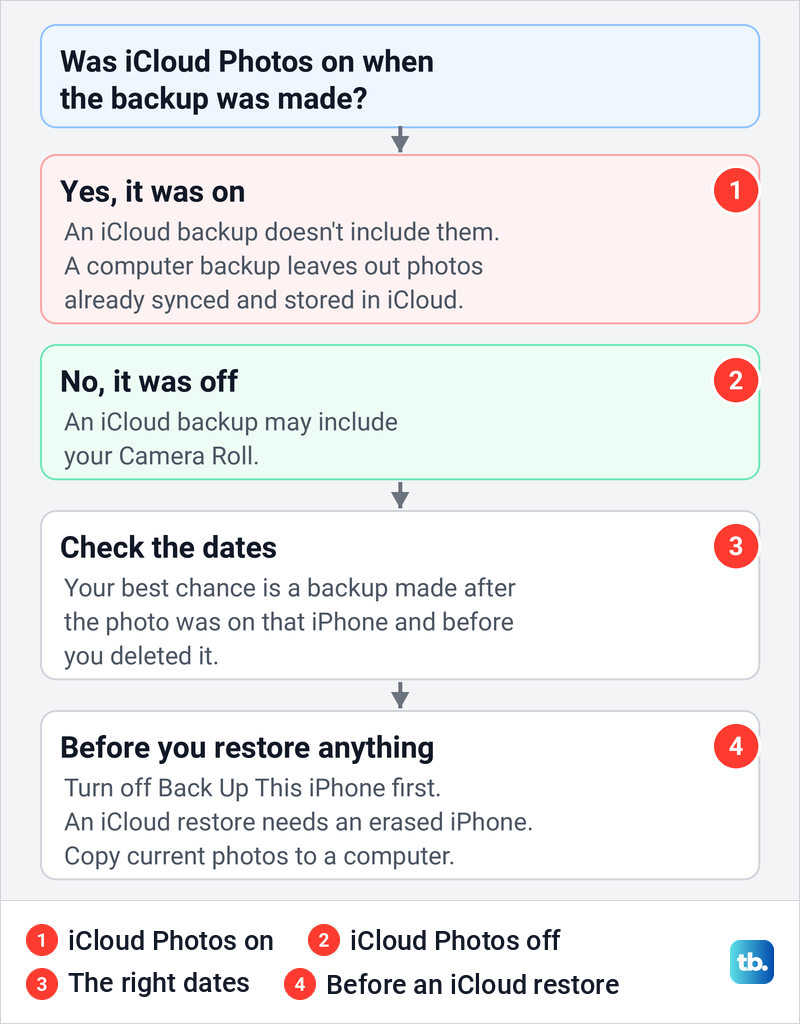
Work down the list and stop as soon as you find the picture. The diagram shows the same path as a series of questions, ending where Apple's tools end.
Find a photo in the Hidden album
A hidden photo disappears from Library and from your other albums, so it can look deleted. Apple adds that with iCloud Photos, a photo hidden on one device is hidden on your other devices too, so looking on an iPad will not help. Open Photos, tap Collections and tap Hidden under Utilities.
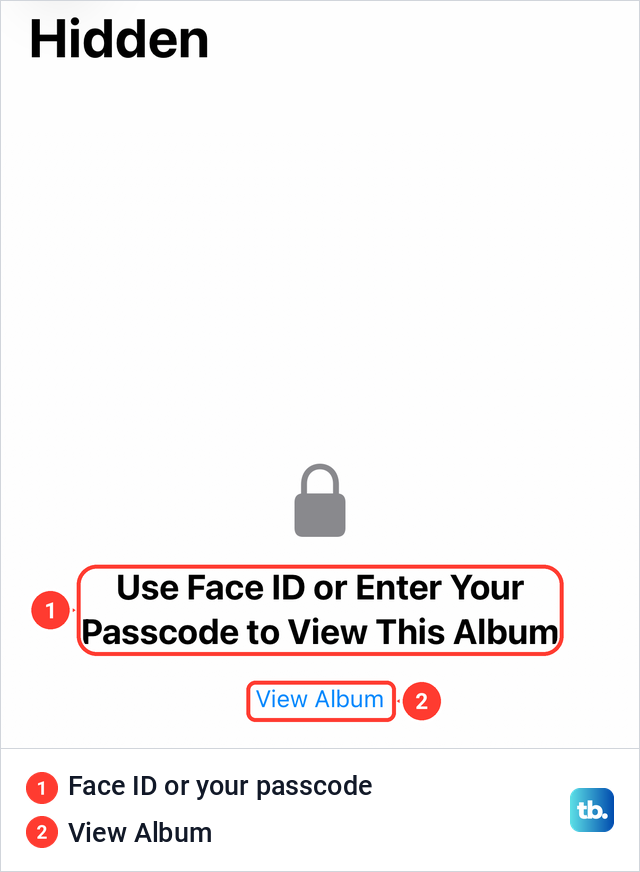
Hidden sits behind the same lock as Recently Deleted. On our iPhone 17 Pro with iOS 26.6 it read "Use Face ID or Enter Your Passcode to View This Album" above a View Album button. On iOS 26.5, Hidden asked for the passcode again even though we had just unlocked Recently Deleted, so expect each locked album to ask on its own.
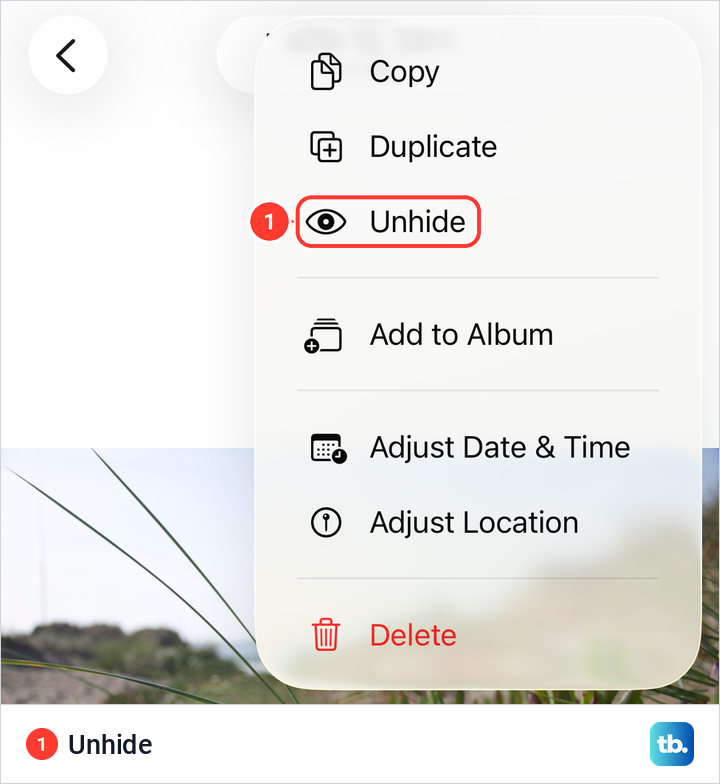
Open the photo, tap the More button (three dots) and tap Unhide. On iOS 26.5 there was no confirmation: the photo left Hidden at once and was back in its original place in Library. Hide sits in the same menu for ordinary photos, and its confirmation says the photo "can be found in the Hidden album".
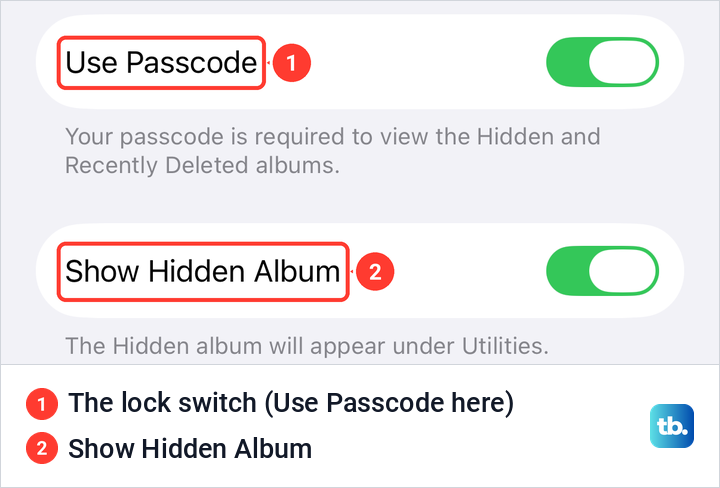
If there is no Hidden row at all, the album itself is switched off. Go to Settings > Apps > Photos and turn on Show Hidden Album, whose note on iOS 26.5 read "The Hidden album will appear under Utilities." The switch above it is the lock, which Apple names Use Face ID, Use Touch ID or Use Passcode depending on your iPhone.
Check the Library filters and Shared Library
Photos can also be filtered out of view. In Library, the button with three lines next to Select opened a menu on our iPhone 17 Pro with two sort choices, Filter and View Options. View Options held a Show list with Screenshots and Shared with You ticked. If you have changed either menu before, open it and undo the change before you decide a photo is gone.
An iCloud Shared Library splits photos between two libraries. Apple's steps are to open Photos, tap Collections, tap the profile button in the upper-right corner and choose Both Libraries, Personal Library or Shared Library under Library View Options. Apple notes that some photos only appear in certain views, so pick Both Libraries while you look.
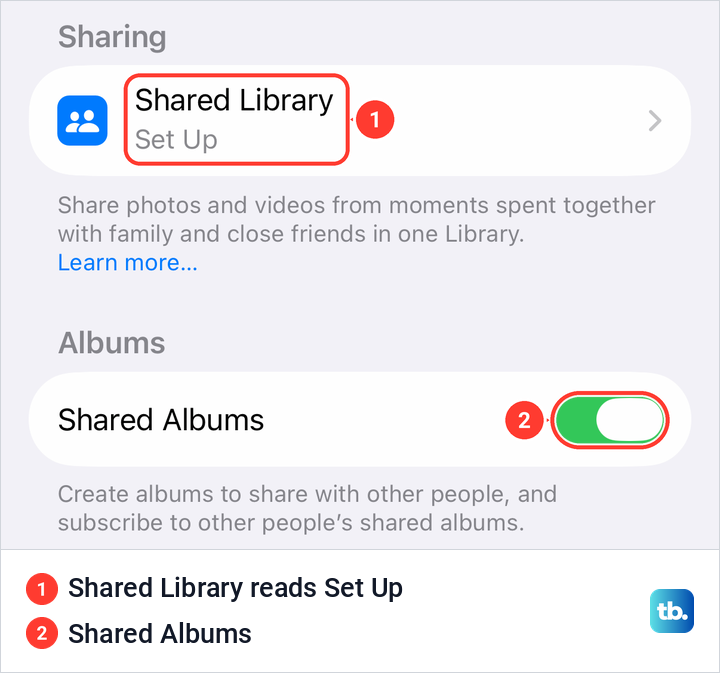
On our iPhone 17 Pro the profile sheet had no Library View Options at all. It listed Shared Library with Set Up beside it, which means no Shared Library is in use and there is no other view to check. Settings, your name, iCloud, then Photos shows the same Set Up label.
Apple adds one more catch for families with older phones. Photos moved to a Shared Library can't be seen on an iPhone with iOS 16 or earlier, so look on a newer device or on iCloud.com instead.
Look for the photo in Shared Albums
A Shared Album is a different thing from a Shared Library. It is an album you share with chosen people, and on our iPhone 17 Pro it had its own Shared Albums section in Collections, turned on by the Shared Albums switch shown above. Apple says Shared Album content isn't automatically saved to your device, so a photo that only lived there is not in your Library.
That cuts both ways. Apple says any photo you saved or downloaded from a shared album to your library stays there even if the album is deleted. If you or a friend posted the missing picture to a Shared Album that still exists, open the album and save the photo to your Library again.
Check iCloud Photos and iCloud.com
With iCloud Photos on, your iPhone, iPad, Mac and iCloud.com all show one library. Apple says that when you delete a photo on one device, it is deleted everywhere you use iCloud Photos. iCloud.com is not a second archive with its own clock, because its Recently Deleted album holds the same items for the same 30 days.
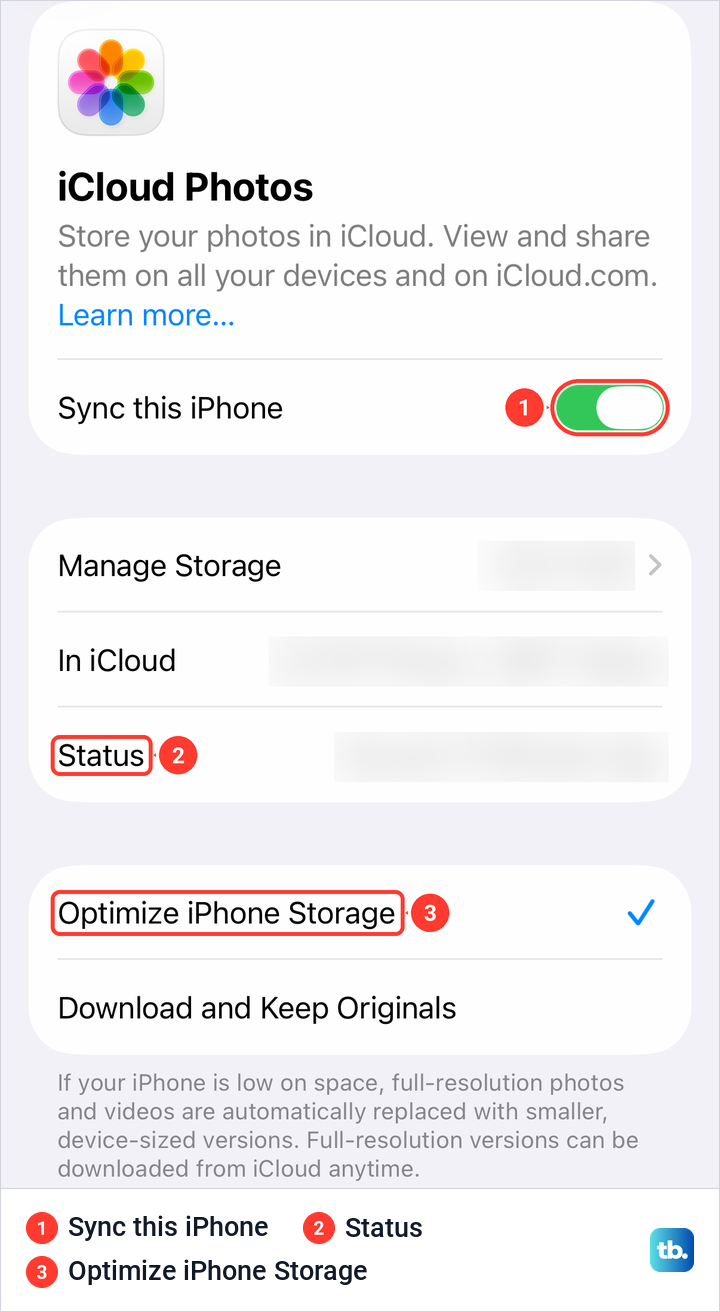
Check whether your iPhone syncs at all. Go to Settings, tap your name, tap iCloud, then tap Photos in the Saved to iCloud grid. On our iPhone 17 Pro that page showed a Sync this iPhone switch, a Status line and the choice between Optimize iPhone Storage and Download and Keep Originals.
Apple says that if you took a photo with iCloud Photos on and later turned the feature off, you might still find the missing photo in iCloud Photos. Look on iCloud.com or on another device signed in to the same Apple Account, and save a copy from there. Our guide to accessing iCloud Photos on iPhone and the web shows where to open the library and download a picture.
To recover from the web, Apple's steps are to go to icloud.com/photos, sign in, select Recently Deleted in the sidebar, select the photos and select Recover. If a photo shows on iCloud.com but never reaches your iPhone, work through the steps for fixing iCloud when it is not syncing.
Check the Recovered album
Recovered is a separate album for photos that Apple says your iPhone found on the device but not in your Library. It appears in Utilities only when that happens, and on our iPhone 17 Pro with iOS 26.6 there was no Recovered album. Apple's iOS 26 guide still names it as the next place to look when a photo is not in Recently Deleted.
If you do see Recovered, Apple's steps are to open it, unlock it, select the photos and tap Restore to Library. Avoid Permanently Delete there. Apple says an item deleted from Recovered does not go to Recently Deleted and is gone at once.
Look for a copy outside Photos
When the original is gone, a copy can still exist. Check any computer where you imported or exported photos, the chats and emails where you sent the picture, and any Shared Album you posted it to. A copy sent through a chat may not be the full original, but it is still the picture.
If you were merging photos in Duplicates when the picture went missing, our guide to removing duplicate photos on iPhone explains that Merge keeps one copy and moves the others to Recently Deleted, so look there first. Save whatever you find back into Photos before you try anything bigger, like a backup restore.
Decide whether a backup can bring photos back
An old backup is the last resort, and it only helps if it contains the photo. Apple says photos in iCloud Photos aren't included in your nightly iCloud backup. Computer backups are different, but Apple's list of what they leave out includes data already synced and stored in iCloud, like iCloud Photos, so photos that had already uploaded are not in them either.
If iCloud Photos was off, Apple says iCloud Backup may include the photos and videos in your Camera Roll. Either way, your best chance is a backup made after the photo was on that iPhone and before you deleted it. On our iPhone 17 Pro, Settings, your name, iCloud, then iCloud Backup opened a page with the Back Up This iPhone switch, a "Last successful backup" line and an All Device Backups list.
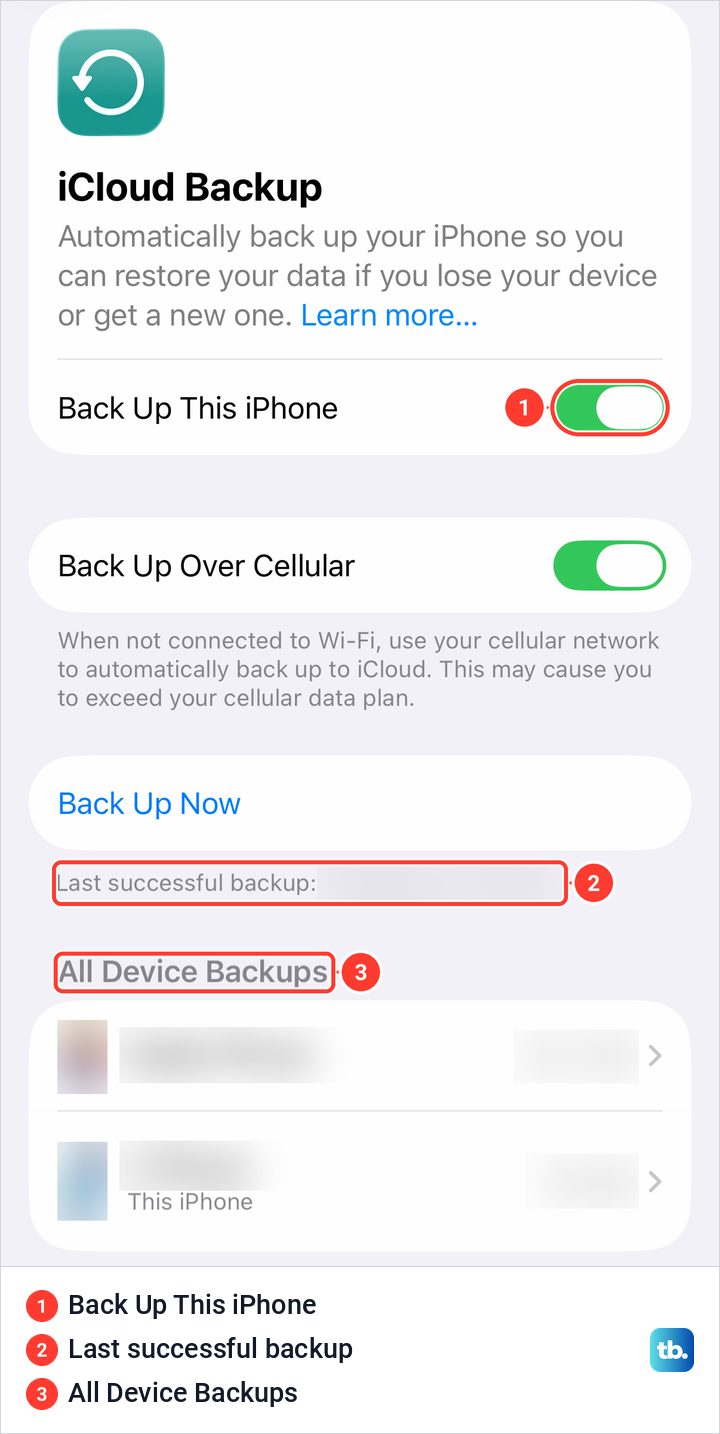
That line dates the newest backup and says nothing about what it holds. With Back Up This iPhone on, Apple's only other conditions for an automatic backup are power, Wi-Fi and a locked screen, so a new backup can overwrite the older one overnight without you doing anything. If an older backup might hold the photo, turn off Back Up This iPhone now, because Apple says iCloud backups stay available for 180 days after you turn iCloud Backup off.
If you back up to a Mac, check where your iPhone backups are stored on the Mac and compare their dates with when you took the photo and when you deleted it. On Windows, Apple points you to the Apple Devices app, and its restore steps tell you to look at the date of each backup and pick the most relevant.
A restore brings back the whole iPhone as it was in the backup, not single photos. Apple says an iPhone that is already set up must be erased before it can be restored from an iCloud backup. First, copy the photos still on your iPhone to a PC, and do not make a new iCloud backup of this iPhone, because Apple warns that new iCloud backups can overwrite the ones saved before.
On our iPhone 17 Pro, the erase option sits at Settings > General > Transfer or Reset iPhone > Erase All Content and Settings. Apple's steps then ask whether to keep or delete your eSIM, and you should keep it when you are restoring the same iPhone, because Apple says an erased eSIM means contacting your carrier to reactivate your plan.
Apple's erase steps also include waiting for a backup to finish. Check that Back Up This iPhone is still off before you erase, and if the older iCloud backup is your only copy of the photo and you are unsure, ask Apple Support first.
Once you are sure a dated backup could hold the photo, our full guide to restoring an iPhone from a backup walks through the rest. If the restore stops with an error, see what to do when an iPhone backup will not restore.
When a deleted photo is gone for good
A photo is gone for good once it has left Recently Deleted, because the 30 days ran out or it was deleted there, and no copy or suitable backup exists. Apple says that after 30 days it is permanently deleted and you can't get it back. Apple's documentation offers no tool that scans an iPhone for permanently deleted photos.
Some sites promise apps that do exactly that scan, but Apple supports no such route, and we would not pay for one. Before you give up, go through the table once more, because a photo that is hidden, filtered or in the other library view only looks deleted.
How we tested this guide
We tested this in the Photos app on iOS 26.5, deleting sample photos and recovering them from the Recently Deleted album.
Frequently Asked Questions
How do I recover deleted photos on iPhone without a backup?
Open Photos, tap Collections, then Recently Deleted, and tap Recover within 30 days. After that, look for a copy you saved or sent elsewhere, because Apple's Photos tools can't bring back a permanently deleted photo.
Can I recover photos after deleting them from Recently Deleted?
Not from the Photos app. Your options are a separate copy, such as an export or a picture you sent someone, or a backup made after the photo was on your iPhone and before you deleted it, and an iCloud backup only holds it if iCloud Photos was off.
Does iCloud.com keep deleted photos longer than my iPhone?
No. iCloud Photos is one library, and the Recently Deleted album on iCloud.com holds the same items for the same 30 days.
Why can't I see Recently Deleted or Hidden?
Scroll down Photos > Collections to Utilities, where both albums are locked and open with View Album. If Hidden is missing, turn on Show Hidden Album in Settings > Apps > Photos.
Will an old iCloud backup bring my pictures back?
Your best chance is one made after the photos were on your iPhone and before you deleted them, and only if iCloud Photos was off at the time. Photos stored in iCloud Photos are not part of an iCloud backup, and restoring one needs an erased iPhone.
Why are photos missing after I joined a Shared Library?
Your Library may be showing only one of the two libraries. Tap Collections, tap the profile button and choose Both Libraries.
Why did my deleted photo skip Recently Deleted?
Apple says that when your iCloud storage is over its limit, deleted photos are removed immediately. Photos deleted from a Shared Album or from the Recovered album skip Recently Deleted too.