
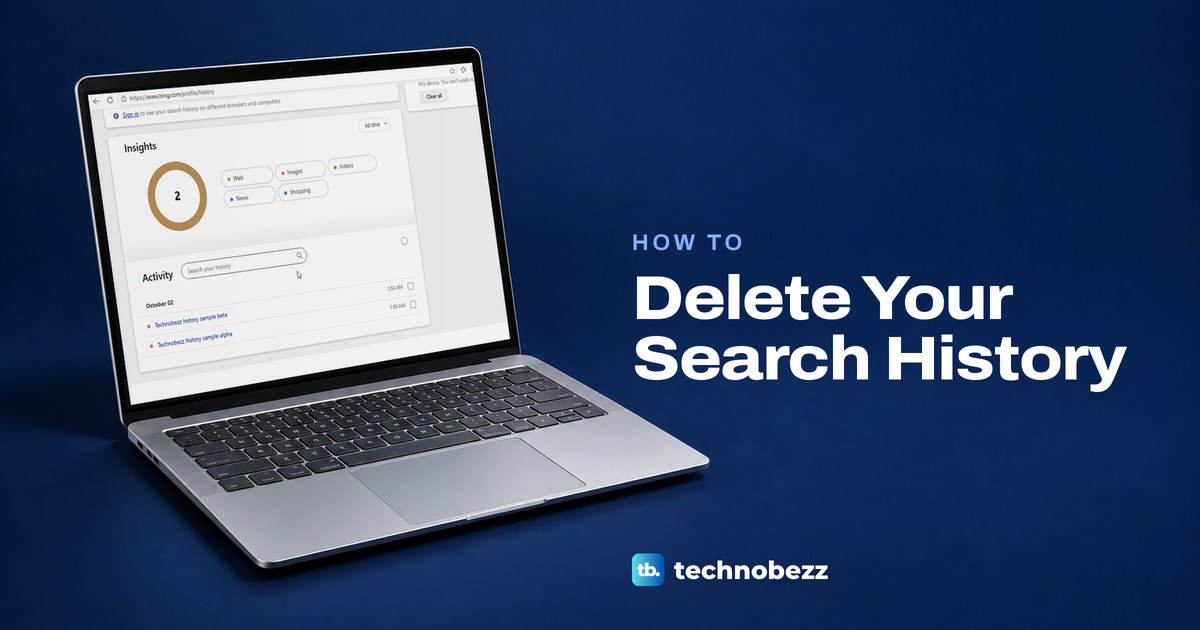
To delete your search history, open Google's Search history in My Activity, select Delete and choose all time, a custom range or a single search. For Bing, open the Bing Search History page and select Clear all, or use the Microsoft privacy dashboard if you search while signed in. Then clear your browser's own history as well, because the browser keeps a separate list.
We ran the signed-out Bing steps and the Edge and Firefox steps on Windows 11, version 25H2, without signing in to any account. Three results are worth knowing before you start. Clearing Bing left both of our test searches in Edge's History, Edge's own dialog ticks cookies and cache by default, and Firefox kept a past search in its address bar after we cleared its history for Everything.
The short version
- Google: open Search history in My Activity, select Delete and pick all time, a range or one search.
- Bing, signed out: on the Search History page, tick a search and select Clear, or select Clear all.
- Bing with a Microsoft account: open the privacy dashboard, select Browsing and search, then Clear all activities.
- Your browser: press Ctrl + Shift + Delete, choose All time (Everything in Firefox) and tick only the history box. In Firefox, remove any search still in the address bar with Shift + Delete.
- One leftover suggestion: highlight it with Down arrow and press Shift + Delete in Firefox or Chrome.
Where your search history is kept
Your searches can sit in several separate places, and each one has its own delete button. Google and Microsoft can keep account history when you search while signed in, Bing keeps its own list for a signed-out browser, and the browser records every results page you open. The address bar then mixes suggestions from these with bookmarks, open tabs and popular searches.
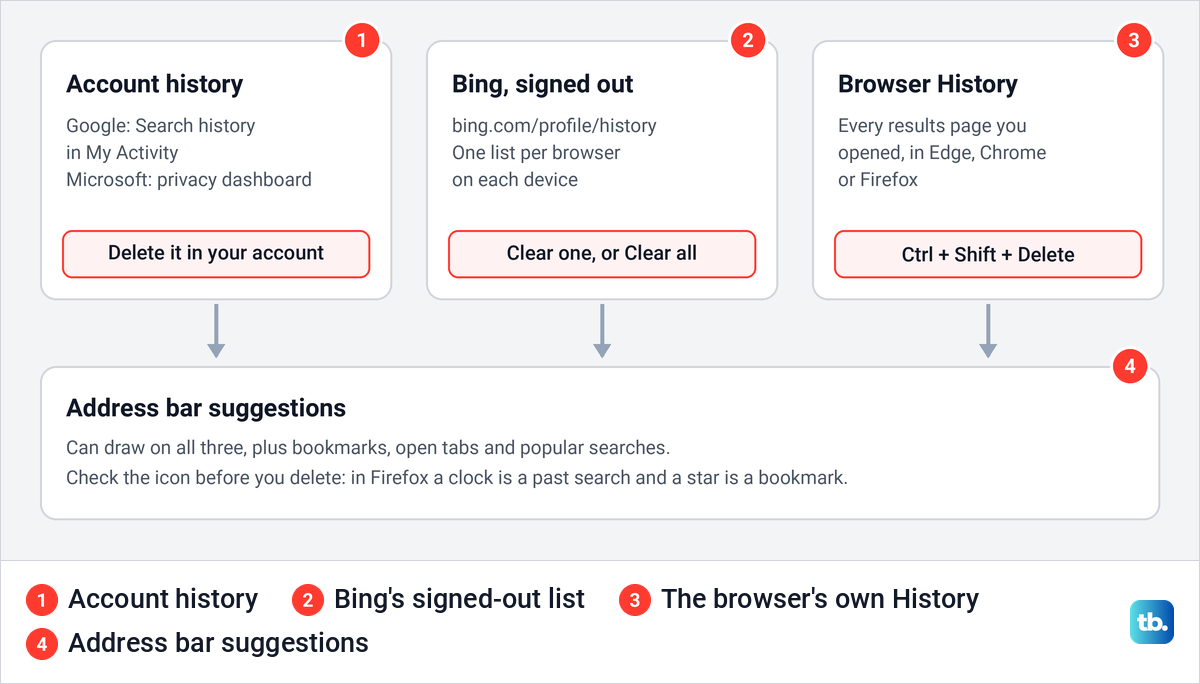
That is why one clear-history button rarely finishes the job. If searches typed into the address bar go to a different service than you expect, check which engine your browser uses first, or set Google as your default search engine, so you clean up the right account. The table below matches what you see to the place that clears it.
| Where you see the search | What to open | What it clears |
|---|---|---|
| Google Search activity in your Google account | Search history in My Activity | The searches you pick for that account, from one item to all time |
| Bing, while signed in to a Microsoft account | Privacy dashboard, then Browsing and search | Search history saved to that Microsoft account |
| Bing, while signed out | bing.com/profile/history | The Bing searches saved for that browser on that device |
| The browser's History list | Ctrl + Shift + Delete | Visited pages, including results pages, for the time range you choose |
| One suggestion in the Firefox or Chrome address bar | Down arrow, then Shift + Delete | That single history or search entry |
| The Google app on iPhone or iPad, signed out | Settings, Privacy & Safety, Clear app history | Searches the app saved on the device |
| Popular searches in Google's suggestions | Google's Search settings, then Other settings | Hides trending suggestions but deletes nothing |
The signed-out Bing row and the browser rows match what we saw in Edge and Firefox on our PC. Everything about accounts, Chrome, phones and Google's suggestion settings follows Google's and Microsoft's instructions.
Delete Google search history in My Activity
My Activity shows the history of whichever Google account is signed in, so check that first. If the wrong account is open on a shared computer, sign out of that Google account and sign in to the one whose searches you want to remove. The steps in this section follow Google's instructions.
Open your search history in My Activity and select Delete. Choose Delete all time to erase every saved search, or Delete custom range to remove a period. To clear one day, Google's page offers Delete all activity from that day, and each search has its own Delete activity item button.
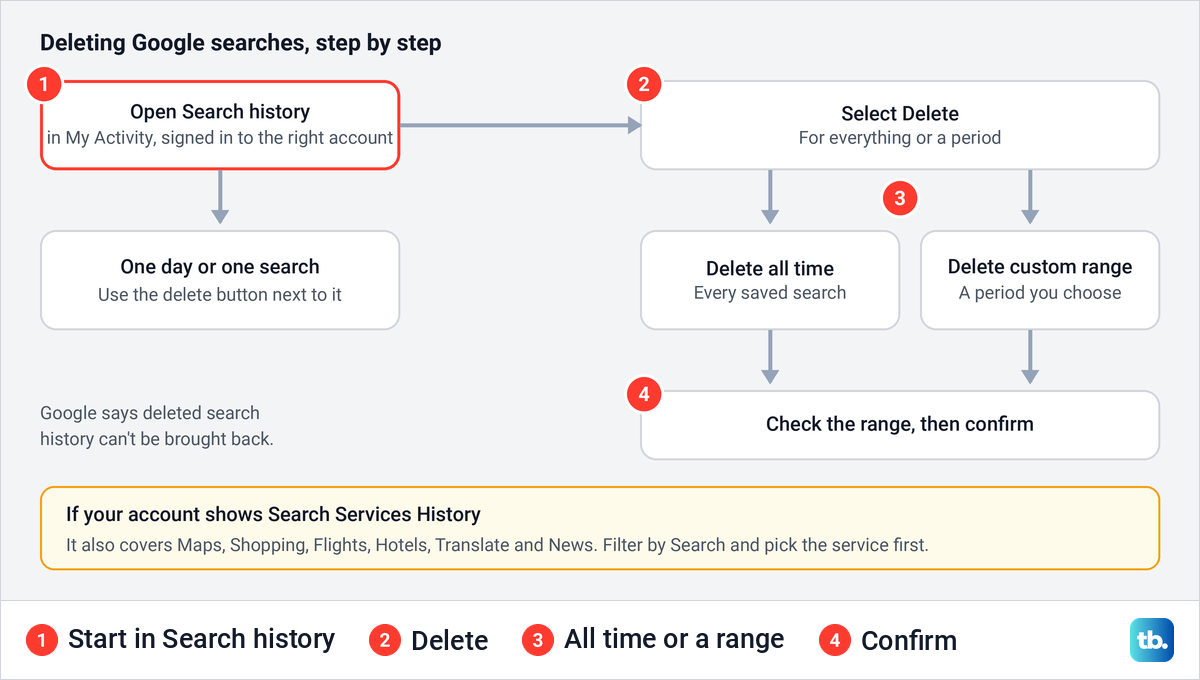
Google warns that once you erase your search history, you can't get it back, so look over the range before you confirm. Google also says removal starts by taking the activity out of view, then deleting it from its storage systems, and that it may keep certain types of data longer for business or legal reasons.
Starting from the main My Activity page carries a risk. Google's steps there for all time delete all the activity saved in My Activity, not only your searches. To keep it to searches, filter by product first and use Delete Results, which deletes only what the filter shows.
If your account shows Search Services History
Google is replacing the Web & App Activity setting for Search with a new one called Search Services History, and says it is rolling out gradually. It covers Search, Maps, Shopping, Flights, Hotels, Translate and News, so an unfiltered delete reaches well beyond your web searches. If your account has it, open My Google Activity, select the Search filter and pick the service you want before you delete.
Clear Bing search history when you are signed out
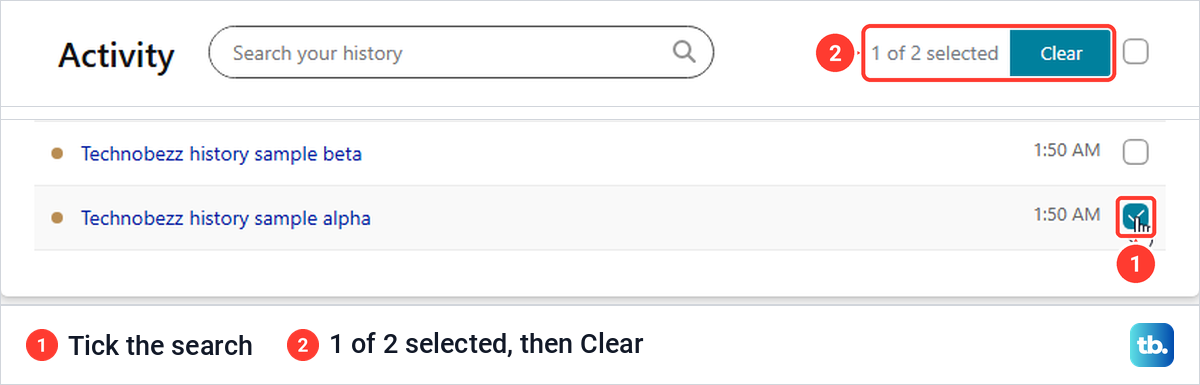
Bing keeps a separate history for a browser that is not signed in to a Microsoft account. Open bing.com/profile/history in the browser you searched with. On our PC, in Edge with no account signed in, the page listed our two test searches with the time of each and a tick box, under a note that reads "Sign in to see your search history on different browsers and computers."
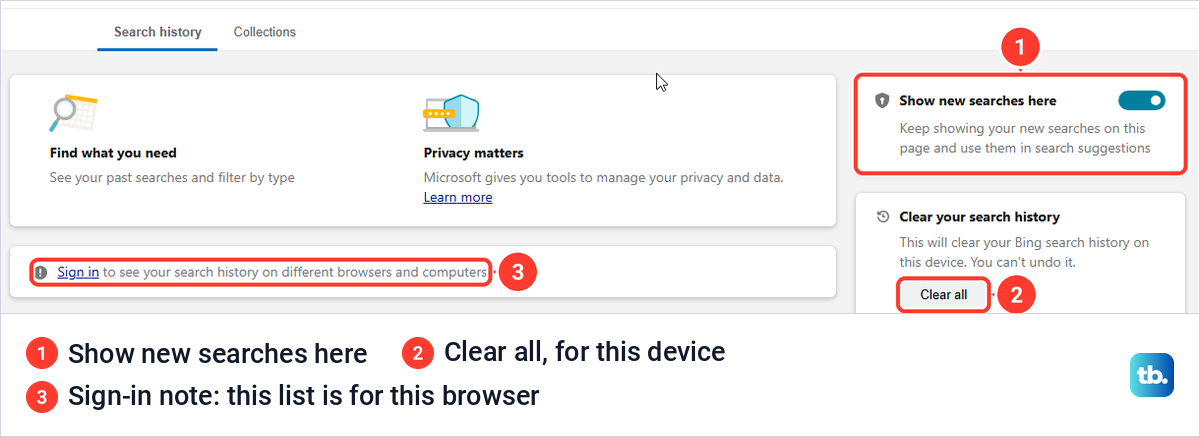
To remove one search, scroll down to Activity and tick the box next to it. The top of the list then reads 1 of 2 selected, with a blue Clear button beside it. We selected Clear and the search disappeared straight away with no question asked, and the other search was still there after we refreshed the page.
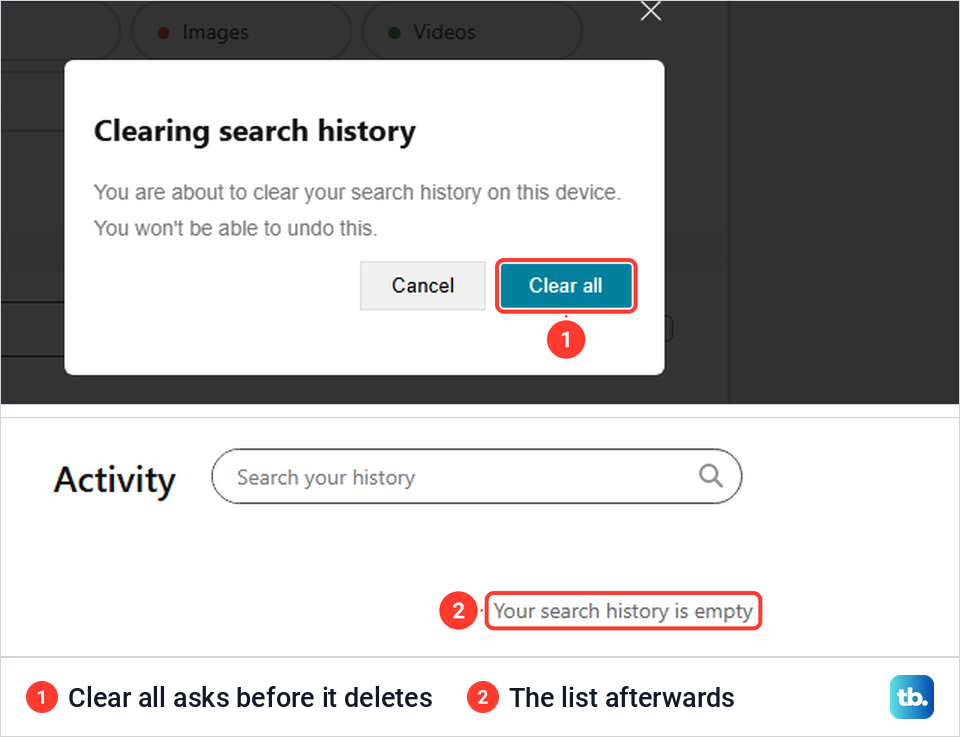
Clear all, in the box on the right, is the one that asks first. Its prompt reads "You are about to clear your search history on this device. You won't be able to undo this." After we confirmed with Clear all, the page said "Your search history is empty."
The page only covers that browser on that device, as its own wording says. Searches made in another browser, on another device or while signed in to a Microsoft account need their own clean-up.
Clear Bing history saved to your Microsoft account
If you search while signed in to a personal Microsoft account, Microsoft's instructions point to its privacy dashboard for your account instead. Select Browsing and search, then Clear all activities in the Search history section. Microsoft says this deletes any search history associated with your Microsoft account.
The two lists do not overlap. Microsoft says searches made while not signed in are unaffected by the dashboard and are not shown there, so clear the signed-out page as well if you used Bing both ways. It also says some copies may stay in its backup systems for a limited time after you clear your history.
Clear the history your browser keeps
Deleting searches from Google or Bing does not touch your browser, and Google says as much in its own help. After we cleared everything on Bing's page, Edge's History still listed both Bing results pages for our test searches, along with the other sites we had visited. Microsoft makes the same point from the other side, saying data you delete on the privacy dashboard won't be deleted from your device.
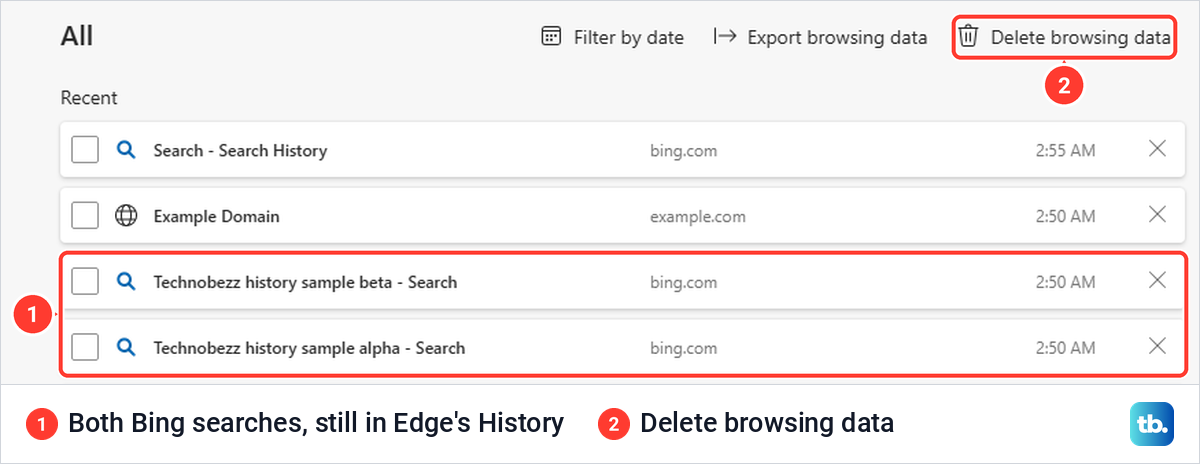
Microsoft Edge
Press Ctrl + Shift + Delete in Edge. On our PC this opened Delete browsing data on a new Settings tab, and its defaults deserve a second look. Time range was set to Last hour, and four boxes were ticked: Browsing history, Download history, Cookies and other site data, and Cached images and files.
Selecting Clear now straight away would also have deleted cookies, which Microsoft describes as data such as sign-in info that websites store on your device. For search history alone, open Time range and pick a period from Last hour to All time, then untick everything except Browsing history. The boxes further down the list, such as Autofill form data and Site permissions, were already unticked.
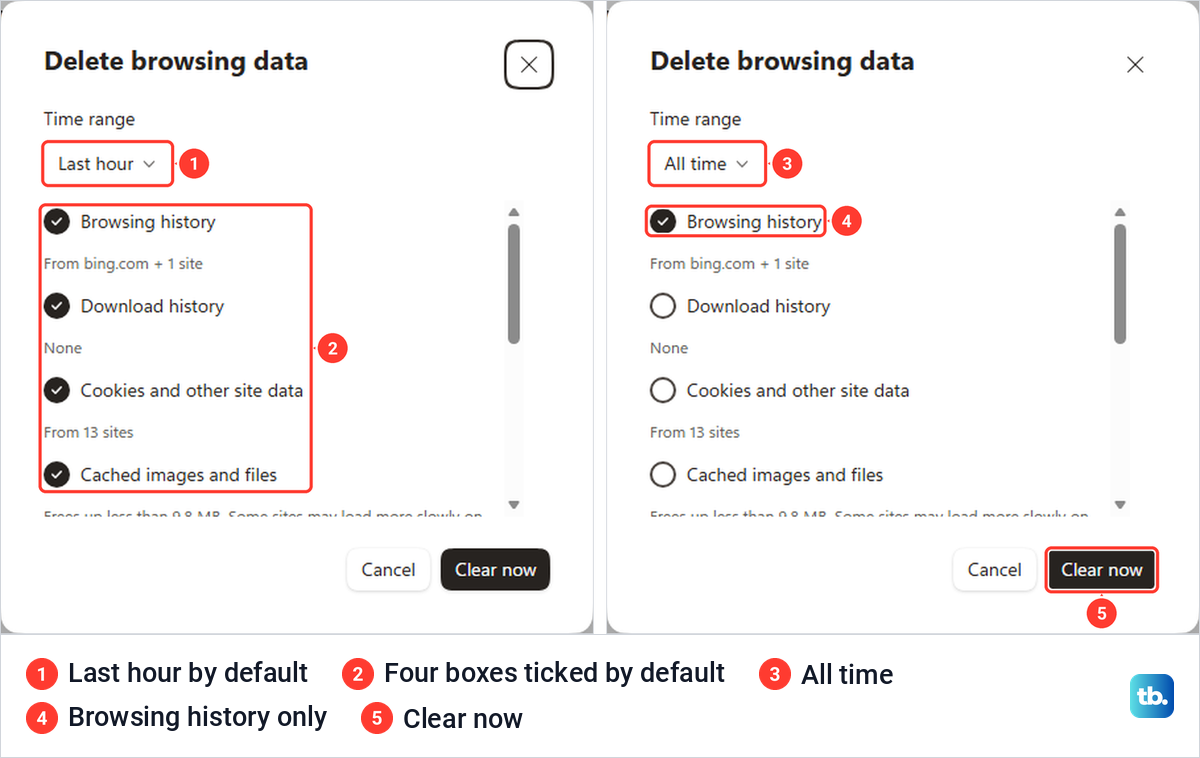
With only Browsing history ticked for All time, Clear now emptied the list, and Edge's History page then read "Go see the sites! The pages you visit will show up here." Microsoft says to turn sync off first to clear only this device, or leave it on to clear every synced device.
Google Chrome
The Chrome steps follow Google's instructions. Press Ctrl + Shift + Delete, or select More and then Delete browsing data, choose a time range such as All time, tick Browsing history and select Delete data. To remove just a few pages, open More, History, History, tick the entries and select Delete, then Remove.
Google says deleting browsing history in Chrome also deletes it on your devices where you are signed in to Chrome with history synced. It does not touch the searches saved in your Google account, which Google lists among the data the dialog leaves alone. Saved passwords are separate too, and live in Google Password Manager.
Firefox
Firefox uses the same shortcut. On our PC, Ctrl + Shift + Delete opened a dialog called Clear browsing data and cookies, with a When menu running from Last hour to Everything. By default it had Browsing & download history, Cookies and site data, Temporary cached files and pages, and Saved form info ticked, with only Site settings left clear.
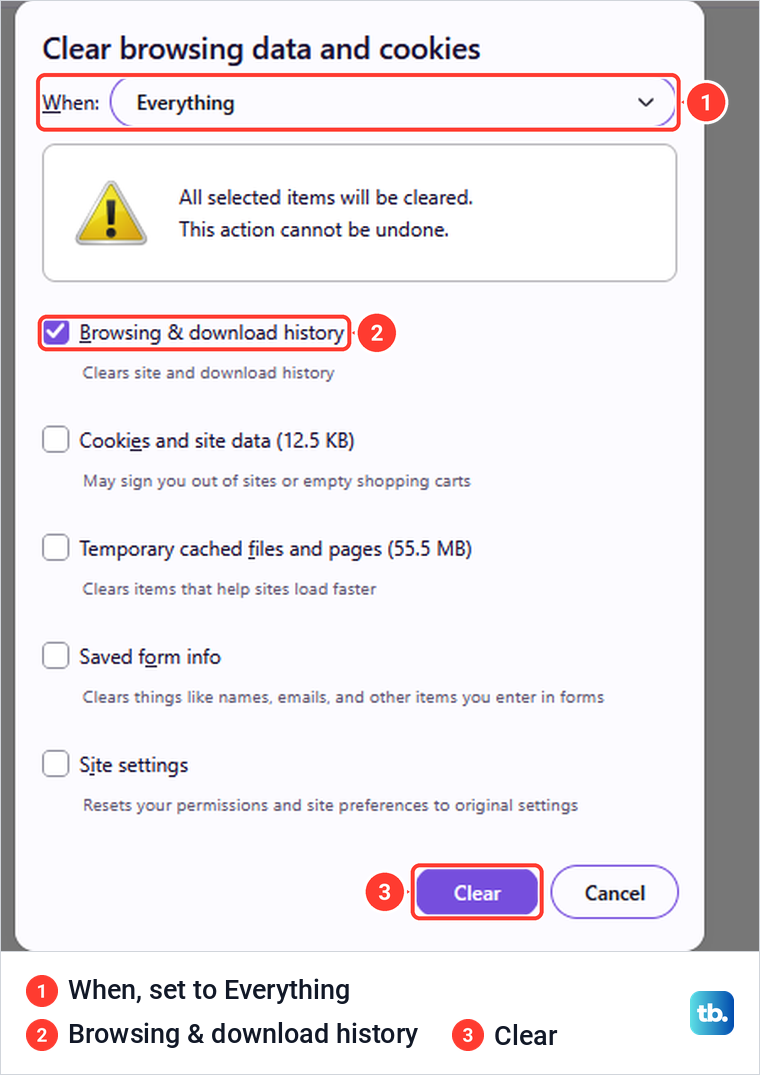
Choosing Everything added a warning that all selected items will be cleared and that this action cannot be undone. We left only Browsing & download history ticked and selected Clear. Firefox's History list then showed No items, and our bookmark stayed on the toolbar, but one thing was left behind, as the next section shows.
For phones, other browsers and every menu path, follow our steps to clear your browser history on each one. These dialogs also hold saved logins and form entries, so manage saved passwords and autofill in their own settings rather than ticking every box.
Remove one search from the address bar
Sometimes you only want one suggestion gone. In Firefox, type the start of the search until it appears in the drop-down, press Down arrow until it is highlighted, then press Shift + Delete. On our PC the highlighted search vanished at once and the other one stayed. In Edge, you can remove one page from History with the X at the end of its row, or clear Browsing history as shown earlier.
Past searches carry a clock icon, which Mozilla says marks suggestions from search history. Firefox listed ours under the heading Google suggestions, even though they were searches stored in Firefox itself. Results pages opened from that search are separate entries under Firefox Suggest, and Shift + Delete on the search left those in place until we cleared the history.
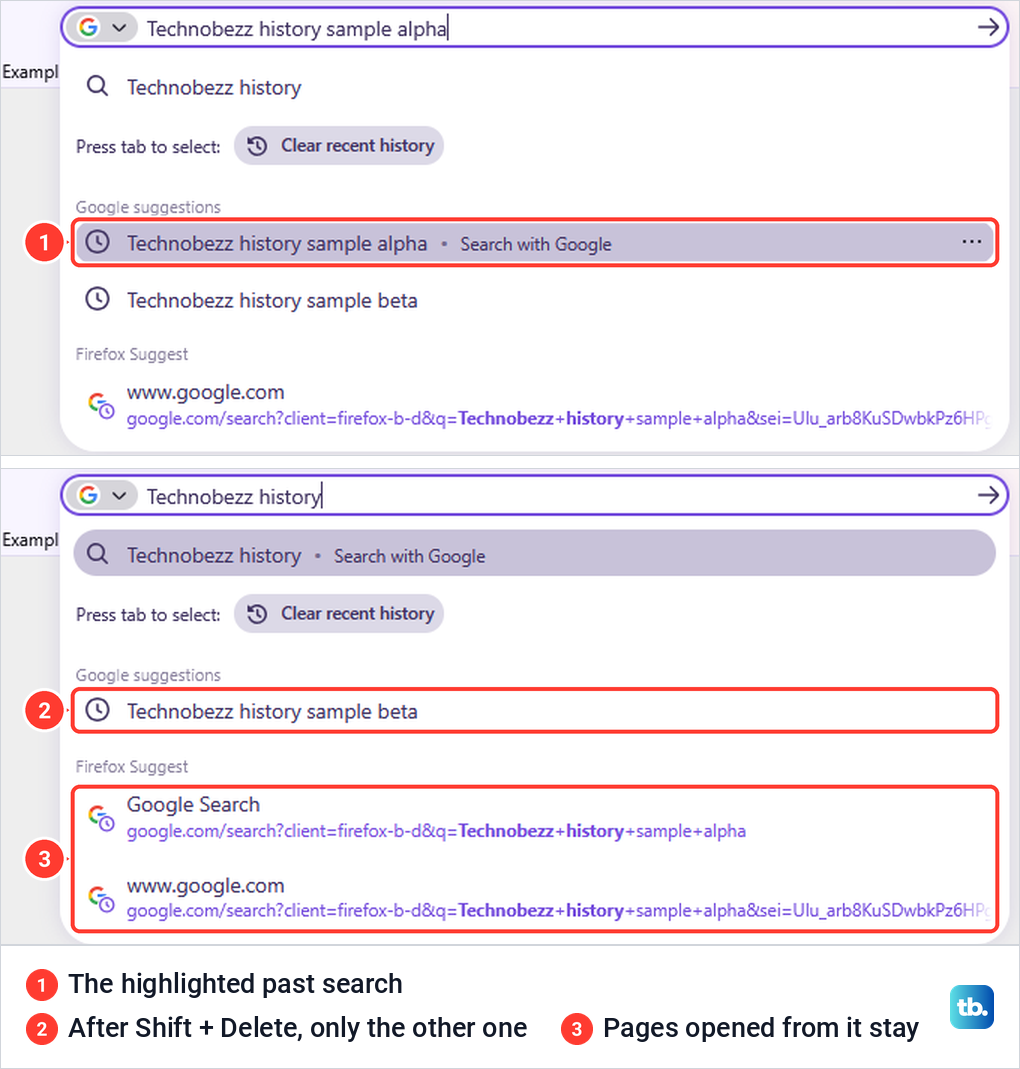
Mozilla also offers a mouse route, through the three-dot button next to an entry and Remove from history. Google documents the same keyboard shortcut for Chrome: Down arrow to highlight a prediction, then Shift + Delete. Bookmarked pages are different, because Mozilla says items with a star are not removed this way or by clearing history.
For a bookmark, delete the bookmark itself. Chrome's address bar also searches your bookmarks, Google says, so check whether an unwanted suggestion is a page you saved.
Why a search can survive clearing Firefox history
This was the surprise in our test. Mozilla's instructions say that to clear all search items you choose Everything and make sure Browsing & download history is checked. We did exactly that, and History was empty afterwards, yet our remaining search still appeared in the address bar with its clock icon.
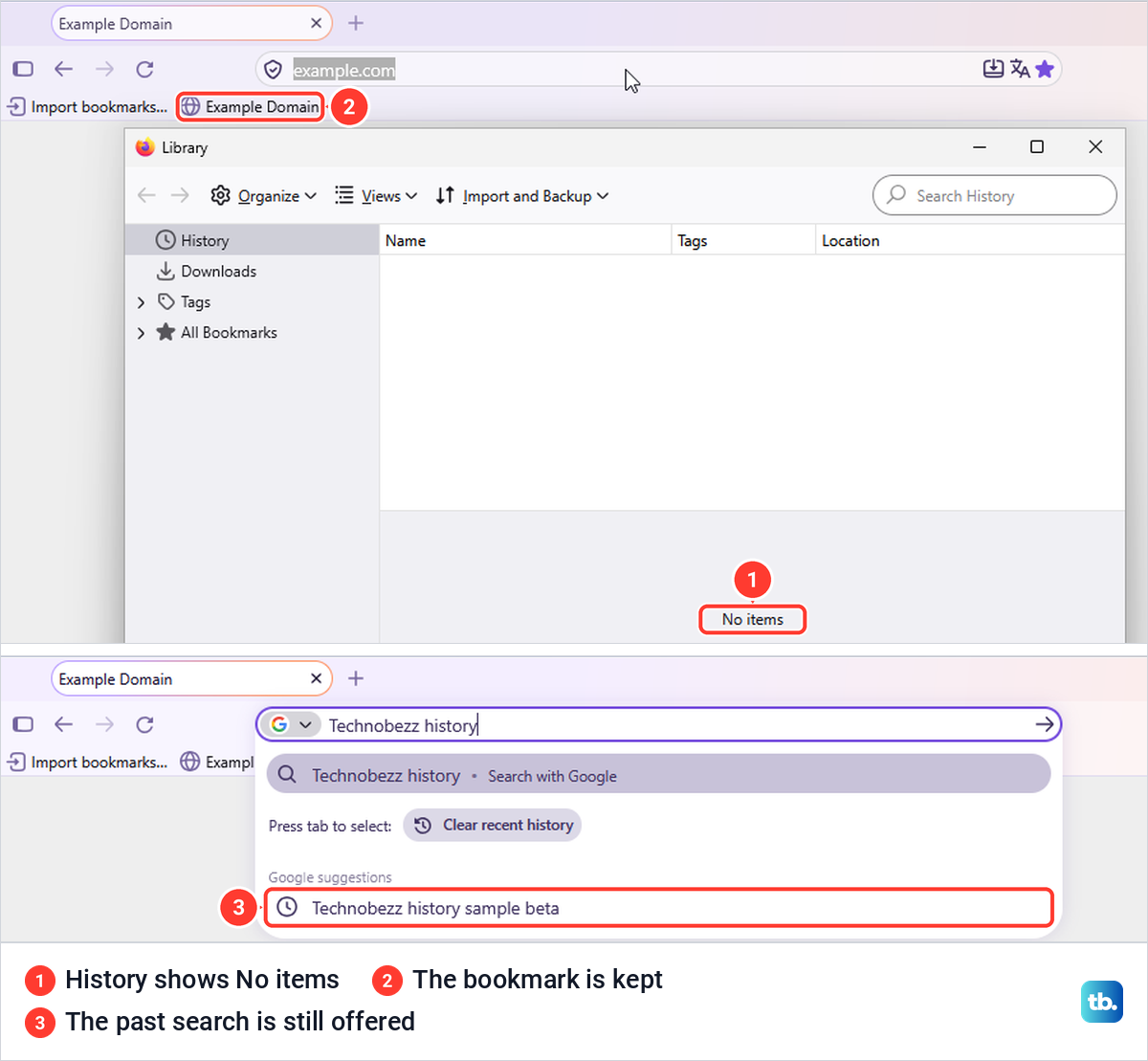
Mozilla's own description of history puts past searches with form history, not with the sites you visited. To remove searches that survive, highlight each one in the drop-down and press Shift + Delete, which removes them one at a time.
Clear searches in the Google app on a phone
The phone steps follow Google's instructions. On Android, open the Google app, tap your profile picture or initial, then Search history, and use Delete for all time, a custom range, a day or one search. To remove a recent search from the search bar, touch and hold it and tap Delete, and Google says that also erases it from My Activity.
On an iPhone or iPad, the same profile picture and Search history route works, and in the search bar you swipe left on a recent search and tap Delete. If you use the Google app while signed out, it saves searches on the device instead. Clear those under your profile picture or initial, Settings, Privacy & Safety, Clear app history, then confirm with Clear all.
Clear Safari history on iPhone or Mac
The Safari steps follow Apple's instructions. On an iPhone, go to Settings, tap Apps, then Safari, tap Clear History and Website Data, confirm the timeframe and tap Clear History. Apple says this does not change your AutoFill information, and that a gray button means there is no data to clear, or that you may need to check web content restrictions in Screen Time.
On a Mac, open Safari and choose History, then Clear History, and pick how far back to go. If iCloud is set up for Safari, Apple says the history is removed from your other Apple devices too. Removing website data is a separate job in Safari's Privacy settings, and Apple warns it may sign you out of websites.
Stop new searches from being saved
Deleting old searches and stopping new ones are separate controls everywhere. Google's steps are My Activity, Controls, then Turn off under Web & App Activity, with a choice of Turn off or Turn off and delete activity. Under the newer Search Services History, Google says past history you don't delete can still be used and is removed according to your auto-delete option.
Auto-delete is the middle ground. Google offers to delete activity older than 3 months, 18 months or 36 months, or not to auto-delete at all, and says you can still delete history by hand at any time. Newer searches stay until they reach the age you picked.
On Bing's signed-out page, the switch is Show new searches here. Turning it off on our PC first opened a box titled Before you continue, with Leave on and Turn off.
That box says you can clear your history on the Microsoft privacy dashboard, but the dashboard only holds searches made while signed in, so signed-out searches still have to be cleared on this page. With the switch off, a new search did not appear on the page, while the searches already listed stayed where they were.
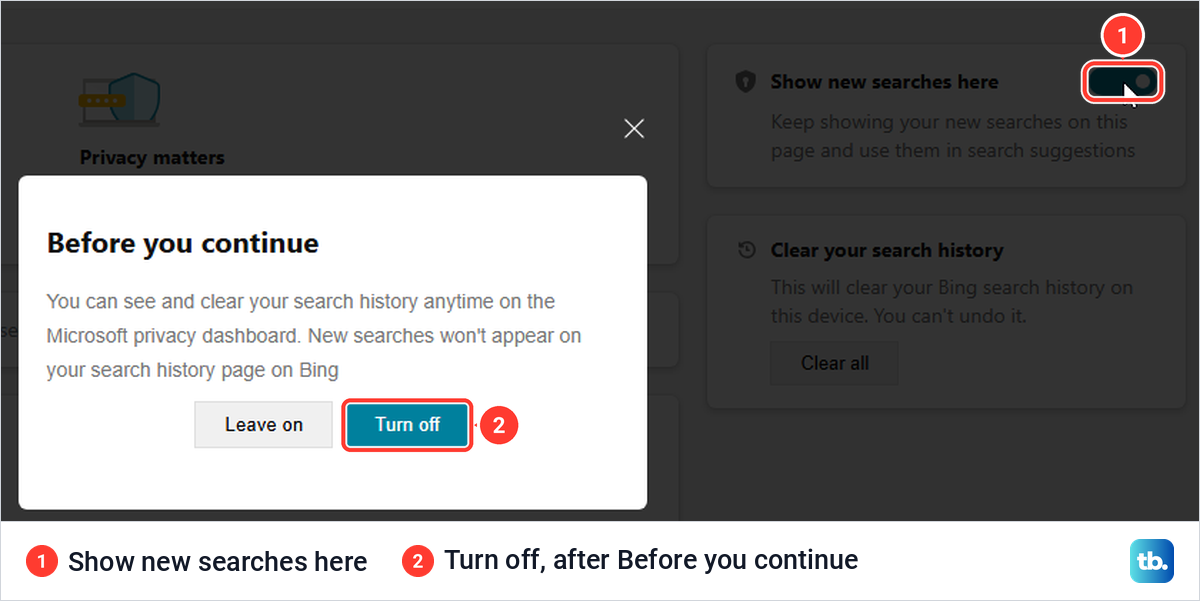
That matches Microsoft's description: when history is off, nothing new is added and existing history isn't deleted. Turning the switch back on took one click and asked nothing. Microsoft's tip if the switch will not turn off is to enable JavaScript and cookies in your browser, then try again.
Private windows help with the future, not the past. To keep a session out of your browser history, open an Incognito tab, but Google notes that if you sign in to your Google account in a private window, your search activity may still be stored in that account.
When deleted searches keep showing up
Start with the account. Each Google account has its own My Activity, so make sure the account you cleaned up is the one your browser is signed in to. Then check the range you chose, because a custom range that stops at yesterday leaves today's searches behind.
Next, work out what kind of suggestion you are looking at. In Firefox, a clock icon is a past search and a star is a bookmark, and suggestions can also come from open tabs or popular searches. Google has a separate switch for popular ones: on google.com, select Settings, Search settings, Other settings, and under Desktop turn off Autocomplete with trending searches.
If you search on Google while signed out, Google may show searches related to your recent ones. Turning off Search customization in Search settings stops that, but it hides suggestions rather than deleting anything. Google also says turning off personalization doesn't pause or delete the activity stored in your account.
When deleted activity still shows in My Activity, Google's first fix is to get the device online, because a device that is offline keeps showing deleted items until it reconnects. Its next suggestion is to clear your cache and cookies. You can clear the browser cache on its own, and only delete the browser cookies when you are ready to sign back in, since Firefox's dialog warns that cookies may sign you out of sites.
How we tested this guide
We tested this on Windows 11, version 25H2, in Microsoft Edge and Firefox, clearing neutral test searches from Bing's signed-out history page.
Frequently Asked Questions
Does clearing browser history delete my Google search history?
No. Google lists the search history saved to your Google account among the data Chrome's clearing dialog does not delete, so remove it in My Activity. On our PC the separation also worked the other way, because clearing Bing's history left both of our test searches in Edge's History.
Why do old searches still appear after I delete them?
Check that you cleared the right account and the right dates, and that the browser's own history is clear too. A suggestion can also be a bookmark, an open tab or a popular search rather than saved history. Google adds that a device that was offline can keep showing deleted activity until it reconnects.
How do I delete just one search?
In My Activity, use the Delete activity item button on that search. On Bing's signed-out page, tick the search and select Clear, which removed it at once on our PC. For a suggestion in the Firefox or Chrome address bar, highlight it with the Down arrow key and press Shift + Delete.
Does clearing history remove passwords or sign me out?
Not if you tick only the history box. Edge and Firefox both had cookies ticked by default on our PC, and Firefox's dialog warns that cookies may sign you out of sites. Google says Chrome's saved passwords are managed separately in Google Password Manager.
Does Incognito stop Google from saving my searches?
Google says Chrome limits what an Incognito session saves to your device, and the session ends when you close all Incognito windows. If you sign in to your Google account in a private window, Google notes your search activity may still be saved to that account. Incognito also does nothing to searches you made earlier.
Can I recover deleted Google search history?
No. Google says once you erase your search history, you can't get it back. Check the account, the dates and the product filter before you confirm.
How do I delete search history automatically?
In My Activity, open Controls and set auto-delete for Web & App Activity to 3, 18 or 36 months. If your account shows Search Services History, Google says past history is removed according to that setting's auto-delete option. Searches newer than the period you choose stay until they reach that age.











