You want Google to open when you click links or type searches, but there are two separate settings behind that request. Chrome is the browser setting, and Google is the search-engine setting. Start with the device default if you want links to open in Chrome, then change the search engine inside the browser you use.
1. Set Chrome as the default browser on Windows 11
Install Google Chrome first. Open Start, then select Settings, Apps, and Default apps.
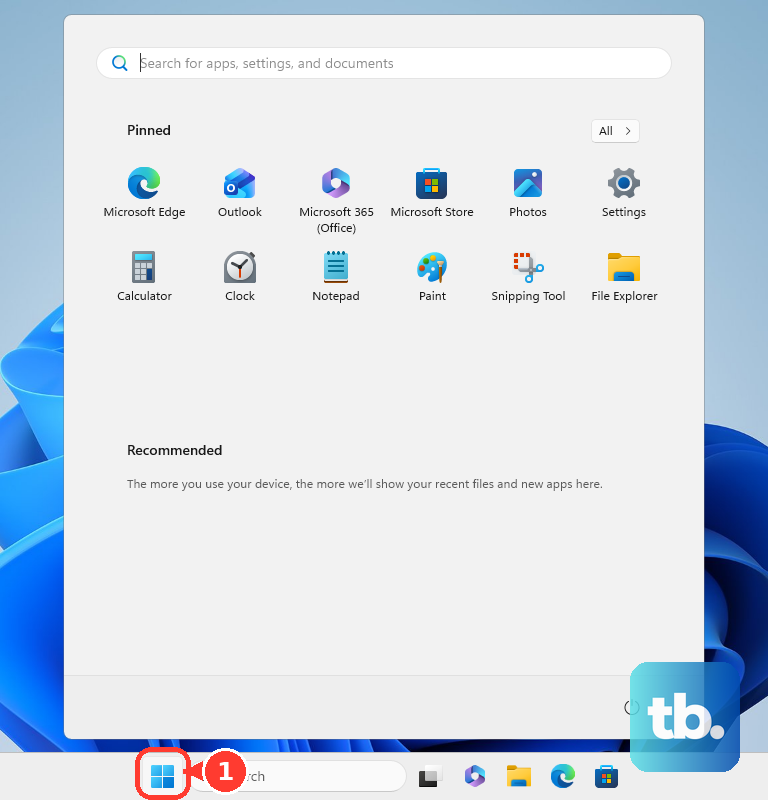
Under Set defaults for applications, search for Chrome. Select Google Chrome, then next to Make Google Chrome your default browser, select Set default.
2. Install Chrome before changing the browser default
This fixes the missing Chrome option in default-browser settings. Go to Google's Chrome download page, then select the Chrome download option for your device.
On Windows, run the installation file, then select Run or Yes if prompted. On Mac, open googlechrome.dmg, then drag Chrome to the Applications folder.
On Linux, open the downloaded package, then select OK and Install Package. On Android, open Play Store, search for Chrome, tap Install, then tap Open.
On iPhone or iPad, open App Store, search for Chrome, tap Get, follow the onscreen instructions, then tap Open.
3. Make Chrome the default browser on Mac
On macOS Ventura 13 or later, open Apple menu > System Settings > Desktop & Dock > Default web browser, then choose Google Chrome. Chrome has its own shortcut too: open Chrome > More > Settings > Default browser, then select Make default.
When the Make default button is missing, Chrome is already the default browser.
4. Choose Chrome as the default browser on Android and Samsung Galaxy
Install Chrome from Google Play. Open Settings, select Apps, then tap Default apps or Choose default apps.
Tap Browser app, then select Chrome. Android labels vary by manufacturer, so stay inside the Apps default-apps area when your phone uses slightly different wording.
5. Switch the default browser on iPhone or iPad
From Chrome, open Chrome > More > Settings > Default Browser > Go to Settings... > Default Browser App, then set Chrome as the default browser app.
Apple's current route is Settings > Apps > Default Apps, then tap the browser feature or default browser option and choose Chrome. Google says default browser changes require iOS 14 or later.
6. Set Google as the search engine in Chrome
On desktop, open Chrome. Select More, select Settings, and then select Search engine.
Under Search engine, select Change. Choose Google as the default search engine.
If you open Manage search engines and site search instead, select More next to Google, then select Make default. On Android, open Chrome > More > Settings > Search engine, then select Google.
On iPhone or iPad, open Chrome > More > Settings > Search engine, then select Google. When Chrome shows a search engine choice screen, pick Google there too.
7. Use Google search in Safari, Edge, Firefox, or Samsung Internet
In Safari on Mac, open Safari > Settings > Search > Search engine, then choose Google. On iPhone or iPad, open Settings > Search > Search Engine, tap Google, then tap Back.
In Microsoft Edge on desktop, search from the address bar using Google first, then open Settings and more > Settings > Privacy, search, and services > Search and connected services > Address bar and search > Search engine used in the address bar, then choose Google. In Edge on Android, open menu ... > Settings > General > Default search engine, then select Google.
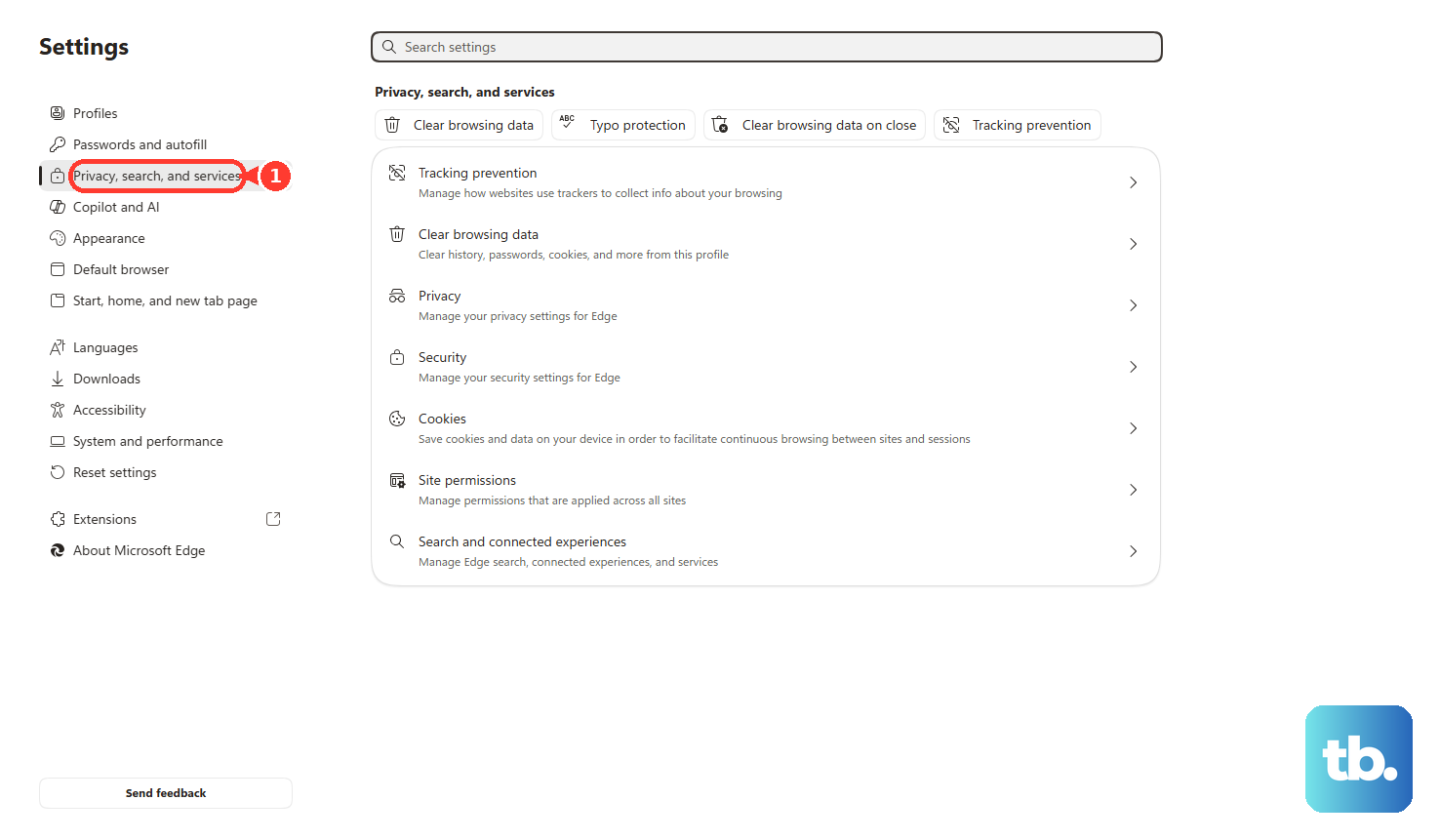
If Google is not in the list, run a search on Google in the browser first, then go back to that list. In Edge on iOS, open menu ... > Settings > Advanced settings, tap Search engine, tap Others, select Google, then tap Done.
In Firefox on desktop, open Firefox menu > Settings > Search, then use the drop-down under Default Search Engine to choose Google. In Firefox for Android, tap the search engine icon in the address bar, then open Search settings > Default search engine and select Google.
In Firefox for iOS, tap the menu button, then open Settings > Search, tap the current default search engine name, tap Google, then tap Settings and Done. In Samsung Internet, open Tools or the browser menu, then go to Settings > Address bar search and choose Google.
8. Avoid older default-browser advice
Older Windows 10 instructions point to Start > Settings > Apps > Default apps > Web browser, but Windows 11 is the current consumer path. Internet Explorer search-provider steps are deprecated because the Internet Explorer 11 desktop app is retired and Windows 11 does not ship Internet Explorer as a normal browser.
Chrome on Windows 7, Windows 8, and Windows 8.1 is also deprecated because Chrome 109 was the last Chrome version for those systems.
9. Check work or school restrictions
Try the normal device or browser steps first. When the setting is unavailable or changes back, treat the computer, browser, or account as managed.
Ask your organization's IT admin to set Chrome as the default browser or Google as the default search provider for managed devices. For Firefox on desktop, open Firefox menu > Settings > Search and choose Google again under Default Search Engine.
If an extension changed Firefox search, disable or remove that extension, then choose Google again. Managed settings can override your choice, so a personal fix will not stick on a work or school device until the admin policy changes.
Frequently Asked Questions
Is Google the same thing as Chrome?
No. Google is the search engine, while Google Chrome is the browser. You can make Chrome your default browser, make Google your default search engine, or do both.
Why is Chrome not showing as a default browser option?
Chrome needs to be installed first. After installing it, reopen your device's default-app settings and choose Chrome as the browser.
Can I make Google the default search engine without using Chrome?
Yes. Safari, Edge, Firefox, and Samsung Internet all include settings for choosing Google as the search engine.
Why does my default browser or search engine keep changing back?
On a work or school device, managed settings can override your choice. In Firefox, an extension can also change the default search engine, so remove or disable that extension and choose Google again.