Old browsing records build up quickly, especially on a shared phone, tablet, or computer. Here are the current browser-history steps for Chrome, Safari, Edge, Firefox, Samsung Internet, Brave, Opera, and Vivaldi.
Clear Chrome history on a computer
Use this when Chrome is running on Windows, macOS, Linux, or ChromeOS. The main path deletes history for the time range you choose.
Open Chrome, select More, choose Delete browsing data, pick All time or another time range, check Browsing history, then select Delete data.
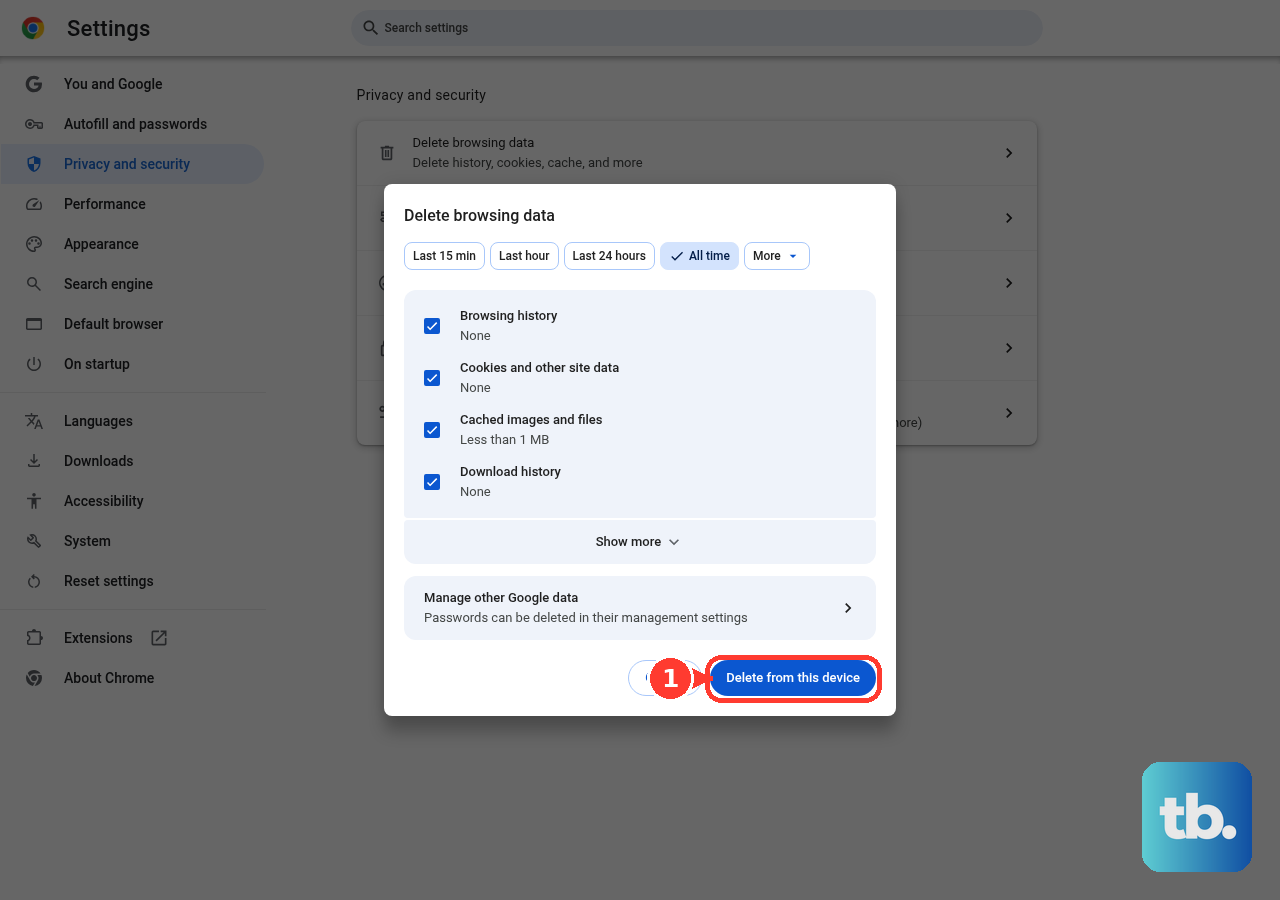
For the keyboard route on Windows and Linux, press Ctrl + Shift + Delete. On macOS, press ⌘ + Shift + Delete instead, and on ChromeOS use the menu route above. Then choose the time range, keep Browsing history selected, and select Delete data.
For the address-bar route, type Delete browsing data, select the Action chip, choose the time range, check Browsing history, and select Delete data.
To remove only certain entries, open More, choose History, then choose History again. Check each site you want to remove, select Delete, then confirm with Remove.
Use Chrome on Android iPhone or iPad
On Android, open Chrome, tap More, then tap Delete browsing data. Next to Time range, choose dates or All time, check Browsing history, and tap Delete data.
To delete single Chrome entries on Android, tap More, open History, find the entry, and tap Remove. For several entries, touch and hold one item until it is checked, select the other sites, then tap Remove.
On iPhone or iPad, open Chrome, tap More, then tap Delete Browsing Data. Set Time Range, open Browsing Data, select Browsing history, tap Confirm, then tap Delete Browsing Data.
For selected Chrome history on iPhone or iPad, tap More, open History, tap Edit, check the entries, tap Delete, and finish with Done.
Clear Safari history on Apple devices
Pick the Safari path that matches your device.
On Mac, open Safari, choose History, then Clear History, and choose how far back to clear.
On iPhone, open Safari, go to your start page, then tap Show Bookmarks, History, More, then Clear History.
Under Clear Timeframe, choose a range and tap Clear History.
On iPhone, the Settings path is Settings, Apps, Safari, then Clear History and Website Data.
Choose the timeframe and tap Clear History.
On iPad, open Safari and go to Show Sidebar, History, More, then Clear.
Under Clear Timeframe, choose how much history to clear and tap Clear History.
To delete specific websites on iPhone, open Safari, go to your Start Page, then tap History, More, then Select Websites.
Select the sites and tap the Trash button.
If iCloud is set up for Safari, clearing Safari history on Mac removes it from your other Apple devices too.
Remove browsing history in Microsoft Edge
Use this for the current Microsoft Edge on Windows 11 and Windows 10. It also applies when you want the desktop shortcut instead of digging through Settings.
Open Settings and more, then Settings, then Privacy, search, and services, then Clear browsing data.
Next to Clear browsing data now, select Choose what to clear. Choose a Time range, select Browsing history, and click Clear now.
For the keyboard shortcut, press Ctrl + Shift + Delete, choose Time range, select Browsing history, then choose Clear now.
On Edge for iOS or Android, open menu, then Settings, then Privacy, then Clear browsing data. Select the data types and tap Clear.
Delete history in Firefox
On Firefox desktop, open the menu, then History, then Clear Recent History…. In When, choose last hour, last two hours, last four hours, current day, or everything, check Browsing & Download History, and select Clear.
To remove everything Firefox stores for one website on desktop, open the menu, then History, then Manage history. Search for the site in Search History, right-click or Ctrl-click it, choose Forget About This Site, and confirm with Forget.
On Firefox for Android, tap the three-dot menu, then History, then the trash icon. Choose Everything in Time range to delete, then tap Delete.
On Firefox for iPhone or iPad, tap the menu, then History, then the trash icon. Choose Today, Today and Yesterday, or Everything.
Delete history in Samsung Internet Brave Opera or Vivaldi
Use this when your main browser is Samsung Internet, Brave, Opera, or Vivaldi. These browsers keep history controls in their privacy, security, or history areas.
On Samsung Internet for Galaxy phones and tablets, open the Samsung Browser app, tap More options, then Settings, then Personal browsing data, then Delete browsing data.
Select Browsing history and any other data types you want to remove. Tap Delete data, then confirm with Delete.
On Brave desktop, open Menu, then Settings, then Additional settings, then Privacy and Security, then Delete browsing data. Select Browsing history, choose the range, and click Clear data.
On Opera desktop, open Settings with Alt + P on Windows or Linux, or with ⌘ + , on macOS. Then choose Privacy & security, then Delete browsing data. Select the time range and data types, then click Clear data.
On Vivaldi desktop, open the Vivaldi menu, then Tools, then Delete Browsing Data. Select the time range, check Browsing History, and click Delete.
Delete synced cloud activity too
Use this when cleared browser history still appears through a signed-in Google or Microsoft account. Clearing the local browser and account activity handles both places.
For Google account activity, go to myactivity.google.com.
Above your activity, select Delete.
Choose All time or another range.
Select Next.
Finish with Delete.
For one Google activity item, scroll to the item and select Delete.
For Microsoft Edge cloud history, go to the Microsoft account privacy dashboard and clear the Microsoft Edge browsing history tied to your signed-in Microsoft account. Deleting it from the privacy dashboard leaves device history in place, so clear Edge on the device too.
Make history clear automatically
Set one of these options when you want browsing data deleted on exit or after a set retention period.
In Firefox desktop, open menu, then Settings, then Privacy & Security, then History.
Choose Use custom settings for history or Customize history, check Clear history when Firefox closes, open Settings…, check the items, and select Save Changes.
In Edge mobile, open the menu, then Settings, then Privacy and security, then Clear browsing data.
Select data types and turn on Clear browsing data upon exit.
In Brave desktop, open Menu, then Settings, then Additional settings, then Privacy and Security, then Clear browsing data, then On exit.
Tick the items to clear, including Browsing history when shown, and select Save.
In Opera desktop, open Settings with Alt + P on Windows or Linux, or with ⌘ + , on macOS. Then choose Privacy and Security, then Delete browsing data, then On exit.
Choose the data to delete every time Opera exits and select Save.
In Vivaldi desktop, open Settings, then Privacy, then Save Browsing History, and adjust the time after which browsing data is deleted automatically.
Handle a missing or blocked clear button
This fixes cases where the browser controls are unavailable or the old instructions you found no longer match current browsers.
On iPhone or iPad, Clear History is unavailable when Screen Time web content restrictions block it.
Ask the parent, guardian, or device administrator to change Screen Time, Content & Privacy Restrictions, or Web Content restrictions.
In Chrome or Edge, a managed-browser notice does not block history deletion by itself. Deletion stops only when the organization sets the AllowDeletingBrowserHistory policy to disabled, so check the browser's policy status or ask your administrator.
Use an unmanaged personal device or ask the organization administrator to allow browser-history deletion.
Skip Microsoft Edge Legacy and Internet Explorer instructions. Microsoft Edge Legacy support ended on March 9, 2021, and Internet Explorer 11 is retired for normal current Windows browsing.
If this method fails, clear history on each synced device, then delete saved Google activity or Microsoft Edge cloud history from the account dashboard.
Frequently Asked Questions
Does clearing history delete passwords too?
Selecting only browsing history leaves saved passwords out of the deletion. If the browser shows separate data-type checkboxes, keep password options unchecked.
Why does history come back after I delete it?
Chrome and Edge delete synced history across your signed-in devices when history sync is on, so it should not come back. It reappears when a device was offline and syncs later, when a device is signed out or not syncing, or when the visit is still saved as Google or Microsoft account activity. Clear those places too.
Can I delete just one website from history?
Yes. Chrome, Safari on iPhone, Firefox, Opera, Brave, and Vivaldi include controls for selected entries or a specific website.
Why is Clear History gray on my iPhone or iPad?
Apple says the button is gray when there is either no data to clear or web content restrictions in Screen Time are in place. If restrictions are the cause, a parent, guardian, or device administrator has to change them.











