A stale browser cache can make websites load wrong, show old images, or keep a fixed page looking broken. Clearing cached images and files makes the browser download fresh page data. Use the steps below for current desktop and mobile browsers, with quick shortcuts first and full menu paths after that.
1. Start With the Desktop Shortcut
If you're on a computer, open the cache-clearing screen first. This is the fastest route in Chrome, Edge, Firefox, and Vivaldi.
Chrome: press Ctrl+Shift+Delete on Windows, Linux, or ChromeOS. On Mac, press Command+Shift+Delete.
Edge: press Ctrl+Shift+Delete on Windows. On Mac, press Command+Shift+Delete.
Firefox: press Ctrl+Shift+Del on Windows or Linux. On Mac, press Command+Shift+Delete.
Vivaldi: press Ctrl+Shift+Del on Windows. On Mac, press Shift+Command+Delete.
Pick a Time range, select Cached images and files, then clear it. In Firefox, select Temporary cached files and pages instead. In Vivaldi, select Cache, then click Delete.
2. Clear Chrome Cache
Chrome uses the same basic cleanup screen on desktop and mobile, but the final confirmation labels differ by device.
- 1.Open Chrome.
- 2.Select More.
- 3.Choose Delete browsing data.
- 4.Pick a Time range.
- 5.Check Cached images and files.
- 6.Select Delete data.
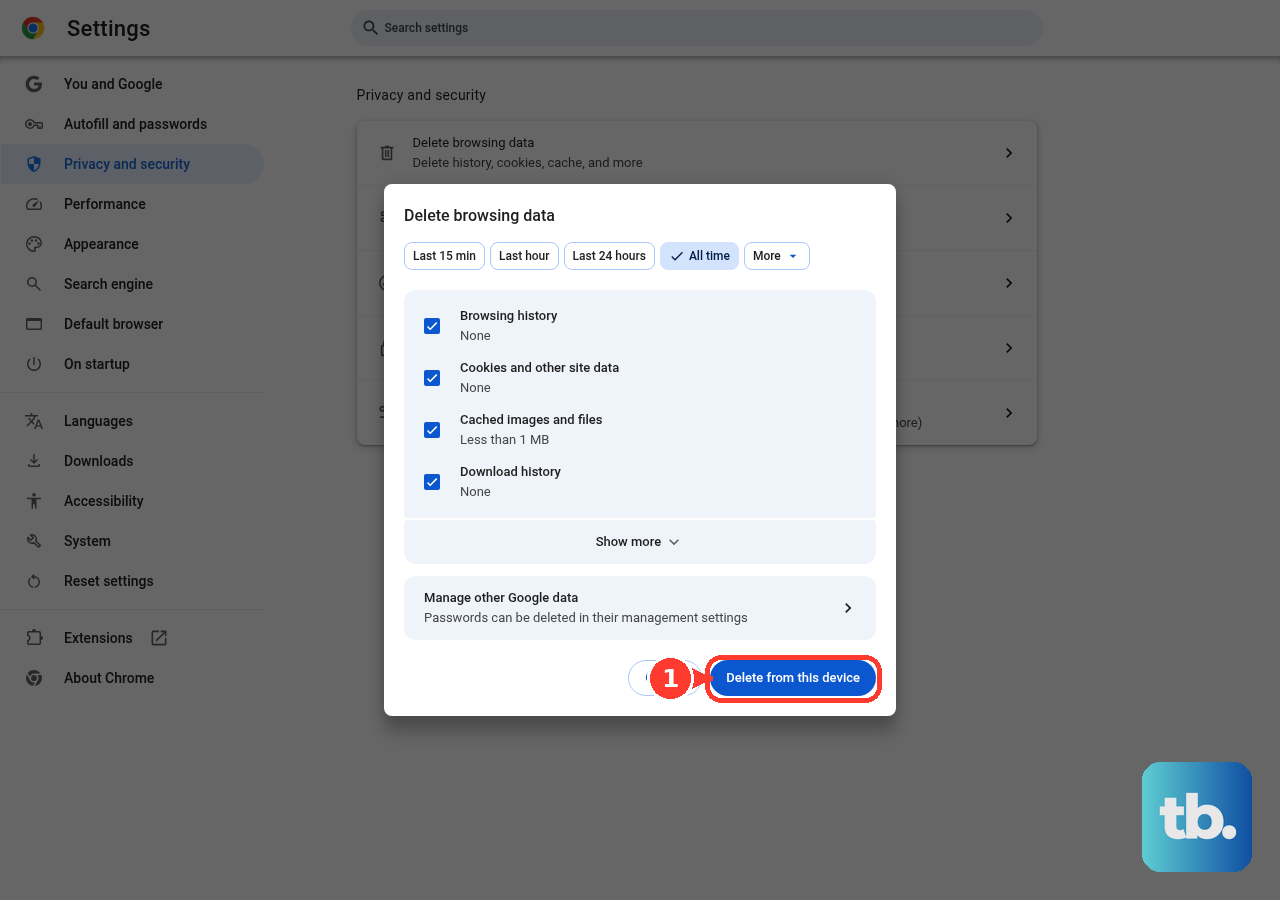
On desktop, you can also type Delete browsing data in the address bar. Select the action chip, choose a Time range, and check Cached images and files. Then select Delete data.
On iPhone or iPad, go to Chrome > More > Delete browsing data. Set the Time range, open Browsing data, and select Cached images and files. Tap Confirm, then tap Delete browsing data.
On Android, go to Chrome > More > Delete browsing data. Tap More options so you can pick the data types, select Cached images and files, and choose a duration. Tap Delete data. Skip More options and Chrome deletes its default set for the chosen duration instead of cache alone.
3. Reset Safari Cache
On iPhone or iPad, clear Safari's cache with history when you want the main cleanup path. Open Settings, go to Apps > Safari, and tap Clear History and Website Data. Choose the timeframe, then tap Clear History.
To remove website data while keeping history, use Settings > Apps > Safari > Advanced > Website Data > Remove All Website Data > Remove Now. On older iOS versions, start from Settings > Safari.
On Mac, open Safari > Settings > Privacy > Manage Website Data. Select one or more websites, then choose Remove or Remove All. To clear history and cached browsing data together, use Safari > History > Clear History. Choose how far back to clear.
4. Remove Edge Cached Files
Open Edge, select Settings and more, and go to Settings > Privacy, search, and services. Under Clear browsing data, choose Choose what to clear next to Clear browsing data now. Choose a Time range, check Cached images and files, and select Clear now.
Edge also gives you a history-page route: Settings and more > History > Open history page > Delete browsing data. To clear cache every time Edge closes, go to Settings > Privacy, search, and services > Clear browsing data > Choose what to clear every time you close the browser. Turn on Cached images and files.
5. Wipe Firefox Cache
Use the cache-only path when you want to keep cookies and other site data untouched. Open the Firefox menu, choose Settings, and select Privacy & Security. Find Cookies and Site Data or Browsing data, then choose Clear Data or Clear browsing data. Set When to Everything, check Temporary cached files and pages, and select Clear.
For the history route, use Firefox menu > History > Clear Recent History. Set When, check Temporary cached files and pages, and select Clear.
On Android, open Firefox > menu button > Settings > Delete browsing data. Select Cached images and files, then tap Delete browsing data. On iPhone or iPad, use Firefox > menu button > Settings > Data Management > Clear Private Data.
6. Clean Samsung Internet Opera Brave and Vivaldi
Samsung Internet: open More options > Settings > Personal browsing data > Delete browsing data. Select Cached images and files, then tap Delete data. Tap Delete to confirm.
Opera desktop: open Settings or press Alt+P. Go to Privacy & security > Delete browsing data, choose the time range, and select Cached images and files or cached data. Select Clear data.
Brave desktop: open Menu > Settings > Additional settings > Privacy and Security > Delete browsing data. Select the cache option, then choose Clear data.
Vivaldi desktop: open Vivaldi menu > Tools > Delete Browsing Data. Choose a time frame, select cache data, and choose Delete.
On Brave for Android, use Menu > Settings > Brave Shields and Privacy > Delete browsing data. Select the data types and time range, then delete them.
On Vivaldi for Android, use Vivaldi menu > Settings > Privacy and Security > Delete browsing data. Choose a time range, select Cached images and files, and tap Delete data.
On Vivaldi for iPhone or iPad, use Vivaldi menu > Settings > Privacy and Security > Clear Browsing Data. Select the data and time range, then tap Clear data.
7. Fix One Page Without Clearing All Cache
A hard reload refreshes the current page while ignoring cached content. Use it when one website looks broken and the rest of your browser works normally.
Chrome: press Shift+F5 or Ctrl+Shift+R on Windows, Linux, or ChromeOS. On Mac, press Command+Shift+R.
Edge: press Shift+F5 or Ctrl+Shift+R on Windows. On Mac, press Command+Shift+R.
Firefox: press Ctrl+F5 or Ctrl+Shift+R on Windows or Linux. On Mac, press Command+Shift+R.
For one Firefox website on desktop, open the site. Click the padlock or shield icon beside the address bar. Choose Clear cookies and site data.
For Brave desktop, open Shields on the site. Enable Forget me when I close this site. Close the site to clear that site's recorded data.
8. Handle Managed and Outdated Browsers
Work and school browsers can use admin settings that clear cache or browsing data when the browser closes. Chrome, Edge, and Firefox all support managed cache-clearing policies.
Use the normal browser steps first. If the cache clears every time you exit, a cache option is locked, or the browser is managed by your organization, contact your IT team.
Skip old paths from older tutorials, including Internet Options for Internet Explorer, Hub > History in Microsoft Edge Legacy, Firefox's old Advanced > Network cache screen, and Safari's old Reset Safari menu. Internet Explorer 11 is retired and out of support, Microsoft Edge Legacy support ended on March 9, 2021, and current Firefox and Safari use the menu paths above.
Frequently Asked Questions
Will clearing browser cache delete my passwords?
No, not when you select only cached images and files. Passwords are a separate browsing data type, so leave password-related options unchecked.
Should I clear cookies too?
Clear cookies only when you need to remove saved site data, sign out of a site, or fix a site problem that cache clearing does not solve.
What time range should I choose when clearing cache?
Choose a recent range for a new page problem. Choose all time or everything when old page files keep returning or the same site has stayed broken across multiple visits.
Does private browsing clear cache automatically?
In Microsoft Edge, cached images and files from an InPrivate session are discarded after you close all InPrivate windows. Regular browser cache is separate.











