

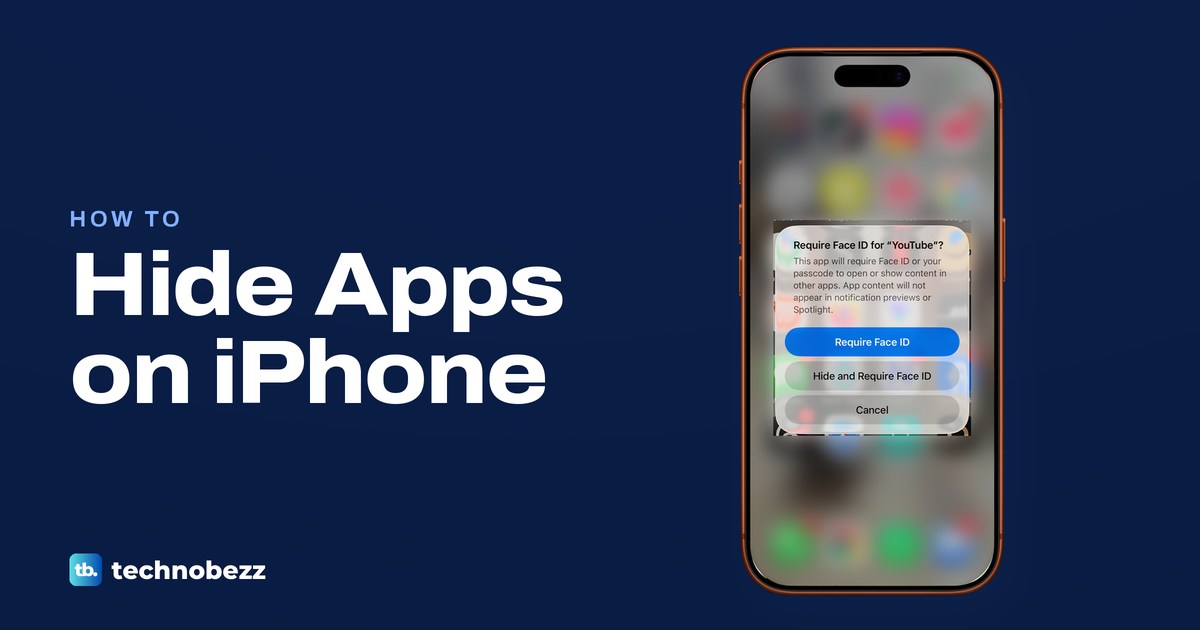
To hide an app on iPhone, touch and hold its icon on the Home Screen, tap Require Face ID, then tap Hide and Require Face ID, confirm with Face ID or your passcode and tap Hide App. The app leaves your Home Screen and moves to a locked Hidden folder at the bottom of App Library, without being deleted. This works on iOS 18 and later for apps you downloaded from the App Store.
If you only want an app to need Face ID, choose plain Require Face ID and it stays where it is. If you only want a tidier Home Screen, Remove from Home Screen keeps the app in App Library with no lock. Apps that came with your iPhone can't go into the Hidden folder, but Screen Time can take some of them, such as Safari, Wallet and News, off the Home Screen.
The short version
- Hide and lock: touch and hold the app, tap Require Face ID, then Hide and Require Face ID, then Hide App.
- Find it later: swipe left to App Library, scroll to the bottom and open the Hidden folder with your passcode or Face ID.
- Only App Store apps can be hidden. Screen Time can take some built-in apps, such as Safari and Wallet, off the Home Screen.
- Just tidying up: Remove App, then Remove from Home Screen keeps the app in App Library.
- Hidden is not invisible: the name can still show in Screen Time, the Battery screen and your App Store purchases.
Every way to hide an app at a glance
The first two rows need iOS 18 or later. Only the first takes an App Store app fully out of sight, and only the first two ask for Face ID before the app opens. The rest move, switch off, limit or unlist an app.
| Method | What you do | Where the app ends up | Face ID or passcode to open |
|---|---|---|---|
| Hide and Require Face ID | Touch and hold the app, tap Require Face ID, Hide and Require Face ID, then Hide App | The Hidden folder at the bottom of App Library, gone from the Home Screen and search | Yes |
| Require Face ID | Touch and hold the app, tap Require Face ID, then Require Face ID again | Stays where it is | Yes |
| Remove from Home Screen | Touch and hold the app, tap Remove App, then Remove from Home Screen | App Library and search | No |
| Hide a Home Screen page | Touch and hold the wallpaper, tap the dots, untick the page, tap Done | App Library and search | No |
| Screen Time, Allowed Apps & Features | Switch off a built-in app on its list, such as Safari or Wallet | Off the Home Screen until you switch it back on | No, but a Screen Time passcode stops changes |
| Screen Time, App Limits | Settings, Screen Time, App Limits, Add Limit | Stays where it is, limited after the time you set | No, and by default a limit can be ignored once reached |
| Hide from App Store purchases | App Store, your photo, Apps & Purchase History, Your Apps, swipe left, Hide | Stays on the iPhone, gone from the purchase list | No |
Hide an app with Hide and Require Face ID
Go to the Home Screen and touch and hold the icon of the app you want to hide until its menu opens. On our iPhone 17 Pro with iOS 26.6, the menu for YouTube listed widget sizes, the app's own shortcuts, Edit Home Screen, Share App, Require Face ID and Remove App. Every App Store app we checked had the Require Face ID item in its menu.
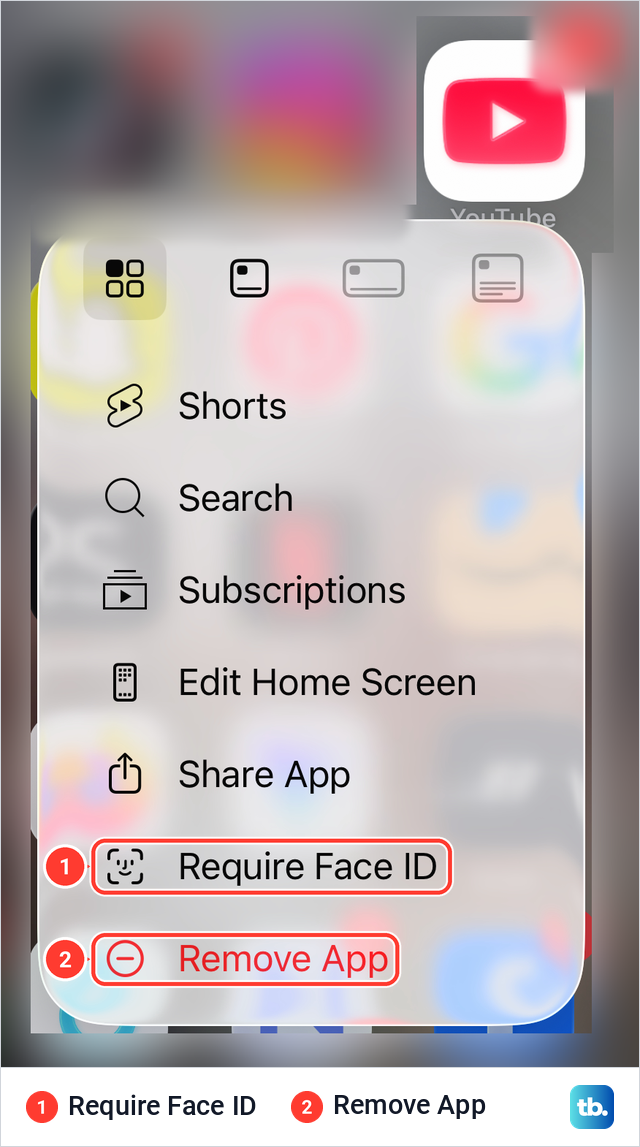
Tap Require Face ID. Apple's steps call it Require Touch ID or Require Passcode on iPhones that use those instead. Require Face ID uses Face ID or your passcode, so set up Face ID on your iPhone first if you want the quicker way in.
A sheet then asks whether the app should require Face ID. On our iPhone the sheet named YouTube in its title and offered three buttons: Require Face ID in blue, Hide and Require Face ID below it, and Cancel. The top button only locks the app, and the middle one locks it and hides it.
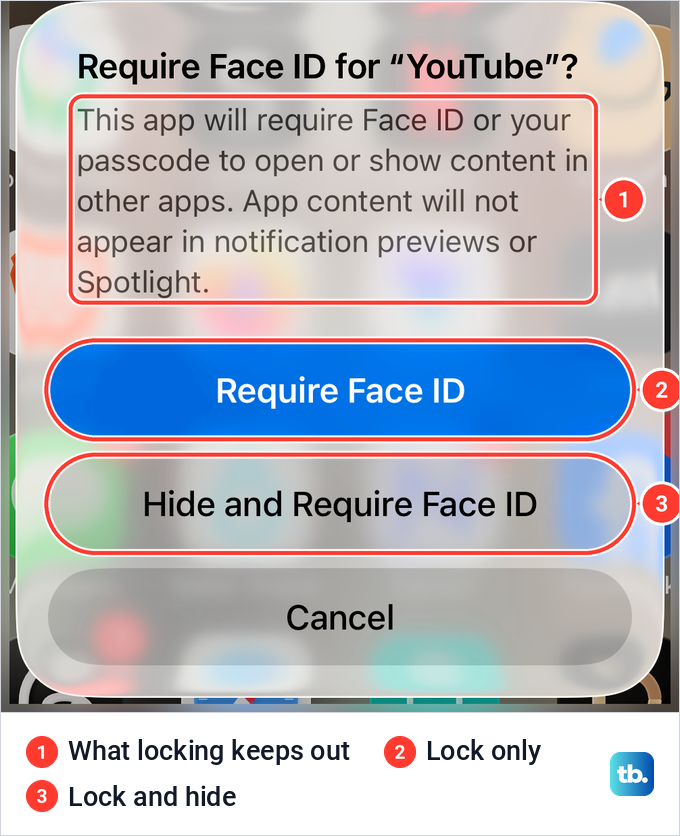
Tap Hide and Require Face ID. Apple's steps then ask you to authenticate with Face ID, Touch ID or your passcode and tap Hide App. Apple says the app disappears from your Home Screen and moves to the Hidden folder at the bottom of App Library. Apple describes locking and hiding as the way to limit access to an app without deleting it.
Apple also says that outside the Hidden folder, a hidden app no longer appears in App Library or in search, so nobody finds it by typing its name. Locking and hiding apply only to that iPhone. Apple says the status doesn't sync with iCloud, so hiding an app on your iPhone does not hide it on your iPad.
Apple's guide for iOS 27 gives the same steps with the same button names, so this works whether or not you have updated. Apple's guides for iOS 18, where the feature started, and iOS 27 spell out one more detail: to lock without hiding, you tap Require Face ID a second time, in that sheet.
Lock an app without hiding it
Sometimes the app can stay in plain sight and you only want a lock on it, for a banking app or a notes app on a shared iPhone. Touch and hold the app, tap Require Face ID, then tap the blue Require Face ID button in the sheet and authenticate. The icon stays where it was.
Apple says information inside a locked app won't appear in other places, for example CarPlay, notification previews, search, Siri suggestions or your call history. You can open and use a locked app without unlocking it for good. As soon as you quit it, it locks again, and the next person to tap it meets Face ID or the passcode screen.
To remove the lock, touch and hold the app, tap Don't Require Face ID and authenticate. Apple lists Calculator, Camera, Clock, Contacts, Find My, Maps, Shortcuts and Settings among the built-in apps that can't be locked at all.
Find and open your hidden apps
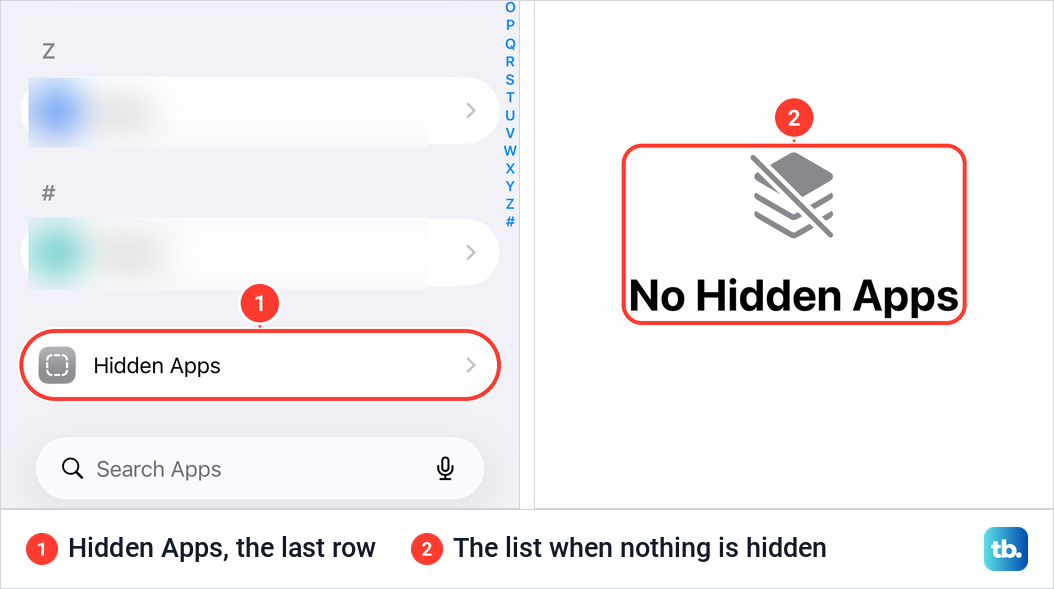
Swipe left past all your Home Screen pages to reach App Library, then scroll to the very bottom. On our iPhone the last row held the Hidden folder, whose tile showed only blank frosted squares, no app icons. The Hidden folder was there even though no app was hidden on that iPhone, so seeing it does not mean someone has hidden something.
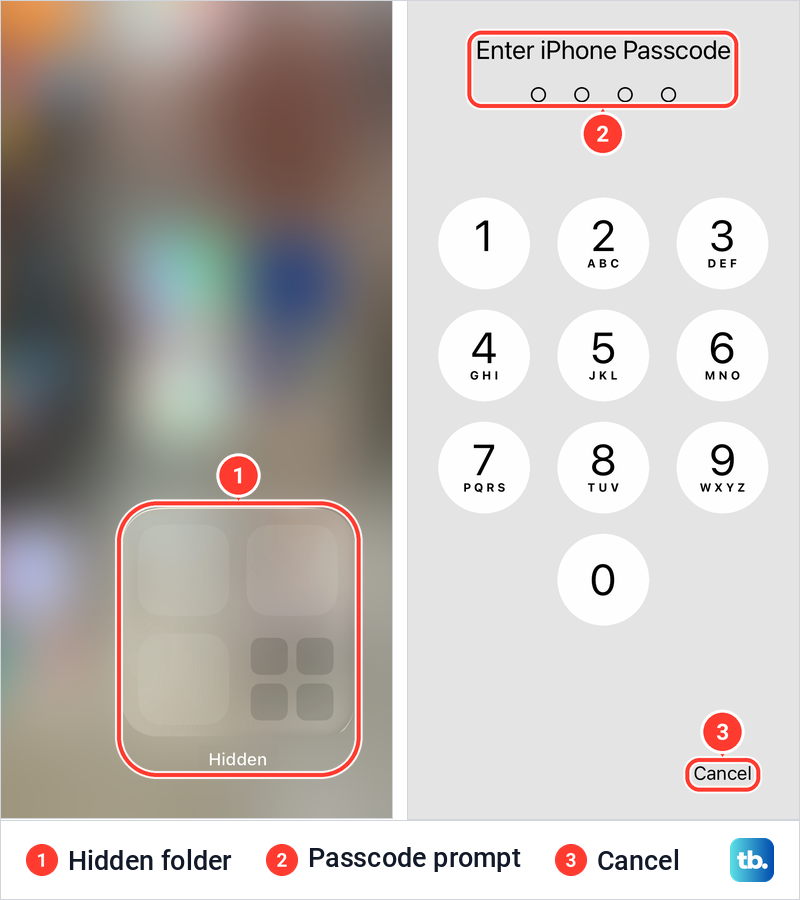
Tap Hidden. Apple's steps say you then authenticate with Face ID, Touch ID or your passcode, the folder opens, and you tap the app and authenticate once more to open it.
A hidden app opens only after Face ID, Touch ID or your passcode, so if Face ID fails and you can't remember the passcode, you can't open it. Read what to do if you forgot your iPhone passcode before you hide anything you need every day.
Apple also keeps a list under Settings, Apps, and says it asks for Face ID, Touch ID or your passcode. Scroll to the bottom, past the apps sorted A to Z: on our iPhone, Hidden Apps was the very last row, below the # group, not at the top of the page. With nothing hidden, it opened a page reading No Hidden Apps.
What hiding does to notifications
Apple says the content of locked and hidden apps stays out of notifications, search and other places across the system. The sheet on our iPhone put it in plain words: "This app will require Face ID or your passcode to open or show content in other apps. App content will not appear in notification previews or Spotlight."
So a locked or hidden messaging app should not show the text of a message on your Lock Screen. Apple's pages speak of content and previews, and don't say whether a hidden app's alerts still reach you at all. If you rely on an app for messages or calls, check that you still get what you need after you hide it.
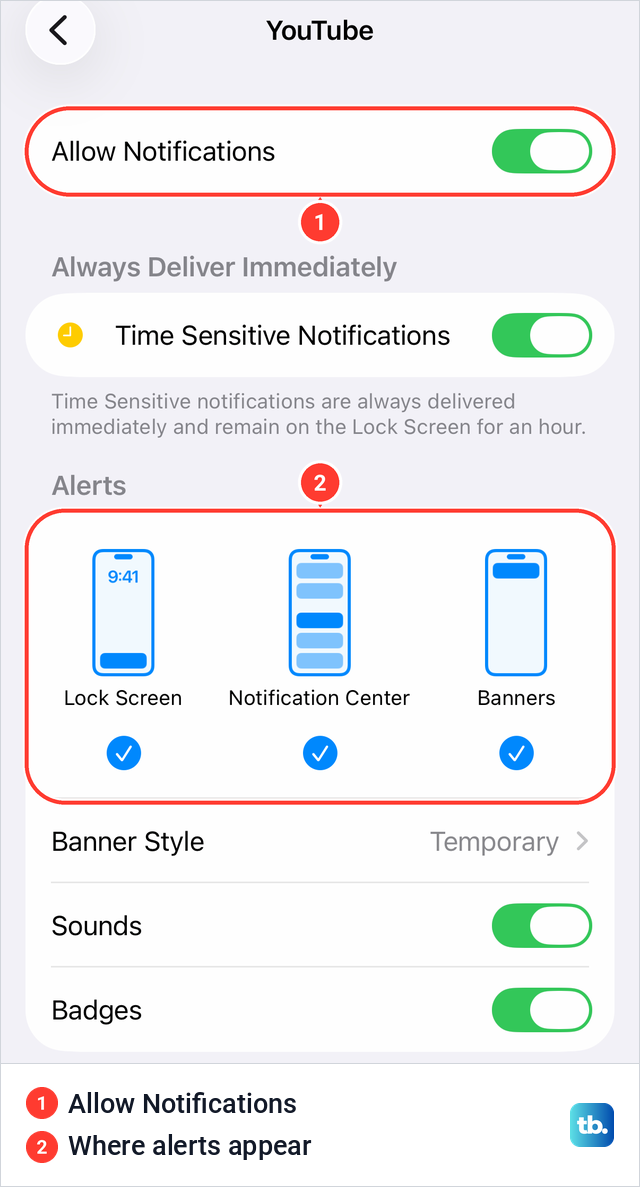
If you only want an app to stop interrupting you, leave it where it is and change its notifications. Open Settings, tap Notifications, tap the app and turn off Allow Notifications. On our iPhone the same page for YouTube also had Time Sensitive Notifications and three places for alerts, Lock Screen, Notification Center and Banners, each with its own tick.
To keep the alerts but hide what they say, Apple's steps are to tap Show Previews on that page and choose When Unlocked or Never. Our guide on how to turn off notification alerts on your iPhone covers the other switches. To clear alerts that are already sitting on your Lock Screen, here is how to delete notifications on iPhone.
Where a hidden app can still show up
Hiding keeps the app out of sight, not out of every record. Apple says a hidden app's name can still appear in Screen Time, on the Battery screen in Settings and in your App Store purchase history.
Family Sharing changes the picture for teenagers. Apple says children under 13 in a Family Sharing group can't lock or hide apps. Teens aged 13 to 17 can, but a parent or guardian in the group can still see that the app was downloaded and how much it is used, and can restrict it with Screen Time. Apple notes that these ages vary by country or region.
Apps you cannot hide
Apple only lets you hide apps you downloaded from the App Store. Apps that came installed on the iPhone can't be hidden, and neither can an app you have set as your default web browser or, in the EU, your app marketplace. If Hide and Require Face ID is missing, one of these rules is usually the reason.
Safari shows the difference clearly. When we touched and held Safari on our iPhone, its menu had Require Face ID like any other app. The sheet that followed, Require Face ID for "Safari"?, had the same text as YouTube's but only two buttons, Require Face ID and Cancel, with no Hide and Require Face ID.
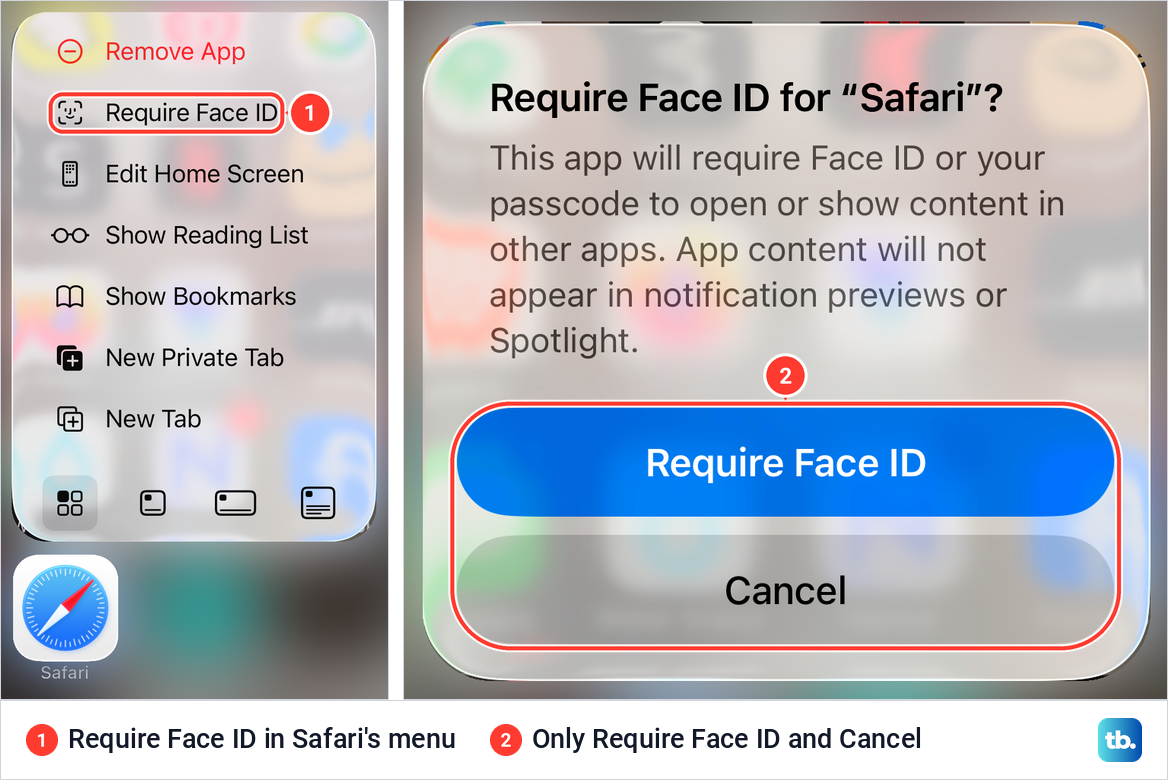
So a built-in app can often be locked, but not hidden. Messages can't go into the Hidden folder and was not on Screen Time's list of apps on iOS 26.5 either, but you can hide your messages instead.
Hide built-in apps with Screen Time
Screen Time can take some built-in apps off the Home Screen, but only the ones on its list. Open Settings, tap Screen Time, then Content & Privacy Restrictions, and turn on the Content & Privacy Restrictions switch. Tap Allowed Apps & Features and switch off the app you want gone.
On iOS 26.5 the page explained itself: "Turning off an app or feature will remove it from the Home Screen, but will not delete it from iPhone." Its list included Safari, SharePlay, Wallet, AirDrop, CarPlay, News, Health and Fitness, but not Messages or Photos. When we switched Safari off, Safari disappeared from the Dock.
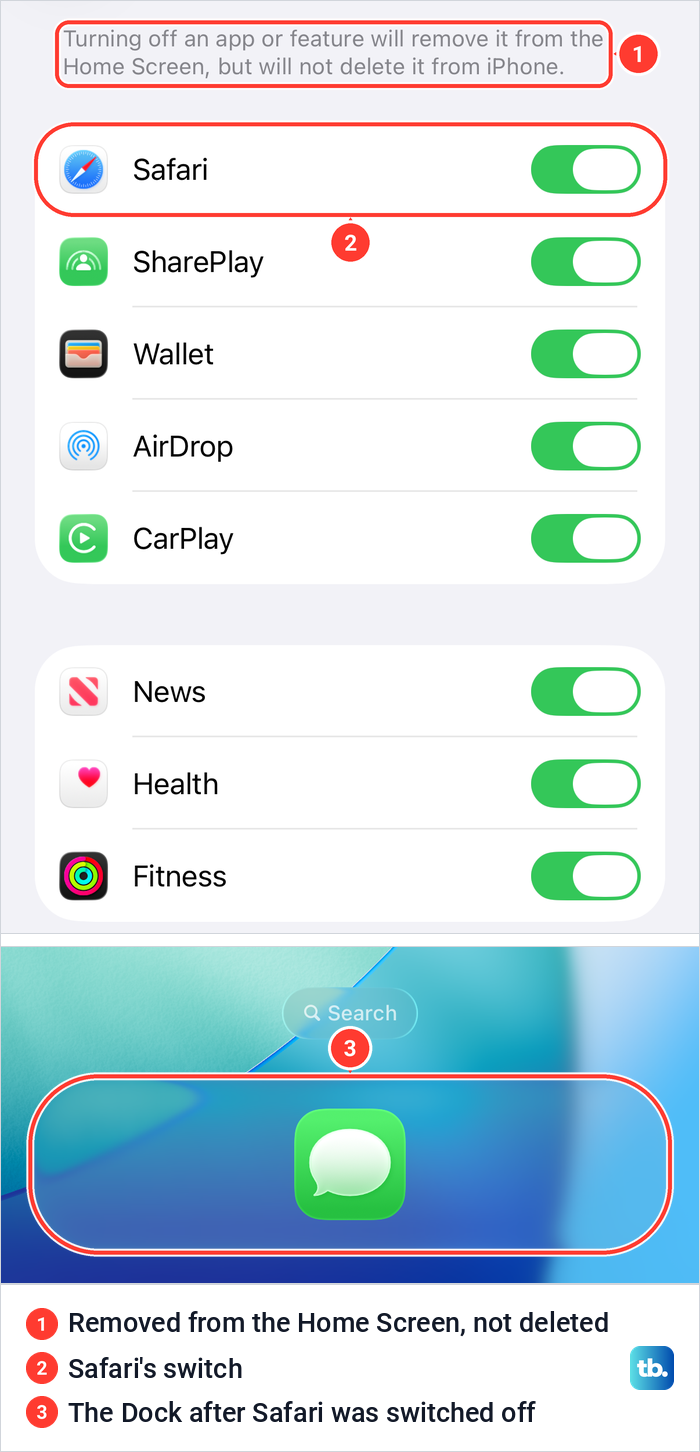
Apple says a switched-off app isn't deleted. It is hidden from the Home Screen until you switch it back on. Without a Screen Time passcode, anyone with the iPhone can switch it back, and on iOS 26.5 turning on Content & Privacy Restrictions asked for no code. To stop that, tap Lock Screen Time Settings on the Screen Time page, which opened a Set a Screen Time Passcode screen with four digits.
The same Content & Privacy Restrictions screen is where you block websites on iPhone. On iOS 27, Apple's guide moves these switches under Other Features.
Remove an app from the Home Screen only
When the goal is a cleaner Home Screen rather than privacy, you don't need a lock. Touch and hold the app and tap the red Remove App item. Apple's next step is to tap Remove from Home Screen to keep it in App Library, or Delete App to delete it from the iPhone.
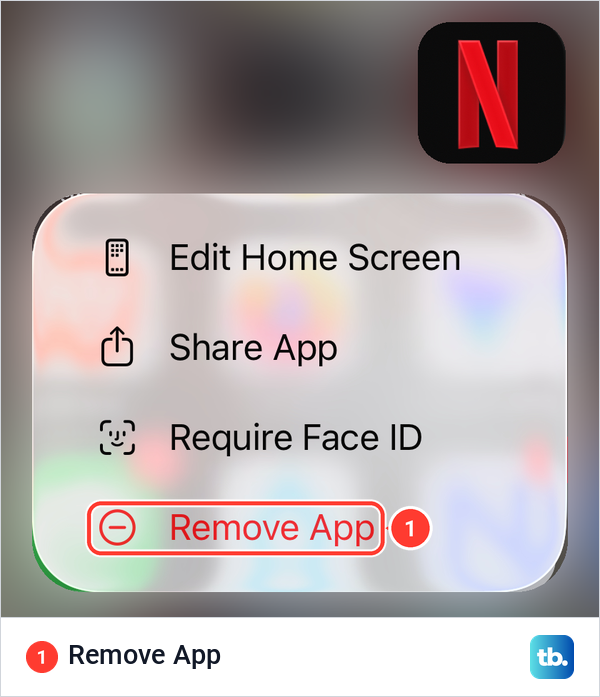
An app removed this way is still installed and still in App Library and search, so anyone can find it. Apple says it can be used from App Library as before. If you tap Delete App by mistake, you can find deleted apps on iPhone and reinstall them.
A hidden or removed app still takes up space. To free the space but keep the app's data, undownload apps on iPhone instead. To keep new downloads off the Home Screen from the start, Apple's setting is Settings, Home Screen & App Library, then App Library Only.
Hide a whole Home Screen page
A page full of apps can go in one move. Apple's steps are to touch and hold the Home Screen wallpaper until the icons jiggle, tap the dots at the bottom of the screen, tap to remove the checkmark under each page you want hidden, then tap Done. Tick the page again to bring it back.
Apple says the apps on a hidden page still appear in App Library and can still be found with search. It also notes that while pages are hidden, new apps you download may land in App Library instead of on the Home Screen.
To keep an app out of search as well, Apple's iOS 26 steps are to go to Settings, tap Search, scroll down, tap the app and turn off Show App in Search. Apple's support article lists the other switches on that page, including Show Content in Search, Suggest App and Suggest Notifications.
Apple also lets you make a Home Screen page available during a particular Focus, so if pages seem to vanish, check whether a Focus is running and read how to turn off Focus on iPhone. For folders, dragging icons and reordering pages, see how to move apps and organize your Home Screen.
Limit an app with Screen Time
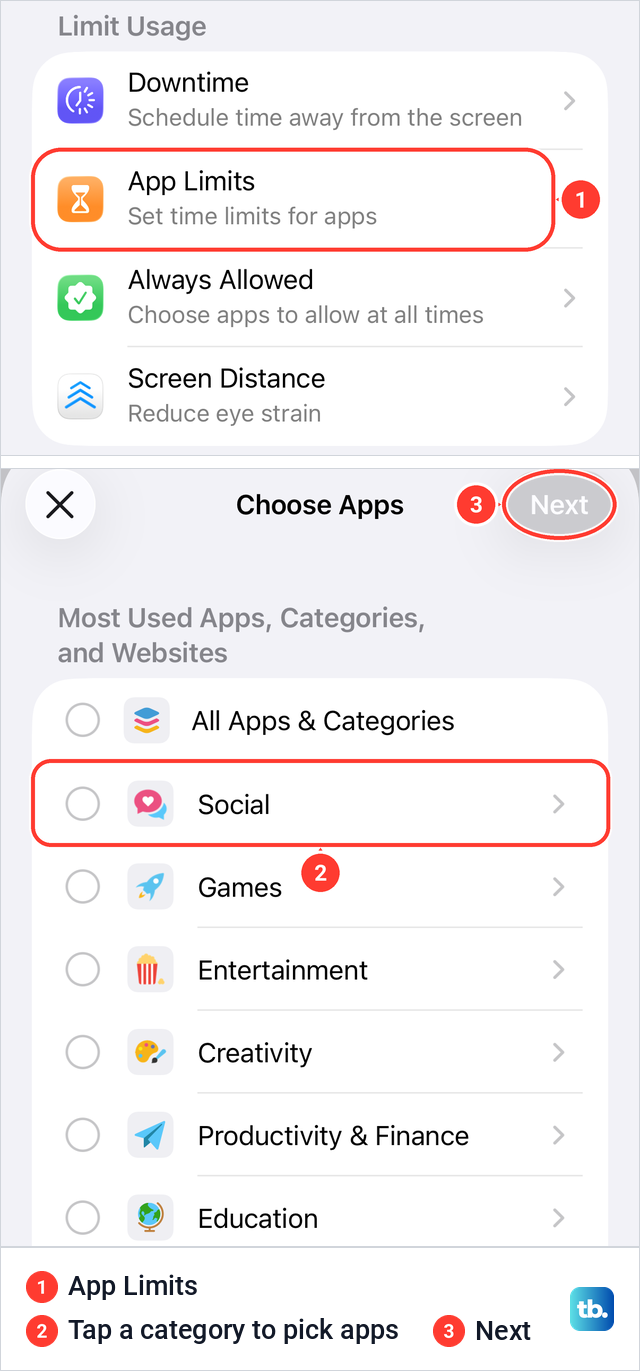
For an app you want to keep but use less, or one a child should only open for a while, a limit works better than hiding. On iOS 26.5, App Limits appeared under Limit Usage only after we turned on App & Website Activity in Screen Time. Apple's steps are to tap App Limits, then Add Limit, pick a category or open it to choose single apps, tap Next and set the time allowed.
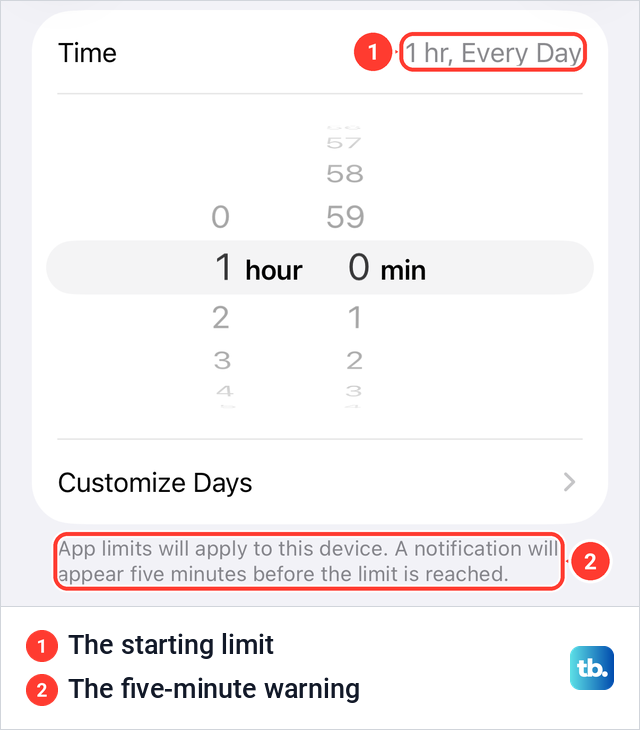
When we set a limit, the time screen started at 1 hr, Every Day, and noted that a notification will appear five minutes before the limit is reached. Apple says that by default a limit can be ignored once it is reached, so on its own it is a reminder, not a lock.
Apple's way to stop a limit being ignored is Block at Downtime. With a Screen Time passcode set, tap Downtime and turn on Block at Downtime, and Apple says restricted apps can't be opened during scheduled downtime. Apple's iOS 27 guide describes Time Allowances instead, which set daily time per app category and need iOS 27 or later on all your Apple devices.
Hide an app from your App Store purchases
Your App Store purchase history still shows a hidden app's name. Apple's steps are to open the App Store, tap your photo or initials, tap Apps & Purchase History, tap Your Apps, then swipe left on the app and tap Hide. On our iPhone, tapping the photo opened a sheet titled Apple Account, with App Updates, Subscriptions and Apps & Purchase History among its rows.
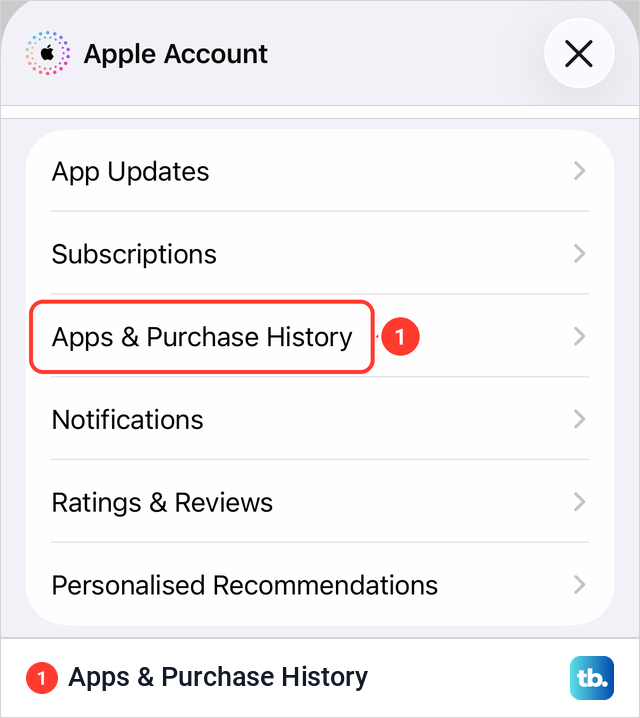
Apple says hiding an app from this list won't remove it from your iPhone, a family member's device or other devices signed in to your account. The app and its in-app purchases and subscriptions still appear in your full purchase history in Settings. To stop paying for one, cancel subscriptions on iPhone rather than hiding the app.
Family members can't redownload a hidden app from your shared purchases. To download it again yourself, Apple says to unhide it first.
Get a hidden app back
Open the Hidden folder at the bottom of App Library and authenticate. Apple's steps are to touch and hold the app, tap Don't Require Face ID and authenticate again. Apple says the app then appears near the top of App Library.
Apple doesn't say the app returns to its old spot on the Home Screen. To put it there, touch and hold it in App Library and drag it onto the Home Screen page you want, then tap Done.
How we tested this guide
We tested this on an iPhone 17 Pro with iOS 26.6, going through the touch and hold menus for YouTube and Safari up to the Require Face ID button.
Frequently Asked Questions
Can you hide built-in apps like Messages or Safari?
Not with Hide and Require Face ID, which works only for App Store apps. Screen Time's Allowed Apps & Features can switch off some built-in apps, such as Safari, Wallet or News, but Messages and Photos were not on its list on iOS 26.5.
Do hidden apps still send notifications?
Apple says the content of locked and hidden apps is kept out of notifications and search. Its pages don't say whether alerts stop altogether, so after you hide an app you rely on for messages or calls, check that they still reach you.
Can someone tell that I hid an app?
They can find clues. On our iPhone the Hidden folder sat in App Library with nothing in it, so the folder alone proves nothing, but a hidden app's name can still show in Settings, Apps, Hidden Apps after authentication, in Screen Time, on the Battery screen and in your App Store purchase history. In Family Sharing, a parent still sees a teen's apps.
Why is Hide and Require Face ID missing?
Apple offers it only for App Store apps. It is missing for apps that came with the iPhone, for your default browser or an app marketplace in the EU, and for children under 13 in Family Sharing. Some built-in apps, such as Camera and Settings, can't even be locked.
Does hiding an app delete it?
No. Apple describes locking and hiding as limiting access to an app without deleting it, and a hidden app opens from the Hidden folder after Face ID, Touch ID or your passcode. Removing an app from the Home Screen also keeps it on the iPhone, in App Library.
If I hide an app on my iPhone, is it hidden on my iPad?
No. Apple says locked and hidden status stays on the device where you set it and doesn't sync with iCloud, so hide the app on each device separately.
How do I unhide an app?
Open the Hidden folder in App Library, authenticate, touch and hold the app and tap Don't Require Face ID. It goes back to App Library, and you can drag it to the Home Screen from there.