

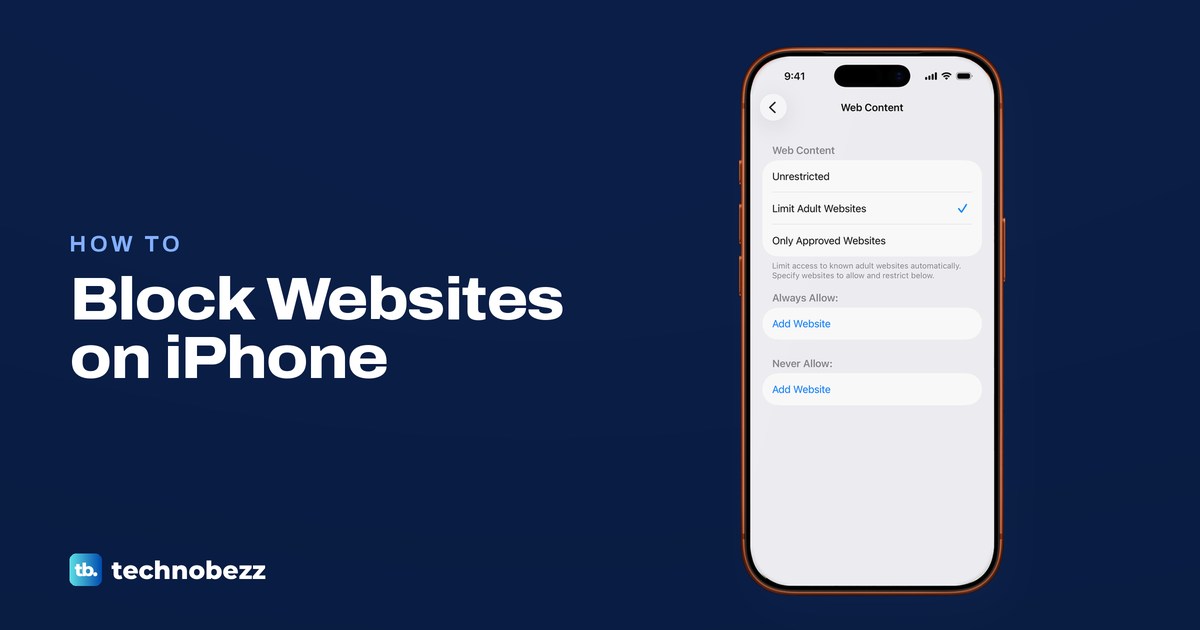
To block a website on iPhone with iOS 26, add its address under Never Allow in Screen Time's Web Content settings. Open Settings > Screen Time > Content & Privacy Restrictions and turn the switch on, tap App Store, Media, Web, & Games, then Web Content, choose Limit Adult Websites and tap Add Website under Never Allow. That is Apple's built-in way to block a site, and it needs no extra app.
Set a Screen Time passcode as well, with Lock Screen Time Settings at the bottom of the Screen Time page, or anyone holding the phone can undo the block. For a child, Apple's steps start on your own iPhone through Family Sharing, and once your family switches to Apple's iOS 27 parental controls, a child's website controls are in Settings > Family. On iOS 27, Apple's instructions give website steps only for a child's account, not for your own iPhone.
The short version
- Block a site: Screen Time > Content & Privacy Restrictions > App Store, Media, Web, & Games > Web Content > Limit Adult Websites, then Add Website under Never Allow.
- Only approved sites: choose Only Approved Websites on the same screen and edit its list.
- Make it stick: tap Lock Screen Time Settings and set a four-digit Screen Time passcode.
- A child's iPhone: set it from your own iPhone through Family Sharing, or with Apple's iOS 27 parental controls under Family > Apps & Websites.
- Unblock later: swipe left on the site under Never Allow and tap Delete.
Block a website on iPhone with Screen Time
These are the screens we went through on iOS 26.5. Content & Privacy Restrictions opened straight away without turning on App & Website Activity first, so you do not need to set up the rest of Screen Time to block a site. The Screen Time page lists it under Restrictions, with the passcode link just below.
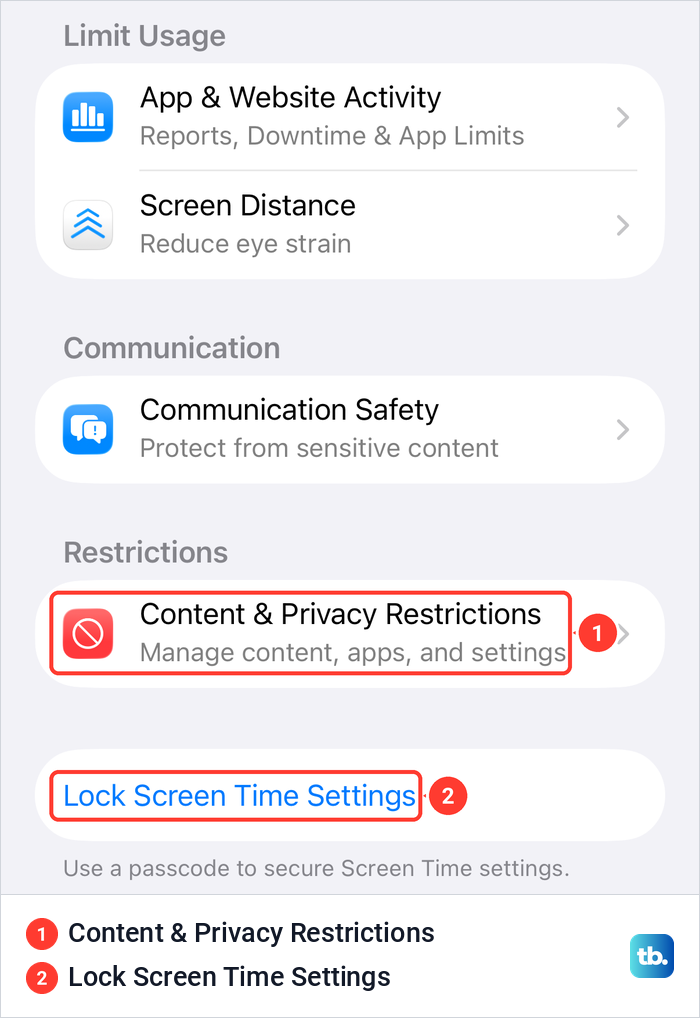
- 1.Open Settings and tap Screen Time.
- 2.Tap Content & Privacy Restrictions and turn on the switch at the top of the page.
- 3.Tap App Store, Media, Web, & Games, then tap Web Content in its own group below the media ratings.
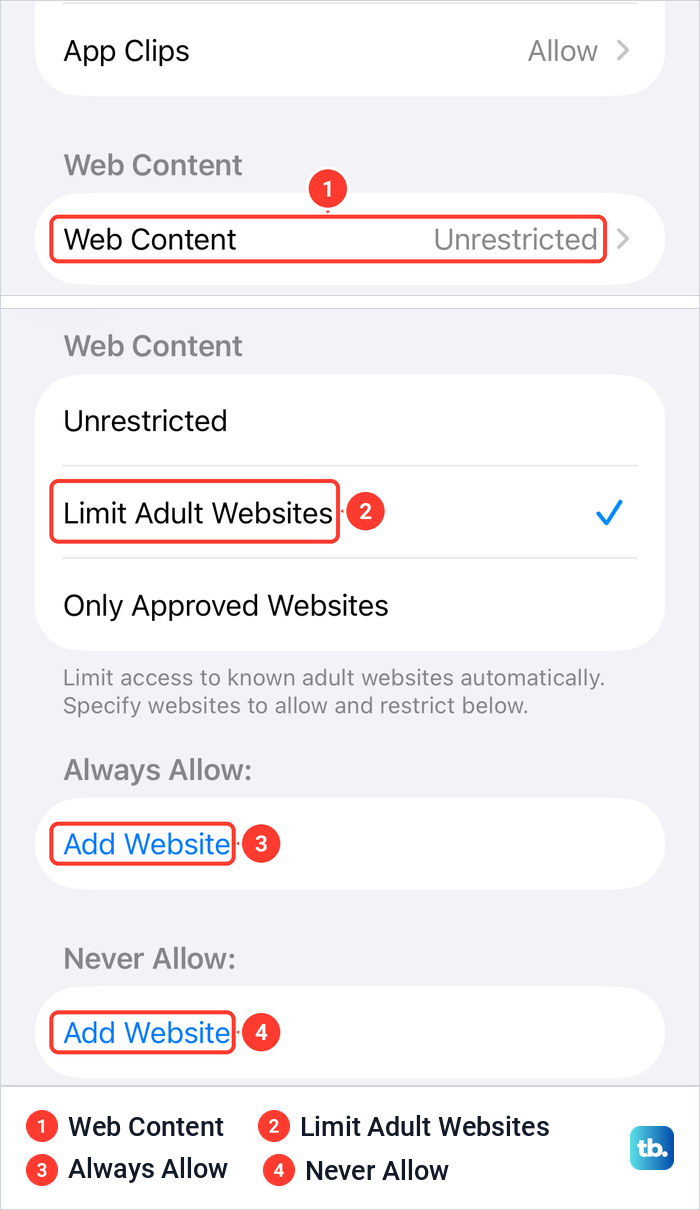
- 4.Choose Limit Adult Websites.
- 5.Under Never Allow, tap Add Website, type the address and tap the check key.
When we turned the switch on, iOS asked for no passcode, and the rows below it opened at once: App Installations & Purchases, Allowed Apps & Features, App Store, Media, Web, & Games and Intelligence & Siri, then the Privacy and Allow Changes groups. The website setting is behind the third row.
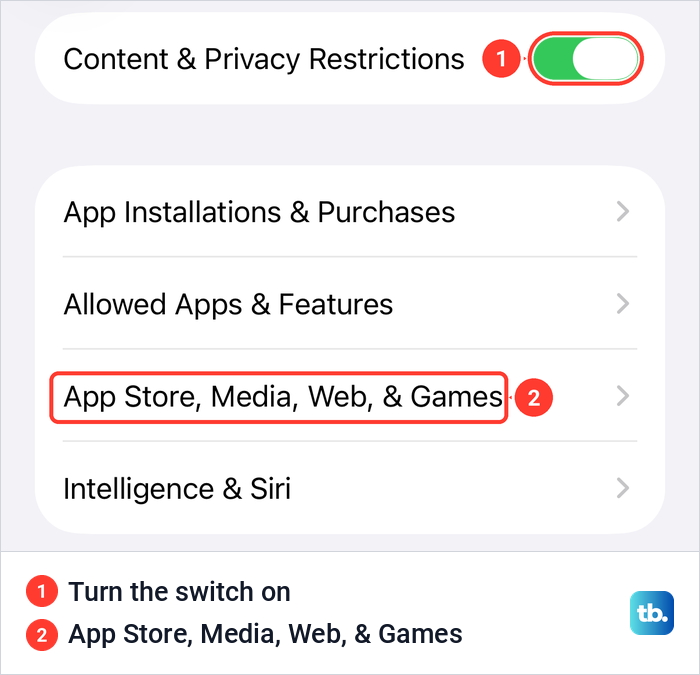
Older guides, and Apple's iOS 27 guide, use the name Content Restrictions, but there is no row by that name on iOS 26.5. The App Store, Media, Web, & Games page starts with ratings for music, movies, TV shows, books and apps. Web Content sits in its own group under them, and it read Unrestricted when we first opened it.
Tapping Limit Adult Websites ticked it and opened two lists, Always Allow and Never Allow, each with its own Add Website row. iOS explains the choice under the options: "Limit access to known adult websites automatically. Specify websites to allow and restrict below." The site you want gone goes in Never Allow.
Add Website opened a single URL field with https://www.example.com as grey placeholder text, and a keyboard with a .com key. We typed bbc.com on its own and https://www.wikipedia.org in full, and iOS saved both exactly as we typed them. The https:// part is not needed to save an entry, and Apple's own instructions only ask you to enter the URL.
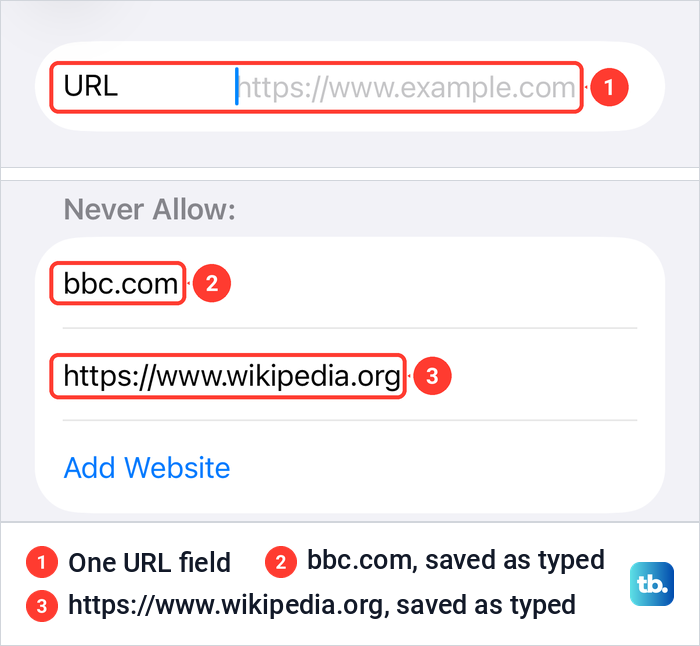
Never Allow takes website addresses, not apps. If the real goal is a video app as well as its site, our guide on how to block YouTube on a phone or computer covers the app and the site together.
Ways to block websites on iPhone at a glance
Each row starts in the Settings app. The Screen Time rows are the screens we opened on iOS 26.5, the child rows follow Apple's instructions, and the Wi-Fi row follows Cloudflare's.
| What you want | Where on the iPhone | What it does |
|---|---|---|
| Block one site or a few | Screen Time > Content & Privacy Restrictions > App Store, Media, Web, & Games > Web Content > Limit Adult Websites > Never Allow | Blocks the sites you list, with Apple's adult filter on as well |
| Block adult sites automatically | The same screen, Limit Adult Websites | Limits known adult websites, with your exceptions under Always Allow |
| Allow only sites you choose | The same screen, Only Approved Websites | Allows only the sites on its list |
| Limit time on a site | Screen Time > App Limits > Add Limit > Websites | Sets a daily time limit for that site |
| Stop new browser apps | Content & Privacy Restrictions > App Installations & Purchases > Installing Apps | Don't Allow stops new app downloads |
| A child's iPhone on iOS 26 | Your iPhone: Screen Time > your child's name > Manage Screen Time if shown > Content & Privacy Restrictions | The same Web Content choices, set from your phone |
| A child's iPhone with the iOS 27 controls | Your iPhone: Family > your child's name > Apps & Websites | Filtering, Allowed and Blocked lists, and Ask to Browse |
| Filter adult sites on one Wi-Fi network | Wi-Fi > Info button > Configure DNS > Manual, 1.1.1.3 and 1.0.0.3 | Cloudflare's filter blocks adult content for this iPhone on that network only |
Choose the right Web Content setting
The Web Content page on iOS 26.5 offers three choices: Unrestricted, Limit Adult Websites and Only Approved Websites. Older guides print other names for the last one, such as Allowed Websites Only, but Only Approved Websites is the label iOS 26.5 showed us. Only one of the three can be ticked at a time.
Unrestricted applies no filter and shows no lists. Limit Adult Websites turns on Apple's automatic filter for known adult websites and adds your own two lists, so it is the choice for blocking particular sites. Always Allow is for sites you want kept open and Never Allow for sites you want blocked.
Allow only the websites you approve
Choosing Only Approved Websites changed the note under the choices to "Allow access only to the websites below." and opened a list headed "Only allow these approved websites:". On iOS 26.5 that list was not empty. It came with nine sites: Apple Start, CBeebies (by BBC), Disney, HowStuffWorks, National Geographic Kids, PBS Kids, Scholastic.com, Smithsonian Institution and Time for Kids.
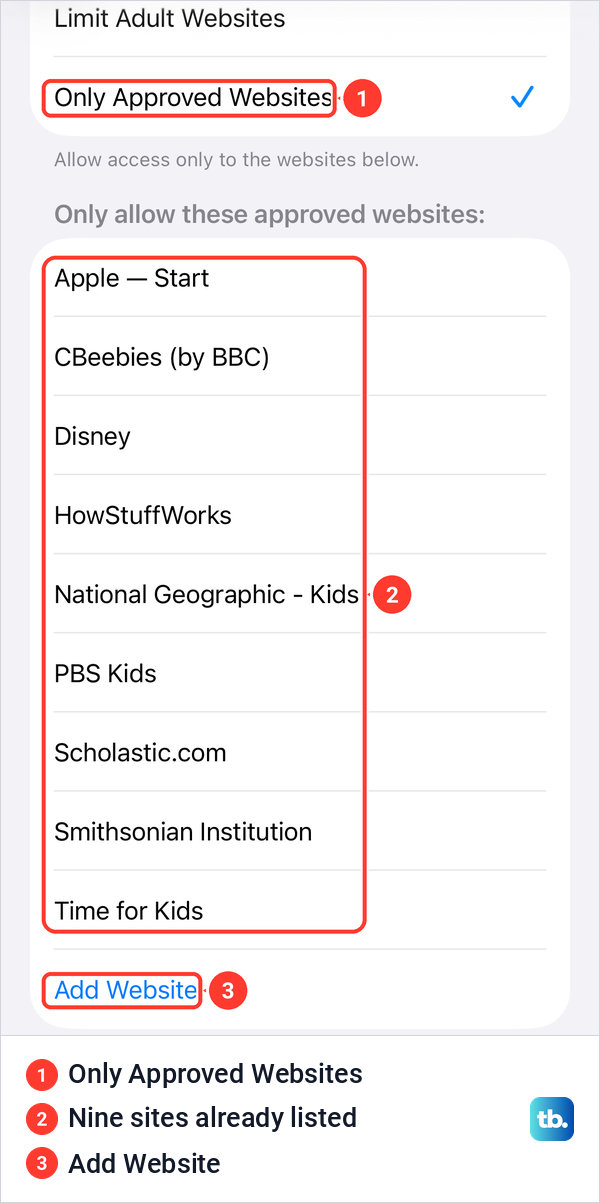
Tap Add Website at the end of the list to approve another site. Every site that is not on the list is outside what iOS allows, so this strictest choice suits a young child who needs only a handful of sites. Look through the preset list as well, because those nine sites are approved from the start.
Lock the block with a Screen Time passcode
Without a Screen Time passcode, a block holds only as long as nobody opens Settings. When we switched Content & Privacy Restrictions on, changed Web Content and later switched everything back off, iOS asked for no code at any step. Once a Screen Time passcode is set, Apple says you need it to change the settings, limits or restrictions.
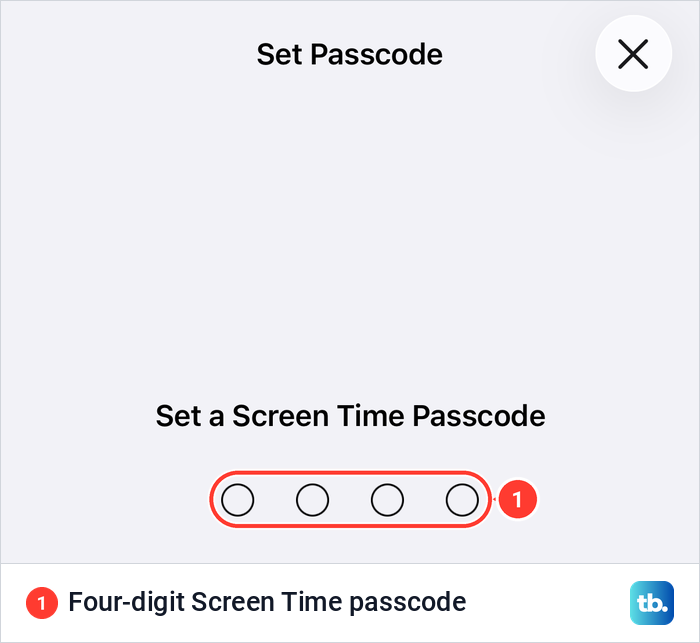
Tap Lock Screen Time Settings at the bottom of the Screen Time page, just above the note "Use a passcode to secure Screen Time settings." On iOS 26.5 it opened a Set Passcode screen headed Set a Screen Time Passcode, with four empty circles for a four-digit code. Apple's steps are to enter the code, then enter it again to confirm it.
This code is separate from the one that unlocks the phone. Apple says a Screen Time passcode isn't the same as the device passcode, and if the unlock code is the problem, see what to do if you forgot your iPhone passcode. If a child learns the Screen Time code, Apple's tip is to change it and turn on Downtime for the rest of the day.
After you set a code for yourself, Apple offers Screen Time Passcode Recovery, which lets you reset a forgotten code with your Apple Account. If that account's password is lost too, start by trying to recover your Apple Account password. On iOS 27, Apple's path to the same setting is Screen Time, then Manage Screen Time, then Lock Screen Time Settings.
Block websites on your child's iPhone
These steps follow Apple's instructions. On iOS 26, you manage a child's Screen Time from your own iPhone when the child is in your Family Sharing group: open Settings, tap Screen Time, scroll down and tap your child's name below Family. If you see Manage Screen Time, tap it first, as Apple's passcode steps for a child do, then tap Content & Privacy Restrictions and use the same Web Content screen as above.
If your child is not in your family group yet, first set up Family Sharing on iPhone. Apple says a child should have their own Apple Account rather than share one. With Family Sharing, the parent sets the child's Screen Time passcode on their own device, not the child's, and Apple says the parent gets a notification when that passcode is used on the child's device.
Apple's steps for the child's code, on your own iPhone, are Settings > Screen Time, then your child's name under Family, then Manage Screen Time and Lock Screen Time Settings, where you enter a four-digit code twice. This code protects the child's settings, and it is separate from any code you set for your own Screen Time.
Your child may already have a filter. Apple says Web Content limits are on by default when you set up a device for a child under 18, and its iOS 26.1 update turned the adult website filter on by default for existing child accounts aged 13 to 17. The age varies by country or region. If the filter is already on, you only need to add sites under Never Allow.
Ask to Browse and the Apps and Websites list
Apple rebuilt the parental controls in iOS 27. They work only when every device in your Family Sharing group runs version 27 and a parent updates the parental controls for the family. If you can't update every iPhone, iPad and Mac in the family, Apple says you can keep using the previous Screen Time controls described above.
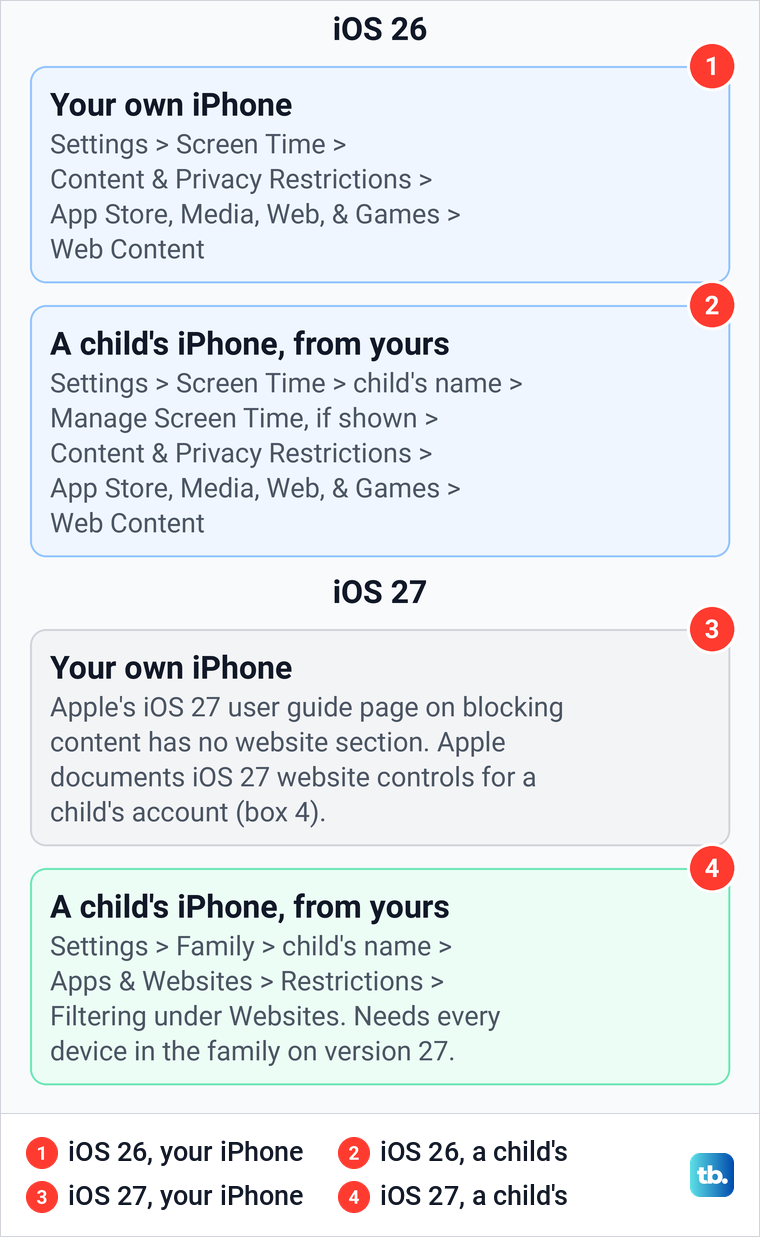
In the new version, open Settings > Family, tap your child's name, tap Apps & Websites, then tap Restrictions and Filtering under Websites. Apple's three choices there are Approved Websites Only, Limit Adult Websites and Unrestricted. Every site you approve or block lands on the Allowed or Blocked tab, and the Add button takes a site that is not listed yet.
To block a site that is already in the list, tap it in Apps & Websites, tap Block Website, then tap Block Website again to confirm. Sites you approved earlier sit under the Allowed section, so this is also how you take one back.
Ask to Browse is the new part, and Apple says the organizer or a parent must be in the child's contacts so requests can be sent. With Approved Websites Only on, a child who reaches a new site taps Ask Permission, and you open the message to see the site, then approve or decline it. You can also answer on the child's device with the Screen Time passcode, and a request you don't answer within 24 hours has to be made again.
Apple's defaults are strict for young children, with Ask to Browse on by default under 13 and Limit Adult Websites on by default under 18. Wellness and safety websites stay open to a child by default, and Apple says you can block them in Safari at any time. Apple's iOS 27 iPhone User Guide page on blocking content with Screen Time has no website section, so the iOS 27 website controls Apple documents are these child controls under Settings > Family.
Limit a website instead of blocking it
App Limits needs App & Website Activity, so on iOS 26.5 we turned that on first, which added Downtime, App Limits and Always Allowed to the Screen Time page. Then tap App Limits and Add Limit.
Apple's iOS 26 guide only says to pick app categories, but the Choose Apps list on iOS 26.5 ended with a Websites category. Tap it, tap Add Website and type the address, and the site appears ticked under Websites. Tap Next, set the time, then tap the blue check mark at the top right to save the limit.
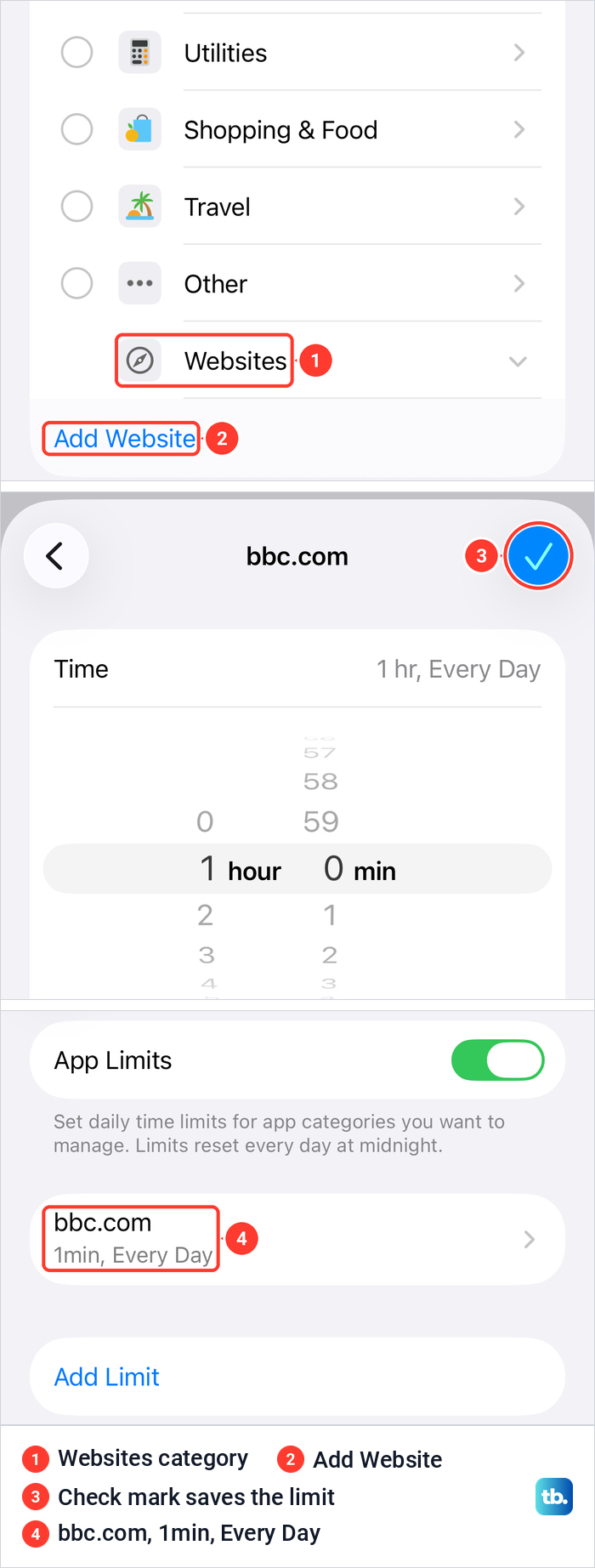
The time picker started at 1 hr, Every Day. Its note read "A notification will appear five minutes before the limit is reached." We set 1 minute for bbc.com, and App Limits then listed bbc.com with 1min, Every Day under it.
Apple's caveat matters here: by default, a limit can be ignored once it is reached. The stronger control Apple describes is Block at Downtime, which needs a Screen Time passcode and stops restricted apps from opening during scheduled Downtime.
Apple's iOS 27 guide describes Time Allowances under Screen Time instead of App Limits. Apple says that if an app declares an associated website, the allowance applies to both, and that Time Allowances need version 27 on all your Apple devices.
Close the gaps around the block
A Never Allow list lives in Screen Time, and Apple's iOS 26 steps do not say whether other browser apps follow it. For iOS 27, Apple says Ask to Browse works in Safari and other supported browser apps. On a phone you are locking down, it pays to control which browsers can arrive.
Open App Installations & Purchases in Content & Privacy Restrictions. Apple's iOS 26 guide calls this row iTunes & App Store Purchases, but on iOS 26.5 it read App Installations & Purchases, with Installing Apps at the top and a choice of Allow or Don't Allow. On our screen, the note under the group said it covers app downloads from the App Store, the web or other app marketplaces.
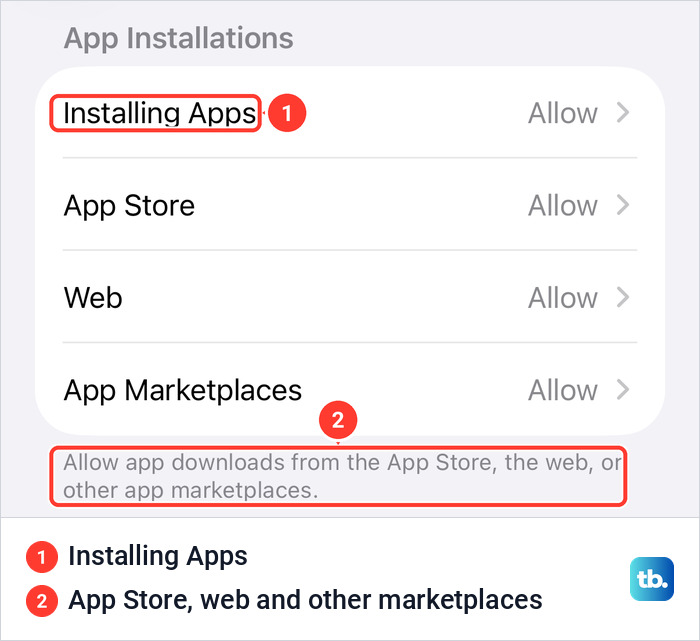
Set Installing Apps to Don't Allow to stop new apps, browsers included, from being downloaded. That leaves the browsers already on the phone in place. On our iPhone 17 Pro with iOS 26.6, Settings > Apps > Default Apps > Browser App listed Brave, Chrome, Firefox and Safari, the browser apps that can be set as the default.
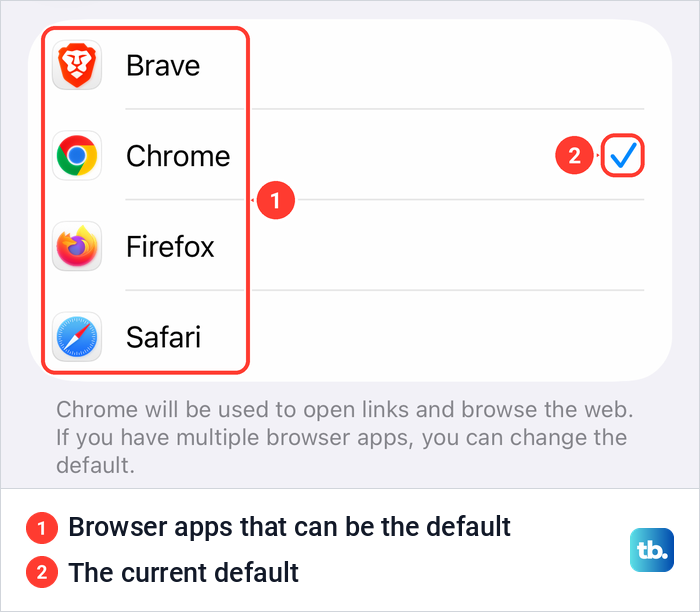
To close the gap, delete the other browser first, then set Installing Apps to Don't Allow so it can't come back. Apple's steps are to touch and hold the app on the Home Screen, tap Remove App, then tap Delete App. The ticked browser in that list is the one iOS uses to open links, so to put Safari back in that spot, see how to change the default web browser on iPhone.
Safari can be switched off too. Allowed Apps & Features has a switch for it, and when we turned Safari off on iOS 26.5 it disappeared from the Dock.
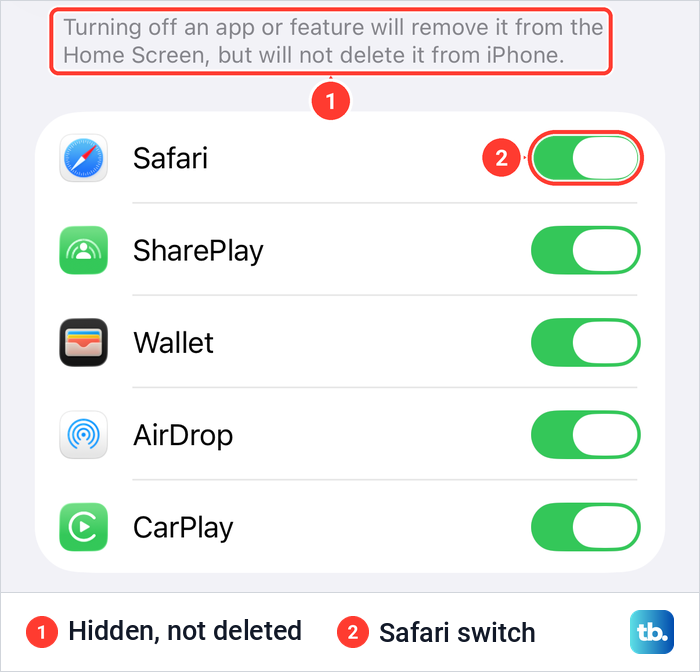
That hides the app rather than deleting it. iOS says so above the switches, "Turning off an app or feature will remove it from the Home Screen, but will not delete it from iPhone," and Safari came back when we switched it on again. Turning Safari off stops all browsing in Safari at once, which is a much blunter tool than a Never Allow list.
Safari settings that sound like website blockers
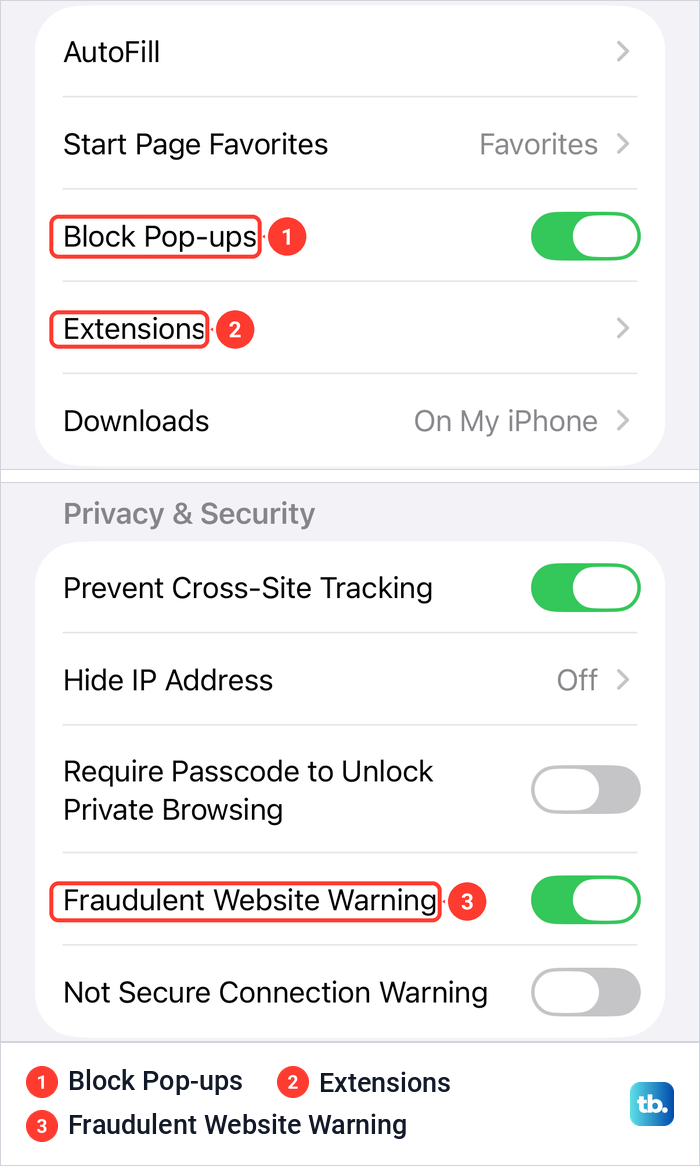
Three Safari settings sound like website blockers, and none of them is Screen Time's list of sites. In Settings > Apps > Safari on iOS 26.5, Block Pop-ups was on, and it deals with pop-up windows rather than whole sites. To stop pop-ups in Chrome or Firefox too, see how to block pop-ups in your browser.
Fraudulent Website Warning was on in the Privacy & Security group, and as its name says, it warns rather than blocks the sites you choose. Extensions showed No Extensions Installed and a More Extensions link. Apple says content-blocking apps come from the App Store and let Safari block cookies, images, resources, pop-ups and other content, and you switch them on in that Extensions list.
Filter adult websites with Cloudflare's family DNS
This section follows Cloudflare's instructions for its 1.1.1.1 for Families service, and the setting changes this iPhone only, not other devices on the network. Cloudflare says the resolvers 1.1.1.3 and 1.0.0.3 block malware and adult content, and its matching IPv6 addresses are 2606:4700:4700::1113 and 2606:4700:4700::1003.
Cloudflare's manual route on the iPhone is Settings > Wi-Fi, the Info button next to your network, then Configure DNS set to Manual, where you add the addresses with Add Server and tap Save. Note any DNS addresses already set up first, as Cloudflare advises. Our guide on how to change the DNS settings on your iPhone covers the same route, including removing the servers already listed and undoing the change.
Cloudflare warns that a manual setting applies only to that Wi-Fi network, has to be repeated for each new one, and does not work on cellular. Its 1.1.1.1 app covers every network, cellular included, and has a Families option in its connection settings. This filter follows Cloudflare's categories rather than a list you write, so it cannot block one particular site you name. To cover computers too, see how to block websites on a Mac, a Windows PC or your router.
Unblock a website or turn the filter off
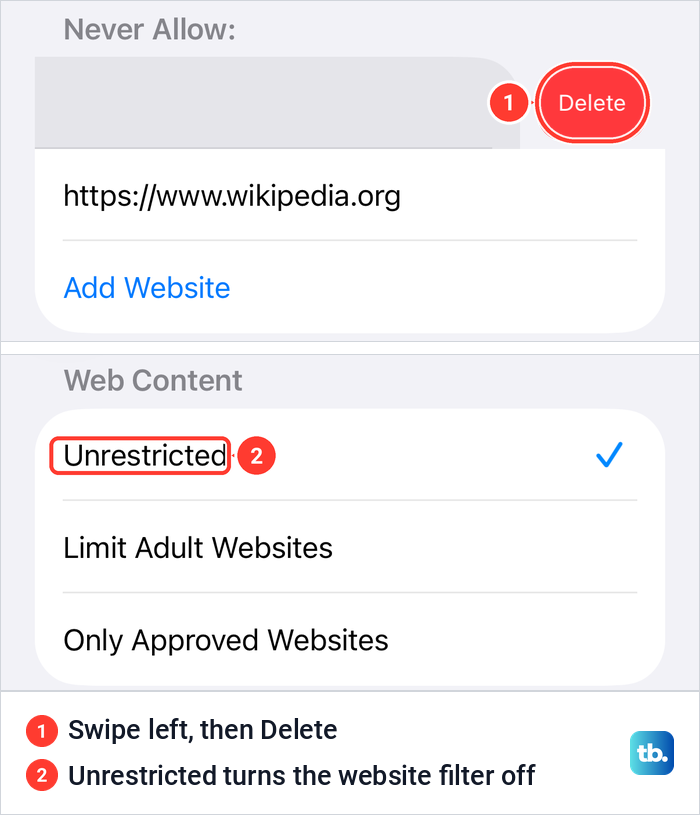
To unblock one site, open Web Content again and swipe left on its entry under Never Allow. A red Delete button appeared on iOS 26.5, and one tap removed the entry. That ends your own block, while Apple's automatic adult filter stays on as long as Limit Adult Websites is ticked. To turn the website filter off, choose Unrestricted or turn Content & Privacy Restrictions off, and if a Screen Time passcode protects these settings, you need it first.
While the filter is on, Apple says the Clear History button in Safari can be grey, and its advice is to check your web content restrictions in Screen Time. If the button is grey for that reason and you need to clear search history on your iPhone, set Web Content to Unrestricted for a moment, then set it back to the choice you had. Apple gives the same note for Remove All Website Data, the button you use to clear cookies on iPhone.
A teenager may need help to turn the filter off. Apple says Limit Adult Websites is turned on automatically for under-18s, and that depending on local laws, turning it off may need an adult in the Family Sharing group who has confirmed their age.
When a blocked website still opens
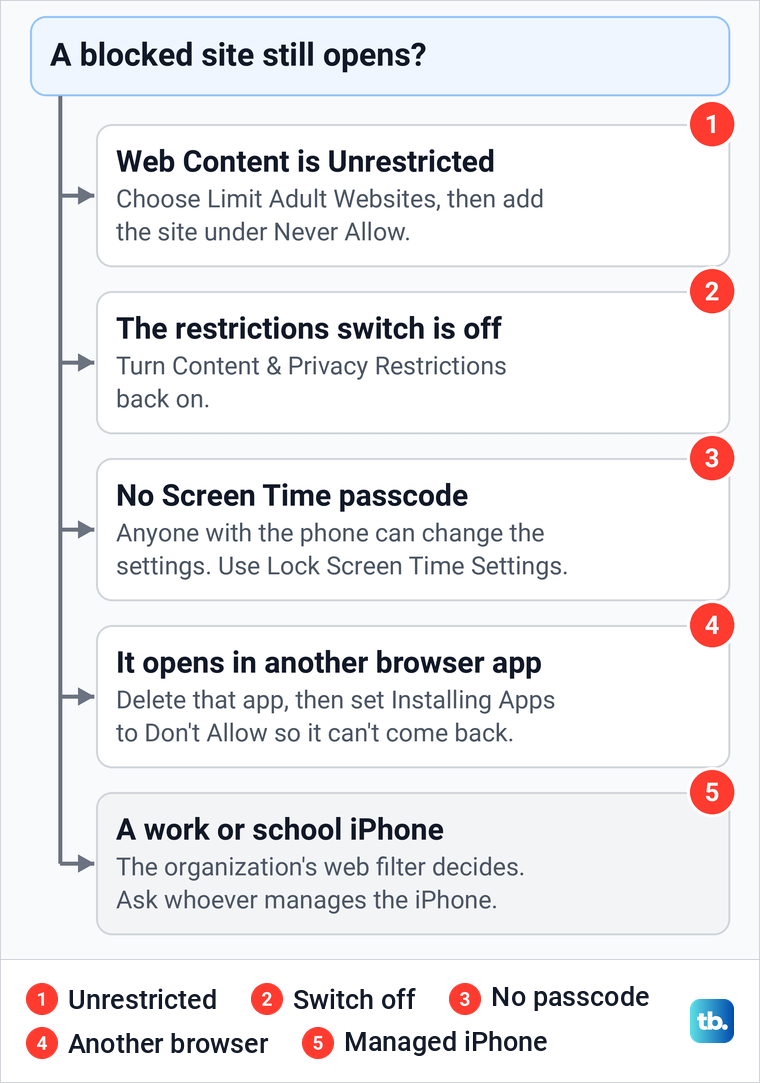
Work through these checks in order. First, open Web Content and make sure Limit Adult Websites is ticked, because the Never Allow list sits under that choice and Unrestricted shows no lists at all. Second, check that the Content & Privacy Restrictions switch at the top is still on, since the website setting sits inside it.
Third, check for a Screen Time passcode, because without one nothing stops someone with the phone from changing the settings. Fourth, check the browser. If the site opens in another browser app, delete that app, then set Installing Apps to Don't Allow so it can't be downloaded again, as described in the gaps section above.
Last, a work or school iPhone can carry its organization's own filter. Apple's deployment documentation says a device management service can configure the built-in web filter, which also restricts clearing Safari history, so the organization decides what opens.
The opposite problem has two causes. With Limit Adult Websites ticked, Apple's automatic filter can block a site you never listed, and Always Allow is the list for sites you want kept open. If a site will not open with Web Content set to Unrestricted, the problem lies elsewhere, and our fixes for Safari not loading websites start there.
How we tested this guide
We tested this on iOS 26.5, going through the Web Content choices in Content & Privacy Restrictions and setting and removing a website limit.
Frequently Asked Questions
How do I block a specific website on my iPhone?
Open Settings > Screen Time > Content & Privacy Restrictions and turn it on. Tap App Store, Media, Web, & Games, then Web Content, choose Limit Adult Websites and add the site under Never Allow with Add Website.
Do I need to type https:// when I add a website?
No. On iOS 26.5 the Add Website field saved bbc.com and https://www.wikipedia.org exactly as we typed them, so a plain address is enough to save an entry.
Can my child get around a website block?
Without a Screen Time passcode, anyone holding the phone can change the settings, and Apple says a time limit can be ignored once reached by default. Set the passcode, from your own iPhone if your child is in your Family Sharing group, and add Passcode Recovery for your own code.
How do I block websites on my child's iPhone?
On iOS 26, use your own iPhone: Settings > Screen Time, tap your child's name, tap Manage Screen Time if you see it, then Content & Privacy Restrictions. With the iOS 27 parental controls, Apple's path is Settings > Family > your child's name > Apps & Websites.
Can I block websites on iPhone without Screen Time?
Yes, with a filtering DNS. Cloudflare's 1.1.1.3 and 1.0.0.3 resolvers block malware and adult content. Set by hand they cover only that Wi-Fi network, while Cloudflare's 1.1.1.1 app covers cellular too, and either way they work by category rather than a site you name.
How do I unblock a website on iPhone?
Open Web Content again, swipe left on the site under Never Allow and tap Delete. To turn the website filter off, choose Unrestricted instead.
What if I forgot my Screen Time passcode?
Open Settings > Screen Time, tap Manage Screen Time if you see it, then tap Change Screen Time Passcode and tap it again. If asked, sign in with the Apple Account you used for Screen Time Passcode Recovery, which may not be the account signed in on the phone. That reset works only if you set up Passcode Recovery, and a child's code is reset from the parent's device.