

To delete an app on iPhone, touch and hold its icon, tap Remove App, tap Delete App, then tap Delete to confirm. That removes the app and its data from the iPhone, though a few Apple apps such as Health keep their data. Remove from Home Screen only hides the icon and keeps the app installed in App Library.
Two things catch people out when you uninstall apps on iPhone: deleting an app does not cancel its subscription, and anything the app saved in iCloud stays there. The screens shown here come from iOS 26.5 and from our iPhone 17 Pro with iOS 26.6.
The short version
- Delete: touch and hold the app, tap Remove App, then Delete App, then Delete.
- Keep the data: in Settings, General, iPhone Storage, pick the app and tap Offload App.
- Only tidy up: Remove from Home Screen keeps the app installed in App Library.
- Before you delete: cancel any subscription, because deleting the app does not stop billing.
- No Delete App button: check the Deleting Apps setting in Screen Time, device management and blocker apps.
Delete, offload or remove at a glance
iOS hides three different results behind similar words, so decide which one you want before you tap. The table uses the labels on our screens and Apple's description of what each choice keeps.
| What you want | Where to tap | What happens to the data |
|---|---|---|
| Uninstall an app you can see | Home Screen: touch and hold, Remove App, Delete App, Delete | Removed from the iPhone, with a few Apple apps excepted; iCloud data and subscriptions stay |
| Uninstall an app you can't find | App Library: search, touch and hold, Delete App, Delete | Removed from the iPhone, with a few Apple apps excepted; iCloud data and subscriptions stay |
| See how much space it uses first | Settings > General > iPhone Storage > the app > Delete App | Removed from the iPhone, with a few Apple apps excepted; iCloud data and subscriptions stay |
| Free the space but keep your data | Settings > General > iPhone Storage > the app > Offload App | Documents and data stay on the iPhone |
| Let iOS free space when it runs low | Settings > Apps > App Store > Offload Unused Apps | Documents and data stay on the iPhone |
| Tidy the Home Screen only | Home Screen: touch and hold, Remove App, Remove from Home Screen | Nothing is deleted; the app stays in App Library |
Delete an app from the Home Screen
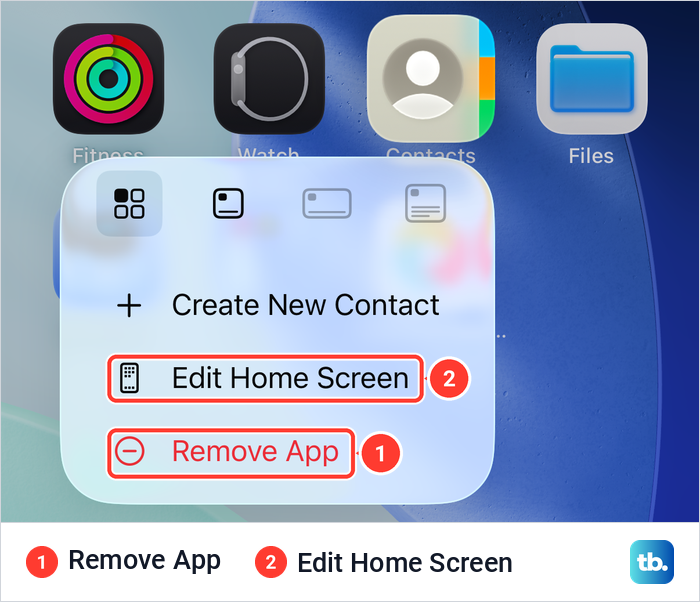
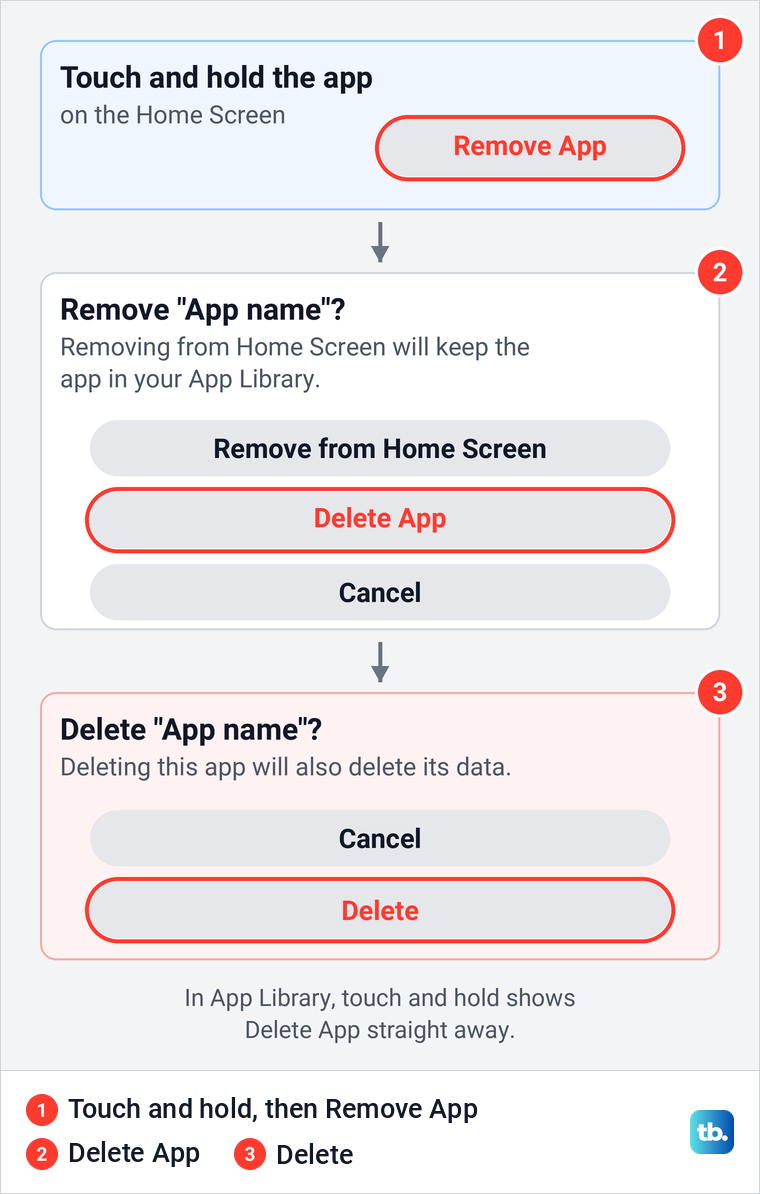
Touch and hold the app's icon until a menu appears. On iOS 26.5 the menu opened with a row of four size buttons, one for the plain icon and three that turn it into a widget, then the app's own shortcuts, Edit Home Screen and, last and in red, Remove App. Ignore the size row and tap Remove App.
The next sheet is the one that trips people up. On iOS 26.5 it carried the app's name and the line "Removing from Home Screen will keep the app in your App Library" above three buttons: Remove from Home Screen, Delete App in red, and Cancel.
Tap Delete App, not Remove from Home Screen. A second sheet then warned that deleting the app "will also delete its data", with Cancel and Delete buttons, so tap Delete to finish.
Apple notes that it may take a moment for the free storage on your iPhone to update after you delete an app. If the figure in Settings has not moved yet, give it a little time before you assume something went wrong.
Delete several apps in jiggle mode
When you clear out a lot of apps, jiggle mode saves opening the menu every time. Touch and hold an empty part of the Home Screen until the icons start to jiggle. On iOS 26.5 every app then wore a grey minus badge at its top-left corner, Edit and Done appeared at the top of the screen, and the folder on that page had no badge.
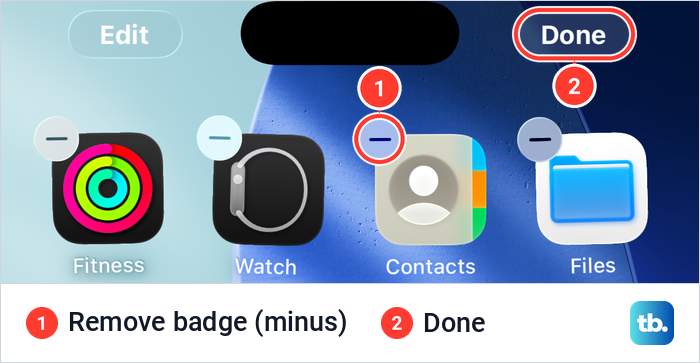
Tap the minus badge on an app, which Apple calls the Remove icon. It opened a Remove sheet with the same line about keeping the app in your App Library, and Apple's steps are to tap Delete App and then Delete. Repeat for each app, then tap Done to stop the jiggling. Each app gets its own confirmation, so this is quicker than the menu but still one app at a time.
Delete an app from App Library
App Library is where to look when an app is on no Home Screen page, for example because its icon was removed earlier. Swipe left past your last Home Screen page. On iOS 26.5 it opened with an App Library search field at the top and the apps sorted into folders below.
Tap the search field and type the app's name, or scroll the list that opens. Touch and hold the app, tap Delete App, then tap Delete. In App Library the menu went straight to Delete App with no Remove from Home Screen choice, and the same warning about deleting the app's data followed.
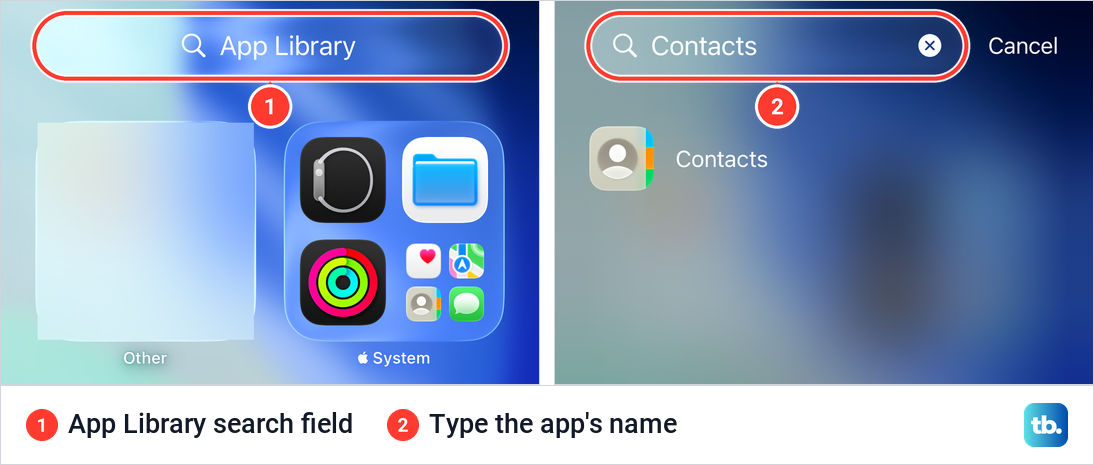
Apple adds that you can delete apps from Spotlight too, which opens when you swipe down from the middle of the Home Screen. If an app you know is installed turns up nowhere, it may be hidden, and our guide on how to unhide apps on iPhone shows where hidden apps end up.
Delete or offload an app in iPhone Storage
Settings shows how much room each app takes, which helps you decide what to remove. Open Settings > General > iPhone Storage. On our iPhone 17 Pro with iOS 26.6 the page showed a bar split into Applications, Photos, Messages, Music, iOS and System Data, a Recommendations card, and the list of apps with a Size button above it for sorting.
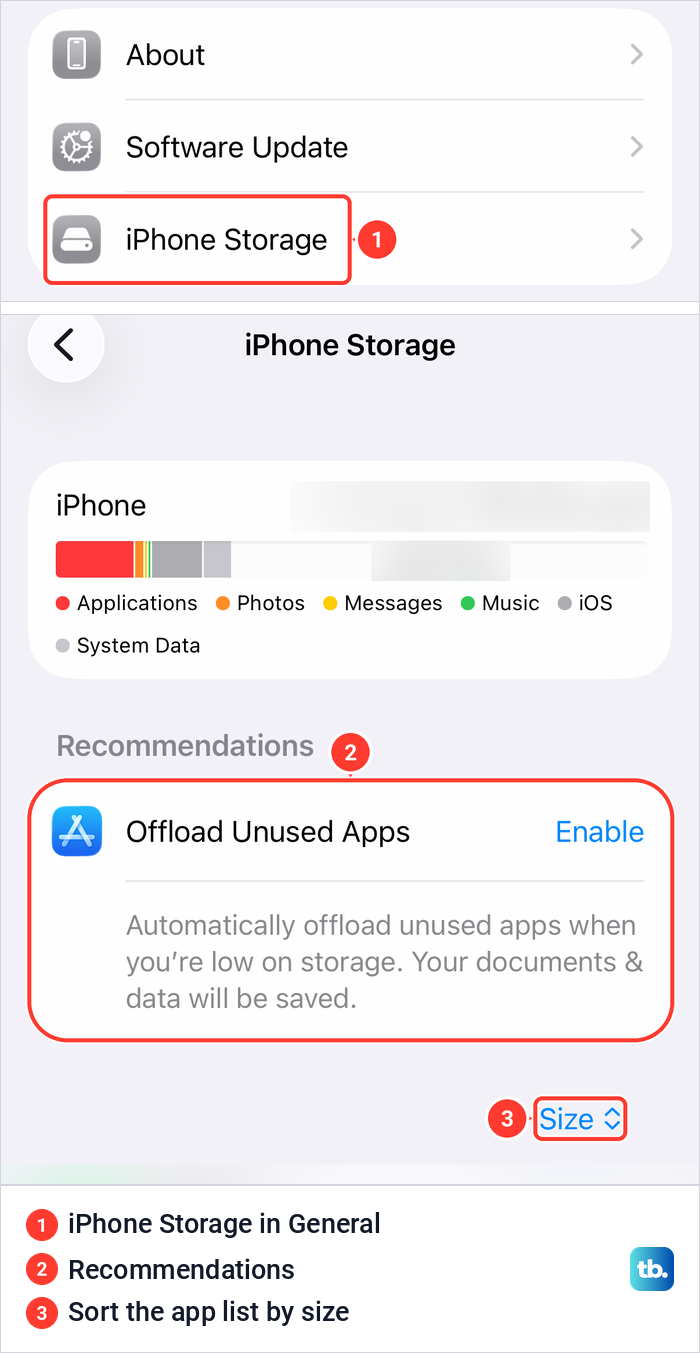
Tap an app in the list to open its page. Ours showed App Size and Documents & Data as two separate figures, and the second one is what Offload App keeps. Below them sit two buttons, each with an explanation printed underneath.
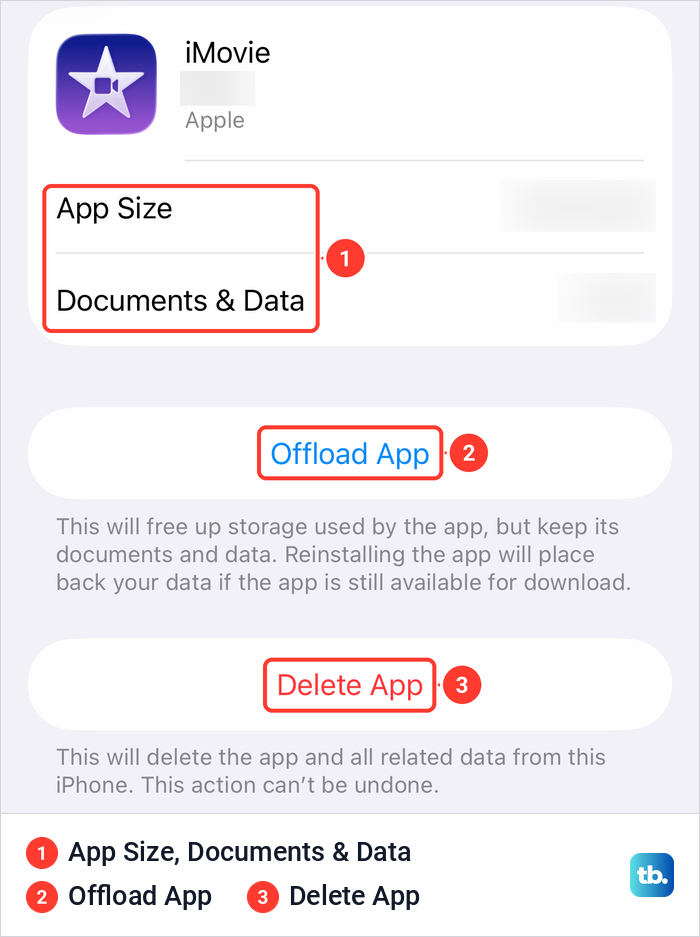
Delete App carries the warning "This will delete the app and all related data from this iPhone. This action can't be undone." Apple describes it the same way, as removing the app and its related data.
Offload App is the middle ground. Its note on our iPhone read "This will free up storage used by the app, but keep its documents and data", and added that reinstalling the app will place back your data if the app is still available for download. Offload games and apps you will want back with your progress, and delete the ones you are done with.
Let iPhone offload unused apps on its own
iOS can also offload apps you have not used in a while, without asking each time. The switch is Settings > Apps > App Store > Offload Unused Apps, and on our iPhone it was off. Its footer reads "Automatically remove unused apps, but keep all documents and data."
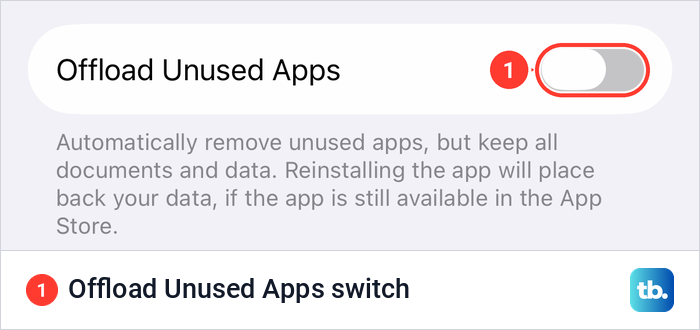
Apple says that when storage is low, the iPhone removes the app but keeps your documents and data, and the icon stays on the Home Screen with a cloud symbol that you tap to reinstall. The Recommendations card in iPhone Storage offered the same thing with an Enable button. Turn it on if you would rather not manage space by hand, and expect a short download when you open an app you had forgotten about.
Remove an app from the Home Screen without deleting it
Sometimes the goal is a tidier Home Screen, not more storage. Touch and hold the app, tap Remove App, then tap Remove from Home Screen. The app stays installed with all its data and still opens from App Library, which is why this choice frees no space.
This is also why an app can seem impossible to delete: its icon is gone, but the app is still on the phone. Find it in App Library and delete it there. If you want an app out of sight and locked rather than gone, you can hide apps on iPhone and lock them instead.
What deleting an app removes and what stays
Delete App wipes the app and its data from this iPhone, and our screen warned that the action can't be undone. A few Apple apps are exceptions, covered in the built-in apps section below. Apple says that if an app's data is stored in iCloud, such as photos or documents you saved through the app, that data isn't deleted when you delete the app.
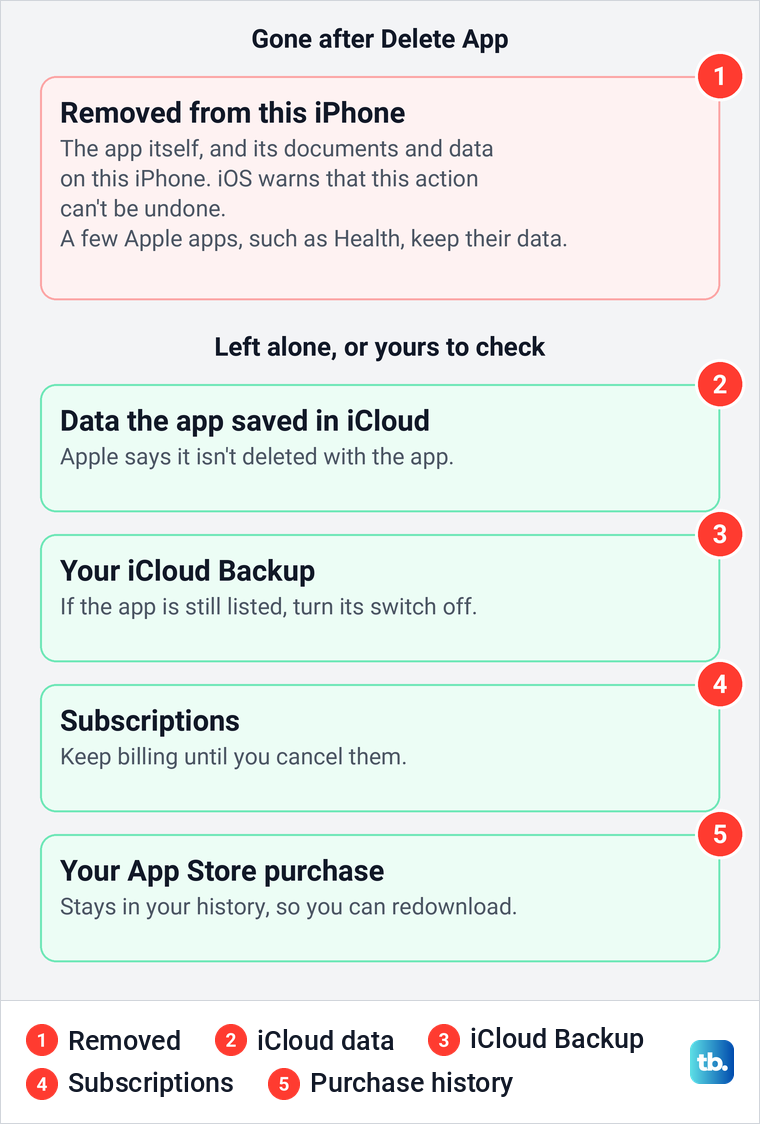
Two more things are untouched by Delete App. Subscriptions keep billing, and the app stays in your App Store purchase history, which is what lets you download it again without paying. Your iCloud Backup is a separate place to check, as the next section shows.
Apple's deletion steps only cover what is on the iPhone, so an account you created inside the app is a separate matter. Close it through the app or the service's website if you want it gone.
If you are clearing the phone to sell it or give it away, deleting apps one by one is the wrong tool. Erase the iPhone before you sell it instead, so every app and its data goes at once.
Remove an app's data from iCloud Backup
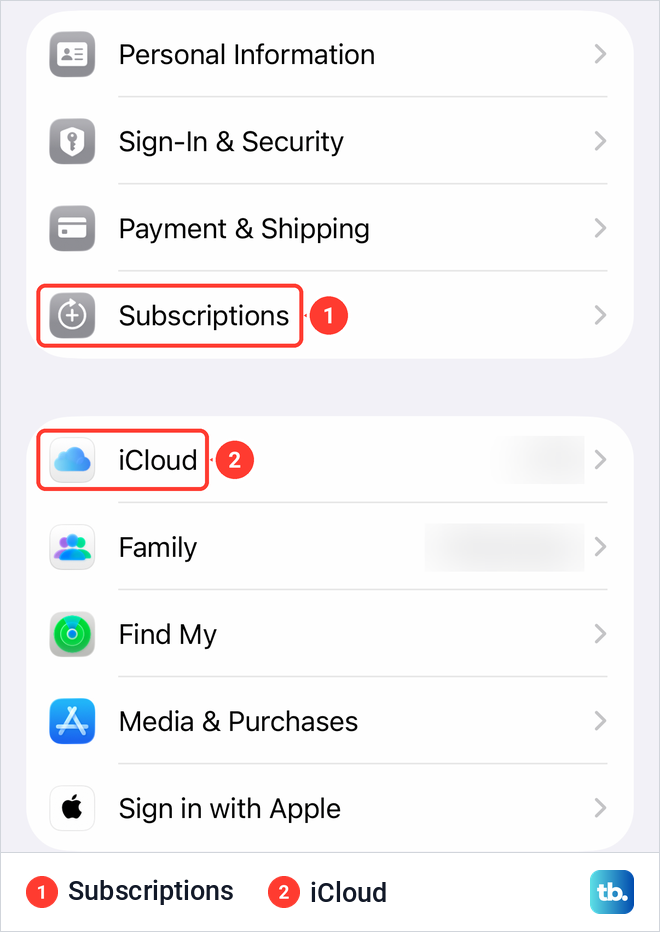
Your iCloud Backup is the place most people forget to check. To see it, open Settings and tap iCloud, which has its own row in the main Settings list on our iPhone 17 Pro with iOS 26.6, or go through your name at the top. You can check how much iCloud storage each part uses from there.
Tap Storage, which opened a page titled Manage Storage, then Backups and the device marked This iPhone. That opened Backup Details, with Last Backup, Backup Size and Next Backup Size at the top, one switch per app below, and Show All Apps for the full list. On our iPhone the footer also noted that the photo library is not included there because it is backed up as part of iCloud Photos.
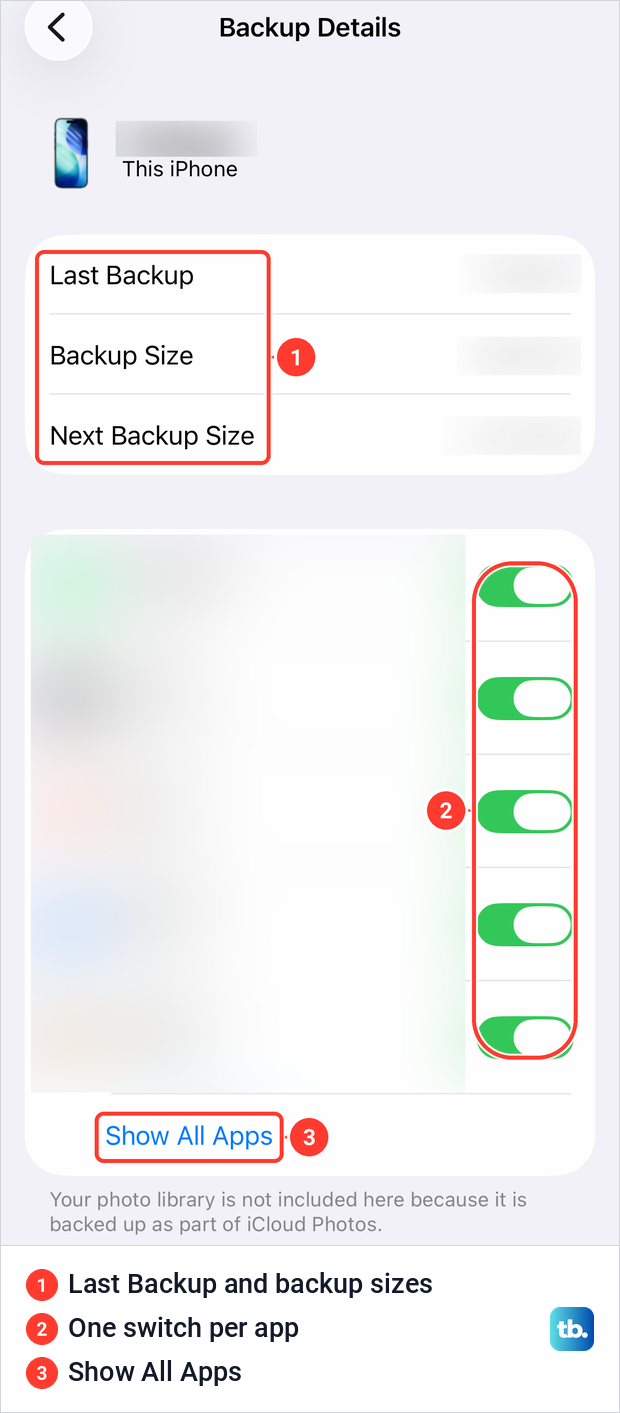
If the app you deleted is still listed there, turn off its switch, then tap Turn Off to confirm, as Apple describes. Apple says iCloud Backup then turns off for that app and removes the app's backed-up information from iCloud, and that some apps are always backed up and can't be turned off. Data the app synced to iCloud outside the backup is a separate place to check. Do this only if you are sure, because that backup copy is then gone from iCloud.
Further down the same page sits Turn Off and Delete from iCloud. Apple says that one deletes the backup of the whole device and turns off iCloud Backup for it, so leave it alone when you only want to drop one app.
Cancel the subscription before you delete
Apple is plain about this: if you delete an app, it doesn't automatically cancel in-app subscriptions. Cancel it first, so it is not forgotten once the icon has gone. In Settings, tap your name at the top, then Subscriptions, which sat in the first group of the Apple Account page on our iPhone 17 Pro.
Pick the subscription and tap Cancel Subscription, as Apple describes. That list holds subscriptions billed through Apple. If yours is not there, Apple says you might have bought it from another company, so check your bank or card statement to see who bills you and cancel with them.
The same Subscriptions list is also in the App Store, under your account picture. Our full walkthrough shows how to cancel a subscription on iPhone, free trials included.
Which built-in Apple apps you can delete
Most Apple apps that come with the iPhone can be deleted the same way. Apple's iOS 26 list includes Books, Calculator, Calendar, Contacts, FaceTime, Files, Find My, Health, Mail, Maps, Music, Notes, Passwords, Podcasts, Wallet and Weather, among others. Messages, App Store, Camera, Photos and Safari are not on it, and Apple says some of its apps can be removed from the Home Screen but can't be deleted from iPhone.
The European Union and Japan are the exception. Apple says users in the EU can also delete Messages, App Store, Camera, Photos and Safari, and users in Japan can delete Safari. Deleting Photos does not delete your photo library, which stays on the device and keeps using storage.
Some of these need a replacement first. Apple says Messages needs another messaging app set as your default, the App Store needs another app marketplace set as the default for app installation, and Safari needs another default browser. Without Messages, the iPhone might not be able to send or receive text messages, including verification codes for your accounts, and deleting Safari also deletes your browsing history and website data on the device.
Deleting a built-in app has side effects that Apple spells out. If you delete Contacts, your contact information stays available in Phone, Messages and Mail, and deleting Calculator removes the calculator from Control Center. Deleting Health leaves all of your health data on the iPhone. Removing Find My does not turn off location sharing or Find My for your device, and those are two separate jobs.
To stop sharing your location with someone after deleting Find My, Apple's steps are Settings, your name, Find My, then Friends, then the friend and Stop Sharing My Location. To switch off Find My for the iPhone itself, follow our steps to turn off Find My iPhone in Settings.
There are two more catches. With an Apple Watch paired, deleting a built-in app on the iPhone also deletes it from the watch, and Apple asks you to unpair the watch before it lets you delete Health or the Watch app. And if what bothers you about Safari is the trail it keeps, you can clear search history on iPhone without deleting the browser, wherever you live.
Why there is no Delete App option
If the Remove sheet offers only Remove from Home Screen, work through these causes in order. First, check whether the app is one of the built-in apps Apple doesn't let you delete, listed above, and Apple also suggests updating iOS. For any other app, the usual cause is a Screen Time restriction, and on iOS 26.5 the setting sits deeper than most guides say.
Open Settings > Screen Time > Content & Privacy Restrictions. On iOS 26.5 the master switch at the top was off and every option below it was dimmed. When we switched it on to look, App Installations & Purchases opened a page whose last section, App Management, held Deleting Apps with Allow and Don't Allow, and we switched it back off afterwards.
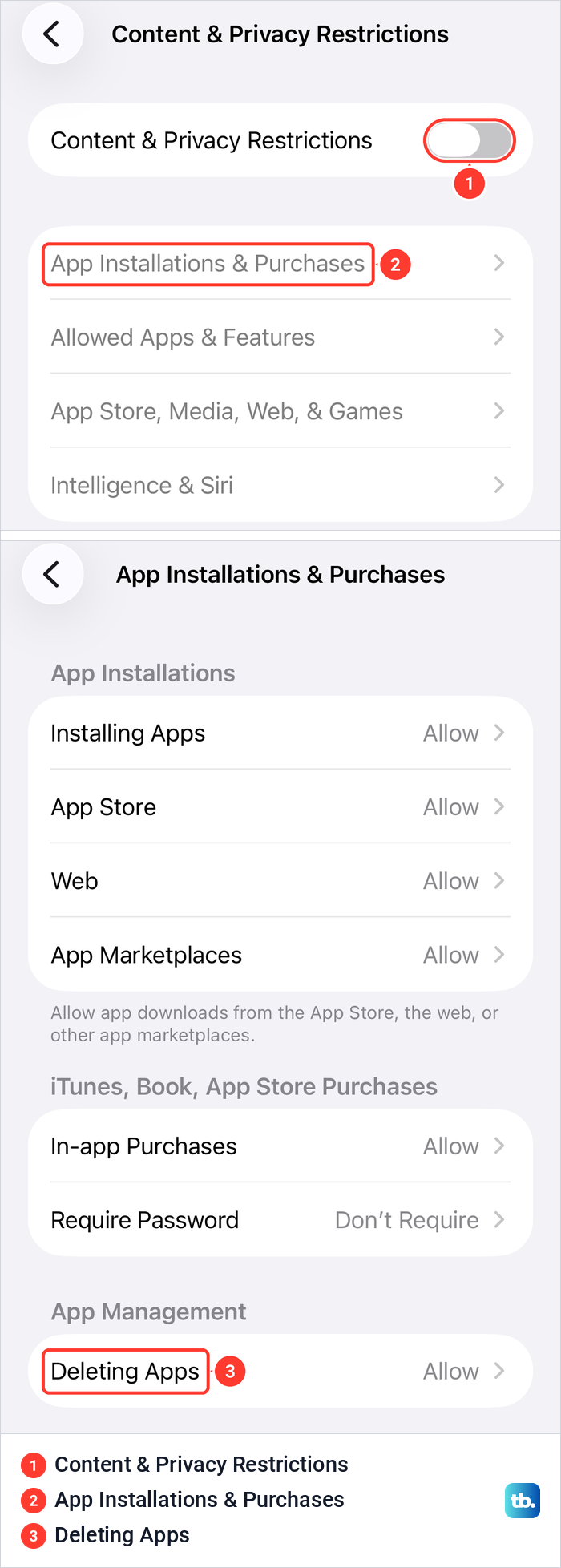
Set Deleting Apps to Allow, then try again. Apple's current help page for this problem words the route as Screen Time > Apps & Websites > Restrictions, so follow those labels if your iPhone shows them.
Next, check whether a school or employer manages the iPhone. Apple's steps are Settings > General > VPN & Device Management, then look for a profile listed under Mobile Device Management. On our iPhone 17 Pro the row sat near the bottom of General, above Legal & Regulatory.
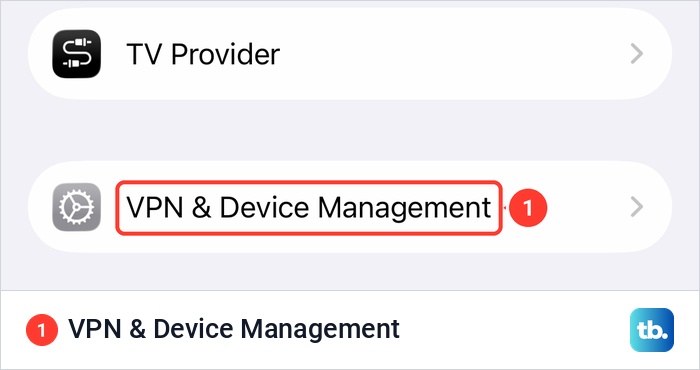
If a management profile is there, Apple says to contact your organization's IT admin or employer, because a managed iPhone may not let you delete apps. Last, look for a focus or blocker app. Apple names Screen Zen, Cape, Opal, Freedom and Refocus as examples of apps that might restrict how you use apps, so open the one you have and check whether it blocks app deletion.
Get a deleted app back
Deleting an app does not remove it from your purchase history, so you can download it again without paying, as long as it is still in the App Store. Open the App Store and tap your account picture at the top. On our iPhone 17 Pro that opened a sheet titled Apple Account, with Apps & Purchase History below App Updates and Subscriptions.
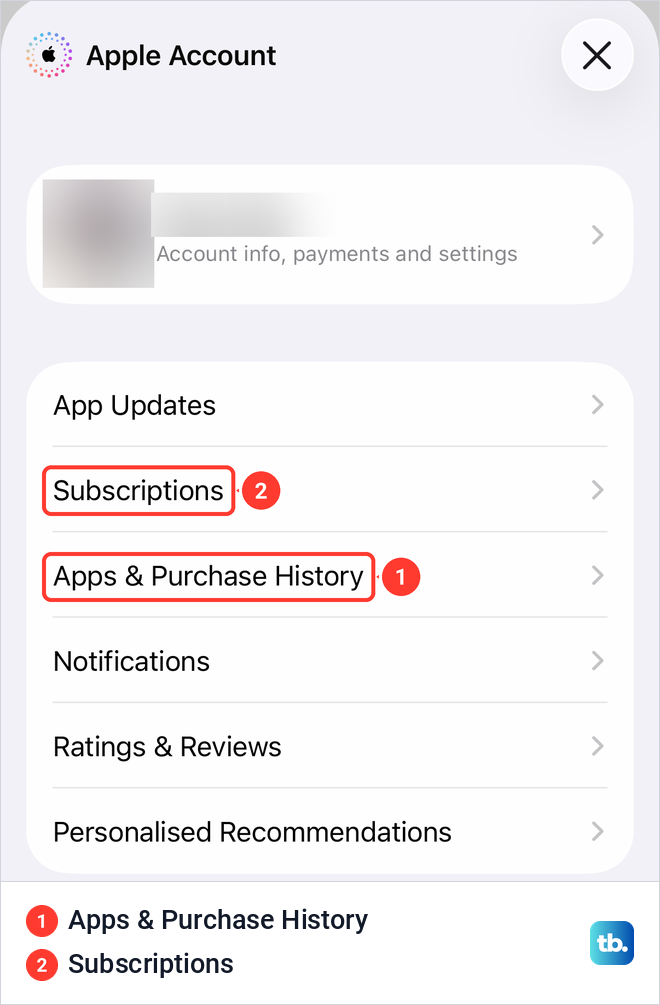
Apple's steps continue from there: tap Your Apps, then Not on this iPhone, find the app and tap the Redownload button. This is the same account sheet you use to update apps on your iPhone. Apple adds that in-app purchases can't be redownloaded, though some can be restored if you bought them through Apple.
To get a built-in Apple app back, Apple says to search the App Store for its exact name and tap Redownload. Its data depends on what the app kept in iCloud or in the company's own account, unless it is one of the few Apple apps that keep their data. If older data exists only in an earlier backup of the whole iPhone, restoring that backup is a separate job covered in our guide to restore your iPhone from a backup.
How we tested this guide
We tested this on iOS 26.5, going through the touch and hold menu for an app, stopping at the Delete App prompt.
Frequently Asked Questions
Why can I only remove an app from the Home Screen?
The app is either a built-in one that Apple doesn't let you delete, or something is blocking deletion. Check Settings > Screen Time > Content & Privacy Restrictions > App Installations & Purchases > Deleting Apps, or Screen Time > Apps & Websites > Restrictions if your iPhone shows those labels, then VPN & Device Management in General and any blocker app.
How do I delete an app that is not on my Home Screen?
Swipe left past your last Home Screen page to App Library and search for it. Touch and hold the app, tap Delete App, then tap Delete.
Does deleting an app delete its data?
It deletes the app and its data on the iPhone, and iOS warns that this can't be undone, though Apple says deleting Health leaves your health data on the iPhone. Data the app stored in iCloud stays there, and if the app is still listed in your iCloud Backup, you can turn its switch off in Backup Details.
What is the difference between Delete App and Offload App?
Delete App removes the app and all related data from the iPhone. Offload App frees the space the app uses but keeps its documents and data, and reinstalling puts them back if the app is still available.
Will deleting an app cancel my subscription?
No. Apple says deleting an app doesn't automatically cancel in-app subscriptions, so cancel it in Settings under your name and Subscriptions first, or with the company that bills you if it is not listed there.
Can I reinstall an app I deleted?
Yes, if it is still in the App Store. Open the App Store, tap your account picture, then Apps & Purchase History, Your Apps and Not on this iPhone, and tap Redownload.
Can I delete several apps at once on iPhone?
Not in a single step. Jiggle mode lets you work through them quickly, but each app gets its own Delete App and Delete confirmation.