Your iPhone can expose message details on the Lock Screen, in Notification Center, on Apple Watch, on a Mac, in CarPlay, and inside Messages. Start by hiding previews, then choose the tighter control that matches the problem: mute one chat, lock Messages, filter unknown senders, delete threads, or stop alerts on other devices. Apple does not offer an Archive button for the built-in Messages app on iPhone, but these controls cover the practical privacy fixes.
Hide message previews from notifications
The most common privacy problem is message text appearing in notifications before you unlock your iPhone.
Open Settings, then tap Notifications. Tap Messages, then tap Show Previews. Choose Never to keep message content out of notification previews. Choose When Unlocked if previews should appear only after your iPhone is unlocked.
Mute one conversation without deleting it
This fixes one chat that keeps interrupting you while keeping the conversation in Messages.
Open Messages and find the conversation in the conversation list. Swipe left on the conversation, then tap the Mute button. Or open the conversation and tap the contact or icon at the top. Turn on Hide Alerts.
Lock the Messages app on iOS 18 or later
For stronger privacy on a shared or borrowed phone, use iOS 18 app locking from the Home Screen. Touch and hold the Messages app icon until the quick actions menu opens, then choose Require Face ID, Require Touch ID, or Require Passcode.
Locking Messages requires authentication before the app opens. It also hides locked-app information from notification previews, search, Siri suggestions, CarPlay, and call history.
The iOS 18 hidden-app feature does not hide Apple’s built-in Messages app. Hide and Require Face ID applies to downloaded App Store messaging apps, such as WhatsApp, Signal, and Messenger.
Turn off Messages notifications completely
A noisy Lock Screen comes from Messages notifications being allowed across notification surfaces.
Open Settings, then tap Notifications. Tap Messages, then turn off Allow Notifications.
On current iPhone versions that group controls under apps, open Settings, then tap Apps. Tap Messages, then turn off Allow Notifications.
Show only a Lock Screen notification count
Use this when you want a cleaner Lock Screen across your iPhone, not only for Messages. It reduces visible notification detail globally.
Open Settings, then tap Notifications. Select Count as the Lock Screen notification layout. Your Lock Screen will show a notification count instead of expanded notification details, including for Messages.
Filter unknown senders out of the main inbox
Unknown texts can move out of your main Messages view and stay quiet unless you allow those alerts.
- 1.Open Messages and tap the Filter button at the top right of the conversation list.
- 2.Tap Manage Filtering.
- 3.Turn on Screen Unknown Senders.
- 4.Use Allow Notifications to choose which unknown-sender categories can notify you.
- 5.To review filtered texts later, open Messages, tap Filter, then choose Unknown Senders.
Filtering does not apply to senders you have replied to three times or more.
Delete conversations you do not want visible
Open Messages. In the conversation list, swipe left on the conversation you want to remove. Tap the Delete button. Or touch and hold the conversation, then tap Delete.
Deleted conversations move to Recently Deleted for 30 days unless you permanently delete them.
If you use Messages in iCloud, deletion syncs to other devices that use Messages in iCloud.
For permanent removal, open Messages, tap the Filter button, choose Recently Deleted, select the conversations, tap Delete, then confirm Delete.
Once you permanently delete a message from Recently Deleted, it cannot be undone.
Tip: on current iPhone guide paths, use the Filter button to reach Recently Deleted.
Stop messages from appearing on other Apple devices
When texts show up on an iPad or Mac, check forwarding and iCloud sync. On iPhone, open Settings, go to Apps, tap Messages, open Text Message Forwarding, and turn off the devices that should stop receiving SMS, MMS, or RCS texts through forwarding.
To stop Messages in iCloud on this iPhone, open Settings, tap [your name], tap iCloud, then tap Messages. If Messages is not shown, tap See All in the Saved to iCloud section, then turn off Use on this iPhone.
On a Mac receiving iMessages from the same Apple Account, open Messages, choose Messages, open Settings, select iMessage, click Sign Out, and confirm.
Use Focus or Screen Time when you need temporary quiet
Focus applies when you want message alerts hidden during work, sleep, downtime, or another routine. Screen Time applies when you want to limit access or communication during scheduled periods, including on a child’s device.
For Focus, open Settings, then tap Focus. Choose a Focus such as Do Not Disturb, Personal, Sleep, or Work.
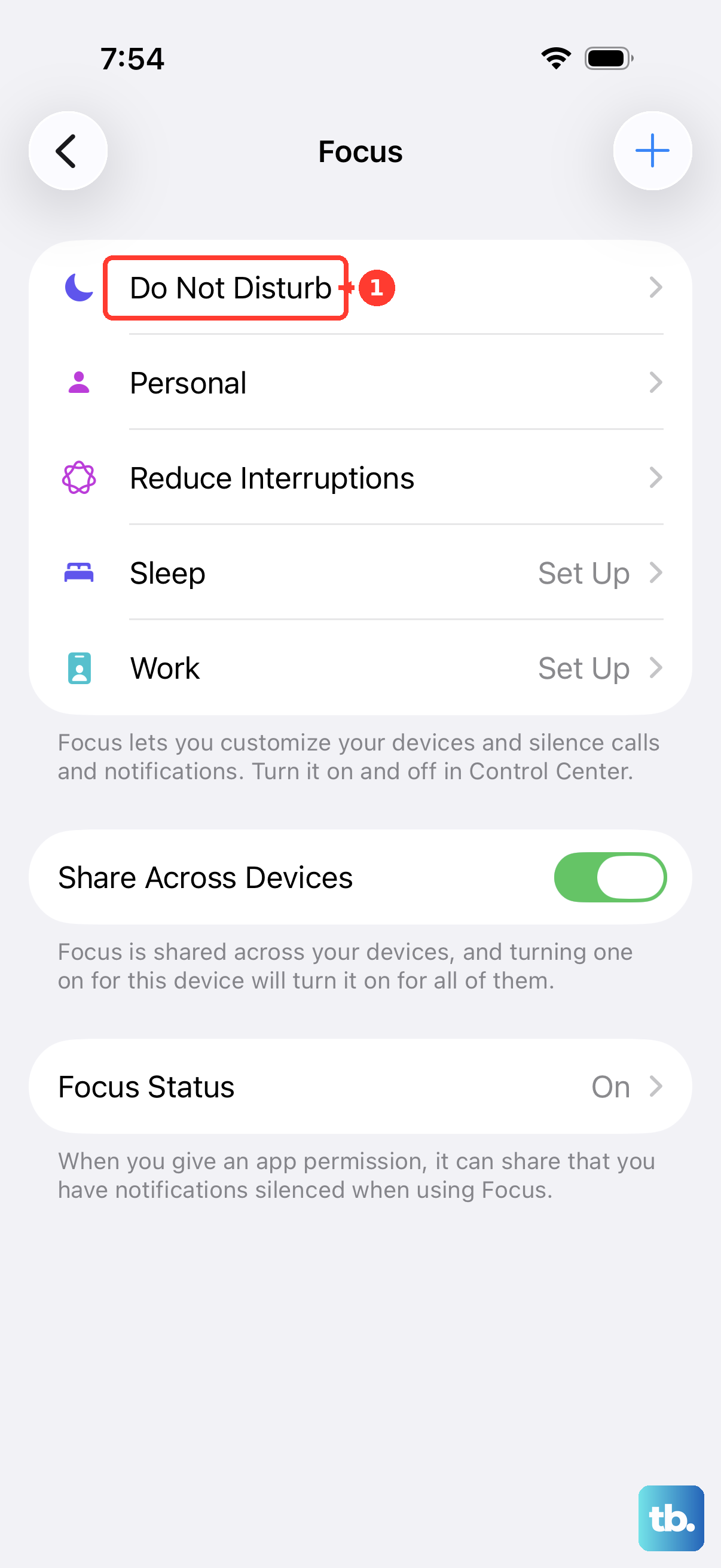
Tap People, then choose Silence Notifications From. Tap Add People, then select the contacts you want silenced while that Focus is on.
To silence the whole Messages app during a Focus, open that Focus, tap Apps, choose Silence Notifications From, then add Messages.
For Screen Time limits, go to Settings, Screen Time, App Limits, then Add Limit, and set a limit for Messages or its category.
For communication limits, open Settings, tap Screen Time, open Communication Limits, and choose who can communicate during allowed Screen Time or Downtime.
Frequently Asked Questions
Can I archive iPhone Messages instead of deleting them?
No. Apple does not provide an Archive command for SMS, iMessage, or RCS conversations in the built-in Messages app. Use Hide Alerts, sender filtering, app locking, or deletion instead.
Can I hide the built-in Messages app on iPhone?
No. The iOS 18 hidden-app feature works for downloaded App Store apps, but Apple’s built-in Messages app cannot be hidden that way.
Does muting a conversation hide the messages?
No. The Mute button and Hide Alerts stop alerts for that conversation. The messages still arrive and remain visible inside Messages.
Can deleted messages still be recovered?
Deleted conversations move to Recently Deleted for 30 days unless you permanently delete them. Permanent deletion from Recently Deleted cannot be undone.